

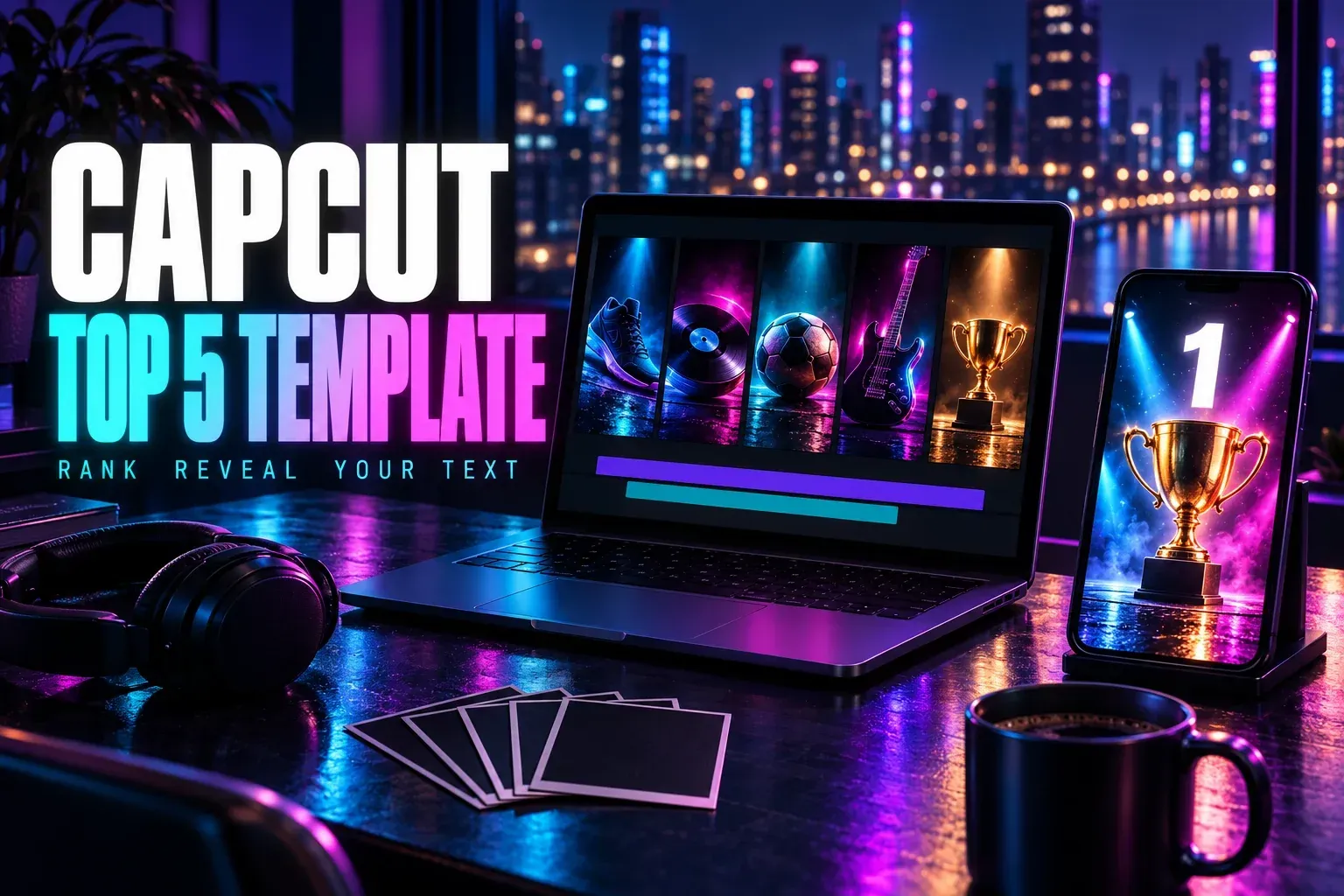
A CapCut top 5 template is a countdown edit: you rank five favorites with your own clips and put your words on screen. Most of the 19 compared listings ask for 10 clips in about 22 seconds, and most of those listings are square or 3:4 rather than full screen. Among the 19 countdown templates compared here, the most used was TOP 5+*YOUR TEXT* by Extra_Sidd, with about 306K uses. For TikTok or Reels I'd open Ninja Cut's Top 5 Trend instead, because it has the highest shown use count among the four 9:16 listings in this comparison.
Google mixes two searches here. Several results are galleries like CapCut's 5-clip template page, which collects templates around five clip slots, and its 5-photo templates, which are collages and beat edits. If that's what you wanted, those pages are the right place. This page is about the ranked countdown. Below I name the seven top 5 templates worth opening, show what 19 of them have in common, and cover the "your text" slot, the frame, phone steps, dead links, the end logo and a hand rebuild for PC.
What a top 5 edit is
A top 5 edit ranks five things you care about, such as your favorite singers or your best moments of the year, and puts your own words on screen for each place. CapCut's Top 5 template collection shows how the trend looks in practice. Five of the 20 saved gallery listings have "your text" in the title, so the writing is half the edit, and three are tagged #freezeframe, making a held-frame reveal a useful style to try.
Extra_Sidd is credited on six of the 20 saved gallery listings, including the three with the highest shown use counts. The other names are spread thin, from Crimson's two freeze frame versions to single uploads such as Top 5 Moments and Top 5 artistas fav.
Which top 5 template to open
The first four rows have the highest shown use counts in this saved comparison. The last three are there for the frame and the clip count. Use counts are what CapCut showed when I pulled them, and they can change.
| Template | Creator | Clips | Length | Frame | Uses | Open it when |
|---|---|---|---|---|---|---|
| TOP 5+*YOUR TEXT* | Extra_Sidd | 10 | 28 s | 1:1 | 306.61K | You want the most used one for a square post |
| Top 5 Your Text | Extra_Sidd | 10 | 26 s | 3:4 | 296.79K | You want a portrait 3:4 feed post |
| TOP 5+YOUR TEXT | Extra_Sidd | 10 | 22 s | 3:4 | 275.49K | You want a shorter 3:4 option |
| Top 5 Edit 1:1 | Crimson | 10 | 19 s | 1:1 | 186.05K | You want a freeze-frame-style reveal |
| Top 5 Trend | Ninja Cut | 10 | 21 s | 9:16 | 28.03K | It's going full screen on TikTok, Reels or Shorts |
| Top 5 template | Hazim EvilGame | 6 | 17 s | 9:16 | 20.64K | You only have five or six clips |
| Top 5 Template | Ahsan Editz | 6 | 22 s | 9:16 | 1.67K | You want the one Google shows, tagged #edittext |
My pick depends on where the video goes. For TikTok, Reels or Shorts I'd start with Ninja Cut's Top 5 Trend. It had the highest displayed use count among the 9:16 countdowns in the collection, it runs a typical 21 seconds, and its description calls it a Top 5 "Your Text" edit, so its frame and listed format fit that job. For a square post, Extra_Sidd's TOP 5+*YOUR TEXT* is the square option I'd open first, because its ten slots and "your text" title fit that job. Its shown use count leads this comparison; it does not guarantee the result.
Ahsan Editz's page is the only single top 5 template in the saved Google top ten, but its 1.67K uses are the lowest of the 19 I compared. Its description, "Edit Your Top 5" with an #edittext tag, makes it a reasonable 6-clip vertical option, not the trend's main template.
What 19 saved top 5 listings have in common
I compared the clip count, length, frame and uses of 20 saved listings from CapCut's Top 5 collection, plus the one from Google's results. One meme upload with no top 5 name was dropped, and so was a one-clip VR boxing meme that only borrows the title. That leaves 19 countdown templates.
| Measure | Result across 19 saved top 5 listings |
|---|---|
| Clips needed | Median 10, range 5 to 10; 14 of 19 ask for exactly 10, the other 5 ask for 5 or 6 |
| Length | Median 22 s, average 23.3 s, range 13 to 40 s; 17 of 19 run 30 s or less |
| Runtime divided by clip count | Median 2.5 s, range 1.8 to 4.2 s |
| Frame | 1:1 in 7, 3:4 in 7, 9:16 in 4, one not listed |
| Uses | Median about 23.8K, range 1.67K to 306.61K; 5 above 100K, 13 above 10K |
The numbers settle the clip question. Among these 19 listings, a top 5 template usually wants ten clips, not five. All six templates tagged #5clip, every one by Extra_Sidd, still list 10 clips, so read the count on the listing and ignore the hashtag. I'd prepare ten short clips, roughly two for each place on your list, then let the preview show which slot belongs to which rank.
The median runtime divided by clip count is 2.5 seconds; individual holds can differ. I'd use that as a starting point, then preview each reveal so the viewer can read the rank and see the pick. The other point is the frame: 4 of the 19 listings specify 9:16.
For other edits built on a list or a year, our CapCut recap templates guide and trending CapCut templates cover the wider set, and CapCut slideshow templates suits a ranking made of photos.
How to use a top 5 template on your phone
Use the phone app for this template-link route. These steps follow CapCut's guide to using and exporting templates:
- Open the template. From TikTok, tap the CapCut template link in the bottom-left corner of a video made with it, then tap "Use template in CapCut". Inside CapCut, tap Template at the bottom of the screen and open the one you picked.
- Tap "Use template", choose Videos (or Photos for a still ranking) and select your clips.
- Tap "Preview" to open the template editing page.
- Match clips to ranks. Play it once and note which slot carries which place. Select a segment at the bottom and tap Edit to replace or crop it, so your number one lands where the template builds to its finish.
- Change the text if the template lets you. The next section covers what to do when it doesn't.
- Check the last seconds, then tap "Export" in the top-right corner.
To keep a template for later, tap the "…" button on its playback page and choose Copy link. Save video only stores the template's demo video on your phone, not an editable template. If there's no Template button at all, CapCut says the feature isn't available in your region or app version yet. Our CapCut templates guide covers finding and editing templates in general, and how to post on CapCut covers sharing the result.
Can you change the "your text" part?
Only if the creator allowed it. When someone publishes a template, they pick which clips other people can replace. CapCut's help on replaceable clips says every other element stays locked unless the creator separately turns on text or audio editing, and it even suggests creators put non-editable text like "Your Video Here" on screen as a cue. So a big "YOUR TEXT" in the preview can be an instruction, not a field you can type into.
Here's how I'd check it before spending time on clips:
- Look for a text control in the template editor. If the template exposes editable text, select it and type your list. CapCut's text editing help says to tap Text, select the text track, then tap the text to change it.
- If the words won't select, they may be locked or baked into the video. Text baked into a video or effect layer can't be opened as normal text. Pick another template from the table, or rebuild the countdown with the steps below, where every line is yours.
- If editable text won't change, CapCut's same help page suggests restarting the app and the phone, then CapCut, Settings, Clear cache. Don't clear the app data in your phone's settings and don't uninstall to fix it, because both delete local projects.
Keep each line short. Start with a name and number, then check the longest line during its reveal in the preview. If the text vanishes or sits behind the video, CapCut text not showing covers the usual causes, and the best CapCut fonts helps when you rebuild.
Square, 3:4 or full screen
Fourteen of the 19 templates are square or 3:4. That's fine for an Instagram feed post, but when shown without cropping on a 9:16 screen, a square edit leaves empty space above and below. If the video is going to TikTok, Reels or Shorts, choose one of the four 9:16 templates, or rebuild on a 9:16 canvas.
Check the sizes for where it's going with TikTok video size, Instagram Reel size or YouTube Shorts size. For a square template, crop each clip so the subject sits in the middle; cropping in CapCut helps if you prepare clips first.
Can you use it on PC or CapCut Online?
These are creator-attributed templates. Availability on PC and CapCut Online varies by version, region and the template. CapCut's template-search help describes computer routes, while some desktop versions have more limited support. Try the phone route above for these links. If a template is unavailable on your computer, build the countdown by hand so you control the text, font and timing of every reveal.
The link opens nothing, or the template won't load
Work down this list in order, cheapest check first. It follows CapCut's fix for templates that can't be used and its reasons templates don't appear.
- Update CapCut from the App Store or Google Play. Don't uninstall it first: CapCut warns that this can delete local drafts and unfinished projects.
- Reset the connection. Templates download from CapCut's servers, so switch between Wi-Fi and mobile data, or turn Airplane mode on and off.
- Check permissions. Allow storage access for CapCut, then close the app fully and reopen it.
- Sign in. Some templates only show up after you log in.
- Try another template from the table. Some templates are limited by region, and a creator can delete a template or make it private, which leaves its link pointing at nothing.
If none of that works, our CapCut templates not working guide goes deeper, and CapCut after an update covers controls that moved in a new version.
Logo at the end, or a Pro template?
Two different problems, two different fixes.
The ending clip. CapCut's template watermark page describes an editable ending clip carrying the CapCut logo. Scroll to the end of the timeline, tap that clip and delete it, then preview and export. The same page says to check text overlays, stickers and effects for branding, and to skip third-party template downloaders, which can lower quality or carry security risks. Our guide to removing the CapCut watermark covers the other places a logo hides.
A Pro template. A Pro template shows a purple "Pro" badge on its thumbnail, and its detail page says CapCut Pro is required for watermark-free export. Before export, check the Pro or paid-template notice for your account. CapCut's page on paid templates adds that a creator or the platform can switch a template to Pro later. The seven captured detail texts showed no Pro notice; check the current thumbnail and export prompt before you put work in. CapCut Pro features explains what the plan adds if you're weighing it.
Build your own top 5 countdown
When the text is locked, the link is dead or you're on a computer, building the countdown yourself takes a short session and every word on screen is yours.
- Set the frame. Start a project with your clips and set the canvas to 9:16 for full screen or 1:1 for a square post, using how to change the aspect ratio in CapCut.
- Put the clips in rank order, from five down to one, and trim each to two or three seconds with cut, trim and split in CapCut. As a planning example, ten clips at 2.2 seconds each fill 22 seconds, the median in this comparison.
- Add the song with our guide to adding music in CapCut, then put markers on the hits. For Web, our beat sync guide shows Add beat and Beats detection, and the markers don't cut anything for you, so line each rank change up with a marker yourself.
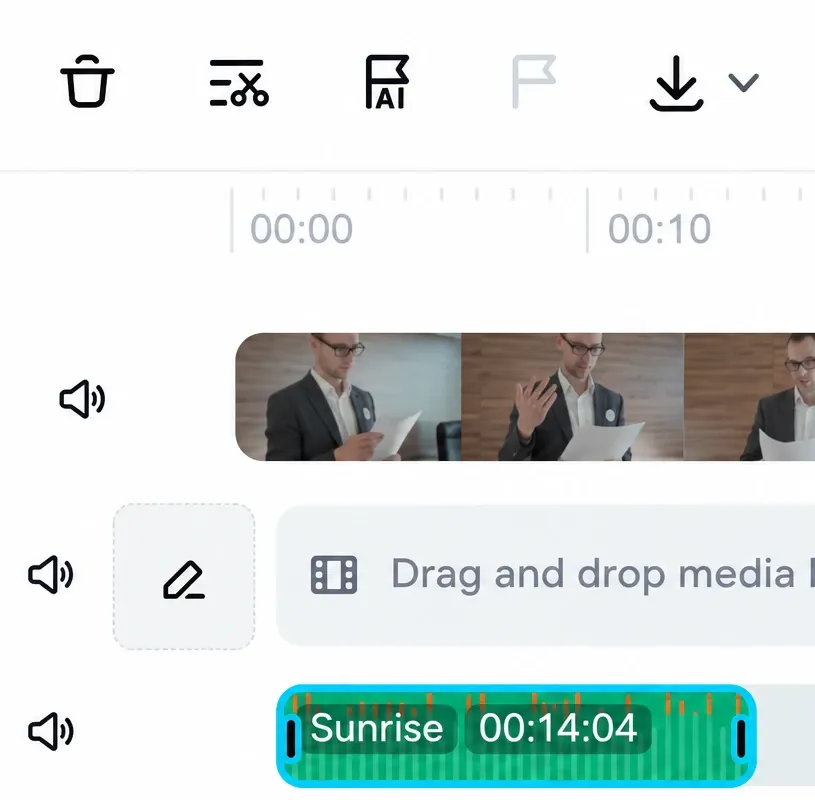
In CapCut Web, the AI flag detects beats and the neighboring plain flag marks one manually. Align the rank changes with the markers yourself. - Write the ranks. For each place, choose Text, then Add text, type the number and name, and drag the text clip's edges to match its clip, as our guide to adding text in CapCut shows. A short entry from CapCut text animations makes each line pop without slowing it down.
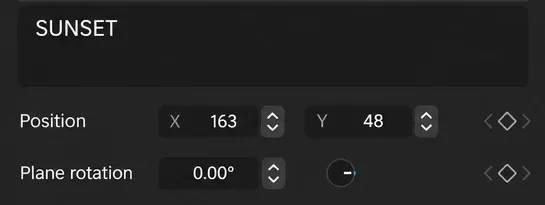
On Desktop, select your text layer to change its wording in the text-content field. Position moves the title within the frame. - Hold the reveal. The #freezeframe templates lean on this. Move the playhead to the moment you want to hold, choose Freeze to make a still, and drag its edges to set how long it stays, the way CapCut's freeze frame page describes. A short push in on that still with CapCut zoom in and out gives the number one its moment.
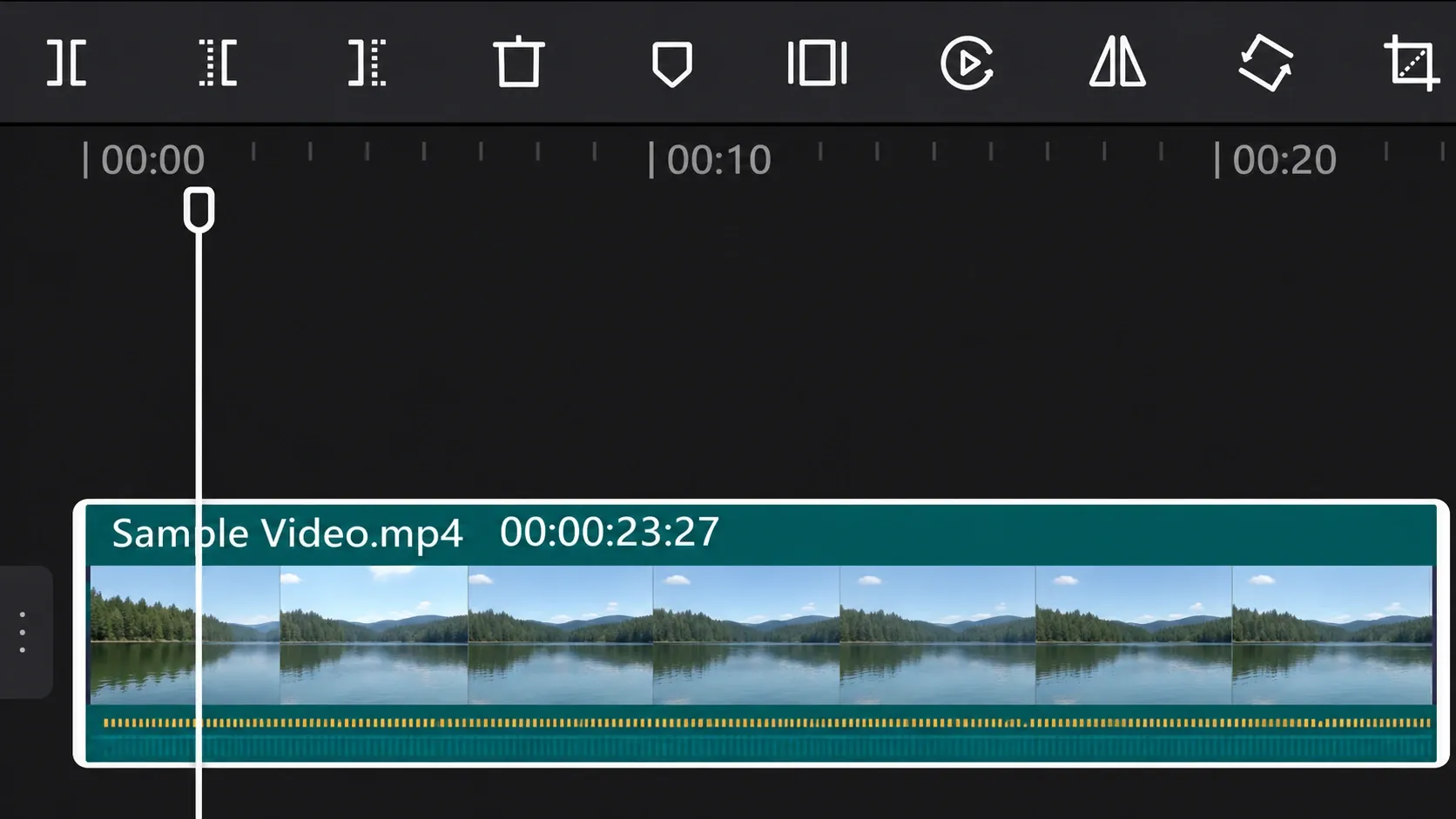
For the held reveal on Desktop, select the clip and place the playhead first. Freeze is the rectangle between two vertical bars just right of the shield icon. - Build the list on screen, if you like. I'd keep each rank's text running to the end of the video instead of stopping it with its clip, so by number one the whole list is visible. It's one drag per text clip and it gives the ending a payoff.
- Export with our CapCut export settings and post it with CapCut for TikTok or CapCut for Instagram Reels.
Menu names vary by version, but the order holds on phone and PC. On a computer, CapCut for PC covers the desktop layout, and transitions in CapCut is worth a look if you want one hard cut into number one. If you have eligible Creator Center access and the needed soundtrack rights, you can publish it as your own CapCut template and decide which clips and text other people can replace.
Get CapCut from the official store, not an APK
Template links open inside the official CapCut app, so use the official store route for these steps. Install it from the App Store or Google Play using our iPhone download guide or our Android download guide. Is CapCut safe covers permissions and account settings once it's installed.
CapCut top 5 template: questions
What is a top 5 template in CapCut?
It's a countdown edit where you rank five favorites with your own clips and words. Across the 19 saved top 5 listings compared here the median is 10 clips in 22 seconds, with a median runtime-to-clip-count ratio of 2.5 seconds, and most are square or 3:4.
How many clips do I need for a top 5 template?
Usually 10 in this comparison. Fourteen of the 19 listings ask for exactly 10 clips, and the rest ask for 5 or 6. Check the clip count on the listing before you start.
Why does a #5clip template ask for 10 clips?
The hashtag is the creator's label, not the slot count. All six #5clip templates in the saved Top 5 comparison list 10 clips, so go by the number on the listing.
Can I change the text in a top 5 template?
Only if the creator enabled text editing. If you can select the text in the template editor, type your list; otherwise, it may be locked or baked into the video. Pick another template or build the countdown by hand.
Why is my top 5 edit not full screen on TikTok?
Most of the 19 compared listings are square or 3:4. Pick a 9:16 one such as Ninja Cut's Top 5 Trend, or rebuild the countdown on a 9:16 canvas.
Can I use top 5 templates on CapCut PC?
Availability on PC and CapCut Online varies by version, region and template. Try the phone route above or the template options in your computer version. If the edit is unavailable there, rebuild it on PC with text layers, beat markers and a freeze frame for the reveal.
How do I remove the CapCut logo at the end?
Scroll to the end of the timeline, tap the short ending clip with the CapCut logo, delete it and export. If the template has a purple Pro badge, the watermark stays unless you have CapCut Pro.