

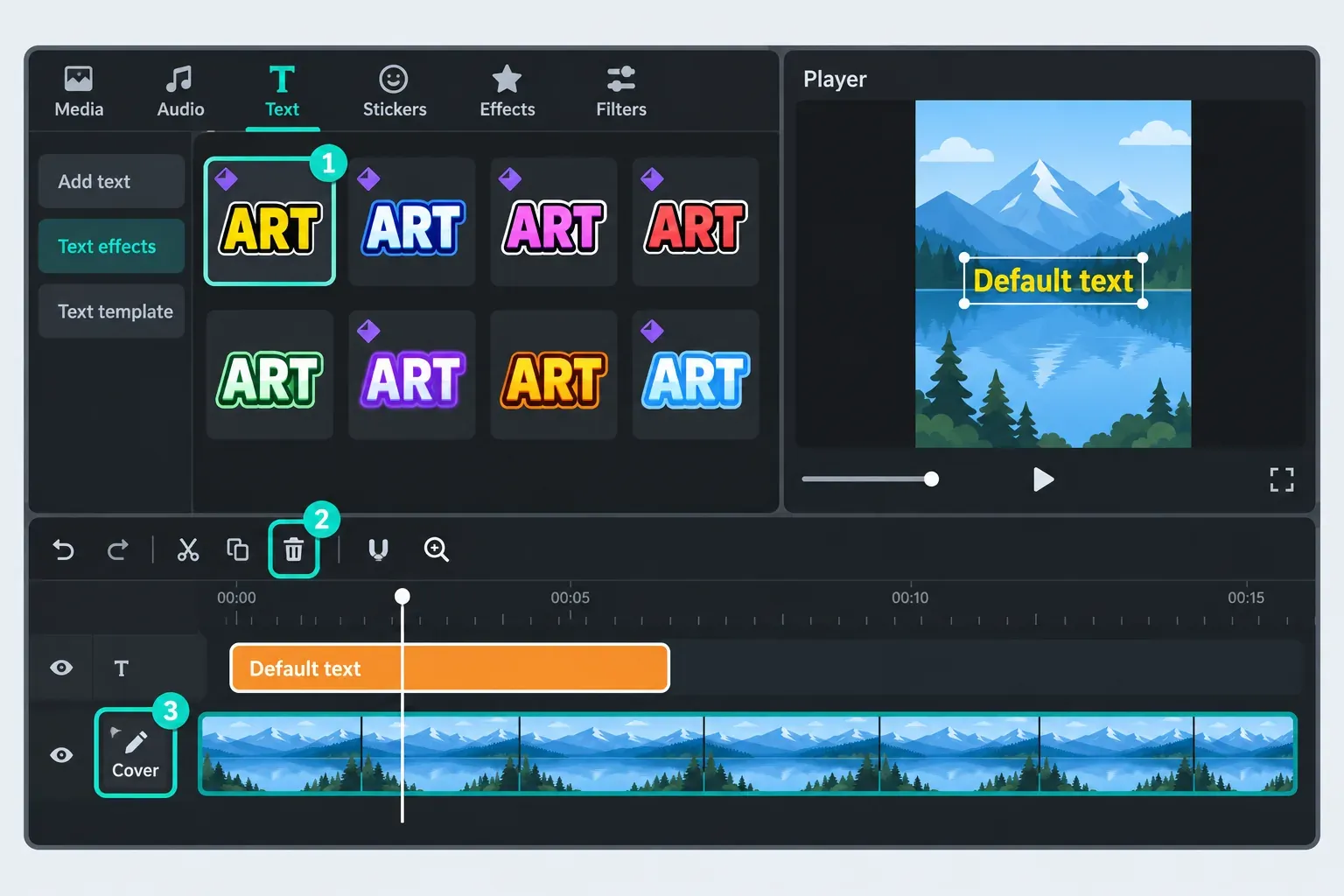
To remove a separate CapCut ending, select the branded clip at the end of the timeline and choose Delete. If the logo sits on top of your footage instead, figure out first whether it comes from an editable layer, an export setting or the source video. Deleting the outro can't fix all three.
CapCut does not watermark every export, but it can add one. According to CapCut's watermark-free export help, most exports can come out clean, and a mark usually traces back to one of three sources: a template's ending clip, a stock asset that needs attribution, or the default outro in export settings. Paid content is the other case. The Mobile export help for Pro projects describes a watermarked fallback after dismissing the subscription prompt. Other CapCut Help guidance says a Pro element can lock export, so do not assume that fallback is available for your account or project.
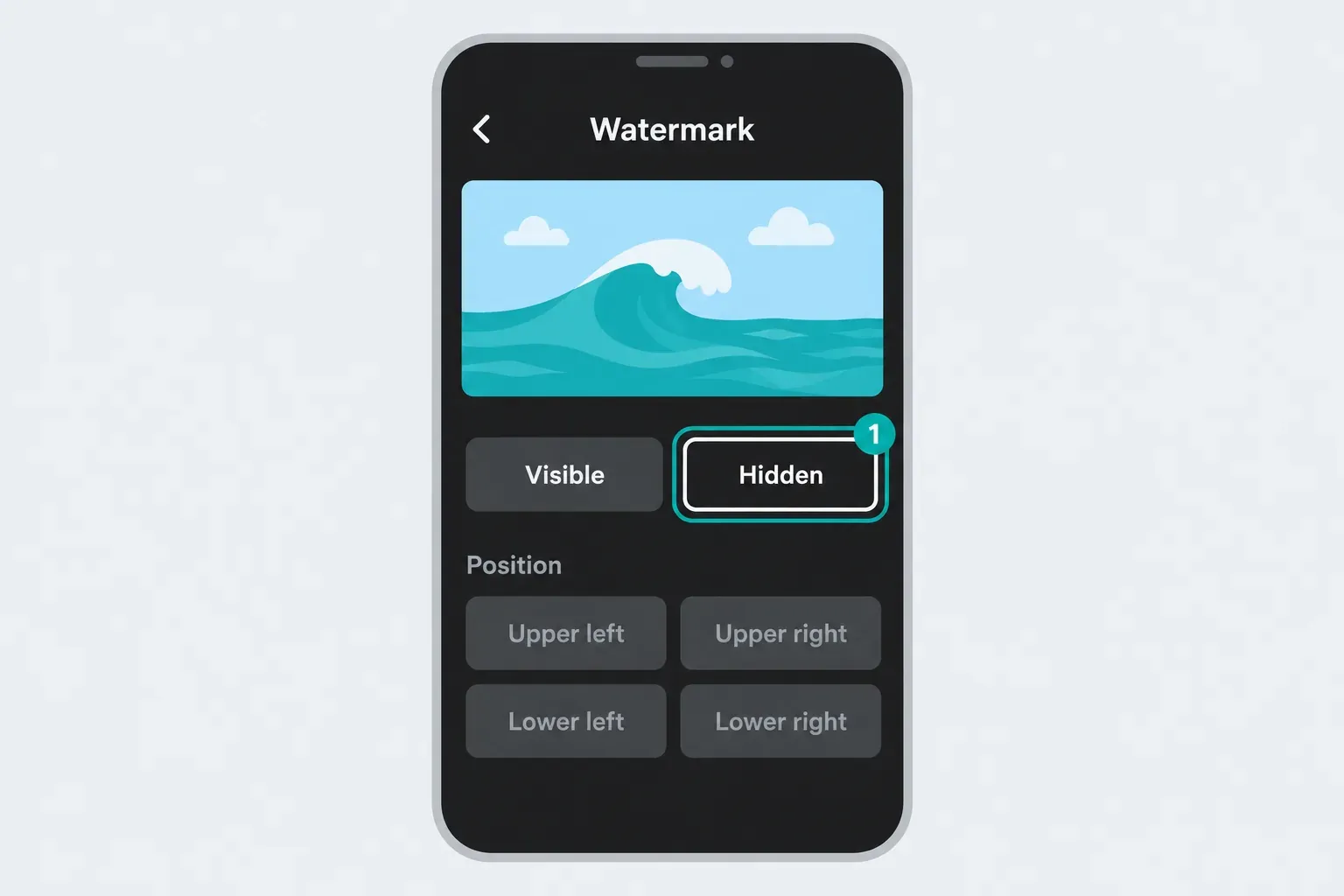
On Mobile, CapCut's instructions start at the icon beside Export and go to Watermark → Hidden. That option may require Pro. On Desktop and Web, check the export options your project gives you instead of hunting for the same phone controls. Use these steps only on your own media or on material you have permission to edit. They're not a way to bypass paid protections or strip required attribution.
Watermark controls and export offers vary by platform, account and project, so follow the restriction shown for the exact export.
First, identify which watermark you have
| What you see | What to check | First action |
|---|---|---|
| A short branded ending | A separate outro clip | Select and delete only that clip |
| A logo inside a template | Editable text, sticker, overlay or source footage | Find the permitted editable element, or change the template |
| Clean preview, marked saved file | Newest file, export watermark setting and paid-content notice | Read the exact export restriction |
| A Pro warning | Paid assets, tools, cover and output settings | Replace unwanted paid items in a copy |
| A mark in the imported video itself | The original source file outside CapCut | Obtain the clean authorized original |
| An AI label or provenance signal | Generator and destination disclosure rules | Keep required disclosures |
Pause on the first frame that shows the mark. If the editor gives you separate overlay, text or sticker tracks, hide them one at a time and then turn them back on. When the logo disappears, you've found its layer. That still isn't permission to remove it. If no layer controls it, open the imported file and check the same frame. A flattened template video isn't an editable template draft.
Before you delete or replace anything, keep the original project intact and work on a duplicate if your workspace lets you make one. Hold on to the source media and a separate project backup you can recover. An exported MP4 keeps the finished video but none of its editable tracks. For backups, see the project backup and transfer guide.
Remove a separate CapCut ending clip
CapCut's official template-watermark instructions describe this sequence for Mobile, Desktop and Web:
- Open the editable project and move to the end of its timeline.
- On Mobile, tap the separate CapCut ending clip. On Desktop or Web, click that clip.
- Choose Delete. Check the selection first so you do not remove your own final shot, credits or intentional end card.
- Review any higher tracks that continue past the cut.
- Play the last few seconds. If the logo also appears earlier, diagnose that mark separately.
You don't need Pro to delete an editable outro, and deleting it won't unlock a paid export option either. If your Mobile build shows Add default ending in Settings, switch it off to stop future automatic endings. If the switch is missing, delete the separate clip where you can. A template can also carry its own ending, whatever this setting says.
Check the watermark control in Export
Mobile: the documented Watermark route
CapCut's Mobile no-watermark walkthrough goes like this: tap the icon next to Export at the top right, open Watermark, then select Hidden. According to the walkthrough, that option requires Pro. Your build may show a different control or offer, so don't assume a free-use allowance from an old video applies to you.
Desktop and Web: inspect your export panel
Click Export and look for a watermark option or a restriction notice. Don't carry the phone's icon path over to a different editor. If the panel offers a clean-export option, check whether your account can use it and whether the project uses paid materials. With no watermark switch at all, go back to the timeline and source-file checks instead of hunting for an undocumented menu.
A locked option won't tell you the whole story. The prompt might point to the watermark setting, a template, another asset or an output setting. Changing the resolution alone doesn't remove a paid font or effect. If you're after quality settings and not the logo, our CapCut export settings walkthrough explains how resolution, frame rate and bitrate work.
Can you export without a watermark for free?
Sometimes, but there's no official promise that every project exports clean for free. CapCut's clean-export help covers deleting ending and template elements, while its Pro export guidance describes paid no-watermark settings and restrictions that come from premium content. Treat the notice on your own project as more specific than either blanket statement.
A short test with your own media can help you isolate the problem. It only proves what happened with that test's account, settings, duration and assets. It doesn't establish a free-export quota, and it can't guarantee that your longer project will behave the same way. The comparison checklist in the final section explains how to read the result.
Remove a watermark from a CapCut template
Look at the ending, the editable overlays, text and stickers. Only remove or replace a branded element if the template lets you edit it and the terms allow the change. If you can't select the logo on its own, go back to the clean source or pick another template. Don't crop, cover or inpaint a paid preview to avoid unlocking it.
A Pro badge, a paid template draft and a visible logo mean different things. CapCut's Pro-template guidance covers subscription access to the Pro collection. Single-purchase draft unlocks and member access to Edit More sit on a separate page, the template monetization help. Buying or unlocking a draft doesn't make you the owner of the creator's protected media.
The platform documentation doesn't line up either: paid-template purchasing help limits browsing and buying to Mobile, while Pro-template identification help describes a Desktop/Web gallery. So don't assume every paid template, purchase or subscription carries over unchanged between editors. Read the access notice on that exact template. If the library or template won't open, follow template troubleshooting instead.
A TikTok sharing button doesn't prove a template comes with a free clean-export entitlement. Stick to the export or sharing options the project legitimately offers. I wouldn't count on old "share to TikTok" tricks as a reliable way around paying for restricted content. The templates guide covers picking and editing templates without mixing them up with downloaded finished videos.
Resolve Pro content without guessing
CapCut can flag paid effects, fonts, music, stickers, templates, transitions, LUTs, AI tools or output settings. On your project copy:
- Open the paid-content notice and record every item or setting it identifies.
- Remove an unwanted paid item or replace it with an available free alternative. Check video, overlay, text, effect and audio tracks.
- Check the project cover. If it used Pro materials, reselect or redesign it. CapCut's remove-Pro instructions specifically warn that a cover can keep the project flagged after other elements are removed.
- Reopen Export and read the notice again. If it names no item, compare settings and effects one at a time rather than deleting unrelated work.
- If the exact paid asset is necessary, check what access the project requires. Do not purchase again merely because an existing subscription is not recognized.
If you already pay, check that the CapCut account you're signed into is the one tied to the subscription. A store receipt on its own doesn't show which CapCut login is open. The Pro access troubleshooting guide walks through the next steps. Keep your last working session and local projects intact, and don't sign out, reset app data or buy again just to test a guess.
A clean file isn't a commercial license. The linked Materials License Agreement distinguishes permitted uses, restricts removing proprietary notices and gives music its own rules; it directs US users to a separate US agreement. Check the terms that apply in your region and to each asset. To compare plans, see the Free versus Pro pricing guide.
A logo in the corner or middle of the footage
Where the logo sits doesn't tell you what put it there. The same corner can hold an editable sticker, an export mark or a logo baked into the imported file. Compare that frame in the source, in the editor and in your newest saved export. If the mark is already in the source, a subscription won't restore the missing pixels, and neither will deleting the ending clip.
Repair an embedded mark only on permitted footage
First, ask for the clean master or re-export your original project. If you need to replace your own old branding on your own flattened footage, do it on a copy. Don't remove another creator's attribution, a paid-stock preview mark or a required disclosure.
On Desktop, CapCut's AI Remove instructions give this route: select the clip, open Video → Basic → AI remove, brush over the area and choose Remove. The same page explicitly rules out copyrighted or paid content and limits the feature to personal or authorized materials. Being allowed to view or reuse a video doesn't necessarily mean you're allowed to remove its notices. Check any access or credit prompt before you run the tool.
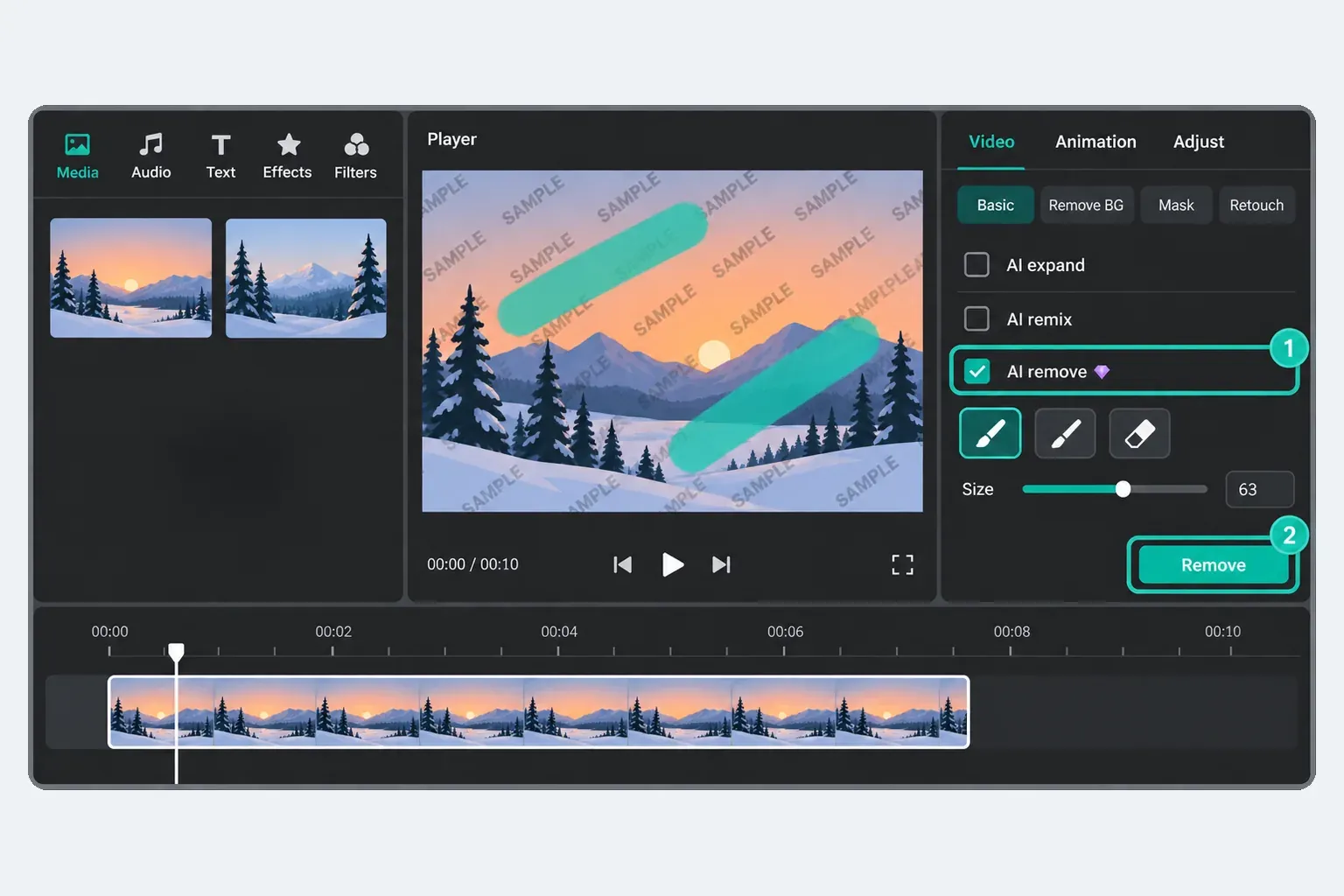
Check the whole repaired section at full size, paying close attention to faces, hands, captions and moving textures. Inpainting can leave smears or flicker, and it can't recover the exact original scene from hidden pixels. Cropping cuts away part of the composition. Blur or a cover graphic only hides content; it doesn't restore anything. If the repair fails, switch to a permitted clean source.
AI labels and Content Credentials
An AI disclosure and the default CapCut outro are separate things. CapCut's Dreamina Seedance 2.0 announcement describes visible labels, invisible watermarking and embedded C2PA Content Credentials for that model. That doesn't mean every ordinary CapCut export carries those signals.
C2PA's FAQ explains provenance records, which aren't the same as a logo you see during playback. Don't assume that cropping or deleting a logo strips provenance, or that credentials survive every conversion. Keep the disclosures your generator and destination platform require; a Pro subscription doesn't make them optional.
Final check when the watermark survives export
- Confirm the file. Open the newest saved video outside CapCut and match its filename, time and duration. Compare it with the editor preview, not an older export or repost.
- Check the same project. Review the ending, permitted editable layers, source file, export restriction and cover using the steps above.
- Make one small comparison if the cause is unclear. Create a separate project with a short piece of your own non-sensitive footage, no template and no added paid asset. Use comparable export settings where available. A clean result narrows the investigation toward differences in the affected project; it does not prove all exports on that account are free.
- Verify the affected project itself. If a short-section export is available, it can save time, but some restrictions apply to the whole project. Check the complete intended export before delivery, including its beginning, end and affected scenes.
- Escalate safely. If the restriction remains unexplained, use the support route linked from CapCut's export help or Help/Feedback in the app. Provide the platform, app version, exact message and a minimal non-sensitive example if needed. Redact account details, file paths and client material. Do not send original private projects or both full test files by default.
Don't screen-record a paid preview, install a modified APK or clear app data to get around the restriction. None of that resolves licensing, and it can put quality, account access or your projects at risk. If the trouble is something else, such as a stalled render, missing sound or another failure, pick the matching route in the CapCut Fixes hub.
CapCut watermark FAQ
Does CapCut add a watermark to every export?
Not to every export. CapCut's help says most exports can be watermark-free; a mark usually comes from a template ending clip, a stock asset that needs attribution, the default outro setting or, in the Mobile fallback described by one Help page, exporting with Pro materials without subscribing. Another Help page describes an export lock, so that fallback is not guaranteed. Inspect your project's export notice and verify its complete saved file.
Can I delete the CapCut ending for free?
Yes, when it is a separate editable timeline clip. Select that outro and choose Delete without removing your own final shot. This does not unlock a separate paid watermark setting.
Where is the Remove watermark option?
CapCut's Mobile walkthrough starts at the icon beside Export, then Watermark and Hidden, and describes that option as Pro. On Desktop or Web, inspect the available Export options and restriction notice. The phone's path is not a universal menu route.
Why is the watermark still there after deleting the ending?
Another mark may belong to a template layer, export setting, paid asset or imported source, or be an AI disclosure. Compare the same frame in the source, editor and newest saved file. If a Pro warning remains, also inspect the project cover.
Does CapCut Pro remove every watermark?
No. It can unlock eligible paid assets or a no-watermark option offered to that account, but it does not restore pixels behind a source logo, grant every asset license or make required AI disclosures optional.
Can sharing a template to TikTok remove the watermark for free?
Do not treat a sharing button or an old tutorial as proof of a free clean-export entitlement. Use the options legitimately offered for your exact template and account. Sharing does not grant permission to bypass paid restrictions.
Why does CapCut still ask for Pro after I remove paid effects?
Other paid elements, output settings or the project cover may remain. Read the export notice, check every relevant track and redesign a cover that used Pro materials. If you already subscribe, verify the correct CapCut account before considering any new purchase.
Can I use AI Remove on a watermark?
Only within the tool's permitted personal or authorized-media scope, not to remove paid-stock previews, another creator's attribution or required disclosures. Prefer the clean original and review the full repaired section because inpainting can distort detail or motion.
How do I stop the default ending?
If your Mobile build has Add default ending in Settings, turn it off. If it does not, remove the separate ending clip where available. Still inspect template endings because they can be independent of that preference.