


If CapCut keeps crashing, start with the last thing it was doing before it closed: launch, import, playback or export. Before you clear data or reinstall, protect the editable project. Then work through the matching branch below and change one thing at a time.
If the whole phone or computer restarts, goes black or becomes unstable, stop provoking the crash. Save what work you can and contact the device maker or your IT support. Repeated full-device failures are a different problem from one app closing and need their own investigation.
If CapCut still responds, save first, because a force-close or restart can lose unsaved changes. A saved draft, a same-device duplicate or an exported MP4 isn't an independent, verified project backup, so don't treat it as one.
Protect the project before you touch app data
CapCut warns that clearing system App Data permanently deletes local projects. Treat Android Clear storage, iOS Delete App, uninstalling and deleting desktop project folders as destructive. Don't use any of them while your only editable copy is still unverified.
- If the project opens: save it, make a separately named working duplicate and preserve the original. Use the project backup and transfer guide to make an independent copy with its source media. Open that copy and check clips, audio and captions before relying on it.
- If cloud use is permitted: you can upload to Spaces and verify that the project opens under the same account on another device. CapCut's Spaces guidance puts it in the desktop left sidebar and notes that cloud content belongs to a specific account. Signing in does not establish that every local draft has uploaded. Don't upload confidential client footage without permission.
- If the app cannot launch: on desktop, preserve a copy of the existing project data and original media without moving or editing the originals. Use a previously confirmed save location or an existing computer backup. The project-location guide explains how to identify the folder. A guessed path or copied folder that you cannot reopen is preservation, not a verified recovery.
- If no usable copy can be verified: stop before uninstalling, resetting storage, offloading or deleting folders. Keep the existing installation and data. Ask CapCut support about preserving the local draft. On mobile, don't assume a USB copy reaches the app's private project data.
Leave the original videos, images, audio and fonts where they are, because a timeline copy can still depend on them. An export works as a viewing reference, but it can't replace the editable project. Android's storage restrictions introduced in Android 11 limit access to other apps' data and the Android/data directory, so a visible folder isn't proof of a complete portable backup.
Crash, freeze or lag?
A crash closes the app. A freeze leaves it on screen but unresponsive. Lag means the controls still react, just slowly. Write down which one you see, when it happened and any error message. If the app has already crashed, work from that observation instead of sacrificing unsaved work again and again to reproduce it.
An export sitting at 99% isn't automatically a crash. CapCut's template-export guidance names final-file writing, destination permissions and security software as possible late-stage blockers. Check the destination, and check whether the app still responds. Try a local folder you can write to, and don't switch off protection globally as a first fix. For a stalled progress bar, use the export-stuck guide.
Start with the last successful action
These are places to look, not diagnoses. Once your work is protected, I'd start with a new project that has two short, non-confidential local clips and no effects, then compare the same action in the failing project.
| When CapCut closes | What to compare | First test |
|---|---|---|
| Before the project list | App build, device, existing installation | Restart after preserving work; check the official update route |
| When the import dialog opens | File-dialog route versus media decoding | Drag one known-good local clip into a test project |
| After adding a particular file | That file versus other source media | Play it outside CapCut, then import separately |
| At the same timeline position | Clips, effects, transitions and overlapping tracks | Test a short section in a duplicate |
| During export | Short versus full render, destination and settings | Export a small range to a local folder |
| After long or complex editing | Device resources versus project load | Let the device cool, close unused heavy apps and test a light project |
| Immediately after an update | Blank project versus existing draft | Record the build and test without effects; timing alone does not prove a regression |
If it closes before the project list appears
If you can reach Settings, note the installed version. CapCut documents Settings → Version on desktop and Me → Settings on mobile, with the mobile version listed at the bottom. If the app can't stay open, skip that lookup and report “version unavailable because the app closes at launch.” The version a store advertises isn't necessarily the one installed on your device.
Once you've saved what you can, restart the device and check for an update through its official app store or CapCut's official site. Don't uninstall just to make the version number appear. If an already uploaded copy opens elsewhere, you have a usable fallback, but that doesn't prove which local component failed. Don't delete the project library to test a thumbnail or saved-state theory, either.
If import triggers the crash
If the file window opens and CapCut closes right away, try dragging one small local video from Explorer or Finder into a new test project. An r/CapCut import-crash discussion includes reports that drag and drop worked when the dialog failed. That's a community workaround, not proof of a Windows or CapCut defect. Don't follow suggestions to rename system DLLs.
If drag and drop works, compare another app's Open dialog and check the permissions for the selected media. Stop here if the whole device becomes unstable. When CapCut closes only after one file is added, play that file outside the editor and compare it with another clip. Successful playback doesn't guarantee the file is compatible with CapCut.
CapCut explains that an MP4 or JPG extension does not guarantee a supported underlying format. Renaming the extension doesn't convert the file.
For a video-only conversion test on a computer, follow HandBrake's official quick-start workflow: open the source, choose a preset, set a different output filename and destination, then start the encode. Its documented Fast 1080p30 preset is a diagnostic option, not a quality-preserving replacement for every source. Before you import the copy, check its picture, motion and sound. Keep the original, especially for HDR, high-frame-rate or high-resolution footage. If the converted copy works, that points to the original file or the decoding path. It doesn't prove corruption, and it doesn't identify one codec bug.
If one timeline crashes at the same point
Make a separately named duplicate immediately before removing or replacing timeline material. Leave the original untouched. If duplicating fails, stop any destructive isolation and preserve the data for support.
Work in the duplicate and test a short range around the timestamp you observed. Include overlapping audio, captions, transitions and effects that cross the boundary. Then disable one suspect effect or replace one clip and repeat the same test. Removing clips can shift timing, so note the original timestamp and keep track relationships intact.
If that doesn't narrow it down, test the first half and second half in separate copies, and keep dividing whichever section fails. When both halves work alone but the complete timeline crashes, cumulative load or an interaction between tracks is still possible. Don't call one clip corrupt just because a shorter project succeeds.
If only the preview is struggling, close unused heavy apps and lower preview quality if that control is available. CapCut describes Proxy as a playback-performance feature. Try it on its own, note the original state and restore it if it doesn't help. Proxy can lower preview quality, but it doesn't repair the source file.
If editing works but export closes the app
Isolate export problems in a duplicate too. CapCut's error-code guidance for 4114 and 10004 recommends exporting sections to find the problem material. Write down the error code you see and the timeline position, since a progress percentage isn't a precise timestamp.
Try a five- or ten-second range around the failure and keep boundary-crossing tracks intact. If that range fails, test one nearby element in the copy. If it works, compare a longer range before you assume the timeline is healthy. The export-settings guide covers output choices. Dropping a test to 1080p/30fps can change detail and motion, so switch back to your intended settings for the final delivery.
Check free space on both the system drive and the export destination. CapCut's template-export checklist quotes 2–3 GB on the desktop export drive and more than 1 GB on mobile. Those are troubleshooting minimums for that workflow, not reliable capacity estimates for a long project. Leave room for temporary files as well as the final video.
For the test, pick a local folder you can write to instead of a cloud-synced one. On mobile, keep CapCut in the foreground. If you temporarily change battery-saving or screen-lock settings, note the originals and restore them afterward.
Safe tests on iPhone and iPad
- If responsive, save and protect the draft first. Close and reopen CapCut; force-close only if necessary, accepting that unsaved changes may be lost.
- Restart the device and check official app and system updates. Apple's app-crash checklist puts these checks before deletion and warns that deleting an app can lose its data.
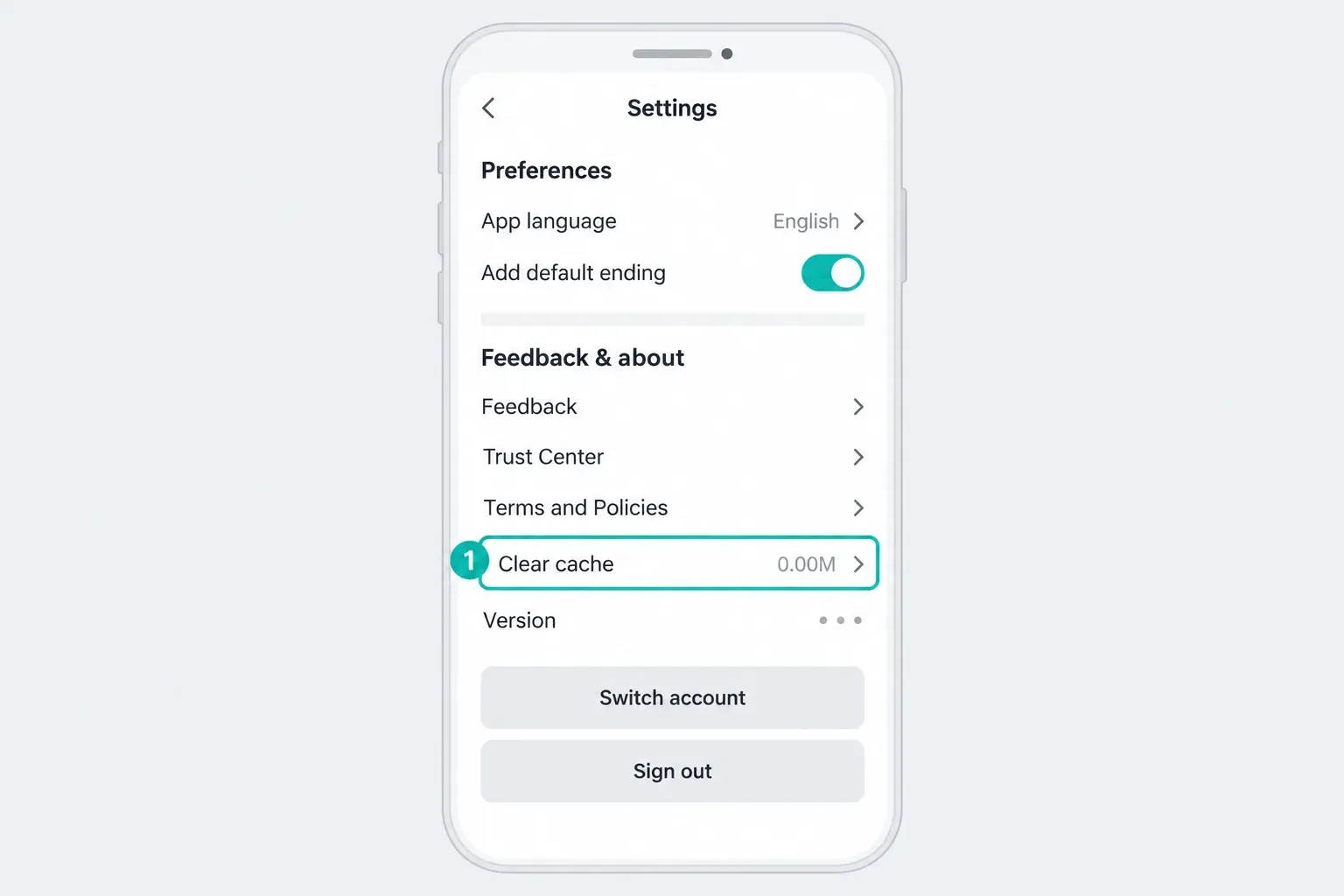
- If your build exposes an in-app Clear cache control under Me/Profile → Settings, use that control only after protecting important work. Don't substitute Delete App for a missing cache button.
- Check storage under Settings → General → iPhone Storage or iPad Storage. Preserve source media. For an export test, keep CapCut in the foreground and restore any temporary Low Power Mode or auto-lock changes afterward.
- Only with a verified backup and a confirmed official reinstall route, consider Settings → General → iPhone Storage → CapCut → Offload App (iPad Storage on iPad). Apple says offloading keeps documents and data. Then reinstall the app and reopen it. Offload is not a backup, and retaining app data means it may retain the problem too.
Safe tests on Android
- Save if possible, then close and reopen the app. Restart the device and check the official app update after preserving work.
- Look for the in-app Clear cache control first. If unavailable, the system route is typically Settings → Apps → CapCut → Storage or Storage & cache → Clear cache. Labels vary by phone. Google distinguishes temporary cache from Clear storage, which deletes all app data. Leave Clear storage and Clear data alone.
- For an import failure, check CapCut's photo/video permission in the app's system settings. Grant only the media access you intend to allow.
- For export, keep CapCut in the foreground. Test with Battery Saver off only if needed, then restore its previous state.
- To free storage, copy finished exports elsewhere and play the transferred files before deleting local copies. Check that those files are not source media for another draft. Recheck available storage before repeating the short test.
Windows: test drivers, GPU settings and cache separately
Microsoft recommends Windows Update for routine driver updates. If you need a newer compatible graphics driver, get it through the device or GPU maker's official route. Save and close your work before restarting, and don't install random driver packages.
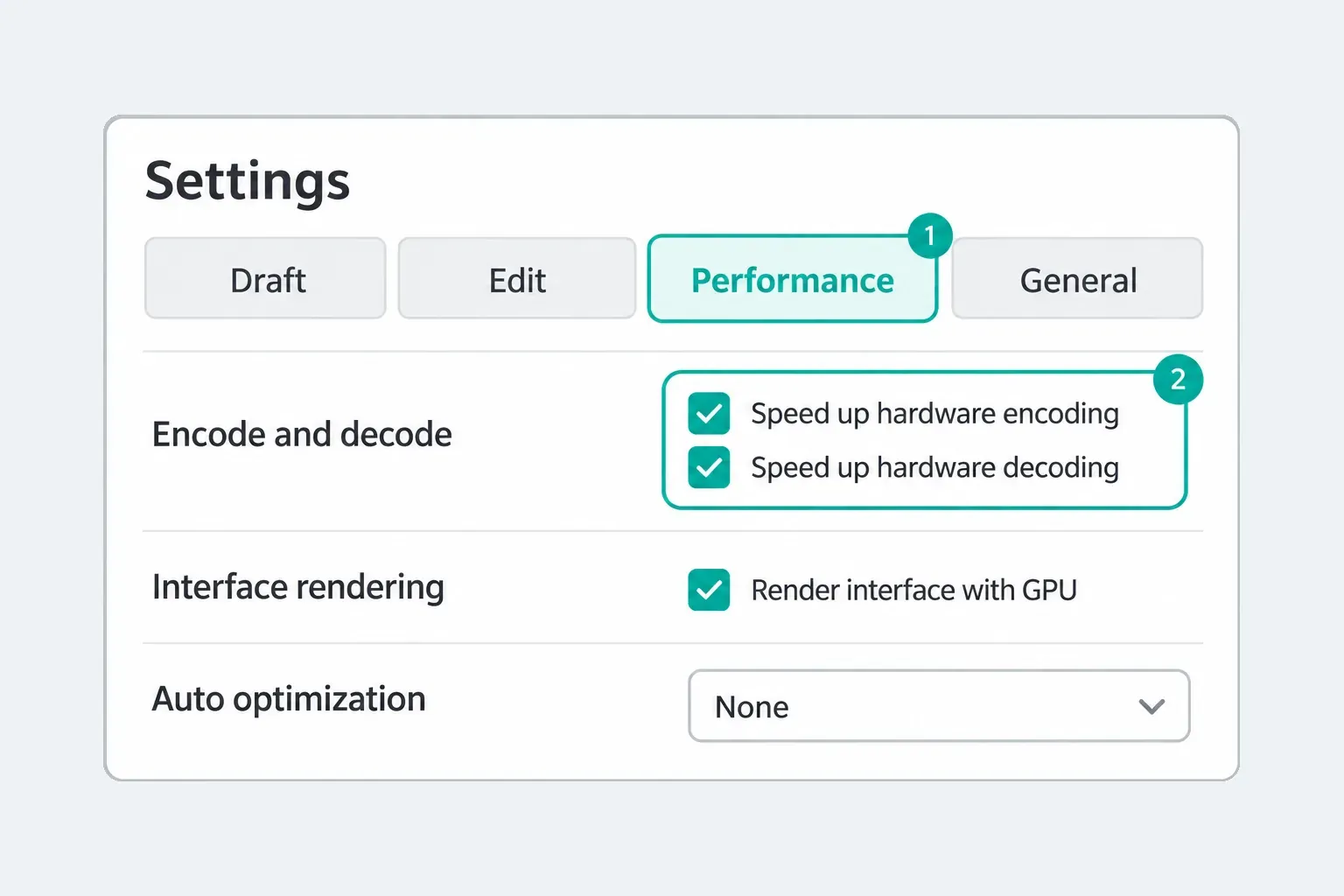
CapCut documents encoding and decoding controls in Settings → Performance. Its connection article suggests turning both off; for crash diagnosis, use a narrower test:
- Record the original settings privately.
- For an export crash, change hardware-accelerated encoding only, save and restart CapCut. Repeat the same short export.
- If it does not help, restore encoding before testing decoding separately for import or playback trouble. Restart and repeat the same action.
- Keep a change only if the result is useful and repeatable. A better preview does not establish that export is fixed.
On a machine with more than one GPU, Windows provides an app preference in Settings → System → Display → Graphics. Select CapCut, test High performance, save and restart the app. If that doesn't help, restore the original preference. This is an optional comparison, and it may not fix the crash.
Save any work in screen recorders, overlays or streaming tools, then close the ones you aren't using and compare. If that changes the result, reopen them one at a time. For installation and broader desktop setup, see CapCut for PC.
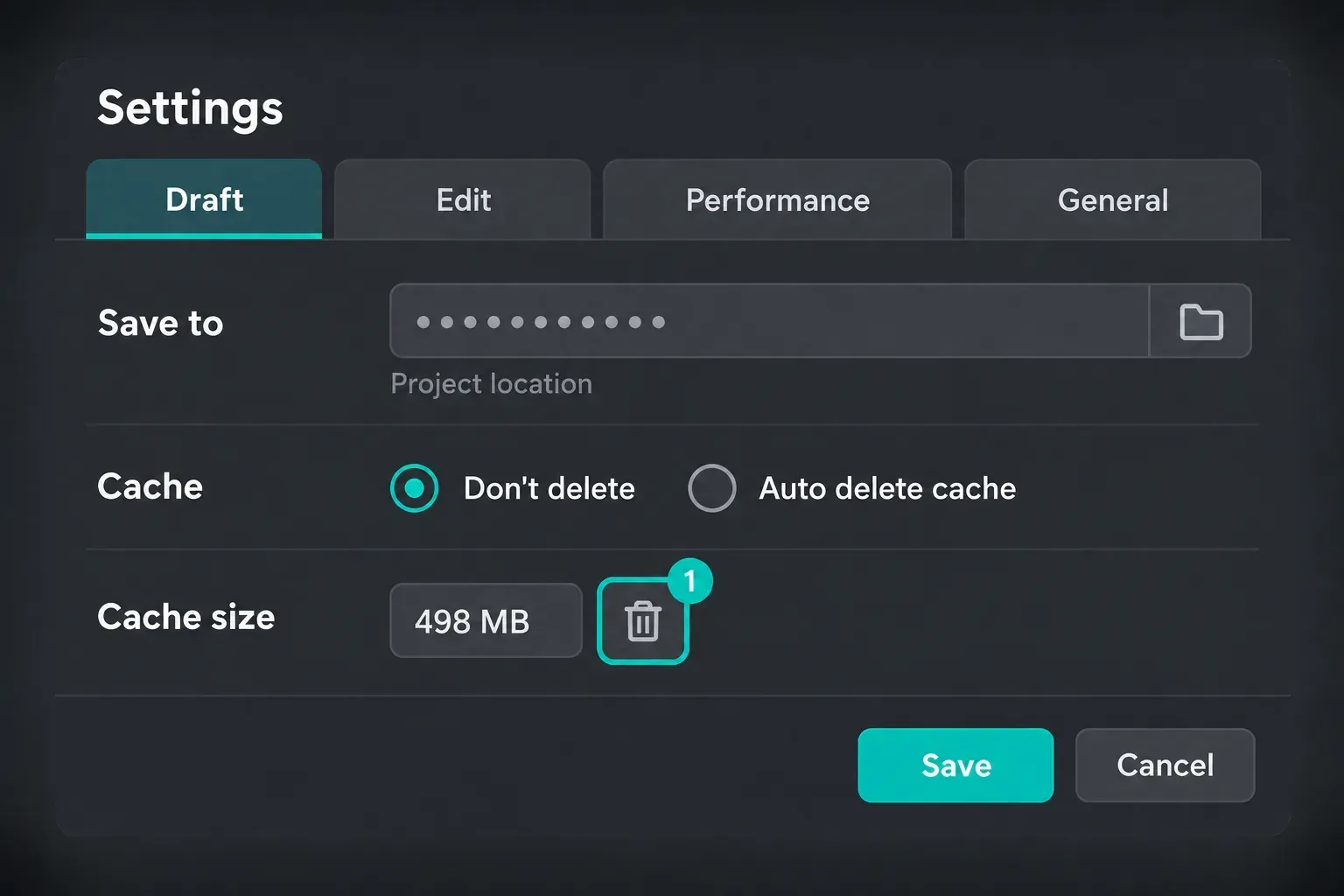
CapCut's desktop cache documentation conflicts. Its preview troubleshooting page shows a Draft-tab cache control, while its template-export page says there is no in-app button and suggests deleting the Windows CapCut data root. Don't follow that broad deletion instruction, since it isn't a safe boundary for local projects.
After preserving your work, use only a cache control that your build explicitly labels. If you can't identify one, ask support instead of guessing. Never delete Projects, com.lveditor.draft, User Data or the whole CapCut folder as a generic crash fix.
macOS: update first, leave project folders alone
Back up the Mac before you make system changes. Apple's current route is System Settings → General → Software Update. Install compatible updates and check CapCut's official update route. After that, compare a light project, available storage and a local export destination.
If your build exposes an in-app cache control, use that first. CapCut's template-export page names a macOS cache path, but that doesn't verify what your installation contains. This guide doesn't recommend deleting folders by hand. Leave project and source-media folders untouched, and ask support if you're unsure where the temporary data ends. For app and permission setup, see CapCut for Mac.
When crashes started after an update
Note when the update happened and, if you can see it, which version is installed. After protecting existing work, test a new project without effects. If that works and the old draft fails, look at the draft and its media first. If both fail, report the app/device combination. Timing alone doesn't prove an update regression.
Don't install an unofficial older build or edit project version fields to force a downgrade. Preserve the current project and ask CapCut support about an official recovery route. None of the troubleshooting guidance behind this page presents buying Pro as a crash fix.
When the failure is online, not a local crash
If login, templates or Spaces fail while local editing still responds, compare a trusted network and another device before you change any local data. The CapCut connection guide covers that branch. Third-party outage reports only point in a direction. For confirmation, ask CapCut support or check an official announcement.
If a Web tab crashes, preserve the session and confirm the project has saved before you reload, sign out or clear site data. Close unused heavy tabs and test a short non-confidential project in an updated browser. CapCut's Web troubleshooting recommends current Chrome and checking extensions. Change extensions one at a time and restore them after the test. If a different browser works, that narrows the scope, but it doesn't prove the original browser is defective.
Install only through an official route available for your device and region. CapCut's installation guidance covers compatibility and legitimate sources. For a black preview or another symptom without an app crash, use the broader not-working diagnostic. Return to the CapCut Fixes hub to choose another focused guide.
Send a useful crash report privately
Send the following through the official CapCut Help Center, not a public comment thread:
- Device model, OS version and installed CapCut version, or why the version is inaccessible.
- Whether the app alone closes or the whole device fails.
- The exact action, approximate time, timeline timestamp and any displayed error code.
- Whether a new two-clip project fails, and which single-setting tests changed the result.
- Project length, intended export settings and available storage. On Windows, File Explorer → This PC shows available drive space, and Microsoft's drive space help explains how to free more; on other devices, use the system's storage information. Record the number without including private file paths.
- Source format and frame rate if known. File Properties/Details or a media inspector may expose them; don't guess a codec from .mp4. “Unknown” is better than invented diagnostic data.
- Account/device identifiers only if private support requests them. CapCut explains where to find UID/DID or CapCut ID on each platform; not every screen exposes both.
Crash logs and screenshots can contain account IDs, full file paths, names and client footage. Review them before you send anything, verify the recipient and share only what's needed. Redact those details from any public example. If support needs a sample, send a minimal non-confidential reproduction when you can. Don't upload the original client project just to demonstrate a crash.
If the draft has disappeared or won't open anymore, stop changing its files and follow the project-recovery guide. Even if you rebuild from source media, keep the preserved original.
CapCut crashing FAQ
Does clearing the cache delete my CapCut drafts?
A labelled cache control targets temporary data, but protect important drafts and source media first. Do not confuse it with Clear storage or Clear data on Android. If your build has no clear cache control, don't substitute uninstalling or manual project-folder deletion.
Will uninstalling CapCut delete my projects?
It can remove local-only project data. Verify a usable independent editable copy and its source media before uninstalling. Spaces is one option when cloud use is permitted, not a compulsory destination for confidential footage. Offload App on iOS keeps documents and data, but is not a backup or a guaranteed fix.
Can a crash corrupt the project I was working on?
A crash can lose unsaved work, but a repeatable failure does not by itself prove corruption. Preserve the original, make a working duplicate if possible and test the suspect section in that copy. If no copy opens, contact support before editing the project's files.
Does CapCut Pro crash less than the free version?
None of the troubleshooting guidance we reviewed presents Pro as a stability fix. Diagnose the app, device, media and project instead of paying to repair a crash.
Is CapCut down, or is it just me?
Compare more than one online feature on a trusted network and another device. If local editing still works but login or Spaces fails, investigate connectivity or service access. Third-party reports are clues, not confirmation; check official announcements or ask CapCut support before resetting local data.
Why does CapCut crash on one project but not others?
The project's media, effects, overlapping tracks or saved state may be involved. Duplicate it before removing anything, then test short sections. If both halves work separately but the complete edit crashes, cumulative load or interactions remain possible; that result does not identify one corrupt clip.
Why does CapCut keep crashing on a Chromebook?
Separate a browser-tab crash from an Android-app crash. CapCut's Chromebook page lists its Web editor and Google Play app; Android-app availability depends on the device and store. Protect unsynced work, update the browser or app through its official route and compare a short project. Don't clear site data or reinstall an app while the only editable copy remains unverified.