

If CapCut lists Extract audio in its Pro warning, it is treating an audio operation in that project as paid. Read the named feature before buying a subscription or deleting tracks. The warning can describe an extraction you used, but users have also reported seeing it after importing an ordinary audio file.
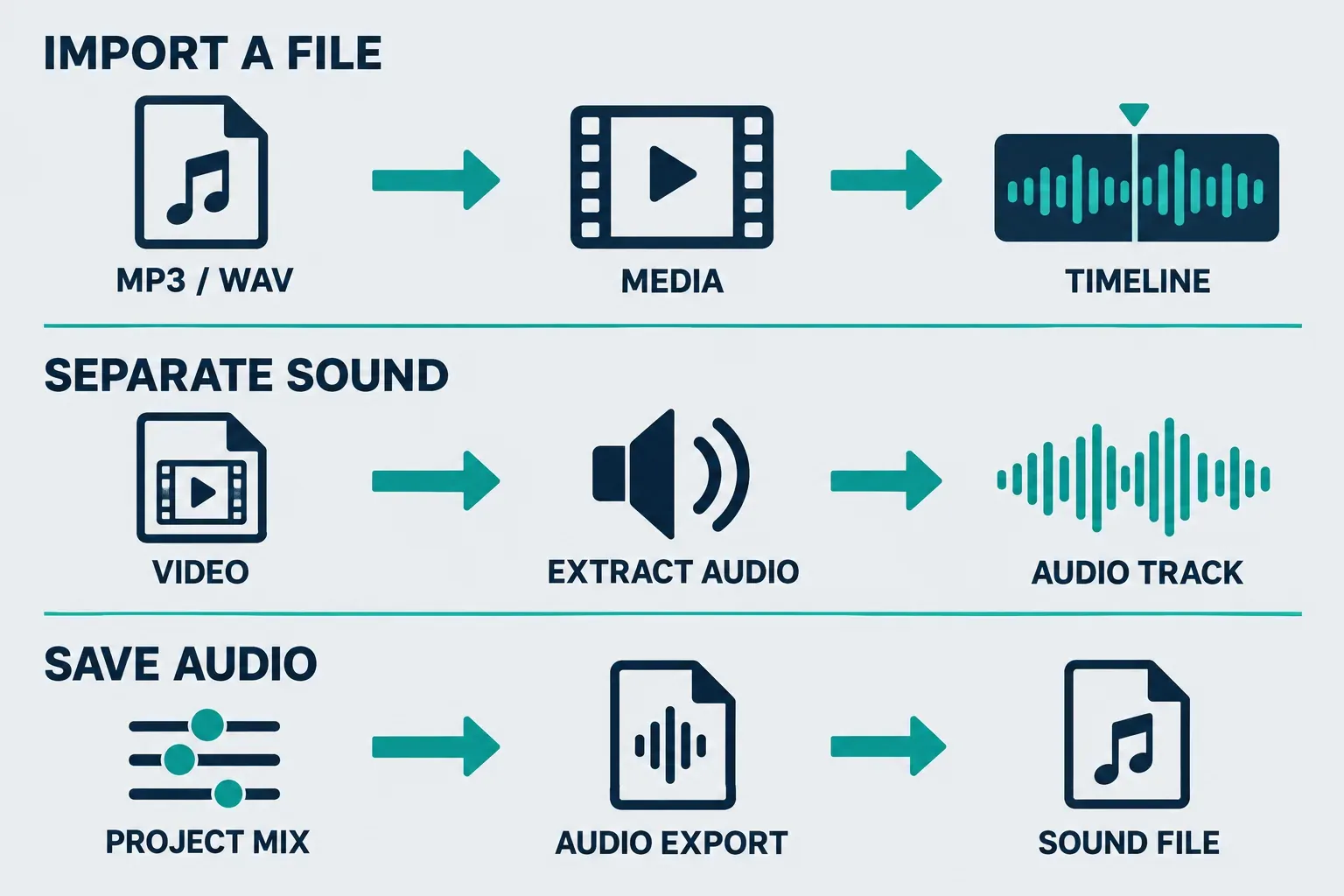
I would start with one question: did you separate sound from a video, or did you add an MP3 or WAV that already existed? Those are different jobs. Keeping that distinction clear gives you a safer way to investigate the warning without rebuilding the whole edit.
Why does Extract Audio ask for Pro?
CapCut's explanation of the export upgrade prompt says it checks projects for paid features and materials. One premium element can be enough to trigger an upgrade request. A working preview does not establish that the same project can be exported on your current plan.
That explains the payment gate, but it does not prove that every Extract Audio command is paid on every platform. CapCut still publishes an audio extraction guide with Desktop, Web and Mobile instructions. It describes Desktop's Extract audio command and Web's Separate audio command; it does not supply a complete entitlement table for every account and app build.
Use the badge and message in your account as the practical boundary. If the command is marked Pro, plan on replacing that operation with an available alternative or paying for access. If you never used extraction, investigate the import route before treating the warning as a valid description of your edit.
| Your action | What the operation means | First useful check |
|---|---|---|
| Imported an existing MP3, WAV or recording | Added an audio file to the project | Whether the warning appeared after a particular import |
| Used Extract audio on a video | Created an independent timeline audio track | The command's badge and the feature named at export |
| Used Separate audio on CapCut Web | Detached sound for timeline editing | Availability in that Web account; this is not proof of an MP3 download option |
| Chose an audio-only export | Saved the audible project mix as a sound file | Whether Export offers an audio format and whether any premium project items remain |
If you imported your own MP3 and never extracted anything
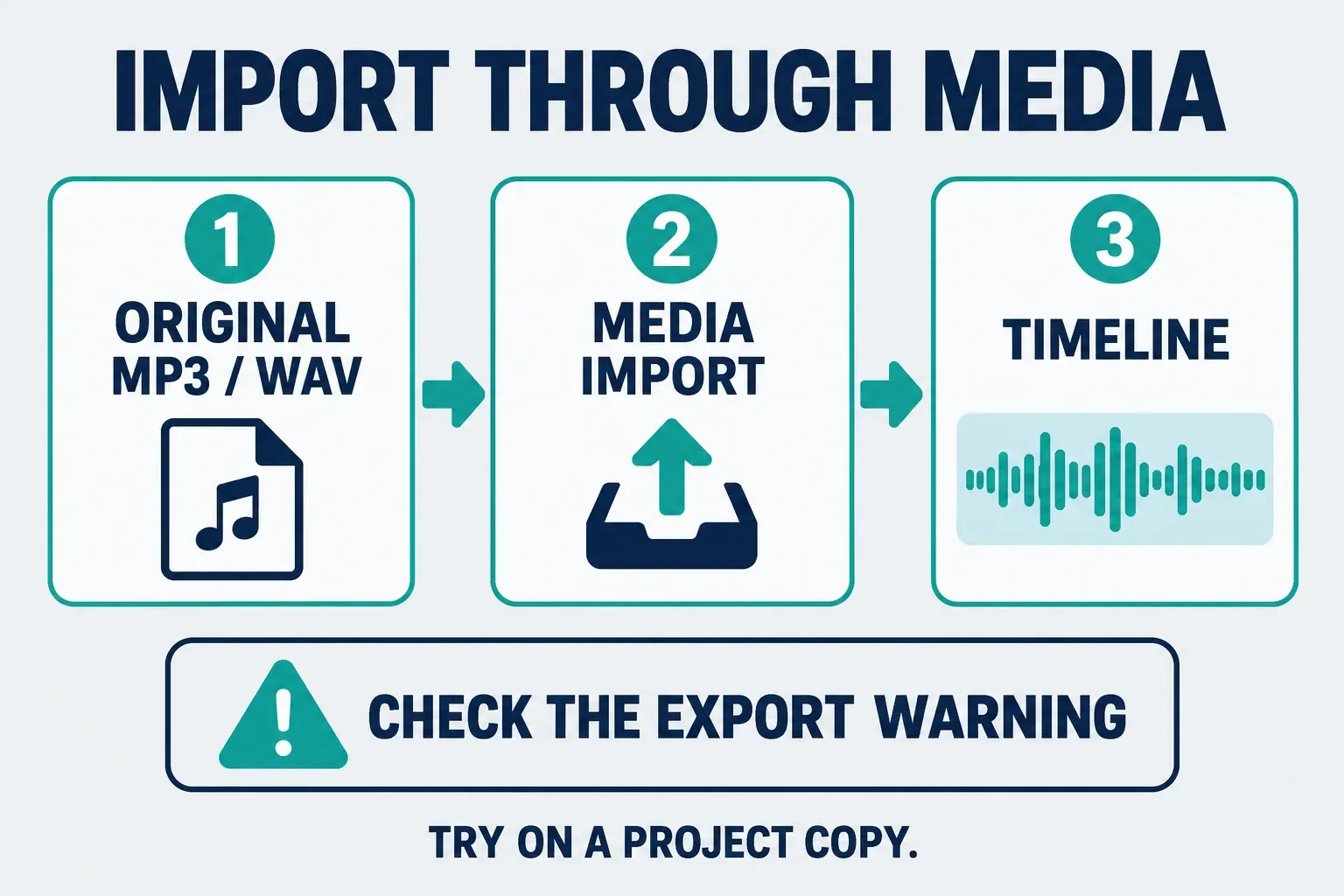
There is a documented community report worth distinguishing from a confirmed product rule. In this CapCut discussion about an unexpected Extract Audio warning, several commenters describe adding sound through the media area instead of dragging a file straight from Explorer or Finder onto the timeline. They report that replacing the affected import cleared the warning. Other replies say a replacement did not help.
I would treat that as a troubleshooting lead, not a guaranteed fix or proof that CapCut deliberately mislabels files. It also does not mean you should erase every audio track in a finished project.
Protect the edit first. Keep an untouched copy of the project and its source files before replacing any segment. Our project backup and transfer guide explains the difference between an editable project, its media and a finished video. A rendered export alone cannot restore your cuts and layers.
Then investigate one affected file in the working copy:
- Identify the audio file that was added before the warning appeared. If you cannot identify one, avoid a wholesale replacement.
- Note its position, source trim, volume and fades. If the same sound has been cut into several segments, each segment needs its own timing record.
- Use the media area's Import route to bring in the original file. Our guide to adding your own music covers the platform-specific import paths.
- Place a replacement segment at the same position in the working copy. Recreate the necessary trim and audio adjustments before removing the old segment from that copy.
- Reopen Export and read the warning again. If it changes or disappears, continue checking the copy. If it remains, stop replacing tracks and investigate the named features.
The important safeguard is a recoverable comparison. A replacement that removes the warning but shifts a sentence, loses a fade or plays the same sound twice is still a broken edit.
If you did use Extract Audio
Decide whether you need the detached track. If your goal is simply to keep the original sound attached to its video, a separate waveform may be unnecessary. If your goal is to cut the sound independently, move it under different footage or build a separate mix, extraction has a clear purpose.
When the operation is paid in your build, the honest choices are to keep the video's original sound, prepare a separate sound file through another available tool, or use a plan that includes the required operation. Read the account's current offer before paying; the CapCut pricing guide separates the first charge from renewal terms.
For an audio file, use our audio-only export guide. It covers the Desktop audio export route and the fallback when Mobile or Web only offers a video file. Do not assume that creating a detached waveform automatically creates a downloadable MP3.
CapCut's own Desktop MP3 export instructions describe extraction as optional when independent audio editing is unnecessary. Apply that distinction to a video you own or have permission to use. An audio-only export still depends on the controls and paid elements in your project; it is not a universal bypass for Pro.
If you look at another online editor, check its output before uploading anything private. For example, Canva's extraction page describes separating sound on its timeline, but its audio-format FAQ says the design downloads as MP4 and needs conversion for MP3. A page saying “extract audio” can therefore offer a different result from the sound file you need.
Check the whole Pro list, including the project cover
Clearing one audio warning does not prove that the rest of the project is free to export. Read every item in the current list. A premium text style, filter, transition or music asset can remain after the audio issue is resolved.
CapCut's instructions for removing paid project elements say to review video, overlays, text, effects and audio tracks. They also call out a less obvious place: the project cover. A cover using premium material can keep the project flagged even after timeline elements have been removed.
Make these changes in your working copy. Replace a needed item with an available alternative; remove it only when its absence makes sense for the edit. Muting an audio track is a sound decision, not evidence that a paid operation has been removed from the project. The named Pro item is the check that matters.
A warning showing a count such as “9 uses” is worth recording alongside any listed time positions. Do not interpret that number as a promise of nine free exports or downloads. Include the exact wording when asking support to identify the affected items.
Already paid? Check entitlement before buying again
If your membership should include the required feature, a second purchase is a poor first move. CapCut's premium-access troubleshooting page recommends checking the account, subscription status and app state when premium features remain unavailable after subscribing.
Confirm which CapCut login you used for the purchase, whether the subscription is active and whether the app recognizes it. Keep the receipt and membership information available. Our CapCut Pro not working guide handles the account and billing branch in detail.
I would also avoid signing out, clearing application data or reinstalling as the opening move on an unfinished edit. Preserve the project and local media first. Those actions do not establish which timeline operation triggered the warning, and they make the original state harder to compare.
Know when to stop replacing audio
After one careful replacement attempt, use the result to choose the next step:
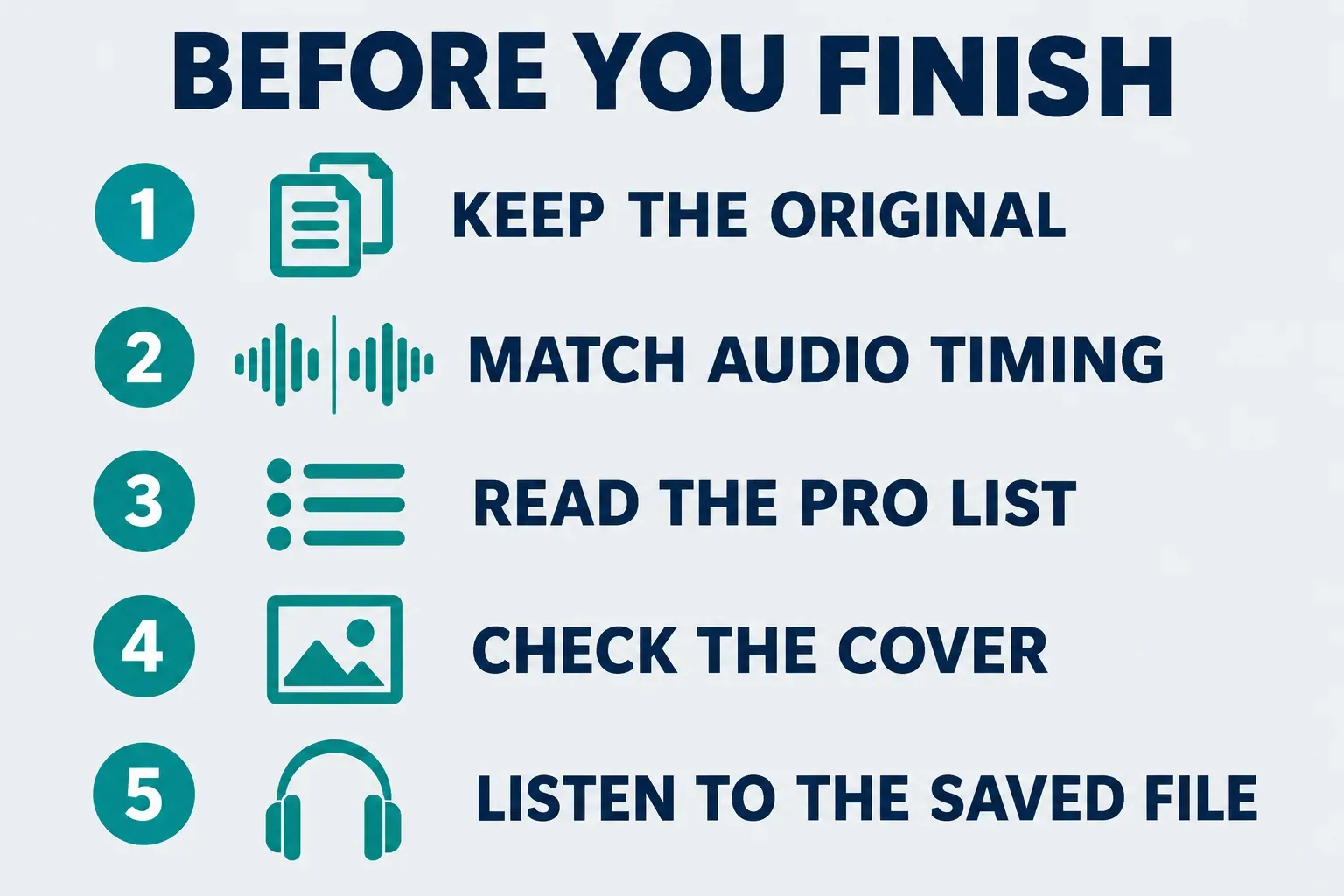
- The warning is gone: listen at every replaced join and compare speech timing, volume and fades with the untouched edit. If the replacement duplicates sound, remove the duplicate in the working copy before making the final export.
- A different Pro item is named: investigate that item. Repeating the same audio replacement will not remove a premium effect or cover.
- Extract Audio is still named: keep the diagnostic copy and report the issue instead of repeating destructive changes. Send the exact warning, your platform and app version, the source file type, how it was imported and whether you used an extraction command. The CapCut support guide explains the appropriate contact route.
- Export finishes but sound is missing: switch to the no-sound troubleshooting guide. A silent file needs checks for the audible mix and export settings, rather than another attempt to remove a Pro warning.
My recommendation is to preserve the edit, identify the actual audio job and change one thing at a time. Paying for a feature can be a reasonable decision; paying because an unexplained warning appeared on an imported file deserves a closer look first.