
LatestOfficial page checked Aug 30
new trending slowmo
- Media slots
- 1
- Duration
- 19.5 s
- Ratio
- 9:16
- Uses captured
- 6.0M
Find an official CapCut template by category, media slots, duration and ratio, then use the current Mobile, Web or Desktop route and check the edit before export.
Last updated October 2, 2026.
Open the focused guide for the edit you want. If the immediate problem is a missing tab or broken handoff, go straight to troubleshooting.
 DISCOVERHow to Find Trending CapCut Templates That Still WorkFind current CapCut templates across Mobile, Desktop, Web and TikTok, then verify the link, format, editability and export before using one.
 SLOW MOTIONCapCut Slow Motion Template: How to UseA current guide to CapCut slow-motion templates, manual Speed and Curve controls, source frame rate, interpolation artifacts and reliable test exports.
 SLIDESHOWCapCut Slideshow Templates: Find the Right FitChoose a live CapCut slideshow template by media count, pace and format—or build the sequence manually when the fixed edit doesn't fit.
 RECAPCapCut Recap Templates: Month, Year & Event PicksChoose a live monthly, yearly or event recap template by story shape and clip count—or build manually when fixed timing makes the memories hard to follow.
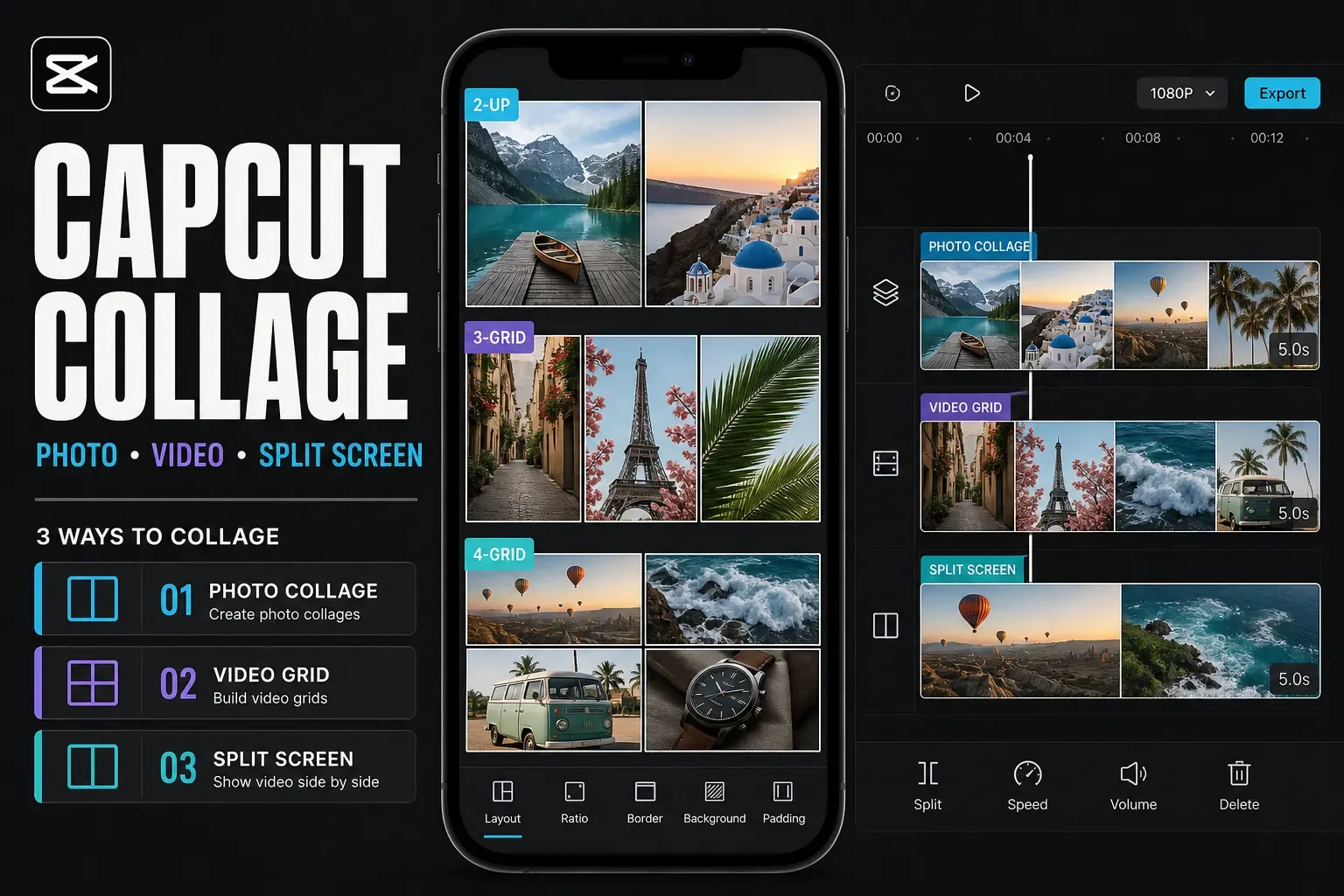 COLLAGECapCut Collage Templates: Photo, Video & Split ScreenChoose a live CapCut collage template, make a static photo grid, or build a manual split screen without mixing up collage, slideshow and merge workflows.
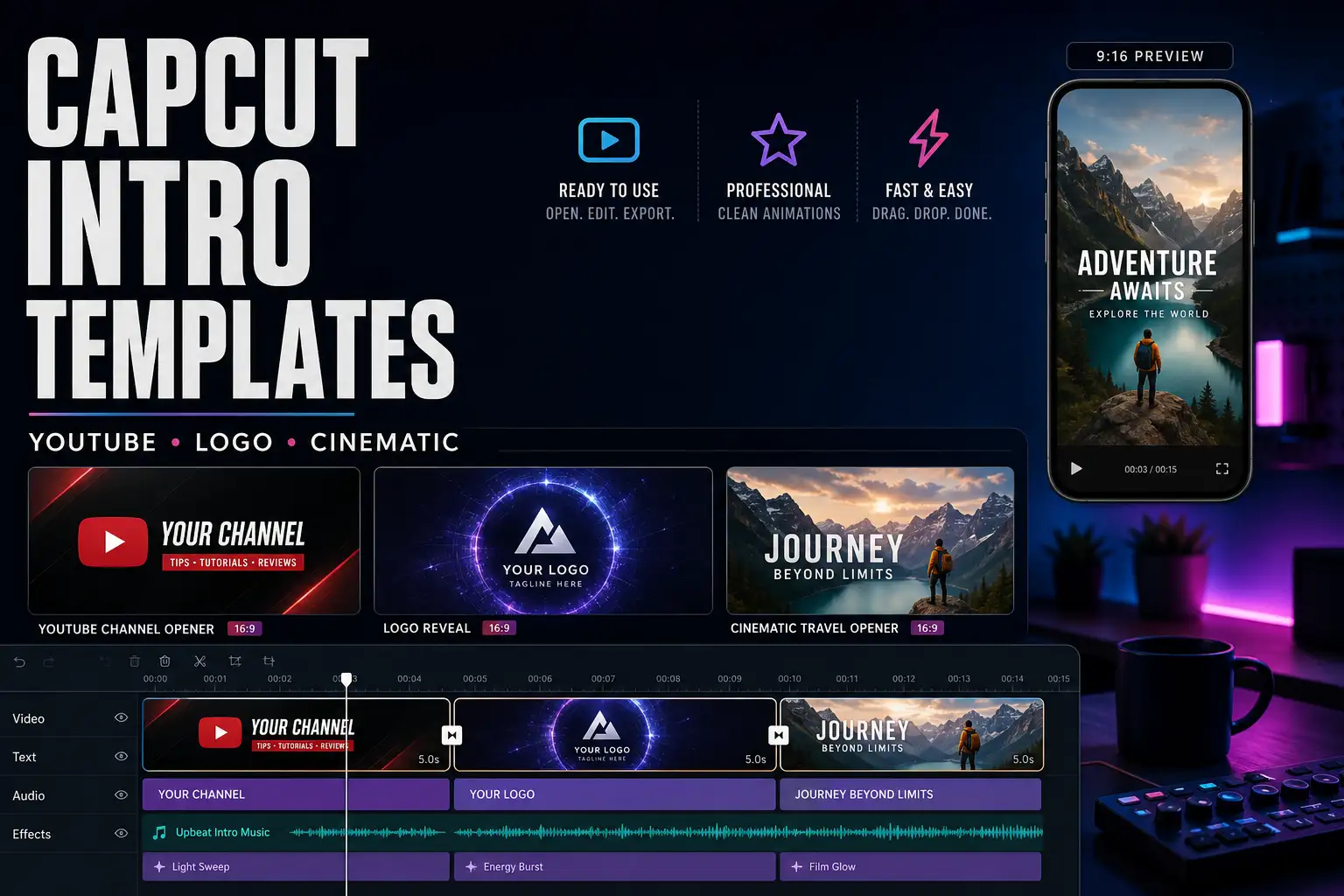 INTROCapCut Intro Templates: YouTube, Logo & CinematicChoose a live YouTube, logo or cinematic intro template, test it before replacing every slot, or build an editable intro master you can reuse.
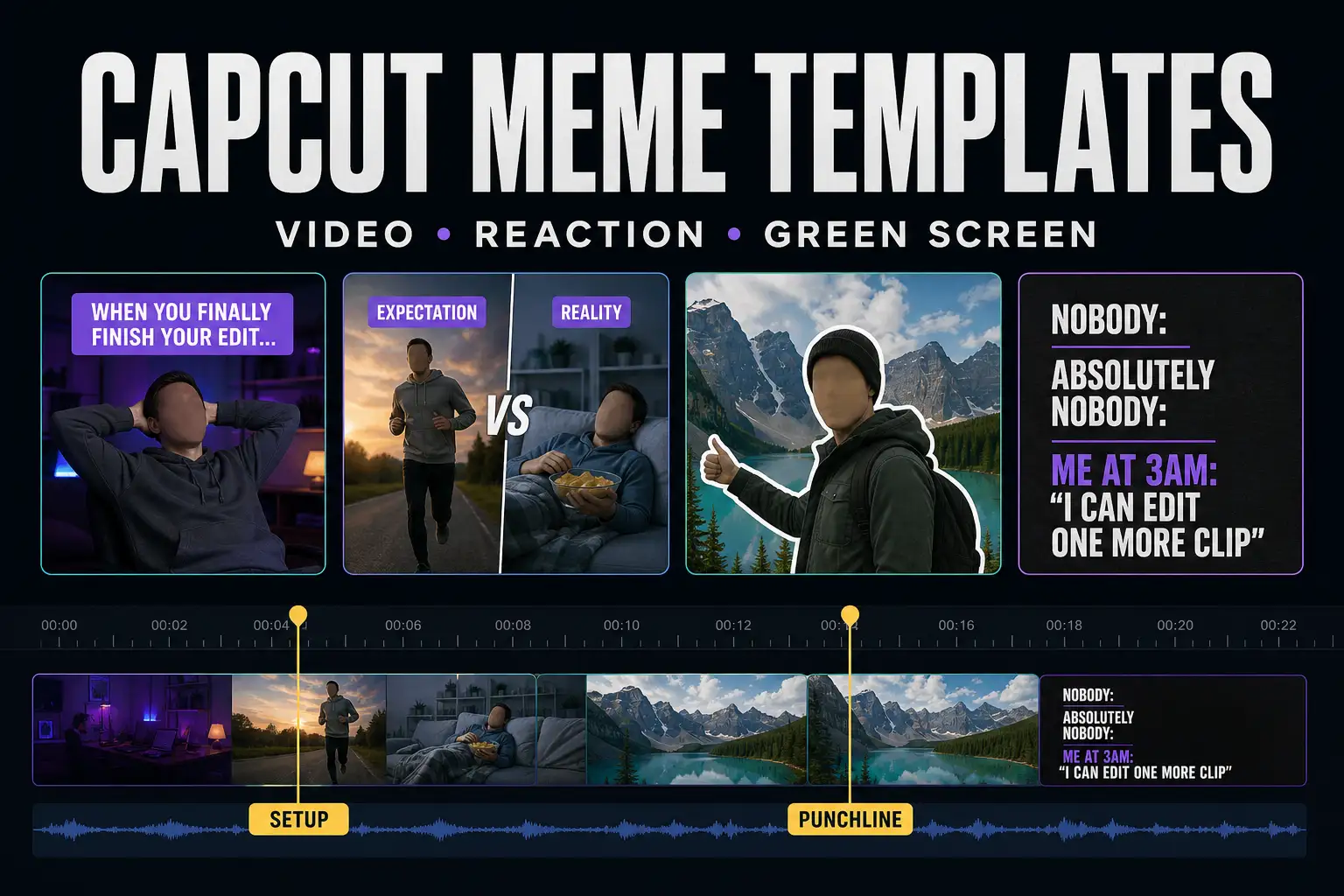 MEMECapCut Meme Templates: Video, Image & Green ScreenChoose a live meme template, build the timing manually, make a static image or clean up a green-screen reaction without losing the punchline.
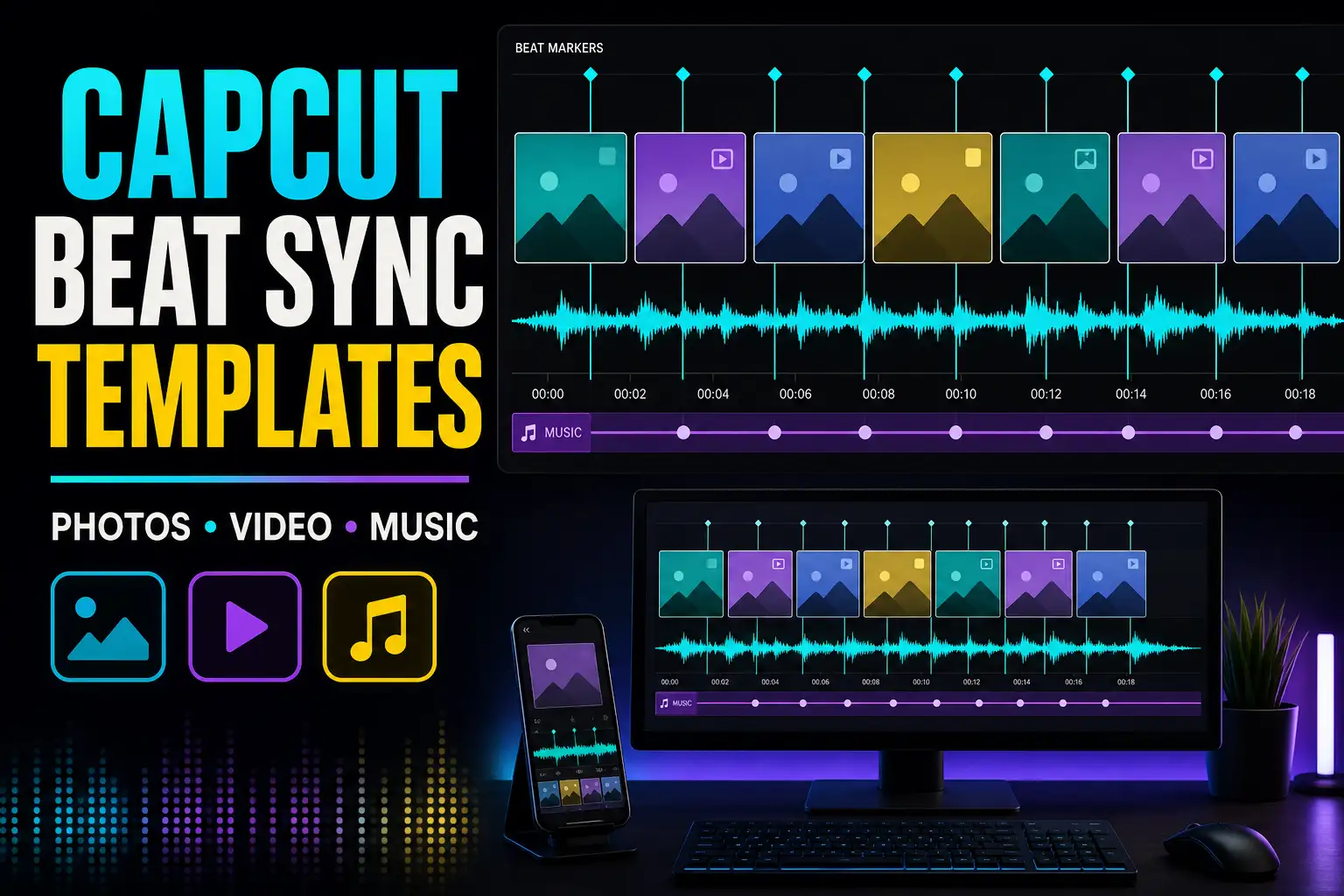 BEAT SYNCCapCut Beat Sync Templates: Photos, Video & MusicCompare live beat-sync templates by media count, then choose a fixed template, AutoCut or manual markers and repair timing, crop or audio problems.
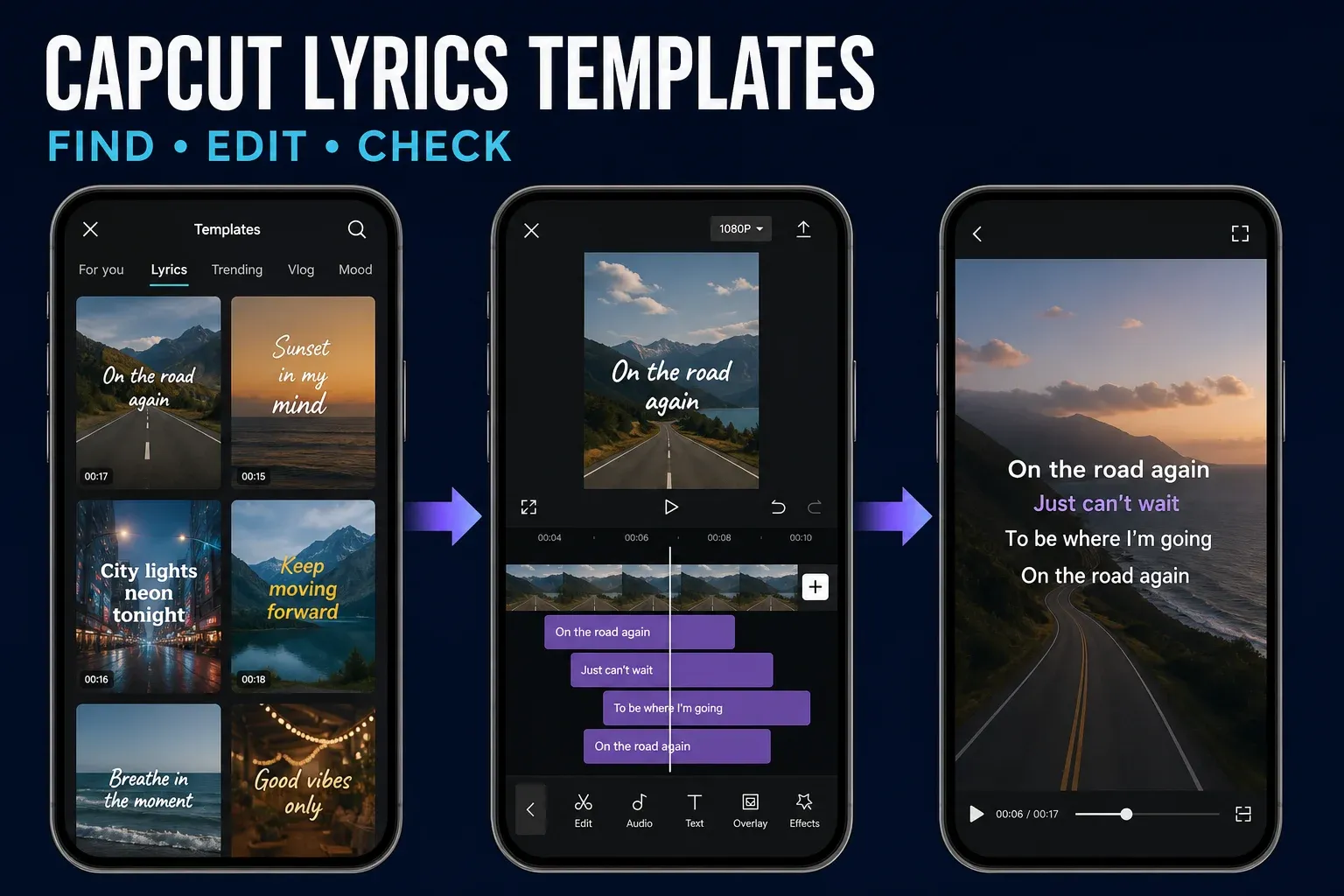 LYRICSCapCut Lyrics Templates: Find, Use & Fix ThemChoose a ready-made lyric video template or Auto Lyrics, then correct the words, timing and soundtrack before you export.
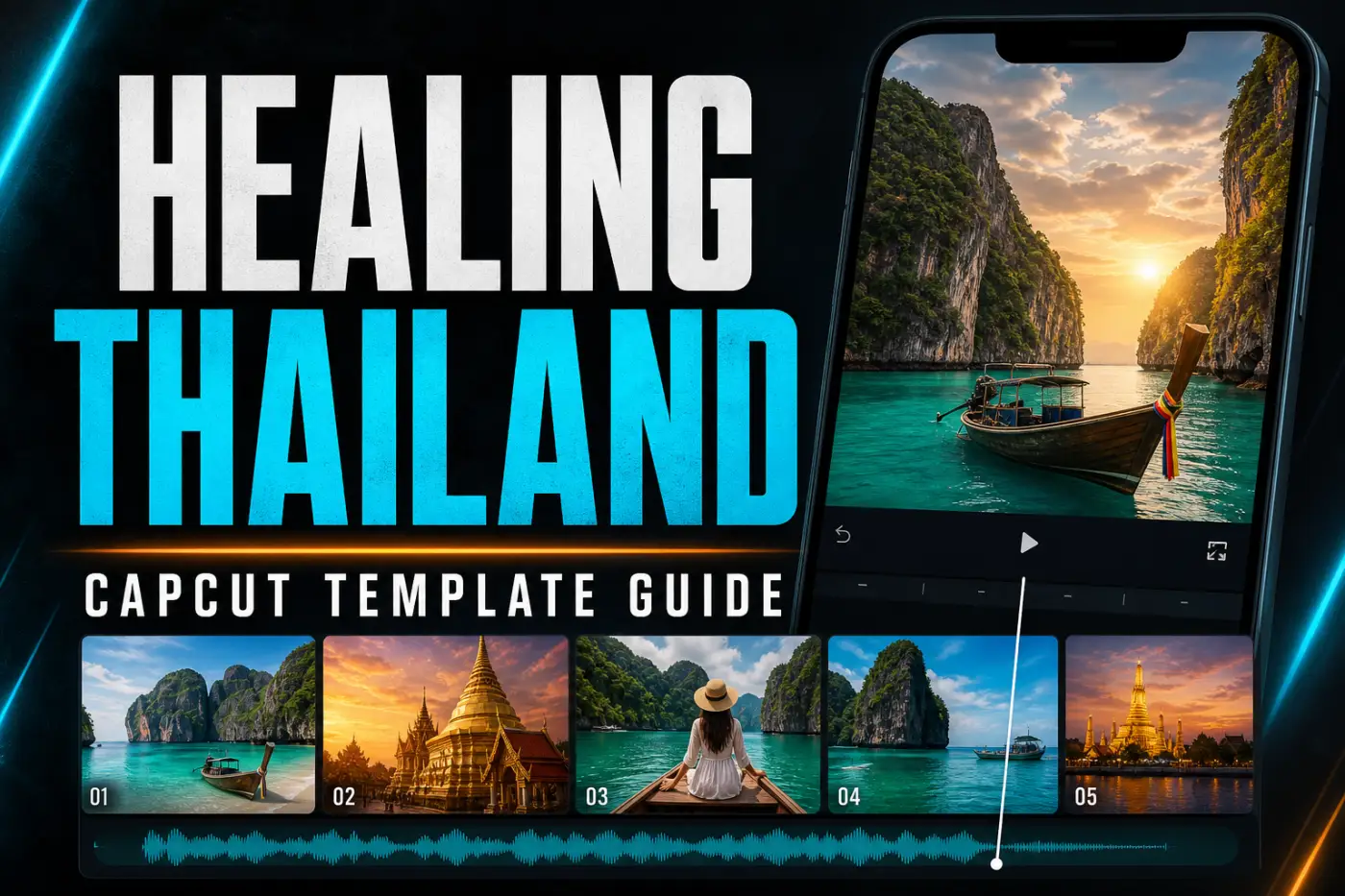 SPECIFIC TEMPLATEHealing Thailand CapCut Template: How to Use ItCompare three live Healing Thailand templates, open the correct Mobile link, fix missing, Pro and watermark problems, or rebuild the timing manually.
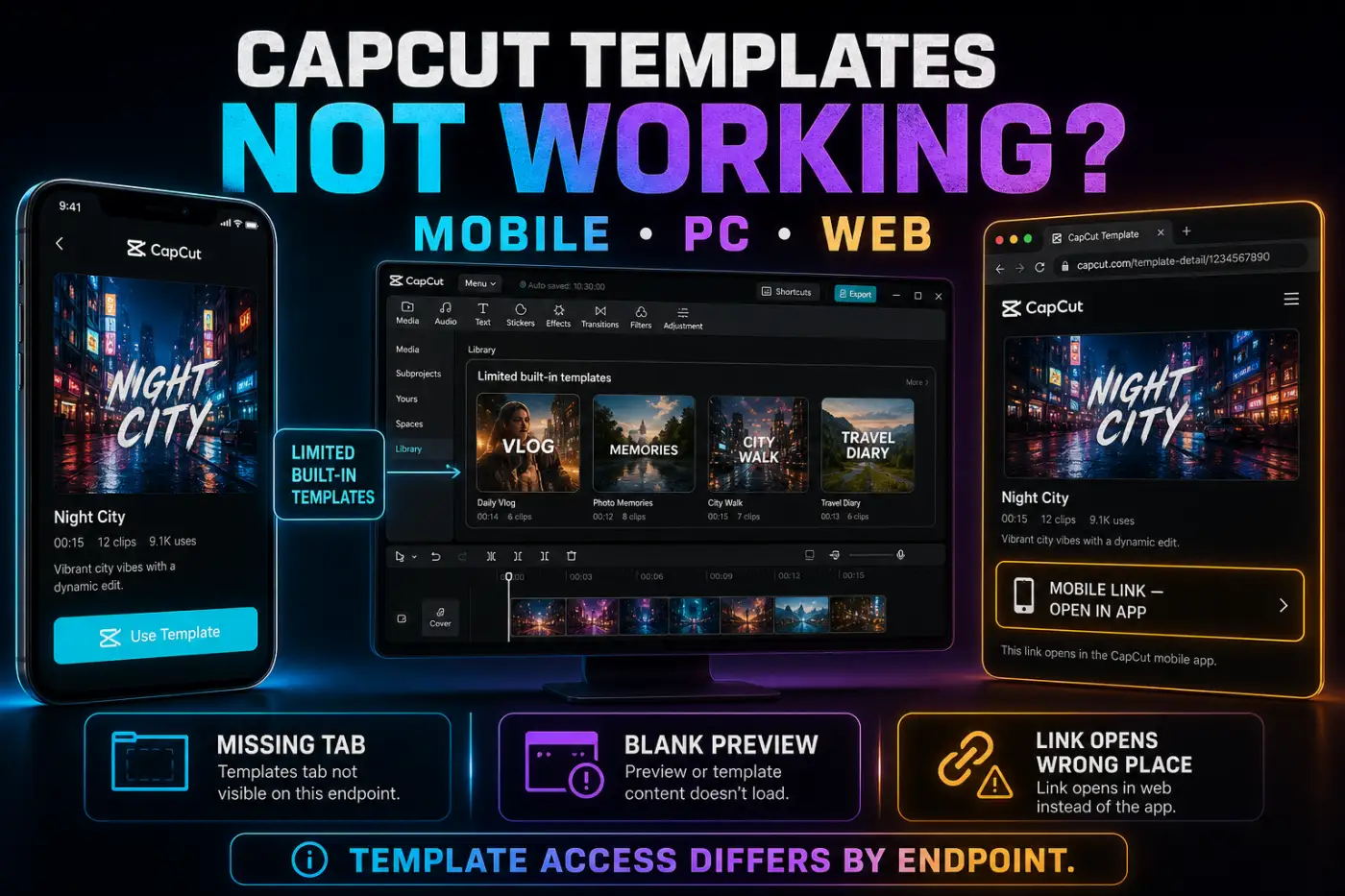 TROUBLESHOOTCapCut Templates Not Working? Mobile, PC & Web FixesA current CapCut template troubleshooting guide for missing tabs, broken links, blank previews, replacement errors, fonts, audio and exports.
Filter a dated snapshot of official CapCut pages by category, media slots, duration and frame shape. The finder narrows candidates; your live account still decides whether the Use template button is available.
Showing 12 of 30 templates
Metadata checked August 30, 2026. Titles belong to their creators. Availability, audio, editable elements and paid access can differ by account, device, language and region.
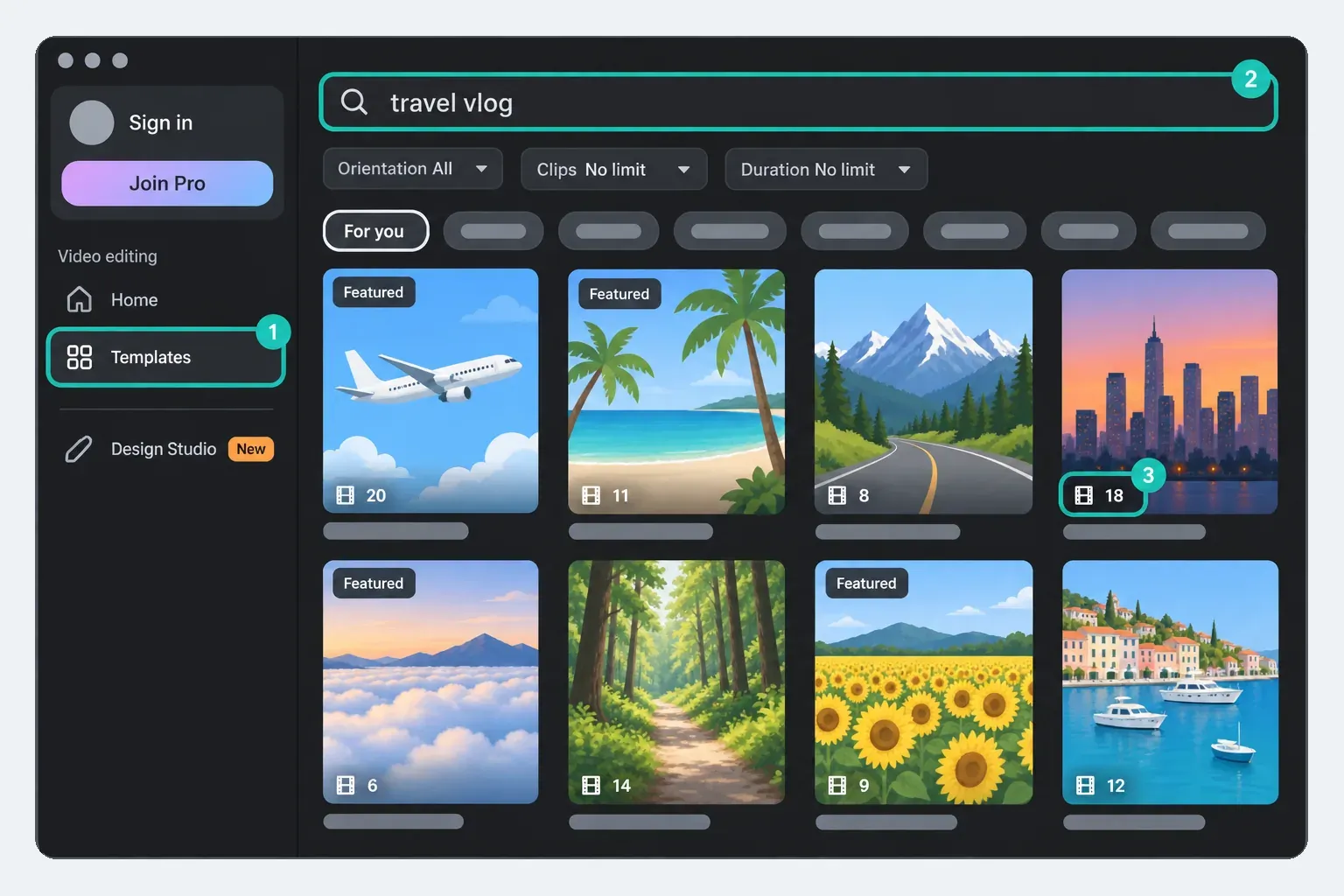
CapCut templates are pre-built edits with fixed media slots, timing and effects. On Mobile, open one from the Template tab or a supported TikTok link. On Web, browse CapCut's public catalog. On Desktop, use the catalog shown in your launcher. A dated Desktop 9.2.0 interface reference from August 14, 2026 shows a searchable online template library, while availability can differ by build, account and region and some CapCut help pages still describe a smaller or missing Desktop catalog. Replace the required media first, then inspect which text, audio, crop and timing controls that specific template exposes.
On mobile, open CapCut and look for Templates on the home screen or bottom navigation. The label and position can move, and CapCut's missing-template guide says the section can be absent because of region, app version, login state or rollout. If the tab is missing, update and sign in before reinstalling or changing account settings.
TikTok is the other main entry point when the video, region and account expose a Use template in CapCut link. CapCut's TikTok deep-link guide says this handoff is mobile-only; Web and Desktop don't open the same TikTok-linked template flow. Update both apps and open the link on the phone before treating a failed desktop click as a broken template.
Creators can share template links directly, but a link is not a permanent guarantee. It can stop opening when the template is withdrawn, restricted by region, unsupported by the device, or unavailable to the receiving account.
CapCut's own documentation doesn't give one reliable Desktop answer. Its template search guide shows a Templates tab, search bar and Use Template button on PC. Its search troubleshooting page still says Desktop has only a small built-in set without search. A dated Desktop 9.2.0 interface reference from August 14, 2026 shows search, filters, usage counts and online template previews. It documents one interface state, while availability remains build-, account- and region-dependent. Use the controls visible in your launcher.
If a Mobile template must continue on Desktop, sync the project to Spaces and duplicate it before switching. CapCut documents a mobile-to-Desktop handoff failure in which template media can appear as a single frame or blank item. Keep the Mobile original until the Desktop copy previews and exports correctly.
| Platform | Current template access | Use it for |
|---|---|---|
| Mobile | Broadest catalog, template search, community formats and TikTok deep links where available | Discovering and applying social/trending templates |
| Web | Public category catalog and searchable template pages; no TikTok deep-link handoff | Browser-based discovery and templates that open in the Web editor |
| Desktop | A searchable online catalog in some current builds; a smaller or missing library in others | Searching and applying templates when the launcher exposes the feature |
The exact labels can move between releases, but the current Mobile path is:
Review every slot before export. A fixed template slot may use only part of a longer source clip. Open that slot and move the selection to the moment you want instead of assuming the first preview chose the right action.
CapCut's current use-and-export walkthrough confirms the Mobile sequence: open the template, choose the required media, preview, edit an exposed segment and export. Use the labels in your own build when its screenshots differ from the interface in front of you.
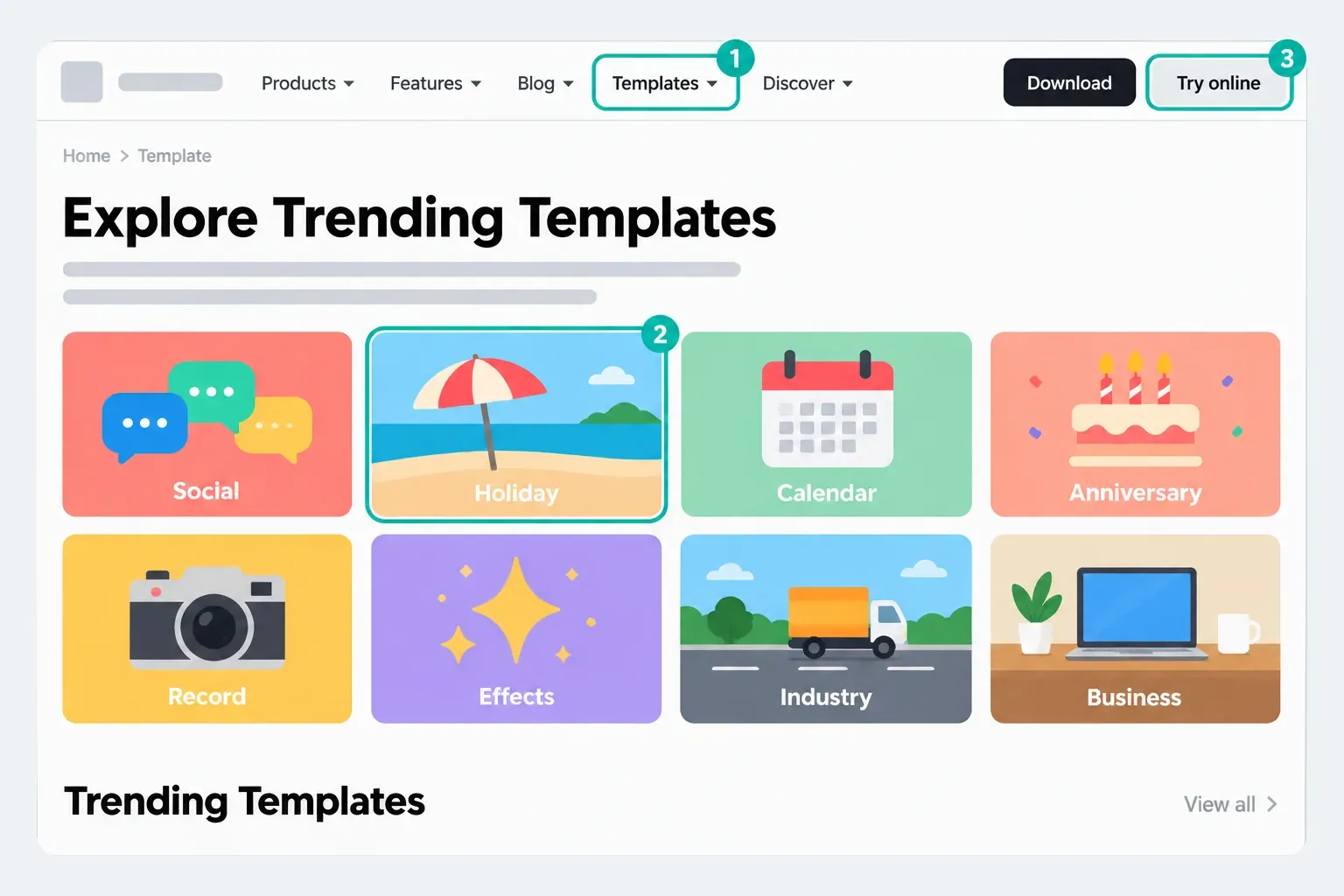
Web has its own catalog. It doesn't accept TikTok-to-CapCut deep links and doesn't mirror every community template visible on Mobile.
If the Templates section or search field is absent, don't assume the installation is broken. CapCut still documents limited Desktop variants, and access can differ by rollout. Use Mobile or Web for discovery, especially when the starting point is a TikTok link.
Templates are constrained, but not every element is permanently locked. CapCut's replaceable-material guide shows that the creator decides which clips become placeholders. The editing controls you receive therefore depend on the template, the platform and the way its creator published it.
After you reach the preview screen and before you export, you have access to these edits:
Mobile template exports can include a short CapCut ending clip. CapCut's watermark help page says the ending is separate from watermarks tied to stock or premium material. Remove the ending segment only if the editor exposes it or trim the exported file; don't assume that trimming an outro clears a watermark caused by a paid asset.
The template preview is not the same as a normal multi-layer timeline. It exposes only the controls the template and platform support.
In many mobile template flows, you can't freely add layers, transitions or timing changes from the preview screen. If captions, overlays or a custom effect are unavailable, export the template result and import that file into a normal project. Keep in mind that this flattens the template into video, so its original elements are no longer independently editable.
That export-and-reimport workflow is useful for a final caption, logo or color pass, but it adds another round of encoding. Export the template at the highest appropriate quality and avoid repeating the cycle.
Template availability changes by region, account and platform. CapCut Web can search its own catalog, but it doesn't support the full mobile TikTok/community workflow, copying the same mobile links, or every trending feed item. Use Web for templates that appear there; open TikTok-linked and community formats on mobile.
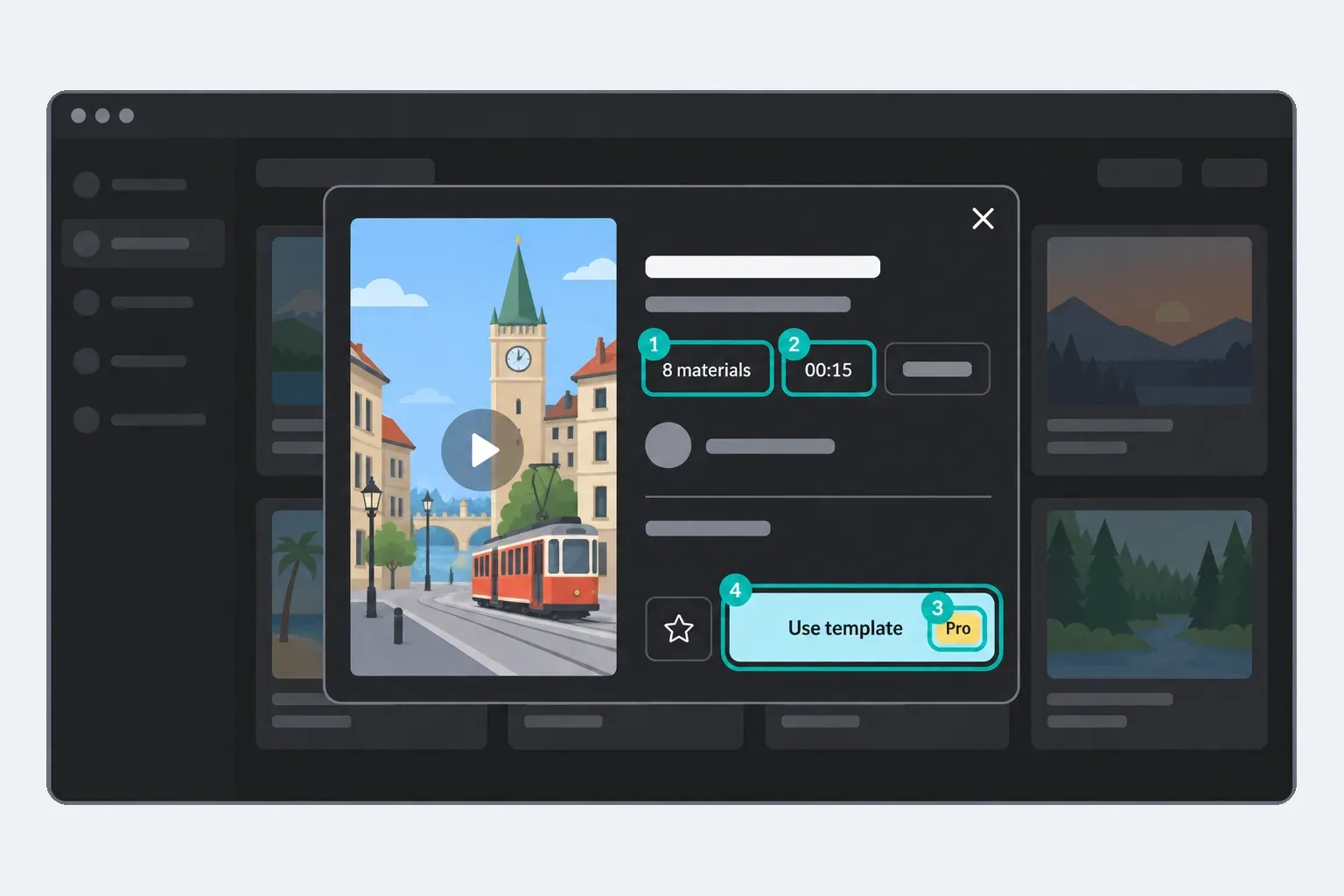
CapCut uses similar language for two different access models. Its Pro-template guide says a purple Pro badge can signal a subscription requirement for watermark-free export and describes those templates on Mobile, Web and Desktop. The individual paid-template guide instead describes a separate Mobile purchase, with the price and licensing terms shown before confirmation.
Those help pages are not consistent enough to infer entitlement from the word “paid” alone. Check the exact badge, price and export prompt in your account before selecting all your media. A saved template can also change tier or disappear later.
| Workflow | Best for | Limit |
|---|---|---|
| Template | Fast trend edits, beat-synced formats, TikTok/Reels-style reuse. | Timing, effects, transitions and structure are mostly locked. |
| Normal project | Original edits, captions, layered effects, brand videos, tutorials and planned edits. | Slower because you build timing and effects manually. |
| Template export as raw footage | Using a template as a first draft, then adding captions, overlays or cleanup in a new project. | Adds another round of encoding. |
The bookmark or save control is not consistent across every CapCut Mobile build. If a bookmark appears on the template preview, save it while signed in and return through the saved area exposed by that same account. If there is no bookmark, open the share menu and copy the template link to a notes app or browser bookmark instead.
A saved template is still a pointer to CapCut's online catalog, not an archived editable copy. CapCut's TikTok-link guidance says a creator can delete a template, make it private or lose it to a policy removal. Region, account eligibility and licensing can also change. For a template you need for a planned edit, save the link, record the creator and template name, and finish a test export before planning the whole edit around it.
Text templates and caption presets are a separate search problem. A video template replaces media slots and controls the edit structure; a text template or caption style lives inside the Text or Captions tools of a normal project. Searching the main video-template feed for a font or caption preset may return nothing even when that style exists elsewhere in the editor.
If several templates fail rather than one specific link, use the CapCut templates not working checks for login, connection, cache and platform-specific failures.
A heavily reused template can make unrelated clips feel interchangeable when the font, music and cut timing stay untouched. The fastest way to make it yours is to change the decisions viewers notice first.
Three things that help:
Change the music only when the workflow gives you enough control. If the template exposes an audio control, preview every cut after choosing a new track. When the edit is locked tightly to the original beat, export into a normal project and retime the finished video instead of leaving cuts that now land between beats.
Change the text content completely. Don't just fill in the template's placeholder text with your version of the same message. Rewrite it to say something the template's original use case wasn't designed for. A travel template repurposed for a studio session looks unexpected when the text matches the new context.
Choose the strongest moment for each slot rather than accepting the first automatic selection. A short pass through every clip is often the difference between a recognizable template and a rushed reuse.
Use the template for structure, then make a deliberate choice in every slot. If you would not keep a clip, crop, line of text or sound in a normal project, don't keep it merely because the template supplied it.
If you want to build the timing yourself instead of using a template, start with the CapCut Effects guide or the CapCut Transitions guide. For an automatic first cut instead of a fixed template, see the CapCut AutoCut guide.
Template exports can show an ending logo clip or a watermark tied to stock, premium or Pro-labeled material. The ending is a separate segment that may be removable or trimmable. An asset watermark requires replacing the material, obtaining the relevant entitlement or following the license shown at export. Check the final seconds and the export summary before posting; the CapCut watermark guide separates these cases.
This guide is part of the CapCut Tutorials hub and the CapCut Social hub for TikTok, Reels and Shorts workflows.
Start with the look you want, then choose a template page that explains what to check before you add your own media.
Soft color, clean type and mood-led edits for lifestyle clips, photo dumps and calm reels.
Fast cuts, beat timing and progress-focused formats for workouts, training logs and fitness edits.
Photo-led and cinematic options for ceremony moments, proposals, invitations and highlight videos.
Celebration edits for photo montages, party clips, invitations and short social posts.
Start with the look you want, then choose a template page that explains what to check before you add your own media.
Soft color, clean type and mood-led edits for lifestyle clips, photo dumps and calm reels.
Fast cuts, beat timing and progress-focused formats for workouts, training logs and fitness edits.
Photo-led and cinematic options for ceremony moments, proposals, invitations and highlight videos.
Celebration edits for photo montages, party clips, invitations and short social posts.
Start with the look you want, then choose a template page that explains what to check before you add your own media.
Soft color, clean type and mood-led edits for lifestyle clips, photo dumps and calm reels.
Fast cuts, beat timing and progress-focused formats for workouts, training logs and fitness edits.
Photo-led and cinematic options for ceremony moments, proposals, invitations and highlight videos.
Celebration edits for photo montages, party clips, invitations and short social posts.
Start with the look you want, then choose a template page that explains what to check before you add your own media.
Soft color, clean type and mood-led edits for lifestyle clips, photo dumps and calm reels.
Fast cuts, beat timing and progress-focused formats for workouts, training logs and fitness edits.
Photo-led and cinematic options for ceremony moments, proposals, invitations and highlight videos.
Celebration edits for photo montages, party clips, invitations and short social posts.
Many templates are free. A Pro-labelled template can require a CapCut Pro subscription, while an individually priced template can require a separate mobile purchase. CapCut's own help pages use the word paid for both cases, so check the badge, price and export prompt shown for the exact template.
Availability varies by build, account and region. A dated Desktop 9.2.0 interface reference from August 14, 2026 shows a Templates tab, search and filters, while CapCut still publishes conflicting help pages that describe more limited Desktop versions. If the tab is absent, use Mobile or Web; TikTok deep links remain Mobile-only.
Open a template from the catalog available on your platform, check the required media count and duration, select Use template, fill the exposed slots, review every crop and cut, then export a test. A supported TikTok-to-CapCut link opens on Mobile, not Web or Desktop.
Only when the template exposes an editable text placeholder. Select the text control and edit the options shown. Text baked into a video or effect layer won't open as a normal editable text object.
When the template exposes an audio control, you can choose another track. Beat-synced cuts may no longer match, and the preview workflow may not allow full retiming. In that case, finish the template, import the export into a normal project and rebuild the audio timing there.
Open the same signed-in Mobile account and check the bookmark or saved area exposed by that app version. If no save control appears, use the share menu to copy the template link and keep it outside CapCut. A saved entry or copied URL is a pointer, not a permanent copy; it can stop working if the creator removes the template or access changes.
A mobile template may include a short CapCut ending clip, while premium, Pro or stock material can create a different entitlement-based watermark. Remove or trim the ending when available. For an asset or Pro watermark, replace the item or obtain the entitlement shown in the export summary.
You can export a template result for TikTok, Reels or Shorts when its aspect ratio, duration and licensing fit the destination. Many social templates are 9:16, but not all are. Check the canvas and safe zones before adding media rather than assuming the platform from the template name.