
CapCut Auto Captions: Generate, Edit & Style Subtitles
To add Auto Captions, open your project, choose Captions → Auto captions, select the spoken language and generate. Some layouts use Text. Then correct the words, check their timing and apply a readable style.
Last updated September 30, 2026.
Choose the caption job in front of you
Need to create a caption track from speech? Continue with the Auto Captions workflow below. If a track already exists or generation has failed, open the focused route instead of repeating the whole process.
To add Auto Captions in CapCut, open your project, choose Captions → Auto captions, select the spoken language and generate. Some layouts put the control under Text. Then correct the words, check when each caption appears and apply a readable style. The first transcript is a starting point, not a finished subtitle track. If you need to remove or rearrange spoken sections through text, use the transcript-based editing guide and replay every cut.
This workflow covers Mobile, Desktop and Web. The six guides above handle specific caption problems; start here when you have speech to transcribe. For a song, use the lyrics guide instead of expecting speech recognition to recover every sung word.
Checked September 20, 2026 against current CapCut help. Menu labels, language options, payment prompts and cloud features can vary by platform, region, account and app build. Follow the controls in your current editor and confirm the spoken language before starting recognition.
What CapCut Auto Captions Does
Auto Captions turns speech into editable, timed text blocks. It is different from typing a title with the text tool or importing a subtitle file someone has already prepared. CapCut documents recognition on all three platforms in its Auto Captions instructions, with some advanced options varying by version and region.
Plan on having an internet connection for new recognition. CapCut's generation troubleshooting page describes cloud processing and connection failures. Being able to edit captions already stored in a local project does not prove that you can generate new ones offline.
Working with a client recording or private conversation? Before uploading it or starting cloud recognition, confirm that you have permission to send that recording to the service. A project saved on your computer does not make its AI processing local. If the material must stay offline, use an approved offline transcription workflow and bring the finished text into your edit.
Already have an SRT? Import it rather than transcribing the same speech again. SRT contains timing; a plain TXT transcript does not necessarily contain any. If selecting clips and tracks is still unfamiliar, our CapCut tutorial for beginners covers those basics first.
Prepare the Audio Before You Generate
Save your work, then make a separate project copy before replacing a reviewed caption track. Keep the original media too. A save confirmation is not a backup, and an exported video is not a copy of the editable project.
Play the dialogue with headphones. Identify the track that contains the words, then check the source selector if your build offers one. In the Mobile example below, that control is called Generate from.
- Camera speech: select the video/original-audio source when offered.
- Separate voiceover: select the source carrying the narration, rather than a second recording of the same speaker.
- Music under the voice: try a clean voice source. Muting music can help a test, but do not assume playback mute alone determines what recognition processes.
- Several speakers or languages: check speaker changes and language switches manually. Choose the language spoken in the clip, not the language you want to translate into.
For a long job, put a short, representative speech sample in a separate test project. Include a difficult name and a typical noisy moment. This avoids assuming that selecting one timeline clip limits recognition to that clip. If the source choice is unclear, a voice-only test file makes the input easier to check. A successful sample still needs to be followed by a review of the full transcript.
Before generating again, inspect any option such as Delete current captions, visible in CapCut's Desktop help image. Depending on the control and build, you may replace existing captions or end up with duplicates. Hiding an old track does not protect it from replacement. Keep the reviewed copy until the new result has passed playback.
Finish the main dialogue cuts before captioning. After substantial changes to the speech edit, check the affected captions again; don't assume the old words and timing still fit.
Where to Find Auto Captions on Mobile, Desktop and Web
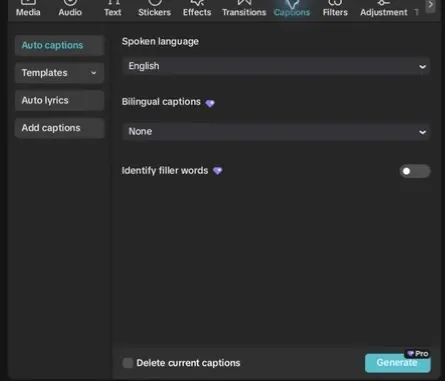
- Mobile: open a project and look for Captions in the bottom toolbar, then Auto captions. Check Text if your layout differs.
- Desktop: the help example shows Captions in the top toolbar, with Auto captions in its panel. Other documented layouts use Text.
- Web: open the timeline editor and look for Captions in the left sidebar. Choose Auto captions and the spoken language.
The recognition guide uses Captions, while CapCut's caption correction guide still uses Text. Check both labels before concluding that the feature is gone. The separate Web AI-captions upload tool is another entry point, not a reason to abandon a project already open in the timeline.
If the control is missing or generation will not finish, use the captions not working guide. Don't interrupt an active job just to try a different menu. For a failed Web attempt, CapCut recommends Chrome or Edge; the Web Editor checks cover browser-specific problems.
How to Add Auto Captions in CapCut Mobile
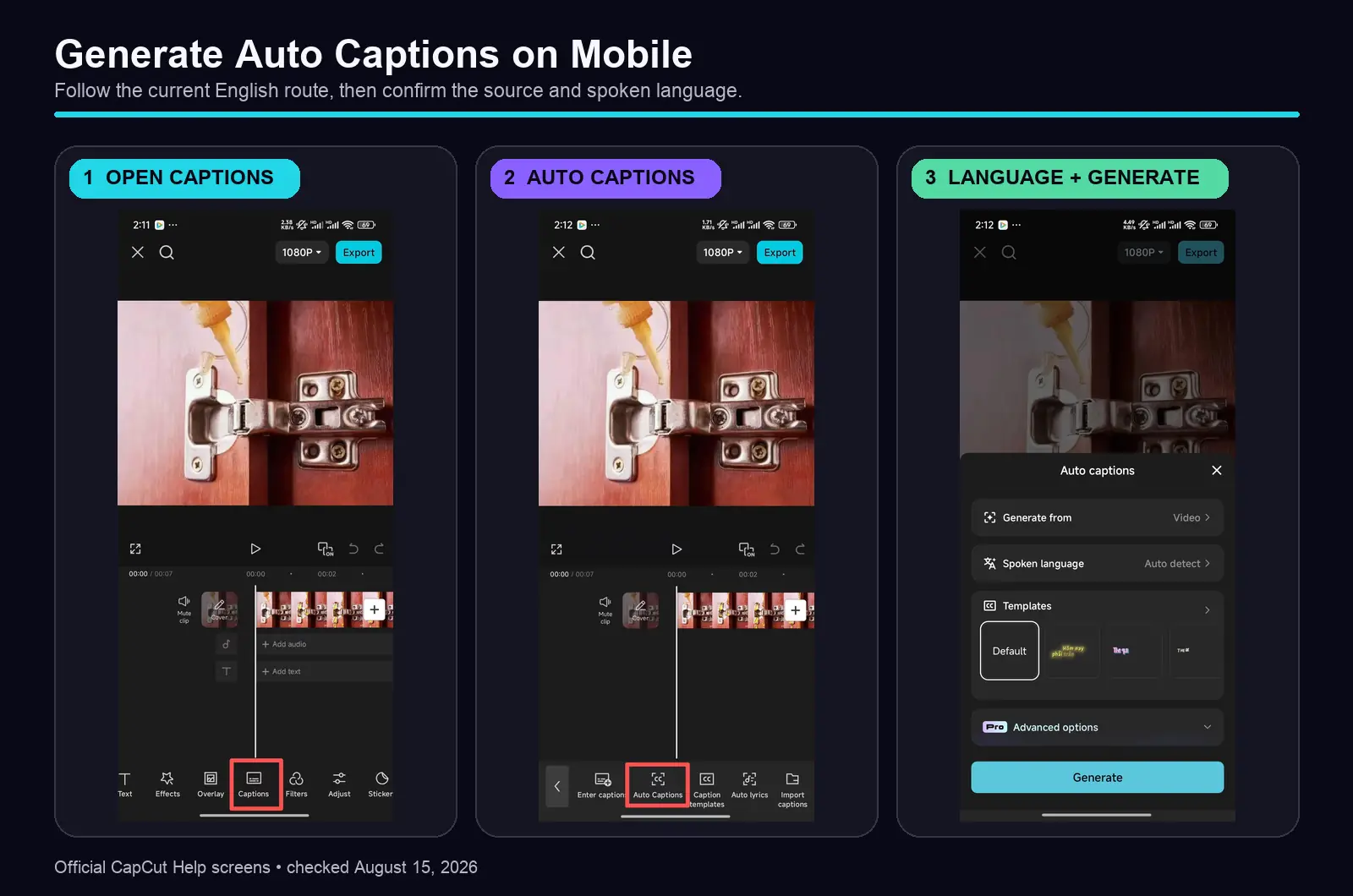
- Open the project and play the speech you want to caption.
- Tap Captions → Auto captions, or look under Text in a different layout.
- If a source control is available, choose the video or audio source containing the voice. Confirm the spoken language.
- Check the selected template, optional extras and any usage or Pro prompt. Start with a simple style you can read easily.
- Tap Generate and wait for processing to finish while connected.
- Select a caption block, open Edit captions when offered, and correct the words. Confirm the change and replay it before styling the full track.
Fix a few wrong words directly. If most of the transcript is wrong, check the language and recognition source before retrying in your separate project copy. Repeatedly generating the same input can waste an allowance without solving the problem.
These steps refer to ordinary caption-text editing, not a transcript-based tool that cuts video by deleting words. Changing a caption's spelling does not repair the audio itself. If the recording is missing or silent, follow the no-sound checks first.
How to Add Auto Captions on Desktop and Web
- Import your media and place the speech clip or voiceover on the timeline.
- Open Captions, or Text in another layout, and select Auto captions.
- Set the spoken language and inspect any available audio-source control. Leave translation or filler-word extras off unless you need them.
- Check the usage prompt and whether existing captions will be replaced. Start Generate, Recognize or Create, following the label in your build.
- After generation, open a caption block: on Desktop, double-click it or try right-click → Edit Captions; on Web, select it and look for Edit captions in the properties panel. Correct the words, then replay the changed section.
On Desktop, CapCut documents Ctrl+B on Windows and Cmd+B on macOS for splitting at the playhead. Select the caption block first and leave the text cursor out of the typing field; check your shortcut settings if the key does something else. Splitting changes the block, not the recognized speech.
For Web, use the same language → generation → review sequence. The official subtitle tool page also describes editing several lines in a list. Be careful with batch text replacement: replacing the words in several selected lines is not the same as applying one visual style to them. For a larger local timeline, see CapCut for PC.
Review the First Caption Pass
Listen to each sentence and read the matching text. Start with names, numbers, negations and technical terms. A missing “not” can reverse an instruction; punctuation alone will not fix it.
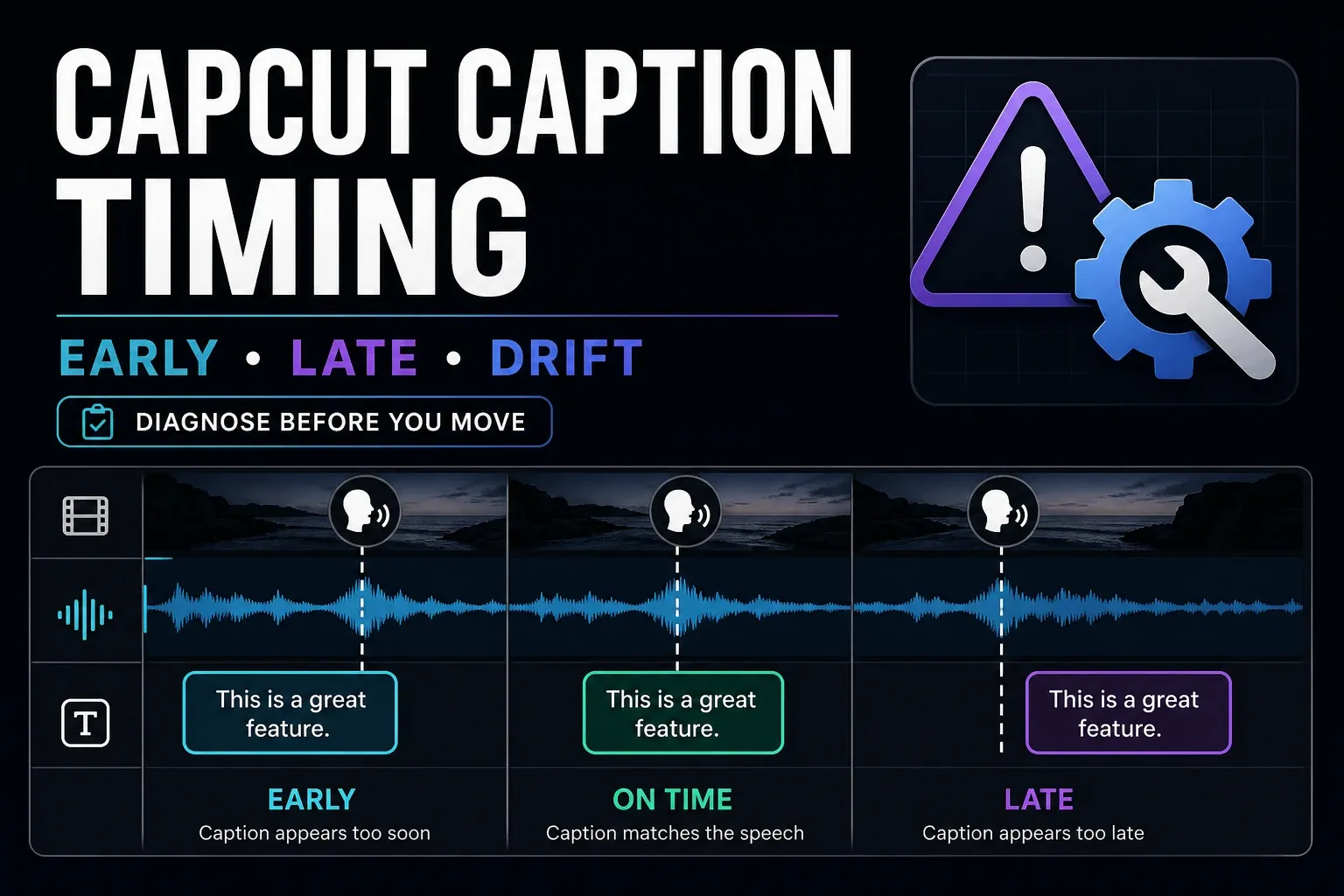
Then check line breaks and timing. Split long blocks at a natural phrase boundary without losing a word between them. For early, late, drifting, overlapping or missing captions, the caption timing guide explains how to distinguish a local mistake from a whole-track problem.
A speech transcript can also miss information a viewer needs when the sound is off. Add meaningful sound cues and identify speakers where the picture does not make them clear. The W3C caption guidance explains why automatic speech text alone is not enough. Watch once with sound to check accuracy and once muted to check whether the scene still makes sense.
If Auto Captions Does Not Produce a Usable Track
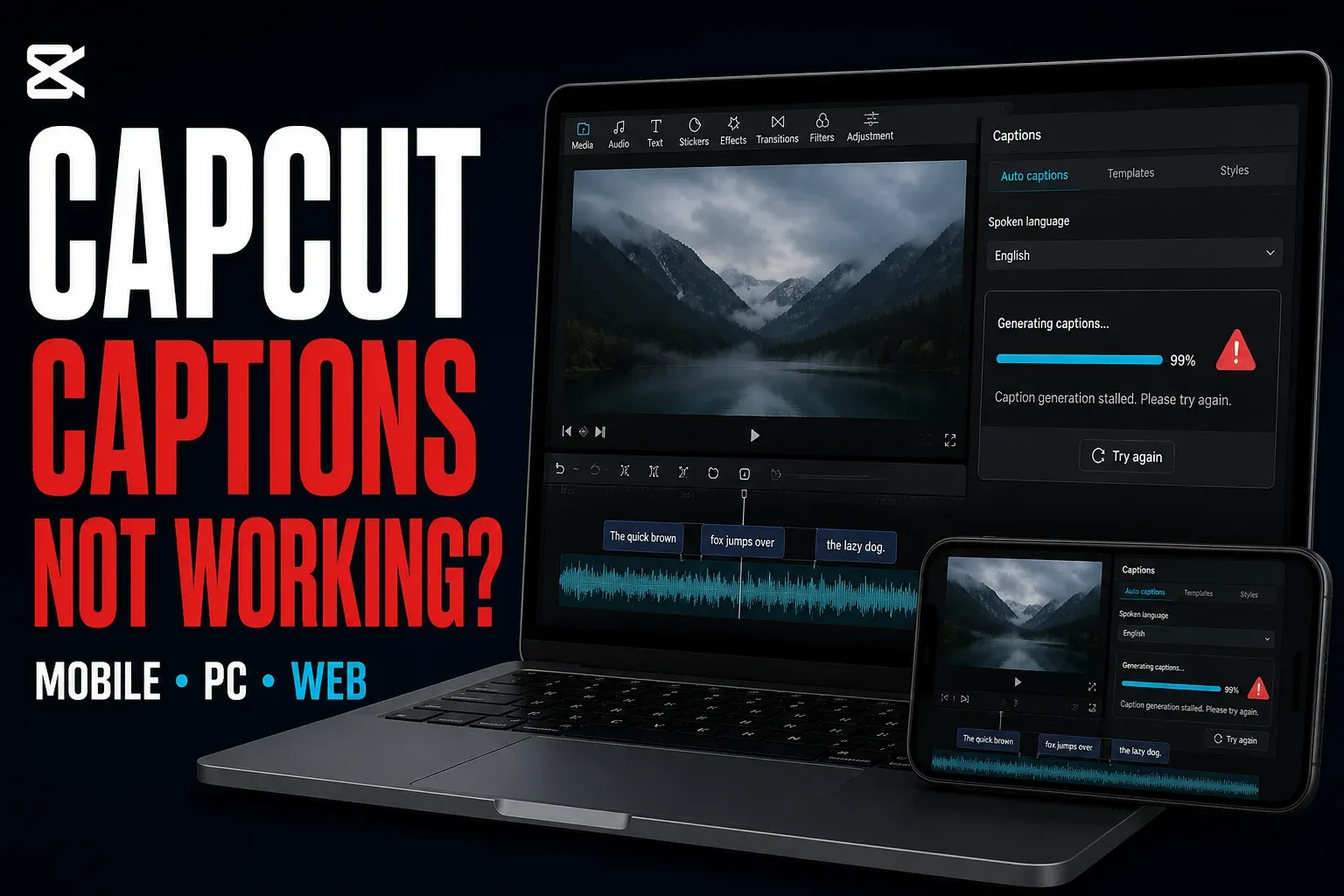
An empty result or stalled progress needs a generation fix, not a different font. Protect the project and follow the Auto Captions troubleshooting steps. If a usable track exists and only a few lines are wrong, keep the good work and correct those lines.
Are CapCut Auto Captions Free or Pro?
Auto Captions may require Pro or show a limited allowance. Don't assume it is unlimited because a tutorial calls it free. CapCut's plan comparison lists the generator among Pro tools, while other official pages still advertise no-cost captioning. The live prompt for your account is more useful than a blanket claim.
Check generation, the chosen caption style and separate subtitle-file export individually. A badge or counter on one action does not settle the other two. CapCut's beta usage-limit explanation describes variable trials, but it does not establish one current caption quota for everyone.
For the wider subscription decision, compare CapCut's plan options and whether Pro is worth it for your work. Test the caption workflow you need before paying for a long project.
Style Captions for Readability, Not Decoration
Select one generated caption and adjust its font, size, color and position. Use an outline or background if the footage changes from light to dark. Aim for one or two comfortable lines, breaking at a phrase rather than halfway through a name.
To repeat the formatting, look for Apply to all captions in the caption styling controls. CapCut's shared-style help warns that not every block updates consistently. Check the intended caption group, especially after splitting blocks or mixing generated, imported and manually typed text. On Desktop, CapCut documents Ctrl-click on Windows or Cmd-click on Mac to select individual captions for shared styling. Select caption blocks, not the video underneath. On Mobile and Web, use the caption list’s selection controls when offered; choose Style for appearance, not an Edit action that replaces several lines with the same words. If a block remains outside the group, format it individually.
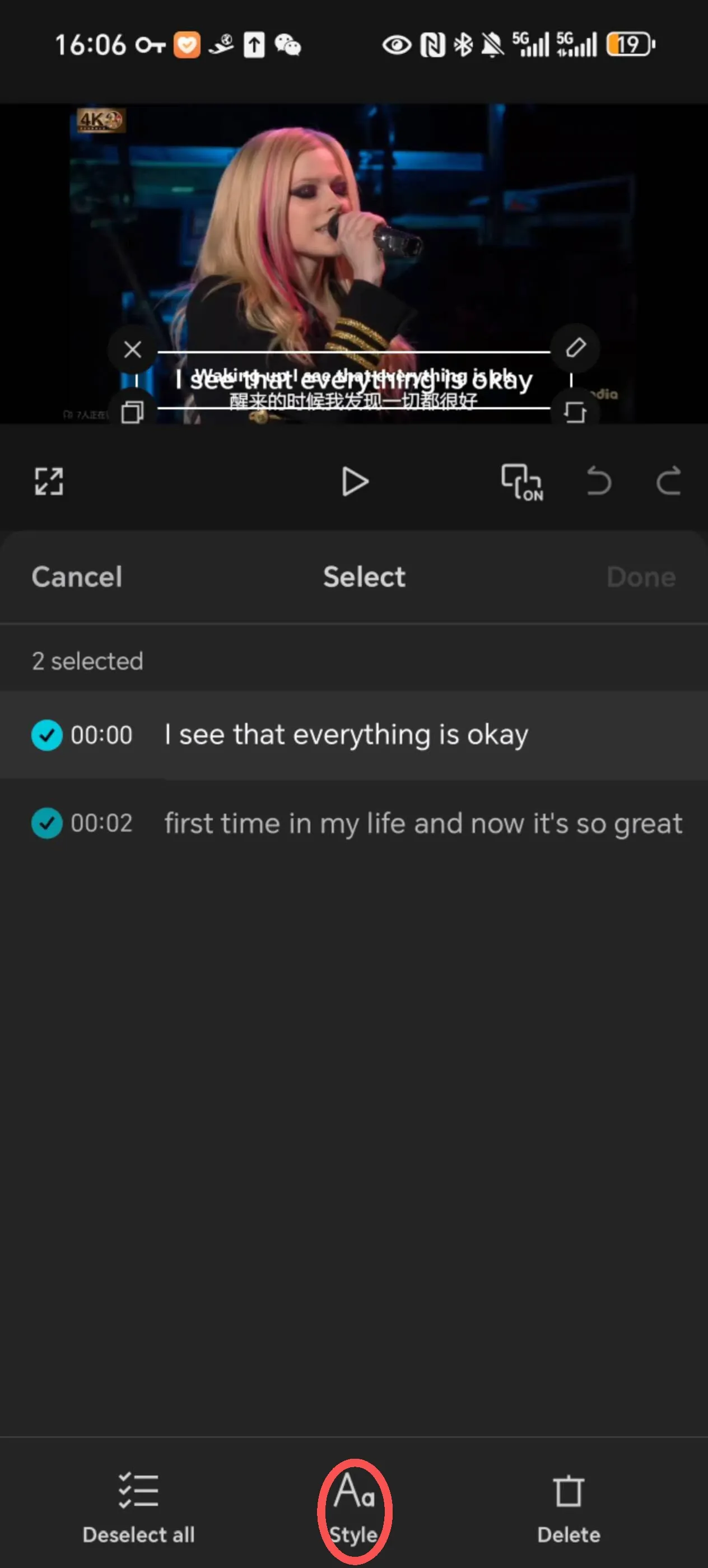
Apply to all is not the same as saving a preset
Apply to all controls which captions change in this project. A saved preset is meant to reuse a design; applying one does not prove that every caption, line width or animation has updated. In a March 2026 iOS report, a user described a preset changing only one selected caption and breaking the line layout. That is a reported case, not proof that every current build has the same bug.
Don't delete a reviewed transcript to fix a font. Compare a short line, your longest line and a recently edited block after applying the style. Check bright and dark scenes too. A preset that looks good on one caption can wrap badly on another.
Preview at phone size and in the destination app before posting. Keep text away from faces, product details and visible app controls. There is no single permanent safe rectangle for TikTok, Reels and Shorts.
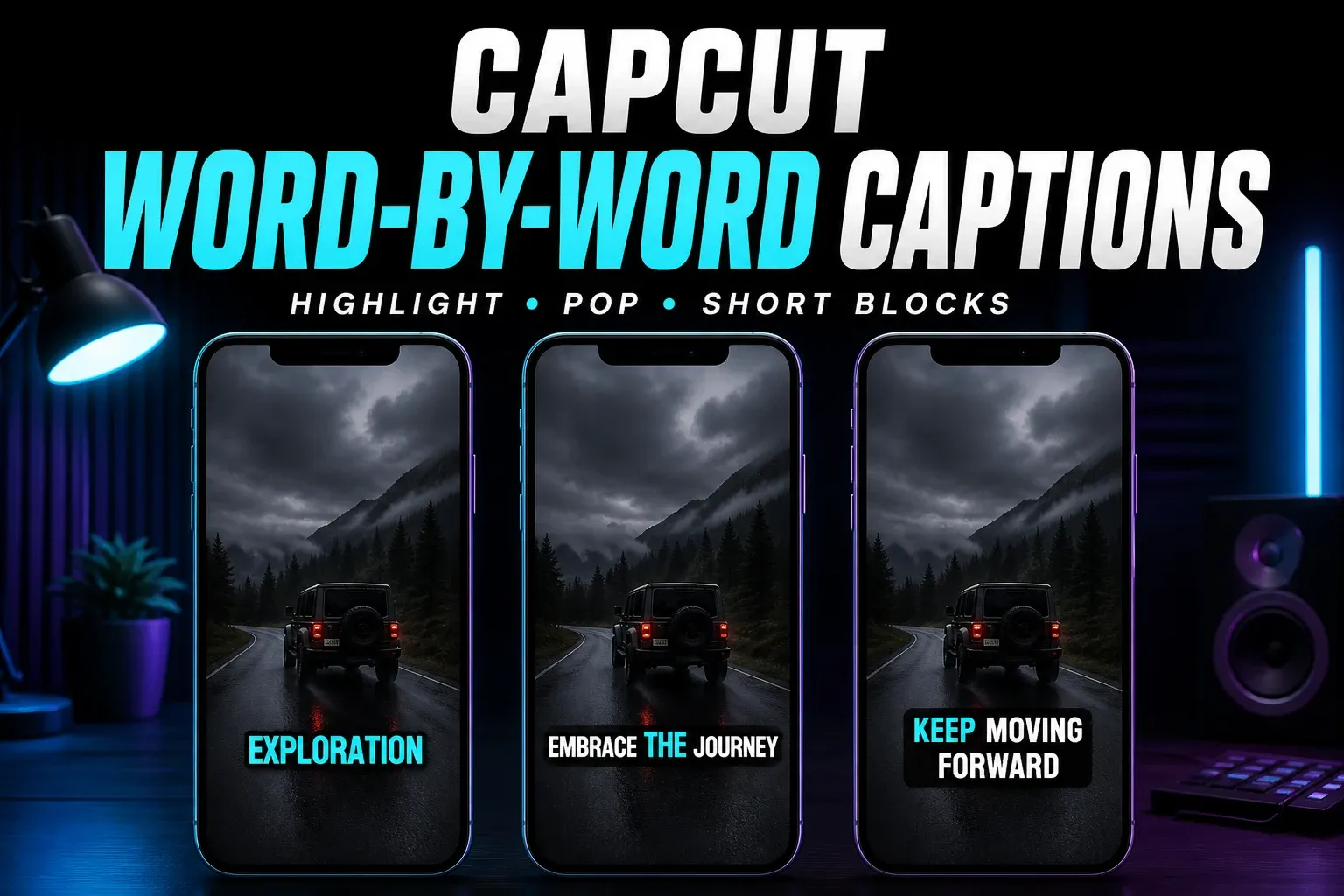
For active-word highlighting or one-word pop-ups, use the word-by-word captions guide. An animation will not correct a wrong word or late caption. The effects guide covers separate video effects.
Import an Existing Subtitle File
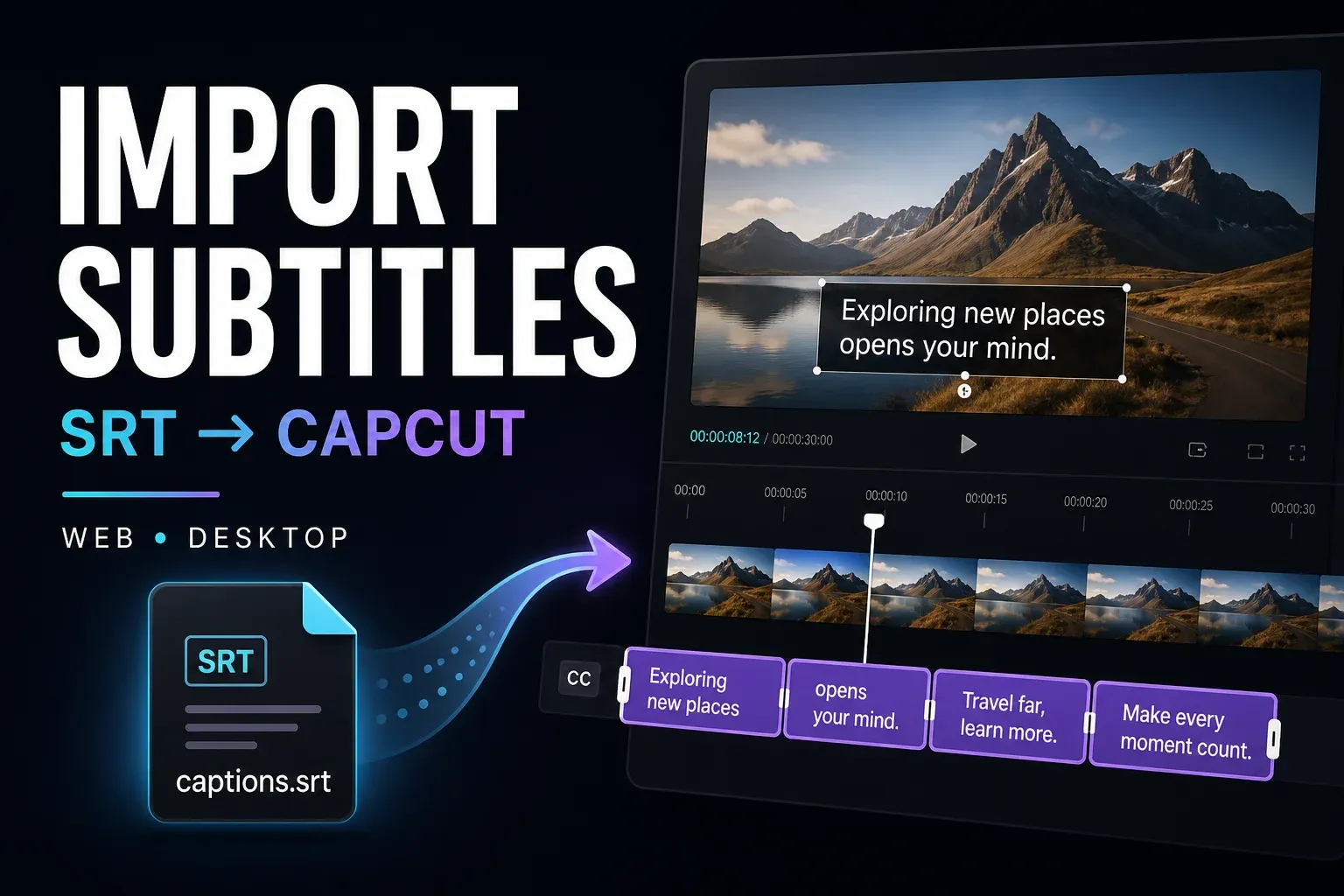
Already have a timed SRT? The SRT import guide covers Desktop’s Import file and Web’s Upload caption file routes. CapCut’s current help does not support direct SRT import on Mobile; use a documented Desktop/Web route or add text manually. Renaming an untimed TXT file will not create timecodes.
Translate Captions or Show Two Languages
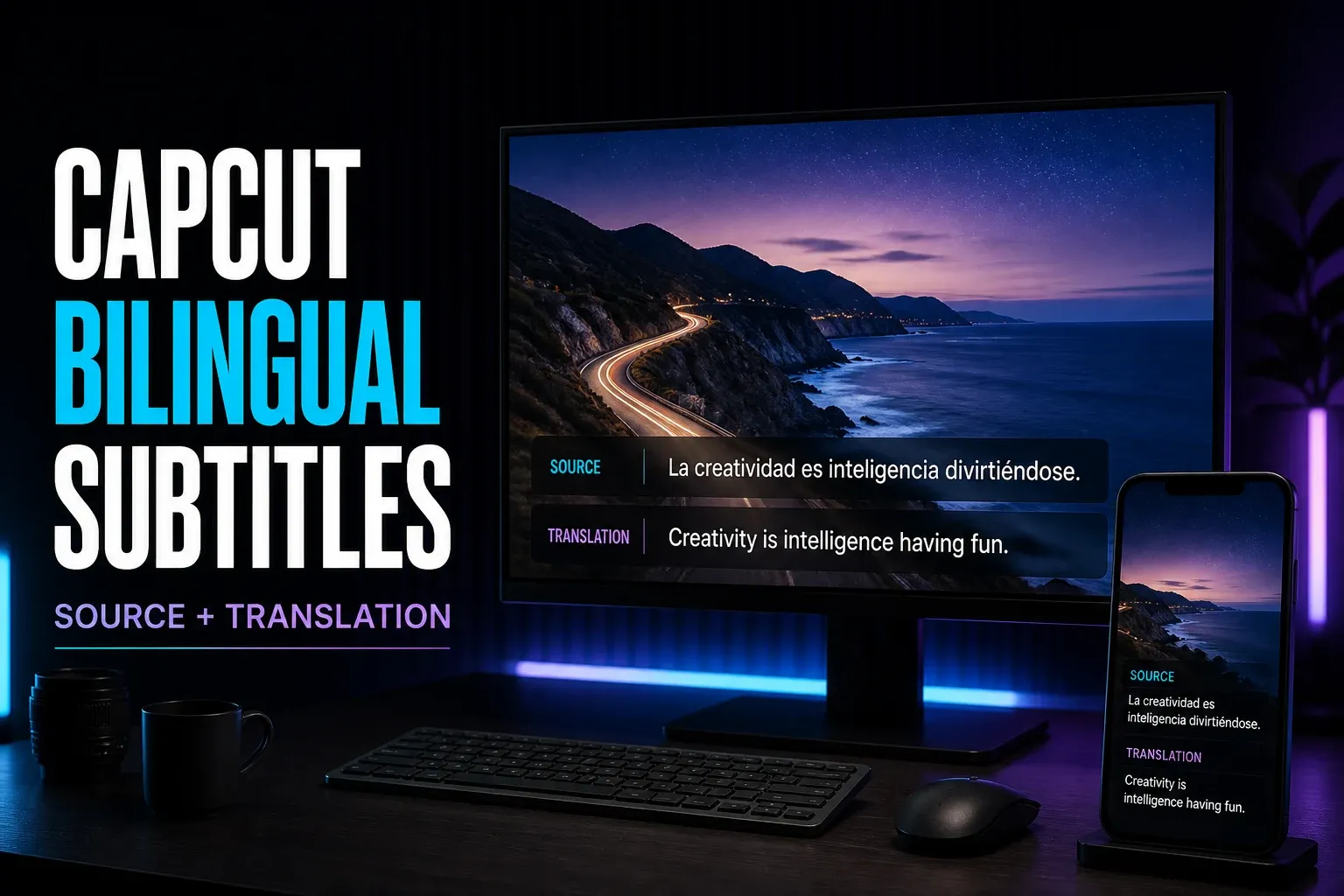
Keep a corrected source transcript before translation. Some bilingual controls recognize the audio again instead of translating your edited caption track, so a new Generate click can reintroduce words you already fixed. Compare both resulting languages with the saved source. The bilingual subtitles guide covers paired lines and the differing platform controls.
For translated text versus a translated voice, use the Video Translator guide. Creating narration from written text is a separate task in the AI voice guide.
Download a Caption File or Burn Captions into Video
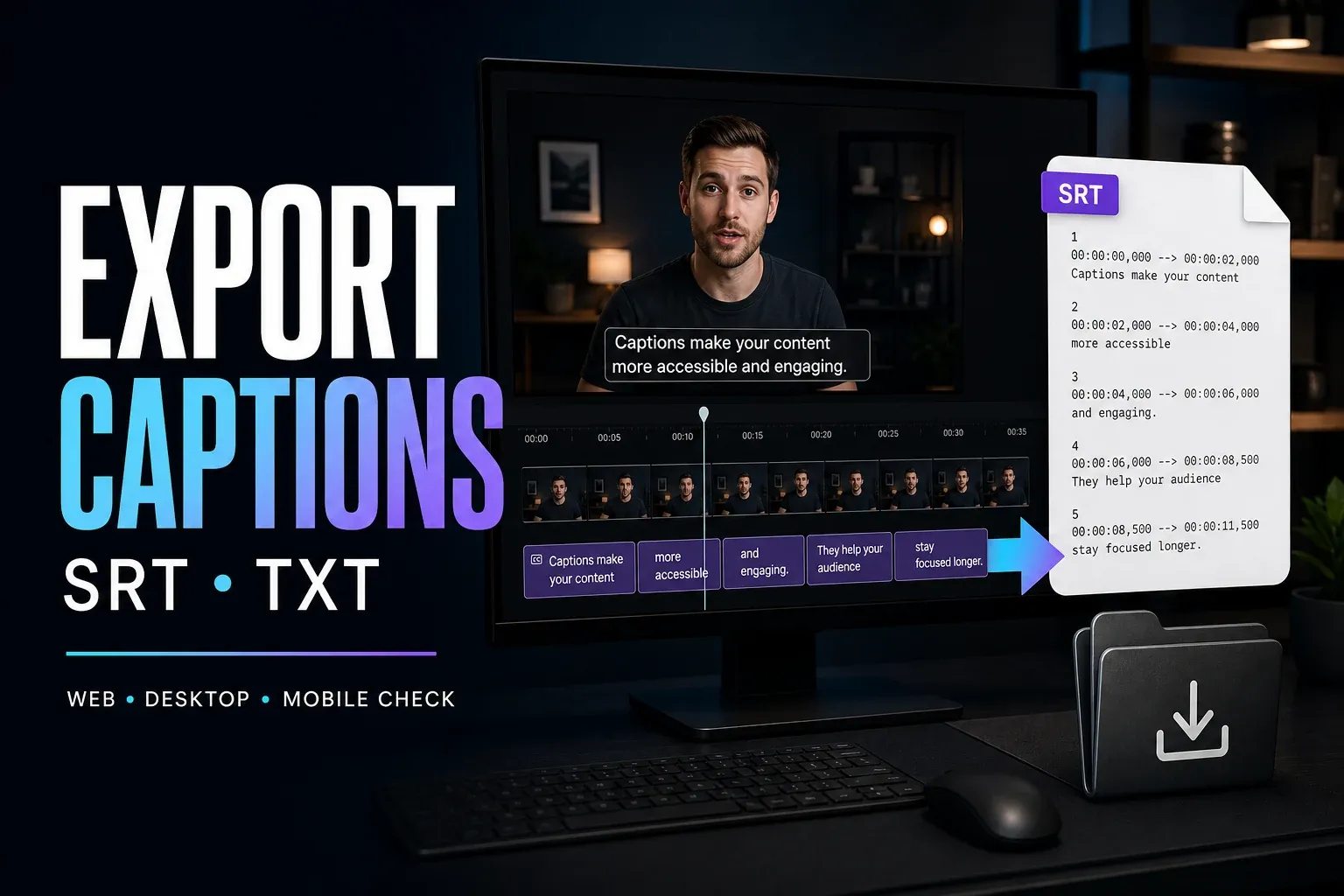
Burned-in captions become part of the exported video: viewers cannot switch them off. SRT carries text and timing for a separate subtitle track. TXT may be only a transcript; inspect the actual file before expecting it to carry timing. Neither a plain transcript nor a basic SRT preserves your CapCut word animations. For a desktop finishing edit, the DaVinci Resolve subtitle workflow handles SRT import, styling and export on that side.
Use the caption-file export guide to check the available route, eligible track and resulting file. For video resolution, frame rate and bitrate, see export settings. Keep the editable project and source media as well as the deliverables.
Captions for YouTube, Shorts, Reels and TikTok
Burned-in text is useful when you want captions visible without the viewer turning them on. A separate subtitle track gives the viewer that choice. YouTube's subtitle upload instructions distinguish files with timing from untimed transcripts; its supported-format guidance confirms that basic SRT does not retain styling.
Check the finished video outside CapCut, including every correction. If you also upload selectable captions, inspect the viewing result for duplicate text. For cross-posting, use the short-form publishing guides and check each destination's preview rather than trusting the editor alone. The AI tools hub connects captioning with other speech and text workflows.
CapCut Auto Captions FAQ
Where is Auto Captions in CapCut?
Open a project and look for Captions → Auto captions. Other documented layouts use Text. The help examples put Captions at the bottom on Mobile, at the top on Desktop and on the left in Web; follow the labels in your build.
Are CapCut auto captions free?
They may require Pro or show a limited allowance. Official pages do not give one consistent global answer. Check your account's generation prompt, chosen style and subtitle-file export separately; do not assume a fixed free quota or unlimited Pro use.
Do CapCut auto captions work offline?
Plan on an internet connection for new recognition: CapCut documents cloud processing and network-related failures. Editing captions already saved in a local project is a different operation and does not prove that offline generation will work.
How do I fix inaccurate CapCut auto captions?
Correct isolated wrong words directly. For a broadly wrong transcript, check the spoken language and recognition source, then retry in a separate project copy. Playback mute alone is not a reliable substitute for checking the selected source. Review the new text and timing before replacing good captions.
How do I change the style of all captions?
Select a generated caption, set the formatting and look for Apply to all captions. Check long, split and separately edited blocks. On Desktop, try Ctrl-click or Cmd-click to select the captions that need the same style; elsewhere, use the caption list’s selection controls when offered or format the remaining blocks individually. A saved preset is a separate operation and may not preserve the line layout.
Should I use burned-in captions or a subtitle file for YouTube?
Burned-in captions are always visible in the exported video. A separate timed subtitle file lets viewers turn captions on or off. Basic SRT does not preserve CapCut styling, and a plain TXT transcript may have no timing. Check for duplicate text if you publish both.