
CapCut Mobile vs CapCut PC: Full Feature Comparison
Quick verdict: edit on mobile if your content lives on TikTok, Reels and Shorts and you finish a clip in under 15 minutes. Edit on desktop if you're cutting anything over 3
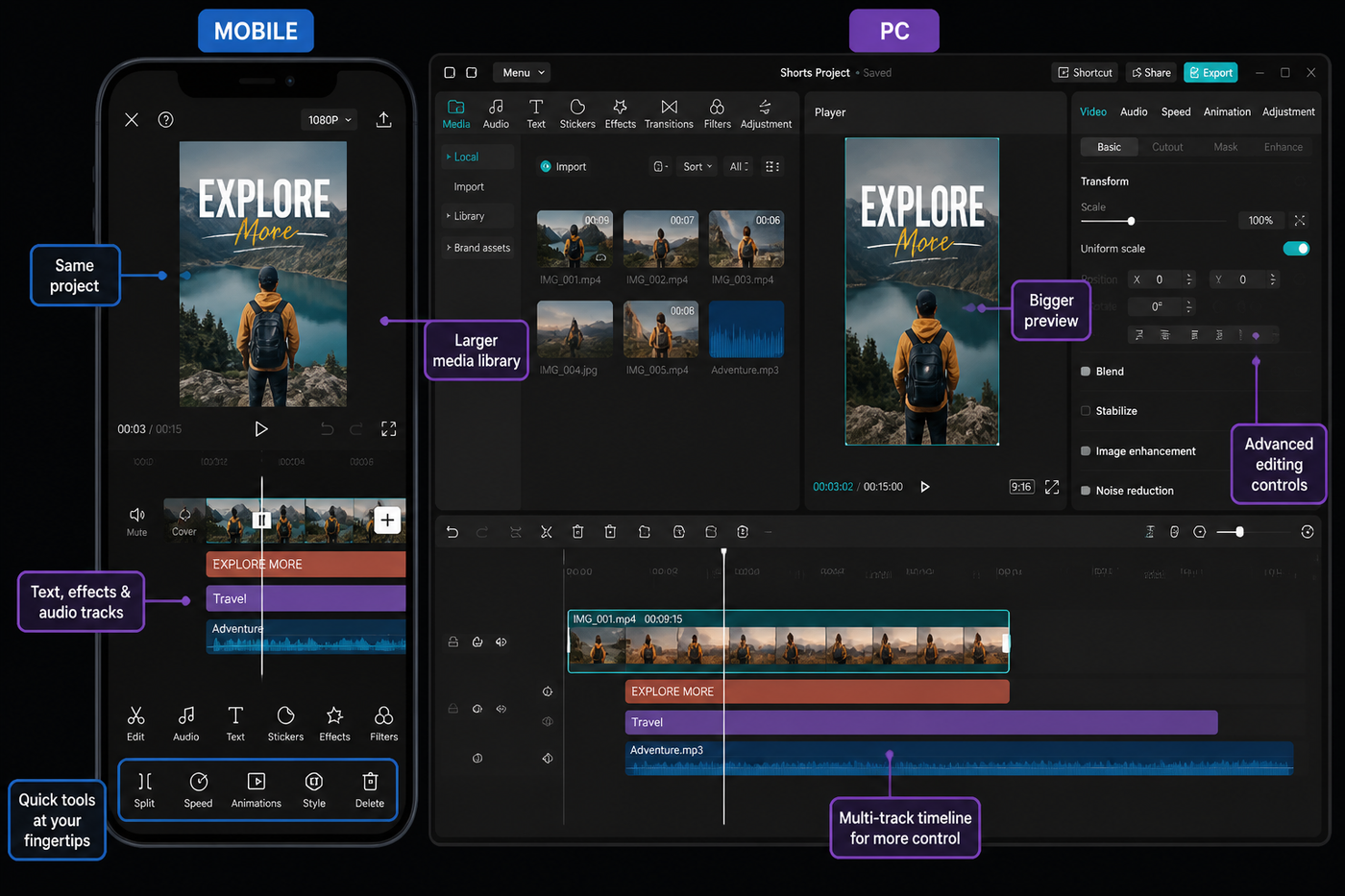
Quick verdict: edit on mobile if your content lives on TikTok, Reels and Shorts and you finish a clip in under 15 minutes. Edit on desktop if you're cutting anything over 3 minutes, you need multicam, you care about color, or you're routinely working with 4K source. CapCut Mobile and CapCut for Desktop share the same account and a lot of the same UI ideas, but they're two genuinely different editors — and one of them is wildly underused. After running the same five projects through both this month on an iPhone 15 Pro, a Pixel 8, an M2 MacBook Air and a mid-range Ryzen 5 / RTX 3060 Windows desktop, here's how they actually compare.
Source check: I checked CapCut’s desktop product page and help articles on templates, paid templates and platform limits on May 17, 2026. Any mobile-vs-desktop feature callout below should be treated as current for the May 2026 build, not a permanent promise.
Testing note: I checked current mobile-vs-desktop comparisons plus r/CapCut comments from creators switching devices. The useful answer is not “PC is better”; it is which task belongs on which screen.
At a glance
| CapCut Mobile (iOS / Android) | CapCut for Desktop (Mac / Windows) | |
|---|---|---|
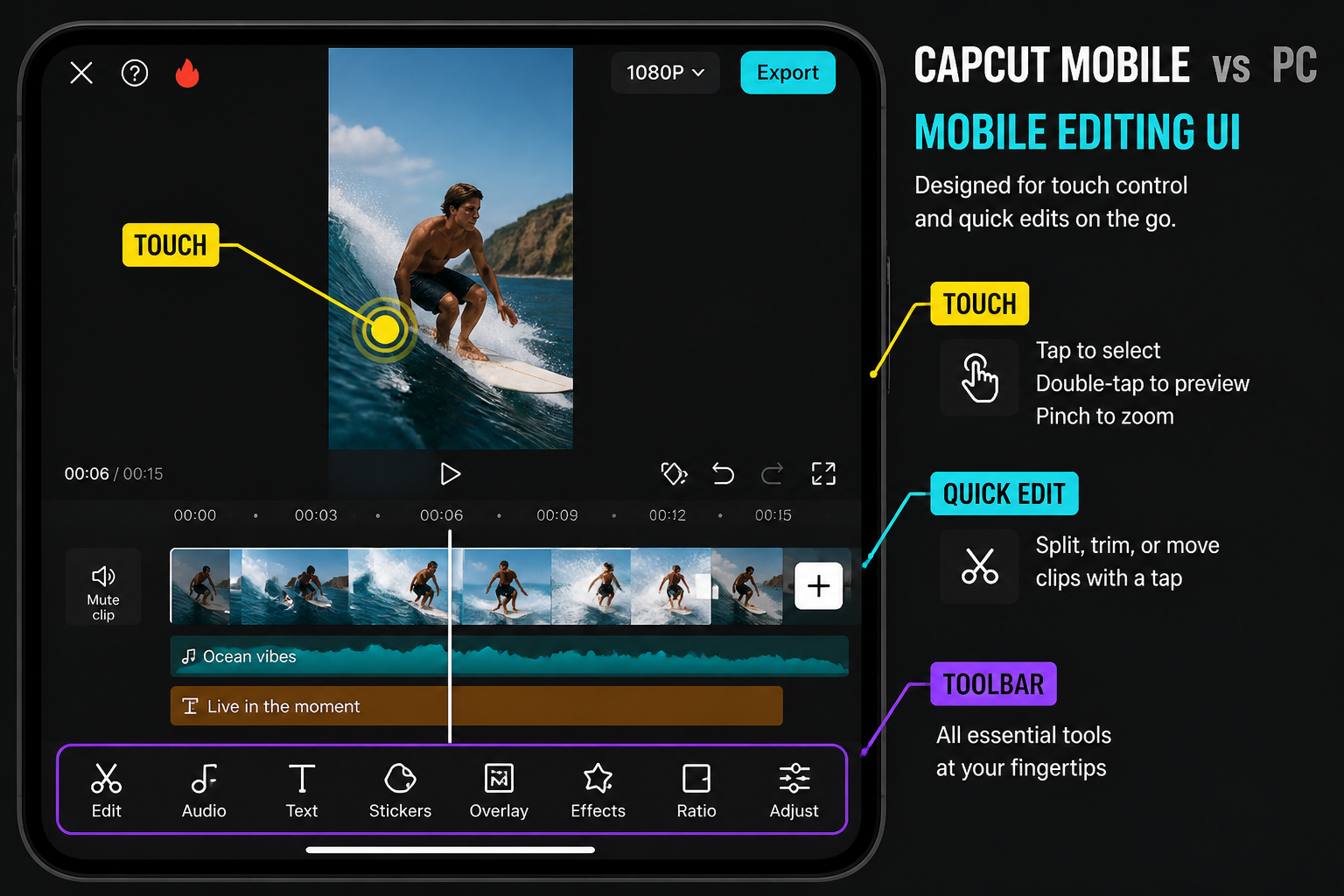
| UI | Touch-first, single-column timeline, gesture-driven | Mouse + keyboard, multi-track timeline, dockable panels |
| Exclusive tools | AR camera effects, beat-sync templates, on-device green screen, body effects, social presets | Multicam, advanced curves color, keyframe graph editor, mixer-style audio panel, plugin support |
| Performance ceiling | Smooth on flagship phones; chokes on 4K multilayer on mid-range | Smooth 4K multilayer on M2/Apple Silicon and modern Ryzen/Intel with discrete GPU |
| Max export | 4K 60fps (Pro on most regions); 1080p 60fps free | Higher desktop export ceilings on supported hardware and builds |
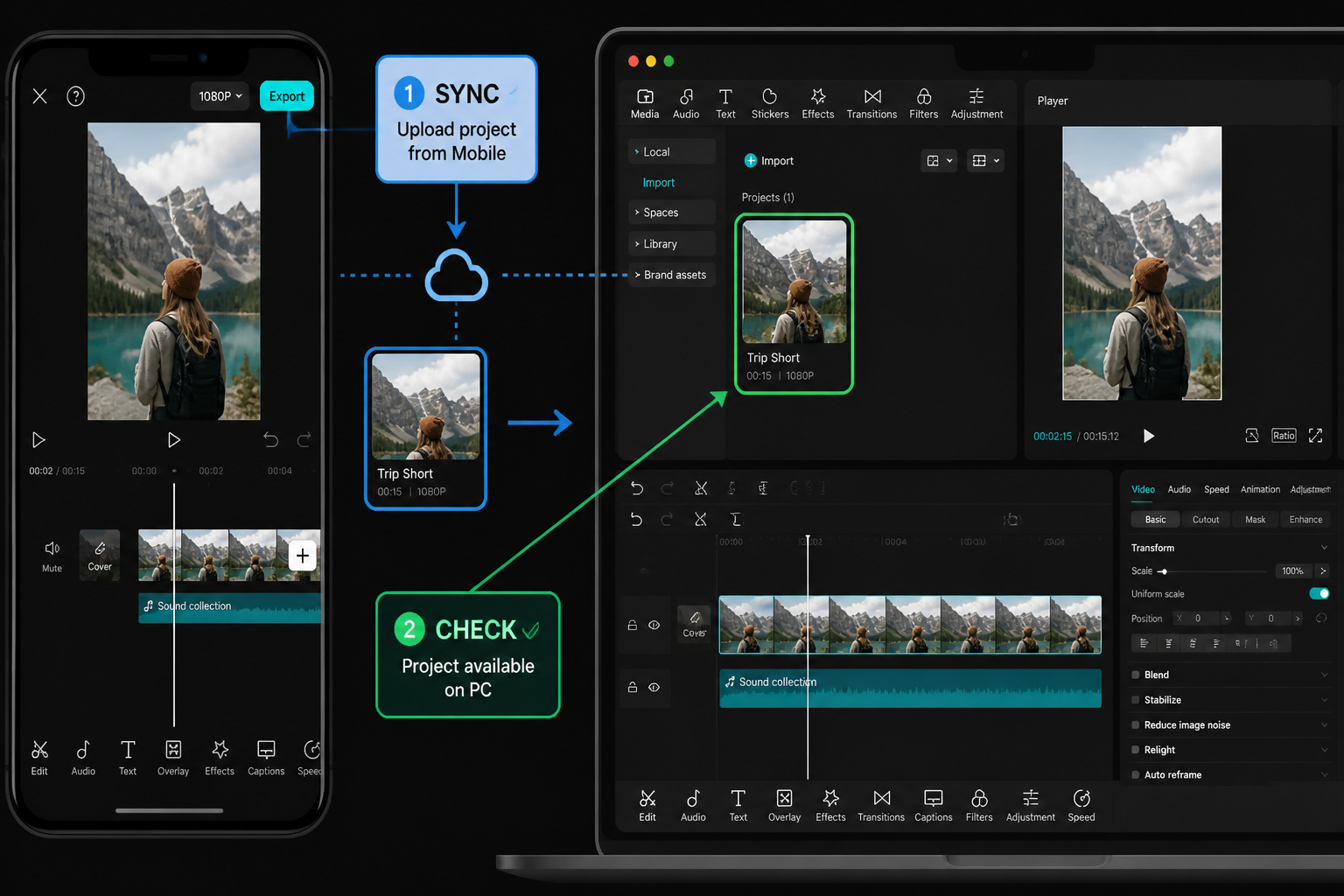
| Project portability | Opens cloud projects from desktop with Pro account | Opens cloud projects from mobile with Pro; not all effects round-trip cleanly |
| Price | Free tier; Pro pricing varies by region, device and promotion | Free tier; same account-based subscription model |
Pricing as of May 2026 — confirm current pricing in the CapCut app store listing or capcut.com.
UI and workflow — touch vs mouse
Mobile is built around your thumbs. The timeline scrolls horizontally, you pinch to zoom, you long-press to grab and reorder, and almost every adjustment is one tap deep. We measured a typical 30-second TikTok edit (8 cuts, music, captions, two transitions, one overlay) at roughly 6 minutes start-to-export on the iPhone 15 Pro — faster than the same edit on desktop, because there's no project setup overhead and the template-driven flows skip most decisions.
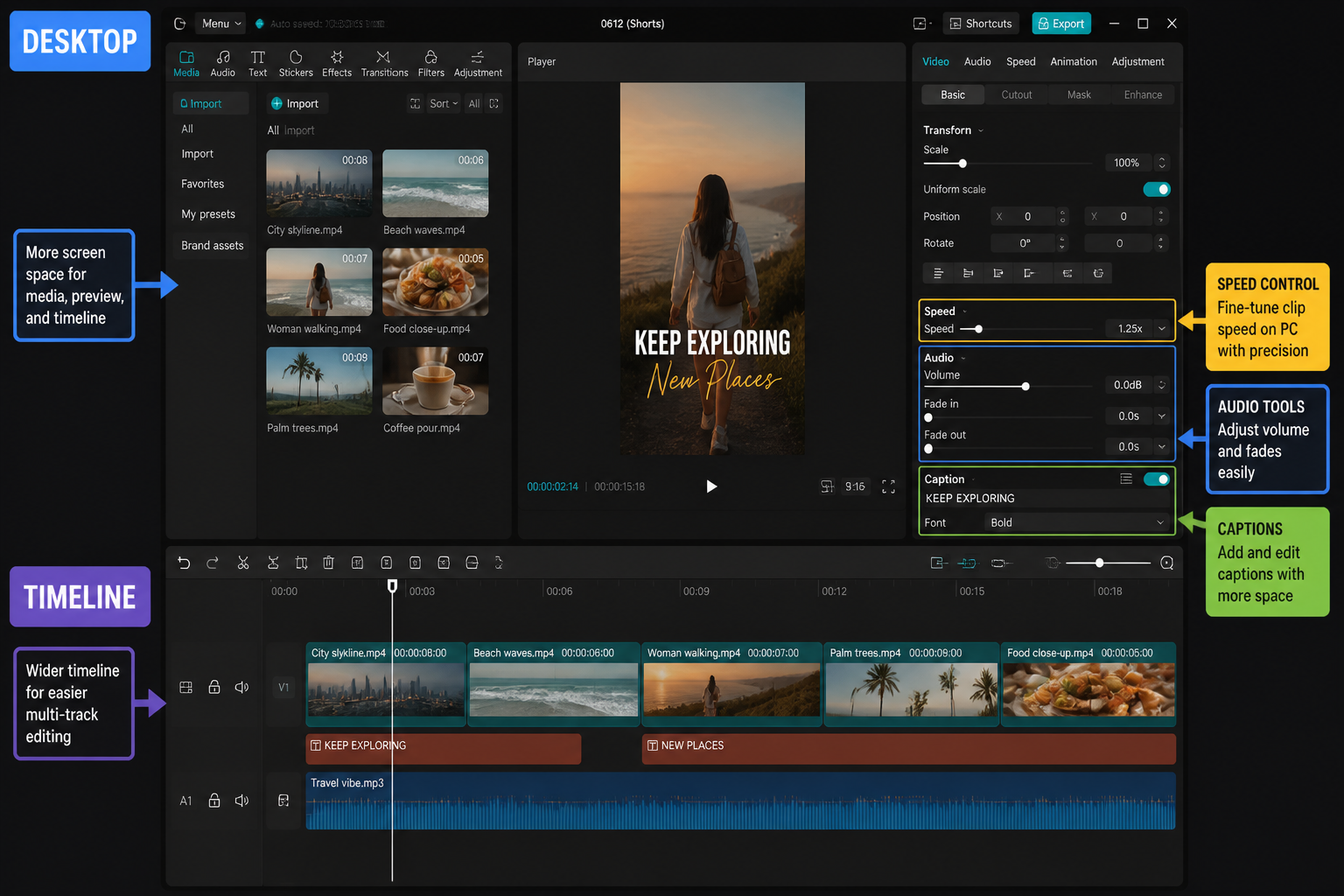
Desktop is built around precision. You get a true multi-track timeline (up to about a dozen video and audio tracks comfortably), a properties panel on the right, an effects/assets library on the left, and frame-accurate scrubbing with the arrow keys. The same 30-second edit takes longer on desktop the first time — but the second time you've memorized the shortcuts (split is Ctrl/Cmd+B, ripple delete is Shift+Delete), the gap closes fast and editing a 5-minute video on desktop is genuinely 3-4x faster than the same edit on mobile.
One real win for mobile: the in-app shoot mode. You can record clips directly into a project with effects pre-applied, which is huge for TikTok-style talking-head content. Desktop has no equivalent.
Exclusive tools on each side
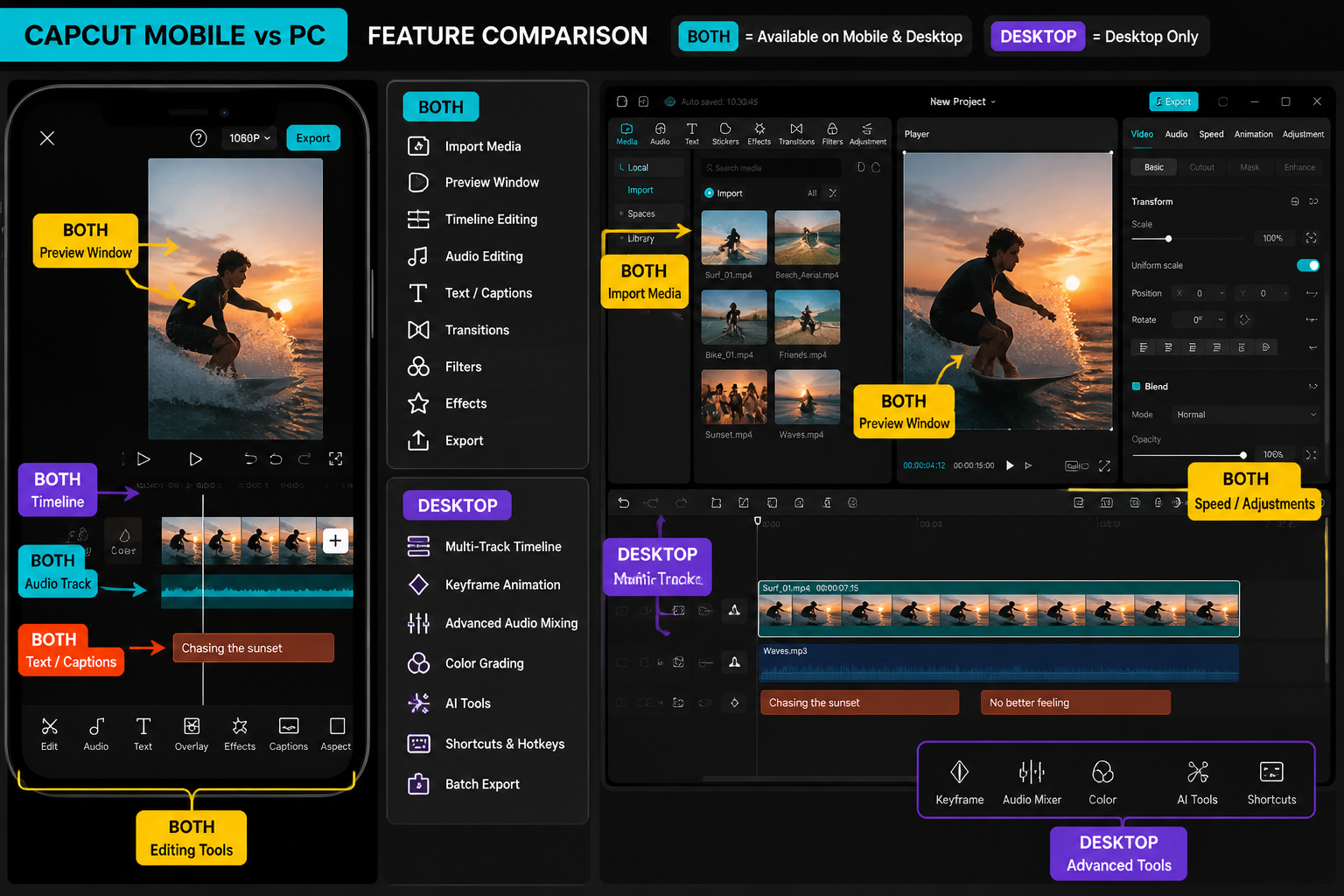
This is where people get it wrong. Mobile isn't a stripped-down version of desktop, and desktop isn't a fancier mobile — they each have features the other doesn't.
Mobile-only (as of May 2026):
- AR camera effects and body effects that use the phone's depth sensor.
- Most viral beat-sync templates — the kind covered in our viral templates roundup — render only on mobile.
- On-device, no-screen green-screen background swap (the desktop version of green screen works, but needs a chroma source rather than the mobile AI cutout).
- Native short-form export presets that match TikTok/Reels/Shorts spec automatically.
- The "auto-rhythm" feature that re-cuts your clips to music — desktop has a manual beat sync workflow but no one-tap equivalent.
Desktop-only:
- Multicam editing — sync up to 9 angles by audio and switch between them in real time.
- Curves color grading (RGB + luminance curves) and a proper scopes panel.
- Keyframe graph editor with bezier easing — mobile only offers linear and basic ease.
- Mixer-style audio panel with per-track EQ, compression and a real fader.
- Compound clips and nested sequences for organizing long-form edits.
- Higher-resolution exports (up to 8K on supported builds), ProRes export on Mac, and a render queue.
Performance on different hardware
We ran the same 90-second 4K project (3 video tracks, 1 overlay, color, captions, one AI background-removal clip) through both apps on all four devices and timed export. Take these as directional — your mileage will vary with codec and battery state.
- iPhone 15 Pro (mobile): playback smooth, export ~52 seconds, phone warm but not throttling.
- Pixel 8 (mobile): playback dropped frames on the AI clip, export ~1m 48s, noticeable heat.
- M2 MacBook Air (desktop): buttery playback, export ~38 seconds, fanless so it heat-soaked on a second back-to-back run.
- Ryzen 5 5600 + RTX 3060 (desktop): playback smooth, export ~31 seconds, GPU acceleration on H.265 export made a real difference.
The pattern is what you'd expect — desktop wins on raw export speed, but a current-gen iPhone is closer than people think. Older Android mid-rangers are where mobile starts to fall apart on 4K multilayer. If you're on a $300 Android and you're trying to edit 4K with three overlays, switch to 1080p source or move to desktop.
Export options and 4K
Free desktop exports 4K 60fps with no asterisk. Free mobile, in most regions, currently caps at 1080p 60fps — 4K is a Pro feature on phones. Both platforms support H.264 and H.265 (HEVC); desktop adds ProRes on Mac and a higher bitrate ceiling. Desktop also has a proper render queue, so you can stack up five exports before bed and let the machine chew through them; mobile renders one clip at a time and you can't background the app on iOS without it pausing.
One small but real desktop advantage: image-sequence export for stop-motion or VFX hand-off. Mobile doesn't do that.
Plugins, integrations and the wider workflow
Desktop CapCut supports a small but growing plugin tool stack — third-party effects, LUT packs and asset libraries — installed from the in-app store. Mobile has nothing comparable; the asset library is the only extension point. Desktop also plays nicer with the rest of your machine: drag-and-drop from Finder/Explorer, browser-to-app drag for stock clips, native shortcuts integration on Mac. Mobile lives in its own sandbox.
Both versions integrate with the CapCut cloud and (if you're signed in) with TikTok for direct upload. Direct-to-TikTok publishing is faster on mobile because the upload pipe is shorter.
Can projects move between mobile and desktop?
Yes, with a CapCut Pro account, and with caveats. Cloud projects sync between mobile and desktop, and we tested round-tripping a 45-second project both directions:
- Mobile → Desktop: clean for video, audio and text. Mobile-only effects (AR body effects, certain trending stickers) showed as placeholders on desktop with a "not supported on this platform" badge. Color and transitions came across fine.
- Desktop → Mobile: also clean for the basics, but bezier keyframes flattened to linear on mobile, and multicam edits collapsed to a single track of whichever angle was active when you saved.
The takeaway: round-tripping is fine for handoff (rough cut on mobile, finish on desktop) but don't treat the project file as bidirectional in the same way Premiere and Premiere Rush used to pretend to be. Free accounts don't get cloud sync at all and have to export and re-import — which loses your timeline structure.
Who should pick which
- Pick mobile if: you make short-form for TikTok/Reels/Shorts, you film on your phone, you use templates often, and your edits are usually under three minutes. Most of our walkthroughs — including adding text and picking transitions — are quicker on mobile.
- Pick desktop if: you cut anything over three minutes, you shoot multicam, you grade color seriously, you work with 4K source on a regular basis, or you're a Pro subscriber who wants the keyframe graph editor and proper audio mixer.
- Use both if: you're a creator who shoots on phone but finishes long-form on a laptop. Pro account, cloud sync, rough on mobile, polish on desktop.
FAQ
Is CapCut for PC the same as CapCut Mobile?
Same brand, same account, same cloud — but two different apps under the hood. Desktop adds multicam, curves color, keyframe graph editor, plugin support and free 4K export. Mobile keeps exclusive AR effects, beat-sync templates and the in-app shoot mode. Feature parity is roughly 70%.
Is CapCut for Mac and Windows free?
Yes. The desktop apps download free from capcut.com and the Mac App Store. Free desktop is actually more generous than free mobile in one key way — 4K export is included at no cost, where mobile 4K is currently a Pro feature in most regions.
Can I open my CapCut phone projects on my PC?
With a CapCut Pro account, yes — cloud sync moves projects between mobile and desktop. Free accounts don't get cloud sync. Some mobile-only effects (AR body effects, certain trending stickers) won't render on desktop and will show as placeholders.
Which version exports faster?
Desktop, on equivalent generations of hardware. In our test of a 90-second 4K project, an M2 MacBook Air exported in ~38 seconds vs ~52 seconds on an iPhone 15 Pro and ~1m 48s on a Pixel 8. A desktop with a discrete GPU and hardware H.265 encoding pulls further ahead on long-form exports.
Does CapCut PC have multicam editing?
Yes, up to 9 angles synced by audio, with real-time angle switching. This is desktop-only — mobile has no multicam workflow at all as of May 2026.
Are CapCut templates available on PC?
Most of the viral beat-sync templates from the CapCut feed are mobile-only and won't render on desktop. Desktop has its own template library, but it's smaller and skewed toward longer-form intros and transitions rather than the short-form trends.
Can I use a mouse and keyboard with CapCut Mobile on iPad?
Yes — CapCut for iPad accepts mouse and keyboard input and has a hybrid UI closer to the desktop layout. It's the best middle-ground if you want desktop-style precision without leaving the iOS tool stack.
Which version has better AI tools?
They share most of the AI stack — auto captions, background removal, AI script-to-video — but mobile lands new AI features first and has more AI-driven viral effects. Desktop catches up usually within a release or two. If you live on the bleeding edge of AI features, mobile is currently ahead.
Final cut
If you make short-form vertical video for social — and most CapCut users do — stay on mobile. The app was built for that workflow, the trending templates only work there, and you're never more than a few taps from upload. If you're cutting anything longer than three minutes, working with multicam or 4K masters, or you actually grade color, switch to desktop CapCut for Mac or Windows — it's free, it's faster, and the toolset is closer to a real NLE than the phone app gets credit for. The sweet spot, if you can swing the Pro subscription, is using both: shoot and rough-cut on the phone, sync to cloud, finish on the laptop. That's the workflow we'd recommend for any creator who's moved past 60-second clips.