
15 Best CapCut Transitions to Try in 2026
The best CapCut transitions are the ones that either disappear (good) or support the beat without screaming "I just downloaded a template" (bad). After cutting roughly 200 short-form pieces in the last
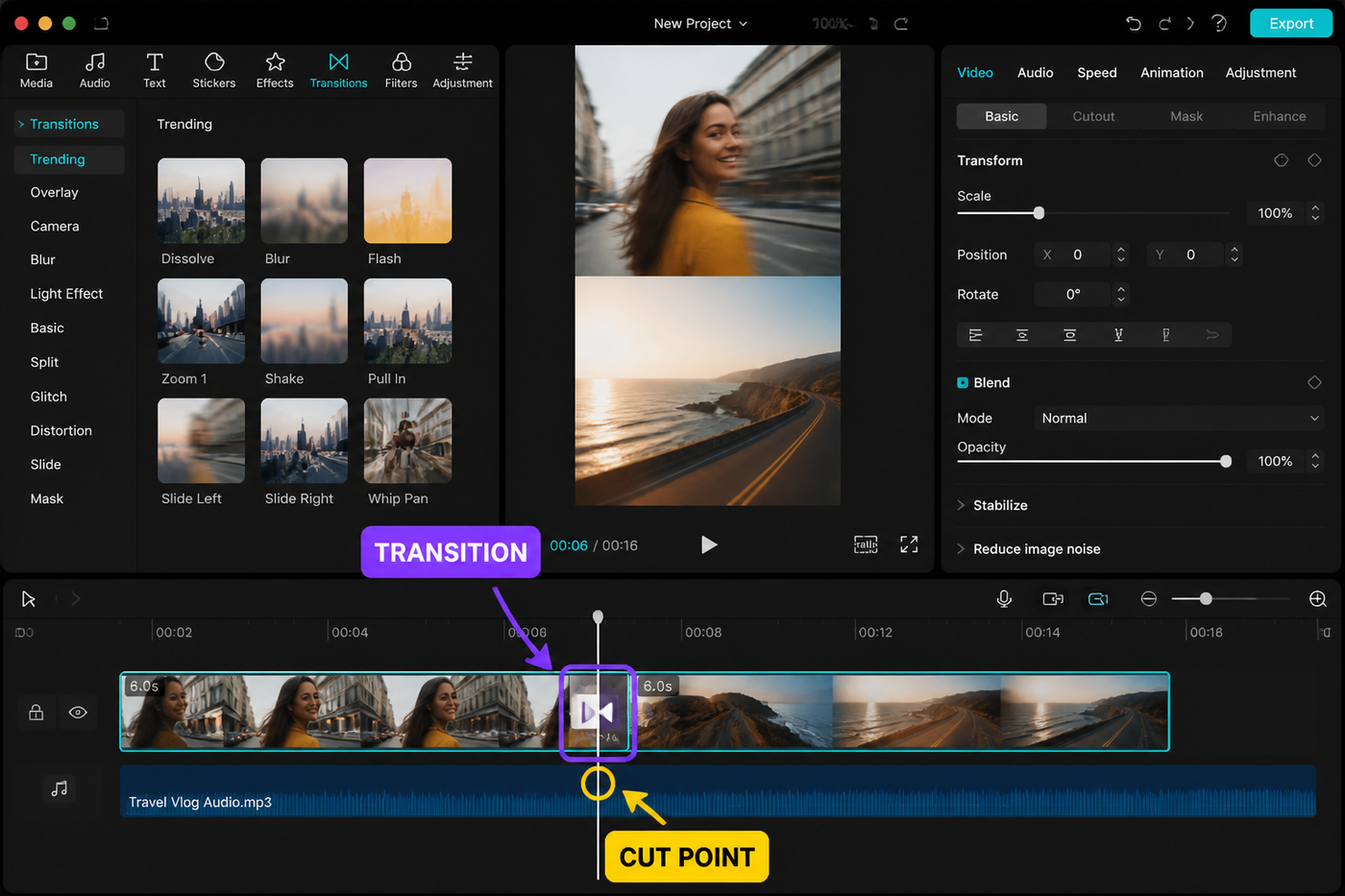
The best CapCut transitions are the ones that either disappear (good) or support the beat without screaming "I just downloaded a template" (bad). After cutting roughly 200 short-form pieces in the last year on the May 2026 mobile build, these are the 15 transitions we still reach for — split across one-tap built-ins, beat-synced template moves, and the handful of custom keyframe reveals that actually justify the extra two minutes. Each one is rated 1-3 for difficulty and tagged with the slot it fits.
Testing note: I checked CapCut’s current transition guidance and the 2026 SERP before writing this. The list favors transitions you can actually rebuild from cuts, keyframes and masks instead of one-tap presets only. Sources checked: CapCut transitions guide.
Quick pick table
| Transition | Type | Difficulty | Best for |
|---|---|---|---|
| Cross Dissolve | Built-in | 1 | B-roll cut |
| Whip | Built-in | 1 | Scene change |
| Glitch | Built-in | 1 | TikTok hook |
| Zoom Blur | Built-in | 1 | TikTok hook |
| Shutter | Built-in | 1 | B-roll cut |
| Spin | Built-in | 2 | Scene change |
| Push | Built-in | 1 | B-roll cut |
| Slide | Built-in | 1 | Scene change |
| Flash | Built-in | 1 | TikTok hook |
| Light Leak Sweep | Template | 2 | Scene change |
| Camera Whip | Template | 2 | TikTok hook |
| Liquid Wipe | Template | 2 | Scene change |
| RGB Split | Template | 2 | TikTok hook |
| Mask Reveal | Custom keyframe | 3 | Scene change |
| Morph | Custom keyframe | 3 | B-roll cut |
Built-ins live under the small white box between any two clips — tap it to open the Transitions panel. Templates are full-edit kits from the Templates tab on the home screen. Custom keyframe transitions are hand-built using the diamond on Position, Scale, Rotation and a mask layer — covered in our keyframes tutorial if you want the foundation first.
Built-in one-tap transitions
The bottom row of the Transitions panel — nine picks below that fit between any two cuts without setup. Default duration is 0.5s; we pull most to 0.2-0.3s for short-form pacing.
1. Cross Dissolve
The oldest transition in video and still the right answer most of the time. Smooth opacity blend between two clips. Use it for B-roll where you don't want the cut to draw attention — interview cutaways, time-passing montages, anything where the story matters more than the move. Difficulty 1. Default 0.5s reads as a slow fade; we run it at 0.25s for tight pacing.
2. Whip
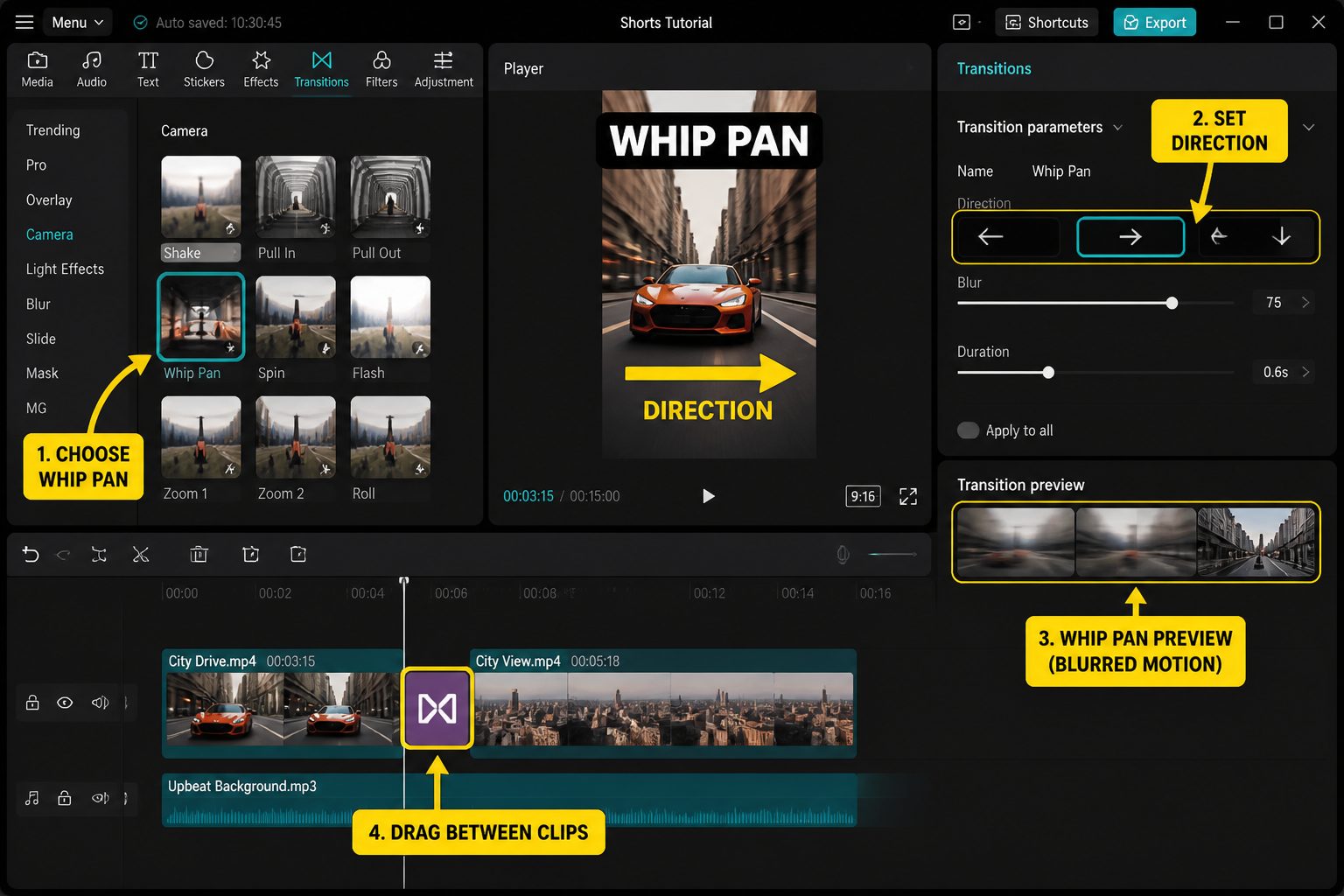
Horizontal motion blur smearing one clip into the next. Looks like a fast pan. Sells a location change cleanly when both clips have movement going the same direction — record your B-roll with a small camera pan if you know you'll Whip into it. Difficulty 1. Holds up at 0.2s, falls apart over 0.4s.
3. Glitch
RGB-split scanlines plus a brief frame freeze. Reads as energetic, slightly chaotic. Good for the hook of a TikTok or Reel — the first 1.5s where you need the algorithm to think something is happening. Overuse kills it; one per video, max two. Difficulty 1.
4. Zoom Blur
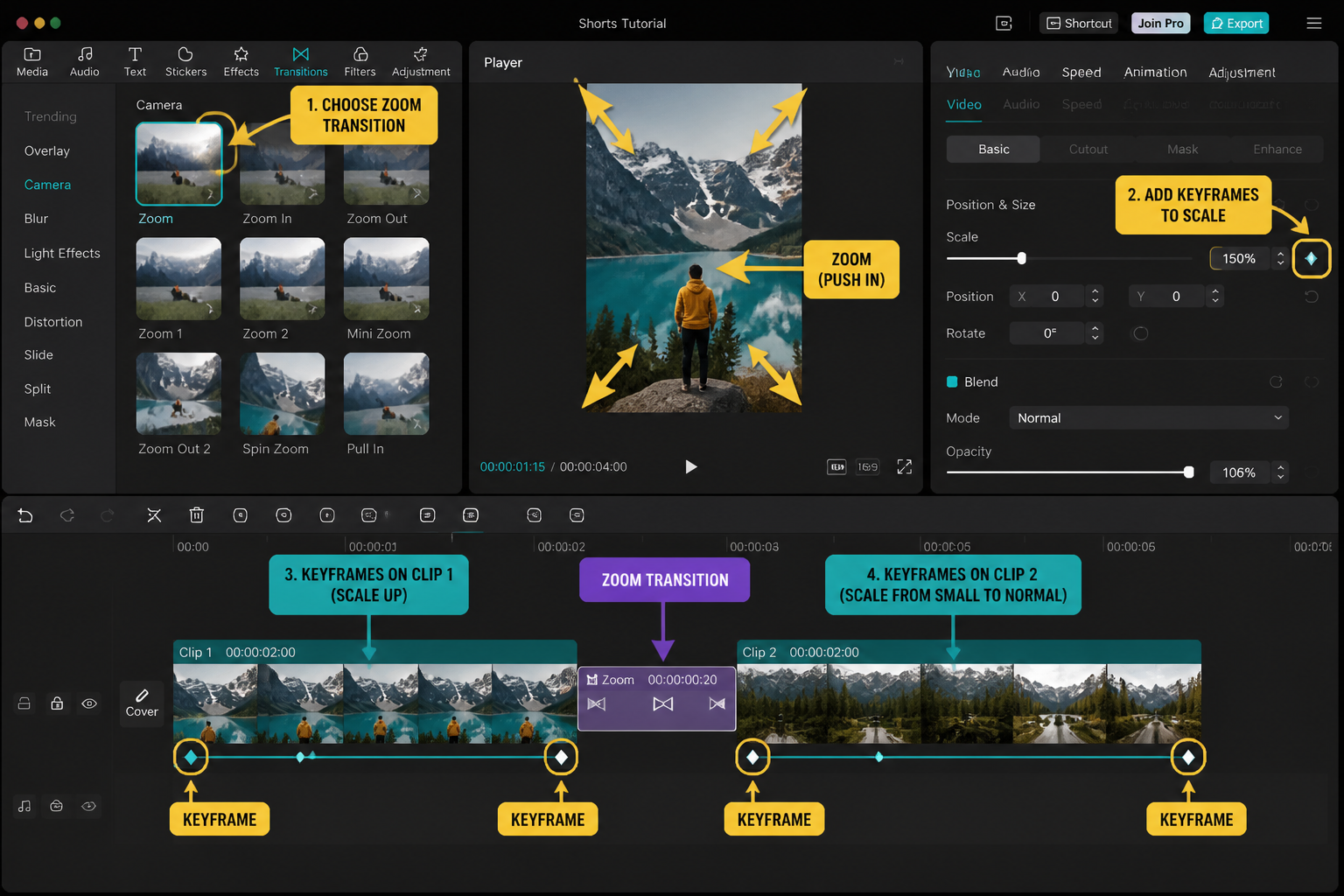
Rapid scale-up with radial blur, then snaps to the next clip. The cleanest "we're entering somewhere new" transition. Pair with a whoosh sound effect from the CapCut sound library and it punches above its complexity. Difficulty 1. Pairs especially well with a hook line that drops on the snap — see our TikTok editing workflow for the full hook structure.
5. Shutter
Camera shutter wipe — the screen briefly goes black with horizontal blades. Works when both clips are static or static-leaning (talking head into product shot, etc.). Looks contrived over fast-moving footage. Difficulty 1.
6. Spin
360-degree rotation between clips. Higher difficulty than the others because timing matters — if the outgoing clip has a lot of motion, the spin direction matters and the wrong choice feels backwards. Try it both ways before committing. Difficulty 2.
7. Push
Clip A slides off-screen as Clip B pushes in from the opposite edge. Reads as deliberate, slightly editorial. Good for "Step 1 / Step 2" walkthrough cuts, recipe videos, anything procedural. Difficulty 1.
8. Slide
Like Push but Clip B slides over Clip A instead of pushing it. Subtler than Push — feels more like a card moving than a full scene change. Use for sub-section breaks within the same scene. Difficulty 1.
9. Flash
Full-frame white (or color-picked) blowout between clips. Cheap-looking on its own; powerful when synced to a snare hit or a clap in the audio. Difficulty 1, but you need a beat-sync workflow to make it land.
Beat-synced templates
These four ship as full template-style effects with built-in animation and audio sting. They look "produced" — almost too produced for casual content, so use sparingly. Each sits in the Effects tab or the Transition templates row, depending on the build.
10. Light Leak Sweep
A warm orange-pink flare sweeps across the frame, masking the cut. Cinematic, slightly retro. Pair with film-grain footage for a deliberate look; on iPhone-shot clean digital it can feel mismatched. Difficulty 2 — getting the leak direction to match camera movement takes one or two tries. Combines well with the overlay stacking workflow in our overlay effects guide.
11. Camera Whip
Bigger, more violent sibling of the built-in Whip — adds a camera-shake and a low-rumble sting under the motion. Reads as cinematic on travel content, theatrical on talking heads. Use for the "and then we arrived at…" beat. Difficulty 2.
12. Liquid Wipe
Animated liquid mask (ink-blot or water-splash variants) reveals the second clip. Slightly novelty but undeniably eye-catching. Best on product reveals and "the result" beats. Difficulty 2 — pick the variant that matches your color palette or it clashes.
13. RGB Split
Red/green/blue channel offset that pulses then snaps. Cousin of Glitch but cleaner — feels modern and music-video-coded rather than chaotic. Killer on a beat drop. Difficulty 2.
Custom keyframe transitions
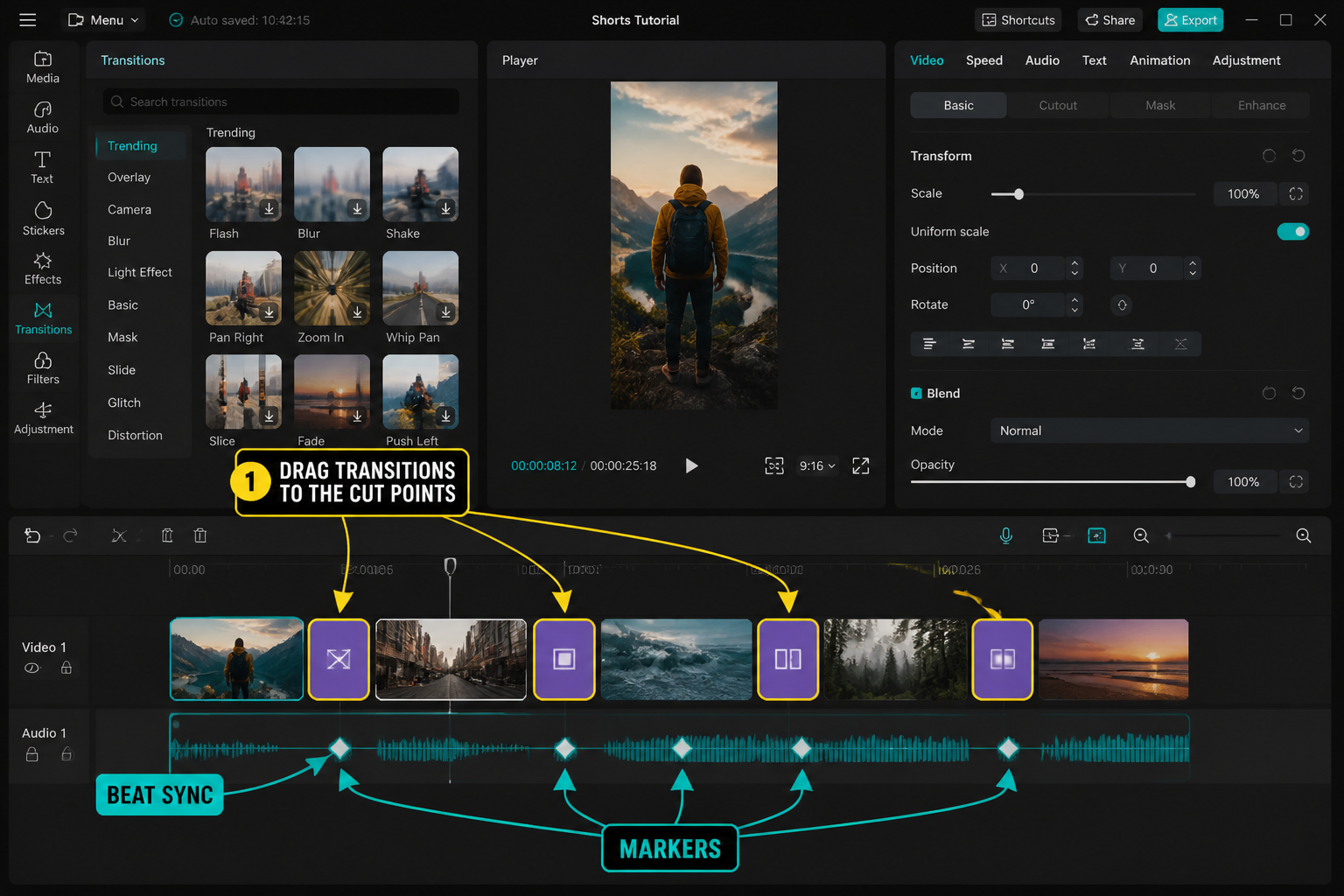
Two transitions worth building by hand. Both take 2-5 minutes per cut but neither has a one-tap equivalent that looks as clean.
14. Mask Reveal
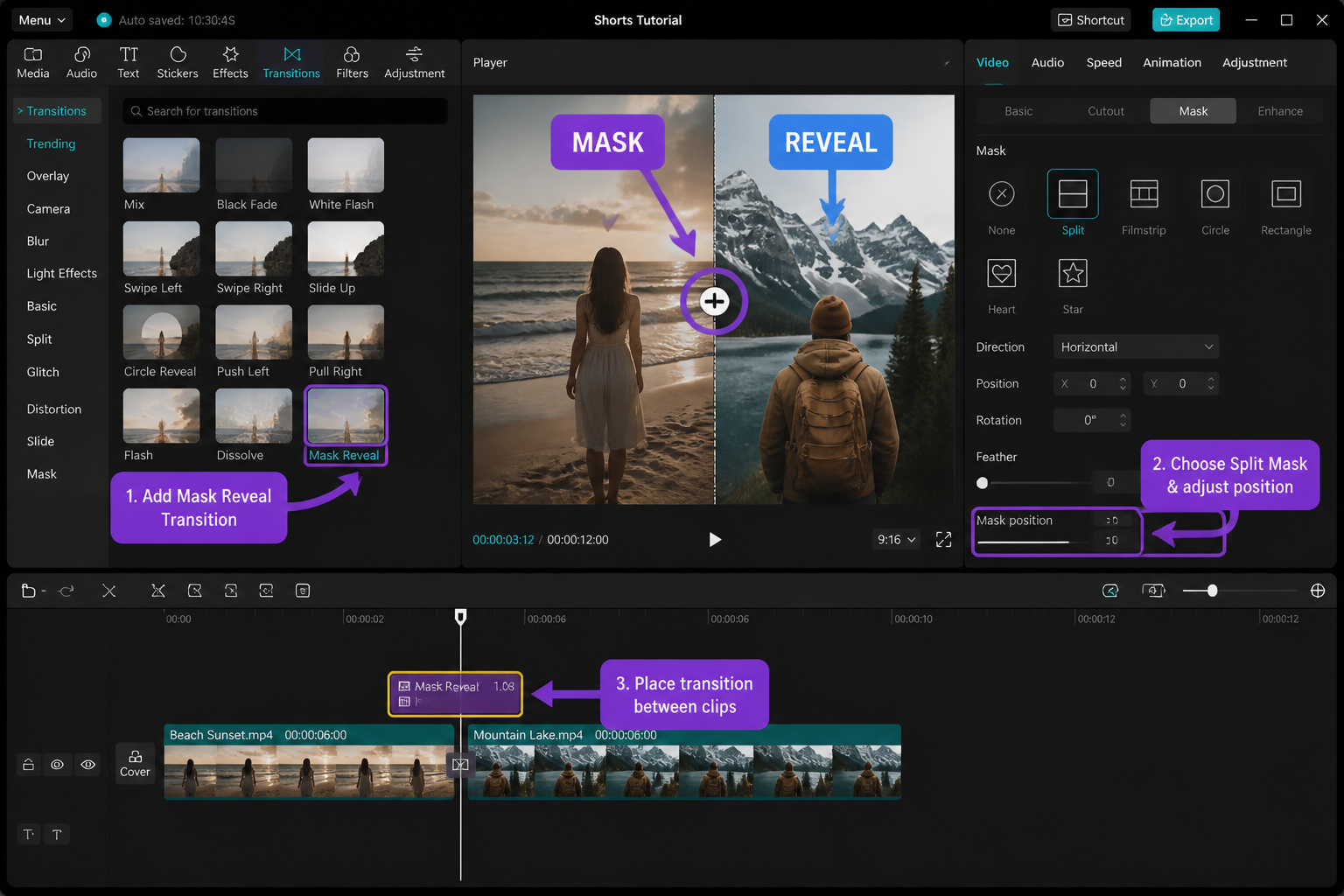
Place Clip B on a track above Clip A. Add a shape mask (Circle or Rectangle) to Clip B, start it scaled to 0 at the cut point, keyframe the mask to fill the frame over 0.4s. Looks like Clip B is being painted in. Difficulty 3 because mask centering matters — for a circle reveal centered on a moving subject you also need to keyframe mask Position. Pays off for "before / after" reveals, transformations, and meta cuts where you want to draw the eye to a specific spot.
15. Morph
Match two clips on similar shapes or movement (a hand entering frame, two faces in the same position) and use Position + Scale + Rotation keyframes on both sides of the cut to align them, then add a 4-frame Cross Dissolve over the join. Hardest transition on this list to execute well, and the most invisible when it lands. Difficulty 3. Reserve for moments that genuinely need to feel smooth — outfit changes, scene wipes through matching shapes, brand mark reveals.
How to add a transition (30-second recap)
For built-ins: tap the small white box between two clips on the timeline. The Transitions panel opens. Pick a category (Basic, MG, Effects, Slideshow, Mask, 3D, etc.), tap a transition tile, then drag the duration slider. Tap the checkmark to commit. Tap Apply to All if you want the same transition on every cut.
For templates: tap the same white box, scroll the category row to Templates. Some templates include audio — toggle the speaker icon off if you want silent.
For custom keyframe transitions: there's no transition slot — you build the move inside the clip(s) themselves using the diamond on Position/Scale/Rotation/Opacity. Start with our keyframes tutorial if this is new.
Picking the right transition for the moment
A few rules we've settled on after enough projects:
- Match motion energy. Don't put a Glitch over slow B-roll, don't put a Cross Dissolve on a beat drop. The transition should feel like it belongs to the same song as the cut.
- One signature transition per video. Pick one flashy move (Camera Whip, Light Leak, RGB Split) and use it once at a deliberate moment. The rest should be invisible (Cross Dissolve, Whip, Push).
- Audio sells the cut. A built-in Zoom Blur with a whoosh sound effect beats a fancy template with no audio. Always layer a sting.
- Pull defaults to 0.2-0.3s. The factory 0.5s is built for long-form pacing. Short-form needs faster.
FAQ
Where do I find transitions in CapCut?
Tap the small white box icon between any two clips on the timeline. The Transitions panel opens with category tabs (Basic, MG, Effects, Slideshow, Mask, 3D, Templates). Tap any tile to apply, then drag the duration slider.
Can I apply the same transition to every cut?
Yes — pick your transition, set duration, then tap Apply to All at the bottom of the Transitions panel. Every existing cut on that track gets the same transition. New cuts you add after still need to be set individually.
Why does my CapCut transition look choppy or laggy?
Usually the source clips are higher frame rate than the project (e.g. 60fps clips in a 30fps project), the transition duration is longer than one of the clips, or you're previewing on a device that can't render the GPU effect in real time. Set project framerate to match source, shorten the transition, and try preview at 720p.
Are CapCut transitions free or do I need Pro?
The vast majority of built-in transitions are free. Premium ones are marked with a small crown icon. Most template-style transitions are free too — Pro mainly unlocks a few cinematic kits and some AI-generated reveals. You can build serious edits on the free tier. More detail in our CapCut pricing breakdown.
What's the best CapCut transition for a TikTok hook?
Zoom Blur or RGB Split, paired with a sound sting on the snap. Both read as energetic and high-production without looking like a generic template. Use once in the first 1.5 seconds, not repeatedly through the video.
How long should a transition be in short-form video?
0.2 to 0.3 seconds for most short-form. CapCut's factory default is 0.5s, which reads as slow on TikTok and Reels pacing. Cinematic transitions like Light Leak Sweep can stretch to 0.5s; tight cuts should be under 0.3s.
Can I save my own custom transition as a preset in CapCut?
Not as a transition preset specifically, but you can export the whole edit as a Template via Export → Template, which preserves any custom keyframe transitions for reuse. There's no per-transition save slot in the May 2026 build.
What's the difference between a built-in transition and a template?
Built-ins sit between two clips and animate just the cut. Templates are larger pre-built kits that include animation, sometimes audio, and often span multiple frames either side of the cut. Built-ins are faster and more flexible, templates look more produced.
Final cut
The transition that works isn't the flashiest one — it's the one that matches the moment. Build a default set of three or four you use invisibly (Cross Dissolve, Whip, Push) and one or two signature moves (Zoom Blur, Camera Whip, RGB Split) for hooks and big beats. Skip the rest until you have a specific reason. The two custom keyframe options at the bottom of this list — Mask Reveal and Morph — are the only ones that genuinely separate a hand-built edit from a template, and both reward the few extra minutes when the moment calls for it.