

BRAND SYSTEM
Set up a CapCut Brand Kit
Organise approved logos, colours and fonts, then prove the kit in a real export before the team relies on it.
Choose the current CapCut business route by the job: regular editor for one master, Teams for accountable handoff or Pippit for commerce workflows.
Last updated October 13, 2026.
“CapCut for Business” no longer points cleanly to one current product. The useful choice is between the regular CapCut editor, a CapCut Teams workspace and Pippit, the commerce platform that replaced the CapCut Commerce Pro name. This guide separates those routes before you commit a real campaign.
Short answer: use the regular CapCut editor when one person needs to build and export a video; look at Teams when several people need a shared workspace and an accountable handoff; consider Pippit when the job starts with products, links or a marketing brief and needs repeatable commerce content. None of those choices clears the footage, music, claims, creator consent or publishing disclosure for you.
A product launch, a brand-system cleanup and a creator-style ad may all be called “business video,” but they fail in different places. Pick the finished job first. The seven guides below are the working layer of this hub: each owns one clear task and includes its own checks.
Organise approved logos, colours and fonts, then prove the kit in a real export before the team relies on it.
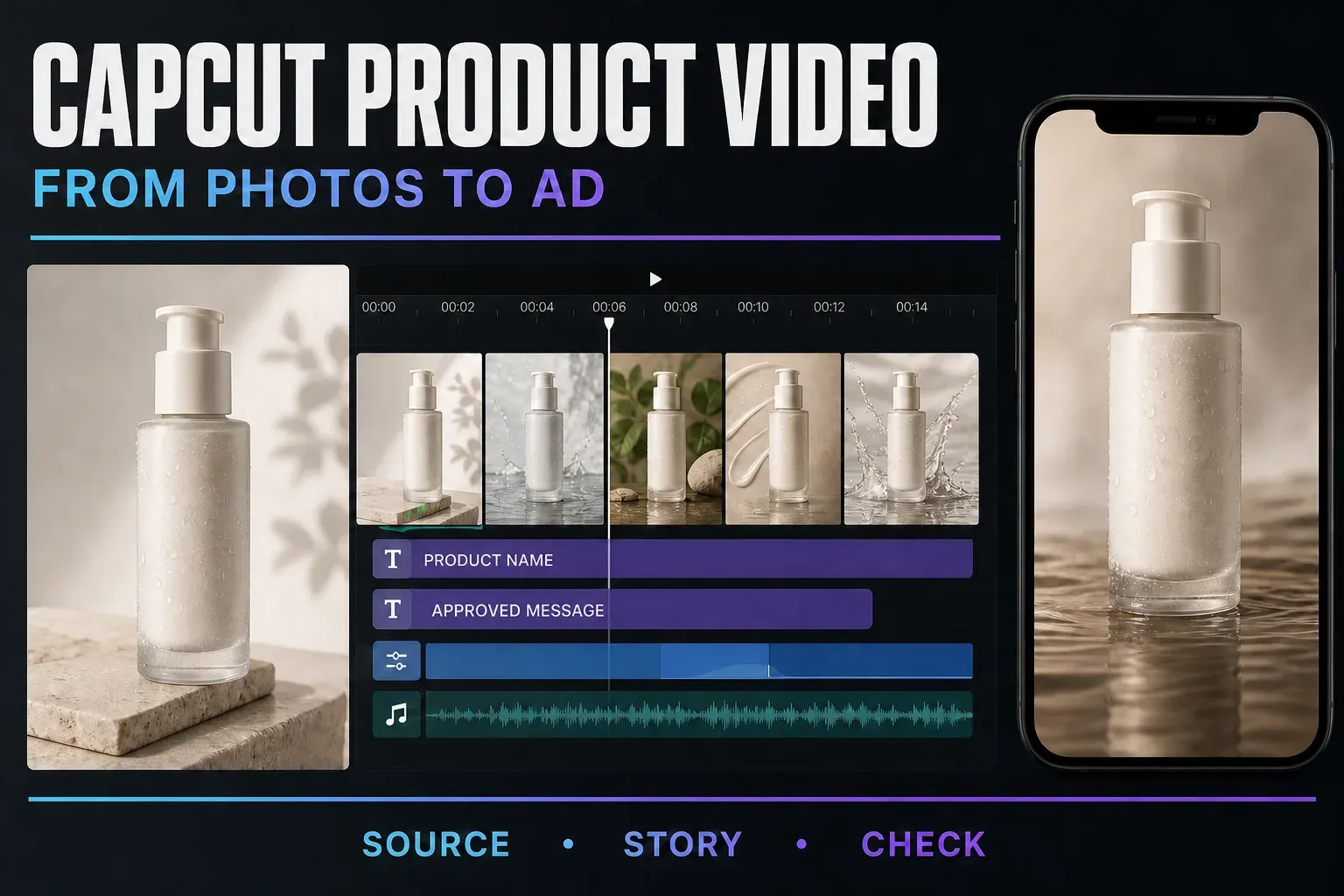
Choose the least risky build route, protect packshot accuracy and inspect one approved master before making variants.

Separate performance style from genuine customer experience, source every claim and make the final disclosure decision.

Define ownership, roles, seats, shared storage and offboarding before the team depends on one Space.

Review music, templates, stock, AI assets, platform limits and client handoff before a paid campaign goes live.

Separate ByteDance's ownership of CapCut from your copyright and the permissions granted when content is submitted.
Updated Oct 13, 2026

Compare regional programs, portfolio fit, application steps, earnings terms and content rights before applying.
The old product names are a poor way to choose. Start with where the work begins and what must happen after the first cut. A normal edit begins with footage. A team workflow begins with people, permissions and review. A commerce workflow often begins with a product, a link, a catalogue or a campaign brief.
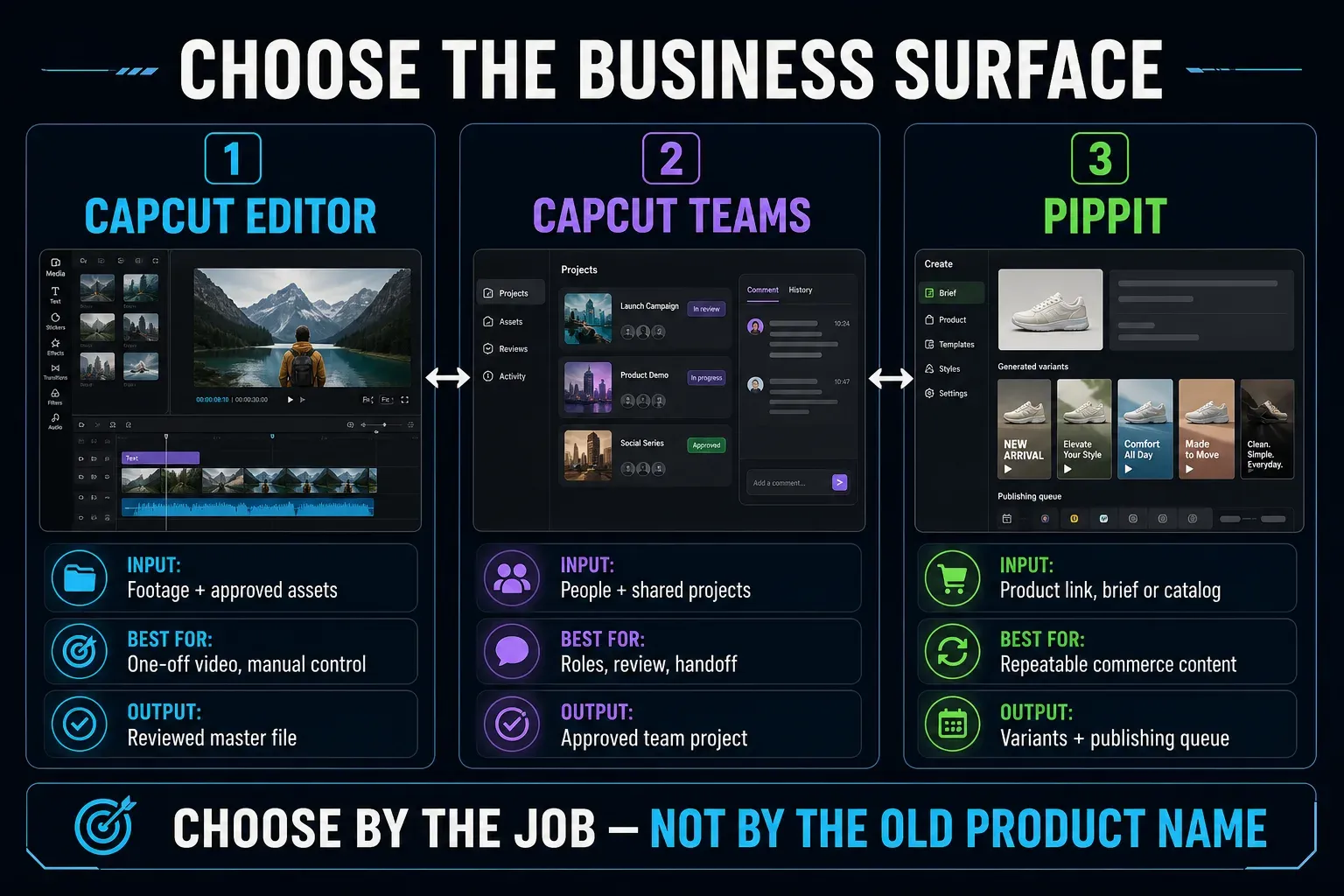
Best for clip-first editing: assembling footage, captions, overlays, music and graphics into a finished file. It is the simplest starting point when one accountable editor can own the build and approval route outside the app.
Relevant when the problem is collaboration rather than a missing editing tool: shared material, roles, review and handoff. Current CapCut help pages don't describe the purchase surface consistently, so check the route shown in the live account instead of following an old screenshot.
Consider it when the input is a product link, product material or marketing brief and the goal is repeatable commerce content, variants, publishing or performance follow-up. It is a separate web platform powered by CapCut, not merely a hidden panel inside every editor.
Product pages naturally emphasise what a tool can do. A production decision should start with what the team must control. Answer these questions before comparing buttons:
If the answers describe one file and one owner, begin in the regular editor. If they describe a people-and-permissions problem, investigate Teams. If they describe a product-to-many-assets pipeline, start with our Pippit AI guide. That order prevents the software choice from hiding a weak brief.
Search results still surface CapCut’s 2023 launch material for “CapCut for Business.” That material is useful history: it shows why the phrase became associated with ad scripts, business templates, presenters and collaboration. It is not reliable proof that every feature now sits inside one current plan, one app or one checkout.
The clearer current change is documented in the official CapCut Commerce Pro rebrand announcement: Commerce Pro became Pippit. That announcement described it at launch as an independent web platform powered by CapCut. The web product remains available, and current Bytedance listings also offer Pippit through Google Play and Apple's App Store, so the announcement is product history rather than a complete platform list. That is why an older tutorial may tell you to open Commerce Pro while a current search or account sends you to Pippit.
Treat those old labels as signposts, not entitlements. If a guide promises a button, quota, price or included feature because it appeared in a launch video, verify it on the current product page and inside the account that will pay for the work.
For a founder recording a product demo, a social editor cutting a campaign master or a shop owner animating approved photos, regular CapCut is often enough. You can keep the commercial decisions explicit without adding a new production platform: a written brief, an approved asset folder, a claim sheet and a named approver are more valuable than an impressive dashboard nobody owns.
Use the normal editor when most of these statements are true:
If the question is whether Free, Standard or Pro contains a particular editing feature, use our current CapCut pricing and plan guide. For a closer look at paid assets, AI credits, 4K export and storage, use the CapCut Pro feature guide. This hub deliberately doesn't repeat dynamic prices or pretend that one regional checkout applies to every account.
A shared workspace can help when people lose time passing the wrong logo, commenting on old cuts or asking who approved a claim. CapCut’s help material associates Teams with collaboration and organisational controls. It doesn't remove the need to decide who owns each step. The CapCut Teams collaboration guide maps the owner, roles, seats, storage and handoff checks.
CapCut currently has help pages for team collaboration, Teams purchase and account choice, and subscription problems. The purchase wording across those pages is not fully consistent. One route may be visible in one account, region or app and absent in another. Read the live account and checkout; if those disagree with the help page, contact CapCut support before moving an active client project.
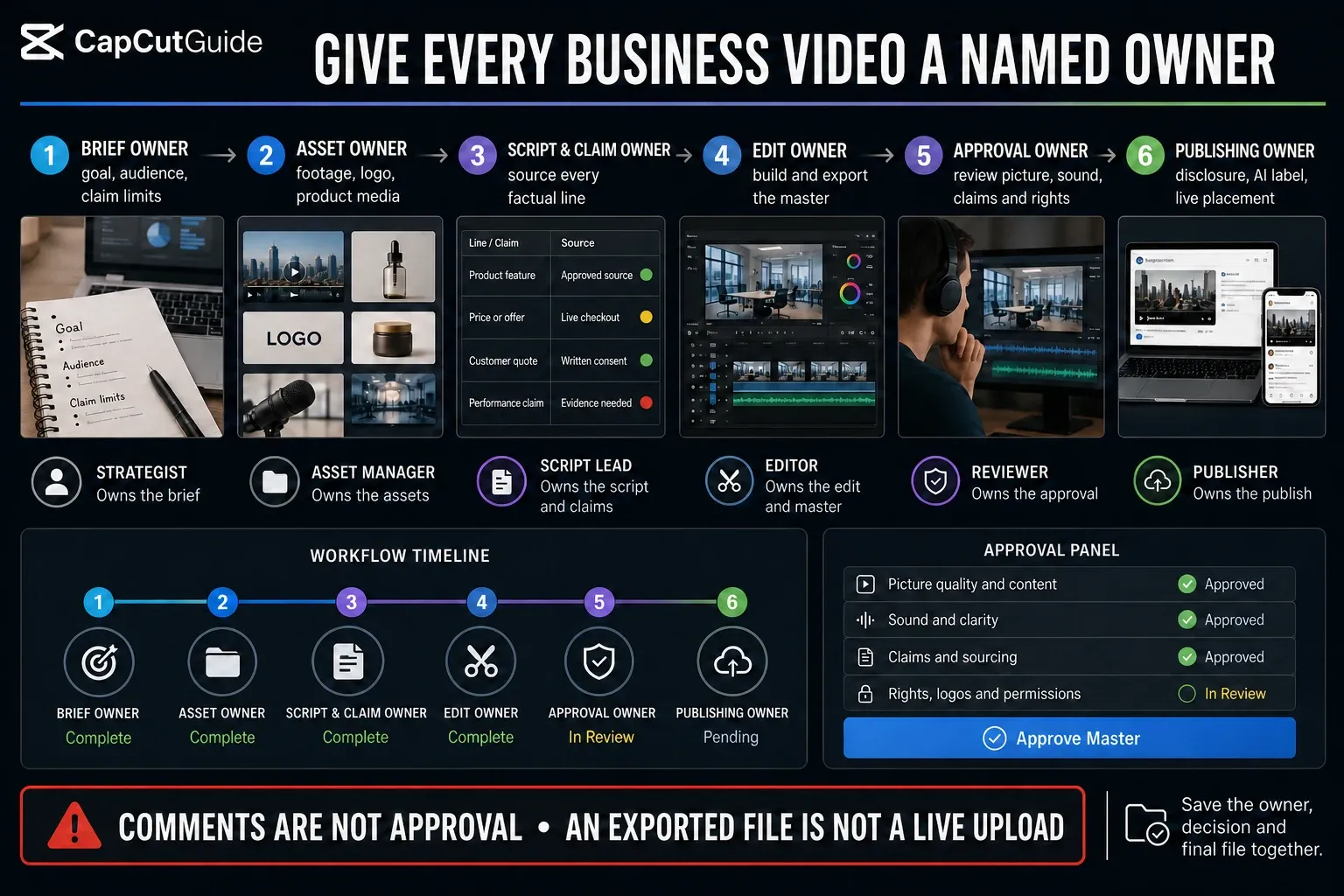
Don't buy a team surface to solve a process nobody has defined. Name the brief owner, asset owner, claim owner, editor, approver and publisher first. The same person can own several roles on a small team, but no role should be assumed.
Pippit is the route to examine when you need more than a single timeline: product-oriented inputs, repeatable marketing content, variants and a path toward publishing or performance work. Our Pippit AI review sets out what the agents draft, which credits expire and the refund and data terms to read before you trust that workflow with a real campaign. If the workflow fits but the credit model is still the open question, our Pippit pricing guide compares the current plan ladder, monthly and yearly totals, credit expiry and refund rules. If the remaining decision is whether to generate from a product brief or edit footage directly, our Pippit vs CapCut workflow comparison maps the boundary and the safe file handoff. The current platform may expose different tools or allowances by account and region. Check its live product and pricing surfaces rather than copying a fixed allowance from somebody else’s dashboard.
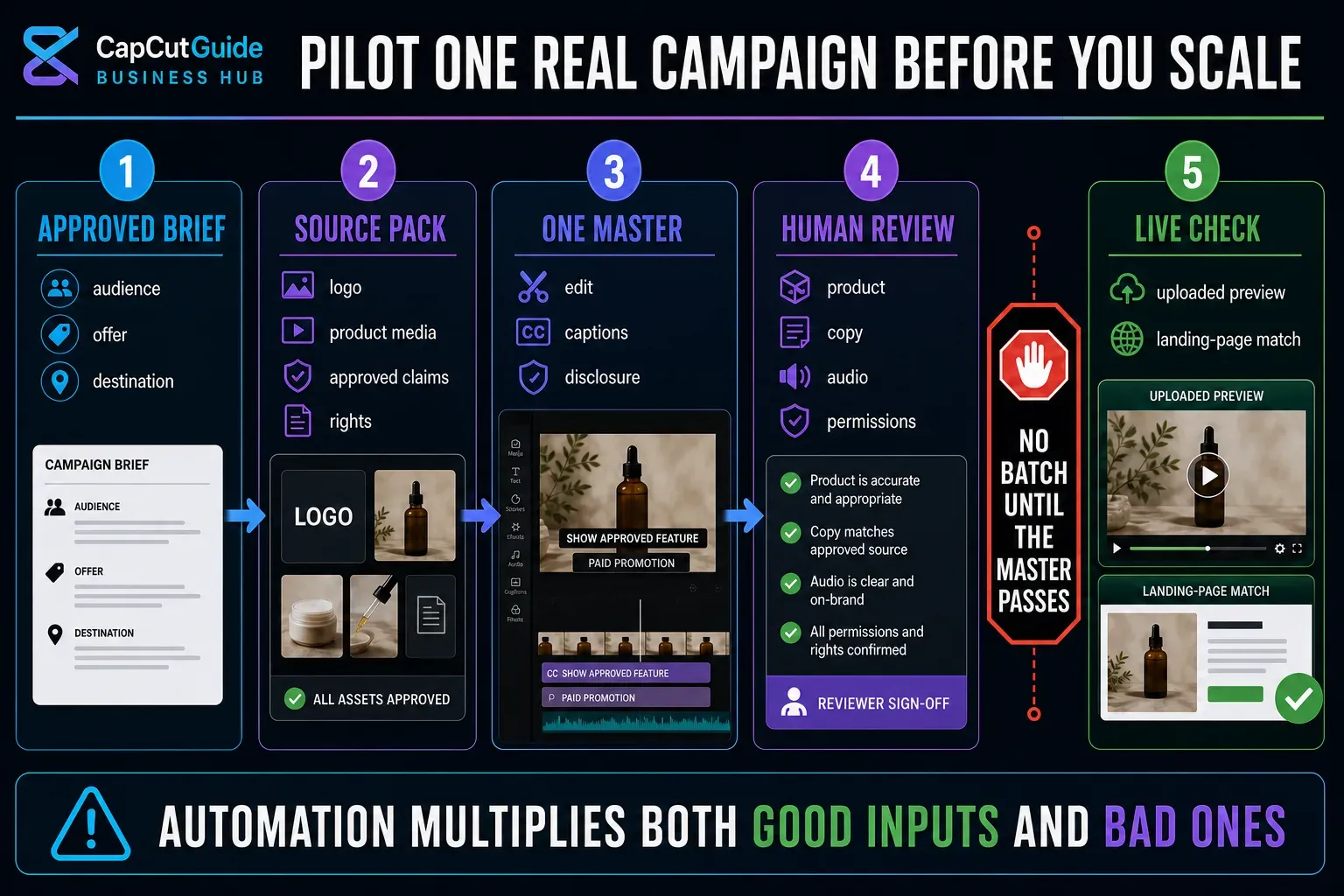
That distinction matters. A catalogue-to-content workflow can save assembly time, but it increases the cost of a bad source. An incorrect product detail can spread across several drafts. An AI presenter can make an unsupported line sound confident. A publishing connection can move an error closer to a real audience. Automation raises the value of the approval gate; it doesn't remove it.
Use Pippit only after answering three questions: Is the product source current? Which claims may be repeated? Who reviews one exported master before variants or publishing? If those answers are missing, start with one manual CapCut video and fix the brief first.
Don't judge the workflow from a polished demo or an empty test. Pick one real but non-urgent project that includes the awkward parts: an approved logo, a measurable product claim, spoken audio, captions, licensed material and the actual destination format. Keep the source pack and existing production route untouched while you test.
A commercial-use mark answers only the question attached to that material and licence. It doesn't prove that your team owns every input, that a product claim is supported, that a person agreed to the use of their likeness or voice, or that the destination disclosure is correct.
CapCut’s current Materials License Agreement distinguishes different material categories and treats Sounds and Commercial Sounds separately. It also names CapCut and Pippit. Read the mark and terms attached to the actual material in the live product; don't infer clearance from a screenshot of another asset or from the fact that a template can be opened.
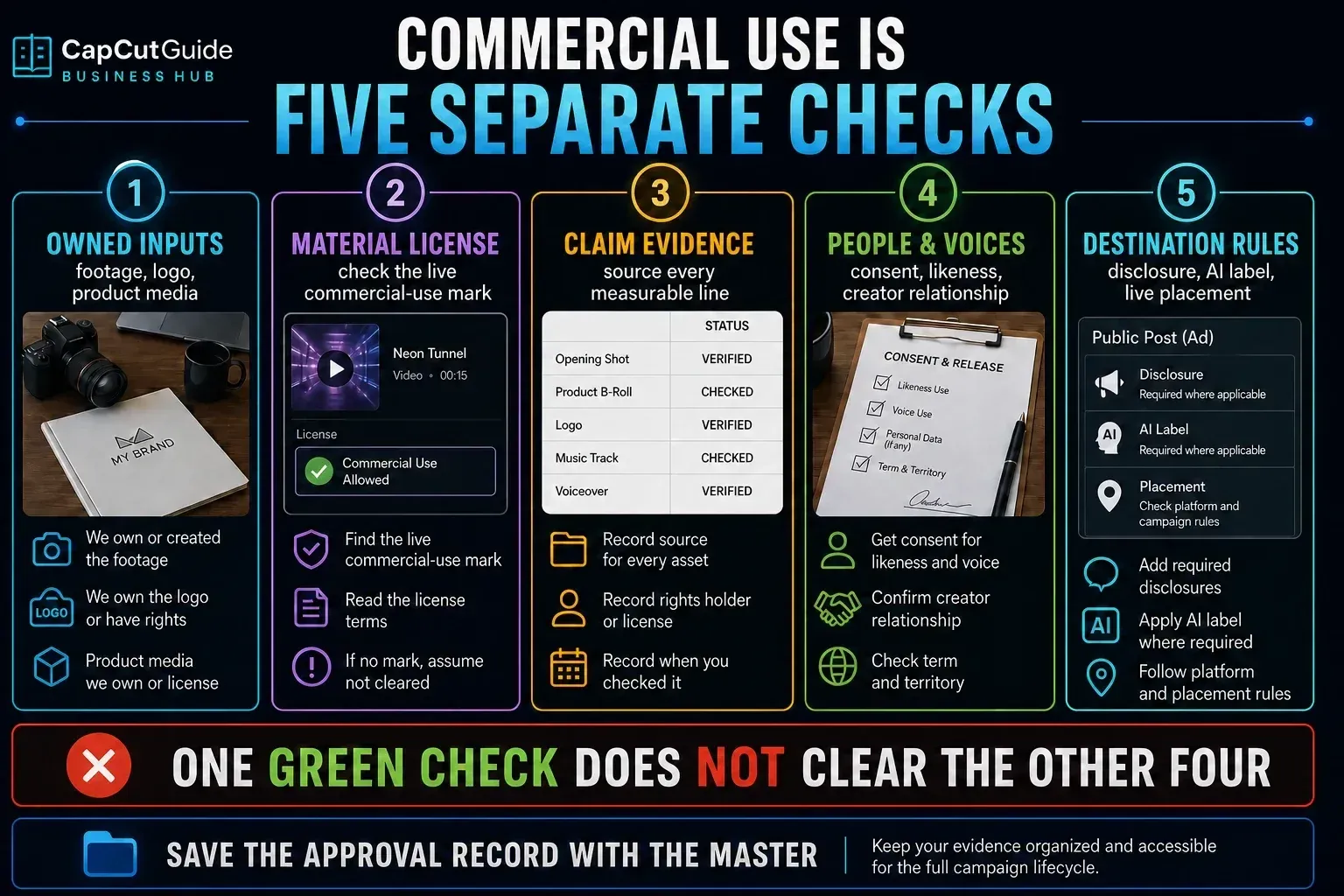
Record where the footage, logo, product media and copy came from.
Read the live licence or commercial-use mark for each supplied element.
Connect every measurable or comparative line to an approved source.
Record consent, likeness and voice decisions, including creator relationships.
Apply the disclosure, AI label and placement rules that govern the upload.
A useful business workflow leaves enough evidence for the next person to understand the final file. Keep the brief, approved source material, claim sheet, licence or permission records, project owner, approval decision, export and live URL together. Avoid filenames such as “final-final-2” when a status, owner and version can make the decision clear.
For recurring work, separate durable assets from campaign-specific claims. A logo and colour specification may be reusable. A price, offer, product feature, testimonial or performance statement needs a fresh check. For supporting photo, thumbnail and logo work, see our overview of CapCut design tools; for a specific generation task, use our overview of CapCut AI tools. Neither is a substitute for this business approval record.
A new workspace or commerce surface doesn't magically carry the reasoning behind the old project. Before moving recurring work, write down the parts that live outside the edit:
Keep the existing project and source media intact during the pilot. Rebuild one representative job, compare both exports and test retrieval before trusting the new route with an urgent deadline. A successful import is not enough if the team can't reproduce the approval trail six weeks later.
Is CapCut for Business a separate app?
The phrase appears in older official launch material, but current business jobs are better separated into the regular CapCut editor, CapCut Teams and Pippit. Pippit replaced the CapCut Commerce Pro name and remains a separate product powered by CapCut. Its web app is still available, and current Bytedance listings also show Android and iPhone apps.
Should a small business use CapCut Editor, Teams or Pippit?
Start with the regular editor for one-off, clip-first videos owned by one editor. Consider Teams when shared assets, roles and handoff are the bottleneck. Consider Pippit when the workflow begins with products, links or a commerce brief and needs repeatable content operations.
Did CapCut Commerce Pro become Pippit?
Yes. Pippit’s official newsroom says CapCut Commerce Pro was rebranded to Pippit. Older Commerce Pro tutorials may therefore point to names and screens that no longer match the current product.
Can I use every CapCut template, sound or AI result in an ad?
No blanket assumption is safe. Check the live material label and current licence for each element, treat Sounds and Commercial Sounds separately, and also verify your inputs, claims, consent and destination disclosure.
Is CapCut Teams available in every account and region?
Don't assume that. Current help pages describe the purchase surface inconsistently, and access can depend on the live account, platform or region. Use the route shown in your account and ask CapCut support when the checkout and help page disagree.
Does a team workspace approve a video automatically?
No. Comments and shared access can support review, but the project still needs a named approval owner, a recorded decision, a checked export and a final check of the live placement.
What should I test before moving business video work?
Run one representative, non-urgent project from approved brief to live placement. Test the real source pack, claims, captions, sound, rights, review handoff, export and upload before moving a client deadline or producing variants.