

CapCut Pro is CapCut's paid subscription tier above the free plan and Standard. It adds premium assets, advanced AI tools, cross-platform paid access, cloud storage and eligible high-resolution export options. It doesn't make every AI action unlimited, and it doesn't guarantee 4K on every device. The question worth asking is which paid feature you need for your next edit and what still limits it.
If you make regular social videos, start with the effects, captions and templates you use most. On longer projects, check export and storage. For generated video or avatars, check credits before you pay, because access to a tool and the cost of running it are two separate things.
Use the live plan badge, credit confirmation, storage line and export summary as the final checks before a project depends on Pro. Official pages still conflict on some allowances.
CapCut Pro Features at a Glance
Here's what each benefit does, plus the check that matters before you build a project around it.
| Feature area | What Pro can add | What still varies | Check before relying on it |
|---|---|---|---|
| Premium assets | Purple-diamond templates, effects, fonts, transitions and eligible media | Catalog, platform, region and the license on each asset | Open the asset card and read both the badge and usage label |
| 2K and 4K export | The paid entitlement where the export panel marks it as Pro | Device, OS, source clips, project settings, frame rate and app or browser | Run a short export on the device that will deliver the final file |
| Advanced AI | Access to more AI-assisted tools and subscription credits | Rollout, platform, available uses and the cost of the individual action | Read the live credit confirmation before generating |
| Cloud and Spaces | A paid storage allowance and cross-device project workflow | CapCut currently publishes conflicting 100 GB and up to 1 TB figures | Use the allowance shown at checkout and inside the signed-in Space |
| Cross-platform premium access | Pro benefits on mobile, desktop and web under the same account | The same tool, asset or menu may not exist everywhere | Use the same login method and open the feature on the finishing platform |
Premium assets pay off most when they replace work you'd otherwise repeat: a caption style, a transition sequence or a consistent look across a series. I'd try the exact asset on a short edit before committing a whole project to it.
For prices and renewal costs, see the Free, Standard and Pro comparison. If you already know which features you need, our Pro buying guide helps you weigh the cost. Trials, credits and account problems are in the CapCut Pro hub.
Read the Badge Before You Trust the Feature Name
“Auto captions,” “background removal” and “4K” can show up in different workflows. A basic caption, a paid caption style and a translation aren't necessarily part of the same plan. Open the exact option; the feature name alone won't tell you the price.
CapCut's diamond-icon guidance puts blue-diamond items under Standard and purple-diamond items under Pro. A missing badge, though, doesn't prove that an AI action or the final export comes without a separate charge.
The quickest reliable check
- Open the exact tool, effect, template or track on the platform where the project will be finished.
- Read any blue Standard or purple Pro marker and the option’s usage notice before applying it.
- If it is an AI action, continue only far enough to see the current credit cost.
- Open the export summary before building the rest of the project around that item.
2K and 4K Export: Pro Removes Only One Gate
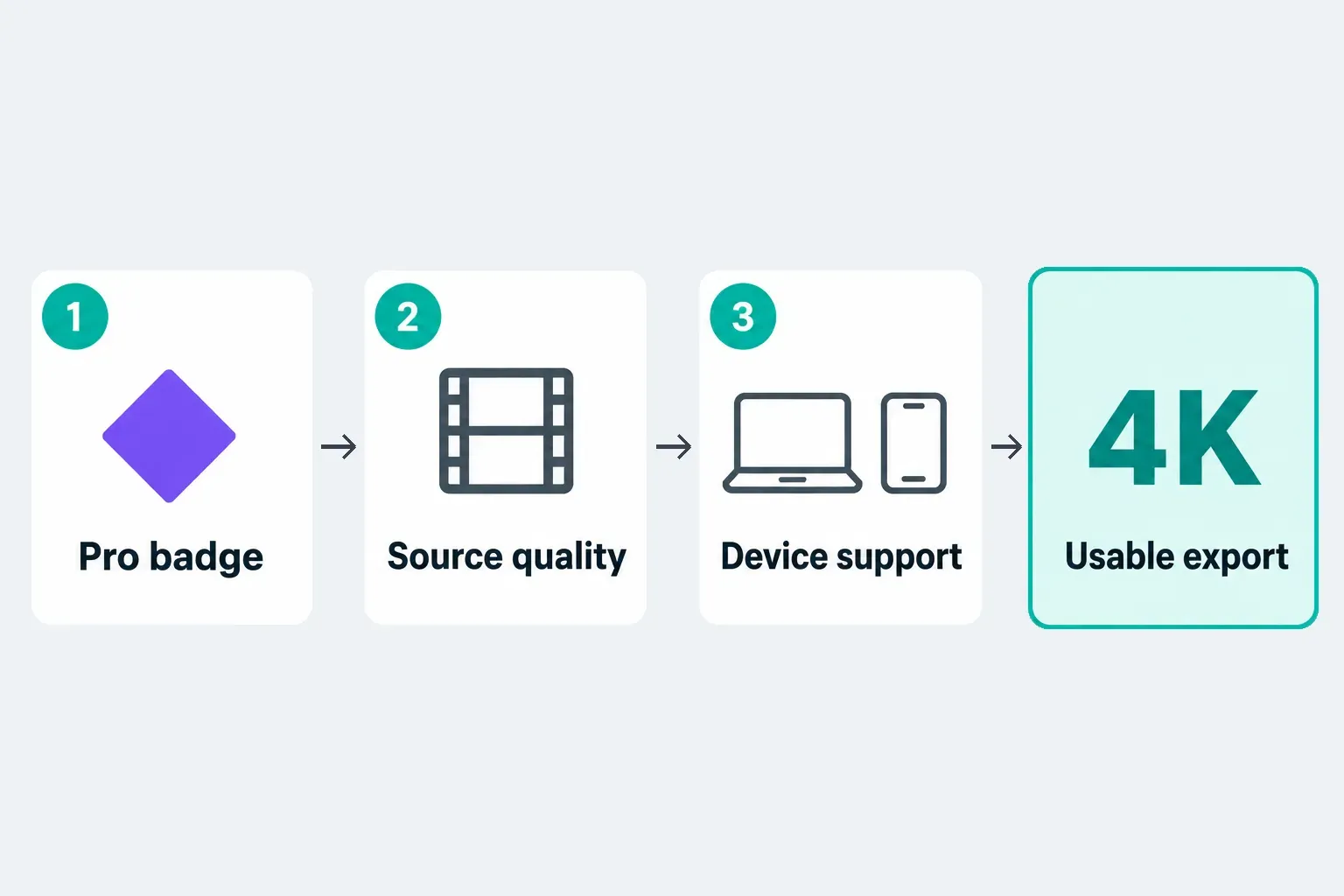
High-resolution export is the feature most often boiled down to “Free versus Pro,” yet CapCut's own 2K and 4K export guide lists several other gates. The resolution available to you depends on the platform, device, operating system, source media and project resolution. On Mobile, region, app version and sometimes frame rate matter too. For Web, the guide recommends a current browser.
Export resolution and captured detail are different. The Help guide ties its Web and Mobile routes to source resolution, but that isn't a universal ceiling for every CapCut workflow. CapCut also offers a separate video upscaling tool. You can enlarge a lower-resolution clip, but a bigger pixel count doesn't turn it into detail captured by a 4K camera.
CapCut's export guidance allows some free 4K workflows, while other Help pages describe paid export gates. So neither “Free always stops at 1080p” nor “Pro always guarantees 4K” holds up. Check the resolution choices and any payment prompt on your own project.
Test before a long edit
Try a representative 10–20-second section with the effects, resolution and frame rate you intend to use, then watch the exported file outside CapCut. If 4K is missing, check the project setup, the export options on offer, your app or browser version and device support. If you're after delivery settings instead of plan benefits, our CapCut export settings walkthrough is the better fit.
AI Tools and AI Credits Are Different Benefits
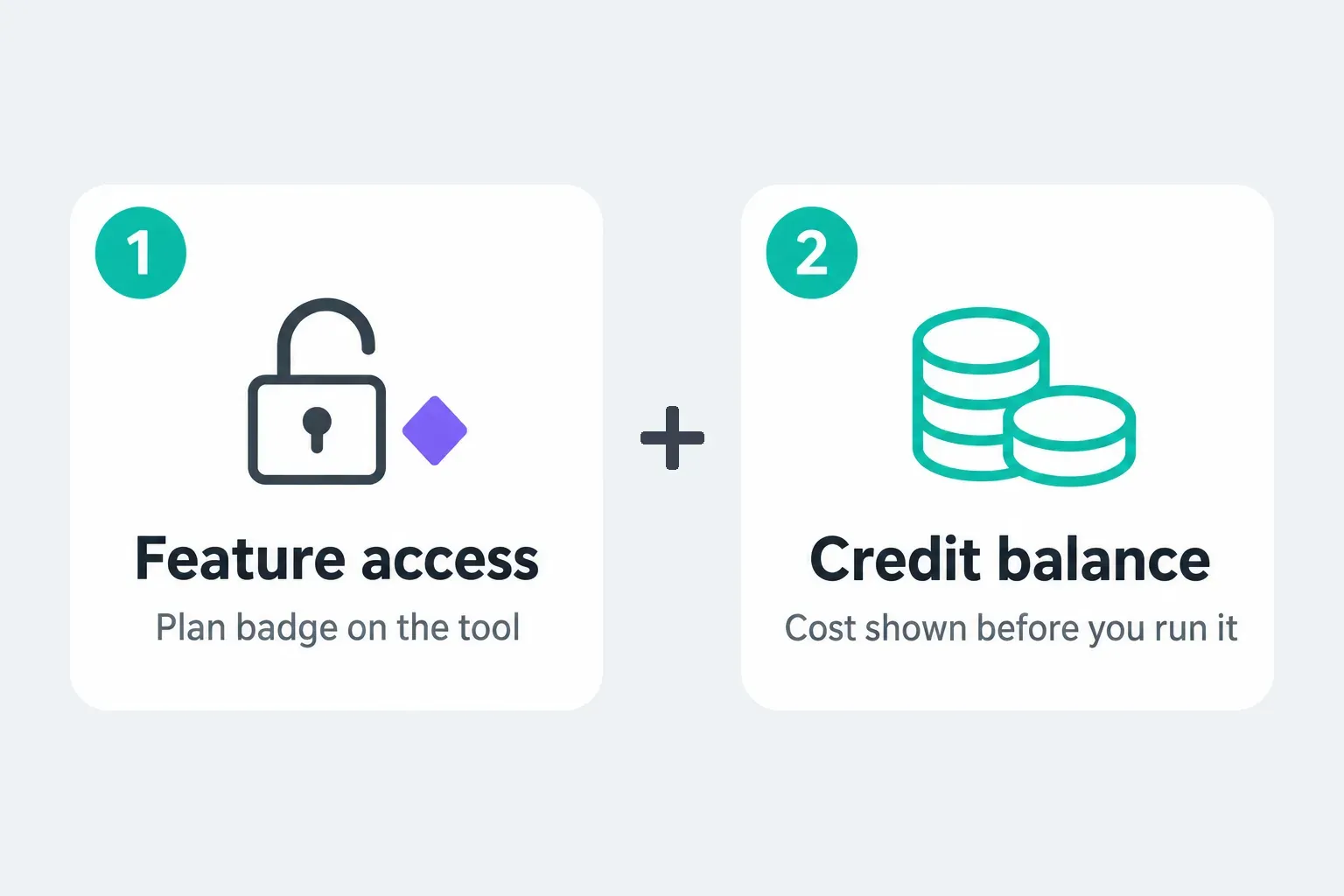
Pro can unlock eligible AI tools and give you subscription credits. But CapCut's Credit Rules keep membership separate from metered actions, and paying for Pro is not a promise of unlimited generation.
Which AI features are useful for editing?
CapCut's 2025 AI tool overview, still available when checked and Standard–Pro comparison describe these examples. Treat them as jobs to look for. They don't guarantee that every version below is Pro-only or available on every device.
- Auto captions: turn speech into captions. Recognition, an animated caption style and translation are separate operations with potentially different access requirements. Correct names and timing before choosing a style; paying for a style does not repair a transcription error. The auto captions guide covers the editing workflow.
- Remove Background: isolate a subject for a new background instead of drawing a mask around every frame. This is useful for a presenter over a graphic. Hair, hands and motion edges still need inspection, and basic removal should not be labelled universally Pro-only.
- Camera tracking: CapCut’s Desktop camera-tracking explanation lists face, body, hand and custom-area targets. That resource mixes camera tracking with motion tracking and 3D tracking, so it is not a reliable basis for treating those workflows as interchangeable. Check the exact tool and its plan badge in your version; do not assume it attaches an overlay or reconstructs a 3D camera.
- AI image and video generation: create material from a prompt rather than filming or drawing that attempt. A displayed generation cost is a charge for the requested run, not a promise that you will like the result. Do not budget credits as a guarantee of usable clips.
- AI avatars: CapCut’s overview describes lifelike animated motion with gestures, expressions and pacing. Inspect the generated output before using it, and obtain permission for any likeness or voice you supply. Do not upload confidential client material to a cloud AI tool without authorization.
- Auto Enhance: adjust the image automatically. Compare before and after at full size; sharpening and brightening can make skin or text look worse.
The formal rules and Help examples disagree in ways that affect planning:
- Spending order: the Credit Rules specify subscription credits first, then activity credits, then purchased credits.
- Subscription expiry: the rules say one subscription month, but a Help article gives an annual-plan validity example. Check the expiry attached to your actual grant.
- Purchased expiry: the rules say two years, while another Help page says purchased credits remain valid indefinitely. Ask support to resolve a missing or conflicting date before buying more.
- Activity credits: the campaign sets the deadline. Credits do not buy a subscription or storage package.
CapCut's new-subscriber upgrade page describes an increase from 550 to 1,200 credits. That offer isn't a universal allowance for every legacy plan, country or account, so match it against your own balance. Our guide to how CapCut AI credits work breaks down the different credit types.
What to check before pressing Generate
Read the cost beside the action or in its confirmation. If it's unclear, stop before you generate anything instead of borrowing a number from another user. Official pages also disagree about mobile credit management. The Credit Rules and cross-device credit guidance both include mobile, so “credits only exist on Web” is too broad. Stick to the same account and check its current balance. Prompt and output checks are covered in the AI video generator guide.
Premium Templates, Effects and Music Come With License Limits
Premium templates, effects, transitions, text styles and media can save editing time. But paying for access doesn't give you blanket permission to use every asset commercially.
The January 22, 2026 global Materials License Agreement splits personal and commercial permissions, and US users have their own terms. Under the global agreement, ordinary Sounds are for personal use only. Commercial Sounds cover CapCut, TikTok and TikTok for Business. YouTube, Instagram and other destinations need separate rights.
A safer client-work habit
- Check the asset's commercial-use label, territory, duration and intended destination.
- Do not mix a personal-use-only asset into a commercial project.
- Keep a private record of the asset and applicable permission.
- Check editing restrictions too: the global agreement restricts editing licensed platform materials outside CapCut.
When the permission doesn't fit the job, switch to your own media or separately licensed media with suitable rights.
Cloud Storage: CapCut Publishes Two Different Pro Numbers
CapCut's documentation doesn't support one universal storage promise across every Pro account. Its What Is CapCut Pro?, monthly and yearly plans, and storage-full guidance say 100 GB. A newer pricing notice for new subscribers says the upgraded Pro offer expands storage from 100 GB to 1 TB, while the current Standard versus Pro comparison says up to 1 TB. Treat 1 TB as an offer-, account- and rollout-dependent allowance, not a guaranteed limit for every existing Pro subscription.
Before you pay, screenshot the plan name, renewal price and storage line shown at checkout. After purchase, compare that with the storage panel in the same account. If they differ, those two screenshots give support something specific to look into.
CapCut says newly created free Spaces can have a zero quota that shows up as a 1 KB placeholder. That doesn't mean your local drafts are backed up. Its storage terms also warn that paid capacity is suspended when the subscription ends. Before it expires, keep an independent, verified backup of editable projects and source files. A finished video isn't an editable project backup. Check the project backup and transfer guide before you move important work.
Mobile, Desktop and Web Do Not Mirror One Another
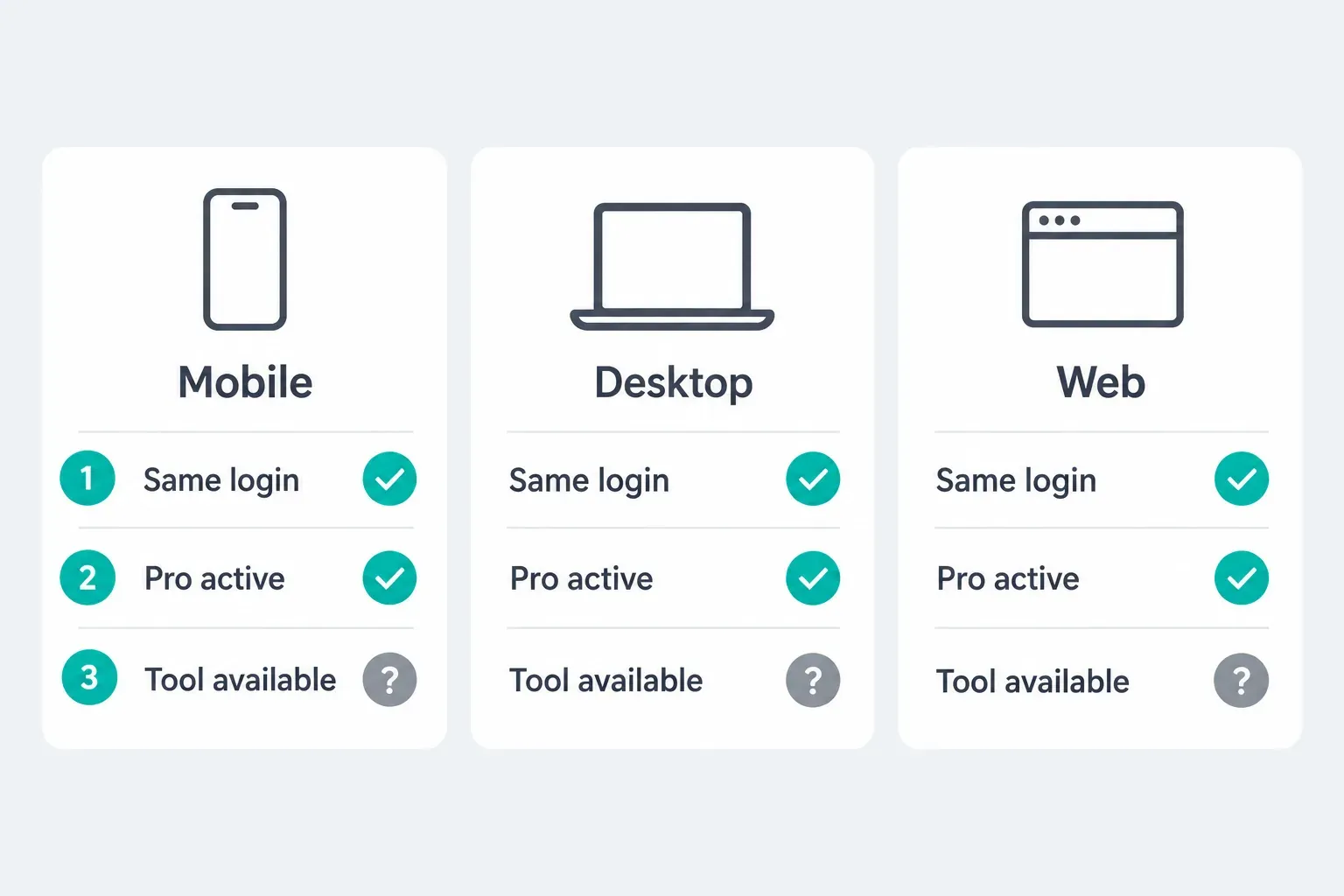
CapCut currently positions Standard as mainly mobile and Pro as the cross-platform paid tier. Its membership-device guidance says premium access on PC requires Pro, while the broader comparison includes mobile, desktop and web under Pro.
A shared subscription doesn't make the interfaces identical. CapCut requires uploading a project to Spaces for cloud transfer, yet that same Help page says signed-in projects save to cloud by default, so its wording is inconsistent. Don't assume a local-only desktop draft will show up on a phone just because Pro is active. If cloud upload is permitted for your media, upload a duplicate first, then check its media, effects and editability on the second device. And don't expect every project to round-trip unchanged.
Does a personal Pro plan include team seats?
Cloud sharing isn't the same as seats for colleagues. CapCut describes Teams as a seat-based subscription. The dedicated Teams comparison puts shared brand templates and brand kits under Teams, even though the broader Standard–Pro page groups collaboration under Pro. If you work with a team, use the CapCut for business guide to compare the workspace subscription and seat assignment. Don't assume personal Pro covers your colleagues.
Match the login method as well as the email address
CapCut warns that Google and email/password sign-ins can open separate accounts even with the same email. Its multi-device guidance recommends the original login method or QR login, and you should only use QR codes from the official app or site. Check account IDs against the device where Pro works, without signing out of your last working session. Before any reinstall, make a verified editable backup and confirm you can sign in again. The multiple-device guide covers access and transfer checks.
Why One Pro Item Can Stop an Otherwise Free Export
CapCut checks the account entitlement and every item in the project. One purple-diamond effect, font, template, track or AI result can be enough to trigger an upgrade prompt, even if every other edit uses free tools. CapCut's current purchase-prompt explanation confirms that a premium feature or material can cause the block.
Read the export summary, then replace or remove any unwanted paid item on a duplicate project and check again. If the summary names nothing, isolate effects and export settings one at a time, and don't delete the original. Even with your own footage, an output setting can trigger a paid prompt. If the free options don't fit the job, compare the alternative editors before you renew.
If the account should already have access, check the login method, region, subscription status and app version using the CapCut Pro entitlement troubleshooting guide. A paid plan won't fix an unsupported encoder or a subscription attached to a different account.
Check Your CapCut Pro Features Before Committing
Before you rely on Pro for a client deadline, build a small test project:
- Open the signed-in plan page. Record the plan name, renewal date and storage allowance.
- Open one purple-diamond asset. Confirm that the account can apply it on the platform used for final editing.
- Inspect the AI cost if AI is part of the job. Stop before confirming a paid run unless you intend to spend the displayed credits.
- Test transfer only if you need it. Use non-sensitive duplicate material in Spaces where supported and permitted; verify it on the second device.
- Export a short representative section. Use the intended resolution, frame rate, paid asset and audio path, then watch the file on another device.
Keep your checkout and account records private, especially if the advertised allowance differs from what showed up after purchase. Give official support the relevant order details, never your password or login codes.
CapCut Pro Features FAQ
What features are included with CapCut Pro?
CapCut currently groups premium templates and effects, advanced AI tools, cross-platform paid access, expanded cloud storage and eligible high-resolution export benefits under Pro. The exact catalog, badge, credit cost and platform support can change, so verify the specific tool in the signed-in account.
How much does CapCut Pro cost, and is there a free trial?
CapCut does not publish one global price. Its pricing help page says the cost depends on region, device and current promotions, so read the figure in your own account before you subscribe. When we checked on October 1, 2026, Apple's US App Store listing showed Pro Monthly at US$19.99 and Standard Monthly at US$9.99. Eligible new accounts in supported regions can also get a seven-day trial; our CapCut Pro free trial guide explains who qualifies and how to cancel before it renews.
Does CapCut Pro include every AI feature without limits?
No. Pro can unlock eligible AI tools and provide subscription credits, but metered actions still spend credits. Check the allowance in your offer and the cost shown for the exact action; neither is a promise of unlimited use.
Does CapCut Pro guarantee 4K export?
No. Pro can remove a paid export gate, but device support, platform, project settings and available export options still matter. Upscaling is a separate workflow and does not turn low-resolution footage into detail captured by a 4K camera. Test the intended output before a long edit.
How much cloud storage does CapCut Pro include?
CapCut's live official pages conflict. Several current Pro pages say 100 GB, while the Standard versus Pro comparison says up to 1 TB. Use the amount shown in the account-specific checkout and signed-in Space rather than treating either figure as universal.
Does CapCut Pro remove every watermark?
No single subscription promise covers every template, AI output and export workflow. Pro can unlock eligible paid materials and watermark-free options where shown, but the project summary, platform and asset license still apply.
Do CapCut Pro features work on mobile, desktop and web?
Pro offers cross-platform paid access, but tools and controls differ. Use the same login method and, if cloud upload is permitted, upload a duplicate to Spaces where supported. Check media and editability on the second device. Do not assume every project transfers unchanged.
Is CapCut Standard the same as the free version?
Not in CapCut's Help Center: Standard is described as a paid, mainly mobile plan below Pro. A separate marketing comparison uses Standard for the free tier. Because those labels conflict, read the account's price, badge and benefits rather than relying on the name alone.
Why does CapCut ask for Pro when I export?
A paid effect, template, font, track, AI element or export option may trigger the prompt. Check the named items in the export summary. If it gives no clear item, test settings and effects on a duplicate project; preserve the original.
How can I check the exact Pro features available to me?
Open the plan page and the exact feature on the same platform and account used for the final edit. Read its plan badge, any AI credit confirmation, the Space allowance and the export summary. Those live screens are the account-specific feature list.
Can I use Pro music in YouTube videos or ads?
Not automatically. The global license restricts Commercial Sounds to CapCut, TikTok and TikTok for Business unless you obtain separate rights for other destinations. Check your country's applicable terms and the individual asset; US terms are separate.
When do Pro AI credits expire?
The Credit Rules give subscription credits one subscription month and purchased credits two years from purchase. Activity credits follow campaign deadlines. Help examples instead describe annual-plan validity or indefinite purchased credits, so inspect the expiry of each grant and ask support to resolve a discrepancy before spending more.
Does personal Pro give paid access to my whole team?
A personal subscription is not proof of seats for colleagues. Teams is a seat-based plan; check the workspace owner's subscription and assignments before relying on shared paid access.