


CapCut won't open, your export is stuck, or your projects have disappeared from the account. Don't start by reinstalling. First check whether the problem affects one draft, the whole app, or an online feature. Each needs a different fix.
These steps cover iPhone, iPad, Android, Windows and Mac. Menu names can differ by version. For a specific error, you can also choose a guide in CapCut Fixes.
Start with the symptom
- Seems down for everyone: run the outage checks before you reinstall or reset anything.
- Won't open or crashes: restart and check the platform-specific options. Avoid Reset or Delete App while your only project copy is inside CapCut.
- Export fails or freezes: check the destination, error code and a short test section.
- Black preview or lag: compare a known-good clip with the failing project.
- Templates, login or Pro won't load: check the connection and account before changing local files.
Protect the draft before resetting anything
Signing in doesn't back up every local draft. Before Clear Storage, Reset, Delete App or a reinstall, make sure an editable copy of the project and its source media sits somewhere that step won't erase. If you're counting on a cloud copy, open it on another supported device and check the timeline and clips themselves, not just the thumbnail.
A duplicate inside the same app is handy for experiments, but I wouldn't count on it if the app's data gets deleted. For an independent copy, follow the CapCut backup and transfer steps. If an important draft won't open and you can't verify a backup, leave its data untouched and contact support.
Is CapCut down, or is the problem local?
Use several checks before treating a connection error as an outage. Third-party trackers collect user reports, which helps but is not confirmation. Work through these checks in order; none of them touches your drafts.
- Test a blank project. Add a short clip you know plays correctly. A working blank project points toward the original draft, its media or workload; it does not prove that the draft is corrupt.
- Change the network. Switch between Wi-Fi and mobile data, or try another trusted network. CapCut's connection troubleshooting notes that some networks block its servers, that school or workplace Wi-Fi may restrict cloud services, and that a VPN, DNS filter or ad blocker can interfere.
- Try a second device. Open the same online feature with the same account on another supported device. When it fails on every network and device you try, an outage becomes more likely.
- Read outside reports. Check recent CapCut user reports. A spike is a clue, not confirmation of a platform-wide outage. No reports is not proof that the service is healthy, either.
- Look at CapCut's own channels. The same help page suggests checking CapCut's official social media for a server-side outage. Use the accounts linked from capcut.com: Facebook, Instagram, TikTok, YouTube and the CapCut Discord. They are not an incident log, so silence there proves nothing. Check the identity and origin of any account posting an outage claim before relying on it.
While you wait, keep your drafts intact. Reinstalling CapCut or clearing its app storage can't fix a server-side problem, and both can wipe drafts that don't have a separate copy. A failed local export, on its own, tells you little about whether the online service is up. If only one device says there's no internet connection, our CapCut network error fixes cover it platform by platform.
CapCut won't open or keeps crashing
If the app still responds, save your work and quit normally. Only reach for Force Quit or Force Stop when it's unresponsive, because unsaved changes may be lost. Restart the device, check for an official update and, if the app opens, try a blank project. When crashes follow a particular clip or effect, test your changes in a duplicate. The CapCut crash troubleshooting guide covers that narrower case.
Android: Clear Cache is not Clear Storage
Open the phone's Settings → Apps → CapCut → Storage, or whatever the equivalent route is on your device. Try Clear Cache first, then reopen CapCut. Google distinguishes temporary cache from app storage: Clear Storage or Clear Data deletes app data, so don't choose it while local drafts are your only copies.
iPhone and iPad: check before offloading
In Settings → General → iPhone Storage (or iPad Storage) → CapCut, Offload App keeps your documents and data, while Delete App removes the app along with its related data. That's the distinction Apple's storage guidance draws. Still, offloading isn't an independent backup.
Before you offload, make sure CapCut is still available to download for your device and store account. Afterward, use Reinstall App and reopen it. If you can't redownload it, don't offload a working installation. iOS app-storage settings don't have Android's per-app Clear Cache button, and any cache control inside CapCut is a separate option.
Windows: Repair before Reset, when available
On Windows 11, open Settings → Apps → Installed apps → CapCut's three-dot menu → Advanced options and choose Repair if it's there. On Windows 10, look under Apps & features instead. Microsoft notes that not every app has these controls, and a copy installed from the website may not.
For packaged apps, Repair retains app data, but Reset permanently deletes it. If you haven't verified a separate project backup, stop before Reset.
Mac: quit normally before forcing it closed
Start with Command-Q. If CapCut won't respond, follow Apple's Force Quit instructions: press Option-Command-Esc, then select the app. Restart the Mac and check for official CapCut updates and compatible macOS updates. Don't remove app data or reinstall as a stand-in for protecting your local projects.
If the problem started after an update
If CapCut opens, note the version. Its version guide shows where to find it in the Desktop Settings menu and in Mobile settings. If the app won't launch, report the version as unavailable instead of reinstalling just to find it.
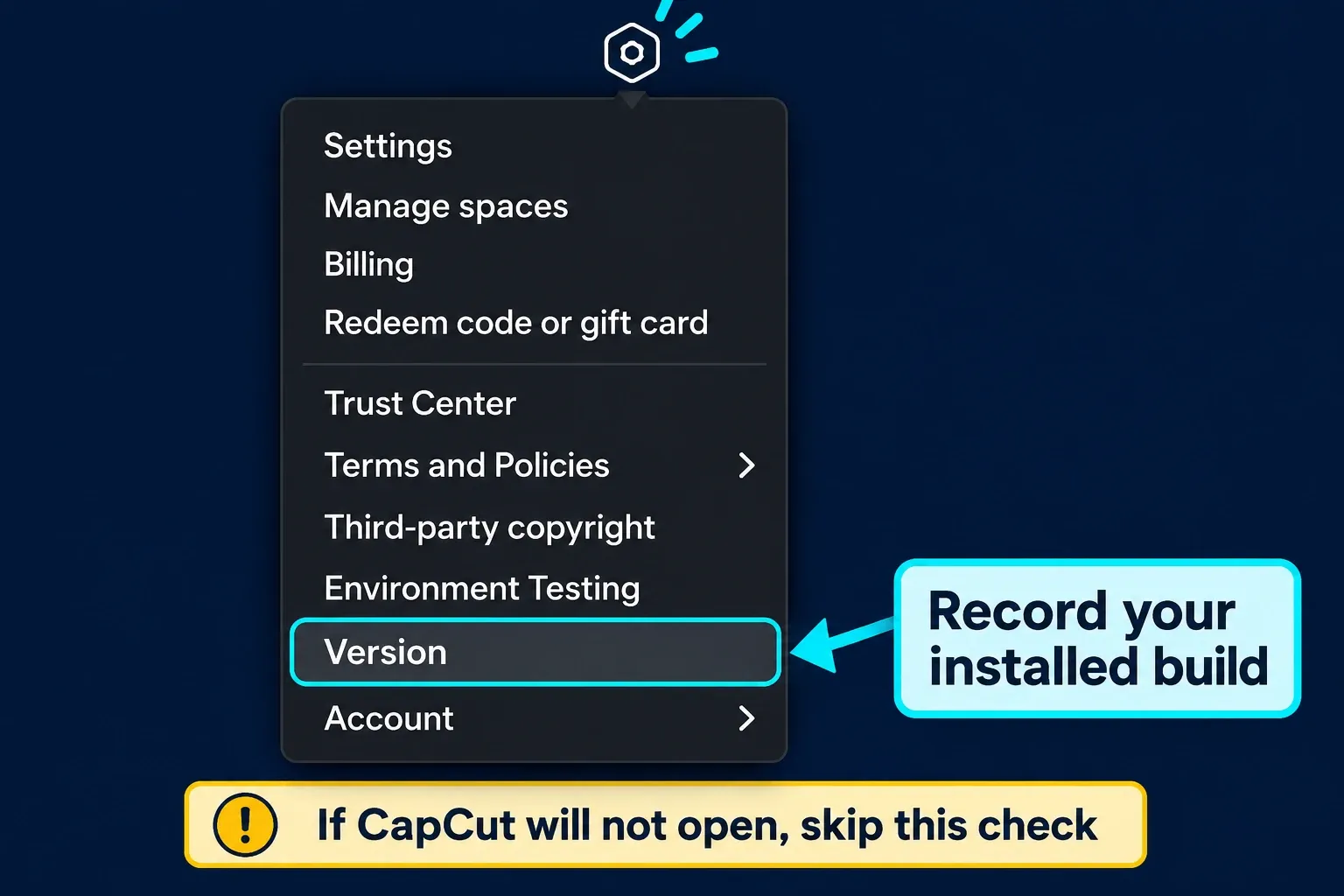
An update prompt with no Update button in the store doesn't mean your installation is broken. CapCut documents gradual update releases by device and region, so reopen the official store listing and check again later. Don't uninstall during an active update, and don't use an unofficial older installer to force a downgrade.
CapCut export failed, froze or stopped at 99%
Check free space on both the device and the destination drive. Rendering needs room for working files as well as the finished video, and no single free-space figure guarantees success for every project. Export to a local folder you can write to, outside any cloud-sync folder, with a new output filename.
Duplicate the draft before you change clips or effects, then export a short section from the copy. If that fails, change one suspect item at a time. If it works, move on and test other sections. The export percentage isn't a reliable timestamp, so don't delete whatever clip sits at “99% of the timeline” just because of it.
Use a displayed error code
CapCut's export-error guidance treats these as separate cases. Work on the duplicate, never your only draft:
- 4114 or 10004: test smaller sections, then replace or re-add the material associated with the failure.
- 22113: the documented step is to rebuild compound clips. Preserve the original and check the rebuilt edit before using it.
- 10006: relink missing imported media. This is different from a file that is present but will not decode.
- -1 or 4155 on Windows: check available memory and disk space. CapCut mentions virtual memory; Microsoft explains that page-file needs vary and Windows normally manages them. Do not apply an arbitrary RAM multiplier or these Windows settings to a Mac.
- -30007: try another writable destination. If Windows reports a security block, inspect the specific event before changing any permission.
For that last case, check Windows Security's Protection History. If Controlled Folder Access did block your verified official CapCut executable, Microsoft's instructions allow a specific trusted app. Don't turn off antivirus or the firewall, approve an unknown file, or get around a work-device policy.
A short export at lower settings (for example, 1080p at 30 fps where available) is a diagnostic test, not a guaranteed fix. If it succeeds, that can come down to workload, codec or setting differences. It doesn't prove the device is too weak. Keep a note of your original settings. For the next checks, see our fixes for a CapCut export that is stuck or failed.
If export asks you to join Pro
Read the exact message and look at whichever items or export settings it flags. CapCut lists both premium assets and settings as possible triggers, so check template layers along with effects, fonts, music and transitions. On a duplicate, swap flagged items for available alternatives and test again. Keep in mind that a locked template may not let you edit every layer.
Don't assume every 4K export needs the same plan on every device. If you've already paid, check the purchase account and its entitlement before you buy again. The Pro access troubleshooting guide covers that problem.
Black preview, freezing or heavy lag
Play the source clip outside CapCut. If it's missing, relink it. If it's there but won't play, relinking alone won't fix it. Try another known-good clip in a blank project for comparison, and keep the original file safe before you try a converted copy.
If CapCut opens but preview fails across projects, close heavy apps you don't need and lower preview quality if your build offers it. On Desktop, CapCut's troubleshooting guidance includes Settings → Performance. Where hardware encoding or decoding controls are available, note how they're set, change one, restart and retest the same section. Set it back if nothing improves.
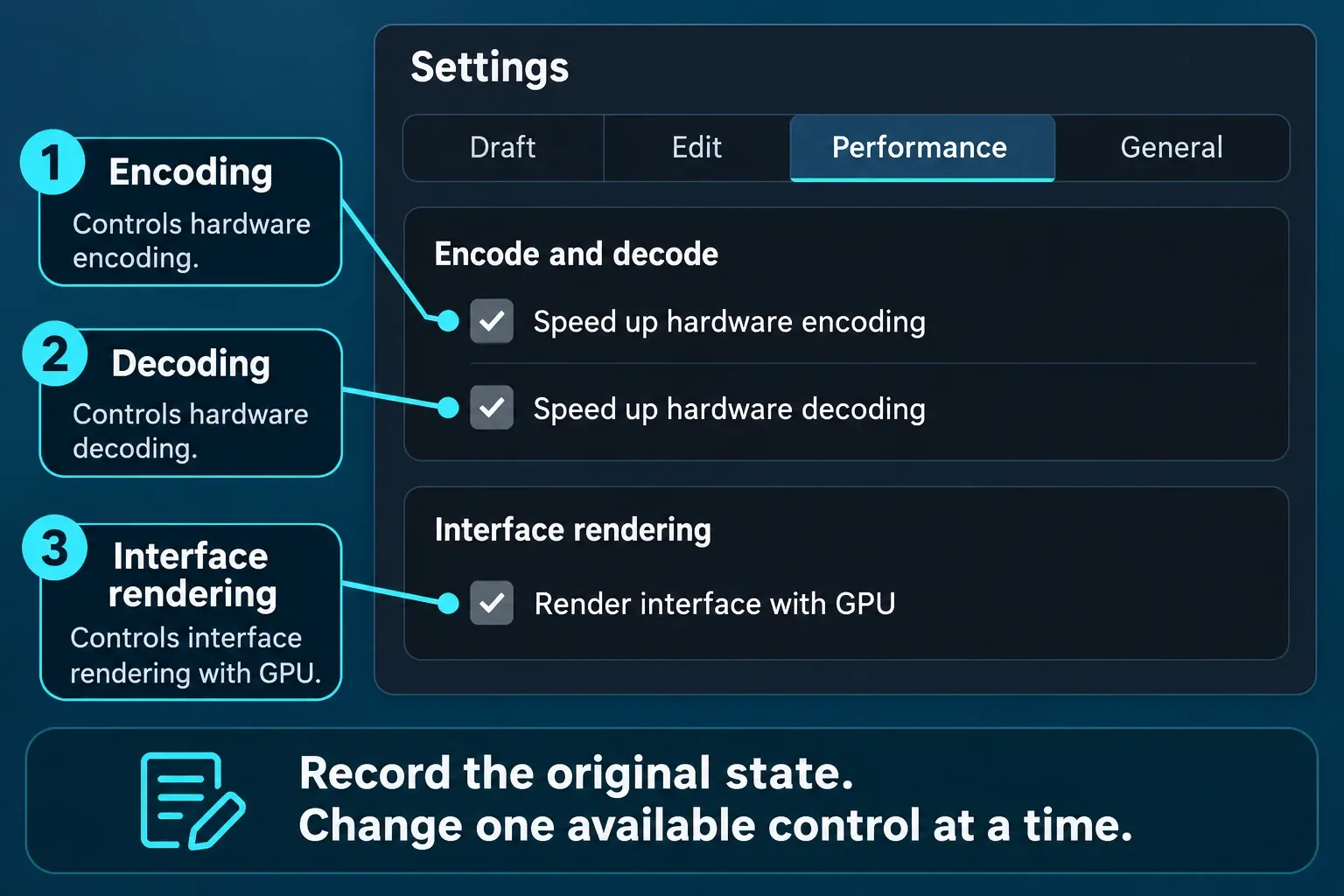
You can't use these controls in an app that won't open. Get Windows graphics-driver updates from Windows Update or the GPU/device manufacturer; on a Mac, graphics updates come with macOS. For preview and single-file cases, follow the black-screen guide. If only the finished file stutters, go to lag after export instead.
No sound or an unexpected watermark
Play the exported file locally before you check an upload. If it has sound locally but not on the destination platform, look into that upload and any platform notice. If the local file is silent too, check the source, track mute, volume and whatever export-audio controls are available. Work through the no-sound checks in that order.
A branded ending clip, a template overlay, a paid export restriction and a watermark embedded in the source aren't the same thing. Before you delete anything, check the timeline and the exact export message. The watermark guide explains which marks you can remove in the editor and which aren't a simple toggle.
Templates, AI tools or login won't load
Switch to another trusted network. On a personal device, you can briefly test without your own VPN or a browser extension, then turn it back on. Don't disable required workplace protection, and don't test sensitive work on an untrusted public network. If connection errors persist, use the CapCut no-internet guide.
Try the same online feature on another supported device, and keep any working signed-in session open. If only templates fail, try a different template on the platform you meant to use. Mobile, Desktop and Web don't offer identical routes. The templates troubleshooting guide covers missing searches and unavailable templates.
Logged in, but projects or Pro are missing?
Check the account ID and the method you originally logged in with. Google login and email login can open different CapCut accounts, even with the same address. A method that's already linked to the correct account isn't the same as an unrelated new sign-in.
Web can't serve as a test for every login button. CapCut's sign-in guide says Apple ID and phone login aren't supported there. If the right account is still open on your phone, use QR login on Desktop or Web where it's offered, then scan and confirm it in CapCut Mobile. Otherwise, use a supported device with the original method or contact support. Don't log out of your only working session just to run this test.
When a paid feature doesn't match what you bought, compare the active purchase, the account and the exact tool that's locked. Don't buy a second subscription just to diagnose it. The account and login guide helps you tell account access apart from missing local drafts.
CapCut won't install or is missing from the store
Open the official listing on the affected device and check current compatibility and availability. A supported operating system doesn't guarantee a complex edit will run smoothly. Google's Play download checklist starts with connection, storage, system updates, reopening the store and restarting. On iPhone or iPad, check storage and the App Store listing before you remove an existing installation.
On Desktop, let an active installation finish. If it reports a failure, note the error, close the failed installer and retry with a fresh copy from the official CapCut Desktop page. A paused percentage alone isn't a reason to interrupt an update. On a managed computer, ask the administrator about restrictions.
A missing listing doesn't prove a ban on its own. Check your store country and device availability, and don't replace the official download with a random APK or mirror. U.S. availability is a separate question, covered in the CapCut U.S. availability guide.
What to send CapCut Support
Contact the official Help Center when non-destructive checks fail, a paid entitlement doesn't match your purchase, or an important draft is still inaccessible. Include the device, operating system, installed version if you know it, the exact error and the smallest non-private example that reproduces it. Also say whether a blank project works and which network or device comparison you tried.
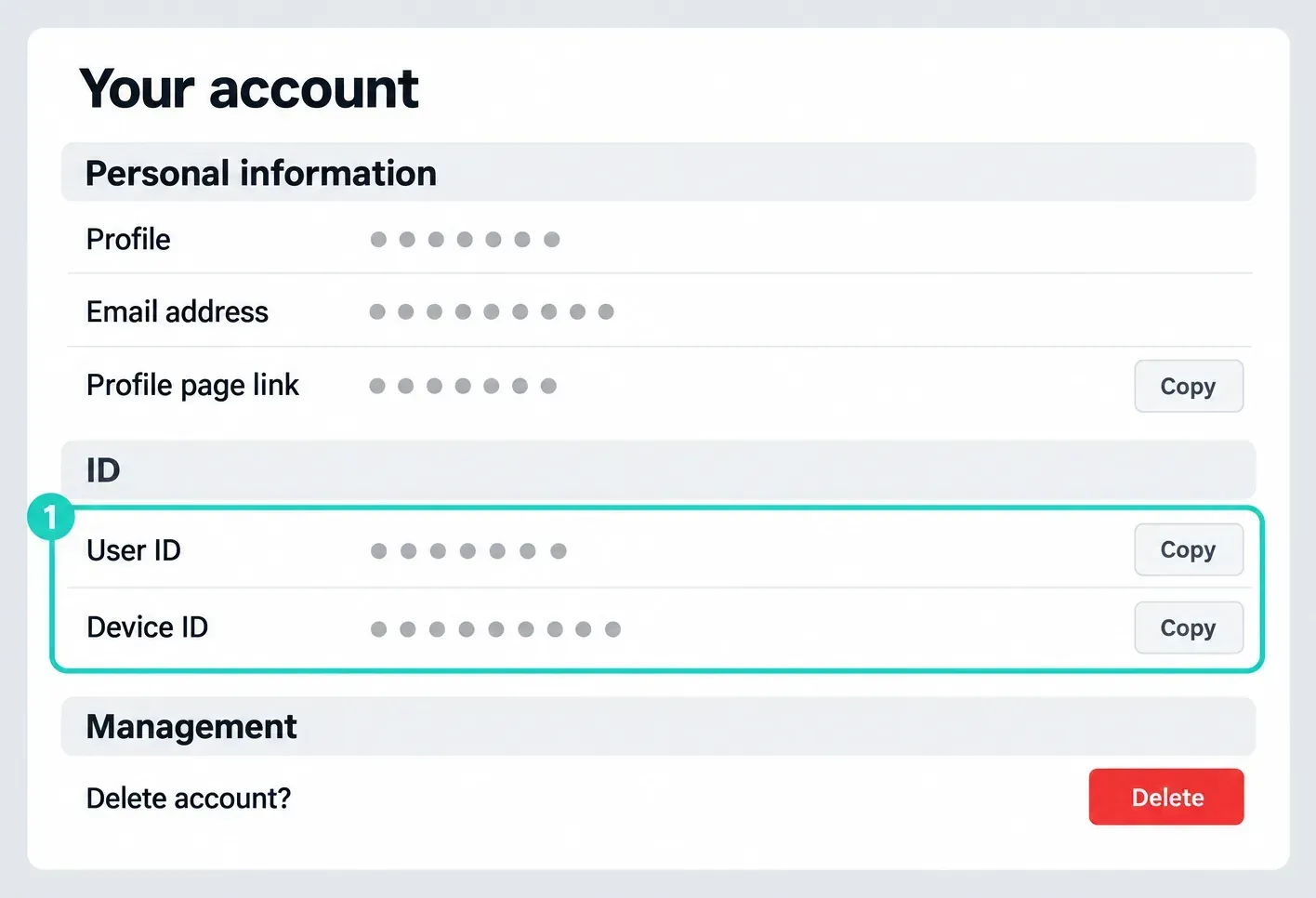
CapCut's UID and DID instructions show where to find the account identifiers you'd give support. Send them only through the official private support channel, and only when needed. In anything you post publicly, mask names, email addresses, account IDs, profile links, project names, local paths and payment details. Never share passwords or verification codes.
CapCut Not Working FAQ
Is CapCut down right now?
Try the same online feature on another trusted network and a second supported device, then compare recent user reports with CapCut’s official social channels. A working comparison narrows the problem, but regional, account-specific or partial service faults can still occur. A failed local export alone does not establish an outage.
Why did CapCut stop working after an update?
The timing does not identify the cause. Restart, test a blank project if the app opens, and record the installed version if available. Updates can roll out gradually. Keep drafts protected and avoid unofficial downgrades.
Will clearing CapCut cache delete my projects?
Android Clear Cache removes temporary data; Clear Storage or Clear Data deletes app data. On iPhone and iPad, Offload App retains documents and data, but Delete App removes related data. Neither an in-app duplicate nor offloading replaces an independent backup.
Why is CapCut not exporting?
Check storage, a writable destination and the exact error message. Test a short section in a duplicate before changing material. A lower-setting export can help narrow the problem, but success does not identify a single cause.
Why is CapCut not working on my phone?
Restart, check the official store for an available update, and test a blank project if the app opens. Follow the Android or iOS steps above. Do not clear app storage or delete CapCut while an important draft has no verified separate copy.
Why are CapCut templates or search not loading?
Compare another template and trusted network on the intended platform. A missing search route can reflect platform or version differences; a particular template may be unavailable. Keep your working account session open while checking.
Is CapCut banned in the US?
A failed login or missing store listing does not establish a nationwide ban. Store availability and legal status are separate questions. Check the U.S. availability guide linked above for that issue rather than diagnosing it from a local app error.