

Start with the footage, not the effect. A few wedding photos need a small layout that gives faces time to register. A highlight of the day needs enough room for the ceremony, the people and an ending. If the vows or a toast matter, check that the template keeps your clip's sound before you fill every slot. For invitations, collages, slideshows and other design-led formats around the event, our guide to CapCut design tools is the better place to start.
Make a teaser
An arrival, a ring exchange or a couple portrait can be the whole subject. Start with the smaller examples below; you do not need to squeeze in the entire day.
Build a wedding highlight
Choose a layout with room for the moments you filmed. Preview the transitions: a larger clip count does not automatically mean a longer or calmer video.
Try a montage
Mix details, wide shots and reactions. Leave out weak footage rather than adding it just to fill a counter; check whether the template lets you change the number of clips.
Making an invitation or anniversary edit?
An invitation needs readable event details. An anniversary can connect different years. There are separate browsing links for both below.
The slot ranges are only examples. The template you pick decides what you can replace.

Sort the wedding footage before searching
Put your best photos and clips in a separate album and leave the originals untouched. Several burst photos may tell the same story, while a ceremony wide shot, a close-up and a guest reaction give you different choices. A media slot takes a photo or video, and it doesn't need to match one whole event.
Decide where the video will play. All 14 examples below list 9:16, a vertical format, but that doesn't mean every wedding template is vertical. If it's going on a television or projector, ask the venue which format it prefers and test on its own playback setup. On a wide screen, a portrait layout may leave empty space, and cropping to fill that screen can cut people out.
14 official CapCut wedding template examples
Listing details as of October 6, 2026. The counts, approximate runtimes and ratios below come from the official detail pages, and creators can change them later. Treat them as options to compare. They aren't a popularity ranking. Total runtime also doesn't tell you how long each shot stays on screen.
Check access before committing. The listings opened publicly and offered a way to sign in, but that doesn't prove your account has access. Check the live media picker, the price and the export screen. If you want more choices, browse CapCut's wedding photo and video collection.
Smaller layouts: three to seven listed slots
90s wedding movie
For a teaser, try an opening shot, a ceremony moment and a closing portrait. Then see whether the timing suits those three choices.
Open 90s wedding movieWedding template
Worth trying for one scene from several angles. Check that its framing leaves enough room for both people rather than cropping one person out.
Open the four-slot Wedding templateUrdu wedding edit
Listed under the Urdu title “یہ شادی تمہاری”. Check the language, audio and editable text first; its longer runtime does not guarantee equal holds for five images.
Open the Urdu wedding templateSmooth Slomo
Try it if you want a motion-led look. The name does not establish which media types it accepts; check the picker before planning around photos or video.
Open Smooth SlomoEHSAS 6 CLIP
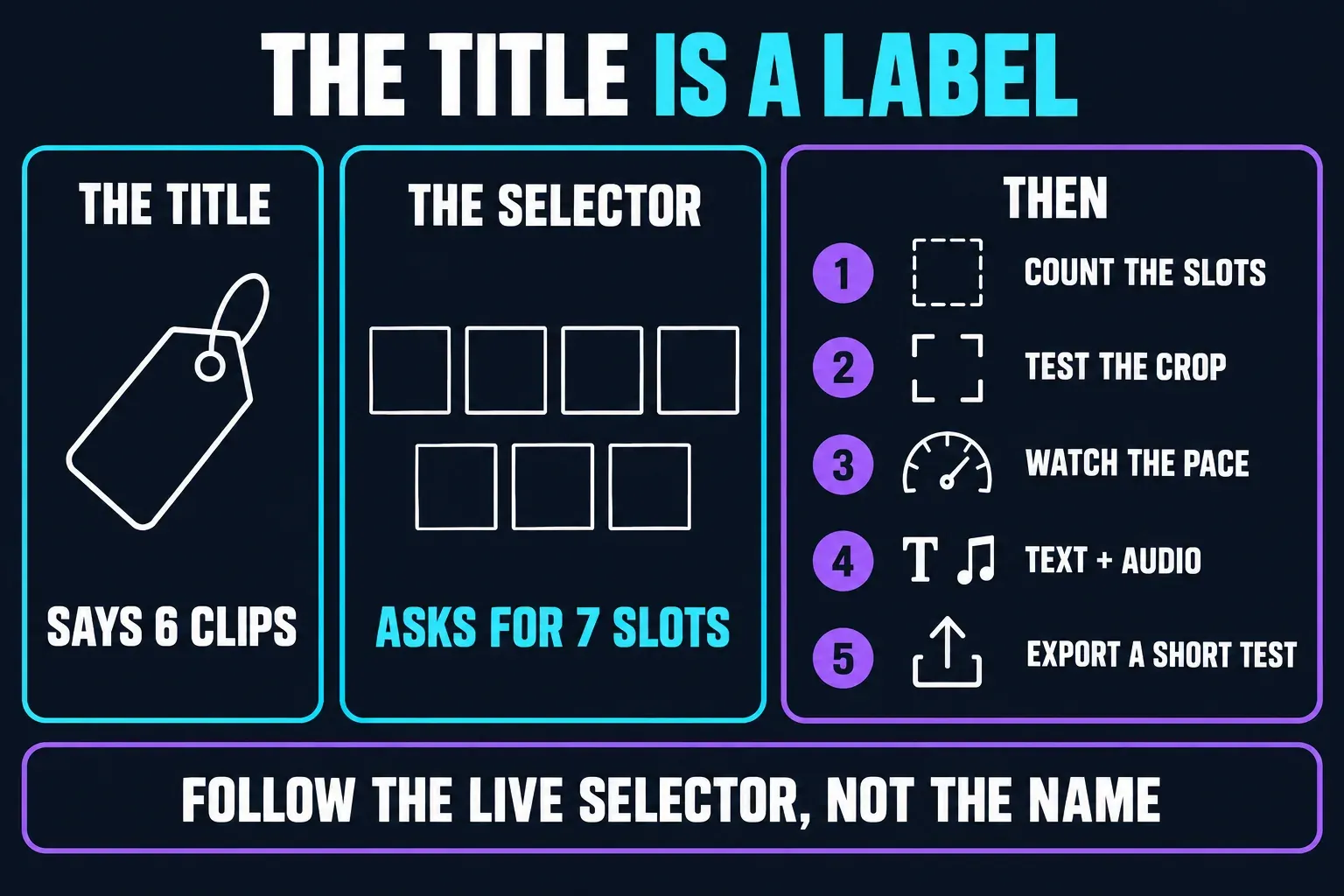
The creator's title says six; the current listing says seven. Use the live selector to see which replacements it asks you to make.
Open EHSAS 6 CLIPWedding Glow up
Try getting-ready footage followed by the finished look. Its creator description includes a Pro tag, so inspect the current access and payment conditions.
Open Wedding Glow upMore room to arrange: nine to 17 listed slots
Cinematic video
Consider it for several parts of the day. Try one meaningful guest reaction alongside the couple footage, rather than filling every position with portraits.
Open Cinematic videoWedding cinematic
The linked listing is in Indonesian. Compare its actual preview with your ceremony, detail and reception shots; do not choose by the word “cinematic” alone.
Open Wedding cinematicWedding Photos
A photo-themed option to inspect. Test a group photo and a close-up: different crops may suit one and spoil the other.
Open Wedding PhotosWedding Template
One of the longer examples here. Confirm the available text edits and each shot's timing before relying on it for names or a readable message.
Open the 12-slot Wedding TemplateCinematic Slomo
Many listed slots within a short runtime. Watch the full preview to see whether it uses quick cuts, simultaneous images or repeated footage.
Open Cinematic SlomoCinematic Wedding x
Try this for a brief visual teaser. Test whether the finished sequence gives viewers enough time to recognise the people and read any text.
Open Cinematic Wedding xLarger selections: 21 to 30 listed slots
Wedding moment
Consider this when you have plenty of usable material. Preview how those slots appear; the count alone cannot tell you how busy the result will look.
Open Wedding momentGroom and bride
Plan which parts of the day you want to include before importing this larger selection. A longer media list is not a reason to use weak shots.
Open Groom and brideNone of these examples is promised to be free or watermark-free. CapCut's paid-template guidance says prices can vary and the checkout shows the final amount. Check the finished export as well before the video goes into a paid delivery.
Build the story before filling slots
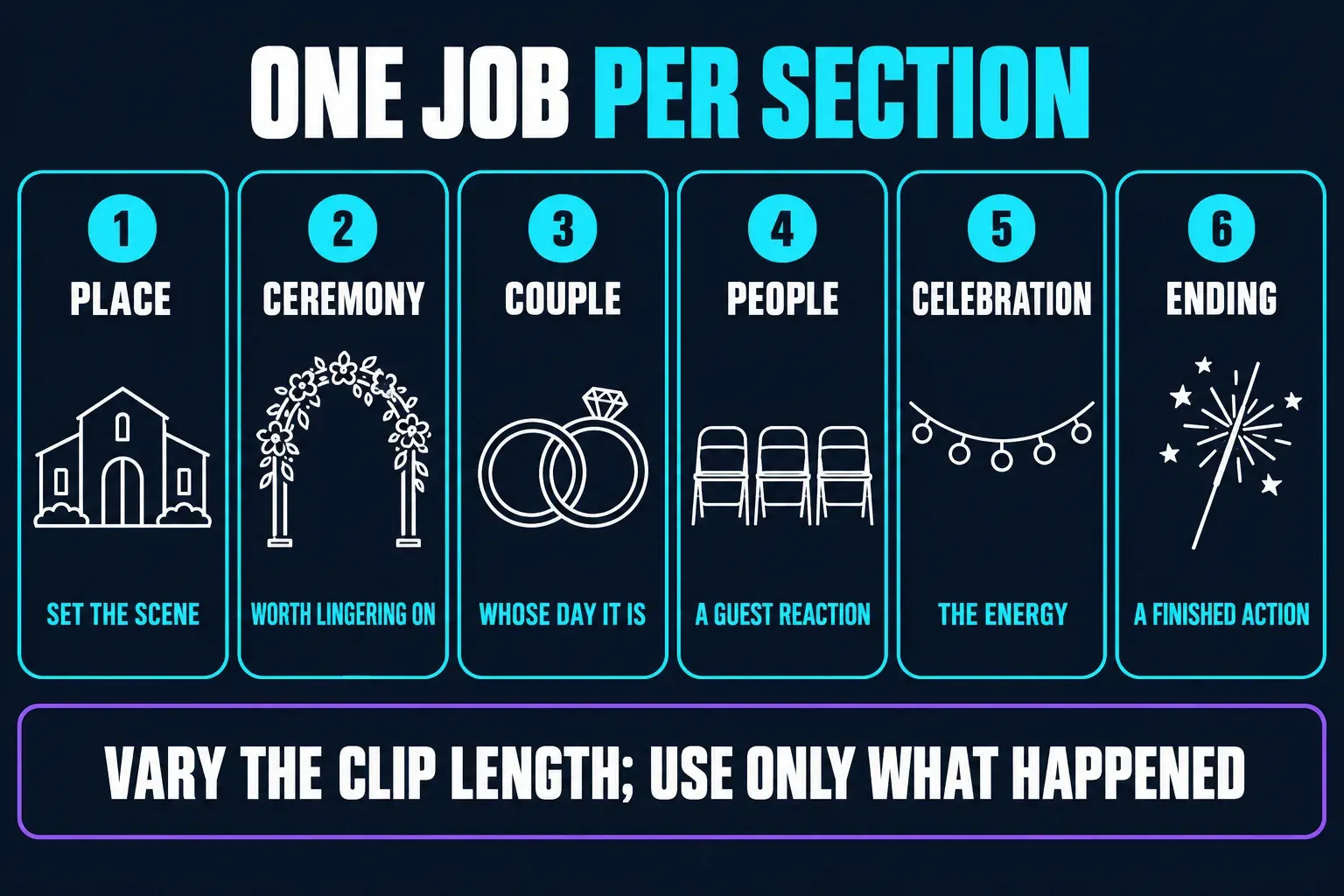
For a wedding-day highlight, try this order: place → ceremony → couple → people → celebration → ending. It's a starting point for the edit, and no wedding has to follow it step by step. An elopement may have no reception footage, and some ceremonies follow a different sequence. Use what happened and leave out anything you didn't film.
Choose an opening that tells us whose day this is, one or two moments worth lingering on, and an ending that feels finished. A template might not let you change every hold. If an important moment keeps getting rushed, pick a different layout or edit it on a manual timeline.
Check what the template actually lets you change
The “EHSAS 6 CLIP” example lists seven slots, and even that doesn't mean every user needs seven different files. CapCut documents a creator-controlled flexible clip count. Some templates let you add or remove clips, while others don't. Check the selector before you repeat a photo or give up on a layout.
Also check which elements the creator made replaceable. A slot may accept photos, videos or a restricted media type. Swapping a clip doesn't automatically make its text, filter or soundtrack editable. A template called “Slomo” might accept a photo, but its animation won't necessarily suit your image.
Protect the look of the original footage. Compare a face and a white dress or other light fabric in the source and in the preview. If a preset turns the image monochrome or changes the color and there's no editable control, pick another template or switch to a manual project. Don't assume there's a removable filter waiting in the usual panel.
Treat “short test” as a complete trial video from a short template. Don't assume the editor can export a selected range.
Keep the vows and check the music
Before you arrange a whole wedding edit, put a clip with speech into one slot and listen. CapCut's original-sound guidance explains that whether a replacement video keeps its audio depends on the template creator's settings. If the words disappear and the available controls can't bring them back, do that part of the film in a manual project with the original clip. Background music shouldn't be the reason the toast goes missing.
For client work or a photographer's promotional Reel, check the music license for that use and destination. In its general, non-US materials agreement, CapCut separates personal-use Sounds from Commercial Sounds. Commercial Sounds carry a specified CapCut/TikTok/TikTok for Business scope, and using them outside it needs separate permission. US users have separate terms, so check the agreement and track terms that apply to you. Paying for Pro or getting a successful export doesn't, on its own, give you permission for every use.
Use a wedding template in CapCut
On Mobile, CapCut's template-use instructions describe choosing media, previewing, editing available segments and exporting. Labels can vary by version and template.
- Open a template and check access. Follow its available use action, sign in if required, and inspect the media count, accepted types and payment conditions.
- Add media from your prepared album. Fill the available replacements. Use an enabled add/remove option if needed; otherwise choose a layout that fits your material.
- Watch the whole preview with sound. Check the order, crops, colour, speech and timing at normal speed rather than by scrubbing alone.
- Correct what is editable. Replace or crop exposed segments and change available titles. If a necessary name, audio setting or crop is locked, switch templates or use a manual project.
- Export one complete version. Watch the saved file outside CapCut before sending it. Check any destination preview privately before publishing, and test venue playback when relevant.
In a browser, CapCut's newer Web template walkthrough describes its slot editor. Don't assume a particular mobile template or effect will work the same way there or on Desktop.
If the link or template fails, work through the fixes for CapCut templates that are not working. Check sign-in, connection, app version and the official collection before you rebuild the edit. CapCut's failure guidance warns that uninstalling may remove local drafts, so I wouldn't make that your first fix.
When a different layout fits better
If you're working mostly with still photos and want more control over reading time, use the slideshow guide. For preparations side by side or several family photos together, see the collage guide. Broader summaries, such as several celebrations or a whole month instead of a single wedding, belong in the recap guide.
Before the event, browse CapCut's wedding invitation collection and check that names, date, time, venue and RSVP instructions can be changed and read comfortably. For memories across years, try the anniversary collection. Our CapCut templates guide covers other kinds of edits.
Wedding template export check
Watch the saved file once without touching the timeline. Can you follow the day, recognize the people and read each name? Listen for missing vows, cut-off words and music that drowns out the speech. Then check every crop, the last frame and any watermark or placeholder you didn't expect.
Before you share, strip out stray notifications, private contact details or account information from imported material. Names and venues may belong in the video, but check what the couple wants shared and with whom. For a venue screening, test the actual file and sound on the setup you plan to use. If you need help choosing resolution or frame rate, see how to choose CapCut export settings.
CapCut wedding templates FAQ
How many clips do I need for a CapCut wedding template?
The examples here list three to 30 media slots. Check the selected template: some creators enable flexible counts, and slots may restrict the accepted media type. Choose around your usable footage, not a fixed number for all wedding videos.
Which template works for a short wedding highlight?
Start with the smaller examples for a teaser or compare the nine-to-17-slot options for several parts of the day. Those are browsing groups, not rules. Watch the actual preview; runtime and slot count do not reveal each shot's timing.
Why does a template title show a different clip count?
The creator's title can differ from the current listing. “EHSAS 6 CLIP” lists seven slots on its detail page. Follow the live media selector, including any enabled option to change the count.
Are CapCut wedding templates free?
Not necessarily. Check the template's current badge, included assets and final payment screen. None of the examples here is guaranteed to be free or watermark-free; inspect your saved video before sharing.
Why can I not use a wedding template link?
A public listing does not guarantee account access. Sign-in, region, app version, connection or a removed template can affect use. Try the official collection and non-destructive troubleshooting before considering a reinstall that could remove local drafts.
Can a wedding template keep the sound of our vows?
It depends on the template's original-audio settings and available controls. Test a replacement clip with speech first. If the words disappear and cannot be restored there, build that section in a manual project with the original clip.
Is an invitation template the same as a wedding video template?
An invitation communicates event details before the wedding. A wedding-day edit uses photos or footage of what happened. Choose an invitation with editable, readable names, date, time, venue and RSVP instructions rather than forcing them into a fast montage.