

Checked September 4, 2026: count the photos, choose the final frame shape and watch the complete template preview before replacing everything. The four examples below still open, but their fixed slots, crops and pacing may be wrong for your story. If they do not fit, stop hunting and use a normal timeline. For collages, recaps, intros and other designed outputs, our guide to CapCut design tools helps you pick the right workflow.
Use a ready-made slideshow template
Choose this when the template needs roughly the same number of photos you have and its cuts already fit the mood. You replace the exposed media, check each crop and export one complete version.
See the live template choicesBuild the slideshow on a normal timeline
Choose this when every photo needs a specific hold, the order matters, or you want different music. A normal project takes longer but gives you control over duration, transitions and framing.
Go to the manual workflow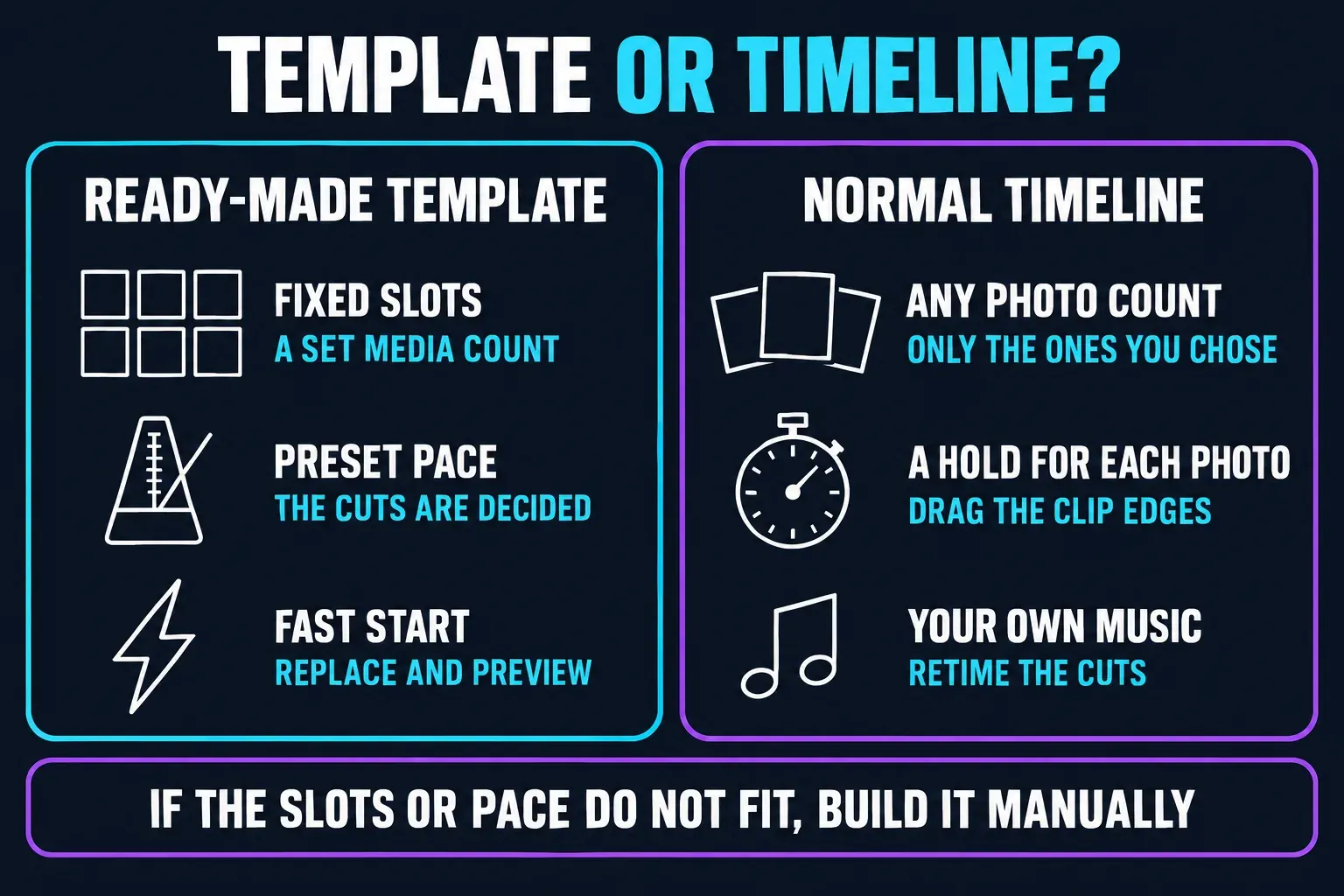
What a CapCut slideshow template controls
A slideshow template is a pre-built video edit with a set number of replaceable media slots. It may also carry transitions, animation, text, effects and music. CapCut's template guide describes template routes on Mobile, PC and Web, but the library and controls you see can still vary by build, account and region.
The slot count matters more than the title. A template called “Slideshow” may ask for seven items, nineteen items or only one. It can run for thirteen seconds or nearly a minute. The aspect ratio may be vertical, square or 3:4. Those are structural choices, not details you can always change after selecting all your media.
A template also decides the first version of the rhythm. Replacing a calm soundtrack with a faster song doesn't automatically move every cut to a new beat. Replacing a portrait with a landscape photo can put a face outside the crop. Treat the preview as a proposal, not a finished result.
CapCut slideshow templates checked September 4, 2026
Start with CapCut's official slideshow collection. All four examples below were reachable when rechecked on September 4, 2026, and they cover different media counts and shapes. Availability can change, so use the live detail page as the final check.
Fast vertical photo sequence
A short social edit for a small set of strong images. Thirteen seconds leaves little reading time, so avoid photos that need close inspection.
Open the official 7-slot templateFramed ten-photo slideshow
A more measured layout when you want a photo-frame look instead of full-height 9:16. Check how each portrait or landscape image sits inside the design.
Open the official 10-slot templateLonger vertical slideshow
A better starting point for a travel, family or event sequence that needs more breathing room than a rapid photo dump.
Open the official 15-slot templateDense square slideshow
Nineteen items in seventeen seconds is intentionally quick. Use it for a burst of impressions, not for captions or detailed photos viewers need time to study.
Open the official 19-slot template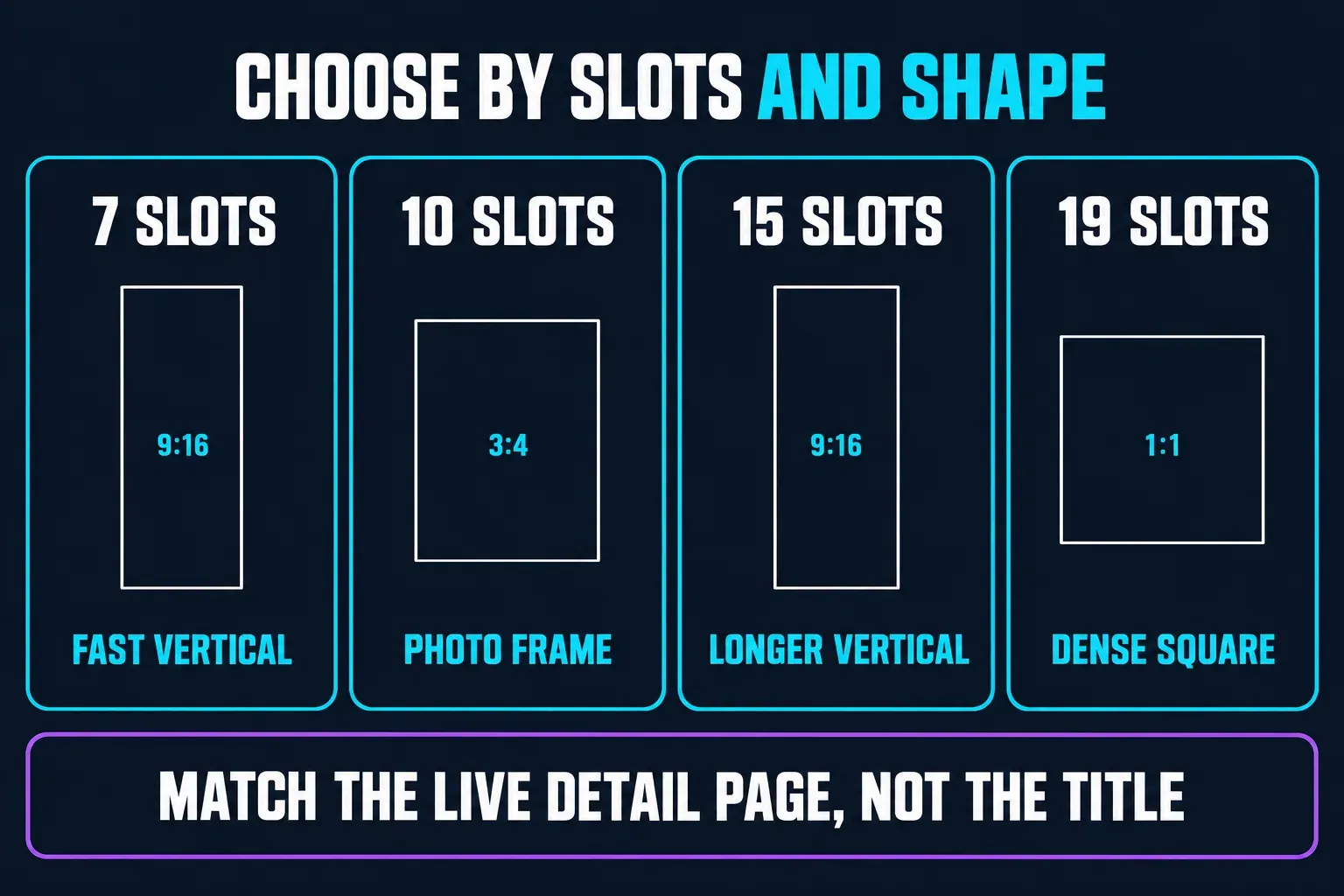
- Count the media: prepare exactly what the detail page requests. “Media” may allow photos, videos or both; confirm the selector after opening the template.
- Calculate the pace: divide the total duration by the number of slots for a rough warning. The real holds won't be equal, but a dense ratio tells you the edit is fast.
- Match the destination: 9:16 fits vertical video, 1:1 is square and 3:4 is a taller photo-style frame. None guarantees that platform controls will avoid your text.
- Watch the full preview: look for split frames, fast flashes, fixed text, a final logo segment and any photo that remains on screen far longer than the rest.
These are examples rather than a permanent ranking. The broader CapCut templates guide explains the current Mobile, Web and Desktop discovery routes and how to verify an official page.
How to use a ready-made slideshow template
- Open the official detail page. Use a capcut.com collection or template URL, then choose Use template. A shared social link may hand the template into the Mobile app.
- Read the required media count. Put the chosen photos in a temporary album or folder in the order you want before opening the selector.
- Fill every slot deliberately. Don't select twenty random images and hope the template finds the story. Put the strongest opening image first and reserve a clean closing frame.
- Preview every crop. Open each exposed segment and reposition it when a face, product or line of text falls outside the visible frame.
- Check editable text and audio. The creator can protect original material, and the exact controls vary by template. If a needed element is locked, choose another layout.
- Export one short version. Watch the saved file outside CapCut before posting or replacing the remaining media in a larger version.
CapCut's January 2026 use-and-export instructions document the Mobile sequence of choosing media, previewing, editing an exposed segment and exporting. They also say Web has limited official templates and Desktop lacks the online community gallery. That conflicts with CapCut's broader current template guide, which documents template routes on all three platforms. This is a conflict in CapCut's own Help Center, not proof that your app is broken. Treat Mobile as the safest route for a shared community template, and trust Web or Desktop only after the exact template opens in your live build.
In this context, “download a CapCut slideshow template” normally means open the layout, replace its media and export a finished video. It doesn't guarantee a portable project package that can be saved and reopened in another editor.
Build a CapCut slideshow manually
Use a normal project when the slot count is wrong, the photos need longer holds or the soundtrack matters more than the template. CapCut's official slideshow-with-music workflow uses the standard editor: import media, arrange it, adjust duration, add transitions and audio, then export.
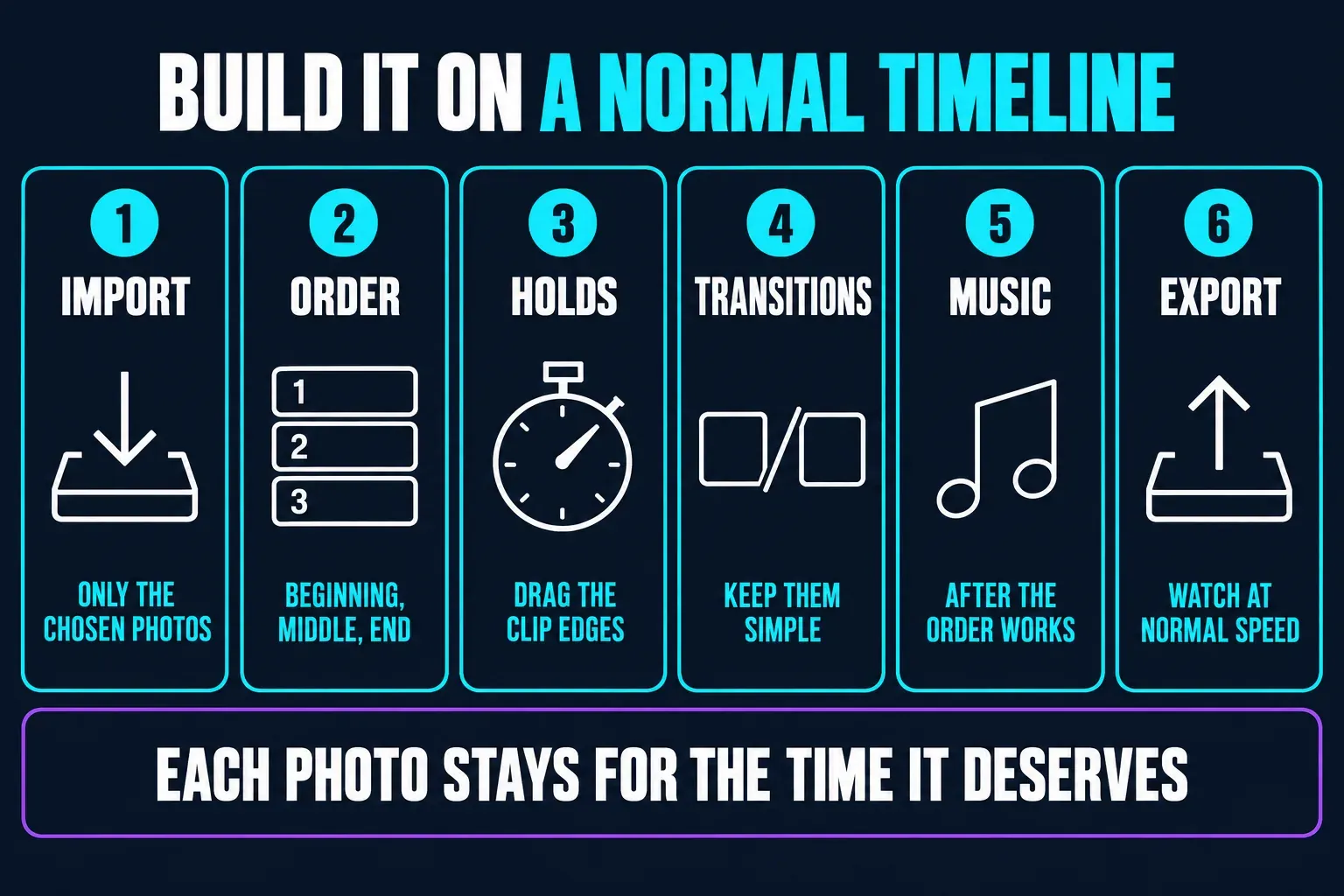
- Start a normal project. Import only the selected photos and any short video clips you genuinely need.
- Arrange the story first. Build a clear beginning, middle and end before adding transitions. Remove near-duplicates.
- Set each photo's hold. Drag the clip edges. Give a simple establishing image less time than a group photo, instruction or frame with text.
- Add restrained transitions. A cut, dissolve or simple slide usually reads better than a different effect between every photo.
- Add music after the order works. Place important photo changes near musical phrases, then fade or trim the track to the exact end.
- Export and watch once. A slideshow that feels comfortable while scrubbing can still feel rushed at normal speed.
For a browser workflow, CapCut's slideshow maker page describes both routes: select an online template or start with a blank canvas and imported pictures. The manual route is not a failure to find the right template; it is the correct choice when timing and order carry the story.
Mobile, Desktop and Web don't show one identical library
Mobile remains the broadest route for community and social deep-link templates. Open the Template area if it exists in your region, or use an official shared link. A missing Template tab can reflect version, account or regional availability rather than a damaged installation.
Web can expose a searchable official catalog and supports normal browser projects. It may not mirror every Mobile community template or social handoff. Use it when you need a larger screen without installing the desktop app.
Desktop is the safest manual-timeline route for large photo sets. Current CapCut help pages disagree about how much online template discovery Desktop receives, and live builds can differ. If the exact shared template is absent, don't rebuild the account around it: use Mobile for the template or make the slideshow manually on Desktop.
Add music without breaking the slideshow
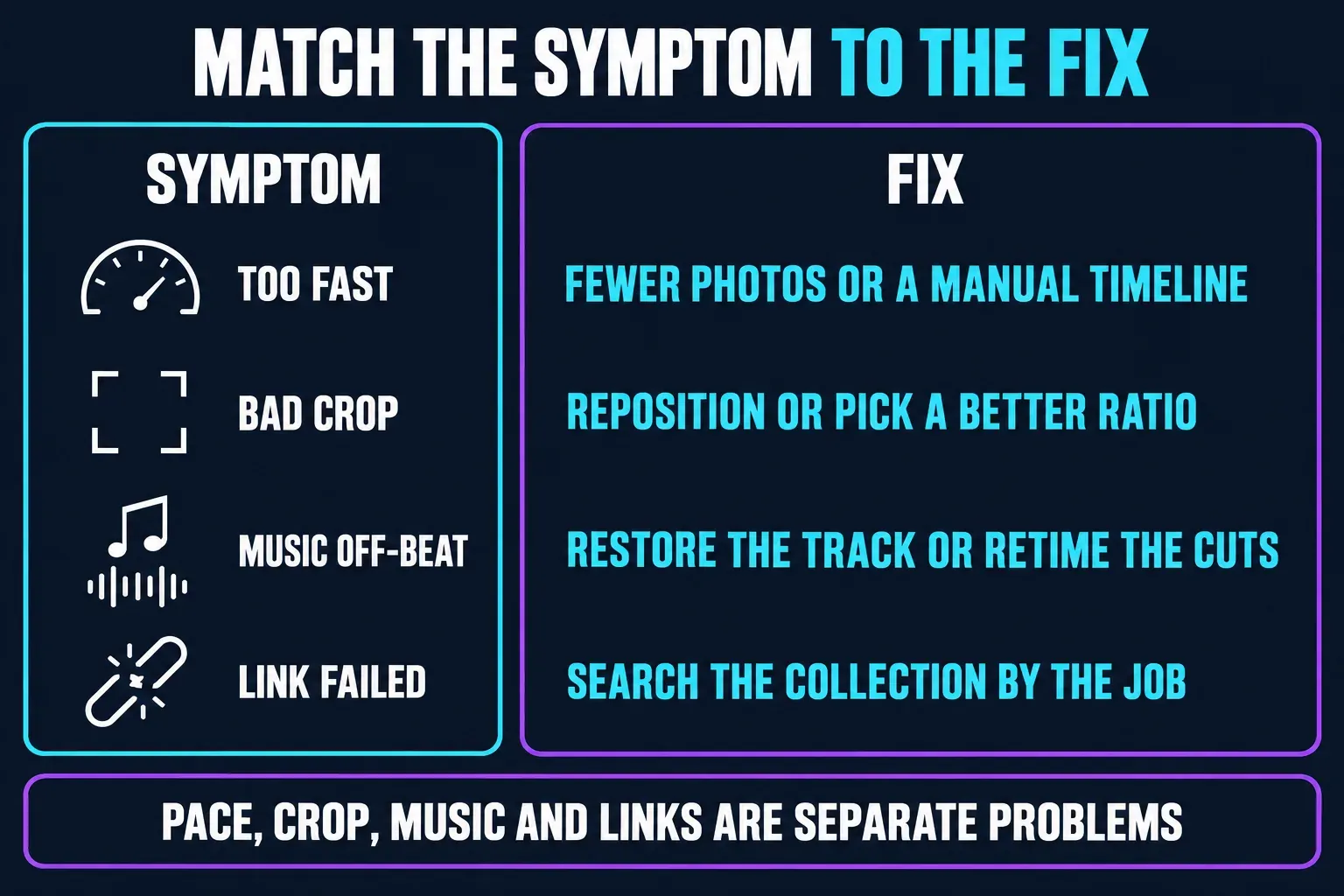
A beat-synced template is designed around its original timing. When you replace the song, listen for the first strong beat, section changes and the final downbeat. If the cuts now land between beats, either restore the original track or move the project to a normal timeline and retime the images.
A preview soundtrack is not permission for every use. CapCut's template-audio guidance says a published template can lose sound because of music-rights restrictions and recommends replacing unavailable audio with music you have the right to use or suitable licensed material. This matters most for client, brand and monetized work.
If you're adding your own track from scratch, the CapCut music guide covers import, volume, fades and missing-audio checks. Finish the picture order before spending time on a detailed mix.
Fix bad crops and empty borders
A portrait template often enlarges a landscape photo until its sides disappear. A square template may cut the top and bottom from a vertical shot. Select the replacement segment and reposition it if the template exposes crop controls. Keep faces, products and embedded text away from the edge. This is worth testing early: one August 2026 Reddit report describes a 9:16 replacement becoming narrowly cropped while the template's crop control would not restore the lost sides. That is one experience, not a universal defect, but it is a good reason to test the hardest-shaped photo before filling every slot.
When the template can't show the complete image, choose between three honest fixes: select another photo, use a template with a better aspect ratio, or rebuild the slide in a normal project with a blurred or designed background. Don't shrink a photo until it floats inside an accidental black frame unless that is the intended look.
When the template is too fast for your photos
Don't force a long family, memorial, portfolio or product sequence into a rapid social template. If viewers must recognize people, read a caption or inspect a detail, the photo needs an intentional hold. Removing weaker images usually helps more than squeezing every item into shorter slots.
If the template's animation is the only part you want, export a small test and decide whether that fixed rhythm is worth the compromise. For an important slideshow, rebuild the useful transition or framing idea in a normal project and control the duration yourself. That takes longer, but it avoids a finished video that feels like a flicker of thumbnails.
Fix a failed template link or locked control
If one detail page disappears, return to the official slideshow collection and search by the job rather than the old creator name: 7 photo vertical, square slideshow, 15 clip slideshow or photo frame. A creator can remove a template, and availability can differ by region or account.
If several template links fail, use the CapCut template troubleshooting checks for platform handoff, login, connection and cache problems. If the page opens but a text, music or crop control is absent, that is usually an editability boundary of the chosen layout, not a reason to reinstall the app.
Export check for a CapCut slideshow
Watch the saved file from the first frame to the last on another screen. Don't approve it only while moving the playhead. Check:
- the photo order tells the intended story and no near-duplicate slipped in;
- faces, products and text remain inside the crop;
- every important image stays visible long enough to understand;
- transitions don't flash, stutter or hide the subject;
- the soundtrack is present, licensed for the intended use and aligned with the main changes;
- the final frame ends cleanly without a stray template card or unexpected logo segment.
Use the CapCut export settings guide when resolution, frame rate or compression is still undecided. The project is finished when the exported file works at normal playback speed on the destination screen.
CapCut slideshow templates FAQ
Are CapCut slideshow templates free?
Many can be opened without payment, but a specific layout may contain Pro or paid elements. Check the badge, live price or export prompt on the exact template before filling every slot.
How many photos can I put in a CapCut slideshow template?
The template sets its own required media count. The live examples checked for this guide range from seven to nineteen slots. For a different number, choose another template or use a normal timeline.
Can I change the duration of each photo in a template?
Only when that template exposes timing controls. If the holds are fixed or the whole sequence is too fast, build the slideshow in a normal project and drag each photo clip to the duration you need.
Can I replace the music in a CapCut slideshow template?
Some templates expose an audio control, but a replacement song can put the cuts off-beat. Preview the entire result and retime it in a normal project when the new track no longer matches.
Why does a photo look cropped in my slideshow?
The template frame and the source photo use different aspect ratios. Reposition the image if crop controls are available, choose a better-shaped template or rebuild the slide on a designed background.
Why will a CapCut slideshow template link not open?
The template may have been removed, restricted for the region or handed to an unsupported platform. Return to the official collection, search for a similar slot count and test the link on Mobile when it came from social media.
Should I use a template or make the slideshow manually?
Use a template when its slot count, crop and pace already fit. Use a normal project when the photo order matters, each image needs a different hold, or you need to build the cuts around your own music.