

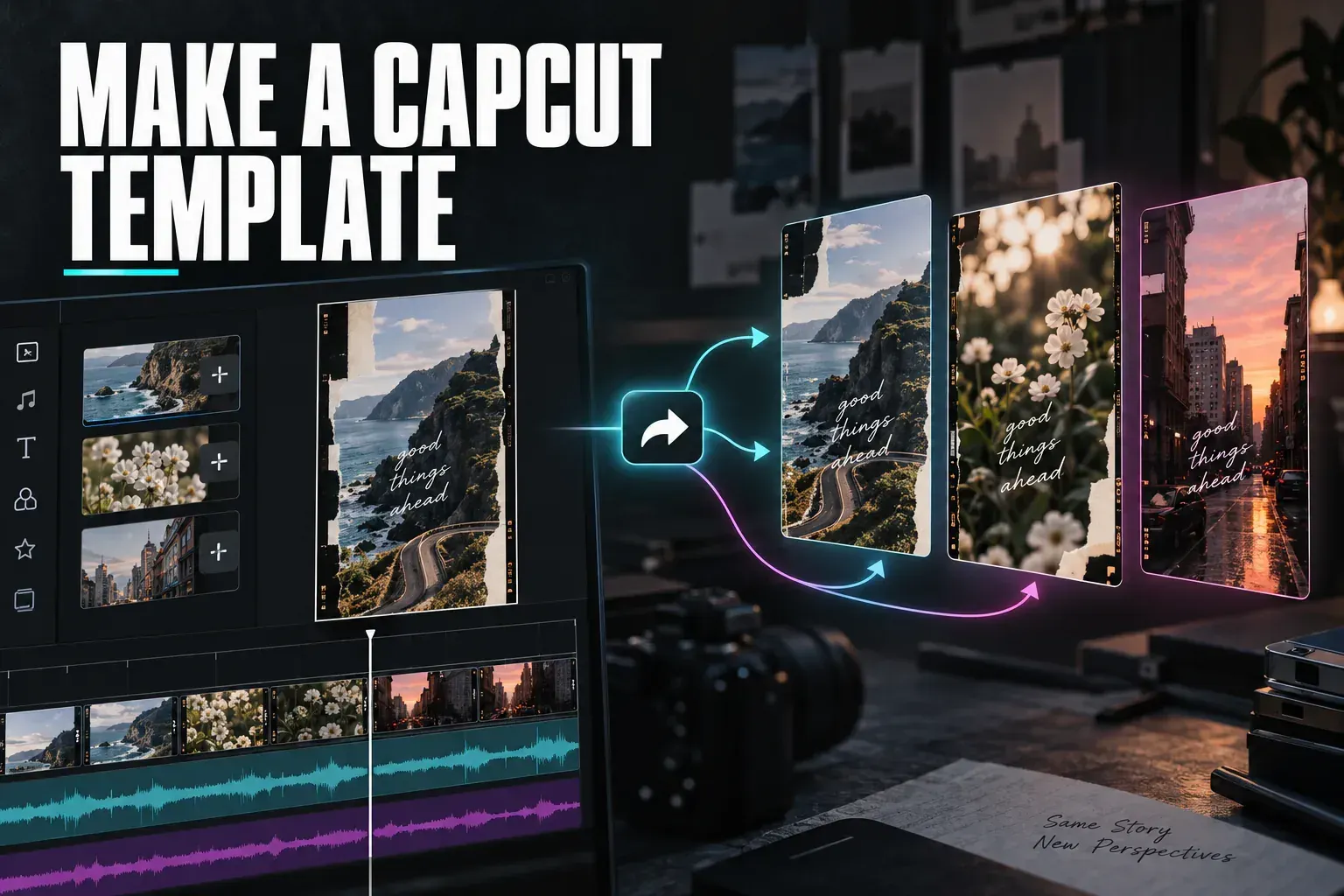
You can edit a video in CapCut without special creator access. Publishing that edit as a template other people can use is different: CapCut says the account needs access to Creator Center. Check that first in the app's Me page. If the entry is there, CapCut's documented route is New Project → edit → Post → Publish as Template. If it is missing, do not spend time hunting for a universal Save as template button.
The distinction matters because a finished video is only a finished video, while a public template lets someone else replace media and make their own version. CapCut's template-creation help states that only verified creators with Creator Center access can publish templates. The wider CapCut Creator Program guide covers application routes and regional conditions; access is not guaranteed by editing a project.
Check whether your account can publish
Open Me in the CapCut app and look for Creator Center. CapCut uses that entrance as its eligibility check for template publishing. If you do not see it, you can still build and keep an editable project for your own future edits, but the official public-template route is unavailable to that account as documented. Check your current program options rather than assuming a missing control is a project error.
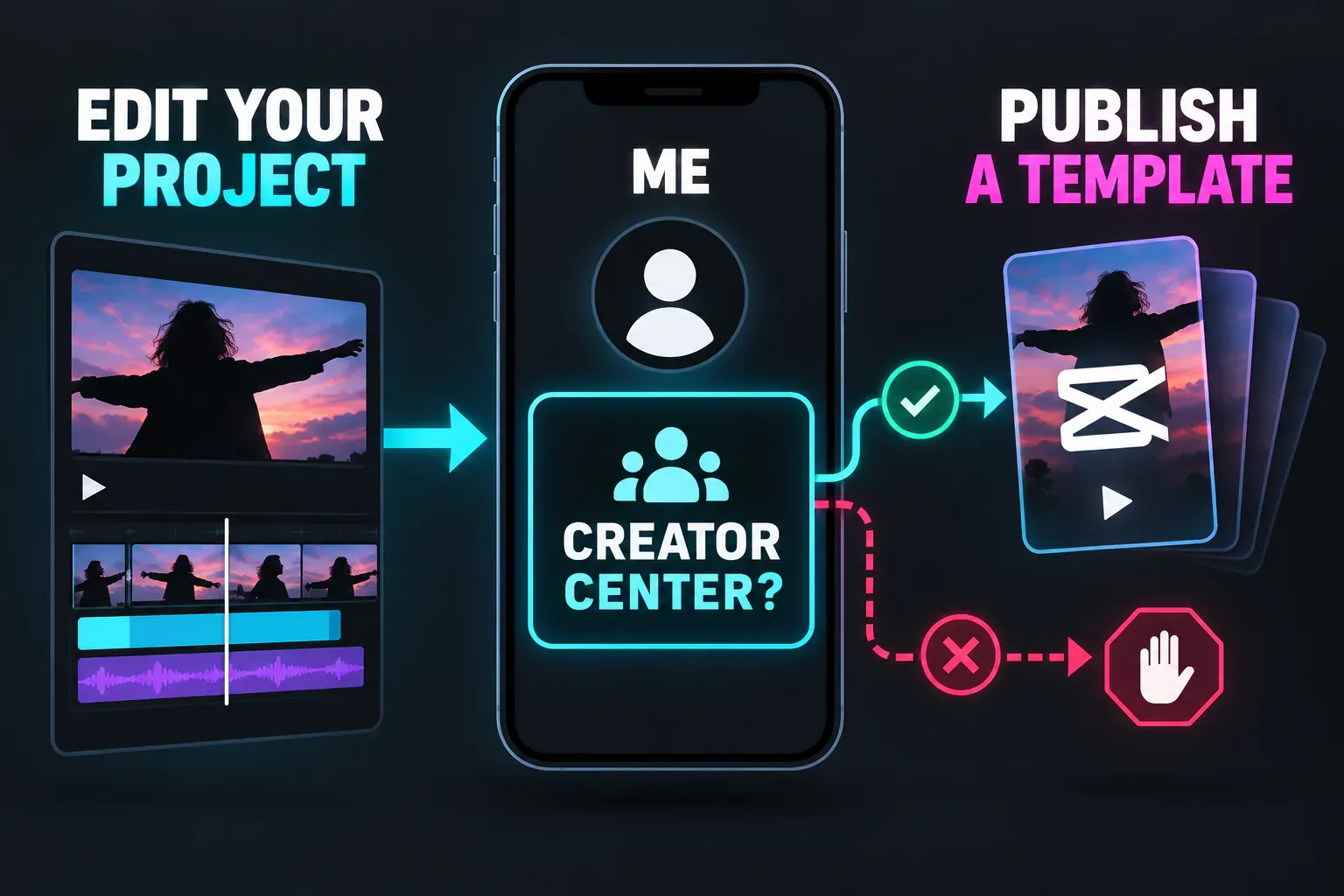
This guide follows the app route that CapCut Help actually documents. CapCut's broader template-library guide describes finding and customizing existing designs, not a publishing control for every Desktop or Web account. To work with ready-made designs, go to the CapCut Templates hub.
Build an edit that another person can replace
Start a New Project. CapCut's template-creation help says a template can contain clips, images, text, transitions, effects, and music. Choose a clear result first: a short photo recap, a product reveal, or a similar format with predictable media slots. Then make the clip order and timing understandable to someone who has different footage.
I would decide what the next editor must replace before polishing the effects. Keep text readable when a name or date changes. Use transitions that do not depend on one exact camera move. If an image, clip, logo, or spoken line belongs only to your edit, decide whether it should be removable or whether the template should be designed around a different placeholder. These are design checks, not a claim that CapCut automatically builds placeholders for you.
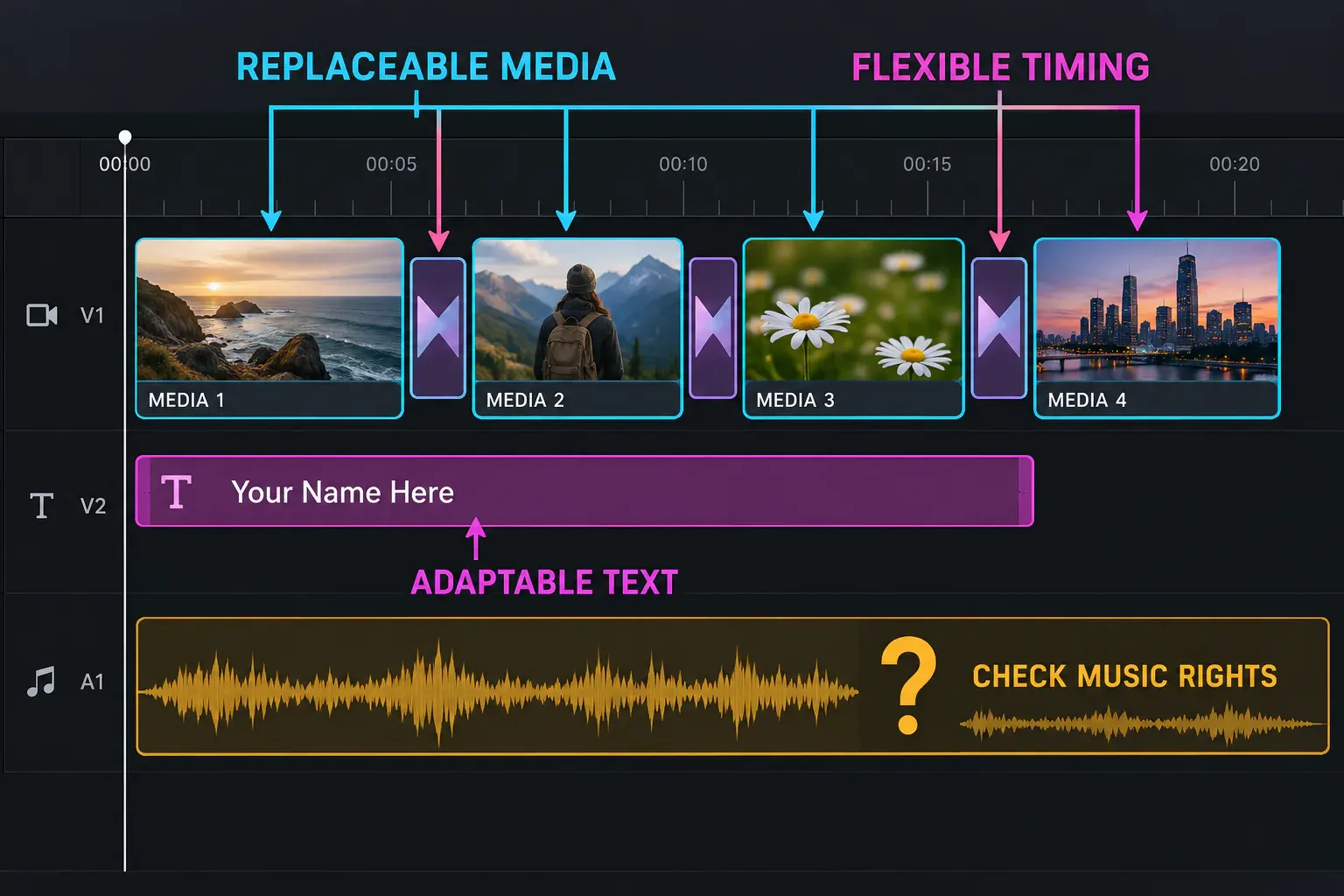
Before posting, review every included sound and image. CapCut's template-creation instructions specifically call out soundtrack copyright compliance. Our CapCut commercial-use rights guide explains why an asset available inside an editor is not automatically licensed for every public or commercial use.
Publish through the documented app route
If Creator Center is available on your account, follow the sequence in CapCut's current Help article:
- Tap New Project and make the edit you want others to reuse.
- Review its replaceable media, text, pacing, and soundtrack rights.
- Tap Post when the edit is ready.
- Choose Publish as Template if that option appears for your creator account.
- Check the resulting template in your account and look at what another user will be asked to replace before sharing it.
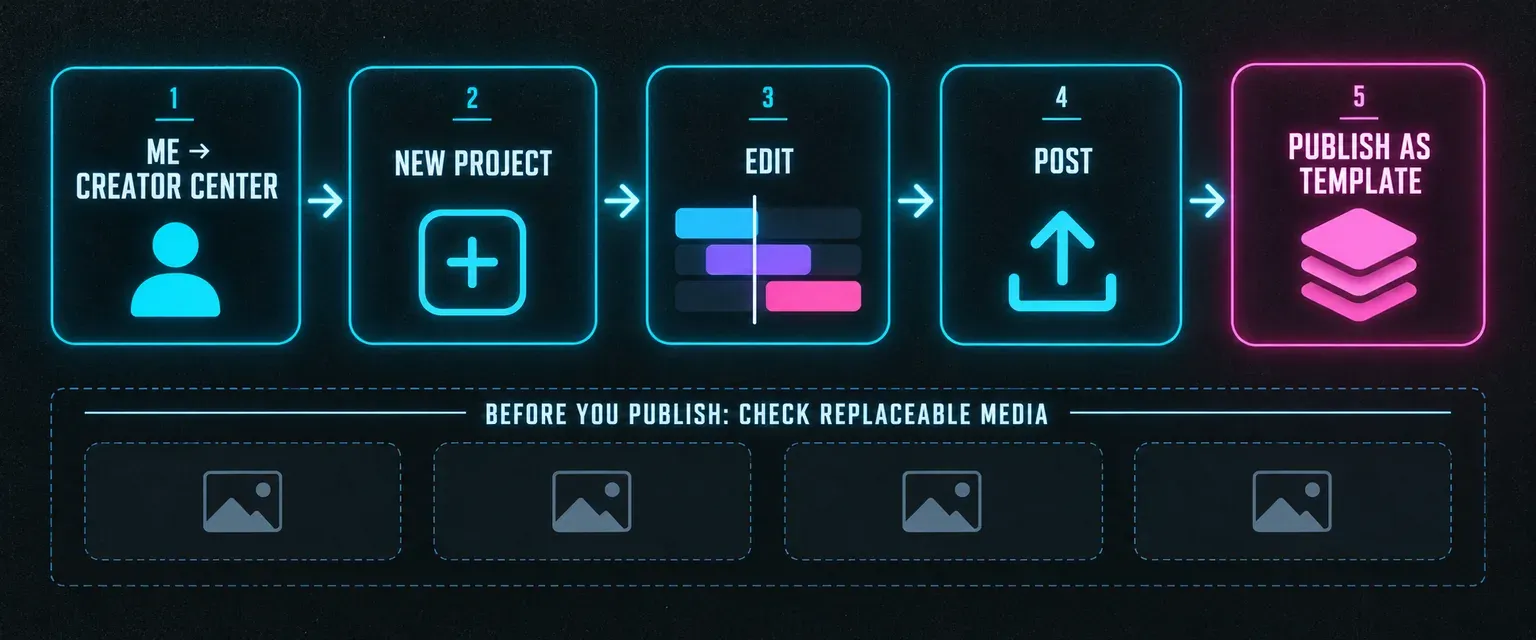
CapCut's template-publishing help says the published template becomes available to other users. It does not give every account the same menu. If Publish as Template is absent, return to the Me → Creator Center check and your account's current creator terms; do not substitute Export, which produces a video, or an unverified Save as template route.
If your goal is only to repeat a style in your own videos, keep an editable working project and protect the source media instead of treating public template access as a prerequisite. If your goal is to publish for other editors, the Creator Program route is the next step when Creator Center is missing. Once a template is live, the Templates hub shows the user's side of finding and replacing media, which is a useful check on whether your design is understandable.