


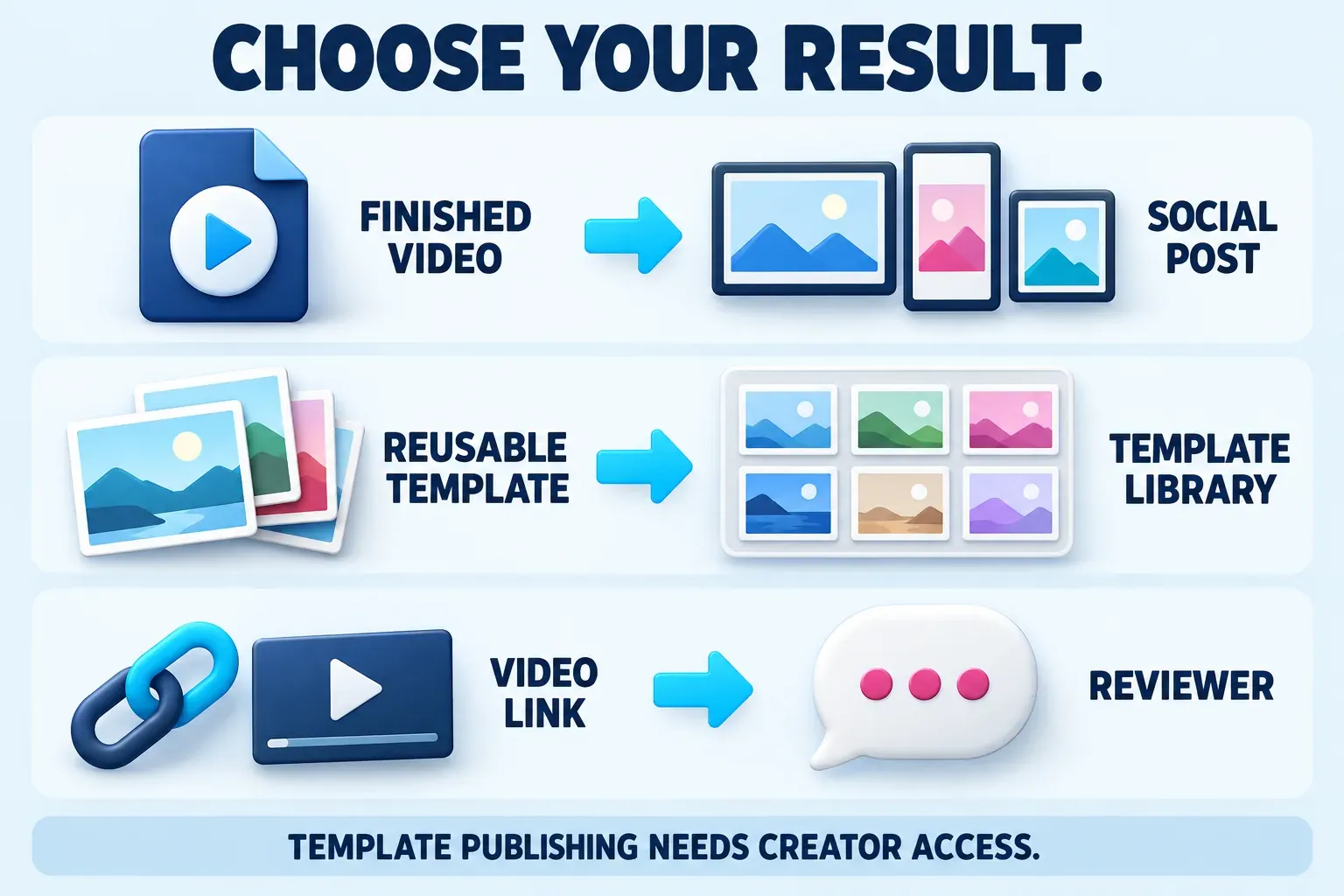
To post a finished CapCut video, export it, then publish it on the platform where you want people to watch it. To post a reusable template inside CapCut, you need the creator publishing route available to your account. A link for someone to review your video is a third outcome.
I would choose the destination before looking for a Post button. An MP4 in your gallery, a public social post and a CapCut template can look similar on screen, but they give the viewer different things. The right route depends on whether you want someone to watch your edit, replace its footage or review it privately.
Choose what you want to share
| Your goal | What you need | Where the result should appear |
|---|---|---|
| People watch your finished edit | Exported video, followed by a social upload | Your chosen social account or channel |
| People reuse your editing design | Creator access and a published CapCut template | The supported CapCut template publishing destination |
| Someone reviews your video | A video file or an available presentation/review link | The file or link you send to that person |
| You keep editing on another device | Editable project plus its required media | A supported project transfer or workspace |
The last row is easy to confuse with posting. A finished video cannot restore your separate cuts, text layers and source clips. Use the CapCut project backup and transfer guide when another editor needs to continue the edit.
Post a finished video from your phone, PC or browser
CapCut's beginner guide for Mobile, Web and Desktop describes exporting the edit and saving or sharing the finished video. You do not need template-creator approval for that ordinary video route.
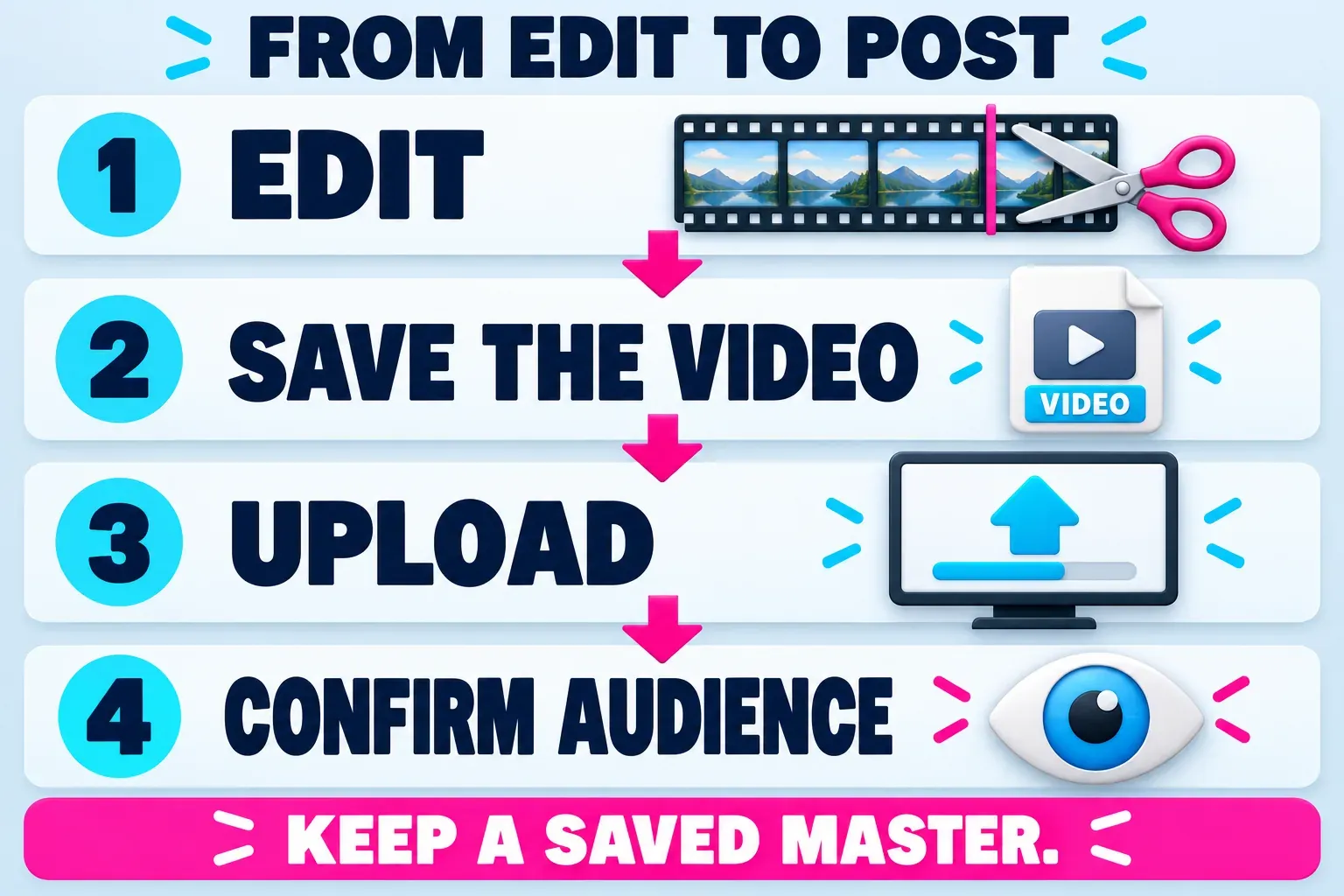
The dependable sequence is:
- Finish the edit and choose the destination. Check the canvas, framing, visible captions and audio for the place you want to publish. Our social-video hub points to the separate TikTok, Reels and Shorts preparation guides.
- Choose Export. On a phone, use the project's export control. On Desktop or Web, open Export and review the file settings available in that version. Use the CapCut export settings guide for resolution, frame rate, format and bitrate choices rather than copying one preset for every project.
- Save or download the finished file. Read the completion screen and the save destination. On Web, make sure the download finishes. On Desktop, note the chosen folder. If you cannot find the result, the CapCut save-location guide separates exported videos from project data.
- Open the saved video. Check the beginning, ending, sound and any text near the edges. Fix an export problem before trying to diagnose a social upload.
- Upload and finish posting at the destination. Use an available share shortcut, or open the social app or website and select the saved file. Confirm the intended account, post details and audience before completing its publishing step.
This works as a route on iPhone, Android, iPad, Windows and Mac, but the controls and share options are not identical. I would keep a saved master even when a shortcut works. It gives you a clear starting point if you need another platform, a corrected caption or a second upload.
You can post without a TikTok shortcut
CapCut's online video-upload instructions describe export and sharing options. A shortcut is useful when it is available; its absence does not prevent you from uploading a saved video through another service's own upload flow.
For a concrete PC example, YouTube's upload instructions use YouTube Studio → Create → Upload videos, followed by the selected file, video details and visibility choices. Uploading imports the file; publishing determines who can watch it. YouTube also asks you to set the video's audience.
That distinction matters on a phone too. Arriving at another app's editing or posting screen is a handoff, not evidence that the video is public. Check the result on the intended account after completing that app's flow. A saved draft may still require publication.
Post a template inside CapCut
If you want other people to replace clips while keeping your design, follow the template route. CapCut's template-creation help tells creators to check Me → Creator Center, then use Post → Publish as Template after editing. It limits publishing to verified creators with that access.
Check the account before building your plan around that button. Our guide to creating and publishing a CapCut template covers the design and documented publishing sequence. If you need to apply, the CapCut Creator Program guide explains the different regional routes and what to review before submitting work.
The general template-posting Help article identifies Mobile as the main supported route after approval and describes limitations on Web and Desktop. Its replaceable-clip instructions also describe Web publishing. Because these routes differ, check the controls available to your approved account before relying on a PC or browser publishing menu. If the expected option is missing, ask support about that account's access.
Exporting an MP4 does not make the design reusable. It gives the next person the combined picture and sound, rather than the individual replaceable parts of your edit. If the aim is a template, confirm the published result offers the intended customization before sharing its link.
Why other people's profiles can look like a video feed
CapCut's explanation of videos on the Templates tab and creator profiles says the entries it describes are reusable templates, rather than ordinary finished-video exports. Their previews can look like the videos you want to post, but the viewer's next action is to use the design with different media.
That is why copying someone else's apparent “post” can lead you to the wrong button. Decide whether your audience needs a finished video or a template, then follow the matching route.
Share an edit for review
If someone only needs to watch and comment on the result, an exported video may be enough. Where your Web account offers a presentation or review link, inspect the sharing settings before sending it. Confirm what the recipient can access and whether the link exposes more than you intend.
A review link is not proof that you published to TikTok, Instagram or YouTube. It also does not automatically hand over an editable project. If the recipient needs to change your timeline, agree on the project and source-media transfer instead.
Keep music and media permissions in the decision too. An asset being selectable inside CapCut does not settle its use in a public post, an advertisement or a reusable template. The commercial-use rights guide helps separate those permissions.
If Post is missing or sharing stops halfway
Match the failure to the job you chose:
- You want a normal social video, but there is no Post button: look for Export and save the file. The public posting step can happen in the destination app.
- You want a template, but Creator Center or Publish as Template is missing: check the correct account, creator publishing access and current platform support. Do not assume a paid editing subscription grants creator approval.
- You have creator access, but submission fails: CapCut's template-publishing troubleshooting page points to account verification, regional availability, content restrictions and required publishing fields. Read the specific message; general creator status does not establish every publishing privilege.
- The export asks for Pro or does not finish: resolve that in CapCut before trying another upload. Preserve the project and read the named paid item or export error. A social share button will not repair a missing finished file.
- The video saved, but the share shortcut fails: open the saved file first. If it plays correctly, use the destination's own upload flow and check its account or upload message.
- The upload completed, but nobody can see the post: check drafts, visibility and the account you used at the destination. Compare its status with what you intended to publish.
If the account and message still do not explain the problem, send support the platform, app version, exact warning and the kind of result you are trying to publish. Keep personal media out of any diagnostic sample unless it is necessary and you are comfortable sharing it. Our CapCut support guide helps choose the contact route.
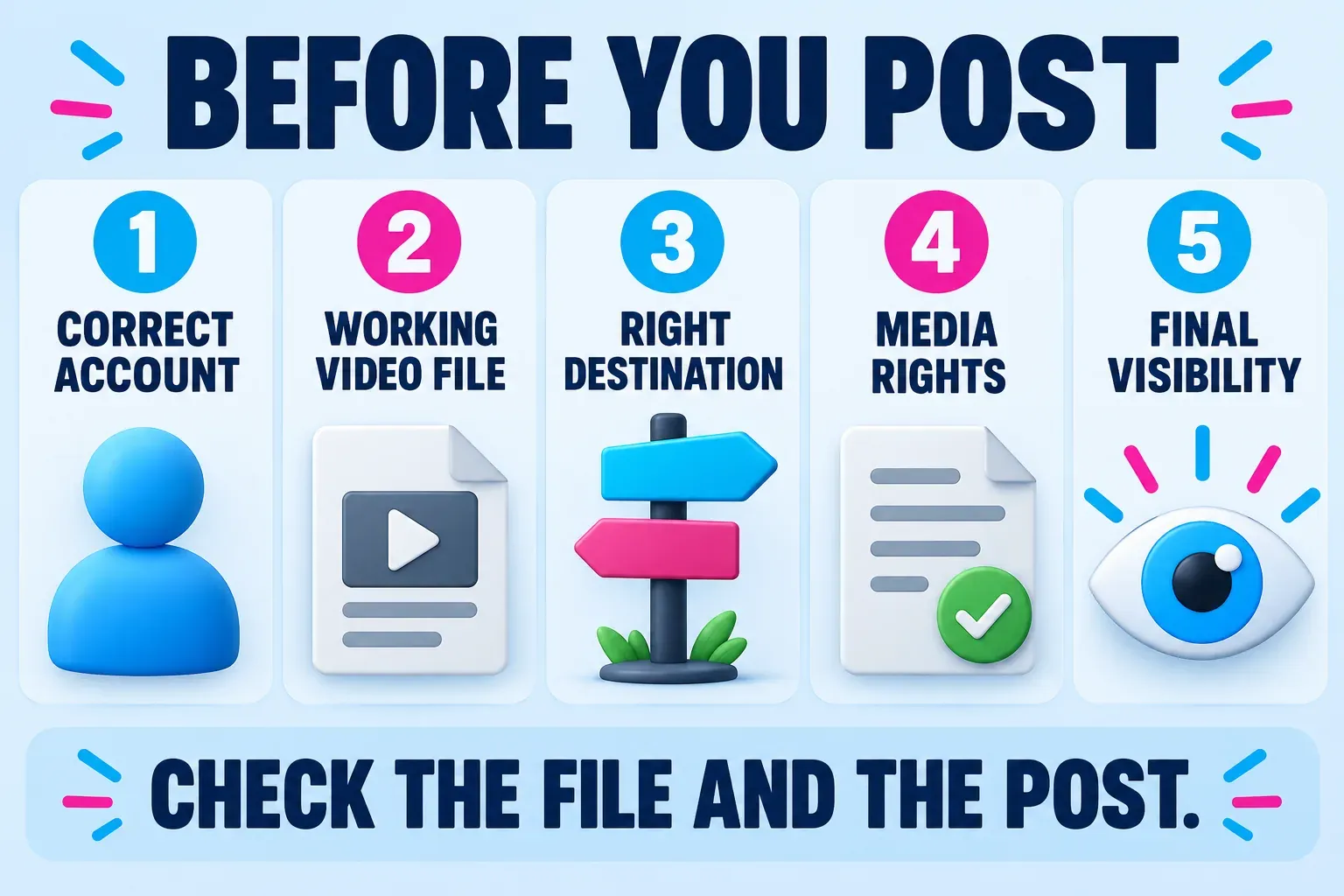
My recommendation: save a finished master for ordinary social posting, use creator publishing for a reusable template, and treat a review link as a sharing arrangement with its own permissions. Once you choose the outcome, the next step becomes much easier to identify.