

Checked September 23, 2026. CapCut can change labels, libraries, terms, territories and platform availability. Check the material's current label and terms when you use it, and keep a record with the project.
Yes, you can create commercial videos in CapCut, but the export button does not grant one blanket license for everything on the timeline. Rights are checked asset by asset: your footage, uploaded music, CapCut templates, stock clips, fonts, effects, AI outputs, faces, voices and logos can all have different rules.
The safest working rule is simple: commercial permission follows each ingredient, not the finished MP4. A paid CapCut plan may unlock a tool or asset; it does not automatically expand that asset's license.
Quick answer by asset type
| What is in the project | Commercial-use starting point | What to verify before publishing |
|---|---|---|
| Video and photos you created | Usually the cleanest route | People, property, location, music and brand permissions |
| Client-supplied media | Use only within the client's written permission | Who owns it, where it may appear, campaign term and territory |
| Licensed stock uploaded to CapCut | Follow the stock provider's license | Advertising, client transfer, audience size, edits and prohibited uses |
| CapCut Platform Materials | Rights vary by the individual material | commercial use or commercial mark, separate terms, territory and term |
| Ordinary CapCut Sounds | Personal and non-commercial by default | Separate music rights for commercial use |
| CapCut Commercial Sounds | Limited commercial route | Permitted platforms and the exact sound terms |
| Templates | A container, not one license | Every clip, effect, font, sticker and sound inside the template |
| AI images, video or voice | Tool permission is only one check | Inputs, output similarity, real people, brands, disclosure and platform rules |
The current CapCut Materials License Agreement calls platform-provided clips, pictures, stickers, text templates, fonts, sound effects, filters and similar resources Platform Materials. It separates them into Non-commercial Use Materials and Dual Use Materials. That distinction is the center of the decision.
Start with what you actually own or control
A project built from your own footage, your own narration and music you composed or licensed for the campaign is easier to clear than a project assembled from a dozen library elements. It is not automatically risk-free.
Ask these questions about every uploaded file:
- Did the person who supplied it own the copyright or have permission to pass it to you?
- Do recognizable people consent to this advertising or commercial context?
- Are logos, product packaging and branded locations shown accurately and with permission where required?
- Does the music license cover the campaign, client, platforms, territory and paid promotion?
- Can the file be handed to another editor, or is the license tied to your account?
CapCut's Terms of Service put responsibility for User Content on the uploader. That includes the rights needed for video, audio and other uploaded material, plus names, images and likenesses used with it. CapCut accepting a file into the editor is not a rights check.
For recurring client work, keep licensed media and brand assets organized outside the app. The CapCut Brand Kit workflow is useful for consistency, but ownership and license records still belong in the project folder.
Read the label on each CapCut material
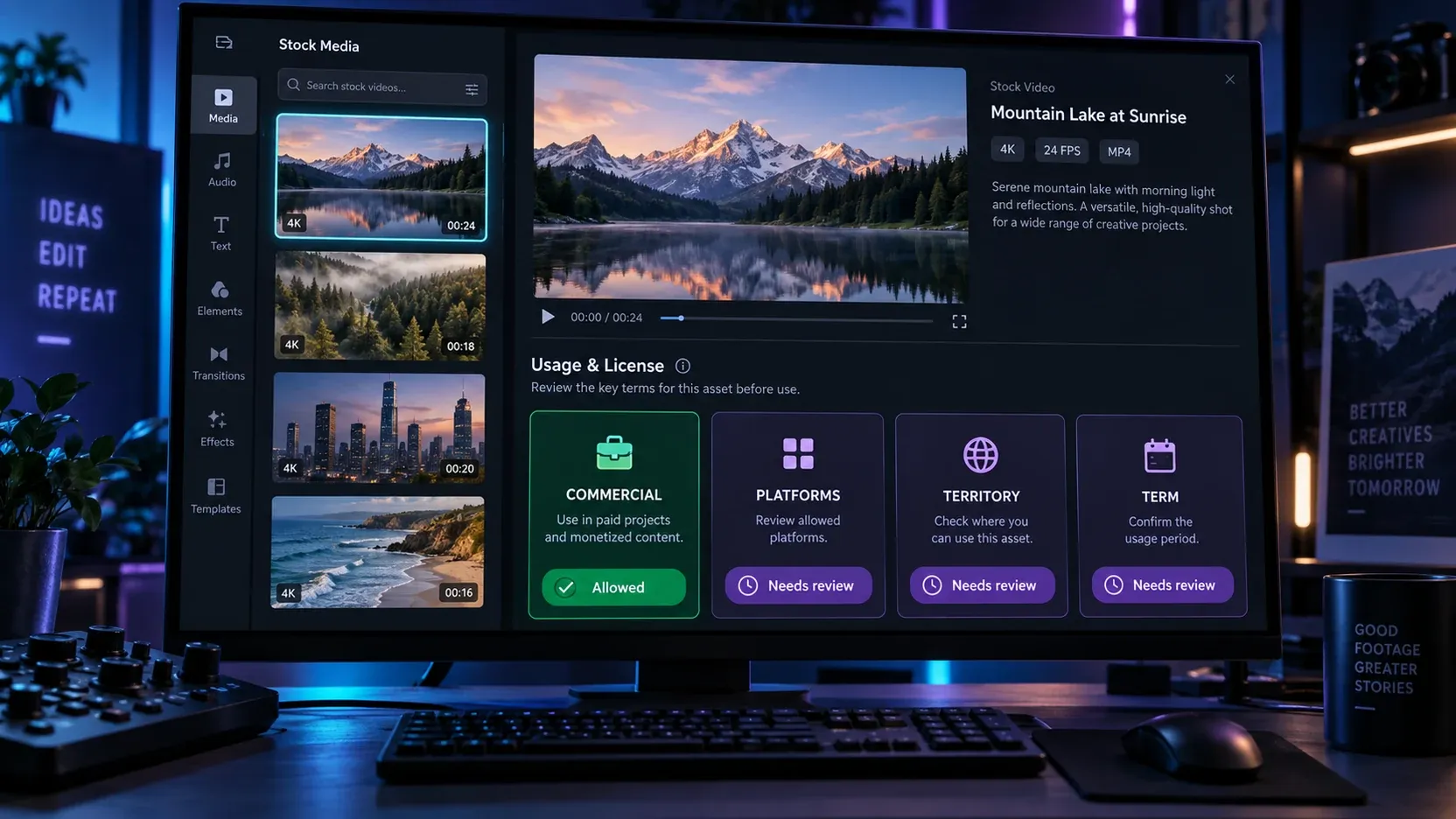
CapCut's agreement says some Platform Materials are limited to personal, non-commercial use. Others are Dual Use Materials, which can support limited commercial uses. CapCut says Dual Use Materials are identified with marks such as commercial use or commercial.
Do not turn that mark into a permanent universal promise. For the selected item, check:
- Material identity: asset name, ID or stable URL where available.
- Label: whether it is marked for commercial use at the time you select it.
- Separate conditions: any terms shown on the item, pack, template or feature.
- Intended use: organic brand post, paid ad, client deliverable, course, app, broadcast or another context.
- Platforms: where the final work will be published.
- Territory: where the campaign or content will run.
- Term: how long the permission applies.
The agreement describes the license as non-exclusive, non-transferable and non-sublicensable. It also ties Dual Use permission to the applicable license term and licensed territory. This is why “it was available in Pro” is not enough evidence.
Each exported work has its own license check
The Materials License Agreement applies the limited license to each Platform Material in each exported work. If the same effect or stock clip appears in three client ads, keep the evidence with each project rather than relying on one old screenshot in a downloads folder.
CapCut also says that availability is not guaranteed. A material may later disappear from the library, and access to it may end. Your record should identify what you used and under which visible conditions; it should not assume that the library page will remain unchanged forever.
Music is a separate decision
Music is the easiest place to make a costly assumption because a song can be selectable in the editor and still be wrong for a commercial campaign.
Ordinary Sounds
Under the current CapCut music rules in the Materials License Agreement, ordinary Sounds are made available to individual users for personal entertainment and non-commercial purposes. Using one for a brand, business or paid campaign requires the necessary separate rights.
That means the following signals do not prove commercial permission:
- the track appears inside CapCut;
- the export completes without a warning;
- the video uploads successfully;
- another creator used the same track;
- the project uses CapCut Pro.
If music comes from another library, follow that library's license and keep the receipt or license record. The practical steps for importing and balancing a cleared track are covered in the CapCut music guide.
Commercial Sounds
CapCut defines a separate Commercial Sounds library for commercial users. Its agreement permits content with a Commercial Sound to be shown or shared within CapCut, TikTok and TikTok for Business, which it calls the permitted platforms. Uses outside those platforms require separate permission from the relevant rights holders unless the particular license says otherwise.
TikTok's Commercial Music Library guidance is useful when the campaign is staying inside the TikTok business ecosystem. It should not be stretched into a license for YouTube, Instagram, a client's website, connected TV or any other destination.
For a cross-platform campaign, the cleanest route is often music licensed explicitly for every planned platform and use.
Templates can mix incompatible materials
A CapCut template is a project structure. It may contain video, text, fonts, effects, stickers and music with different rules. A template being shareable, popular, paid or marked Pro does not establish that every ingredient is cleared for your ad.
CapCut's Materials License Agreement contains a crucial mixed-material rule: when content combines Dual Use Materials with Non-commercial Use Materials, the result may be used only for personal and non-commercial purposes. One non-commercial ingredient can change the status of the whole export.
Use this template check:
- Open the template and list every supplied asset that remains in the final cut.
- Replace ordinary Sounds with music cleared for the campaign.
- Inspect stock clips, stickers, fonts and effects for their individual commercial marks and conditions.
- Replace anything whose source or permission cannot be documented.
- Save the final asset list after the edit, not before it.
The CapCut templates guide explains how templates are structured. The separate trending-templates guide is useful for discovery, but trend status has no bearing on commercial rights.
Stock footage, fonts and effects need a source trail
A stock element can enter a CapCut project from three places: CapCut's own Platform Materials, a third-party provider you use directly, or a client/teammate. Keep the source attached to the item.
For uploaded stock, verify whether the license permits:
- use in advertising and sponsored content;
- use for a client rather than only your own brand;
- the planned audience size, territory and campaign length;
- modification, compositing and derivative works;
- transfer of source files to the client or another editor;
- sensitive or restricted industries;
- resale in templates, presets or stock libraries.
Do not send a client the raw stock file merely because it appears inside the project. Many licenses allow the asset inside a finished work but restrict redistribution of the source.
AI outputs, faces and voices require two layers of review
An AI feature can grant permission under its own terms and still produce an output that creates a separate problem. Review both layers:
- Tool layer: account eligibility, commercial permission, prohibited uses, platform limits and transfer terms.
- Output layer: similarity to protected characters, logos, products, artwork or a real person's face or voice.
CapCut's commercial-use guidance for AI images makes the same practical distinction: permission from a generator does not automatically create exclusive ownership or remove third-party rights. For a working checklist focused on inputs, outputs and records, use the CapCut AI image licensing guide.
For people and voices, get the permission that fits the actual context. Consent to appear in an organic creator post may not cover a paid testimonial, a synthetic voice, a long-running ad or reuse by a different client. Keep the release with the campaign records.
Client work: clear the deliverable and the handoff
The non-transferable, non-sublicensable language in CapCut's material license matters most when one person builds a project and another person receives it. It does not mean every exported client video is forbidden. It means you should not assume that your access lets you give the client reusable rights to the underlying CapCut material.
Define the deliverable in writing:
- a finished video for named platforms and campaign dates;
- source files the client already owns;
- editable project access, if the selected assets permit the intended collaboration;
- replaceable music or stock if the client wants broader distribution later;
- excluded raw library assets that cannot be redistributed.
When a client needs many versions, build with owned footage, client-provided assets and stock/music licenses that expressly support client work. The CapCut for Business guide helps choose the editing setup; the UGC ads workflow covers the production side. Rights clearance remains a separate project task.
Run this check before publishing
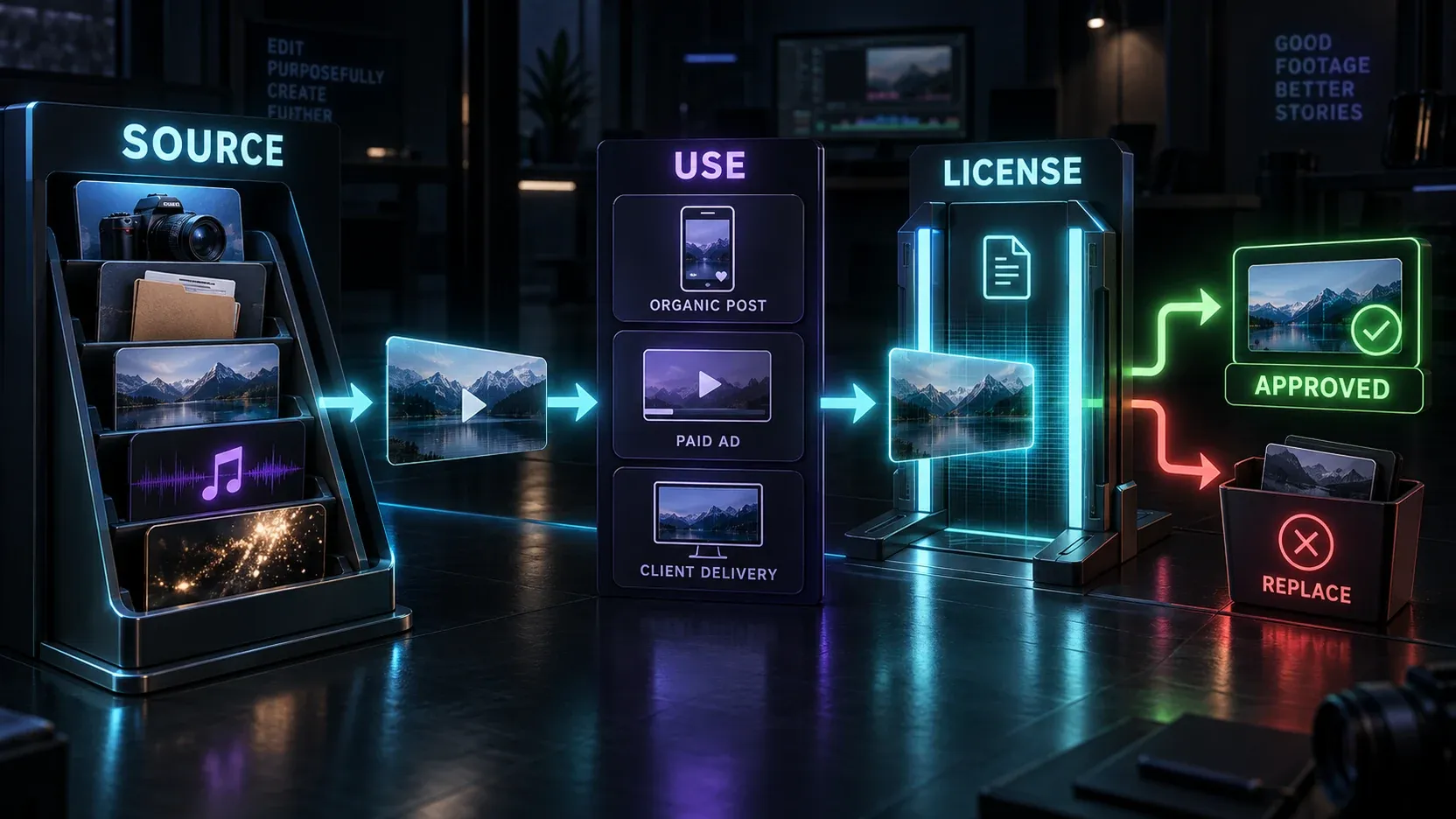
Use one decision path for every asset:
1. Identify the source
Mark it as owned, client-provided, CapCut Platform Material, CapCut Sound, CapCut Commercial Sound, third-party stock or AI output.
2. Define the exact use
Record the client, campaign, organic or paid status, platforms, territory, start date and expected end date. “Commercial use” is too vague for a useful check.
3. Match the permission
Confirm that the license covers the exact use. A TikTok-only commercial music route does not cover YouTube. Permission to use an image in a finished ad may not permit handing the raw file to a client.
4. Check third-party rights
Review people, voices, trademarks, product claims, locations and protected works inside the asset or output.
5. Replace unclear ingredients
If you cannot identify the source or permission, replace the asset. Rebuilding one section before launch is cheaper than defending an unsupported rights claim later.
6. Save the record
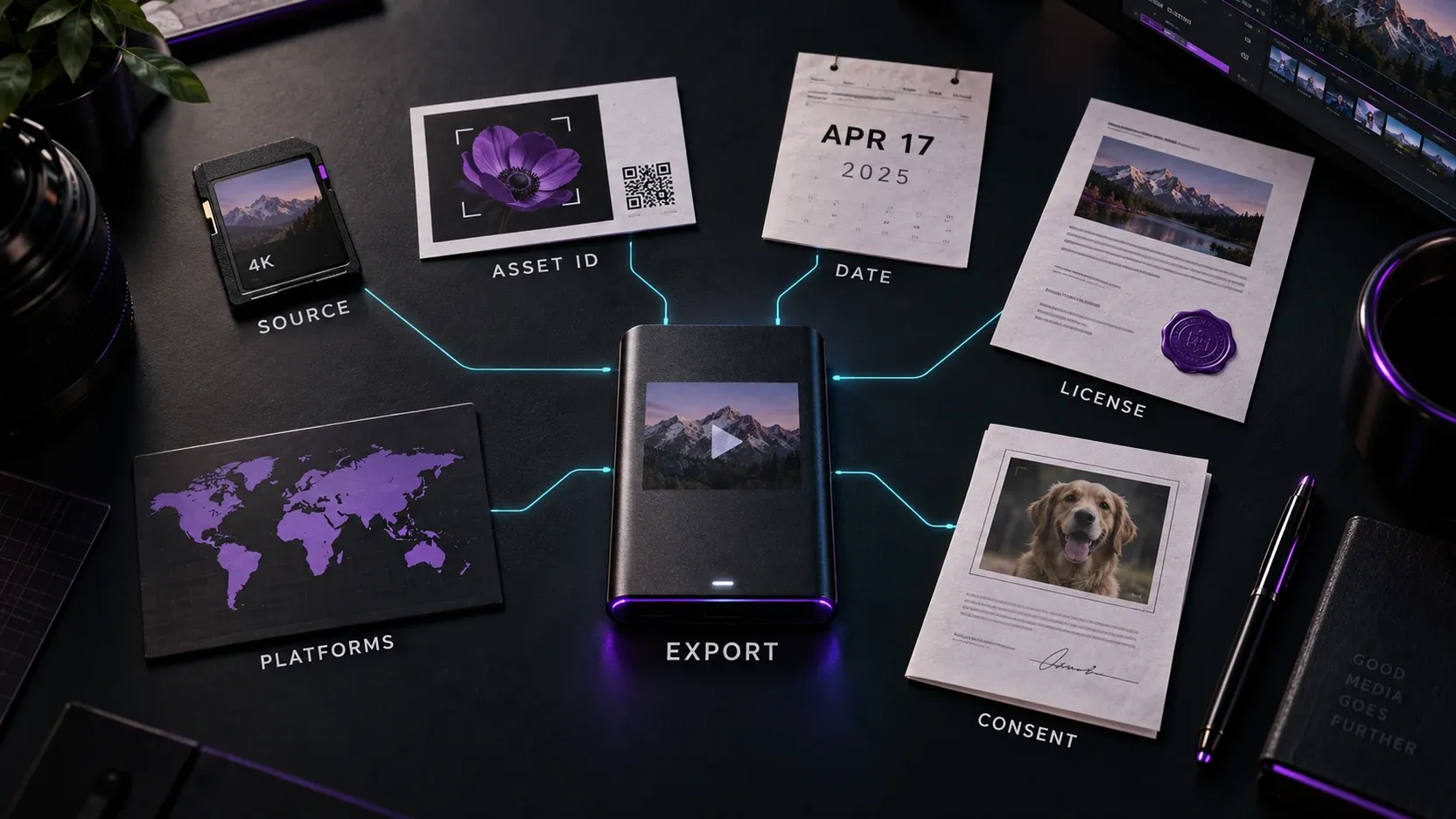
Capture the license page or item label, date, material identity, intended use and any release or purchase record. Keep it with the export and project notes.
A compact evidence package for client projects
A practical folder can look like this:
Campaign_Name/
  01_Source_Assets/
  02_Licenses_and_Receipts/
  03_Releases/
  04_Material_Record/
  05_Project_and_Notes/
  06_Final_Exports/
The material record can be a simple spreadsheet with these columns:
| Asset | Source | ID or URL | Date checked | Commercial label | Platforms | Territory | Term | Consent / receipt | Final status |
|---|---|---|---|---|---|---|---|---|---|
| Opening stock clip | CapCut Platform Material | Item ID | 2026-09-23 | Commercial | Named campaign platforms | Named markets | Recorded term | Label capture | Approved |
| Background music | Music provider | License ID | 2026-09-23 | Client commercial license | All planned platforms | Named markets | Campaign term | Receipt | Approved |
| Presenter footage | Client | File name | 2026-09-23 | Client-provided | Paid and organic | Named markets | Campaign term | Talent release | Approved |
This record does not turn a weak license into a strong one. It makes the decision traceable and exposes missing information before publication.
Practical questions
Does CapCut Pro include commercial rights for everything?
No. Pro access and commercial permission are different questions. Check the license and commercial mark for each material.
Can I monetize a YouTube video edited in CapCut?
Editing in CapCut is not the problem. You need commercial rights for the footage, music, graphics, fonts, templates and other elements in that YouTube video. CapCut Commercial Sounds should not be assumed to cover YouTube because the default permitted-platform list names CapCut, TikTok and TikTok for Business.
Can I use a CapCut template for a paid ad?
Only after checking every supplied material that remains in the final ad. Replace ordinary Sounds and any non-commercial or undocumented element. A Pro badge, popularity or successful export is not clearance.
Can I sell videos made in CapCut to clients?
A finished client video can be workable when every ingredient covers the client, campaign and distribution. Be careful with editable handoffs and raw library assets because the underlying material license may be non-transferable and non-sublicensable.
What if a material disappears after I publish?
Keep the record from the time of use and review the applicable terms. Do not assume that old access creates permanent rights for new exports, new campaigns or new platforms.
The practical recommendation
Use CapCut as the editor, not as the proof of rights. Build commercial projects from owned or client-controlled media first. Add CapCut materials only when their individual labels and conditions match the campaign. Treat music, templates, AI outputs, people and client transfer as separate checks.
If one ingredient cannot be documented, replace it before publication. That is faster, clearer and safer than trying to prove that a finished MP4 somehow licensed everything inside it.