


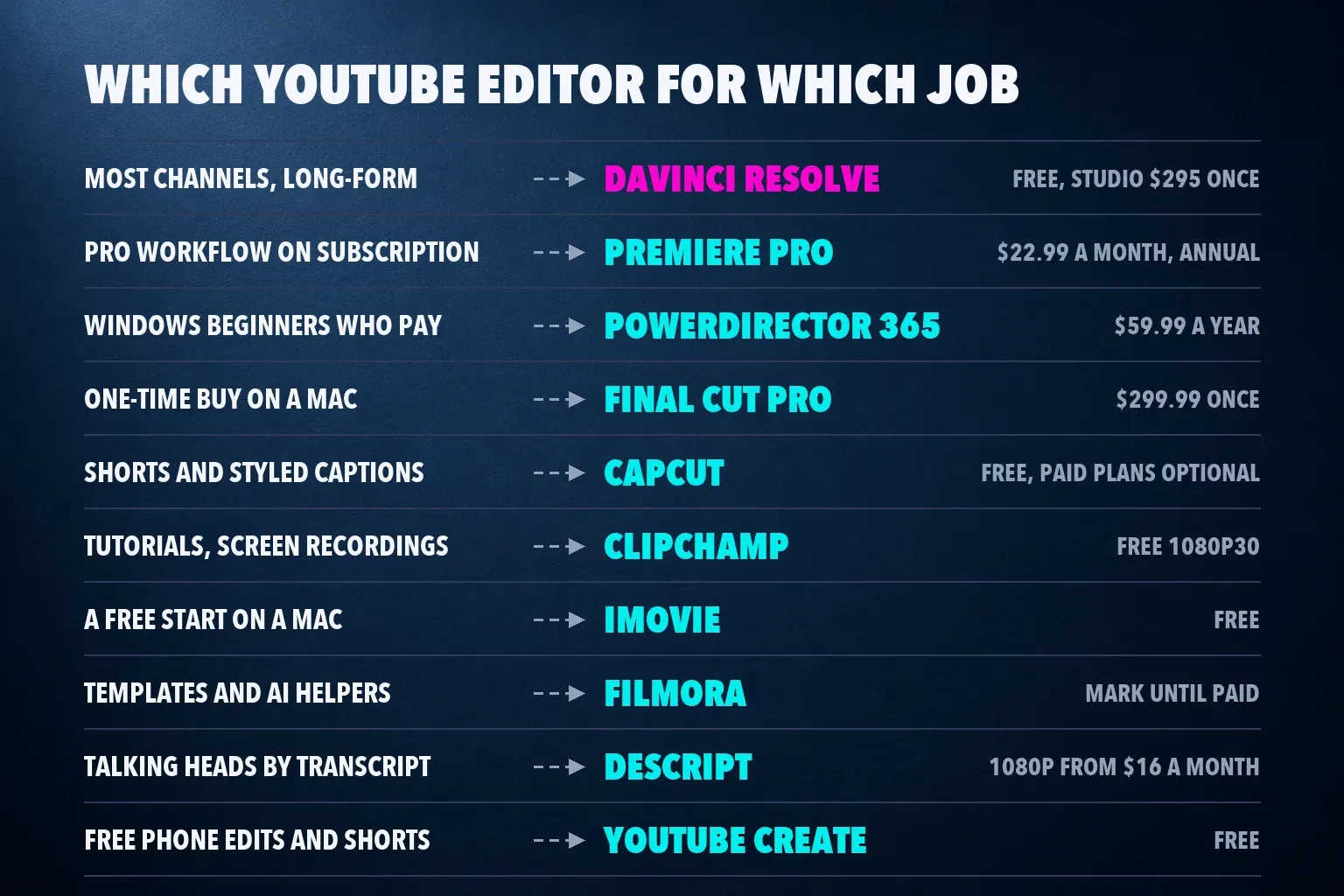
The best video editing app for most YouTube channels is DaVinci Resolve: its free version exports up to UHD 3840 x 2160 at 60 fps with no watermark, uploads straight to YouTube from the Deliver page and shares the top review median here, 4.5 from three outlets. For a simpler start, edit in Clipchamp on Windows or in a browser, or in iMovie on a Mac. Pay for Premiere Pro if you want the industry-standard subscription, buy Final Cut Pro once for a Mac, and cut Shorts in CapCut or YouTube Create.
Most of the pages ranking for this search are forum threads asking the same question, vendor pages for a single editor and a 2024 free-software list that still recommends Premiere Rush, which Adobe has shut down. None of them puts review scores side by side or says which editors upload to YouTube and which only save a file. This list ranks ten editors on review scores from TechRadar, PCMag and Creative Bloq (with the median, range and number of reviews), on what the free plan exports and on how a finished video gets to your channel.
My pick for a new channel is Resolve whenever your computer can run it. It costs you a steep learning curve and needs real graphics power, but you get 4K, no watermark and direct upload without paying, so the free plan won't hold the channel back as it grows. On an older laptop, or for screen recordings and tutorials, I'd start in Clipchamp and move to Resolve later. For Shorts with styled captions, I'd open CapCut, because its caption styles are built for that feed.
The best YouTube video editors at a glance
| Editor | Best for | Runs on | Price (US) | Free export |
|---|---|---|---|---|
| DaVinci Resolve | Most channels, long-form | Windows, Mac, Linux | Free; Studio $295 once | Up to UHD at 60 fps, no watermark |
| Adobe Premiere Pro | Pro workflow on a subscription | Windows, Mac | $22.99 a month on the annual plan | 7-day trial |
| PowerDirector 365 | Windows beginners who'll pay | Windows | $59.99 a year or $24.99 a month | Watermarked, some formats locked |
| Final Cut Pro | Mac editors who'd buy once | Mac | $299.99 once, or Apple Creator Studio | Paid app |
| CapCut | Shorts and styled captions | Windows, Mac, browser, phones | Free; Standard and Pro plans | Varies with assets and settings |
| Clipchamp | Free tutorials and screen recordings | Windows, browser | Free; 4K with Microsoft 365 | 1080p at 30 fps, no watermark |
| iMovie | A free start on a Mac | Mac, iPhone, iPad | Free | 4K at 30 fps or 1080p at 60 fps, no watermark |
| Filmora | Templates and AI helpers | Windows, Mac | Paid plans | Watermarked |
| Descript | Talking-head videos edited by transcript | Windows, Mac, browser | Free; Hobbyist $16 a month on annual billing | 720p with a watermark |
| YouTube Create | Free phone edits and Shorts | Android, iPhone | Free | Up to 4K at 60 fps |
Prices are US list prices from each vendor's page or store listing. Blackmagic's page showed a 20 percent sale on Resolve Studio when I checked, and regional prices differ.
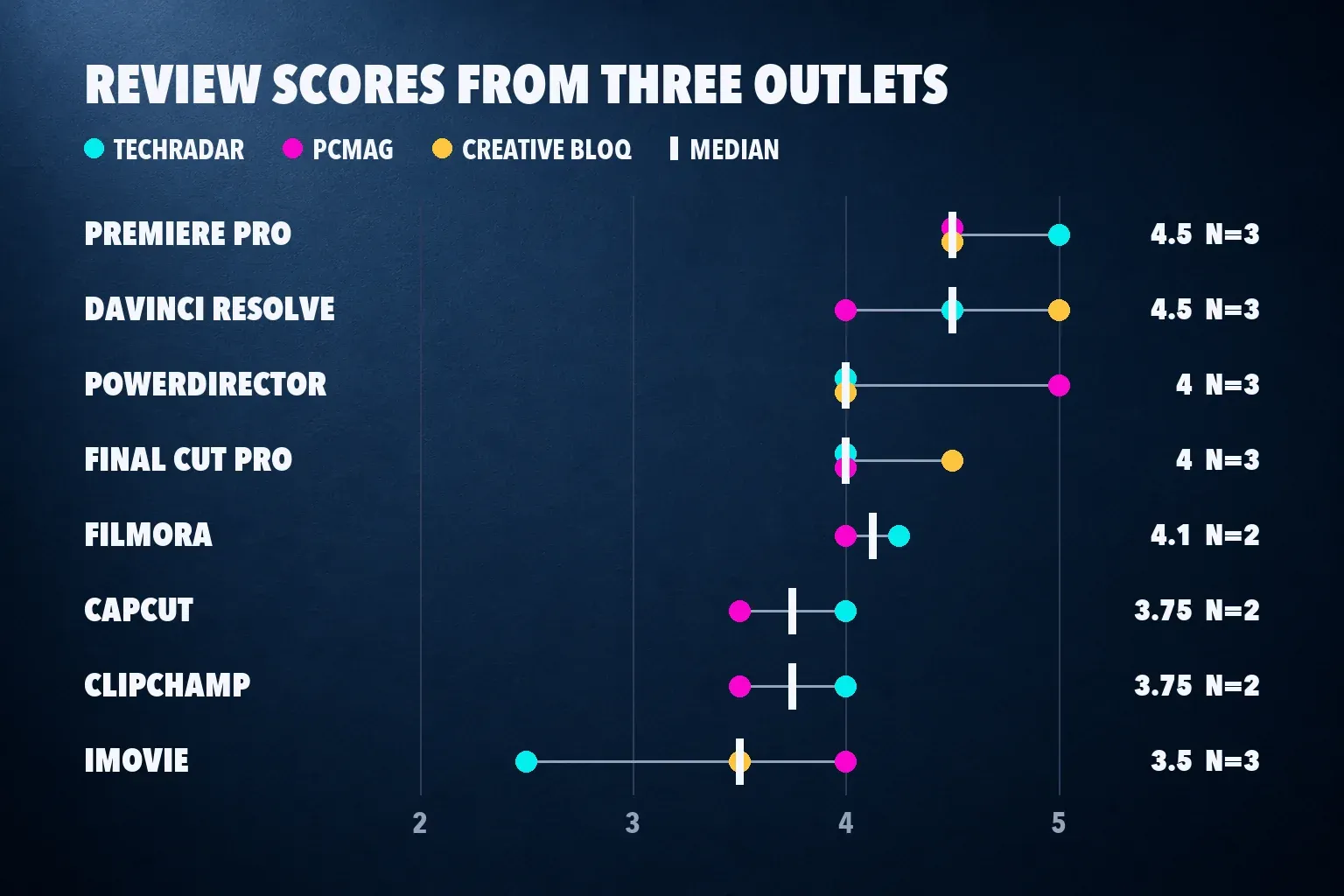
Review scores, compared
Each score is the outlet's rating on a five-point scale. The median is the middle value of the scores an editor has, and the count shows how many reviews sit behind it.
| Editor | TechRadar | PCMag | Creative Bloq | Median |
|---|---|---|---|---|
| Adobe Premiere Pro | 5 | 4.5 | 4.5 | 4.5 from 3 (range 4.5 to 5) |
| DaVinci Resolve | 4.5 | 4 | 5 | 4.5 from 3 (range 4 to 5) |
| PowerDirector 365 | 4 | 5 | 4 | 4 from 3 (range 4 to 5) |
| Final Cut Pro | 4 | 4 | 4.5 | 4 from 3 (range 4 to 4.5) |
| Filmora | 4.25 | 4 | None | 4.1 from 2 |
| CapCut | 4, phone app | 3.5, desktop | Category pick, no score | 3.75 from 2 |
| Clipchamp | 4 | 3.5 | None | 3.75 from 2 |
| iMovie | 2.5 | 4 | 3.5 | 3.5 from 3 (range 2.5 to 4) |
| Descript | None | None | None | Unscored |
| YouTube Create | None | None | None | Unscored |
Premiere and Resolve tie at the top, and the three outlets split on which is better: TechRadar gives Premiere its only 5, while Creative Bloq gives Resolve its 5. PowerDirector's median of 4 hides PCMag's perfect score, and PCMag also names it the best overall editor in its 2026 software roundup. iMovie has the widest spread, from TechRadar's 2.5 in 2022 to PCMag's 4 in January 2026, so the newer review carries more weight for today's app.
CapCut's two scores cover different versions, so read them as a range rather than one verdict. TechRadar scored the phone app in 2023, and PCMag scored the desktop editor in August 2026. Descript and YouTube Create have no recent scored review from these outlets, so I rank them on their jobs and keep them out of the median comparison.
Free exports, watermarks and uploading to YouTube
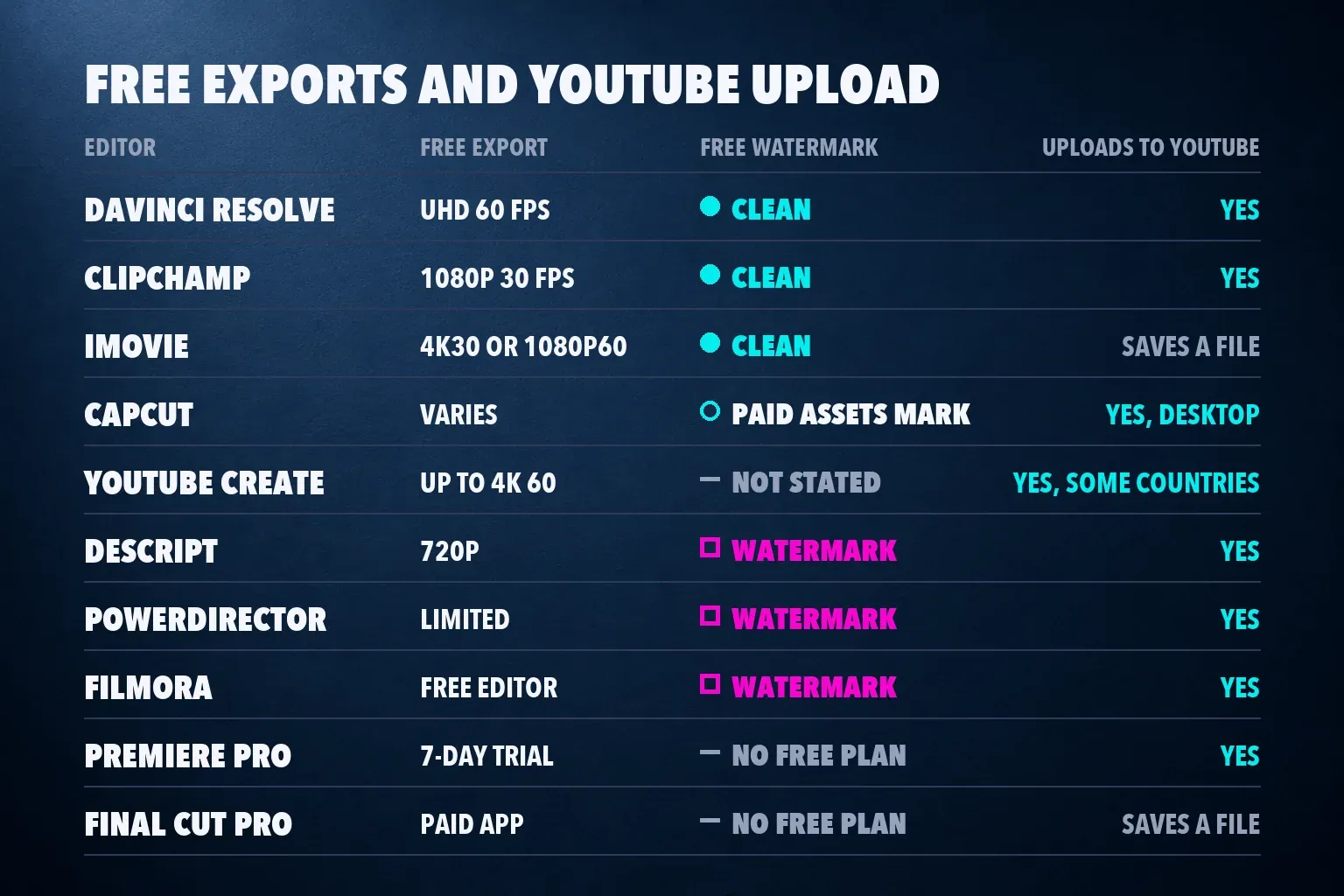
Eight of these editors can send a finished video straight to your channel, and the rest save a file that you upload in YouTube Studio. Either route gets the video online. Direct upload saves a step, and a saved file is easier to keep as a master copy.
| Editor | Free plan export | Watermark on free exports | Uploads to YouTube |
|---|---|---|---|
| DaVinci Resolve | Up to UHD 3840 x 2160 at 60 fps | None | Yes, from the Deliver page |
| Clipchamp | 1080p at 30 fps | None with included assets | Yes, from the export screen |
| iMovie | 4K at 30 fps, 1080p at 60 fps | None | No, saves a file |
| CapCut | Depends on device and assets | Added by some paid assets and templates | Yes, from desktop |
| YouTube Create | Up to 4K at 60 fps | Not stated by Google | Yes, in select countries |
| Descript | 720p | Descript watermark | Yes, from Export |
| PowerDirector | Limited free Essential | Watermark | Yes, from output options |
| Filmora | Free editor | Filmora watermark | Yes, upload buttons |
| Premiere Pro | 7-day trial | No free plan | Yes, from Export |
| Final Cut Pro | Paid app | None | No, saves a file |
Apple's support page on sharing to social platforms says to export from iMovie or Final Cut Pro with the Social Platforms setting and then upload through YouTube's website or app. On a Mac, iMovie's YouTube & Facebook share option saves an optimized file and then sends you to a browser. Clipchamp's direct share gives you no control over file type or bit rate, according to PCMag, so I'd save a file when quality matters.
1. DaVinci Resolve: the best free editor for most channels
Resolve is free on Windows, Mac and Linux, and Blackmagic's Studio page says the free version handles virtually all 8-bit formats up to 60 fps at UHD 3840 x 2160. The free version doesn't stamp a watermark on ordinary exports, and the Deliver page offers direct social upload to YouTube, TikTok, Vimeo and X. TechRadar's free-software list puts it first, and PCMag names it the top free pick.
The catches are effort and hardware. PCMag's cons are that Resolve "requires a lot of system resources" and "takes some time to learn," and its separate pages for editing, color, Fusion effects and Fairlight audio take a while to find your way around. Automatic transcription and text-based editing sit in Studio, which costs $295 once, so free users build captions by hand or bring them in from another tool.
Pick Resolve if you want one editor you won't outgrow and your computer has a capable graphics card. Our DaVinci Resolve review shows how to choose between Free and Studio by source codec and output.
2. Adobe Premiere Pro: the best editor on a subscription
Premiere Pro costs $22.99 a month on the annual plan billed monthly, $34.49 month to month or $263.88 prepaid for a year, with a seven-day trial, according to PCMag's review. Its export screen lists YouTube, Vimeo, TikTok, X and Facebook beside the plain media file, and you can tick several destinations and send them with one press of Export. PCMag also points to Auto Reframe, which finds the subject and reframes a 16:9 edit for vertical or square formats.
TechRadar and Creative Bloq both rank it first, and its three scores sit between 4.5 and 5. Creative Bloq's scorecard calls the learning curve quite steep, and the bigger trade-off is the bill: there's no free tier, and the subscription keeps running for as long as you edit. Pick Premiere if you work with other editors, use After Effects or Photoshop, or edit for clients who send Premiere projects. If you start in CapCut, our guide to moving a CapCut project into Premiere Pro covers the handoff.
3. PowerDirector 365: the easiest full editor for Windows beginners
PCMag calls PowerDirector "the best all-around video editor," scores it 5 and names it best overall in its roundup, citing a clear interface and quick rendering. Its YouTube and Vimeo output options hook directly into those services, and TikTok output is there too. CyberLink's US product page lists PowerDirector 365 at $59.99 a year or $24.99 a month, with Windows 10 and 11 as the supported systems, and also sells a one-time PowerDirector 2027 license.
The free Essential version has no time limit, but CyberLink restricts its advanced AI tools and some export options, and reviewers found a watermark on free exports. PCMag's main con is that the number of options can feel overwhelming. I'd pick PowerDirector over Resolve on a Windows PC when you want guided tools and templates and you'll pay for a clean export.
4. Final Cut Pro: the best one-time buy for a Mac
Final Cut Pro is $299.99 once on the Mac App Store, at version 12.4 from September 29, 2026, and it needs macOS 26.6 or later. It's also included in Apple Creator Studio if you'd rather pay monthly. Its magnetic timeline closes gaps as you trim and keeps connected clips attached to the shots they belong to.
The limits are the platform and the upload step. TechRadar's main con is that it's Mac only, and Final Cut Pro saves a file for YouTube instead of publishing it, per Apple's support page. Pick it if you edit on a Mac, upload every week and would rather pay once than subscribe. Our CapCut vs Final Cut Pro comparison weighs the two on a Mac.
5. CapCut: the best editor for Shorts and styled captions
CapCut is free on Windows, Mac, the web and phones, and Creative Bloq's YouTube software guide names it the best pick for Shorts. Its auto captions and word-by-word caption styles are why creators reach for it, and the desktop app opens a second dialog after rendering that posts to TikTok or YouTube with a visibility setting.
Its median is 3.75, and the two reviews pull in different directions. PCMag's desktop review credits it with competitive export speeds and a simple interface, then lists "server-side data privacy concerns," because the app uploads a lot of your content to its servers. Creative Bloq's take is that for Shorts, "its speed and social-native features make it hard to beat." A free project can still hit a watermark or a paid prompt when it uses premium templates, assets or export settings, as our CapCut watermark guide explains, and the CapCut pricing breakdown shows what Standard and Pro add.
Pick CapCut for Shorts, for clips cut from a long video and for captions that need to look styled, and use Resolve or Premiere for the long-form edit. Our guide to turning a long video into Shorts covers that split.
6. Clipchamp: the best free editor for tutorials and screen recordings
Clipchamp comes with Windows 11, installs from the Microsoft Store on Windows 10 and also runs in a browser on a Mac, Linux computer or Chromebook. Microsoft's plan comparison lists free 1080p MP4 exports at 30 fps with auto captions, and Microsoft 365 Personal and Family add 4K. Clipchamp doesn't add a watermark; if a free project uses a premium asset, it blocks the export until you remove the item or upgrade.
Screen and webcam recording, silence removal and noise suppression are built in, which makes it a quick route from a recorded lesson to a YouTube upload. PCMag scored it 3.5 for uncompetitive export speeds and upsells, and personal exports stay at 30 fps. Pick Clipchamp for tutorials, explainers and simple talking-head videos on a modest PC. Our Clipchamp review covers the paid plans and the 30 fps limit.
7. iMovie: the best free start on a Mac
iMovie is free on the Mac App Store and needs macOS 26.6 or later for the current version. Apple says it shares 4K projects at 3840 x 2160 and 30 fps and 60 fps projects at 1920 x 1080, so you can't export 4K at 60 fps. There's no watermark, and the Share menu's YouTube & Facebook option saves a file that you upload yourself.
PCMag scores it 4 and points to its two video tracks and no feature updates in several years, while TechRadar's 2022 review scored it 2.5. Two tracks are enough for a vlog with a voice-over, and they run out quickly once you layer B-roll, titles and a picture-in-picture webcam. Start in iMovie on a Mac, then move to Resolve for free or Final Cut Pro for a one-time price when the edits get busier. Our iMovie review goes through the Mac and iPhone versions.
8. Filmora: templates and AI tools, with a watermark until you pay
Filmora scores 4.1 from TechRadar and PCMag. PCMag's verdict credits it with a wealth of AI tools, fast rendering and a clear interface, and notes buttons for uploading to YouTube, Facebook and Vimeo, plus 4K and H.265 output. The free editor is useful for learning the interface, but its exports carry a Filmora watermark until you buy a license on Wondershare's store.
Pick Filmora if you want templates and guided AI shortcuts on a desktop and you'll pay for clean exports. Our Filmora review compares its subscriptions with the perpetual license and explains what AI credits cover.
9. Descript: the best editor for talking-head videos
Descript edits video by its transcript: delete a sentence from the text and the clip is cut to match, which suits podcasts, interviews, courses and talking-head channels. Its Export and publishing overview lists direct publishing to YouTube among its integrations. It runs as a desktop app and in Chromium browsers.
The free plan is a trial in practice. Descript's pricing page gives Free 60 media minutes a month and 720p exports with a watermark, and Hobbyist, at $16 a month on annual billing or $24 monthly, exports 1080p with no watermark. Creator, at $24 or $35, adds 4K. I'd pick Descript when most of your video is people talking. Our Descript review covers media minutes and AI credits.
10. YouTube Create: the free phone editor from YouTube
YouTube Create is free with no in-app purchases on Google Play, where it holds 4.6 from about 186,000 ratings and runs on Android 8.0 or later with at least 4 GB of RAM. The iPhone version needs an iPhone XR or later on iOS 17. Both listings promise exports up to 4K at 60 fps and direct upload to your channel, with upload available in select countries.
It has no scored review yet, so I rank it on the job rather than a median. I'd install it to edit Shorts and quick vlogs on a phone when you don't want a subscription or a second account. For more phone options, our best iPhone video editing apps and best Android video editing apps lists rank the mobile field, including free Premiere on phones.
The export settings YouTube asks for
YouTube's recommended upload settings are an MP4 file with H.264 High Profile video, AAC-LC audio at 48 kHz, a closed GOP, 4:2:0 chroma and the frame rate you recorded at. For SDR video, YouTube suggests 8 Mbps at 1080p and 24 to 30 fps, 12 Mbps at 48 to 60 fps, 16 or 24 Mbps at 1440p, and 35 to 45 or 53 to 68 Mbps at 4K. The player is 16:9, and YouTube's aspect ratio guide lists 1920 x 1080 and 3840 x 2160 among its sizes.
Two account rules catch new channels. YouTube allows uploads of up to 15 minutes until you verify your account, and square or vertical videos of up to 3 minutes count as Shorts. Our YouTube video size guide sets the frame for long-form uploads, the YouTube Shorts size page covers vertical video, and the YouTube thumbnail size guide covers the image that sells the click.
Also checked: Shotcut, Kdenlive and Premiere on phones
Shotcut and Kdenlive are free, open-source desktop editors with no watermark. TechRadar scored Shotcut 4 in 2020 and lists it fourth among free editors, but that single older score is too thin to rank it against editors with three recent reviews. Kdenlive appears in Zapier's free list and has no recent scored review in this pool. Our Shotcut vs CapCut and Kdenlive vs CapCut comparisons show where each one fits. Adobe's free Premiere phone app exports 4K with no watermark on iPhone and newer Android phones, and it's covered in the phone lists above.
Premiere Rush is gone
Creative Bloq's YouTube guide still lists Premiere Rush as its mobile pick, and Zapier's free video editor list recommends it too. Adobe stopped new Rush downloads on September 30, 2025, and its end-of-life notice ended support on September 30, 2026, naming free Premiere on phones as the replacement. If a list puts Rush near the top, it was written before that change.
Set up CapCut for YouTube
To edit long-form video in CapCut on a computer, start with our CapCut for PC or CapCut for Mac guide, or use the CapCut web editor in a browser. The CapCut export settings guide covers resolution, frame rate and bit rate before you render. For captions, CapCut captions and subtitles covers adding and styling captions, and exporting CapCut captions as SRT gives YouTube a caption track viewers can switch off.
For vertical video, CapCut for YouTube Shorts covers the canvas, length and music rules for a Short, and making a YouTube thumbnail in CapCut covers the cover image. The social media video size guide lists every platform's frame, and the CapCut alternatives guide compares editors across phone, browser, tablet and desktop.
YouTube video editing app questions
What is the best free video editing app for YouTube?
DaVinci Resolve. It's free on Windows, Mac and Linux, exports up to UHD at 60 fps with no watermark and uploads straight to YouTube. If your computer is older or you want something simpler, Clipchamp gives you free 1080p exports with no watermark on Windows or in a browser, and iMovie is free on a Mac.
What is the best video editor for YouTube beginners?
Clipchamp on Windows and iMovie on a Mac are the easiest free starts. If you'll pay, PowerDirector 365 is the most guided full editor on Windows, and PCMag names it the best overall. Resolve is free and more capable, but it takes longer to learn.
Is CapCut good for YouTube videos?
Yes for Shorts, captions and quick edits. Creative Bloq names it the best pick for Shorts, and the desktop app can post to YouTube after rendering. For long-form edits, Resolve and Premiere score higher, and PCMag flags CapCut's server-side privacy concerns.
Which video editors have no watermark on free exports?
DaVinci Resolve, Clipchamp and iMovie export with no watermark for free, and CapCut does unless the project uses a premium template or asset. Descript's free plan, PowerDirector's free Essential version and Filmora's free editor add a watermark, and Premiere Pro offers only a seven-day trial.
Can you edit YouTube videos on your phone?
Yes. YouTube Create is free on Android and iPhone, exports up to 4K at 60 fps and uploads straight to your channel in supported countries. Free Premiere and CapCut also run on phones, and our iPhone and Android lists rank the rest.
What export settings should I use for YouTube?
Export an MP4 with H.264 video and AAC audio at 48 kHz, at the frame rate you recorded. For 1080p at 30 fps, YouTube recommends about 8 Mbps, and 12 Mbps at 60 fps. Use 1920 x 1080 or 3840 x 2160 for 16:9 video.
Why can't I upload a video longer than 15 minutes?
YouTube caps uploads at 15 minutes until you verify your account. Verify it in YouTube's settings, and you can upload longer videos from any of the editors on this list.