

Checked September 23, 2026. Project-file support, import formats, platform behavior, and third-party converter compatibility can change. Verify the exact source and destination versions before a client handoff.
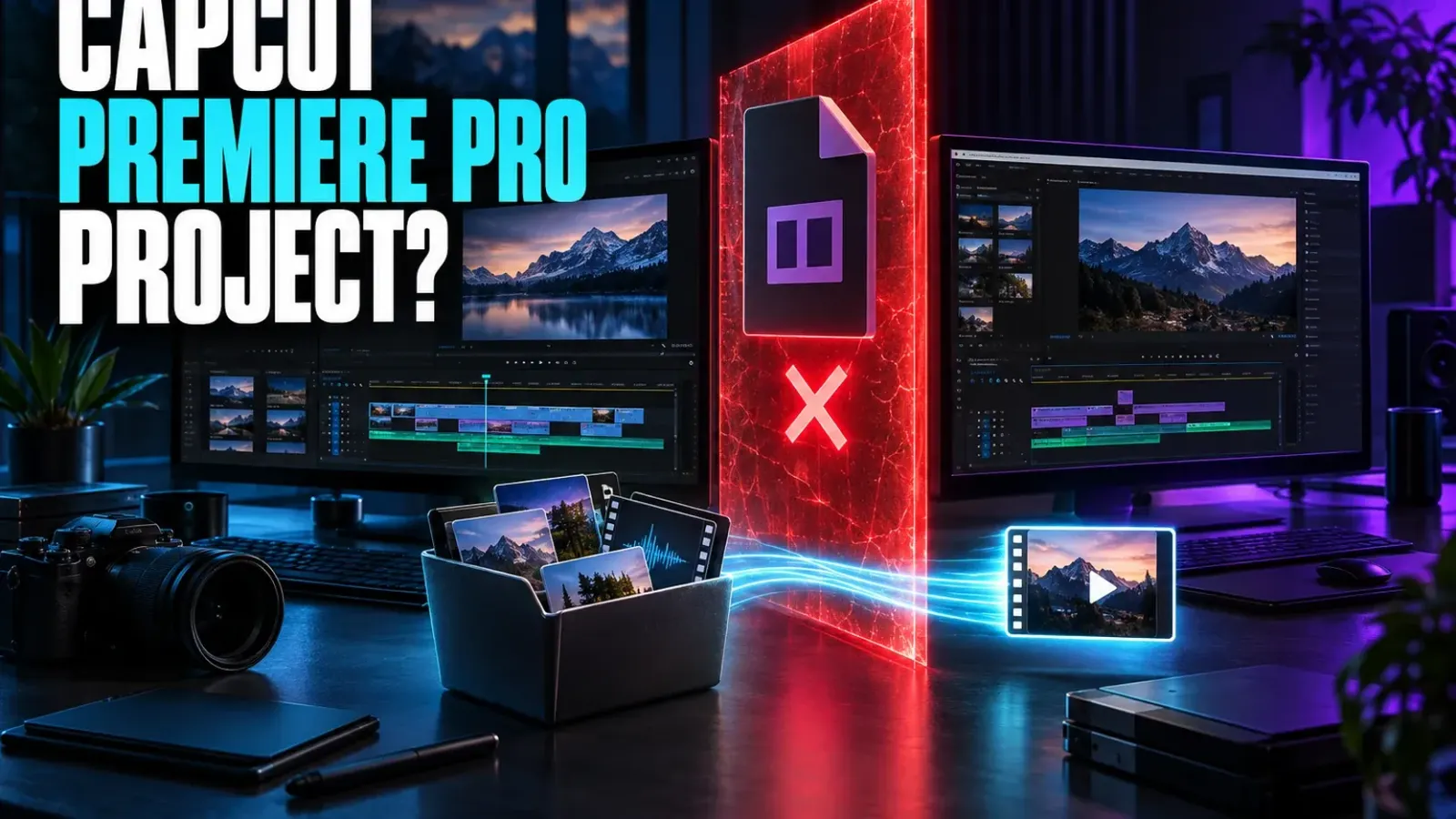
No. CapCut cannot open an Adobe Premiere Pro .prproj file as an editable project, and Premiere Pro cannot open a CapCut draft as a native sequence. CapCut's current project-file guidance says it does not support direct import or export of third-party editing project files, including Premiere Pro projects.
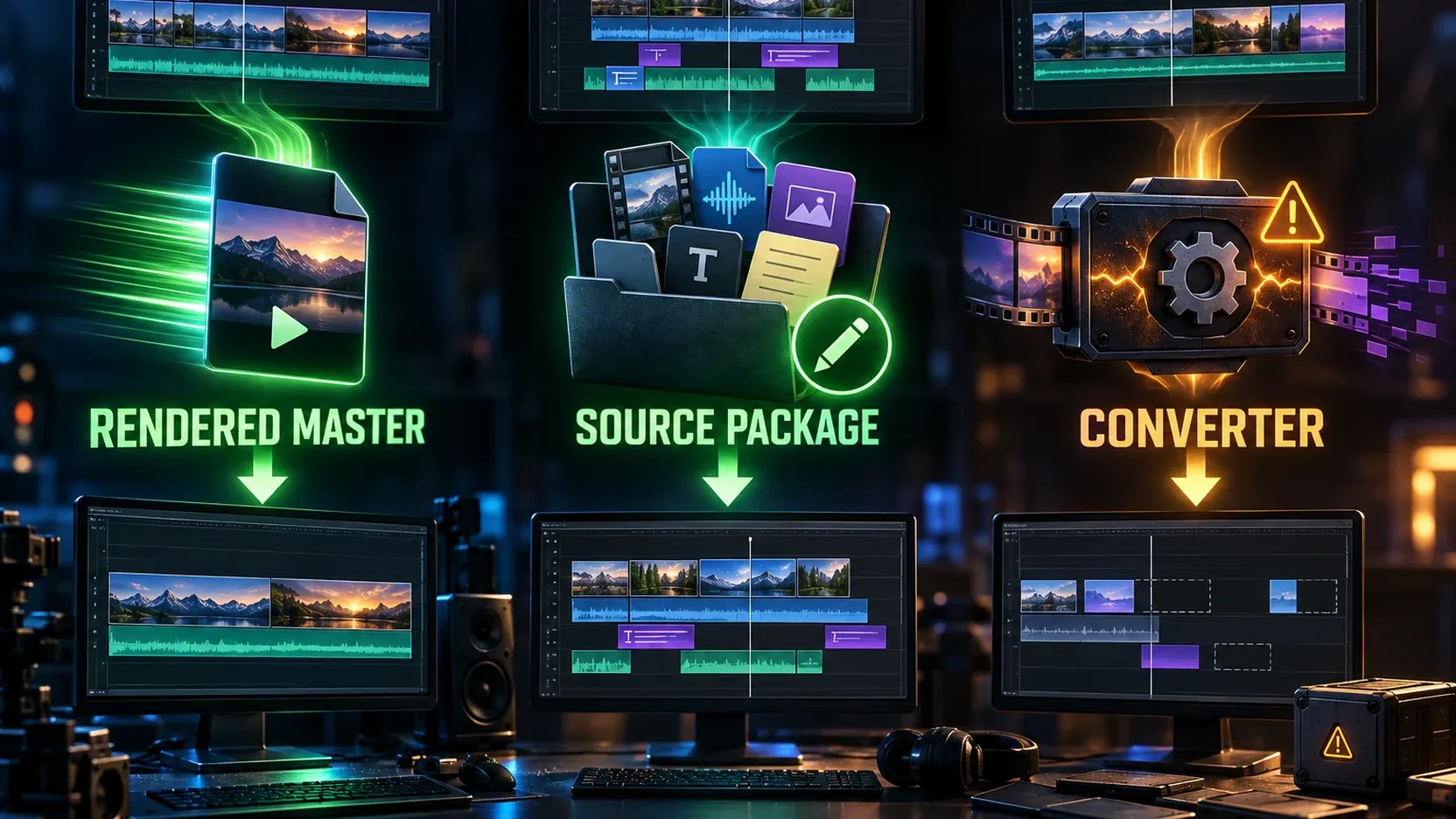
You can still move the work, but you must choose what matters more:
- Fastest handoff: export a high-quality rendered master and continue on top of that single video.
- Most editability: package the original media, keep a reference export, and rebuild the timeline in the destination editor.
- A partial automated conversion: use a third-party converter only after checking its current format support, privacy terms, and results on a duplicate project.
The four files people often confuse
| File or package | What it contains | What the other editor receives |
|---|---|---|
Premiere Pro .prproj |
Premiere sequence structure, links, settings, effects, metadata | CapCut does not open it as an editable project |
| CapCut draft/project data | CapCut timeline, local/cloud references and CapCut-specific elements | Premiere does not open it as a native sequence |
| Rendered master such as MP4 or MOV | The finished picture and mixed audio | One flattened media clip; original layers are gone |
| Source-media package plus reference export | Original clips, audio, graphics, fonts where licensed, notes and a visual target | Enough material to rebuild; no automatic timeline conversion |
XML, AAF and EDL are interchange formats used in some professional workflows. Adobe documents Premiere exports for Final Cut Pro XML, AAF and EDL, but that only proves what Premiere can write. It does not establish that CapCut can read or create those files.
Choose the handoff before exporting anything
Use a rendered master when
- the cut is approved;
- the destination editor only needs titles, captions, graphics, reframing or final delivery changes;
- timing, effects and audio should arrive exactly as seen;
- the deadline matters more than access to every layer.
The tradeoff is severe but predictable: the destination gets one video and usually one mixed audio track. It cannot independently change the original cuts, masks, transitions, captions, speed ramps or audio automation.
Use a source-media package when
- the edit must remain substantially changeable;
- a client or another editor may replace shots;
- captions, audio, color and graphics need independent control;
- the project has a longer revision life.
A source package takes longer because the sequence must be rebuilt. It is still the safest editable route when native interchange does not exist.
Use a third-party converter when
- it names the exact source format, destination format and supported versions;
- you can test on a duplicate with non-sensitive media;
- the project can tolerate partial results;
- you have a clean source package and reference export to fall back on.
Do not upload confidential client footage or project data until you have reviewed where the service processes and stores files. Treat the converted project as an untrusted draft: open it separately, relink media, compare every section with the reference, and keep the originals unchanged.
Premiere Pro to CapCut: the safe routes
CapCut's official answer is direct: .prproj files cannot be opened, converted or transferred into CapCut for continued editing. Its recommended alternatives are to export a rendered video or recreate the project in CapCut with the original media.
Route 1: finish in Premiere and send a rendered master
- Duplicate the Premiere project or sequence so the handoff does not alter the working edit.
- Remove temporary slates, offline placeholders and private review notes.
- Export a high-quality master at the intended resolution and frame rate.
- Play the exported file outside Premiere from beginning to end.
- Import that file into CapCut and add only the work that belongs after the handoff.
CapCut lists MP4 and MOV among common media routes, but a familiar extension is not enough. Its local-import guidance says format support varies by device, operating system and CapCut version, and its MP4 troubleshooting page warns that the actual encoding may still be unsupported. Renaming a file to .mp4 does not convert it.
If CapCut rejects the master, keep the original export and create a separate compatible transcode. Do not overwrite the only approved file.
Route 2: collect the media and rebuild in CapCut
- Lock the Premiere sequence you are handing off.
- Use Premiere's Project Manager or a controlled manual copy to collect the media actually needed for the sequence.
- Export a reference video with matching timecode or a visible sequence clock when appropriate.
- Add a shot list that records clip order, in/out points, speed changes, graphics, captions, transitions and audio notes.
- Organize media into stable folders before import.
- Import the media into CapCut and rebuild from the reference.
- Compare the rebuilt cut against the reference in short sections.
Adobe's Project Manager can copy project media into a new location, which helps create a portable package. It does not turn the Premiere sequence into a CapCut project.
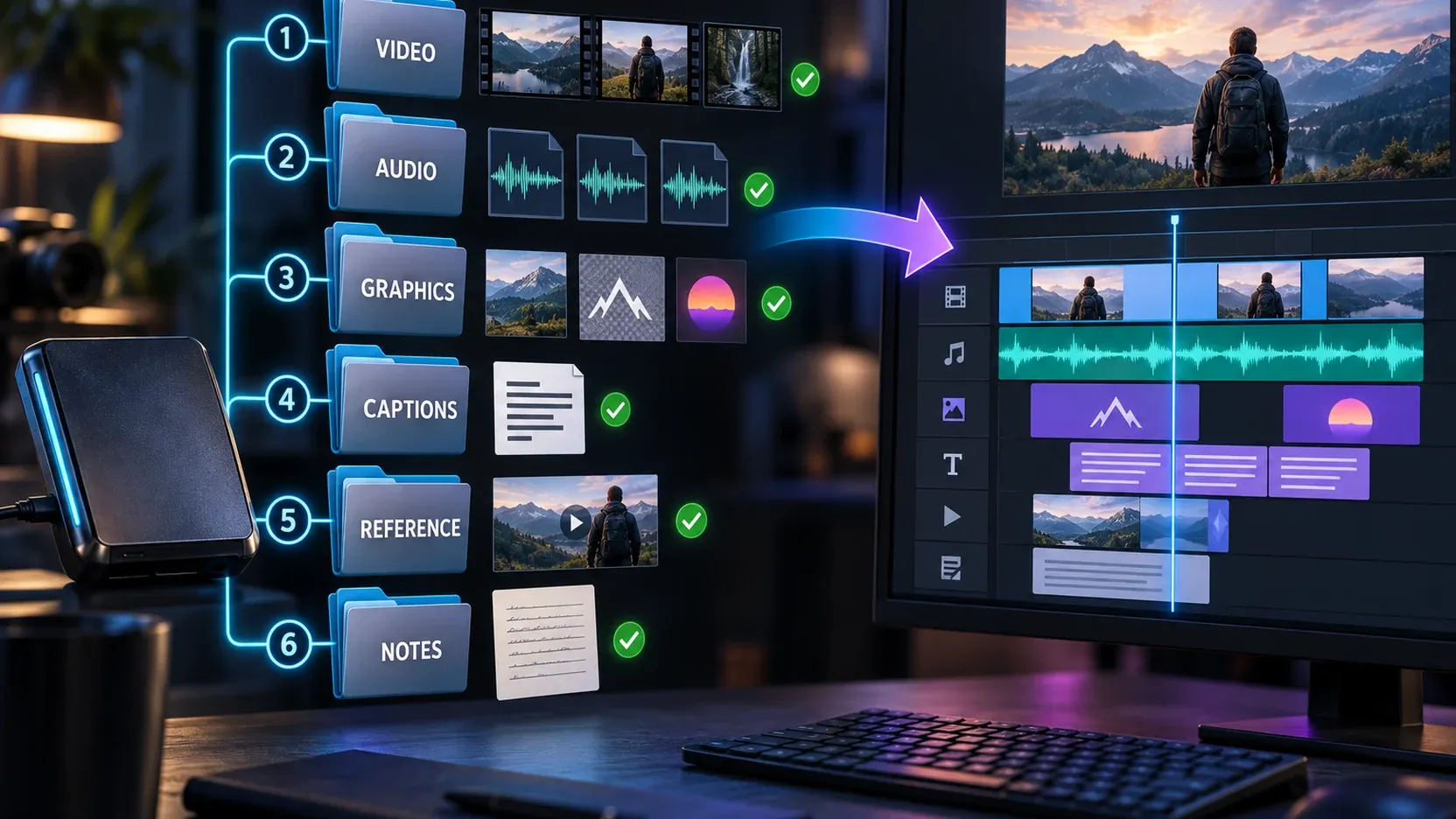
A practical package can use this structure:
Project_Name/
  01_Video/
  02_Audio/
  03_Graphics/
  04_Fonts_and_Licenses/
  05_Captions/
  06_Reference/
  07_Notes/
Include only fonts, music, stock media and graphics you are allowed to transfer. A usable folder is not automatically a license to give the asset to another person.
CapCut to Premiere Pro: what to send
There is no native CapCut-draft-to-Premiere conversion in the official CapCut workflow. Build the handoff around the destination editor's needs.
For a finishing pass in Premiere
Send a high-quality master, separate audio stems when you can create them without changing the mix, caption text or files where your CapCut platform exposes an export, and the original graphics that the Premiere editor is licensed to use. State which elements are already baked into the picture.
This works well when Premiere is being used for final color, audio, delivery versions or a small number of overlays. It is a poor choice if the editor must change the original cut.
For a full re-edit in Premiere
Send the source-media package, a reference export, timing notes and any separately transferable captions, logos, graphics and audio. Keep filenames stable after the package is created. Adobe's relinking workflow can reconnect offline clips when Premiere receives the same media under a new storage path, but it cannot infer CapCut-only timeline decisions that were never transferred.
For local CapCut work, the project-data location is useful for backup and recovery, not as a Premiere import format. Use the CapCut project backup and transfer guide before moving or changing local draft folders.
What survives, flattens or needs to be rebuilt
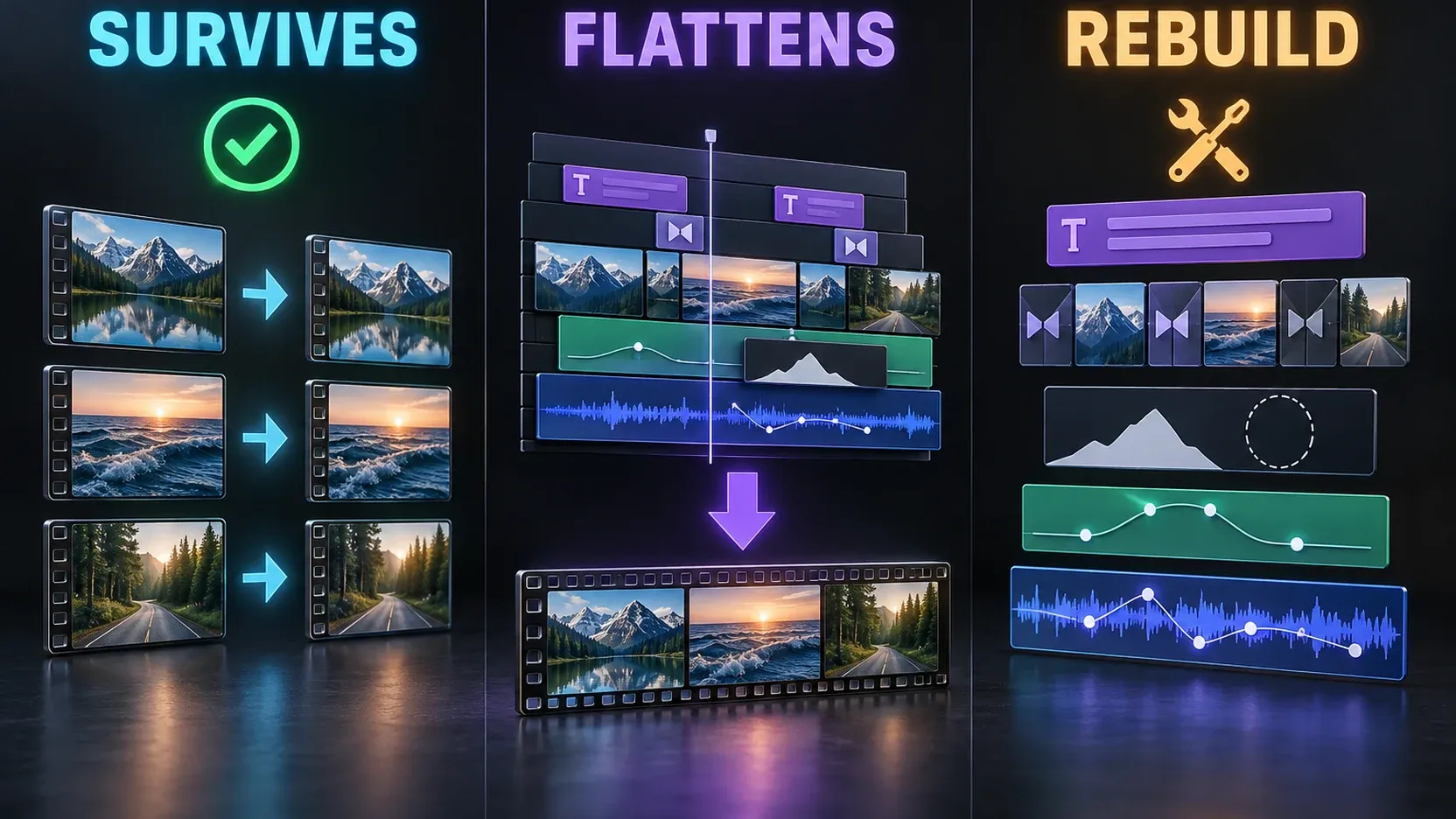
| Element | Rendered master | Source-media rebuild | Converter output |
|---|---|---|---|
| Picture and final timing | Preserved visually | Recreated from reference | May transfer partially |
| Original clip boundaries | Flattened | Rebuilt manually | Often partial |
| Captions and text | Baked in unless sent separately | Recreated or imported separately | Style and timing may change |
| Transitions and effects | Preserved visually | Rebuilt with destination tools | Proprietary items may disappear |
| Speed changes | Preserved visually | Rebuilt manually | Ramps and interpolation may differ |
| Masks and tracking | Flattened | Rebuilt manually | Common loss point |
| Nested or compound structures | Flattened | Rebuilt as simpler sections | Often simplified or broken |
| Audio levels and automation | Mixed into the export | Rebuilt from originals or stems | May lose keyframes and routing |
| Color treatment | Baked into the image | Recreated or applied from a reference | Effect translation is unreliable |
| Original source quality | Limited by master export | Preserved in original files | Depends on relinking, not the converter alone |
No table can guarantee a converter result. A project can use an unsupported feature even when its basic cuts transfer.
Why XML, AAF and EDL do not solve this by themselves
Premiere Pro can export several interchange formats, as listed in Adobe's supported export formats:
- Final Cut Pro XML can describe a sequence and supported edit information for compatible applications.
- AAF is often used to move sequence and audio information into compatible post-production systems.
- EDL is a simpler list of edits with less room for modern effects and complex structures.
These are not universal project translators. The receiving application must explicitly support the format and the specific data inside it. Current CapCut Help says third-party project import/export is not supported, so a Premiere XML, AAF or EDL export should not be presented as a native CapCut import route.
A converter may read CapCut data and create an XML or another intermediary that Premiere can attempt to open. That is the converter's capability, not CapCut's. Verify the converter's current documentation and test the result against a reference export.
A handoff checklist that prevents most failures
Before packaging
- Duplicate or freeze the source project.
- Confirm the exact source and destination app versions and platforms.
- Resolve offline media and missing fonts.
- Remove private media, unused downloads and account details.
- Confirm that every transferred asset is licensed for the recipient and intended use.
Package contents
- Original media with stable filenames.
- A high-quality reference export.
- A delivery master when the finished picture should be preserved.
- Caption files or text where available and transferable.
- Licensed graphics, logos and fonts.
- A short note covering frame rate, resolution, color expectations, audio layout and known rebuild items.
Acceptance check
- Open the package from a different folder or drive path.
- Confirm that all media is present.
- Compare the first frame, last frame and several internal edit points with the reference.
- Check captions, transitions, speed changes, audio sync, graphics and final duration.
- Export a short section from the destination editor before rebuilding the whole project.
If imported media is black, missing or unsupported
Separate media compatibility from project compatibility. A .prproj failure is expected because it is a project file. A black or rejected MP4 is a media problem.
CapCut says local import failures can involve loading time, file size, corruption or unsupported formats. Its current format list differs by mobile platform, and its MP4 guidance says support can vary with device, operating system and version. Inspect the real encoding, create a separate compatible transcode, and preserve the original.
When Premiere shows offline clips, use its relink controls to point the sequence to the packaged originals. Relinking repairs paths; it does not recreate missing CapCut edits.
CapCut and Premiere Pro transfer FAQ
Can CapCut open a .prproj file?
No. CapCut's current help center says Premiere Pro project files cannot be directly opened, converted or transferred into CapCut for continued editing.
Can Premiere Pro open a CapCut project?
Not as a native Premiere sequence. Export a master for a finishing pass, or provide source media plus a reference export for a full rebuild.
Can I export XML from Premiere Pro and import it into CapCut?
Premiere can export Final Cut Pro XML, but current CapCut Help does not list third-party project interchange as supported. Do not plan a client handoff around XML unless a current CapCut version explicitly adds and documents that capability.
Will an MP4 keep the edit layers?
No. It preserves the rendered result, not the editable timeline. Cuts, captions, effects, transitions and mixed audio become part of the finished file.
Is a third-party converter safe?
It depends on the tool, project and data policy. Test a duplicate with non-sensitive media, keep source files and a reference export, and compare the converted timeline before trusting it with production work.
What is the best handoff for client work?
Send both a high-quality master and an organized source-media package when the client may need future revisions. The master preserves the approved result; the source package preserves the material needed to rebuild.
The practical answer
A native project transfer is not available. Use a rendered master when the edit is approved and only finishing work remains. Use source media, a reference export and clear notes when editability matters. Treat XML, AAF, EDL and converter claims as compatible only when the receiving application and the exact project prove they are.