

To delete a CapCut account, open the account's settings, find Manage account, and choose Delete account. On the web, the CapCut settings page has a Management section with separate controls for deactivating the account and deleting it. Save the work you need and cancel any unwanted subscription renewal before you confirm deletion.
I'd split leaving CapCut into two jobs: settle billing first, then close the correct account. A missing profile or a signed-out app isn't a cancellation receipt. If you only want to stop paying, keep the account and cancel the subscription instead.
Before deleting: keep the right things
Start with the material you'd struggle to replace. A finished video, its editable project and a copy of your account data each do a different job.
| What you want to keep | What to preserve | What it will not replace |
|---|---|---|
| A video you can watch or upload | The finished exported video, with any separate audio or subtitle deliverables you need | The editable timeline, source footage or individual text layers |
| Work you may revise later | The editable project and the source clips, audio, images and fonts it depends on | A final MP4 alone cannot restore those editing decisions |
| Information associated with your account | The data available through the account's data-download or privacy-request process | Do not assume this includes a portable, fully editable copy of every project |
| Proof that renewal has stopped | The billing provider's cancellation confirmation and end date | Signing out of CapCut is not proof of cancellation |
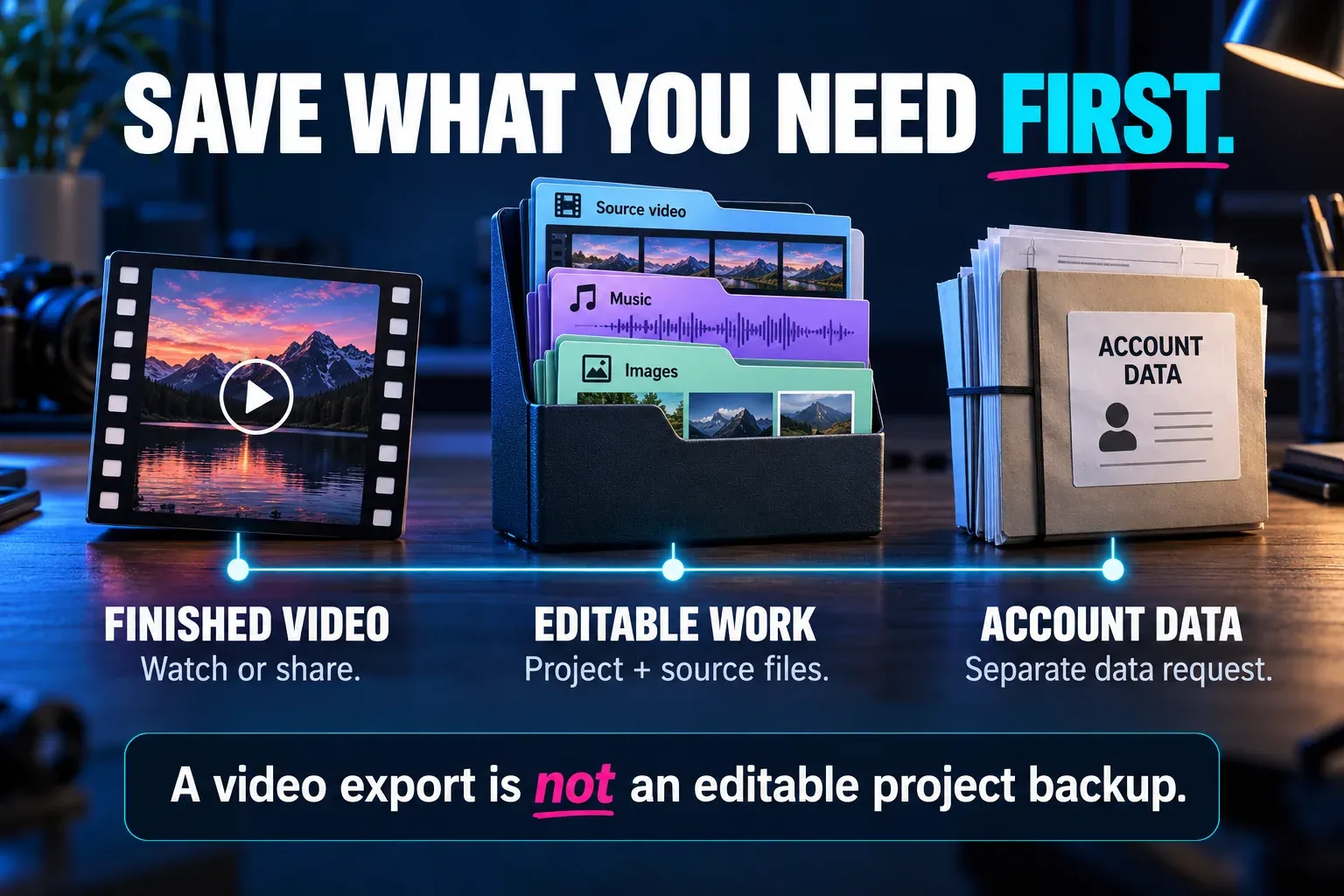
For work you still need to revise, follow the CapCut project backup and transfer guide before you close access. Make sure the files you keep are somewhere you control. A project visible in a cloud workspace isn't a separate local backup.
If your settings show Download your data, request the information you need while you still have access. If that control is missing, use the official privacy-request route below to ask for the account information you need. Read what the service says the package contains; a data download doesn't mean all your editing assets are in it.
Cancel renewal before closing the account
Find the receipt for the subscription. The route depends on who billed you:
- Apple: manage the subscription through the Apple account used for the purchase.
- Google Play: use the Google account that bought the subscription.
- A direct CapCut purchase: use the subscription-management route for that CapCut account.
The subscription cancellation walkthrough explains those routes and how to identify the provider. Keep the cancellation record before deleting the account or its messages. A refund is a separate request with its own purchase and eligibility conditions.
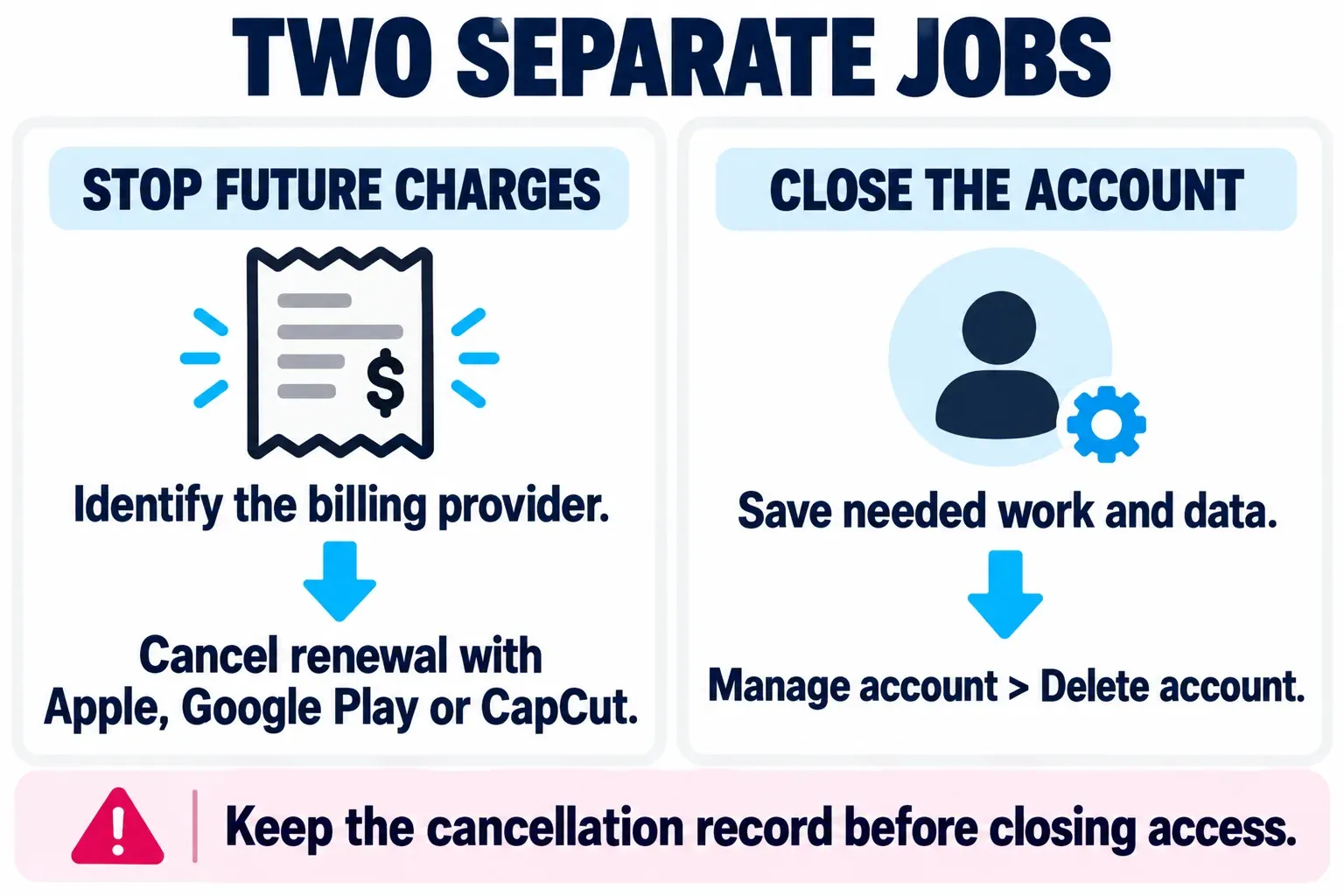
This order also helps when you still need a paid editing feature to finish an export. Make the deliverables while your account has the access you need, then close it when you're ready. Don't buy a new plan just because a deletion or verification screen is confusing.
Delete the account from CapCut settings
First, confirm the account identity. Match the profile and user ID, where available, with the account whose projects or purchases you mean to close. If you originally signed in with a third-party button, use that same method instead of creating a new account through a different route. CapCut's cross-device login guidance explains why the original login method matters.
Web: use the Management section
- Sign in to the intended CapCut account and open its settings.
- Find Management. If Download your data is available, review it first when you still need an account-data copy; otherwise use the privacy-request route below before deleting.
- Locate Delete account and its Delete button. It sits in a separate row from the one headed Deactivate account?, which is the temporary option.
- Read the warnings and complete the account-ownership verification requested by CapCut. Check the identity again before the final confirmation.
- Save the confirmation or request reference the service provides. Follow any stated next steps rather than inferring completion from a logout alone.
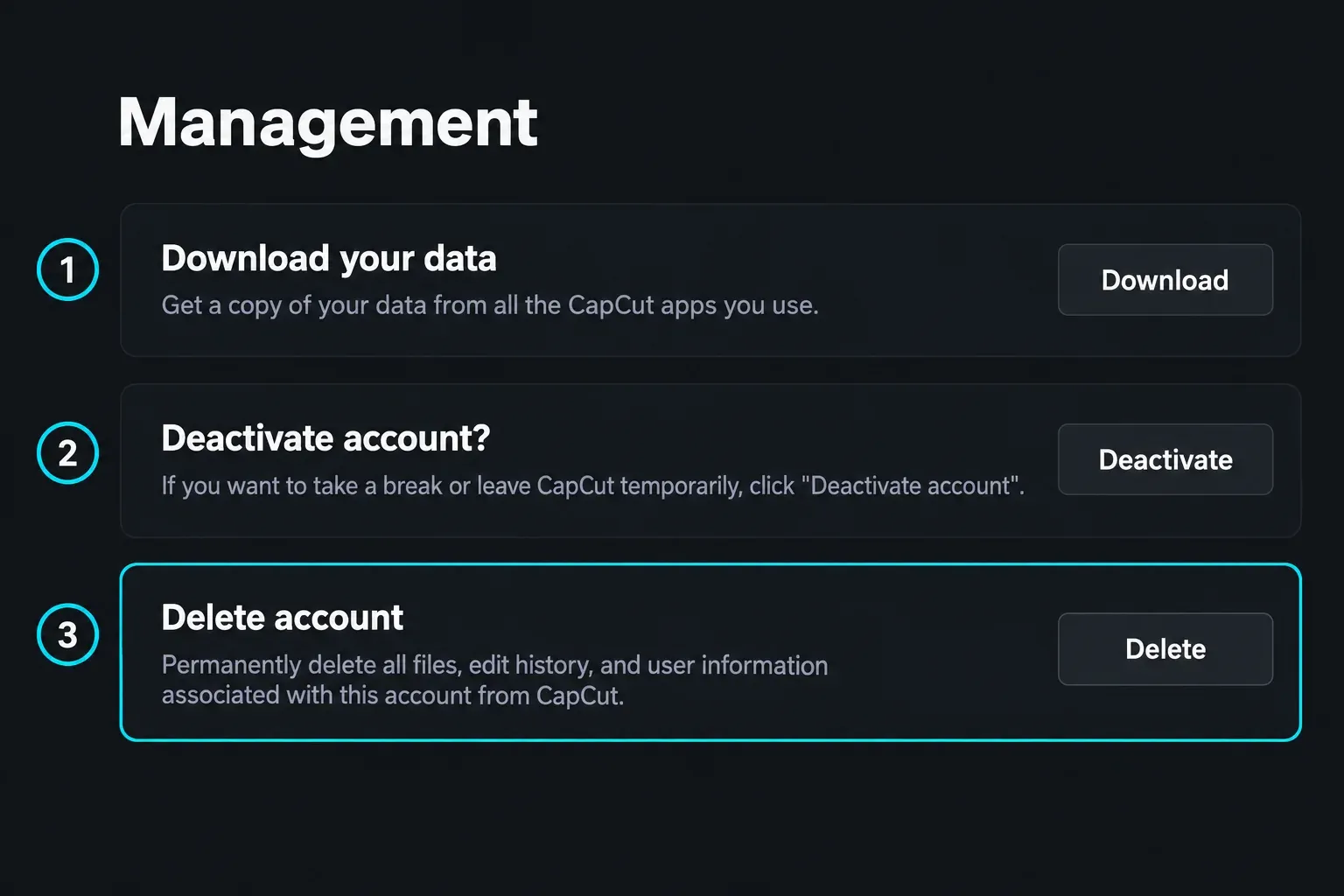
The visible deletion description says it permanently deletes “all files, edit history, and user information associated with this account from CapCut.” Treat that warning literally: finish saving your work first, and don't count on recovering a project later.
iPhone or Android: find the account-management controls
Open your profile and account settings in the mobile app, then look for Manage account and Delete account. Where these entry points sit and what they're called can differ between app versions and regions, so don't rely on an old video's exact tab or gear position. Look for the account-management labels, not a project's three-dot menu.
If the controls are missing, use the web account settings or the right official privacy form below. Reinstalling the app or clearing its storage won't help as a first step: it doesn't tell you which account you're closing, and it can put locally held work at risk.
What deletion means, and what it does not
In its General Terms account-deletion section, CapCut names Manage account as a deletion route and warns that a deleted account can't be reactivated, and its associated data and content can't be retrieved. Those General Terms point US users to separate terms, so read the terms and confirmation that apply to your account instead of assuming one jurisdiction's wording covers everyone.
I wouldn't plan around an unverified “30-day recovery window.” If your own confirmation shows a waiting period or a way to withdraw the request, follow its exact conditions. Otherwise, close the account only when you're prepared to lose access.
These actions are easy to confuse:
| Action | What you are choosing |
|---|---|
| Delete account | Close the CapCut account through its deletion process, with the consequences shown for that account |
| Deactivate account | Use the separate option that the settings page describes as a temporary break |
| Sign out or uninstall | Leave a session or remove the app from a device; neither is an account-deletion request |
| Delete a project | Remove a piece of editing work rather than close the account |
| Cancel a subscription | Stop the relevant renewal through the billing provider; the account can remain open |
Closing the account also doesn't mean every record in every system is erased instantly. CapCut's privacy policy data-retention section explains that retention depends on the information, its purpose and applicable legal obligations. Check the policy for your location when you need to understand a particular category of data.
If you cannot sign in or cannot find Delete account
Avoid unlinking the only sign-in method you can still use. If a login opens an empty account, check the original sign-in route before submitting a request for the wrong profile. The CapCut account login guide covers that separate recovery and identity problem.
If you need a privacy request rather than another app troubleshooting attempt:
- US users: the US privacy webform explicitly lists applicable state-law deletion rights and requests by a parent to delete a child's account. It asks for the product, state, contact email and request details; it also provides a user-ID field. Choose CapCut and the request that matches your situation.
- Other locations: the general privacy-request form asks for your country or region, product, email and whether you have an account. It says to use the email associated with the CapCut account if possible. Its available follow-up fields depend on your choices.
Give enough information to identify the correct account and say that you want account deletion or the relevant deletion right. Don't send a password, one-time login code or unrelated private project files. Attach files only where they help explain the specific problem, and strip out personal details that aren't needed.
A submitted form is a request, not a promise that every deletion step has finished. Keep the reference and replies, respond to legitimate ownership-verification requests through the official route, and follow the instructions the service sends. For a billing error, use the purchase provider's route; don't assume the privacy form will cancel or refund the subscription.
If the request itself fails, the CapCut customer-service guide helps identify the right support channel and the details to include. Keep that report focused: account identification, the operation you attempted, the visible error and when it happened.
Leaving CapCut without deleting the wrong account
Before the final confirmation, check four things: you have saved the work and account information you need; unwanted renewal is cancelled with the correct provider; the visible account is the one you intend to close; and you have read the deletion conditions shown for it.
If your real goal is a break, choose the temporary option CapCut offers. If it's a lower bill, cancel renewal. Permanent deletion makes sense once you mean to close the account and have finished the work that depends on it.