

Reviewed 2026-09-17 against current CapCut Help pages and the official Terms. I did not upload, delete, transfer or download cloud files during this review. Check the specific Space and current purchase offer before treating a public storage figure as your entitlement.
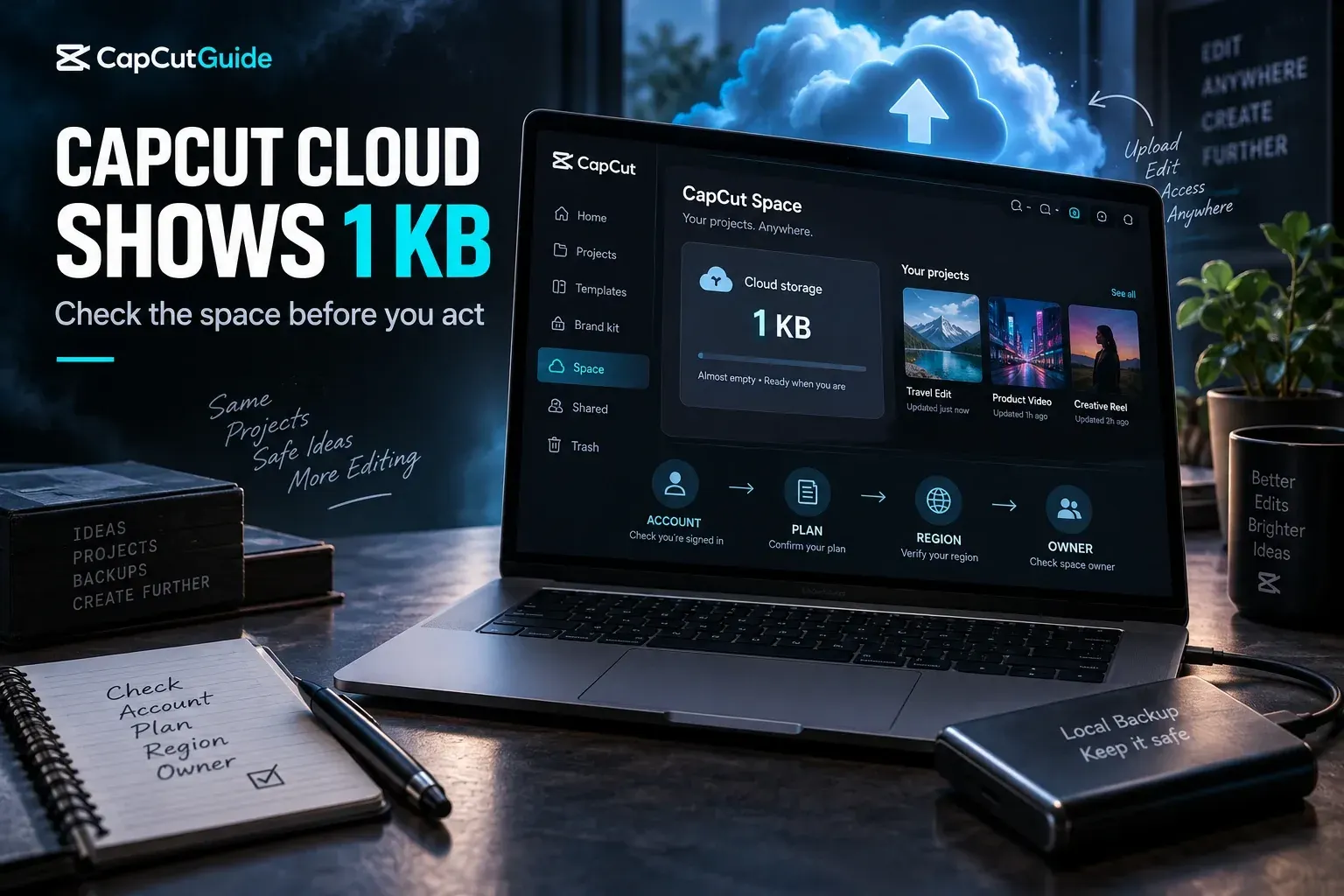
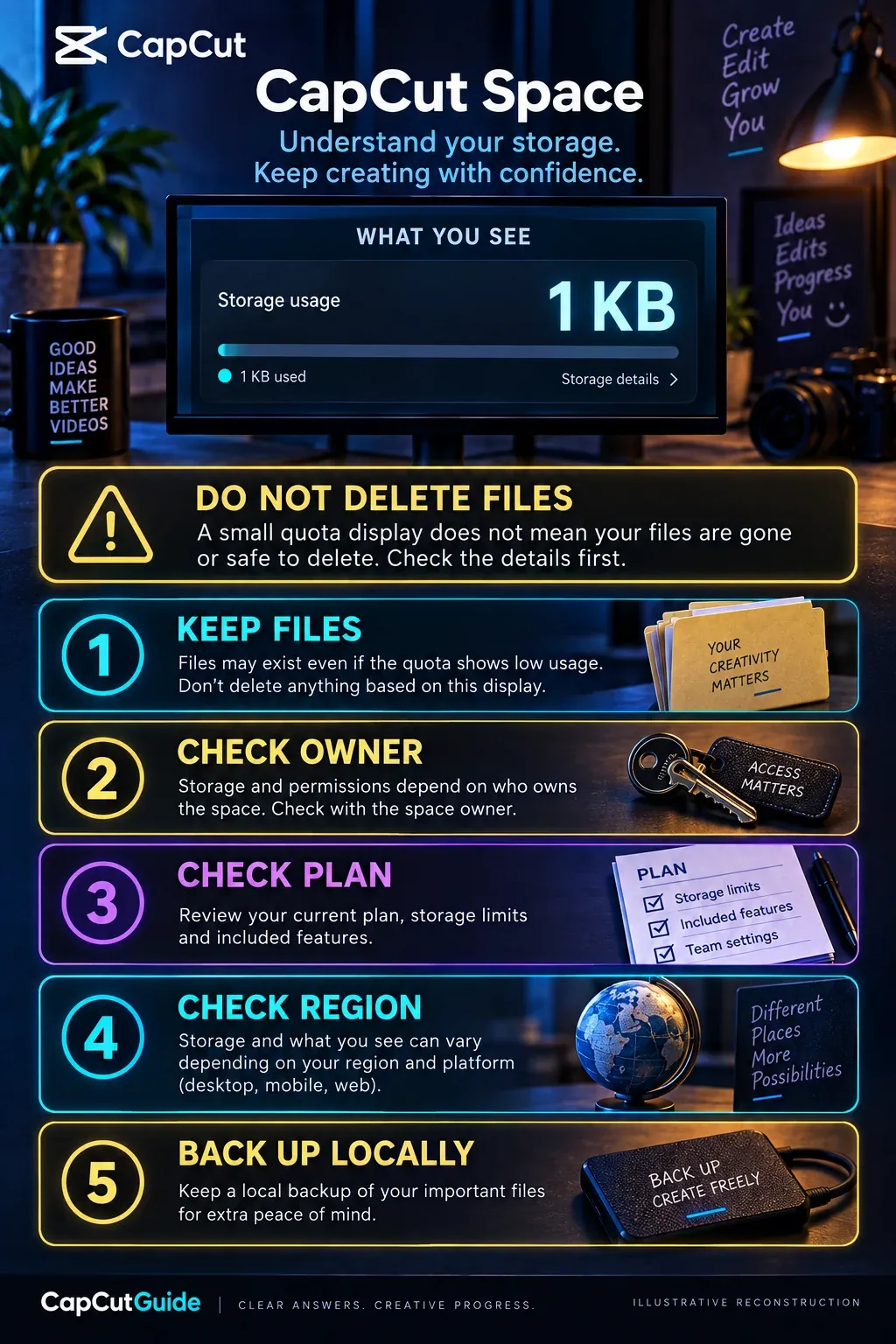
If CapCut Web shows only 1 KB of cloud storage, the clearest current explanation is that the Space has 0 GB of free upload quota and the interface is showing 1 KB as a minimal system placeholder. It does not mean a useful 1 KB storage plan exists. CapCut says this policy applies to newly created cloud Spaces and blocks new uploads unless capacity becomes available.
Do this first: do not delete anything to “reset” the meter. Confirm that previously stored files still open, make local backups of anything important, then check the Space owner, subscription and purchase page.
What the 1 KB number means
CapCut published two Help pages on March 25, 2026 that describe the same policy change. The free quota for newly created cloud Spaces is now 0 GB. One page says the UI can represent that state with a minimal placeholder such as 1 KB; the other says a new Space has no free upload capacity by default.
That distinction matters. The meter is communicating an entitlement state, not reporting that a normal video project should fit into 1 KB. If the Space has no available quota, compressing a clip, renaming a file or restarting the browser will not turn the placeholder into usable cloud capacity.
Do not compare a newly created free Space with a paid Space or a post-subscription account as if they had the same entitlement. CapCut separately documents subscription, account-type, platform and region restrictions on storage expansion. Treat the number inside the signed-in Space as evidence for that Space only.
Are existing CapCut cloud files deleted?
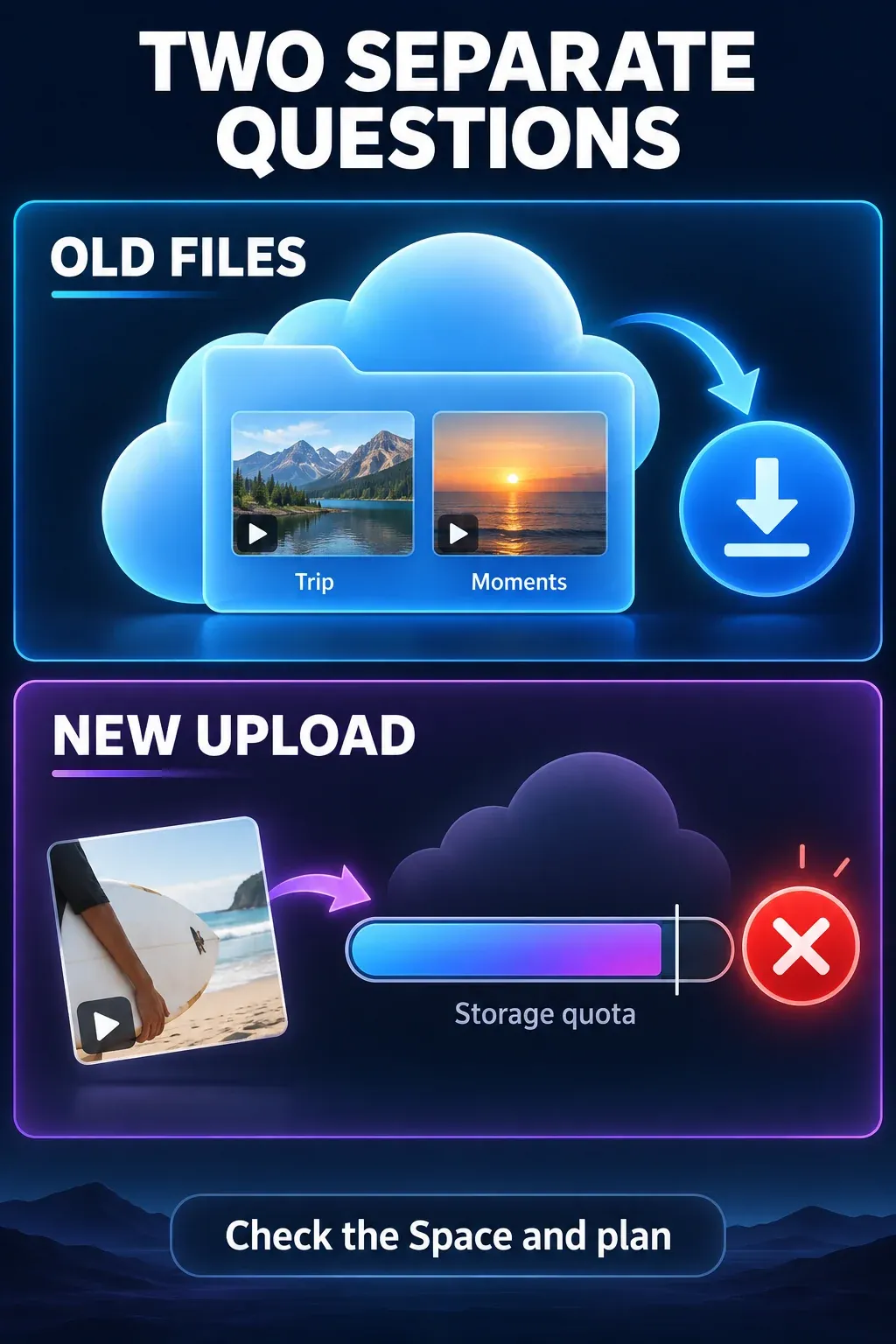
CapCut's current Help guidance says files uploaded before the quota adjustment are not deleted because of the change. Existing content should remain available to view and download, while new uploads can be blocked when usage exceeds the available quota.
I would still separate “CapCut says the files remain” from “the cloud is a backup.” The official Terms say the service does not guarantee permanent availability of user content and tells users to keep backups. They also instruct subscribers to transfer and back up cloud content before a paid service expires or is downgraded.
- Open the correct Space and confirm which files are visible.
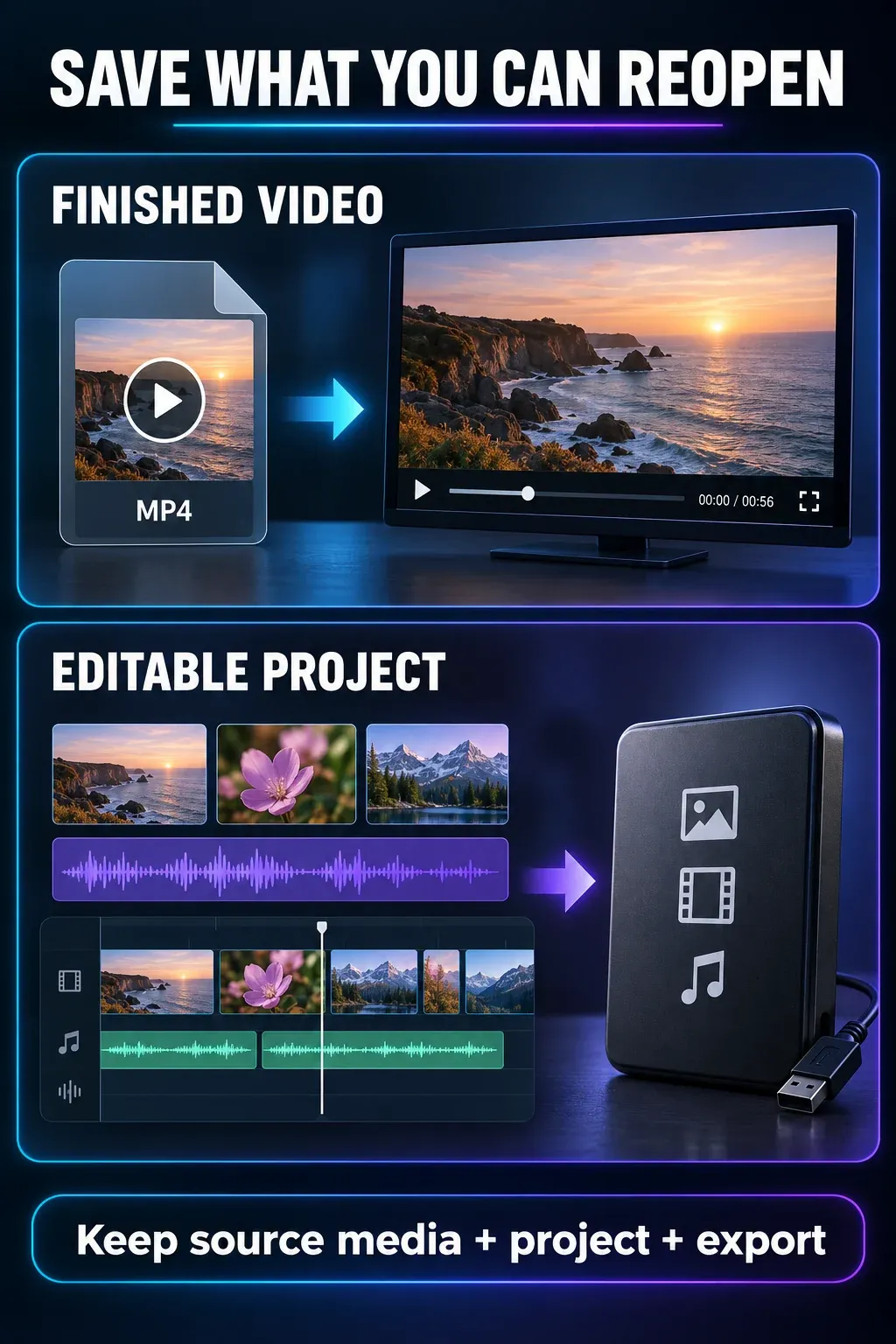
- Use the available download or project-copy routes to preserve irreplaceable projects, original media and exports on storage you control. A finished video export is not a backup of the editable project.
- Open the downloaded files and confirm they are usable before deleting any cloud copy.
- Record which login method and Space owner hold the cloud content.
For a broader preservation routine, use the CapCut project safety guide. Cloud sync is convenient, but it should not be the only copy of a project you cannot recreate.
Why some CapCut pages still mention 1 GB
CapCut's Help Center describes two different account states. The March 25 pages say newly created Spaces receive 0 GB and may show a 1 KB placeholder. A separate page dated March 31, 2026 says a user whose Pro subscription expires can continue under a 1 GB free tier and upload while stored data remains below that limit.
The 0 GB guidance concerns newly created Spaces; the 1 GB guidance concerns access after a Pro subscription expires. Those scopes differ, so the figures alone do not prove a contradiction. The public pages do not establish a universal free allowance across both states. I would not promise every free account 1 GB, and I would not use the 1 GB sentence to override a signed-in Space that currently shows 1 KB.
Working rule: use the quota shown in the specific Space and the current purchase page for that account. If those screens conflict with billing or an active subscription, preserve the files and contact CapCut Support with the account, Space and receipt details.
A safe diagnosis sequence
1. Check the correct account and Space
Cloud content is tied to the account. On Desktop, CapCut says to open Spaces in the left sidebar and verify the login method, especially when the same person has used email, Google or TikTok sign-in. A missing project and a 1 KB quota can be separate symptoms of being in the wrong account or Space.
2. Separate file access from upload capacity
Try to view the list of existing files before attempting any cleanup. If old files are visible but a new upload is blocked, that matches CapCut's current 0 GB policy description. If the Space itself does not load, first preserve any accessible work and confirm that you can sign back in with the correct login method. Keep the last working session open until those copies and account access are secure. CapCut recommends checking the connection, updating Desktop, restarting and signing back in; use interruption steps only after protecting the work you can still access.
3. Check the owner and role
In a Team Space, CapCut says only the owner can expand storage. A member may be able to work with shared assets without seeing the purchase control. Team settings are managed primarily on CapCut Online, while Desktop and Mobile expose a more limited set of team controls.
4. Check the platform
CapCut's March 25 storage guidance says additional storage can be purchased on Web and Desktop, while Mobile does not currently support that purchase flow. On Web, look for the upgrade path while signed into the Space. On Desktop, open Space and inspect the available plan controls. Do not assume Mobile will show the same menu.
5. Check subscription state before buying again
CapCut says extra 100 GB and 1,000 GB storage packages depend on an active Pro or Teams subscription and do not function independently. If purchased capacity becomes unavailable, verify the underlying subscription and billing state first. Buying another add-on before resolving the base plan can create a second billing question without restoring access.
What CapCut currently says about paid storage
CapCut's Space expansion guidance describes 100 GB with Pro and 1,000 GB of shared Team storage, plus additional 100 GB or 1,000 GB packages. Its Standard and Pro comparison instead advertises up to 1 TB for Pro. These public descriptions do not establish which allowance your purchase includes. Check the named plan and storage allowance in your signed-in checkout; do not buy on the assumption that every Pro subscription includes 1 TB.
| Situation | What to check | Best next action |
|---|---|---|
| New Space shows 1 KB | Whether the signed-in Space has 0 GB available | Back up existing files, then inspect current upgrade options |
| Old files visible, upload blocked | Current usage versus available quota | Preserve files; add capacity or clear space only after backup |
| Team member cannot upgrade | Who owns the Team Space | Ask the owner to review storage on CapCut Online |
| Mobile has no purchase button | Web or Desktop with the same account | Use a supported purchase surface |
| Paid add-on stopped working | Active Pro or Teams subscription and billing | Resolve the base subscription before another purchase |
If the decision is really about which plan is worth paying for, compare the current checkout offer against the CapCut Free vs Pro guide. For team ownership and shared asset decisions, the CapCut for business guide gives the wider context.
What not to do
- Do not delete cloud projects before a verified backup. A quota display is not a reason to remove the only copy.
- Do not assume 1 KB is a cache bug. CapCut explicitly documents it as a possible placeholder for 0 GB.
- Do not promise a universal 1 GB free tier. The cited pages address different account states and do not establish the allowance for every free Space.
- Do not ask a Team member to find an owner-only control. Confirm the Space role first.
- Do not buy storage from a mismatched login. Verify the account and Space before payment.
When to contact CapCut Support
Escalate when the displayed quota conflicts with an active subscription, paid storage is unavailable before the expected end of the base plan, existing files cannot be viewed or downloaded, or the owner cannot see a storage option that the purchase page promises for that account.
Prepare a concise evidence set: platform and app version, region, login method without sharing the password, Space name with personal details redacted, owner/member role, subscription status, receipt identifier, current quota display and the exact error. Keep account screenshots private; a public troubleshooting post rarely needs an email address, avatar, project title or billing reference.
Research limitation: the public Help pages do not establish the storage entitlement for every account state. No cloud operation was performed for this article. Preserve files and check the specific Space, current purchase offer and account-specific Support response before changing storage or subscriptions.