
CapCut Project Safety: Back Up, Move & Recover Drafts
Find a missing CapCut project, back up an editable draft or check recovery options. Protect source media and test the copy before a move or reinstall.
Last checked September 23, 2026.
A CapCut project can disappear from the home screen without being deleted. It can also open normally while its original clips are missing. Start with the symptom below; the right next step depends on what still exists.
Choose the help you need
These guides cover different jobs. Finding a draft is not the same as backing it up. If data has already been erased, go to the recovery guide before making changes.
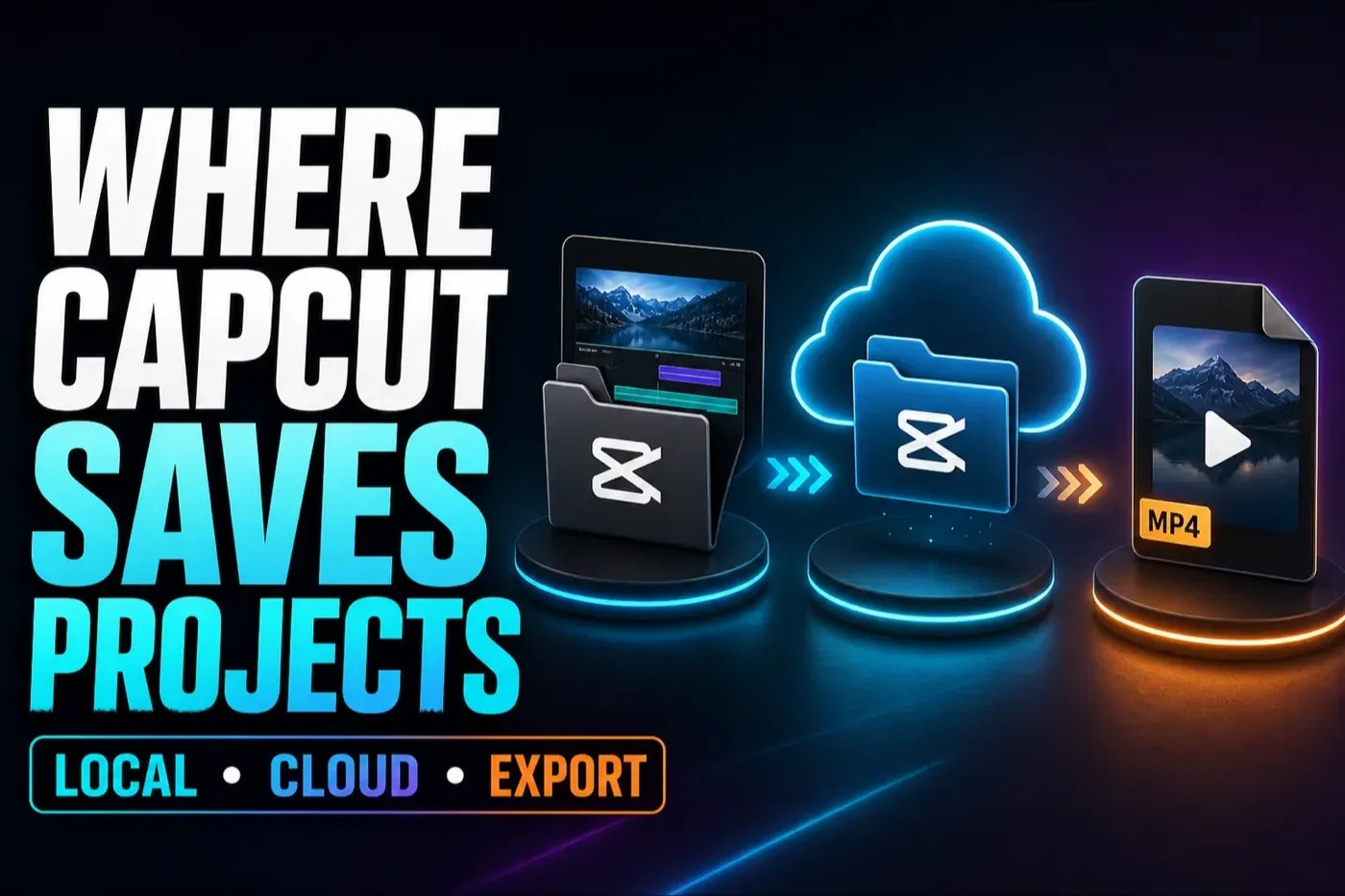
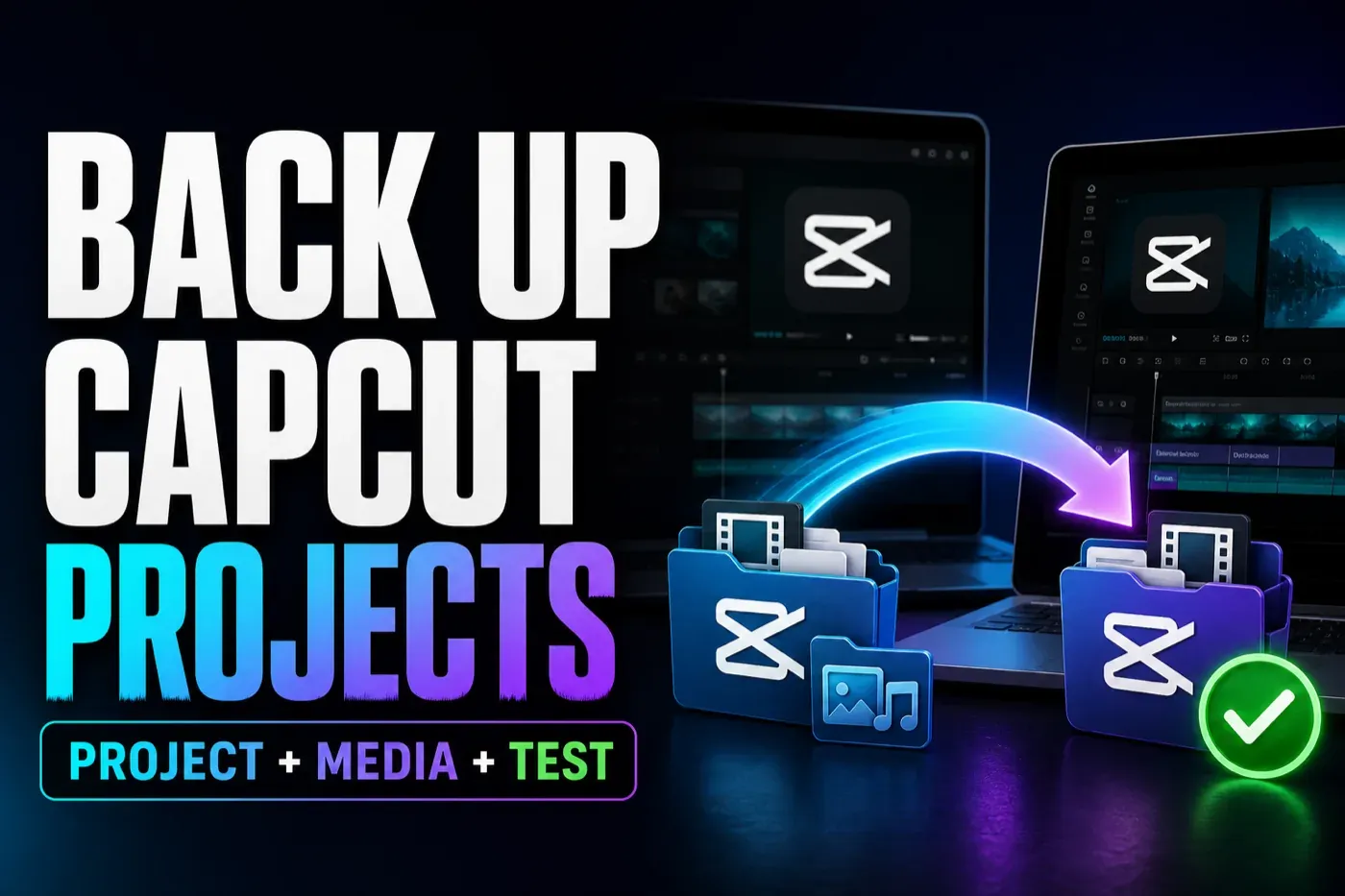
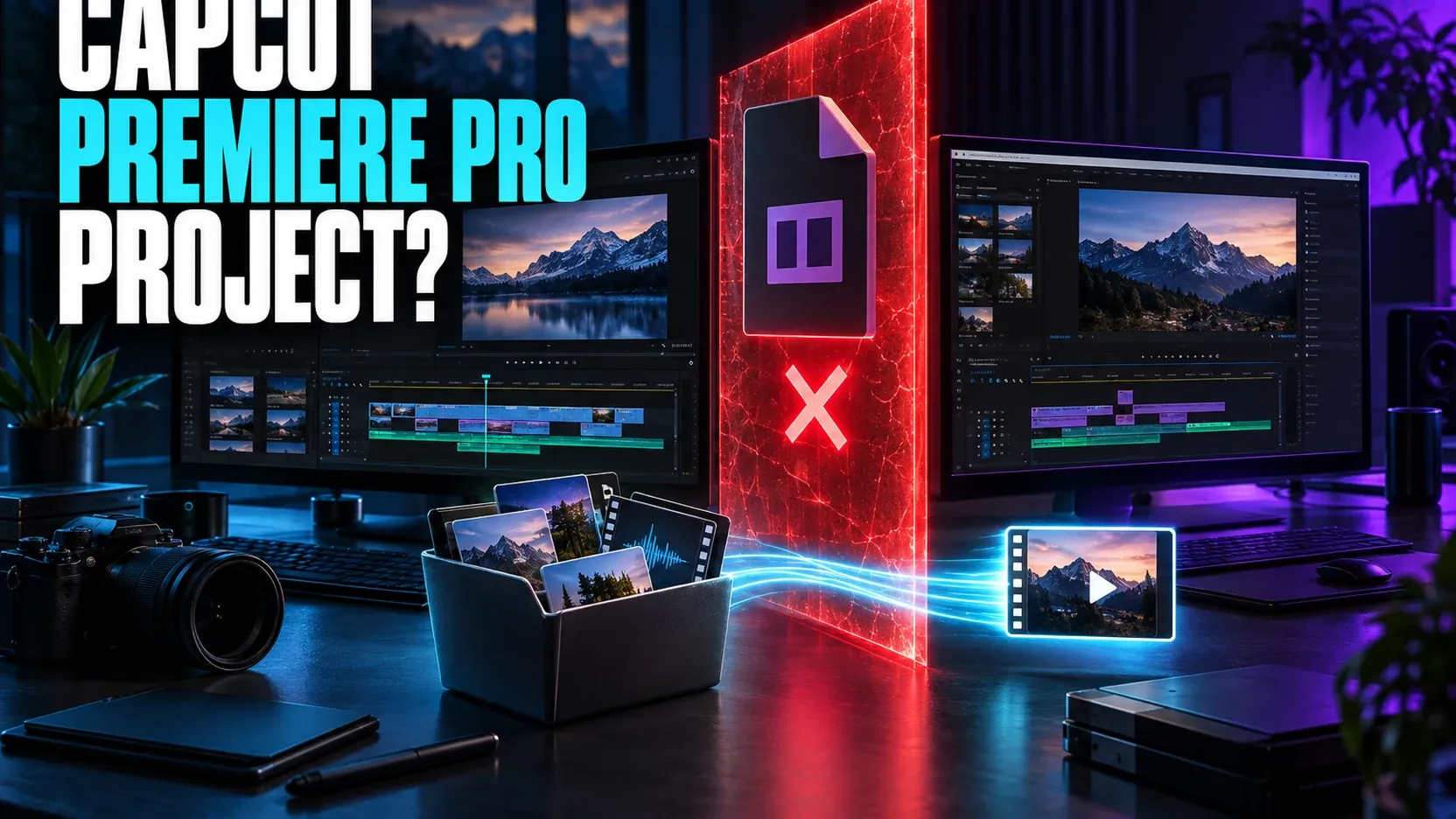
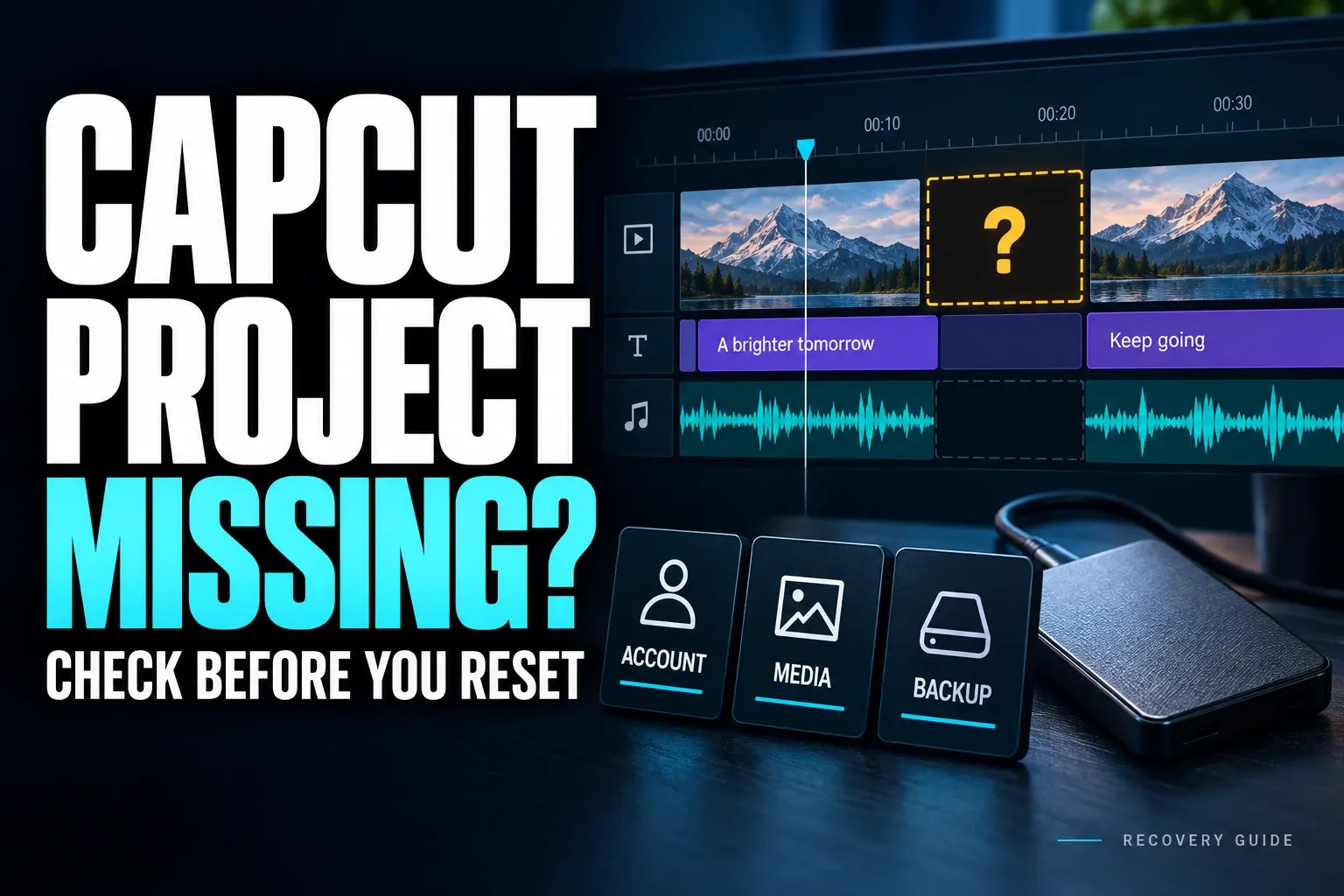
Keep the editable project, not just an MP4
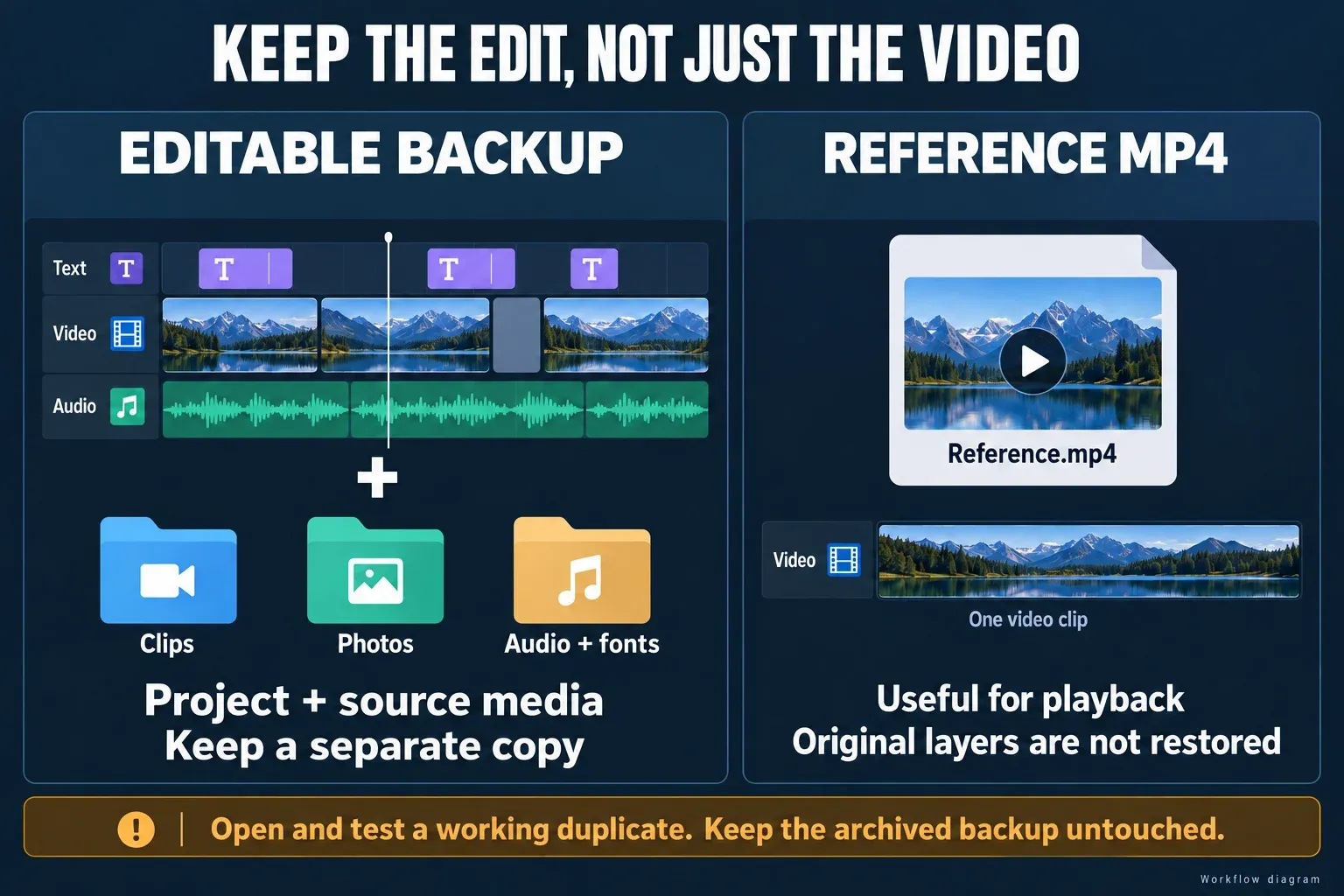
An exported video is useful when you need to publish, compare a later edit or rebuild part of a lost project. It does not contain the original separate timeline layers. CapCut’s explanation of re-imported exports confirms that the layers, effects and tracks are flattened into the video.
- Preserve the editable draft with its timeline, captions, keyframes and other project data.
- Keep the source media the edit depends on: video, photos, audio and any fonts or assets you are licensed to copy.
- Store an independent backup outside the app storage or device you plan to erase. Another folder on the same drive does not protect against losing that drive. A live synced copy can follow a deletion; keep a separately retained version.
- Save a reference export if the project still opens. It helps you check the restored result, but it is not a substitute for the first three items.
Know what Delete, Clear and Sync will change
Android: cache is not app data
Clear cache removes temporary data; Clear storage permanently deletes app data. Android also removes app-specific files when an app is uninstalled. Read the actual warning; do not use either storage deletion or uninstall as a recovery step.
iPhone and iPad: Offload is not Delete
Apple says Offload keeps documents and data, while Delete App removes related data. Offloading still does not create a separate backup. Neither does Android app archiving, where supported; restoring an archived app also depends on it remaining available from the store.
Cloud: check the account and the actual upload
CapCut says projects must be uploaded to Spaces for cross-platform cloud use. Signing in or seeing a thumbnail is not enough to verify the copy. Check its timeline and media on the destination. Available storage can limit new uploads; do not assume every account has free cloud capacity. Before relying on that capacity, check the current CapCut pricing and plan guide for plan and renewal terms.
Synced projects: deletion and access still matter
CapCut warns that deleting a Web project also removes it from linked devices. You can also lose access to team projects when you leave a team. Plan ownership and offboarding with the CapCut Teams collaboration guide before access changes. Keep an independent copy of work you are authorised to retain.
For an empty project list, check the sign-in route before changing anything. Google sign-in and email sign-in can open different CapCut accounts even with the same address. Use the original method, or one you deliberately linked to that account. Keep the working session while checking the destination.
Test the copy before you rely on it
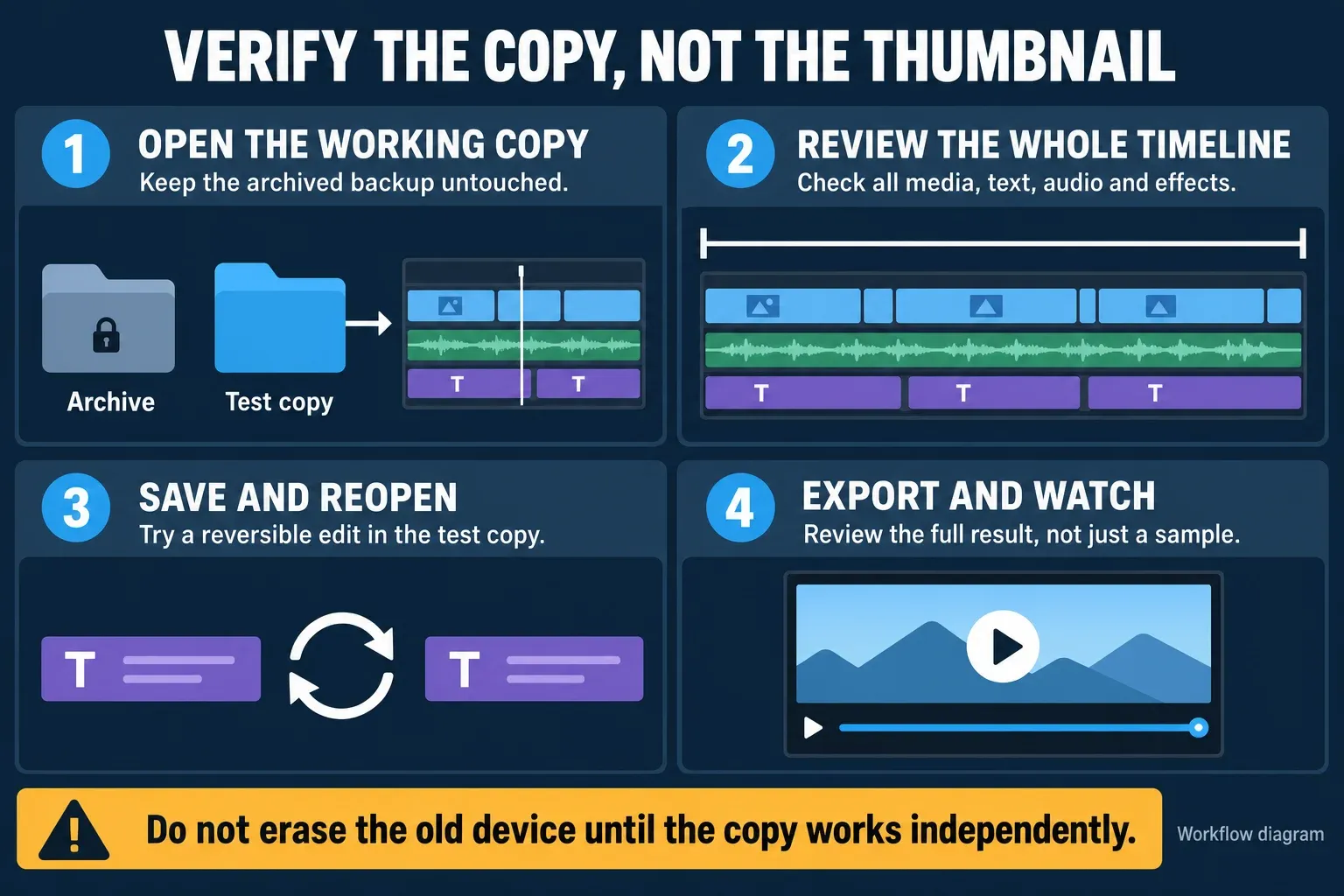
This is the final check after following the backup-and-transfer guide above. Test a working duplicate, not your only archived copy. Do not assume a raw desktop project folder will open on every platform or CapCut version.
- Open the working copy. Keep the archived backup untouched. Confirm the intended project opens in a compatible CapCut version with the expected duration and tracks.
- Review the whole timeline. Check all footage, sound, captions, fonts and effects. Confirm that the copy uses preserved media, not files available only on the old device. If practical, close drafts before disconnecting an old external drive for a test; never delete or rename originals to simulate missing media.
- Save and reopen. Make a small reversible change in the test copy, close it, reopen it and confirm the change remains. Keep experiments out of the preserved archive.
- Export and watch. A difficult short section can expose a fault quickly, but it cannot prove that the rest works. Export and review the full result before relying on the transferred project. Retain the old device and source files until the destination works independently, and keep a separate backup afterward.
If the loss has already happened
Missing media is not necessarily a missing project. Keep the timeline and its placeholders while locating the original files. CapCut’s guidance for export error 10006 calls for relinking imported media. Importing everything again does not automatically restore its previous timing or edits.
Trash is not a universal undo button. Check it if your current interface offers it, but do not delete a project to test recovery. CapCut’s deletion guide warns that deleted Mobile projects cannot be recovered, while its Web instructions describe Move to Trash. There is no single retention period established here for every platform.
A device backup must predate the loss and contain the needed data. iCloud Backup includes app data, but its existence alone does not prove that a particular draft can be restored. Google likewise warns that not every app backs up or restores all its data. A photo-library backup is not an editable CapCut project backup.
CapCut project safety FAQ
Does CapCut autosave mean my project is backed up?
No. Saving changes to the current draft does not create an independent backup. Preserve the editable project and its source media separately, then test a working duplicate. A second folder on the same drive does not protect against losing that drive.
Why is my CapCut project missing on another device?
It may be local to the original device, in another Space or attached to a different account. Check the original sign-in method and whether the project was actually uploaded. Keep the working session while verifying the destination.
Can I clear CapCut cache without losing projects?
Android’s Clear cache removes temporary data; Clear storage permanently deletes app data. Other cleanup controls can have different effects. Read the warning and preserve important drafts before cleanup. Clearing storage is not a way to find or recover a project.
Will deleting CapCut delete my drafts?
It can remove local app-managed drafts. Apple’s Delete App removes related data, and Android uninstall removes app-specific files. Offload and supported app archiving are different operations, but neither creates an independent backup.
Can an MP4 restore my editable CapCut timeline?
No. Re-importing an MP4 gives you a flattened video, not the original separate layers, captions or keyframes. You can recut it or rebuild parts manually. To preserve the original structure, keep the editable project and source media.
Is a project in CapCut Space enough as my only backup?
No. Verify that it opens with its media, and keep an independently retained copy. Deletion can sync across linked devices, and access to team projects can end. A cloud thumbnail is evidence that a project is listed, not proof that the whole edit is usable.
Reviewed September 12, 2026 against the CapCut, Apple, Google and Microsoft documentation linked beside the relevant advice. The diagrams explain the workflow; they are not screenshots of a recovery test. Device-specific paths and recovery procedures remain in the three linked guides.