

Start in Settings → General → iPhone Storage → CapCut. Protect the editable projects you still need, then use CapCut’s clearly labelled Clear cache control if your build offers it. Review unwanted drafts and finished media separately. Deleting and reinstalling the app can remove local project data. Saving an MP4 doesn’t preserve the editable timeline.
The iPhone Storage entry covers the app plus its data, while the cache control handles a narrower slice of cleanup. I’d work through the smaller steps before removing the app. What matters is which files you can safely retire, rather than how low you can push CapCut’s storage number.
Find out which storage is full
Open Settings → General → iPhone Storage, then tap CapCut. Look at CapCut’s storage details and the phone’s available space. Apple’s storage instructions separate offloading the app from deleting the app and its related data. The same instructions note that cached and temporary data may not count in the displayed usage, so an in-app cache counter and the system figure don’t have to match.
Use the figures to choose a branch:
| Where the space appears | What to investigate | What it does not establish |
|---|---|---|
| CapCut’s App Size | The installed app itself | That removing the app will clear retained Documents & Data through offloading |
| CapCut’s Documents & Data | Content held by the app, including the local editing work you need to preserve | That the entire amount is disposable cache |
| Photos or Files | Original clips, downloaded files and saved exports | That they are unused by every current project |
| iCloud or a CapCut Space | Cloud capacity and the files stored there | That your iPhone has gained physical storage or every local draft has uploaded |
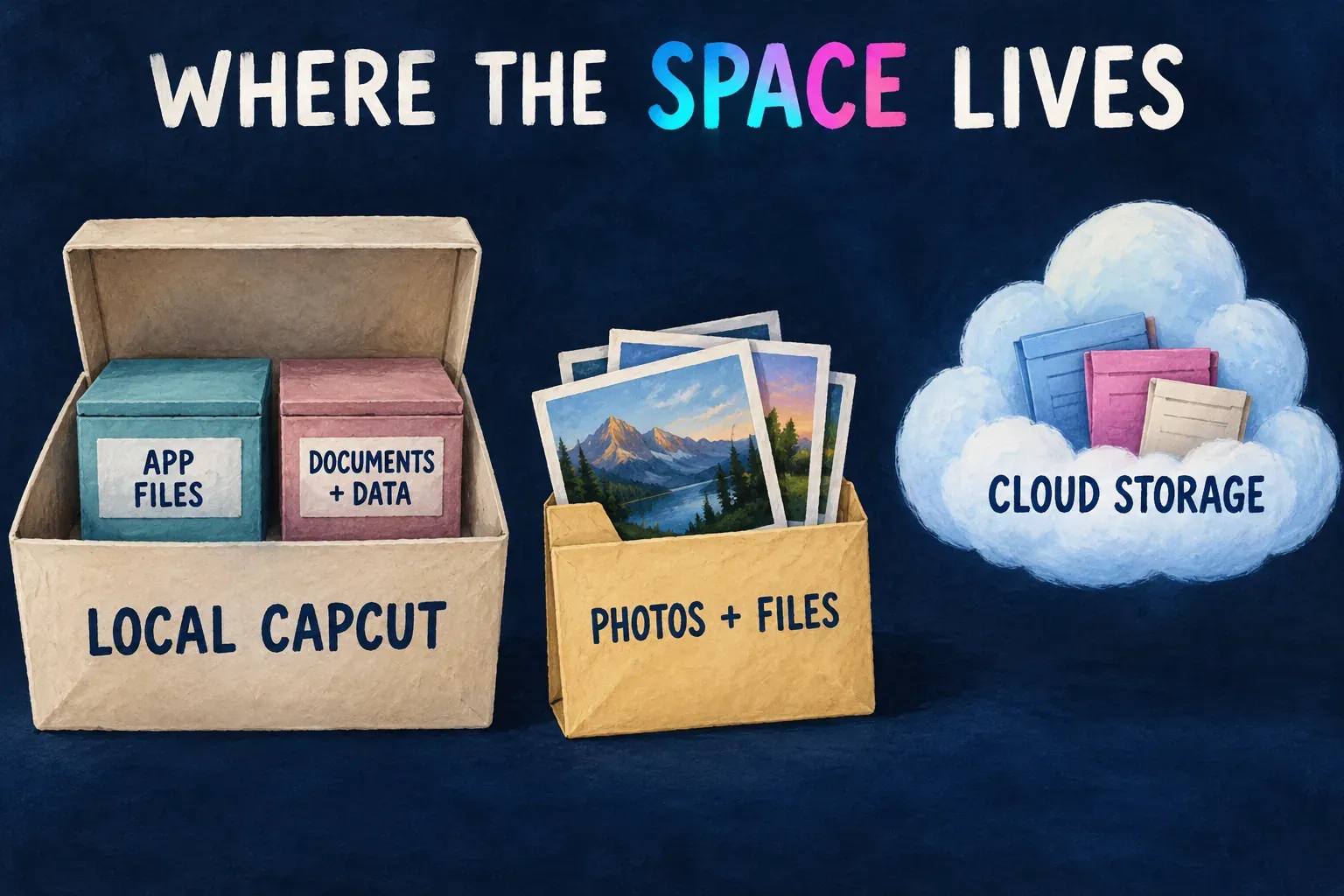
An editing project and a finished video do different jobs. A timeline that looks small can still need a lot of media, and counting project cards won’t tell you which bytes are safe to erase. These public instructions don’t give a dependable breakdown of every file CapCut keeps in your particular installation.
When the warning shows up inside a Space instead of iPhone Settings, use the CapCut cloud-storage guide. Buying cloud capacity alone doesn’t clear local drafts. Apple explains that device storage and iCloud storage are separate.
Protect the edits you want to keep
Sort the project library into active edits, projects you may revise, and finished work you no longer need to edit. Preserve the first two groups before you change their data.
Where project upload is available and cloud use makes sense for you, upload the editable project to the intended Space. Wait for completion, then open the destination copy and check the timeline, media, captions, audio and required assets. CapCut’s cross-platform project guidance says projects must be uploaded to Spaces for cross-platform use. Signing in or seeing a project card doesn’t prove you have a usable copy.
Follow our project backup and transfer guide for the full preservation checklist. Keep the originals while you check the copy. A duplicate on the same iPhone helps with editing mistakes, but it won’t give you an independent copy if you remove the app’s data.
For finished work you only need to watch or deliver, keep an export and play the saved file outside CapCut. Hold on to source footage you may reuse as well. CapCut’s exported-project guidance confirms that a reimported video doesn’t restore its text, effects and audio as separate editable layers.
Check upload capacity before you rely on Spaces. CapCut’s new-Space storage notice says newly created Spaces have no complimentary upload capacity and may show a 1 KB placeholder. Allowances differ from account to account. A failed upload or a destination you can’t open is a reason to keep the phone copy, even if you set out to free space today.
Clear cache, then review unwanted drafts
CapCut’s Mobile cache guidance points to Settings → Clear Cache. Open CapCut’s settings from the home or account area your build provides, and look for that exact label. Don’t copy an Android tutorial’s system Apps → Storage → Clear cache route onto an iPhone.
- Save any responsive edit and preserve important projects and source media.
- Open CapCut’s settings and select Clear cache, if available.
- Read the confirmation. Stop if it refers to deleting projects, clearing all data or removing the app instead.
- Let the action finish, then return to iPhone Storage and review the available space and CapCut’s details again.
Cache clearing is a limited cleanup step. It should not be treated as a promise to remove the whole Documents & Data amount. If not much changes, look into the remaining projects and media instead of pressing the same command over and over.
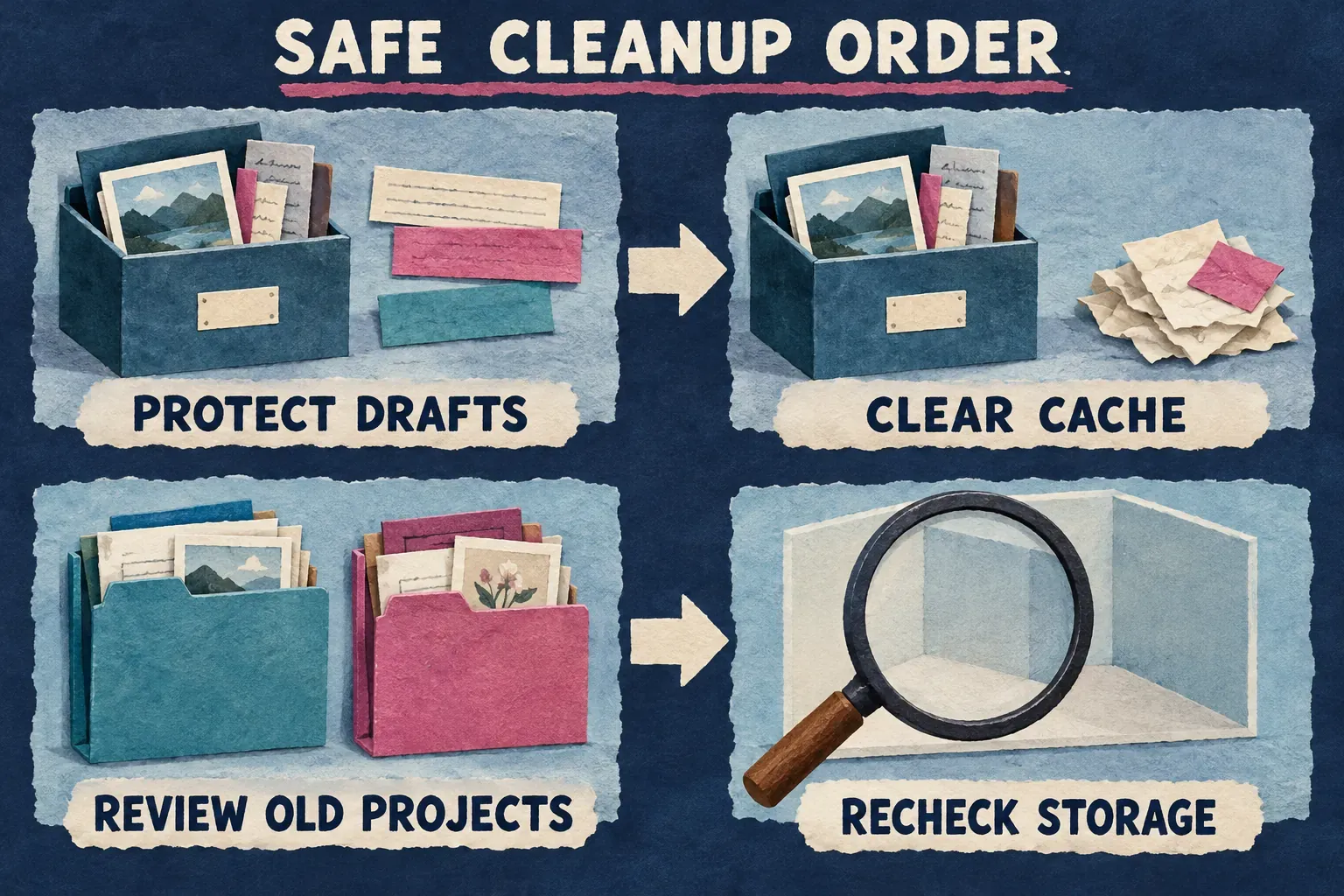
For a draft you really don’t need anymore, open Projects, find the exact thumbnail, press and hold it or open its three-dot menu, then choose Delete and read the warning. CapCut’s Mobile deletion instructions warn that deleted projects can’t be recovered. Our project-deletion guide covers the platform differences.
If your build shows Trash or a recycle area, check that area separately. Permanently removing an item there gives up that recovery option. Do not assume every mobile build has Trash, a particular retention window, or a guaranteed amount of space to reclaim. Avoid deleting a cloud project just to shrink the phone’s usage: a synced deletion can affect linked devices.
Handle exports and source footage separately
Check Photos and Files when those categories are large. A finished video saved outside CapCut is its own item to assess. Deleting a project isn’t a complete plan for cleaning up the media library.
Copy the finished exports you want to keep to an independent destination, and play those copies before you remove the local files. Make sure an export hasn’t become source material for a later draft. Preserve original footage while any useful edit may still depend on it. Don’t conclude that every source file is dispensable just because one project plays right now.
With iCloud Photos turned on, deleting a photo or video can propagate to the other devices using the same Apple Account. Apple’s iCloud Photos deletion guidance explains that behavior and recommends backing up media you want to keep. So a synced second device is a poor stand-in for an independent archive.
iPhone Storage’s recommendations can also help with other content you no longer need. Acting on those recommendations can free up working room without disturbing an irreplaceable CapCut draft. Review the item and what will happen to it before you enable a recommendation. You don’t have to erase editing data just because CapCut is the biggest app on the list.
Why Offload App may leave most of the data
Offload App removes the app while keeping its documents and data. Delete App removes the app and its related data. That’s Apple’s distinction between the two actions. If Documents & Data makes up the bulk of CapCut’s usage, offloading keeps that bulk in place and is unlikely to deliver the cleanup you expected. Offloading isn’t an independent project backup.
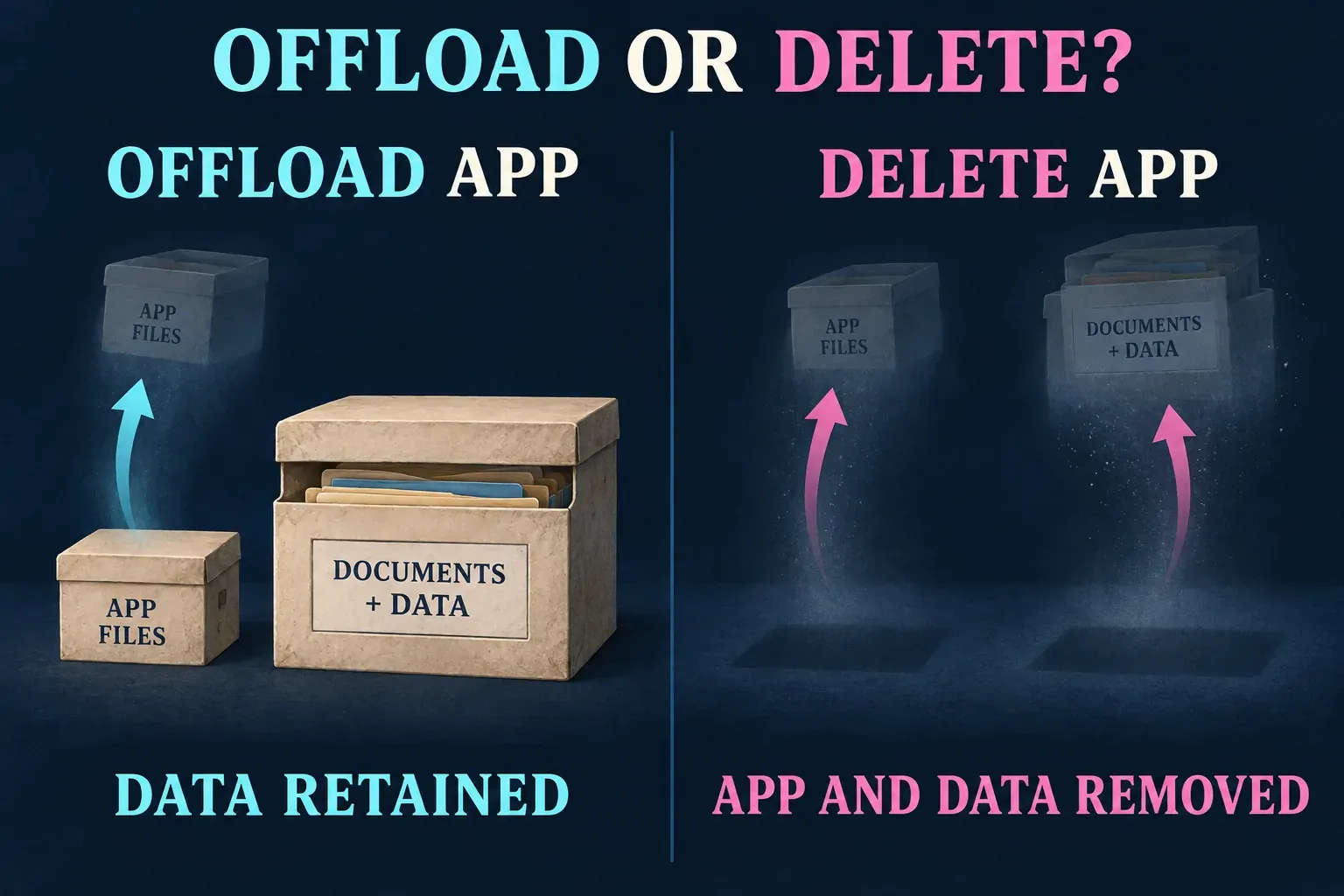
Only consider offloading once you have a usable project backup and a confirmed official way to reinstall for your account and region. CapCut availability can differ, and removing the installed app before you check access leaves you with another problem to solve.
Deleting and reinstalling is a more destructive option. Keep delete-and-reinstall out of the cleanup sequence while the only editable copy is still on this iPhone. A cloud upload you haven’t reopened, an MP4, or an assumed phone-backup restore isn’t enough evidence to sacrifice the original.
If usage stays unexpectedly high after these limited steps, write down what you see for the CapCut Help Center: device model, iOS and CapCut versions, available device space, the displayed App Size and Documents & Data, and the cleanup actions you’ve completed. Remove account details, names and project thumbnails from any images you share. Ask how to preserve the local projects before a reset or reinstall. Don’t use a cleaner or a guessed app-folder deletion to reach hidden files.
If the draft has already vanished, stop cleanup and use the project-recovery guide. With a responsive app and a storage warning, the aim is to leave enough room to keep editing while holding on to the work you can’t recreate.