

To delete a CapCut project, find it in your project list, open its menu, and choose Delete. On CapCut web the command is Move to Trash, and desktop wording can differ by version. Stop at the confirmation screen if you still need the editable timeline: an exported video is not a project backup, and a draft visible on another device is not necessarily a separate copy.
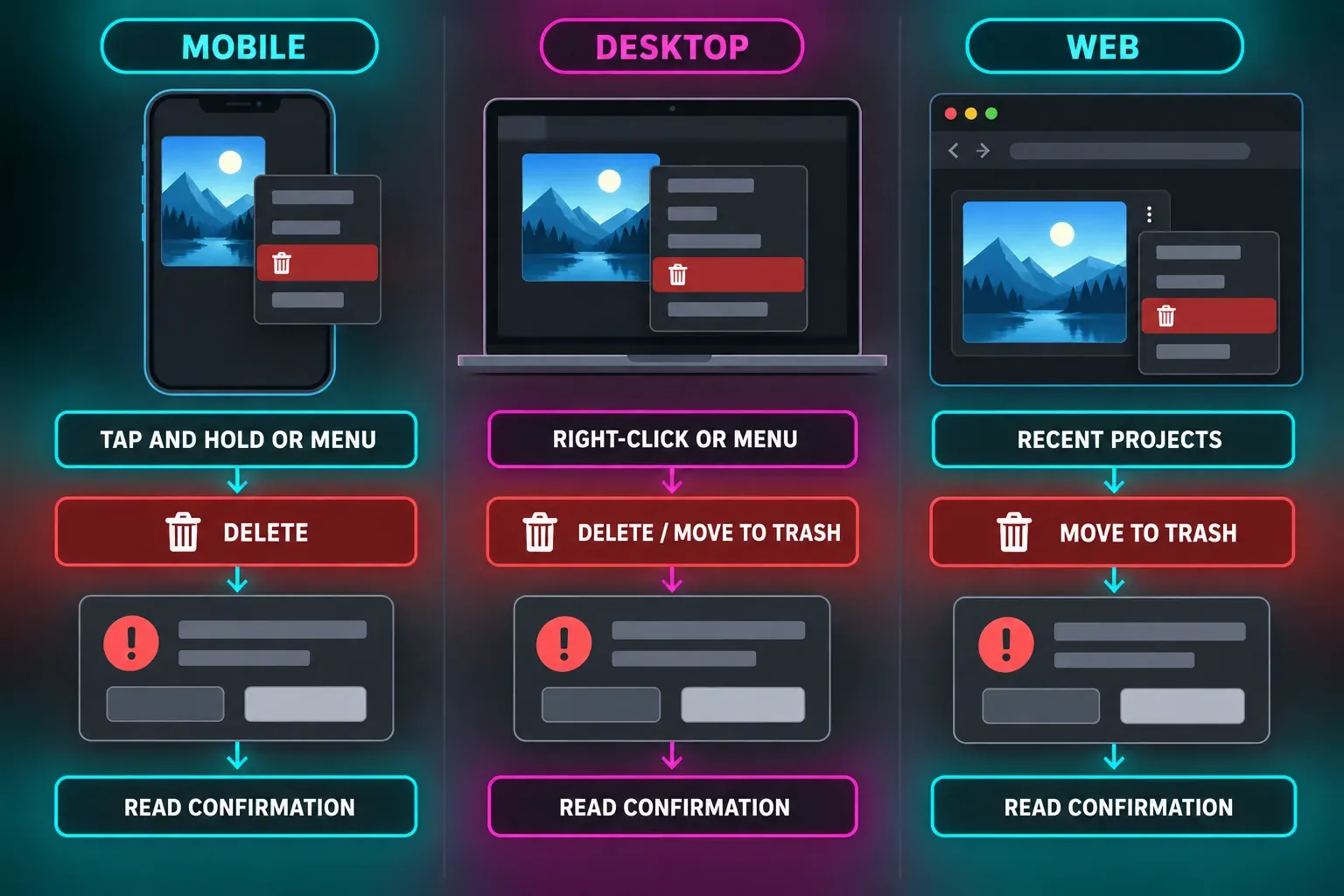
CapCut's current project-deletion instructions give different routes for mobile, desktop, and web. Pick the surface where the project appears:
| Where you see the project | Route to the deletion command |
|---|---|
| CapCut mobile | Projects → long-press the thumbnail or open its three-dot menu → Delete |
| CapCut desktop | Projects → right-click the thumbnail or open its three-dot menu → Delete or Move to Trash, depending on the version |
| CapCut web | Recent Projects → right-click or open the three-dot menu → Move to Trash |
These are routes to the confirmation, not a reason to confirm immediately. The warning on that screen tells you what your current account and version will remove.
Before you confirm: keep the editable copy you actually need
I would check where the draft lives before removing it. CapCut's cross-device project guidance distinguishes local projects from projects uploaded to Spaces. If a desktop draft has never been uploaded, finding a rendered export on your phone does not mean the timeline is safely stored in the cloud. Even when a project appears in Spaces, do not assume it is independent: CapCut's web deletion warning says removal can affect linked devices. Preserve a separate editable copy through a documented backup workflow before deleting a project you may need again. Our CapCut backup and transfer guide covers that separate job.
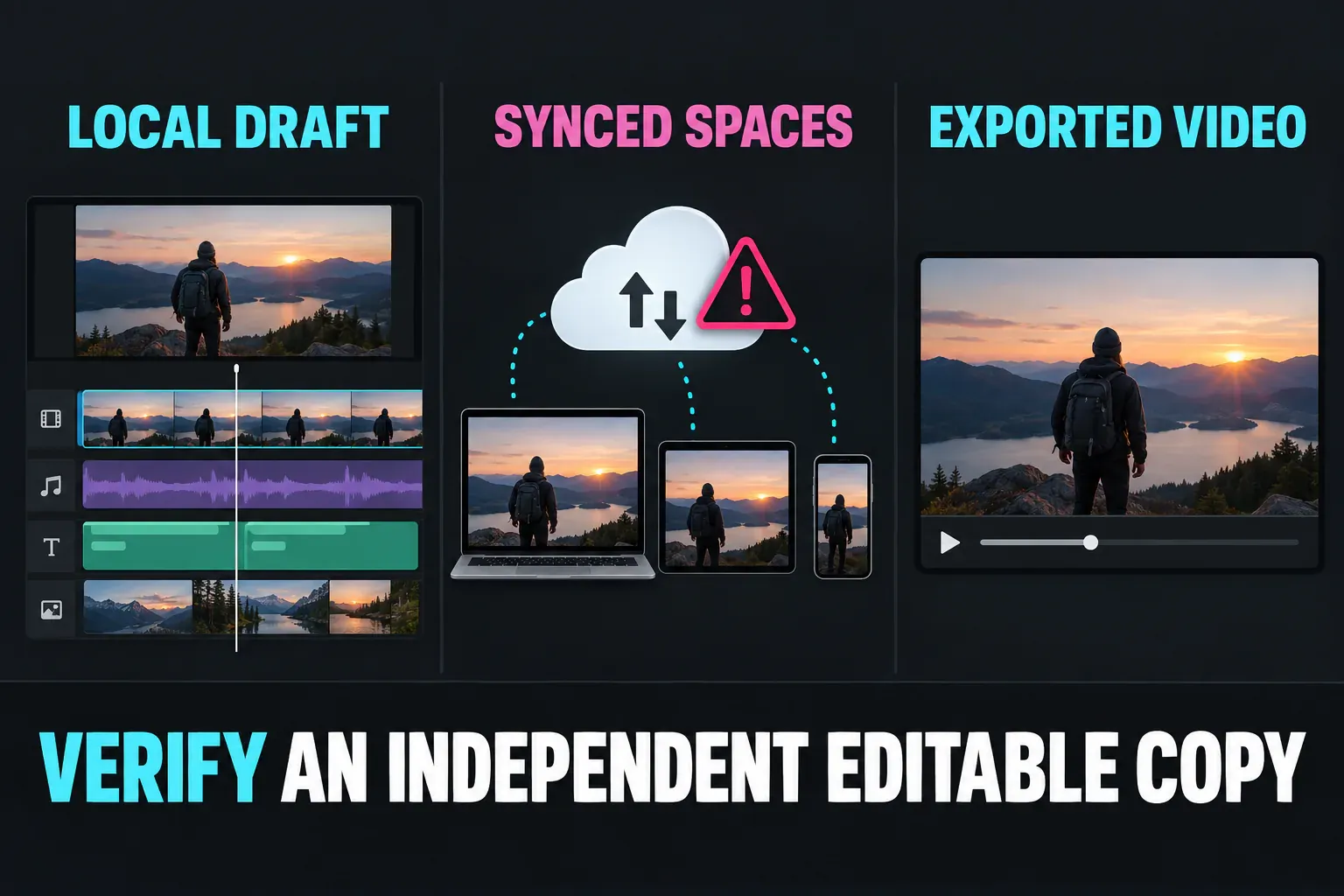
An MP4 is useful if you only need the finished video. It cannot restore the original clips, text, effects, and keyframes as separately editable layers; CapCut's project-import guidance makes that distinction. Also keep any source media the edit still depends on. For a fuller checklist, see how to protect a CapCut project.
Delete a project in CapCut mobile
- Open CapCut and go to Projects.
- Find the exact draft by its thumbnail or name. Long-press it, or open its three-dot menu if that is the control your app shows.
- Choose Delete.
- Read the warning, check the project name again, and confirm only if you no longer need that editable draft.
CapCut's mobile deletion help warns that a deleted mobile project cannot be recovered. Do not count on a universal Trash window. If your confirmation screen mentions Trash, follow the wording shown there; otherwise treat the action as permanent.
Delete a project in CapCut desktop
From the desktop Projects list, right-click the target thumbnail or open its three-dot menu, choose the delete command, which may read Delete or Move to Trash, then read and confirm the dialog. The same CapCut desktop deletion instructions document the right-click and three-dot routes without naming the menu item, so go by the label in your version. Do not assume the project's files will appear in your computer's Recycle Bin or Trash after you confirm.
If you are unsure whether the draft is local or uploaded, check that first. CapCut's history-task guidance says local PC projects can remain on that device, while cross-platform access depends on uploading the project to Spaces. The CapCut save-location guide helps distinguish a draft from an exported file.
Move a project to Trash in CapCut web
In Recent Projects, right-click the project or open its three-dot menu, choose Move to Trash, and confirm. CapCut's web deletion guidance warns that deleting a web project may also remove it from linked devices. A second device showing the same synced project should not be treated as an independent backup.
If you already deleted the wrong project
First check whether the same editable project still exists in your account's Trash or Spaces, and whether you made an independent copy before deletion. CapCut's history-task help suggests checking Trash, but its mobile deletion help also warns that mobile deletion may be unrecoverable. Those statements do not support a universal recovery window. Follow the options you actually see in your account, and do not delete another copy while investigating.
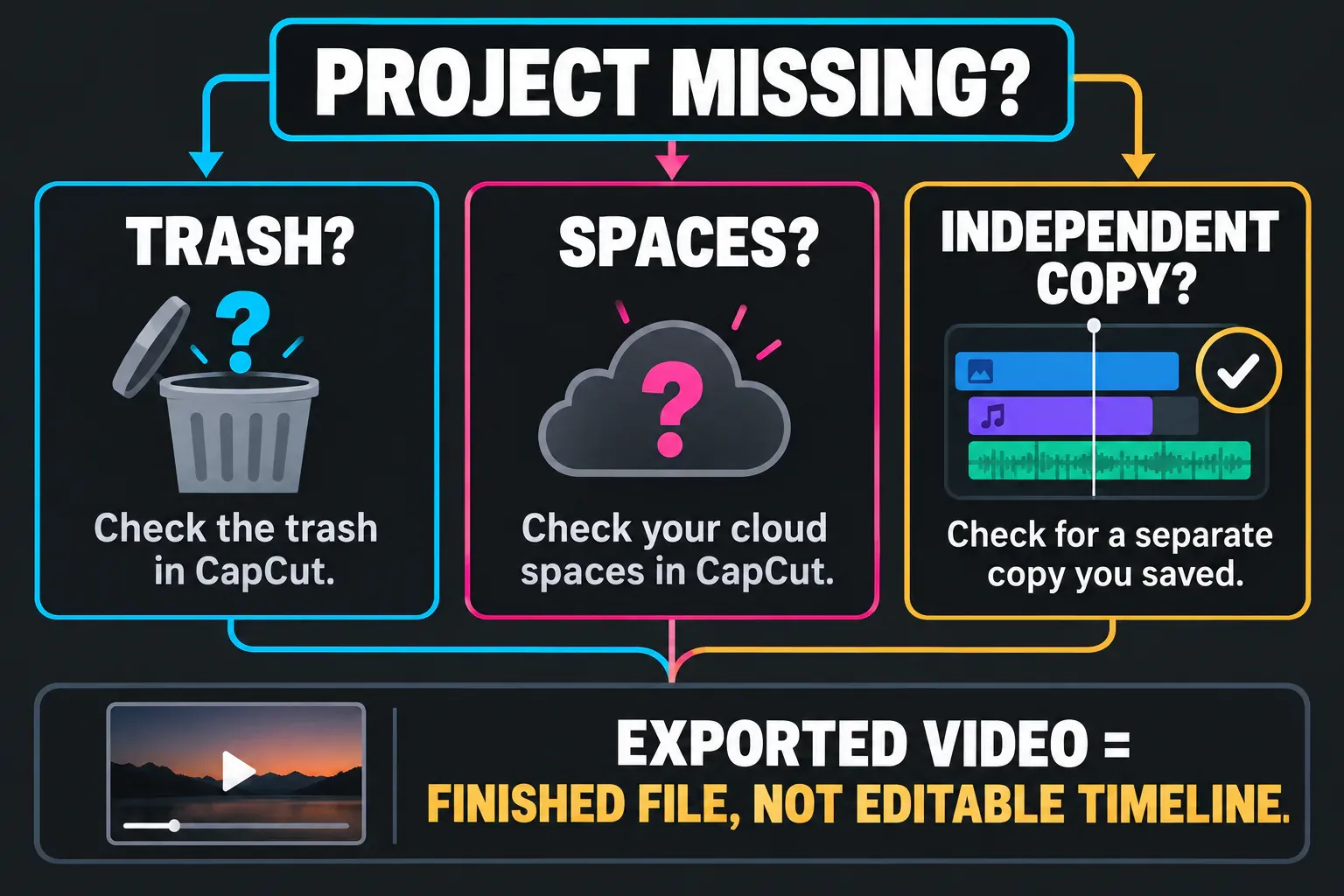
If the draft is missing, use the CapCut project recovery guide for the next checks. If you meant a published Remake rather than a normal project draft, use CapCut's separate Remake deletion instructions; that is a different object and workflow.