
CapCut Download: Official PC, Mac, Mobile & Web Links
Official download routes and setup guides for Windows, Mac, iPhone, Android and Web. No mirrored installers.
Last updated October 2, 2026.
Choose your device below for setup help, or jump straight to the official download links. We do not host installers. Already using CapCut? Make a restorable project backup before replacing the app.
Choose your CapCut platform guide
The cards open our guides. The official links further down open CapCut or the platform stores.
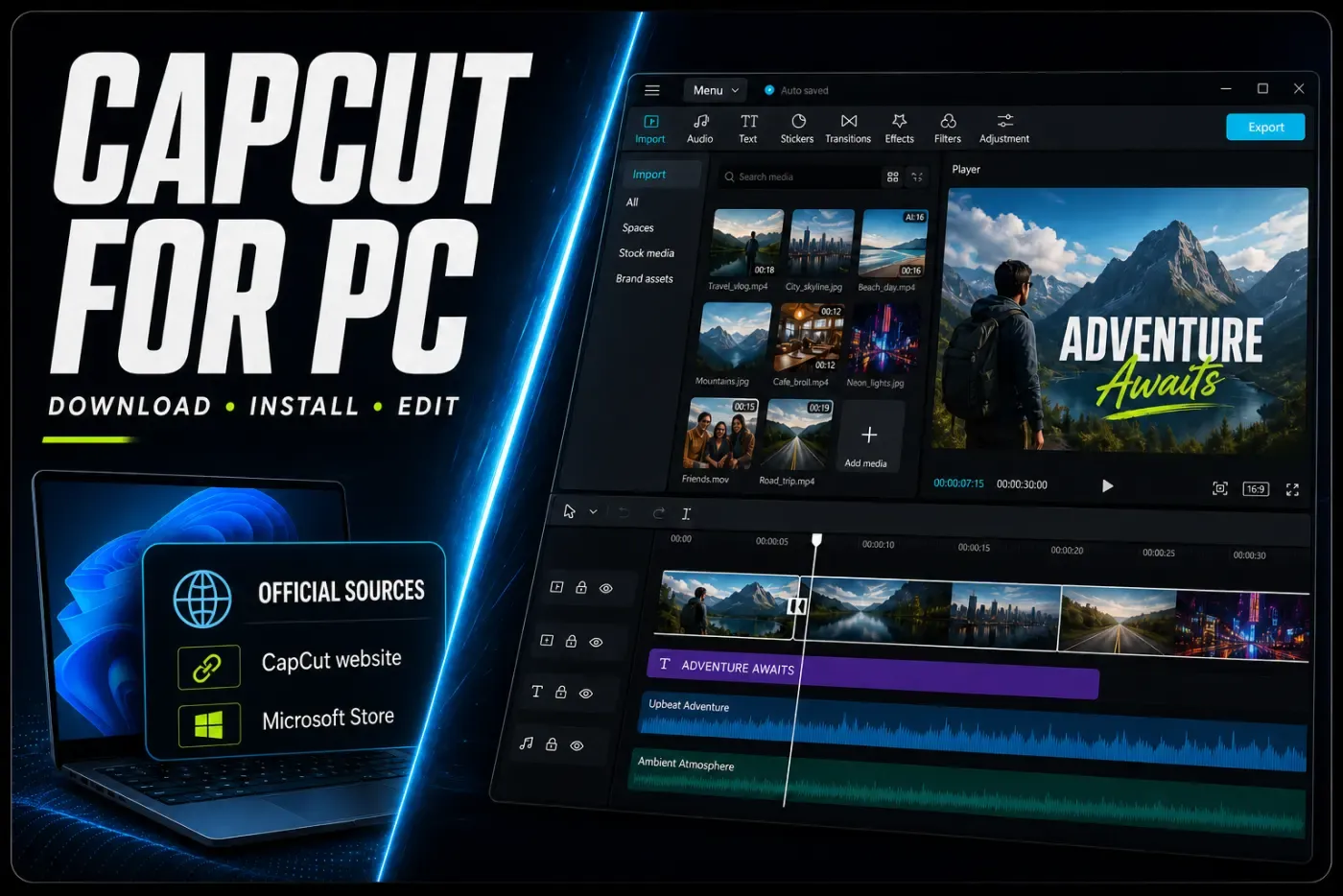
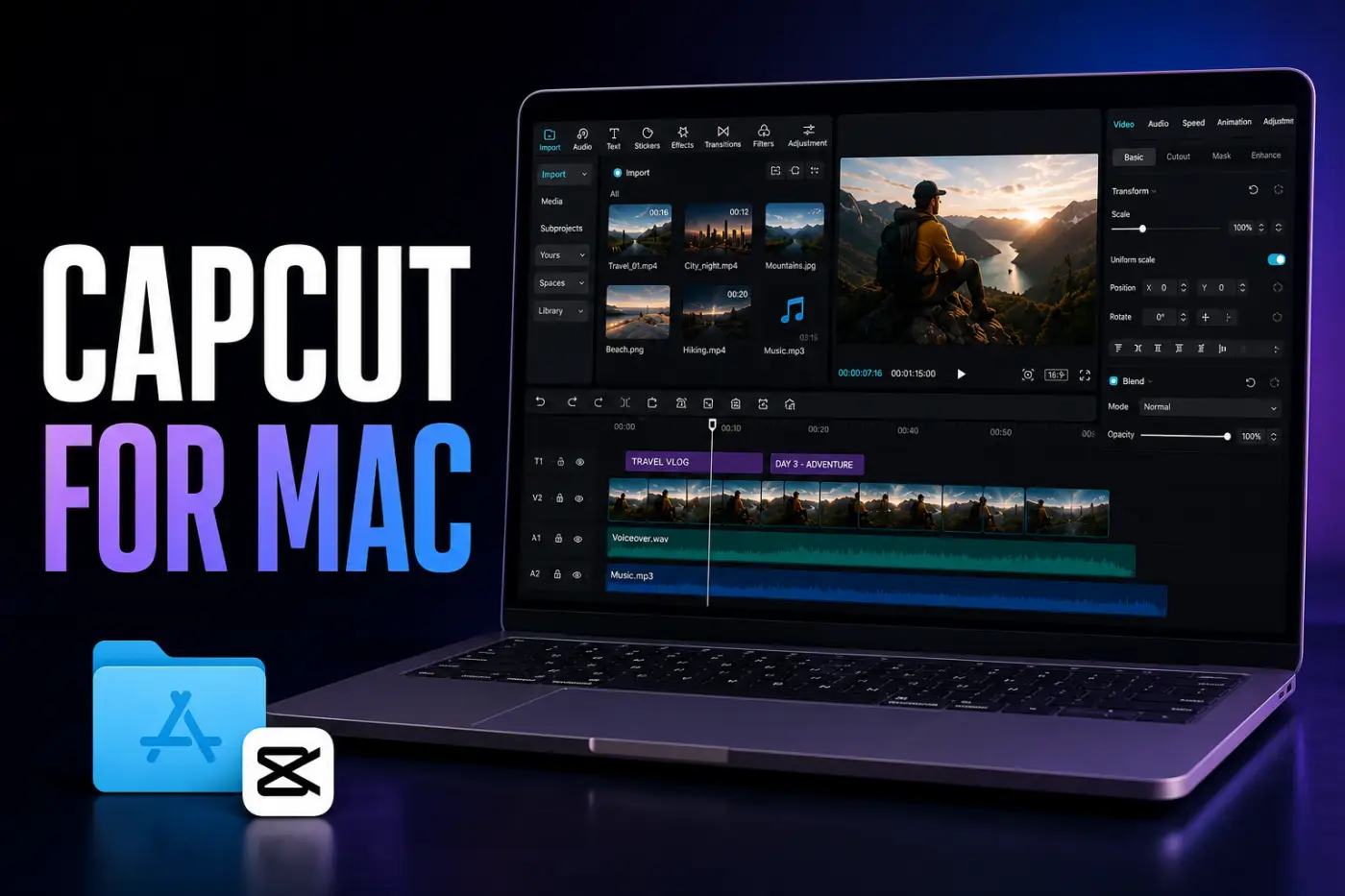
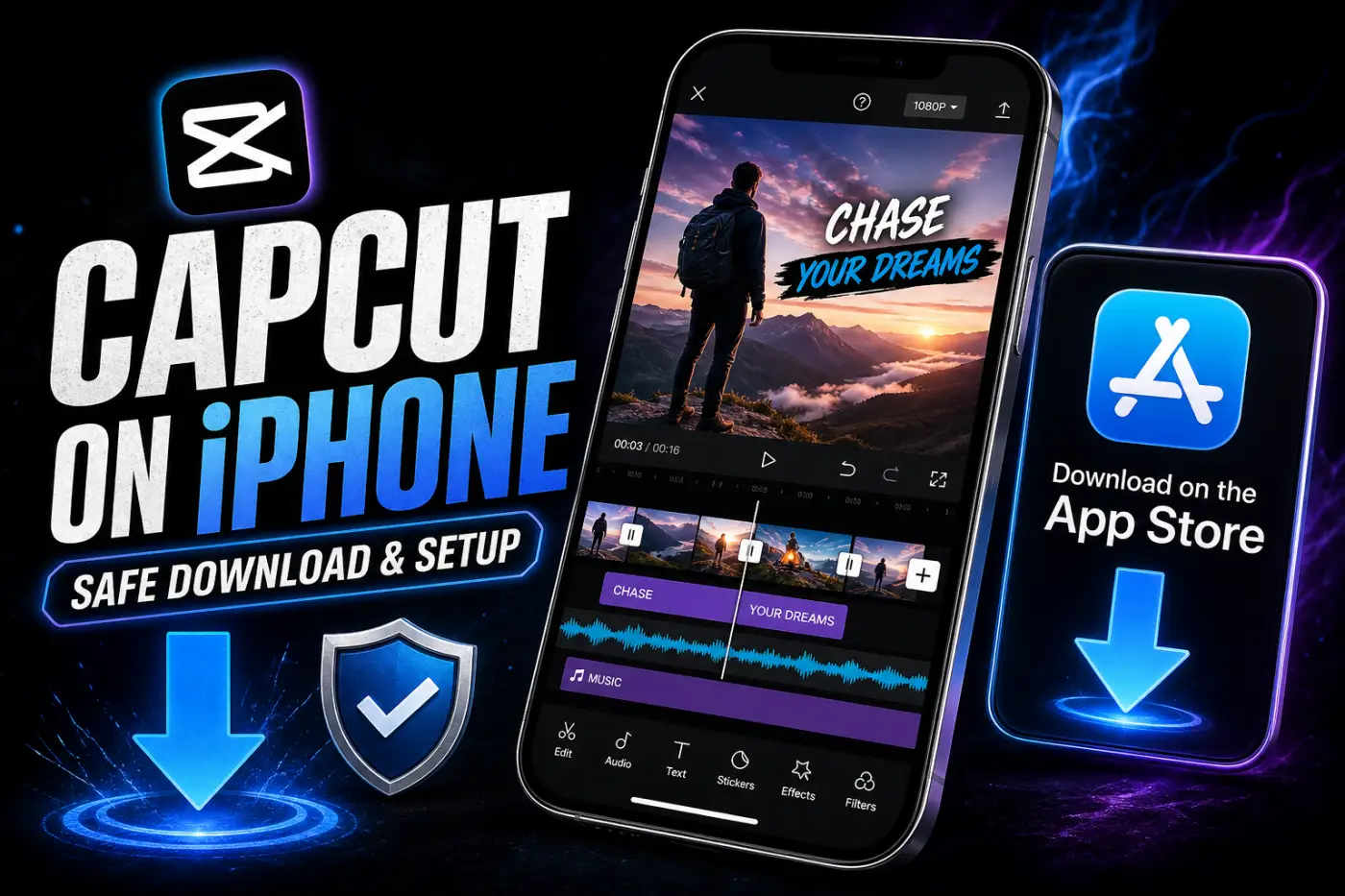
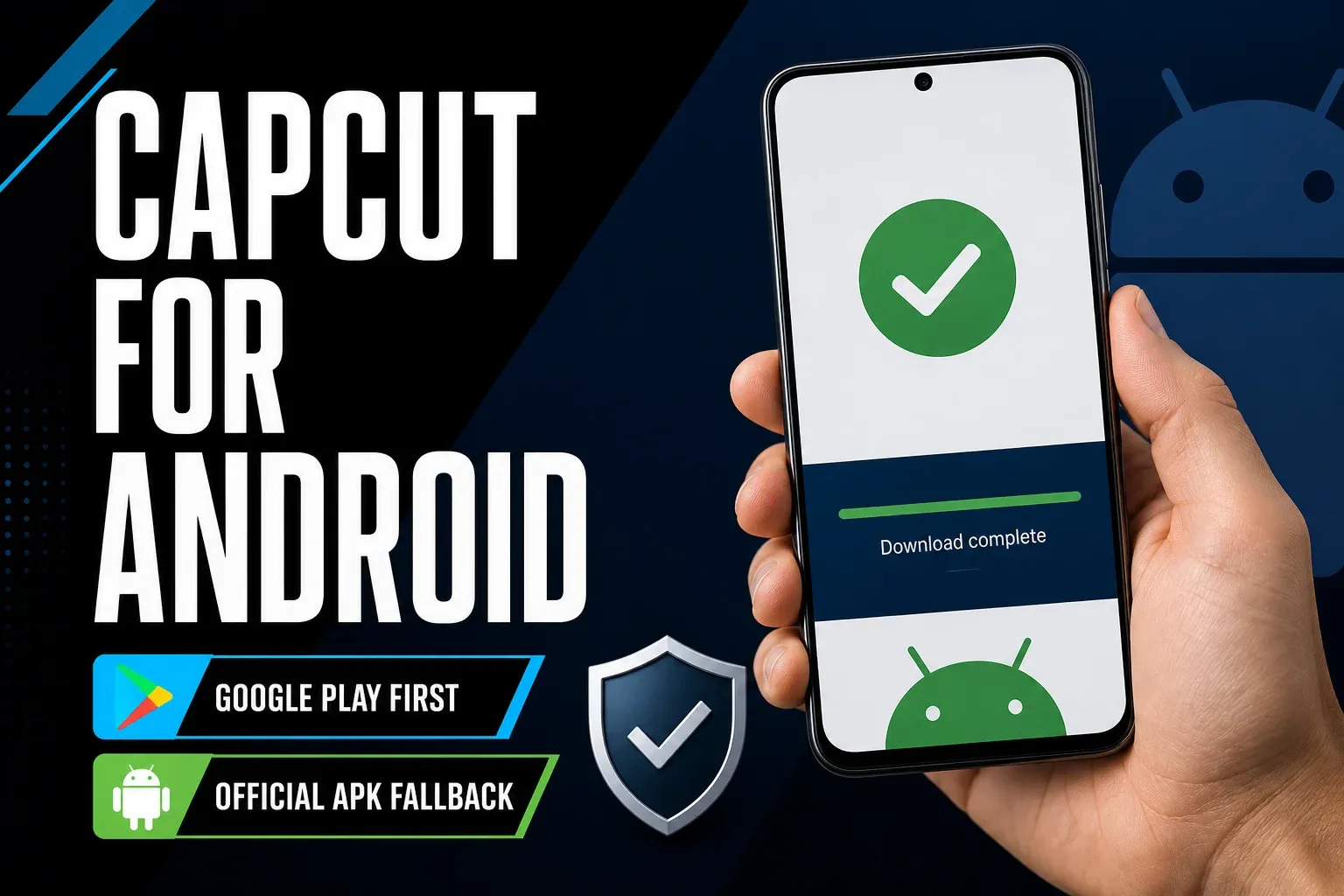
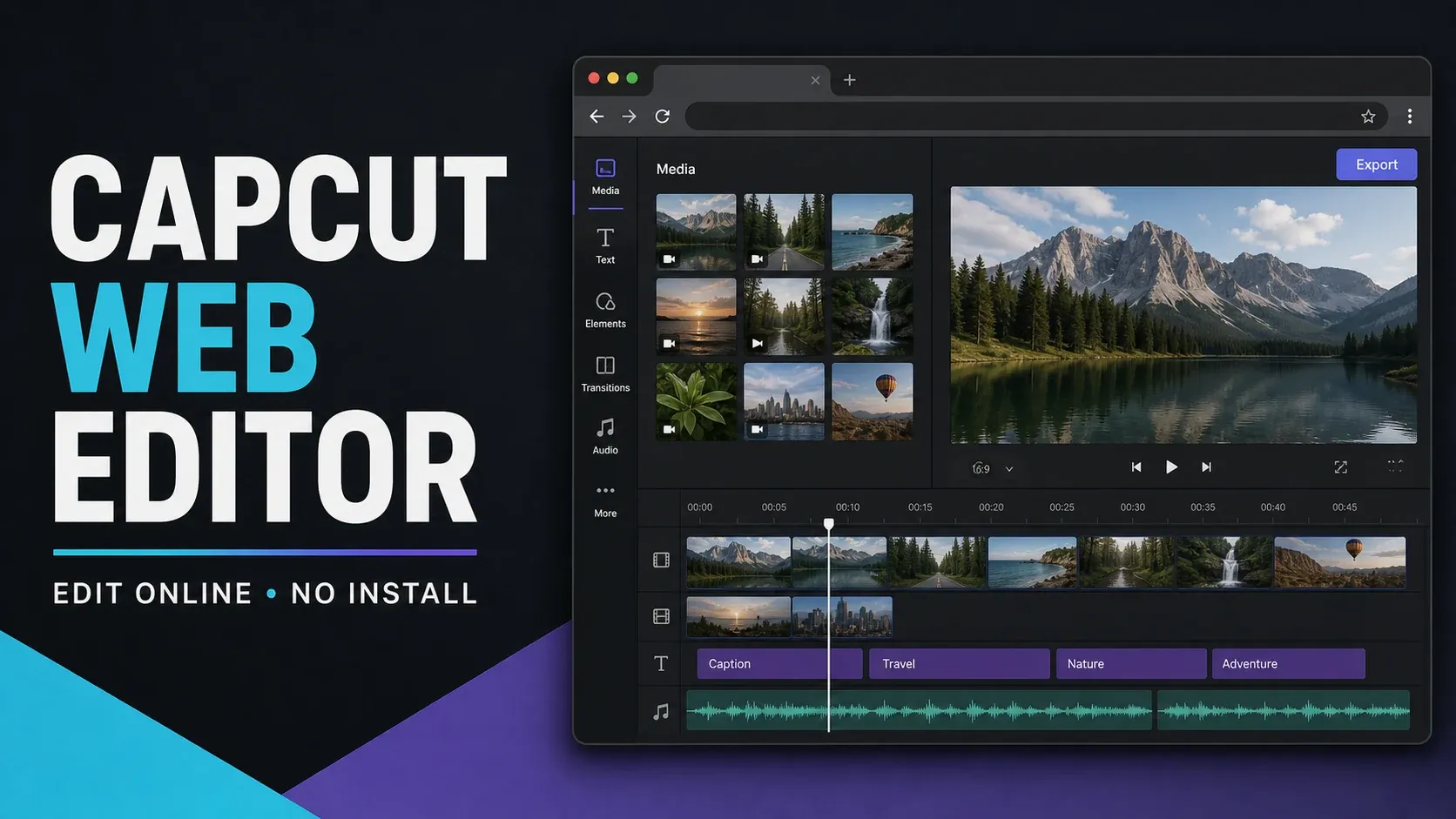
Choose Mobile, Desktop or Web
- Mobile: for shooting, editing and publishing from the same phone or tablet. Start here for touch controls and mobile templates.
- Desktop: for a larger timeline and projects built from local files on Windows or macOS.
- Web: when you want to edit in a browser. On a managed work or school device, check that both the service and the media upload are allowed. A browser does not bypass your organisation’s rules.
- Linux or Chromebook: try Web first. The official download pages do not list a dedicated Linux desktop build. CapCut also documents a Chromebook web-app route; check what your device and administrator allow.
Official download routes
These source pages and app identifiers were checked on September 12, 2026. Store availability still depends on country, account and device. Compare the publisher and ID before installing; do not rely on a search-ad headline.
| Platform | Official route | What to check |
|---|---|---|
| All devices | CapCut download page | Start on capcut.com, then choose your device. |
| Windows | CapCut Desktop or Microsoft Store | Publisher BYTEDANCE PTE. LTD; Store ID XP9KN75RRB9NHS. |
| Mac | CapCut Desktop or Mac App Store | Seller BYTEDANCE PTE. LTD.; Apple ID 1500855883. Check the Mac requirements. |
| iPhone / iPad | Apple App Store | Seller BYTEDANCE PTE. LTD.; Apple ID 1500855883. |
| Android | Google Play | Developer Bytedance Pte. Ltd.; package com.lemon.lvoverseas. |
| Browser | CapCut Web editor | Open the editor from capcut.com; no desktop installer is needed. |
The website address identifies the starting page, not necessarily the server delivering the installer file. We checked the routes and store metadata, not every downloaded binary or digital signature.
Avoid modified and look-alike installers
A copied logo or familiar filename does not prove that a file is genuine. CapCut’s download-safety guidance warns against unofficial, modified and “premium free” builds. Start with the platform store. If you need an Android APK, follow the Android guide above to distinguish an official download from a repack.
If Windows, macOS or Android blocks a file, read the exact warning and verify its source. Do not turn off antivirus, Play Protect or system protection just to force an uncertain installer through. On a managed device, ask the administrator to review the block.
Protect your projects before updating or reinstalling
- Keep the current installation while you check for an in-app or store update. Record the version and the sign-in method you use.
- Follow the project backup and recovery guide to preserve an editable copy and its original media outside the storage you might remove. Test that the copy opens. An MP4 is a finished video, not a complete editable backup.
- Do not assume signing in uploaded every local draft to Space. If a project cannot open and you cannot verify a backup, preserve what remains and stop before uninstalling or clearing app data.
- During a Desktop update, keep CapCut open and do not uninstall it. Follow the installer’s instructions; do not force a restart merely because progress looks slow.
If CapCut won’t download or install
Match the next step to the part that failed:
- No store listing: check the OS, device compatibility, store-account country and account restrictions. The platform guides above cover setup checks. Use the US card only for a US availability question.
- Download will not start: reopen the store, check your connection and make room for installation and temporary files. Do not delete your source media to free space.
- Installer will not run: compare the source and publisher with the table, then check compatibility and the exact security message. Do not substitute an unknown installer.
- Update appears stuck: keep the app open while installation is active. If it reports a failure, note the error and use its normal exit or cancel option if offered. Restart only after the installer has exited; if its state is unclear, use CapCut support before forcing it closed.
CapCut’s installation troubleshooting covers compatibility, storage, connection and permission problems. Once the app is installed, crashes, black screens and connection errors belong in the CapCut fixes hub. You do not need another download for every editing problem.
CapCut download FAQ
Is CapCut free to download?
Yes. Apple and Google Play list CapCut as a free download with in-app purchases. A free installation does not include every paid effect, AI feature or subscription benefit. Check the tools and export settings you need before starting a large project.
Where should I download CapCut?
Use CapCut’s official website, the Apple App Store, Google Play or the Microsoft Store listing linked here. Check the page address and app publisher before downloading. Avoid modified installers and “Pro unlocked” builds; a familiar logo or filename is not proof of origin.
Can I use CapCut without downloading it?
Yes. CapCut provides a browser editor at capcut.com/editor. It still needs a suitable browser and connection, and sign-in or feature access can differ from the installed apps. On a work or school device, confirm that uploading the media is allowed.
Why is CapCut missing from my app store?
Check the store-account country, device compatibility, operating-system version and account restrictions. A missing listing does not by itself establish a countrywide ban. Use the platform guide for installation checks; the US availability guide covers the United States specifically.
Does CapCut work on Mac?
Yes. CapCut offers a macOS desktop download and a Mac App Store listing. Check the requirements on the route you choose; do not assume an old minimum requirement guarantees that every current feature will work on your Mac.
Does CapCut work on Windows?
Yes. CapCut provides a Windows desktop editor through its website and a Microsoft Store listing. Check the current requirements for your device and use the official route instead of a repackaged installer.
Installed and ready to edit? Start with the beginner tutorials. If a tool asks for payment, check CapCut plans and paid features before choosing a subscription.