

Yes, CapCut has an online version you can use without installing the desktop app. CapCut Web, which CapCut's help also calls CapCut Online, is meant for desktop browsers rather than phone browsers. Open the official online video editor, sign in and choose a video-editing project. Start in current Chrome or Edge; CapCut also recommends Safari on macOS. Check upload space and export options before committing a long edit. The CapCut Download hub has the official routes if you decide an installed app fits better.
Web removes the app installation, not the need for a capable computer, internet access or local space for downloads. Basic editing can start free, but premium assets, AI features, storage and export settings can require payment. A successful short export checks that sample, not the reliability of an entire film.
The workflow images below mark the project start, timeline and export stages. Labels can move as CapCut updates the editor, so look for the same stage if a name on your screen differs.
Open the Video Timeline, Not an AI Generator
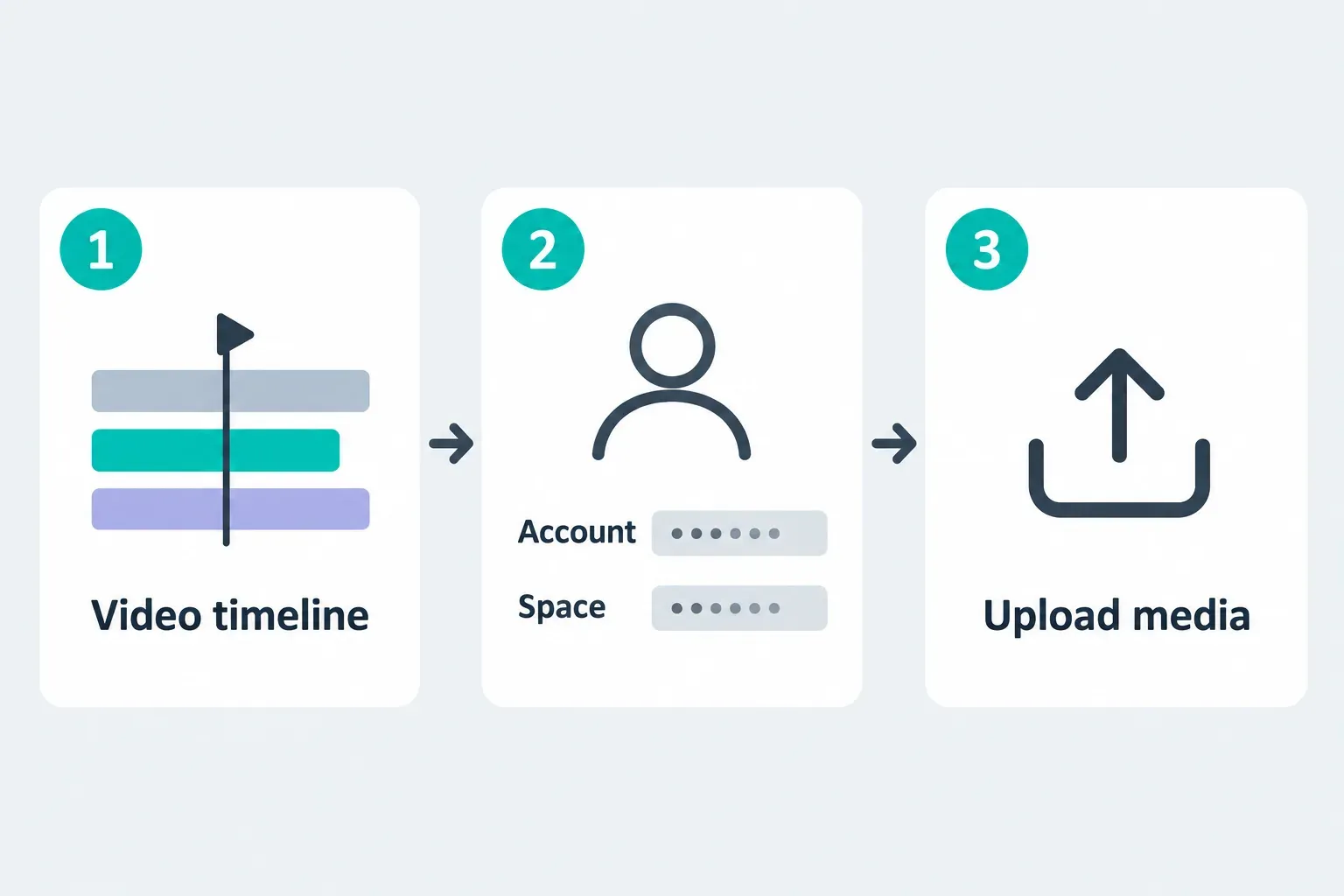
The official page currently offers Sign up for free and an online entry route. CapCut's wider website also promotes AI Design and Video Studio. For ordinary CapCut clip editing, choose the video editor or video project route that opens a timeline, rather than assuming an AI prompt box is the same workspace. Labels can vary between accounts.
Before the first upload: use a non-sensitive clip you have permission to process online. CapCut's US Privacy Policy says it may collect imported, uploaded or generated content and metadata, including through pre-uploading even if you do not save or publish. Do not import confidential client footage merely to test the editor. Follow your organization's rules and the policy applicable to your region.
On a borrowed or managed computer, ask permission to use the service; do not bypass a school or employer block. Keep enough local disk space for the downloaded video. At the end, verify your saved work and recovery access before signing out of that shared computer, and remove only your own downloaded copies when appropriate.
Sign In to the Right Account
CapCut's account-creation guide lists Google, email, TikTok, Facebook and mobile QR registration routes for Web. Its shorter login guide omits email from the Web list and says Apple ID and phone login are unsupported. Use whichever choices the sign-in screen shows you; the shorter list alone doesn't prove email is unavailable.
Prefer your original sign-in method. CapCut warns that different methods can create separate accounts, even with the same email. A verified linked method may be an exception, but an empty library alone does not prove deletion.
If your phone is already signed into the correct account, CapCut Mobile/QR login is another route when available. Never share an active login QR code. Preserve the last working session while checking recovery options; the account and login guide covers missing methods and recovery without repeatedly signing out.
Check the Space, Then Upload One Clip
Open the intended Space and inspect its remaining capacity. CapCut's Web storage notice says newly created Spaces have a 0 GB free quota, sometimes displayed as a 1 KB placeholder. Its quota-adjustment notice confirms that new Spaces do not receive free upload capacity by default. Older marketing pages promising free storage are not a dependable account allowance.
The notice says the adjustment itself does not delete previously stored assets and they remain viewable and downloadable. That is not a permanent retention guarantee after every subscription change. Keep independent backups before reducing paid storage. Do not delete the only copy of a project just to make room.
The same Web notice allows one invited member in a newly created Space for free collaboration; additional members require an appropriate Teams plan. Check the actual sharing permissions and current plan restrictions before promising a client access.
For your first upload, choose one short representative clip. The official workflow lists computer, Cloud, Google Drive, Dropbox and QR transfer. Use a source only if it appears in your upload panel; approving a cloud-drive connection is a separate permission decision.
Make a Small Edit and Download It
- Add media to the timeline. Upload your permitted sample and drag it into the editing timeline. Confirm its picture and sound before adding effects.
- Choose the frame shape. Set the aspect ratio for the destination, such as vertical 9:16 or horizontal 16:9. This controls shape, not the resolution of the exported file.
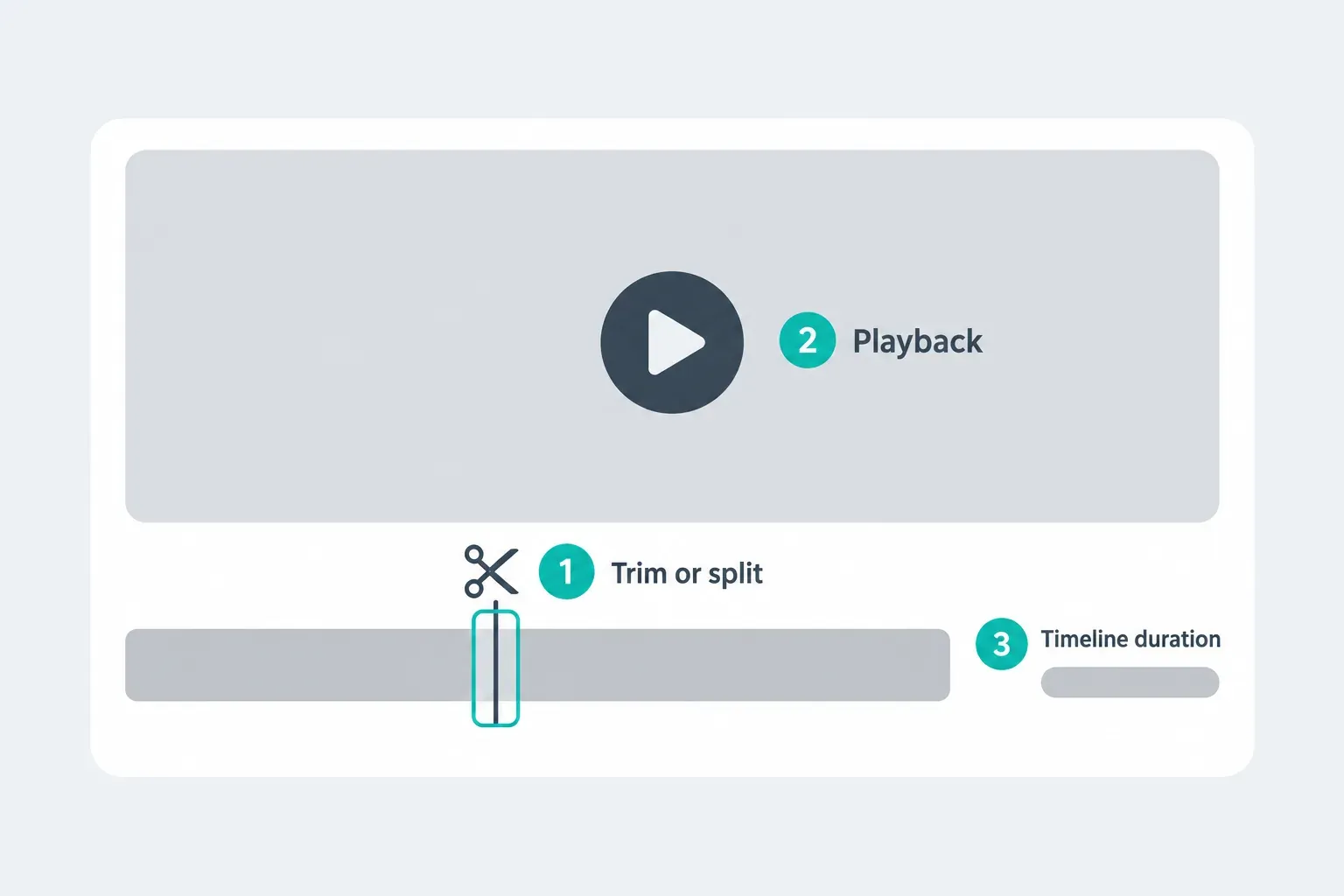
- Trim and split. Select the clip and use its trim handles or the displayed split control to keep the useful section. Do not assume Desktop keyboard shortcuts also work in Web.
- Add text or captions. Add a text layer, adjust its timing and read it against the footage. If you use generated captions, correct names and punctuation. The auto-caption guide covers that separate workflow.
- Check assets and playback. Preview the edit with sound. Inspect any premium badges or AI-credit requirements before depending on a tool.
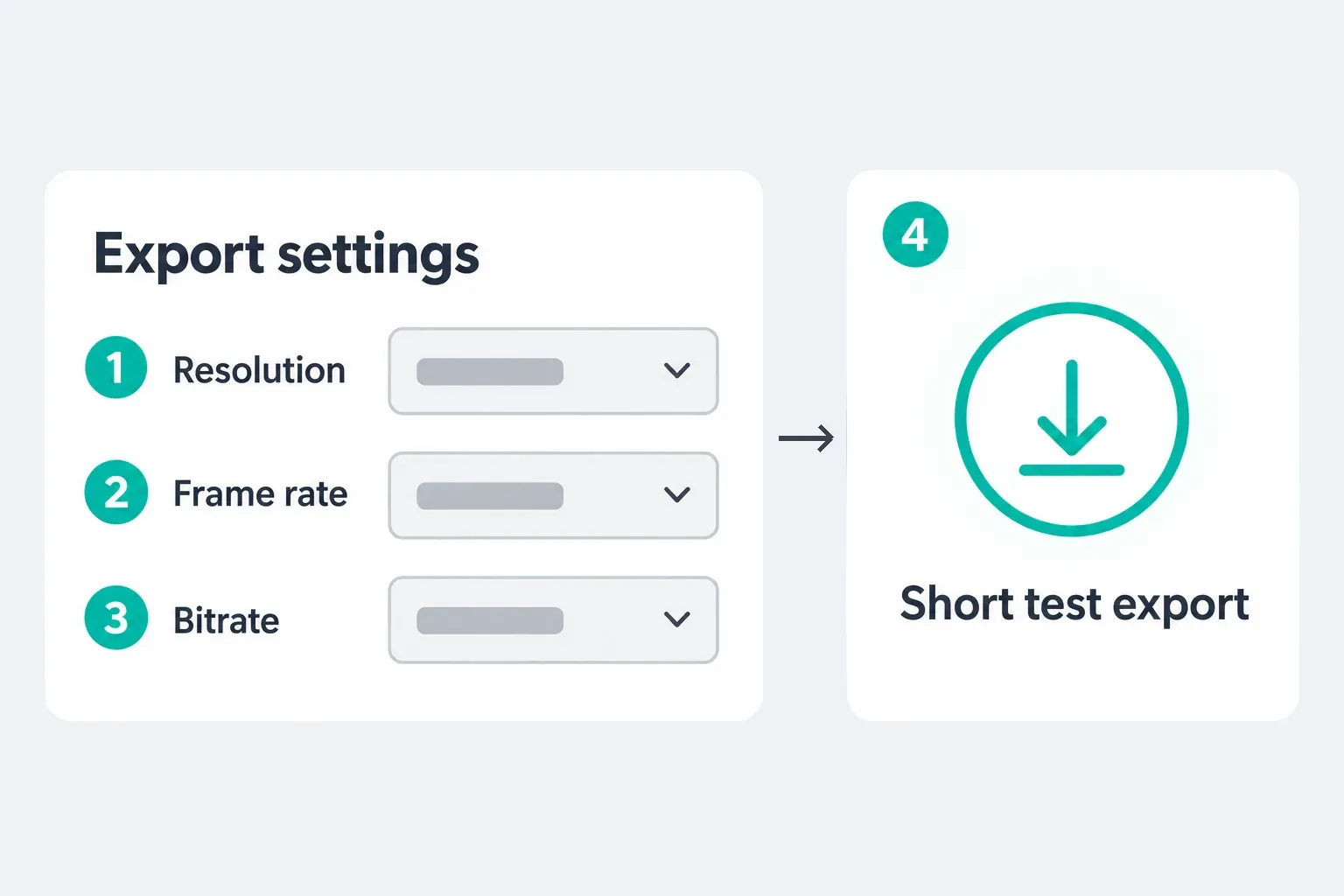
- Export a file. Open Export and choose the available download route, rather than a review link or direct social post. Inspect resolution, quality, frame rate and format. Download the sample and play the actual file, checking the beginning, end, captions and audio.
CapCut's published upload/edit/export instructions describe trimming, splitting, text, audio and export settings. These are a starting sequence, not a promise that every account has identical controls. If your required tool is missing, resolve that before importing the rest of the shoot.
Free Export, 4K and Usage Rights
CapCut documents Web 2K and 4K export, but its high-resolution help makes availability conditional on browser, operating system, hardware, memory and project settings. A second export guide also names source resolution and connection stability. Neither proves which options your account will offer.
Check the live Resolution menu. Aspect ratio is not a substitute for resolution, and choosing 4K does not recreate detail absent from the source. Run a representative test at your required setting, then leave time to export and inspect the full project. CapCut's documentation doesn't set out a universal upload-size, duration or frame-rate ceiling for Web.
The Pro export notice says premium templates, effects, fonts, music, stickers, transitions, LUTs and some AI tools can trigger an export prompt. Lowering resolution does not necessarily remove an asset restriction. Replace the flagged item in a copy or review the legitimate purchase terms; do not assume a free preview means a free final download.
Payment and commercial rights are different checks. Under the current Materials License Agreement, ordinary Sounds are for personal, non-commercial use. Commercial Sounds have permitted-platform restrictions; other distribution can require separate licenses. Check the applicable regional agreement and each asset's terms, including music and your own uploaded footage. A Pro badge or watermark-free file is not blanket clearance for client work.
Our guide to CapCut export settings covers resolution, frame rate and bitrate choices. Prepare a different-platform fallback only after confirming that the project can be edited and exported there.
Browser Performance and Offline Limits
CapCut Web combines browser work with online services. Google's 2024 engineering case study describes WebAssembly effects and hardware-assisted WebCodecs decoding and encoding. It is historical architecture evidence, not a current price list or guarantee of feature parity. CapCut's current support pages also describe cloud-assisted rendering and online asset previews.
That is why both your computer and connection matter. For CapCut on a Chromebook, the laptop is only a browser host; whether it can handle the editor depends on current Chrome, available memory, codecs and device-management rules. CapCut doesn't publish a universal Chromebook guarantee. No-install does not mean all processing happens on a server or that every laptop performs equally.
For preview/export mismatches, CapCut's browser guidance recommends Chrome, Edge or Safari on macOS and advises against Firefox, Opera and mobile browsers. Do not promise the full desktop-browser workflow on a phone or iPad just because a landing page opens.
Do not plan Web editing around offline access. Sign-in, cloud projects, online assets and export services require connectivity. Some installed-app work with local media may remain possible offline, but paid checks, AI and cloud tools can still need a connection. Test the exact local project before relying on it during an outage.
Can You Continue the Project on Desktop?
Sometimes, but the project must first be available through Spaces for cross-platform cloud access. Using the same account does not upload a local Desktop project by itself. CapCut’s project-history guidance requires uploading the project to Spaces, then opening it from the same account on the destination platform. The page mixes instructions for AI Design, Projects and Spaces, so it still does not establish that every Web timeline round-trips unchanged.
- Keep the original and source media intact. Use the current duplicate/copy option if available before attempting a handoff.
- Confirm the intended account and Space, and wait for the upload or save state to finish.
- On the destination, open the copy as an editable timeline, not merely a preview or a link back to Web.
- Check clips, fonts, captions, effects and audio. Make a reversible edit in the copy and test an export.
- Keep working on the original platform if the destination cannot edit that project type. Do not delete the source after seeing only a project card.
An exported MP4 is a flattened video, not a backup of separate tracks and editable text. A duplicate inside the same account also does not protect against losing access to that account. The backup and transfer guide explains independent editable copies. Choose the Windows or Mac app for a new local workflow when appropriate, not as an untested rescue promise for an existing Web edit.
Fix Problems Without Losing the Working Session
Before reload, browser updates, sign-out or clearing site data: wait for confirmed saving/sync and preserve a working editable copy where possible. Keep originals outside the service. If saving is failing or this is your last accessible session, stop before closing it. Record the error without exposing private footage, account details or login codes.
Editor will not load: after protecting work, check a current supported browser and a separate private window. Chrome Incognito starts a separate session, blocks third-party cookies by default and removes its temporary site data when all Incognito windows close. Downloads remain. Verify the extensions allowed in that window. Success narrows the browser-state question; failure does not prove the account is broken. Do not clear all browsing data as the first step.
Upload stalls or a file is rejected: check the Space quota, connection and any displayed file limit. An MP4 extension alone does not prove compatible encoding. CapCut's import guidance says renaming an extension does not convert the file. If conversion is necessary, retain the original and use the local conversion workflow in the video playback and conversion guide; do not send confidential footage to another online converter.
Timeline stutters or export fails: close only expendable tabs after saving their work. In a project copy, disable or remove one demanding effect and test the same section. Lower resolution for a diagnostic export if acceptable. CapCut's Web export help names large projects, high resolution, unstable connections and browser state as possible causes. A simpler successful test does not identify one damaged clip or prove the full project will render.
Export appears finished but no file arrives: inspect the browser's download list, download permissions and local free space. CapCut's stuck-export guidance includes those Web checks. A progress percentage alone does not establish which stage failed. Use the export-stuck checklist for deeper diagnosis.
Only part of the video exports: compare the intended timeline duration with the downloaded file and any range or duration shown in your Web export controls. CapCut's generic range article does not verify Web shortcuts or a universal reset command, so do not blindly press I, O or Shift+X. Test a protected copy and investigate the cutoff section if the available duration setting already covers the full edit.
CapCut Web Editor FAQ
Can I use CapCut online without downloading the app?
Yes. Use the official online editor in a supported desktop browser. The desktop app is not required, but you still need internet access and space for downloaded files.
Is CapCut Web free?
Basic browser editing can start free. Premium assets, AI features, storage and export settings may require payment. Check the actual project and account before relying on a free download.
What browser should I use for CapCut Web?
Start with current Chrome or Edge. CapCut also recommends Safari on macOS for its rendering path. Mobile browsers, Firefox and Opera are not equivalent supported choices in its preview/export troubleshooting guidance.
Can I use CapCut online on my phone?
Not as a dependable full editor. CapCut's troubleshooting guidance says to avoid mobile browsers for CapCut Web, so use the CapCut app on a phone instead; our iPhone and iPad download guide and Android download guide cover the official store routes. For the browser editor, switch to current Chrome or Edge, or Safari on a Mac.
Which login methods does CapCut Web offer?
CapCut’s account-creation guide lists Google, email, TikTok, Facebook and mobile QR routes for Web; its shorter login guide omits email. Use your original or verified linked method and the choices offered on your current screen.
Does CapCut Web work on a Chromebook?
It may work in current Chrome, but hardware, codecs, browser resources and device-management rules can limit it. Test your permitted source clip and required export before starting a long project.
Can CapCut Web work offline?
Do not rely on an offline Web workflow. Its account, cloud and export services need connectivity. Test any installed-app local workflow separately; online assets, AI and paid checks can still require internet access.
Can CapCut Web export 4K?
CapCut documents conditional 2K and 4K support. The browser, system, source media, project and account options matter. Check the live Resolution menu and test the required output; no universal 4K entitlement is promised.
Can I move a project between CapCut Web and Desktop?
Not every project is guaranteed to transfer as an editable timeline. For cross-platform cloud access, upload the project to Spaces and use the same account on the destination. Preserve the original, open a copy and check media, effects and export. A local project, project thumbnail or exported MP4 is not proof of editable transfer.
Why does CapCut Web export only part of my video?
Check the timeline length, downloaded file and any duration or range shown in your current export controls. CapCut's generic range article doesn't confirm Web shortcuts, so don't rely on them. If the intended duration is correct, investigate the cutoff in a protected project copy.