

To keep a person sharp while blurring the scene behind them, use two aligned copies of the same clip. Blur the lower full-frame copy. On the upper copy, use automatic background removal so only the sharp subject remains visible.
That layer order is the important part. Canvas blur solves a different problem: it fills empty space when a horizontal clip sits inside a vertical project, or the reverse. A mask solves a third problem by limiting blur to one face, plate, sign or screen.
Checked August 16, 2026. The platform routes and images below were rechecked against current official English CapCut material. Labels, effect placement and plan badges can still vary by platform, build, device, account and region.
Choose the Right CapCut Blur Method
Keep the person sharp
Use two layers. Blur the lower copy and remove the background from the upper copy.
Fill empty canvas space
Use Canvas or Background blur. This fills bars around a clip without separating the subject.
Hide one local area
Use blur plus a mask. Track the mask or add keyframes when the target moves.
If the job is only a face, number plate or name badge, the dedicated CapCut face-blur guide covers the longer tracking workflow. This page stays focused on background blur and the layer decisions shared across Desktop, Mobile and Web.
How the Two-Layer Background Blur Works
Both copies begin with the same frame, crop and timing. The lower copy supplies the complete picture and receives the Blur effect. The upper copy supplies the foreground. Automatic background removal makes the upper background transparent, which reveals the softened lower layer underneath.
Put the sharp cutout above the blurred full-frame copy. If you reverse the order, the full picture covers the cutout. If one copy begins a frame late, moving edges can appear doubled. If both copies retain embedded audio, you may hear a louder signal, echo or comb-filtered sound.
This method simulates a softer background after recording. It can't recreate lens depth, recover clipped hair or fix motion blur already present in the source. Start with clear separation between the subject and background whenever you can.
Prepare the Clip Before You Duplicate It
Trim the shot and settle its speed before building the two-layer stack. Duplicating first and changing one copy later creates timing drift. If the clip already has stabilization, a crop or position animation, confirm that both copies carry the same treatment.
Choose a short representative section for the first pass. Include a head turn, hand movement and any point where the subject crosses a similarly colored background. That section exposes edge problems faster than a static opening frame. Once it holds up, extend the effect and background removal across the intended shot.
Keep an untouched source in the media bin or duplicate the project before destructive trimming. The layered result remains editable, but manual cleanup can take time. A clean rollback is useful when a later cut changes the shot length or the client asks for a version without blur.
Method 1: Blur a Video Background on CapCut Desktop
CapCut's official background-blur procedure uses the same layered idea. The current official Desktop images show Effects, a Blur search, two timeline layers and Video > Remove BG > Auto removal.
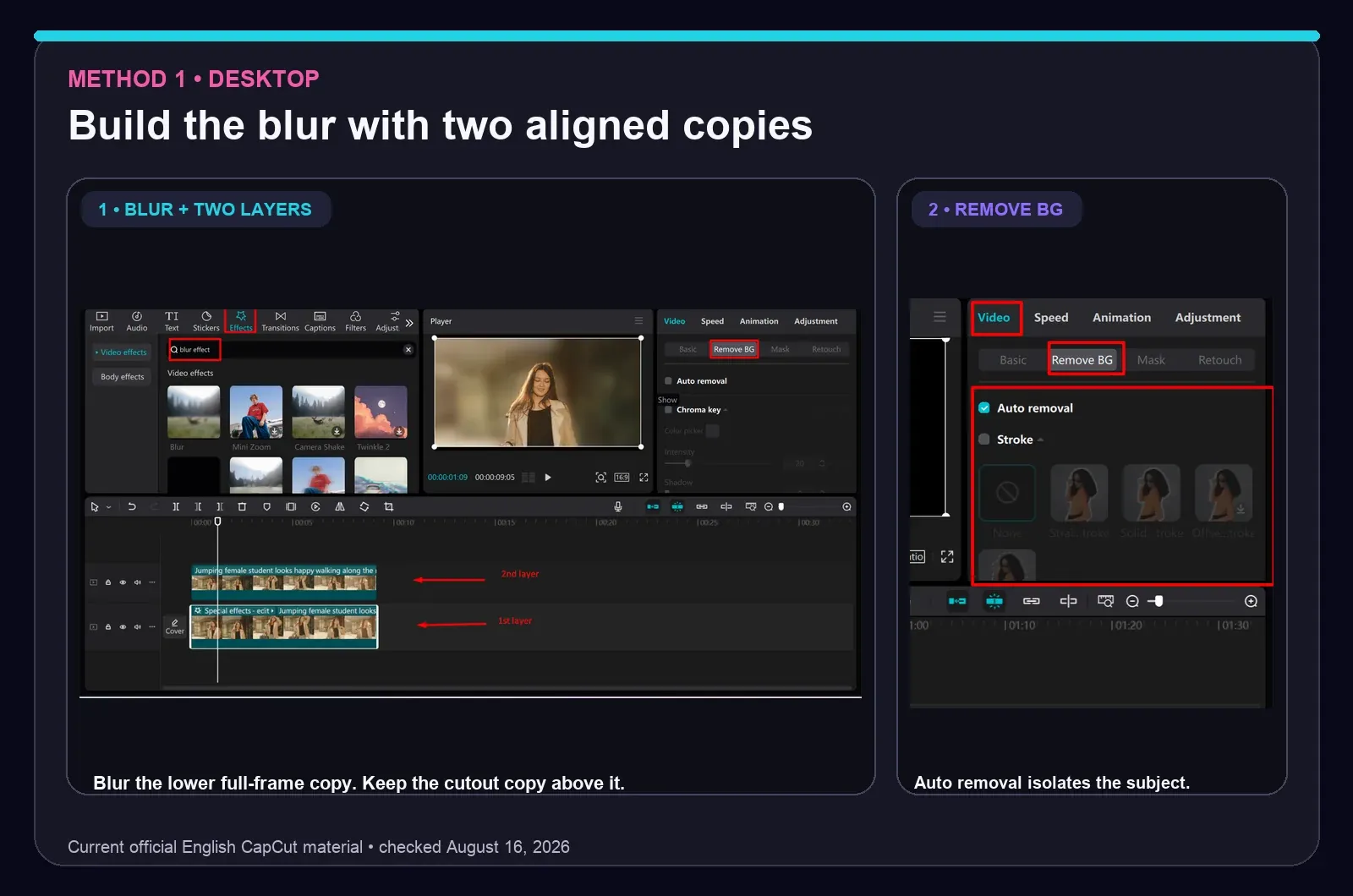
- Import the source and place it on the timeline.
- Duplicate the clip. Keep both copies the same length and start them on the same frame.
- Select the lower copy. Open Effects, choose Video effects and search for Blur.
- Add a suitable Blur effect and match its duration to the lower clip.
- Select the upper copy. In the current official Desktop route, open Video > Remove BG and turn on Auto removal.
- Play through hair, hands, transparent objects and fast movement. Use Custom removal or the edge controls exposed by your build if the cutout needs cleanup.
- Mute or detach audio on one copy if both layers carry the same sound.
- Preview full screen before export. A cutout that looks acceptable in a small editor window may reveal a halo on a larger display.
Don't force a particular blur percentage. A close subject in a small room needs a different treatment from a wide outdoor shot. Raise the effect until the background stops competing for attention, then back it off if the edges begin to look pasted on.
Method 1 on CapCut Mobile: Blur, Overlay, Remove BG
Mobile reaches the same result in a different order. The official Mobile material shows a blurred base, a second copy added as an overlay and a Remove BG route. Some builds may show a related automatic-cutout label instead.
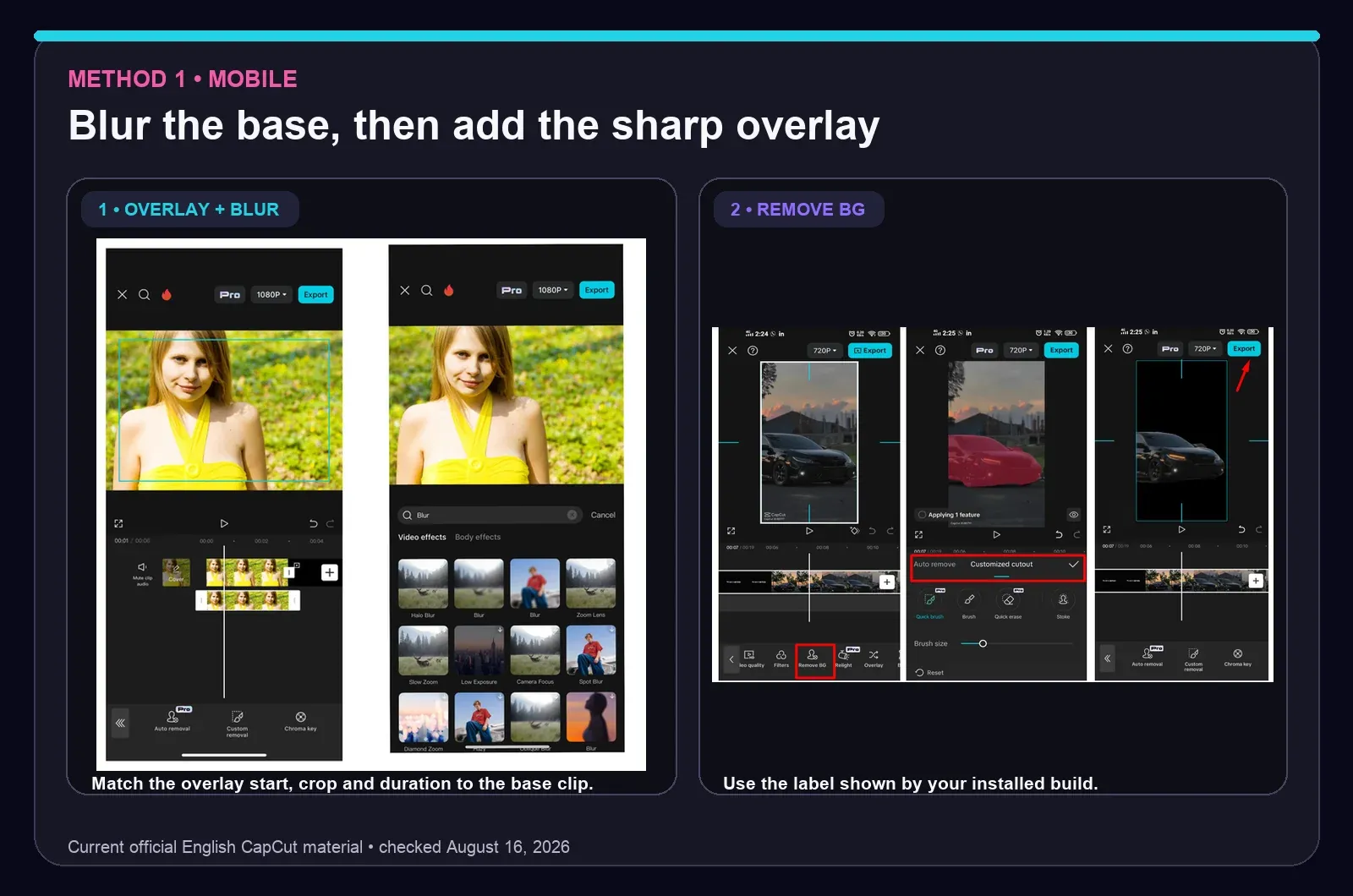
- Create a project and add the original clip as the base.
- Open Effects > Video effects, search for Blur and apply it across the base clip.
- Add the same source again as an Overlay.
- Align the overlay start, crop, scale and duration with the base. Scrub a movement point to check alignment.
- Select the overlay, open Edit > Remove BG in the current official route, then choose Auto removal.
- Review the cutout. Use Custom removal if it appears in your build and the automatic edge needs repair.
- Mute one copy's audio, play the complete edit and export only after the overlay stays aligned for the whole shot.
Keep the blurred copy as the base. If you blur the overlay after removing its background, you soften the person instead of the room. If the overlay has a different crop or aspect ratio, the two copies will no longer register even when their start times match.
Method 2: Add a Blurred Canvas Behind Vertical or Horizontal Video
Use canvas blur when the footage doesn't fill the project ratio. A common example is a horizontal 16:9 clip placed inside a vertical 9:16 timeline. The editor can use a softened version of the same picture to fill the unused top and bottom or side areas.
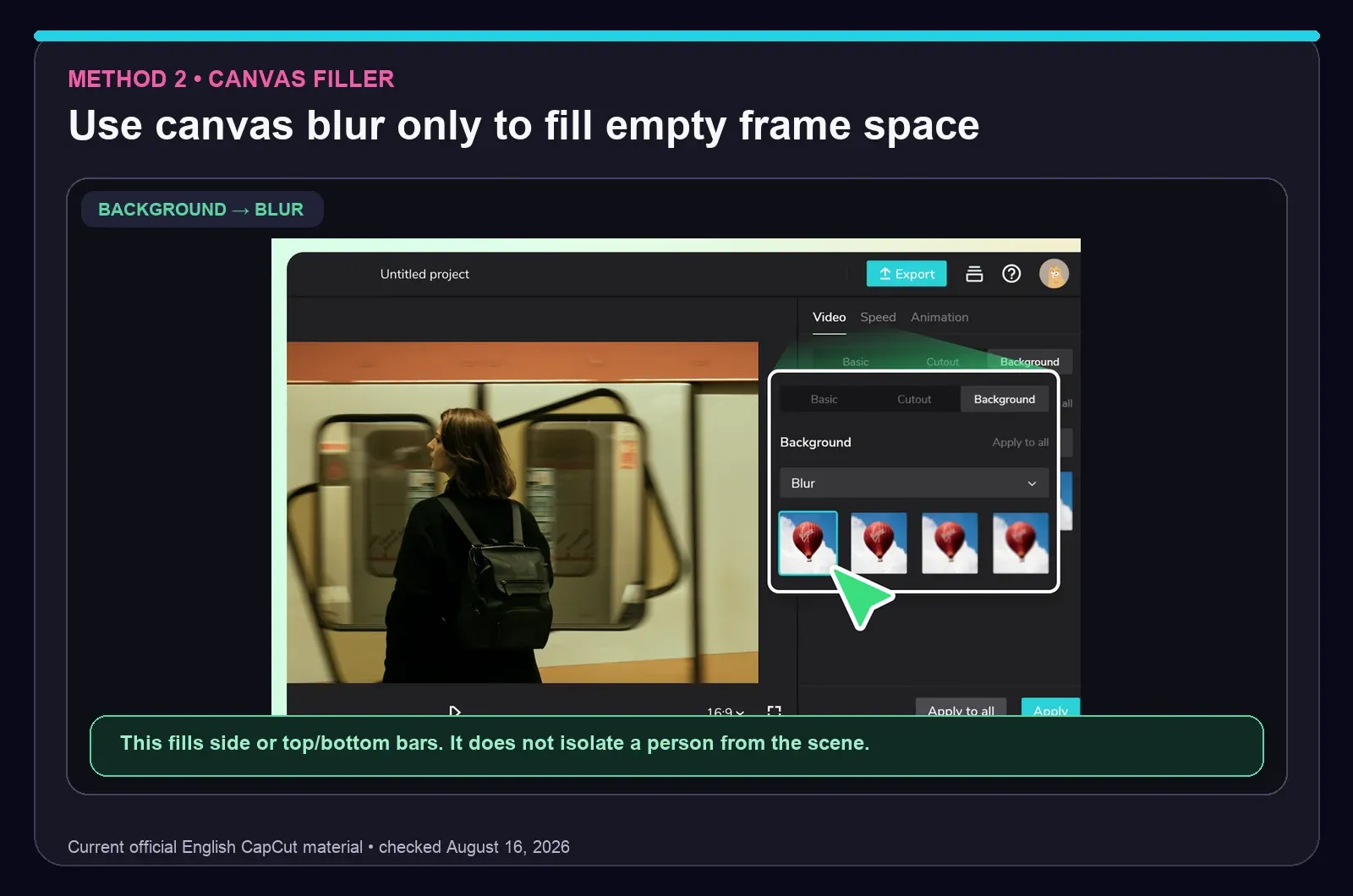
- Set the project ratio first.
- Select the clip and look for Canvas or Background in the installed platform.
- Choose a Blur background when that option appears.
- Check the main clip's crop and scale. The filler should support the picture rather than duplicate a distracting face or text behind it.
CapCut's official Web material currently shows Background > Blur, while other builds may place the same job under Canvas or offer an enlarged duplicate fallback. Use the label visible in your editor and treat this as a framing tool. For a sharp person over a soft room, return to the two-layer method.
Method 3: Blur One Area with a Mask
A mask limits the blurred copy to a circle, rectangle or other shape. It works well for a static sign, screen or face. When the target moves, the mask must move too.
CapCut's official mask documentation describes controls for position, size, rotation, feather and inversion. Its face-blur material shows Track mask on Desktop and position keyframes on Mobile. Availability can change by platform and build.
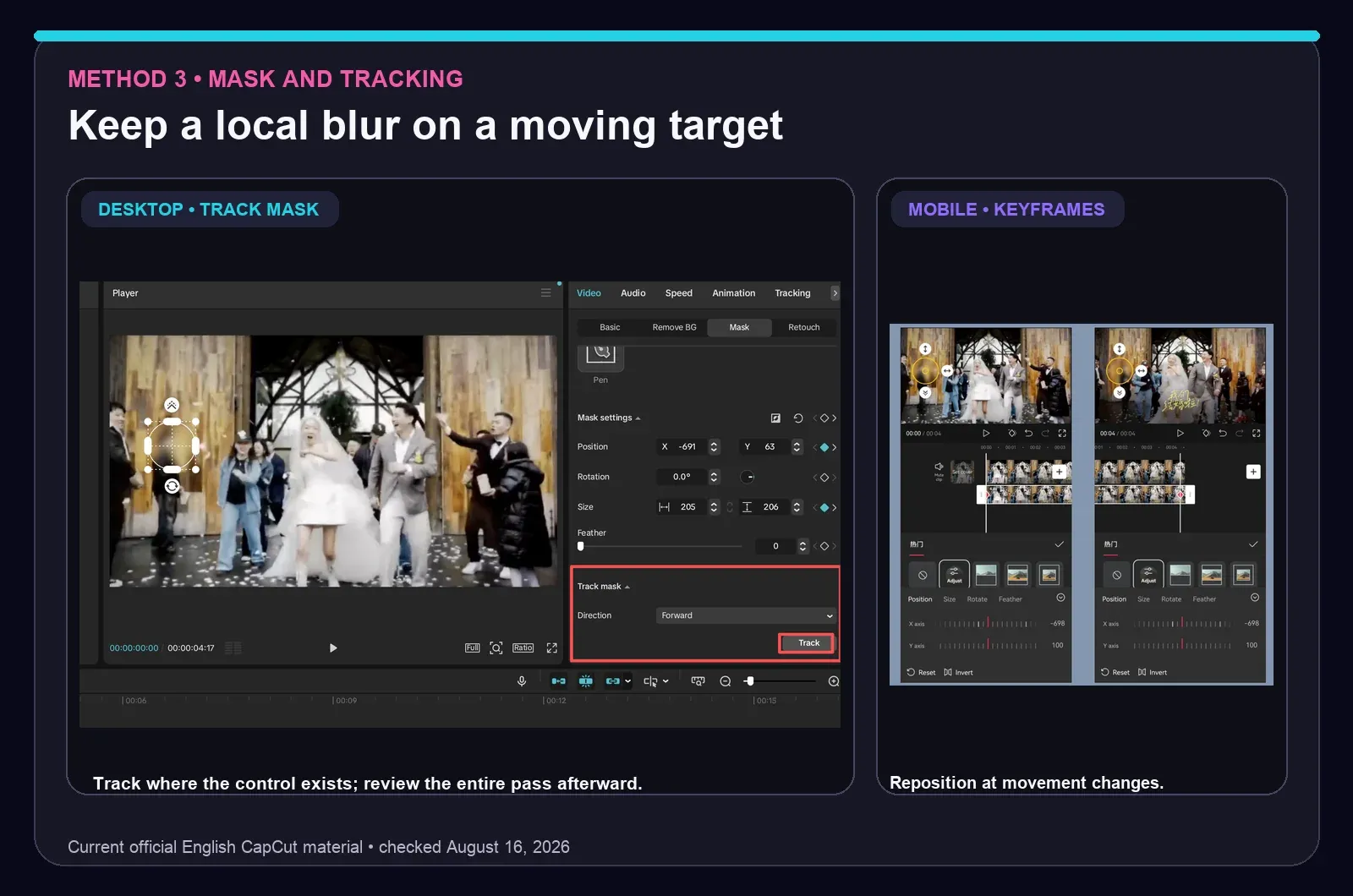
- Duplicate the clip and blur one copy.
- Add a mask to the blurred copy and size it slightly beyond the target.
- Use feather for a cosmetic transition. Use a harder, stronger treatment when the goal is redaction rather than style.
- Run Track mask where supported, or add keyframes as the target changes position, size or direction.
- Watch the complete result frame by frame around fast movement, cuts and occlusion.
Privacy warning: a light blur may leave an address, label, number plate or face recognizable. Tracking can also slip for a few frames. Use strong pixelation or an opaque redaction when disclosure would be harmful, inspect every frame at full size and retain the original securely. Don't treat a pleasant-looking blur as proof that sensitive information is hidden.
How to Blur a Background in CapCut Web
Web supports the same underlying choices, but its labels differ. For a sharp subject, duplicate the clip, blur the lower copy and select the upper copy. CapCut's current Web background-removal procedure uses Smart tools > Remove background > Auto removal.
For empty canvas space, look for the Background/Blur route shown above. Web has a smaller effect and template catalog than native apps, and account or browser limits can change what appears. If the needed control is absent, save the project and use the current Desktop or Mobile workflow instead of inventing a menu path.
Make the Background Blur Look Natural
- Preserve believable edges. Hair should not glow against the blurred layer, and fingers should not disappear during movement.
- Match the scene. A mild blur often fits a wide environmental shot. A strong blur can suit a close talking head, but only when the cutout holds up.
- Watch repeated shapes. A canvas filler can place a second face, sign or horizon behind the main clip. Reframe or use a simpler solid background when the repetition distracts.
- Check movement. Pause on turns, hand gestures, hair movement and objects crossing the subject.
- Keep both copies aligned. Compare a frame near the beginning, middle and end rather than trusting the first frame.
Automatic separation works best when the subject differs clearly from the scene. If the footage uses a clean green or blue screen, Chroma key may produce a cleaner edge than automatic removal. The CapCut background-removal guide owns the full cutout troubleshooting workflow.
Fix Halos, Echo, Missing Blur and Wrong Layer Order
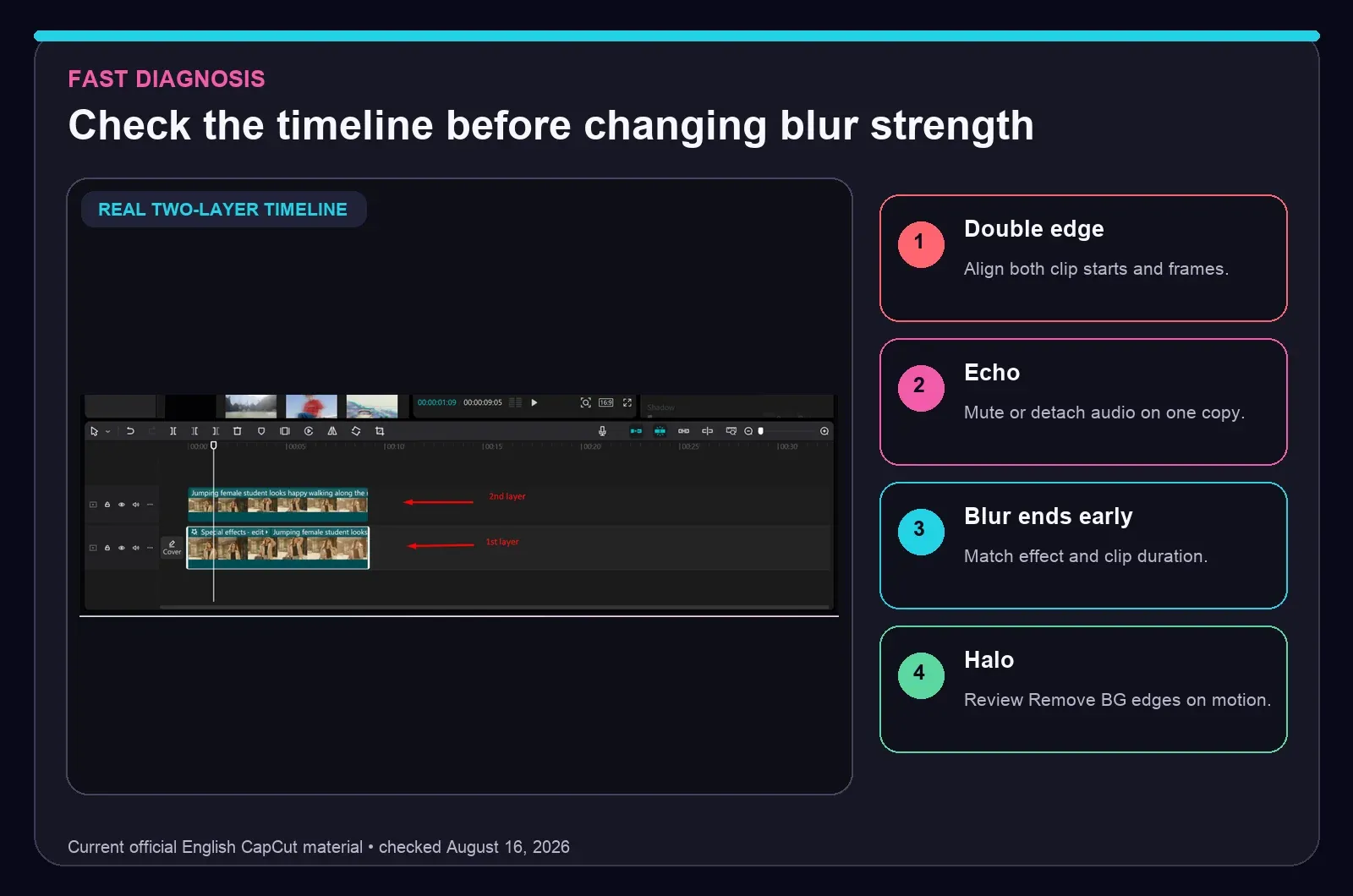
- The whole video is blurred: the sharp cutout layer is missing, hidden, below the full-frame layer or still has its background.
- The person is blurred: Blur was added to the upper cutout instead of the lower full-frame copy.
- You see a double edge: align both clip starts, speed, crop and frame position.
- You hear echo: mute, detach or remove audio from one duplicate.
- Blur ends early: extend the effect track to the end of the intended clip.
- A halo appears: inspect the automatic cutout on hair and motion, use the cleanup option available in your build and avoid an extreme blur that makes the edge contrast harsher.
- Blur is missing: confirm the effect is on the selected clip or effect track and that the playhead sits inside its duration. CapCut's current effects help also recommends checking the selected layer, timeline position, conflicting effects and app performance.
How to Remove or Undo Background Blur
If the editable project remains available, select the Blur effect or effect track and delete it, disable it or reduce its setting. For canvas filler, return to Canvas or Background and choose another fill. For a masked local blur, remove the blurred duplicate or its mask.
A flattened export is different. The rendered pixels no longer contain the hidden detail from the blurred area. Reopen the project and export a new version from the original media. Keep the original source and project until the final delivery has been approved.
Export Without Making the Result Softer
Inspect the local file before blaming the blur method. Use a resolution and frame rate that fit the source and timeline, then play the export outside CapCut. Upscaling doesn't repair a weak cutout or recover detail lost before the edit.
The CapCut export-settings guide covers resolution, frame rate, bitrate, codec and the difference between a soft editor preview and a soft rendered file. This article owns the compositing work before export.
CapCut Background Blur FAQ
How do I blur a background in CapCut without blurring the person?
Use two aligned copies of the same clip. Apply Blur to the lower full-frame copy, then use automatic background removal on the upper copy so only the sharp subject remains visible. Check the upper cutout on hair, hands and fast motion before export.
How do I blur a video background in CapCut Mobile?
Add the clip to a project and apply a Blur video effect to the base. Add the original clip again as an overlay, align its start and crop with the base, then open Remove BG and use Auto removal on the overlay. Mute one copy if both layers play the same audio.
Where is the Blur effect in CapCut?
On current Desktop builds, open Effects, choose Video effects and search for Blur. On current Mobile builds, open Effects and then Video effects. Names, categories and availability can change by platform, build, account and region, so search the effect library if the category has moved.
Is canvas blur the same as blurring the background behind a person?
No. Canvas or Background blur fills unused space around footage that doesn't match the project ratio. It doesn't separate a person from the scene. Use the two-layer method when the subject must remain sharp.
How do I blur only one part of a video in CapCut?
Duplicate the clip, blur one copy and limit that blurred copy with a mask over the target area. Use Track mask on supported Desktop builds or add keyframes as the target moves. Review every frame where the target changes speed, direction or size.
Why is there a halo around the subject after background removal?
Hair, hands, motion blur, low contrast and fast movement can expose a rough cutout. Inspect the upper layer against the blurred lower layer, try Custom removal or the cleanup controls available in your build, and reduce the separation between an extremely sharp subject and an excessively soft background.
Why does the duplicated CapCut clip create echo?
Both copies may still contain the same embedded audio. Mute, detach or remove the audio from one copy and keep the other as the single sound source. Also align both video copies exactly so the picture doesn't show doubled motion edges.
Can I remove background blur after exporting the video?
You can remove or change the effect while the editable CapCut project and original media remain available. A flattened export contains the rendered blur, so it can't restore the hidden detail from those blurred pixels. Keep the project and original source securely if you may need another version.