

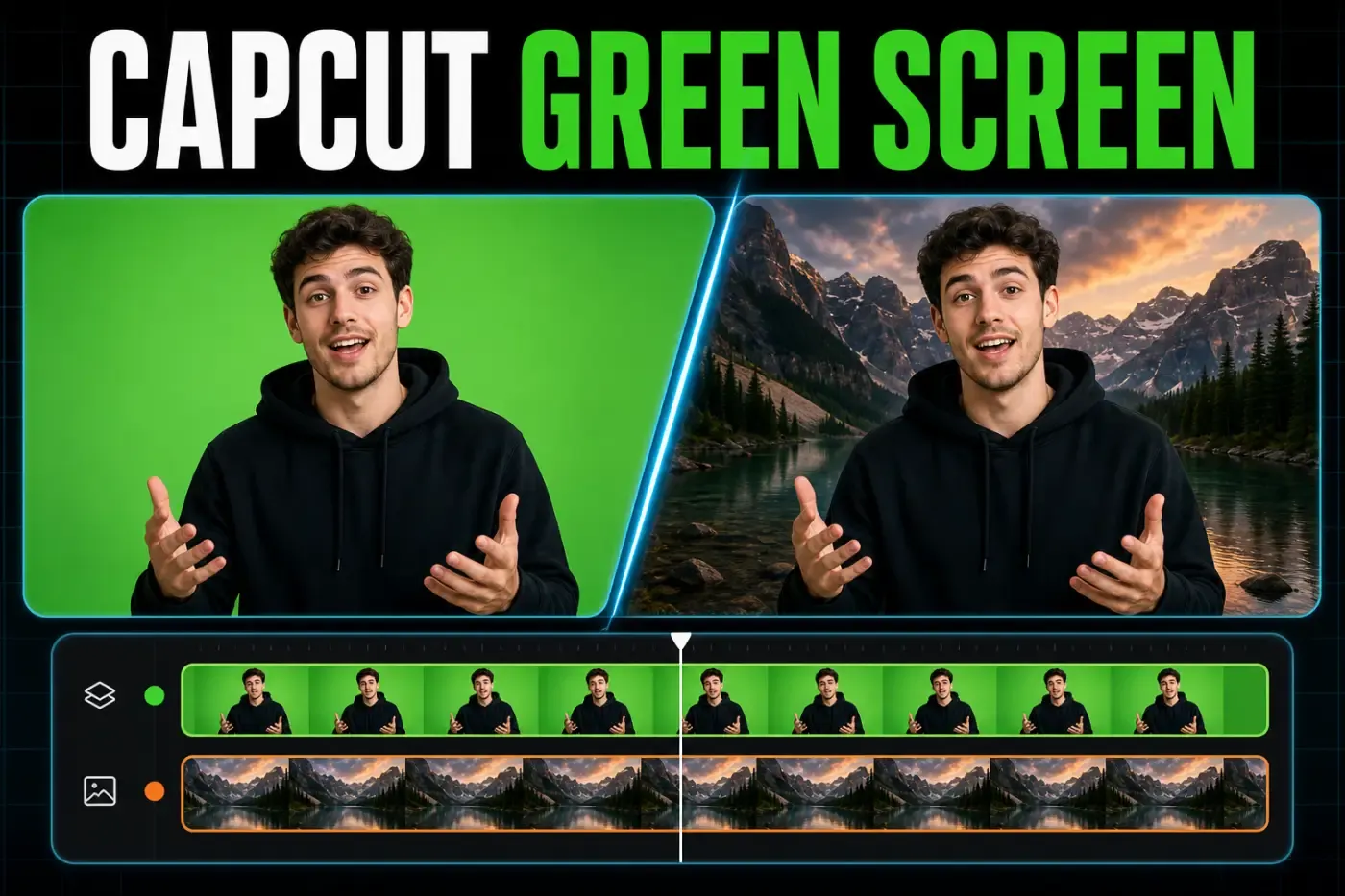
The clip order decides whether CapCut's green screen works. Put the replacement background on the lower track and the green-screen footage above it. Select the upper clip, open Remove BG, enable Chroma Key, and sample a flat part of the screen. Raise Intensity or Strength only until the background disappears, then refine the edge.
Checked August 15, 2026. CapCut's current help pages list Edit → Remove BG → Chroma Key on Mobile and Video → Remove BG → Chroma key on Desktop. The Web route begins at Smart tools → Remove background. Labels still differ between builds, so the guide separates platform paths and explains what each control does.
Choose Chroma Key, Auto removal, or Custom removal
Use Chroma Key when the source has an even green, blue, or other solid-color backdrop. It removes the selected color, which gives you direct control over the sample and edge. CapCut's green-screen guide recommends this method for solid green or blue screens.
Use Auto removal for a person or clear subject recorded in an ordinary room. Use Custom removal when the available brush and eraser tools are better suited to a difficult outline. Those routes solve a different source-footage problem. Our CapCut background-removal guide covers footage that has no solid screen.
CapCut's online Chroma Key page currently advertises the core tool as free with no credit card required. A plan badge can still appear on an adjacent AI or cleanup control. Treat the badge and export message in your own account as the current plan boundary.
Put the two clips in the right order
- Import the replacement background and the green-screen footage.
- Place the background on the lower video track.
- Place the green-screen footage directly above it. On Mobile, add this clip as an overlay.
- Extend the lower background under the full duration of the upper clip.
- Select the upper clip before opening Remove BG.
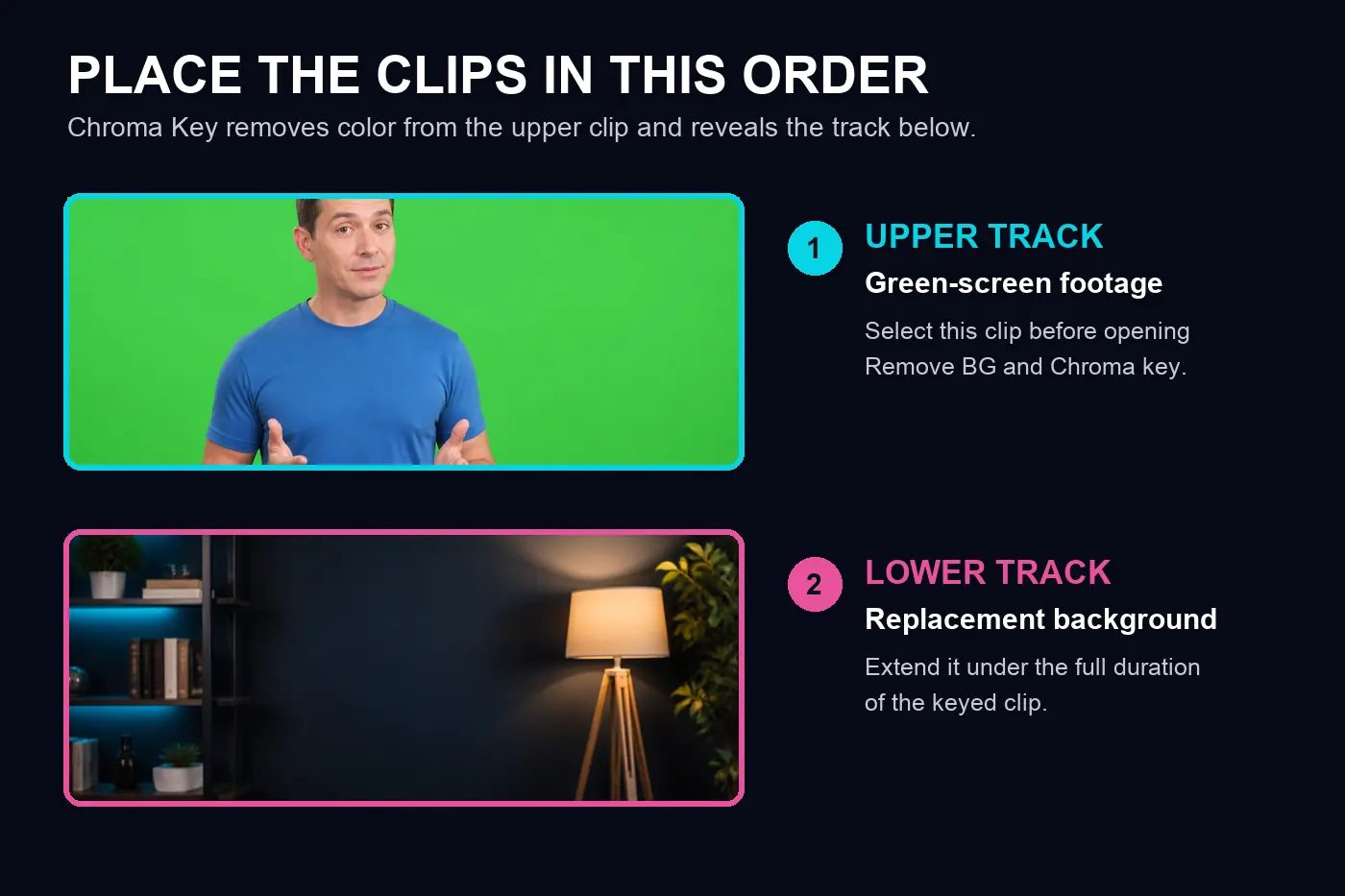
If you select the lower track, CapCut applies controls to the background or hides Chroma Key altogether. If the timeline still feels unfamiliar, the CapCut editor layout guide explains tracks, the preview canvas, and the clip inspector.
How to use green screen in CapCut Mobile
- Tap New project and add the replacement background.
- Tap Overlay → Add overlay and add the green-screen video.
- Select the overlay clip. Tap Edit → Remove BG → Chroma Key.
- Tap the color picker and drag it onto a flat mid-tone area of the screen. Avoid a hotspot, dark wrinkle, shadow, or green reflection on the subject.
- Raise Intensity until the main green area clears. Stop if hair, skin, clothing, or props start to turn transparent.
- Adjust Shadow and any edge control shown in your build. Judge the result while the clip is moving.
- Scrub the start, middle, and end. Watch hands, loose hair, motion blur, and screen corners.
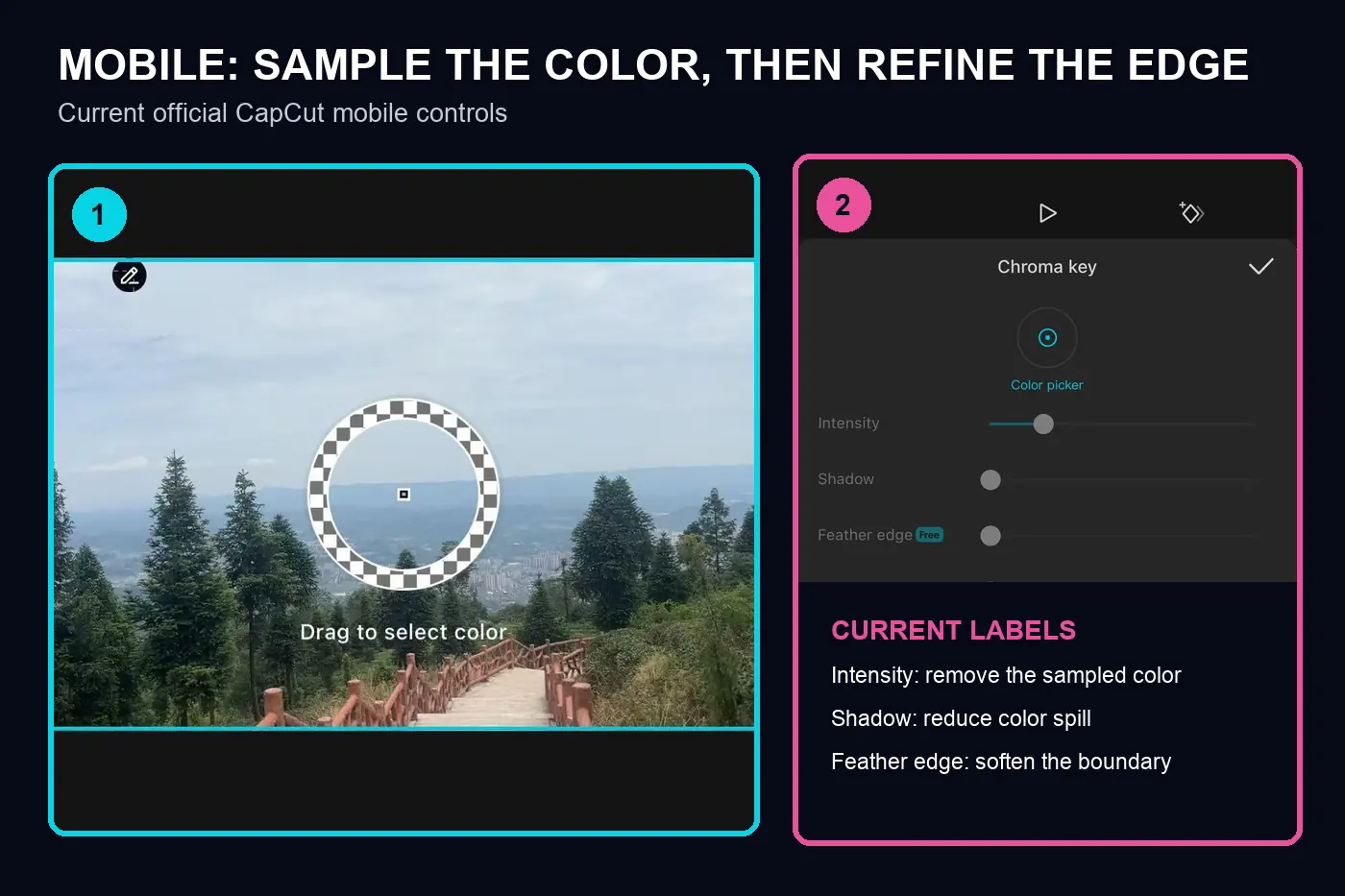
The image comes from CapCut's current Chroma Key troubleshooting page. It also confirms that uneven lighting, a poor color sample, low subject-to-screen contrast, and heavy compression can spoil the result.
How to use Chroma Key on CapCut Desktop
Desktop uses normal video tracks rather than the Mobile Overlay button. If you still need the editor, use the verified CapCut for PC or CapCut for Mac installation guide instead of an unofficial installer.
- Import both files. Put the background on the lower track and the green-screen clip on the track above.
- Select the upper clip and open Video in the right inspector.
- Choose Remove BG and enable Chroma key.
- Activate the color picker and click a representative area of the screen in the preview.
- Raise Intensity or Strength only far enough to clear the screen.
- Refine Shadow and the edge controls shown in your build, then preview difficult frames at full size.
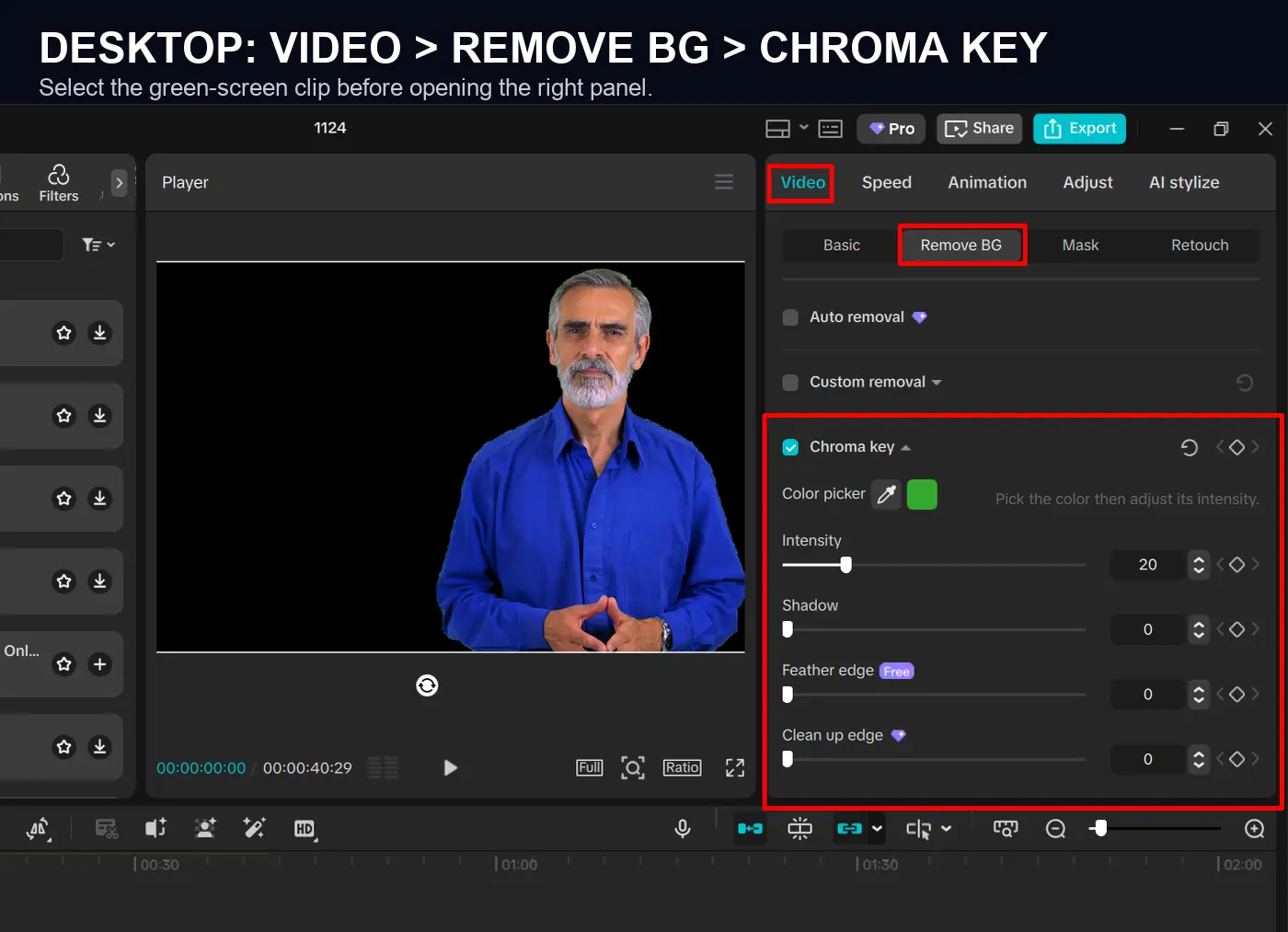
CapCut's official pages don't use one fixed vocabulary. The current screenshot above says Intensity, Feather edge, and Clean up edge. Another official background-removal guide uses Intensity, Shadow, Feature edge, and Clean up edge, while the help article also mentions Strength and Edge Feathering. Match the function and the panel location rather than copying a slider recipe from a different build.
How to find Chroma Key in CapCut Web
- Create a blank video and upload the green-screen clip and replacement background.
- Put the background below the green-screen clip.
- Select the upper clip, open Smart tools, and choose Remove background.
- Choose Chroma key, sample the screen color, and refine the visible controls.
- Export a short section first, then inspect it outside the browser.
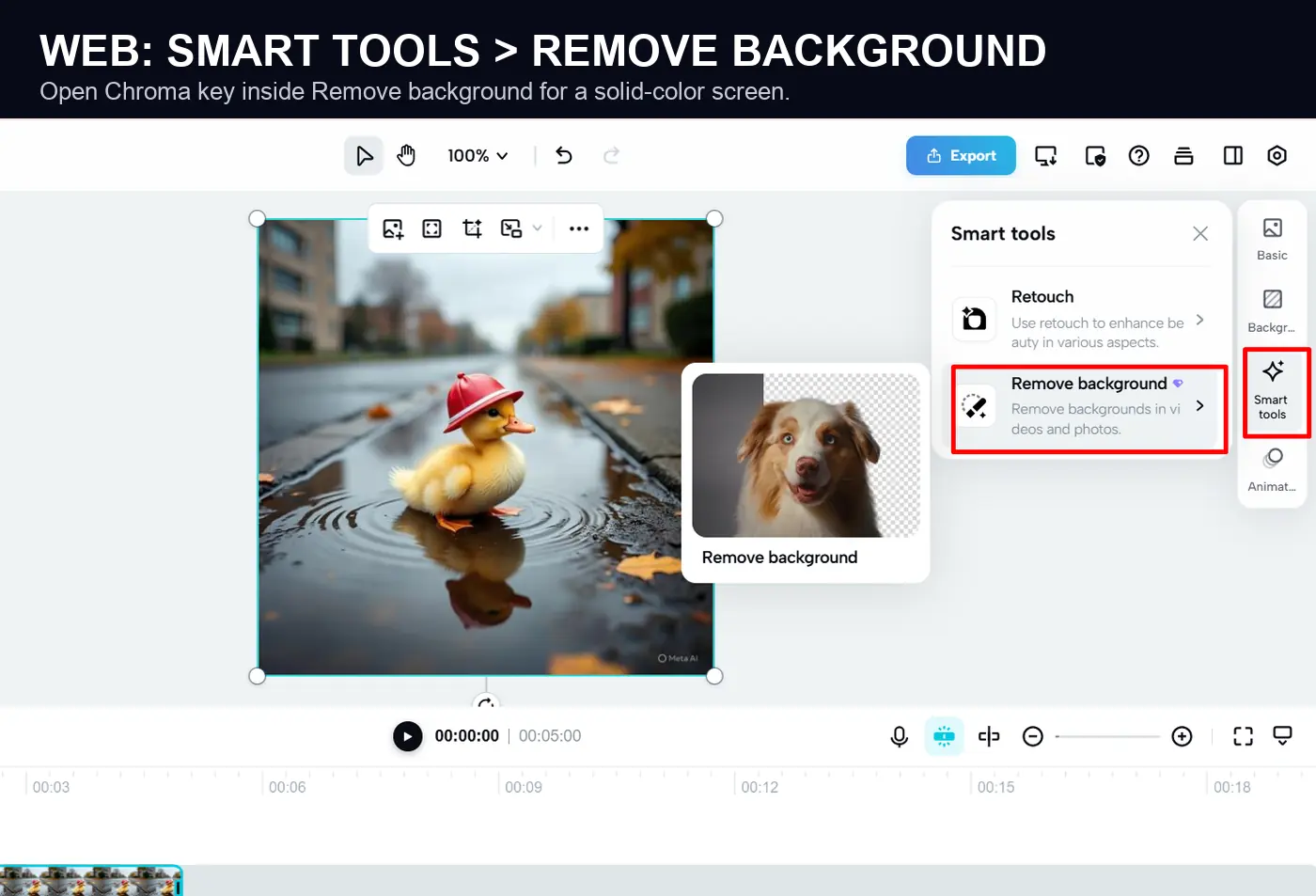
The Web editor uploads and processes the footage, so test a short clip on a stable connection before committing a large source file. The CapCut Web guide covers account, browser, upload, and export checks.
What the Chroma Key controls change
Intensity or Strength
This sets how broadly CapCut removes colors around the sampled value. Too little leaves green patches. Too much cuts holes in clothing, reflective props, hair, and motion-blurred edges. Start low and stop as soon as the screen clears.
Shadow
Shadow targets contaminated edge color. It can reduce a green rim, but it can't reconstruct detail lost to severe spill. If green light has soaked into pale fabric or fine hair, better source lighting often helps more than a larger slider value.
Edge, Feather edge, Feature edge, or Clean up edge
These controls change how the cutout boundary meets the replacement background. A small change can calm a harsh outline. Too much produces soft shoulders and smeared hair. Check the edge over the final background because a light halo can disappear on white and become obvious on black.
There's no universal set of values. Screen brightness, camera compression, wardrobe, motion blur, the sampled pixel, and the target background all change the result.
Shoot footage that is easier to remove
- Light the screen evenly. Remove wrinkles, hot spots, dark corners, and hard shadows before recording.
- Move the subject away from the screen. Adobe's chroma key shooting guide explains that reflected screen color can spill onto the subject and damage the edge.
- Keep the screen color out of the subject. A green shirt or prop becomes part of a green key. Use blue when green must remain in the shot.
- Keep the subject sharp. Motion blur and missed focus mix subject pixels with the screen color.
- Use the original recording. Repeated social-media compression creates blocky color edges that cleanup controls can't fully restore.
Green reflects more light than blue. Adobe's green screen and blue screen comparison recommends green for brighter daytime scenes, while blue can reduce reflected spill in darker scenes. Wardrobe and subject color still decide which screen is safer.
Make the replacement background fit the subject
A clean edge can still look false when the perspective and lighting disagree. Match camera height first. Then compare light direction, brightness, color temperature, and focus. A subject lit by cool overhead light will sit poorly against a warm side-lit room even when the cutout is clean.
Scale the subject against a recognizable object such as a door frame, table, or railing. For a full-body shot, check floor contact and shadow direction. Add color treatment after the edge is stable. The CapCut effects guide shows where finishing adjustments belong without using a filter to hide a damaged key.
Fix the symptom you can see
Green stays in patches
Re-sample a clean mid-tone area and inspect the source for shadows, wrinkles, or compression blocks. If the screen changes color across the frame, one sample may not remove every area cleanly.
A green rim remains around hair or shoulders
Adjust Shadow and the edge controls in small steps. If the rim is baked into the recording, use footage with more distance between the subject and the screen.
Clothing, skin, or props disappear
Lower Intensity or Strength and choose a cleaner sample. If the subject contains the screen color, use a different backdrop color or combine a careful mask with the CapCut masking workflow.
Chroma Key is missing or greyed out
Select the upper video clip, then reopen Remove BG. Update CapCut and test a fresh imported clip. Recent r/CapCut reports describe a moved Mobile Chroma Key control and greyed-out Remove BG tools, but those reports are directional signals rather than product documentation. Start with the official route and clip-selection check.
The preview looks good but export looks rough
Use the original source file, reduce excessive edge cleanup, and export a short representative section. If export fails, move to the CapCut export troubleshooting guide. If the app freezes, use the CapCut crash checklist instead of changing a key that already previews correctly.
Preview the full shot before export
- Watch at normal speed and inspect hands, hair, motion blur, and transparent objects.
- Check the first and last frame. Transitions can expose an edge problem hidden in the middle.
- Compare subject brightness, scale, and light direction with the new background.
- Export a short section and play it outside CapCut.
- Choose delivery settings with the CapCut export settings guide rather than raising every value.
Work in this order: source quality, layer order, color sample, Intensity or Strength, edge cleanup, then export. Raising one slider can't repair a wrinkled screen, heavy compression, or green clothing.
CapCut Green Screen FAQ
Where is Chroma Key in CapCut Mobile?
Select the green-screen overlay, tap Edit, open Remove BG, and choose Chroma Key. CapCut's help page lists Edit > Remove BG > Chroma Key. If the tool is hidden, confirm that the overlay video is selected before you search other menus.
Where is Chroma Key in CapCut Desktop?
Select the green-screen clip on the upper video track. In the right inspector, open Video, choose Remove BG, and enable Chroma key. The controls can be disabled when the canvas, an audio clip, or the background clip is selected.
Is CapCut Chroma Key free?
CapCut's online Chroma Key page currently advertises the core tool as free with no credit card required. Some adjacent cleanup or AI controls can carry a plan badge. Check the badge and export message in your own account before relying on a paid control.
Can CapCut remove a background without a green screen?
Yes. Use Auto removal for an automatic cutout, or Custom removal when your build offers manual brushes. Chroma Key is the more controlled route when the footage has an even green, blue, or other solid-color background.
Why is green still visible around my subject?
Sample a flat mid-tone area of the screen, then raise Intensity or Strength only until the main green disappears. Use Shadow, Feather edge, Edge, or Clean up edge in small steps. Strong spill from a poorly lit shoot may need source-footage changes rather than a higher slider value.
Can I use a blue screen in CapCut?
Yes. Chroma Key removes the color selected with the picker. Blue can work better when the subject wears green, when the scene is dark, or when lower reflected light helps reduce spill. Keep the blue backdrop even and distinct from the subject.
Why is Chroma Key missing or greyed out?
Select the upper video clip and reopen Remove BG. Then update CapCut, restart it, and test a fresh imported clip. If the option is still absent, compare the same account on another platform because menus and rollouts can differ by build, device, and account.