

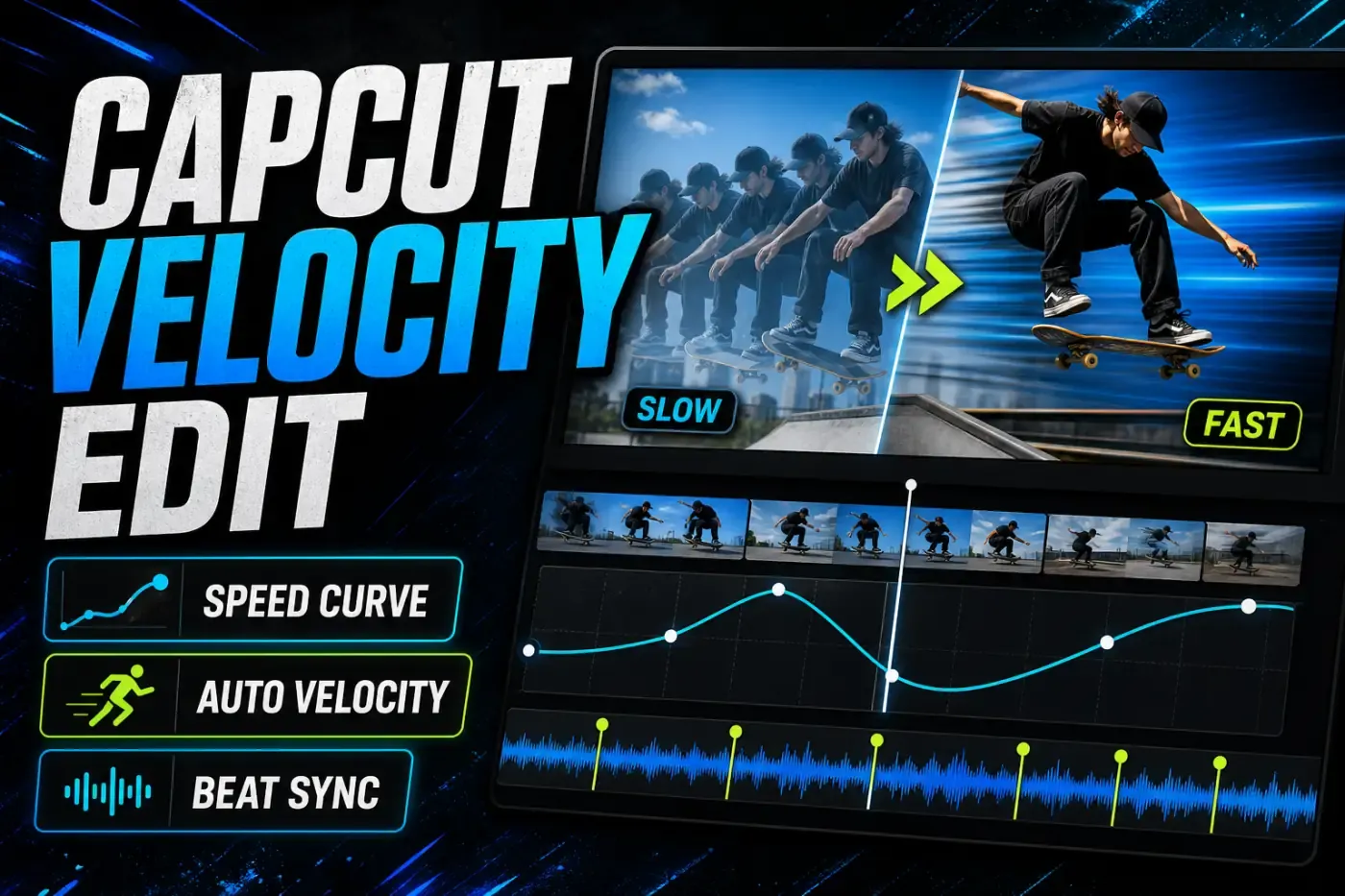
A good CapCut velocity edit has a reason for every speed change. Slow the clip where the viewer needs to see the action, accelerate through the less important movement, then return to a readable pace. The curve should support the footage and music, not advertise that an effect was applied. If you need the editing sequence around the speed ramp, our step-by-step CapCut tutorial connects the core cut, audio, motion and export lessons.
Quick answer: for a controlled speed ramp, select the clip and open Speed > Curve. Use Custom on Mobile or Web and Customized in CapCut's current Desktop route. Add a few points around one action peak, move the playhead across the ramp, and judge a short export outside the editor. Use Auto Velocity only when you want CapCut to propose the timing.
Checked August 16, 2026. Paths and availability were compared with CapCut's current official velocity guide and Help pages. The exact labels can still vary by platform, build, account, region and the selected clip.
Choose the Right Velocity Tool First
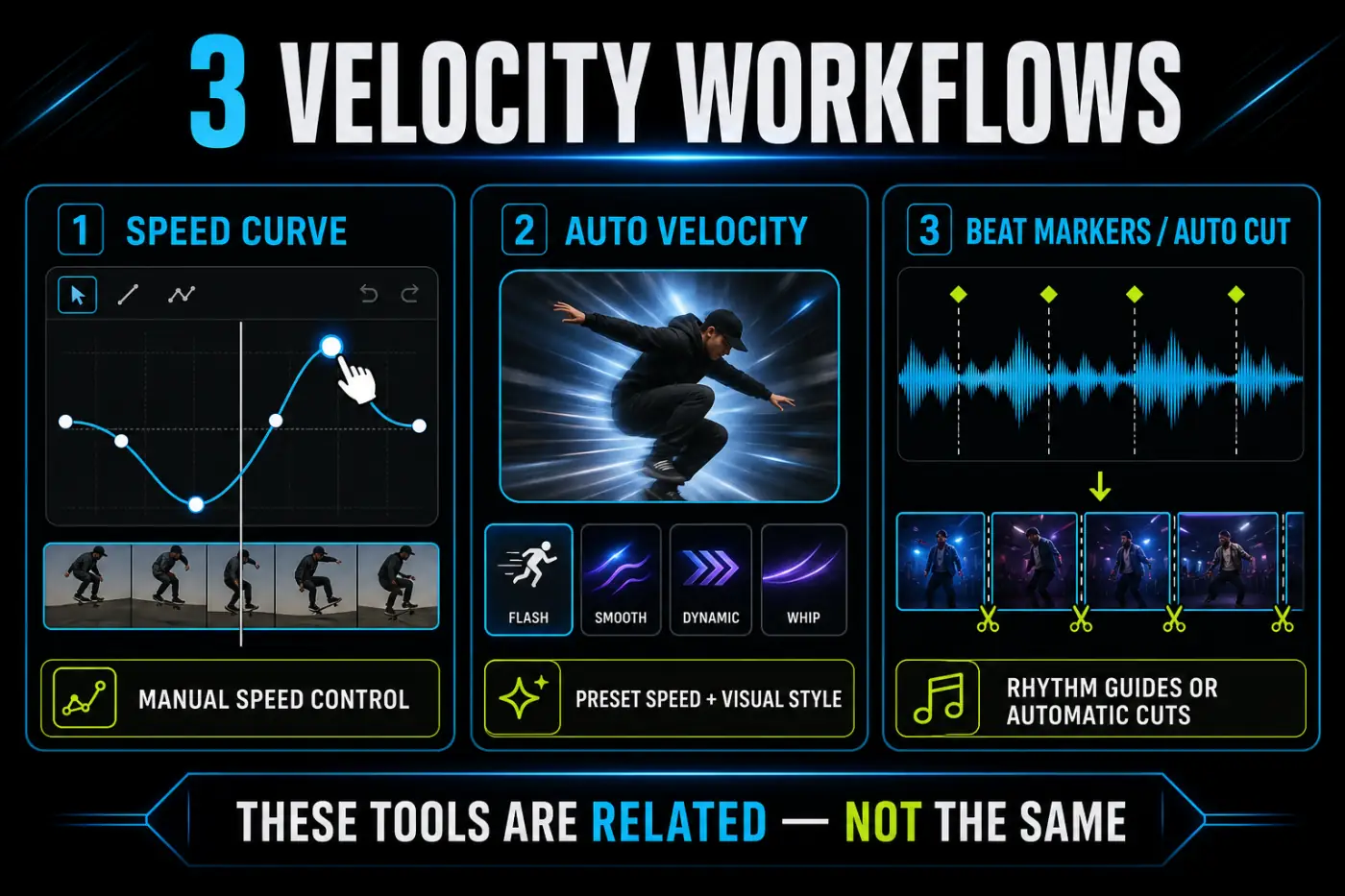
CapCut places several related features close together, but they don't do the same job:
- Speed Curve changes playback speed over time and gives you manual control over every ramp point.
- Auto Velocity generates a styled speed treatment where the feature is available. It is a starting edit, not a guaranteed finished result.
- Beat markers place timing references on the audio. They don't change clip speed by themselves.
- Auto Cut assembles cuts around music, speech or a chosen rhythm. CapCut's current Auto Cut Help page documents it for Mobile and Desktop, not Web, and warns that rollout can vary by region or account.
If you need one subject to slow at the apex of a jump, start with Speed Curve. If you want a fast draft from several clips and a song, Auto Cut may be closer to the task. If you already have the edit but need the changes to land on music, add beat markers and build the curve yourself. Choosing correctly avoids fighting an automatic result that was designed for another job.
Plan One Clean Speed Ramp
Pick the exact frame that deserves attention before opening the curve. It might be the moment a skateboard leaves the ground, a product lands on the table, a dancer hits a pose or a camera move changes direction. Put the deepest slow point there, not simply on the nearest drum hit.
A basic ramp needs three regions:
- Approach: normal or faster motion moves the viewer toward the action.
- Focus: a slower section makes the important movement readable.
- Exit: speed rises smoothly enough that the return doesn't feel like a dropped frame.
Start with fewer points than the preset shows. Four or five purposeful points are easier to adjust than a row of tiny changes. A sharp peak creates an abrupt rate change; a wider hill or valley gives the footage more time to accelerate or decelerate. Shape is usually more important than chasing an exact speed number copied from another clip.
Trim the clip only after identifying enough material on both sides of the action. A dramatic slow point placed against the first or last frame has no room for a readable transition. Leave handles, build the ramp, then tighten the edit.
Use a duplicate when the source matters. One copy can keep the original timing while the other holds the curve. That makes an honest before-and-after comparison possible and gives you a quick way back when an automatic style changes more of the clip than expected. Don't repeatedly undo across unrelated edits when a duplicate costs only one extra timeline layer.
How to Make a Velocity Edit in CapCut Mobile
- Add the clip and move the playhead near the action you want to emphasize.
- Tap the clip on the timeline so the editing controls belong to that video.
- Open Edit > Speed > Curve > Custom in CapCut's current official Mobile route.
- Add or move curve points around the action. Raise a point for faster playback and lower it for slower playback.
- Preview from before the ramp through after it. Adjust the spacing as well as the height of the points.
- Confirm the curve, then export a short test before applying the same pattern to other clips.
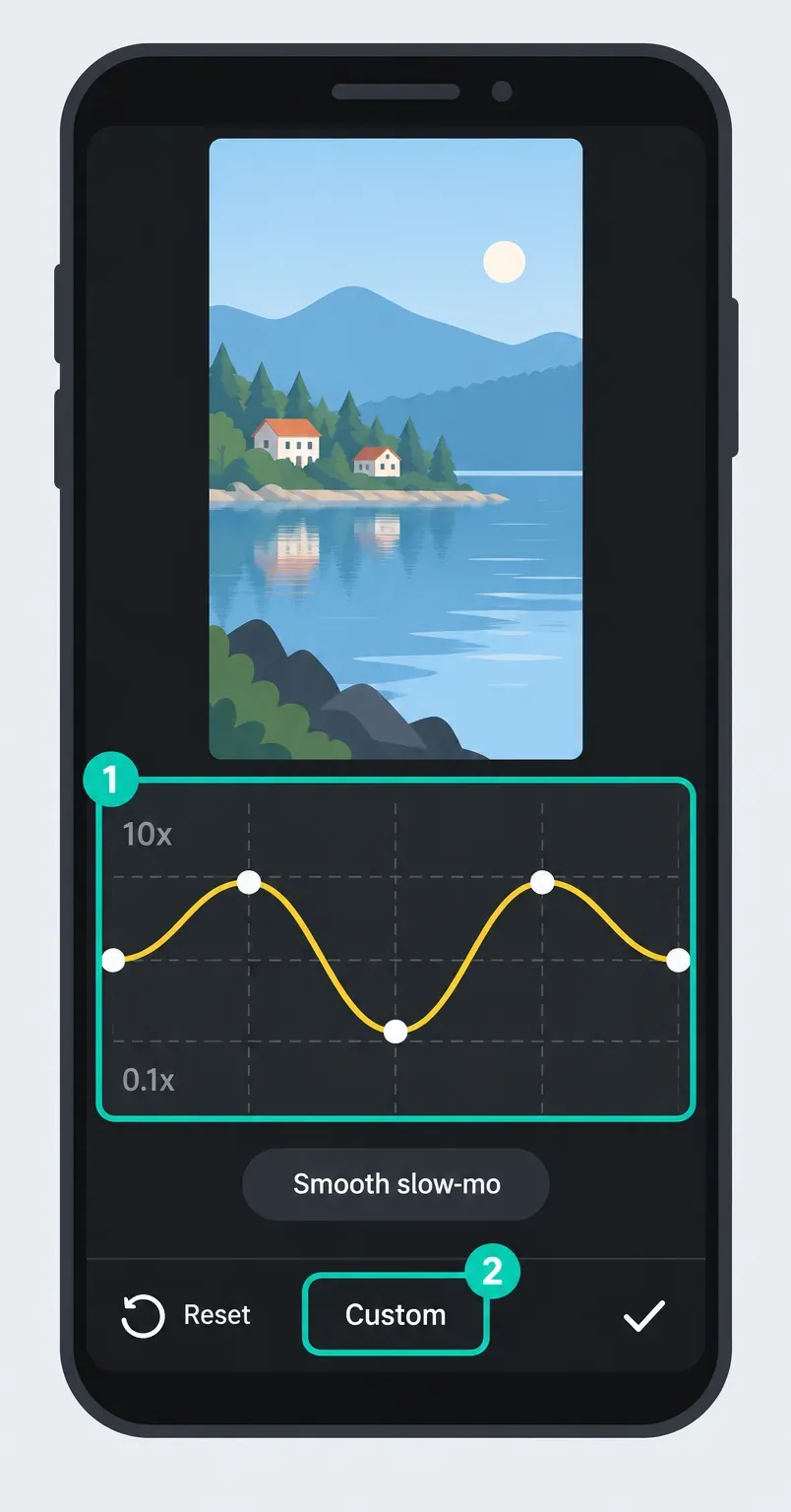
The vertical position of a point controls relative speed; the distance between points controls how long the change takes. Moving a slow point lower doesn't automatically make the transition into it smooth. If the motion snaps, widen the approach by moving the neighbouring point farther away.
Mobile previews can drop frames on a busy project. Turn off unnecessary background apps, preview a short section and then test an exported file. Don't keep adding curve points to compensate for playback lag that may not exist in the final render.
If Curve is missing, first check that a normal video clip is selected. Still images, templates, compound items or special assets may expose different controls. Scroll the toolbar, update CapCut, and test a plain clip in a blank project before changing a working edit.
How to Make a Velocity Edit in CapCut Desktop
Desktop offers more room to read the curve and line it up with the timeline. Select the video clip, open the right-side Speed controls, choose Curve, then Customized in the current official Desktop route.
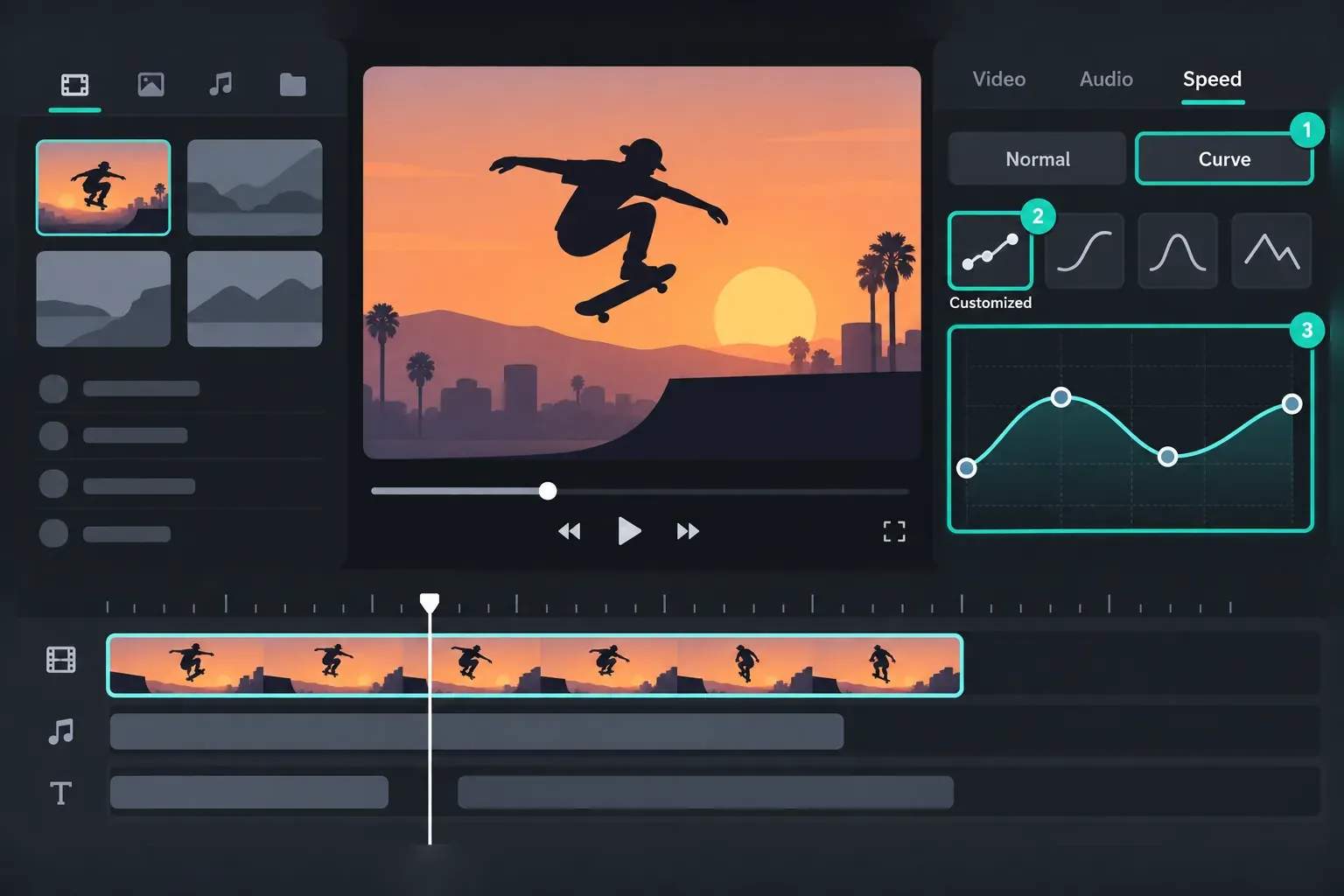
- Place the playhead on the action peak and note its timeline position.
- Open the customized curve and locate the point controlling that moment.
- Pull that point down to slow the action or up to accelerate it.
- Spread the neighbouring points to soften the entry and exit.
- Play through the cut with audio, then mute the audio once and judge the motion on its own.
- Export the difficult section and inspect it at normal playback speed.
Muting once is useful because a strong beat can make a rough visual change feel intentional. If the ramp only works with the music on, refine the motion before adding more effects. When the movement looks clean alone, the music becomes reinforcement rather than camouflage.
Keep playback-rate work separate from transform animation. Speed Curve changes the timing of the footage. Position, Scale, Rotation and Opacity keyframes change how an element moves or looks. Use our CapCut keyframes tutorial when the clip should zoom, pan or fade without changing its playback rate.
How to Make a Velocity Edit in CapCut Web
CapCut's current official Web workflow uses Speed > Curve > Custom after you select a timeline clip. The same curve logic applies: higher points play faster, lower points play slower, and horizontal spacing controls the duration of the transition.
- Upload the source clip and place it on the timeline.
- Select the clip, then open Speed and Curve in the right-side controls.
- Choose Custom, place the slow point on the action and shape the surrounding ramp.
- Preview a short range. Browser lag, network activity and device memory can affect the editor preview.
- Export a representative section before treating a stutter as a curve problem.
Don't expect every Mobile preset or automatic feature in the browser. CapCut's Auto Cut documentation says Web is not supported. Manual Curve is the dependable Web path described by the current official velocity resource. If a project depends on a Mobile-only automatic style, finish that treatment on the platform that exposes it instead of hunting for a hidden Web menu.
Use Auto Velocity Without Losing Control
CapCut's current official Mobile route places Auto Velocity under Edit > Style > Velocity. Select a style, let the app process the clip, then preview the entire result. Availability and exact styles can vary by build, account or region.
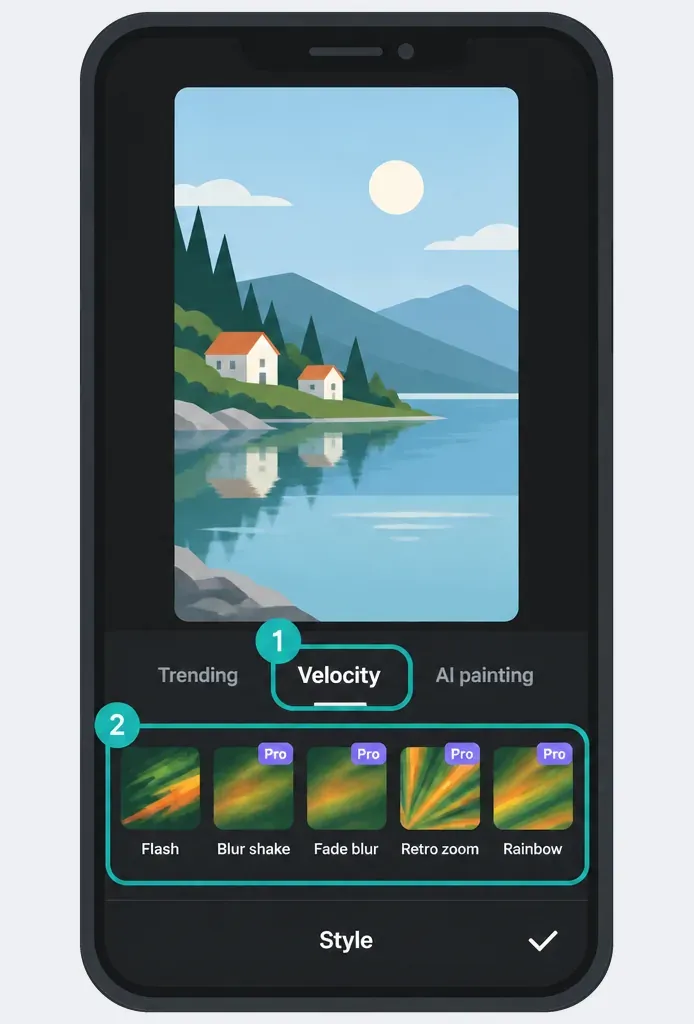
Automatic timing is most useful when you want a fast draft or several alternative rhythms. It is weakest when one precise physical action must remain readable. Check these points before keeping the result:
- Does the slowest moment land on the actual action rather than the nearest beat?
- Did the effect shorten or stretch a section you need for dialogue or a transition?
- Are faces, hands, wheels, water or hair breaking during the slowest frames?
- Does the speed change repeat so often that the clip feels mechanically pulsed?
If only one section is wrong, manual Speed Curve is often faster than regenerating the whole style repeatedly. Keep the automatic version on a duplicate clip or timeline, then rebuild the useful rhythm with fewer manual points.
Auto Velocity is also not Auto Cut. Auto Velocity styles the playback speed of selected footage. Auto Cut creates an edited sequence from clips using music, speech or rhythmic analysis. Their interfaces may sit near other AI tools, but they don't own the same decision.
Sync the Velocity Edit to Music
Add the music first and find the musical section you'll use. CapCut's current music workflow documents manual beat flags and automatic beat detection. These markers make timing visible, but they don't decide the curve shape.
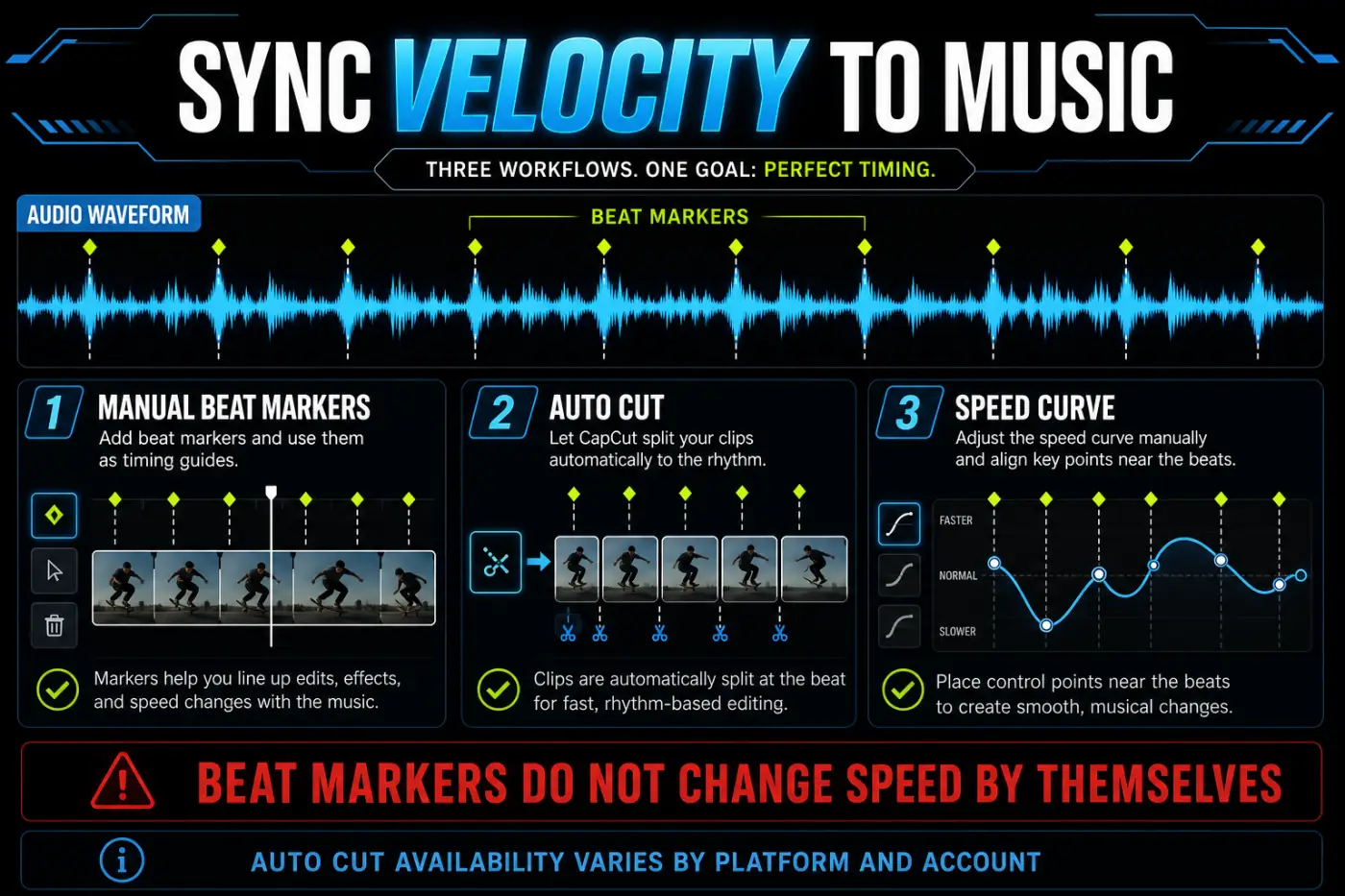
- Mark the strongest beats or let CapCut generate beat references where that option appears.
- Find the visual action peak independently.
- Choose the nearest useful beat for the entry, focus or exit, rather than forcing all three onto markers.
- Build the curve and listen through the section without watching.
- Watch once with the audio muted to confirm the motion still reads cleanly.
A beat can mark the start of acceleration while the slow point lands a few frames later on the actual movement. That offset is often more natural than snapping every curve point to the waveform. Music supplies rhythm; the footage supplies meaning.
If you still need to import, extract, trim or fade the track, use the CapCut music guide. Keep audio setup separate from curve diagnosis so a misplaced song start is not mistaken for a velocity problem.
Use Presets as Starting Shapes
CapCut's current official velocity resource names examples such as Montage, Hero time, Bullet, Jump Cut and Flash in or out. Treat those as current examples, not a permanent list. Presets can differ by platform, account, region and release.
Choose by curve behaviour, not by name:
- Use a single broad valley when one action needs a clear slow focus.
- Use a fast entry and gentle exit when the clip should arrive sharply and settle.
- Use repeated peaks only when the footage and music contain repeated actions that justify them.
- Avoid a multi-pulse preset on dialogue, continuous camera movement or a product demonstration unless the interruptions are intentional.
After applying a preset, move its points to your action. A preset that happens to look good on CapCut's sample has no knowledge of where your subject jumps, turns or makes contact. The useful part is the starting shape, not the label.
Fix Choppy Ramps and Slow-Motion Artifacts
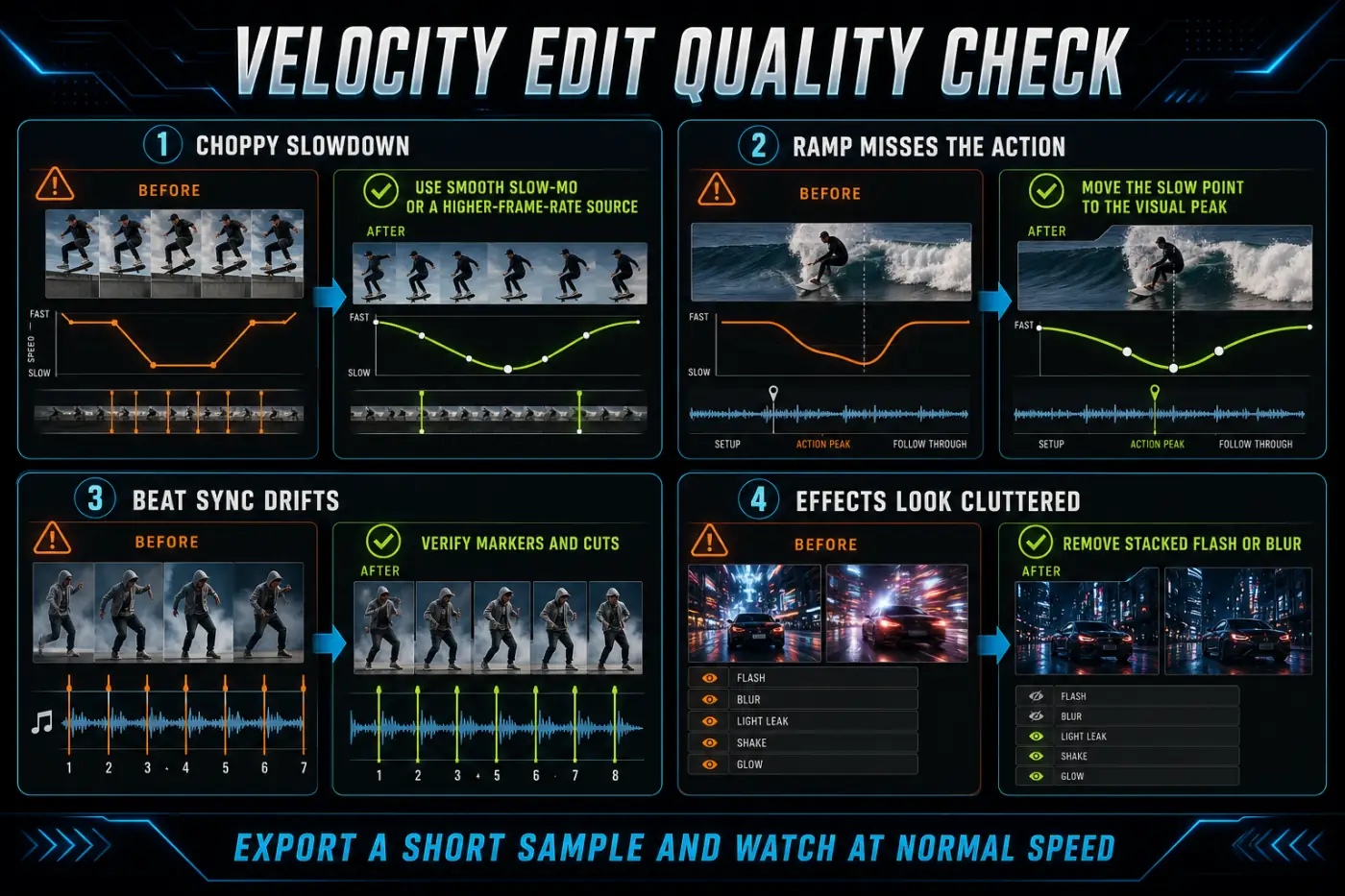
The speed change snaps
Spread the points around the change. A narrow valley asks the clip to decelerate and accelerate over too little time. Remove extra points that create tiny opposing changes, then rebuild one clear approach, focus and exit.
The slow section repeats or judders
The source may not contain enough distinct frames for the requested slowdown. Reduce the depth or duration of the slow section. Where available, try Smooth slow-mo or optical flow. CapCut's current optical-flow page explains that the process generates intermediate frames. That can improve motion, but it can't recover perfect hidden detail from every scene. If the speed came from a reusable template rather than a custom curve, follow the separate CapCut slow-motion template guide because the template may already contain timing you need to inspect.
Hair, hands, wheels or water warp
These are difficult interpolation boundaries. Compare the result with frame blending or no interpolation where those choices are available. Shorten the affected slow section, choose a cleaner part of the motion, or accept a less extreme slowdown. Inspect at full size; a small editor preview can hide duplicate edges and bent outlines.
The preview stutters but the curve looks sensible
Render or export a few seconds around the problem and watch the file outside CapCut. Heavy effects, high-resolution media and browser or device load can make the preview unreliable. Rebuilding a correct curve to match a struggling preview can make the final export worse.
The automatic style feels random
Duplicate the clip, remove the automatic style from one copy and recreate only the useful changes with Custom Curve. Automatic analysis can't know which gesture, facial expression or product detail matters to your story.
Finish the Edit Without Overloading It
Lock the ramp before adding flashes, shakes, zooms and transitions. Extra effects can hide a bad speed change during editing and amplify interpolation artifacts during export. The CapCut effects guide covers effect availability and placement, while the CapCut transitions guide helps decide whether a cut needs a transition at all.
Use this final order:
- Watch the source and choose the action peak.
- Build one speed ramp with as few points as possible.
- Check the motion with and without music.
- Inspect the slowest frames for duplicate edges, warping and missing detail.
- Add only the effects and transitions that clarify the rhythm.
- Export the difficult section and watch it on another player or device.
- Export the complete project only after the short test passes.
A clean ramp can survive without a flash on every beat. Give the viewer time to understand the motion. Repetition works when the footage contains a real repeated pattern; otherwise it quickly looks like a preset placed over unrelated clips.
When the curve is correct but the rendered file is soft, jerky or much larger than expected, switch to our CapCut export settings walkthrough. Resolution, frame rate, bitrate, format and codec are export decisions, not reasons to keep changing the curve.
CapCut Velocity Edit FAQ
What is a velocity edit in CapCut?
A velocity edit changes a clip's playback speed over time. A typical ramp slows near an important action, accelerates through movement and returns to normal speed. In CapCut, you can build it manually with Speed Curve or use Auto Velocity where that feature is available. If you only need to speed up the video at one steady rate, Normal speed is simpler than a curve.
Where is Speed Curve in CapCut Mobile?
Select the clip, open Edit, choose Speed, then Curve and Custom. CapCut may move or rename controls between builds, so select a normal video clip first and scroll the editing toolbar if Curve is not immediately visible.
Where is Speed Curve in CapCut Desktop and Web?
On Desktop, select the clip and open Speed, Curve, then Customized in CapCut's current official route. On Web, select the clip and use Speed, Curve, then Custom. Labels and panel placement can vary by build and selected element.
Is Auto Velocity the same as Speed Curve?
No. Speed Curve gives you manual control over timing and speed points. Auto Velocity applies a generated style and may use music or motion analysis. Use the automatic result as a draft, then check every slow section, cut and beat before exporting.
Do beat markers change the clip speed automatically?
No. Beat markers are timing references. You still place curve points, cuts or transitions around them unless you use a separate automatic feature. A marker tells you where a beat lands; it doesn't decide which moment should be slow or fast.
Why does my CapCut velocity edit look choppy?
The ramp may be too abrupt, the slow section may lack enough source frames, or the editor preview may be struggling. Widen the transition into and out of the slow point, test Smooth slow-mo or optical flow where available, and export a short section before rebuilding the curve.
Can I make a velocity edit in CapCut Web?
Yes. CapCut's current official Web workflow includes Speed, Curve and Custom for manual ramps. Current Auto Cut Help says Auto Cut is not available on Web, and automatic tools or preset choices may differ from Mobile and Desktop.
Which CapCut velocity preset is best?
There's no universal best preset. Choose a shape that puts the slow point on the action you want viewers to notice, then adjust it. Preset names and availability can change, so judge the curve and exported motion rather than choosing by label alone.