

Checked August 14, 2026. CapCut doesn't have one universal feature set. Mobile, Desktop and Web can show different tools, and an active subscription doesn't override every platform, region, version or device limit. Use the matrix below to find the likely starting point, then confirm the control and any price or credit prompt inside the account where you'll do the work.
Mobile remains CapCut's documented route for TikTok template links and community sharing. Desktop is usually the better starting point for long timelines, local files and controlled exports, and version 9.2.0 now shows a searchable Templates catalog that CapCut's current Help page doesn't describe correctly. Web is useful for browser editing, official templates and cloud workflows, but it doesn't mirror every Mobile or Desktop tool. Standard benefits are Mobile-only in selected regions; Pro is cross-platform, while some AI actions still use a separate credit balance.
CapCut feature availability matrix
This is a dated evidence snapshot for the differences people most often discover too late. Yes means CapCut currently documents a workflow on that platform. Limited means a smaller subset. Conditional means your live interface still decides. Docs conflict means two current official CapCut pages disagree.
| Feature | Mobile | Desktop | Web | What still decides | Official check |
|---|---|---|---|---|---|
| Open and edit a project | Yes | Yes | Yes | Local versus Space storage, exact login method and whether the project opens with its media. | Project history |
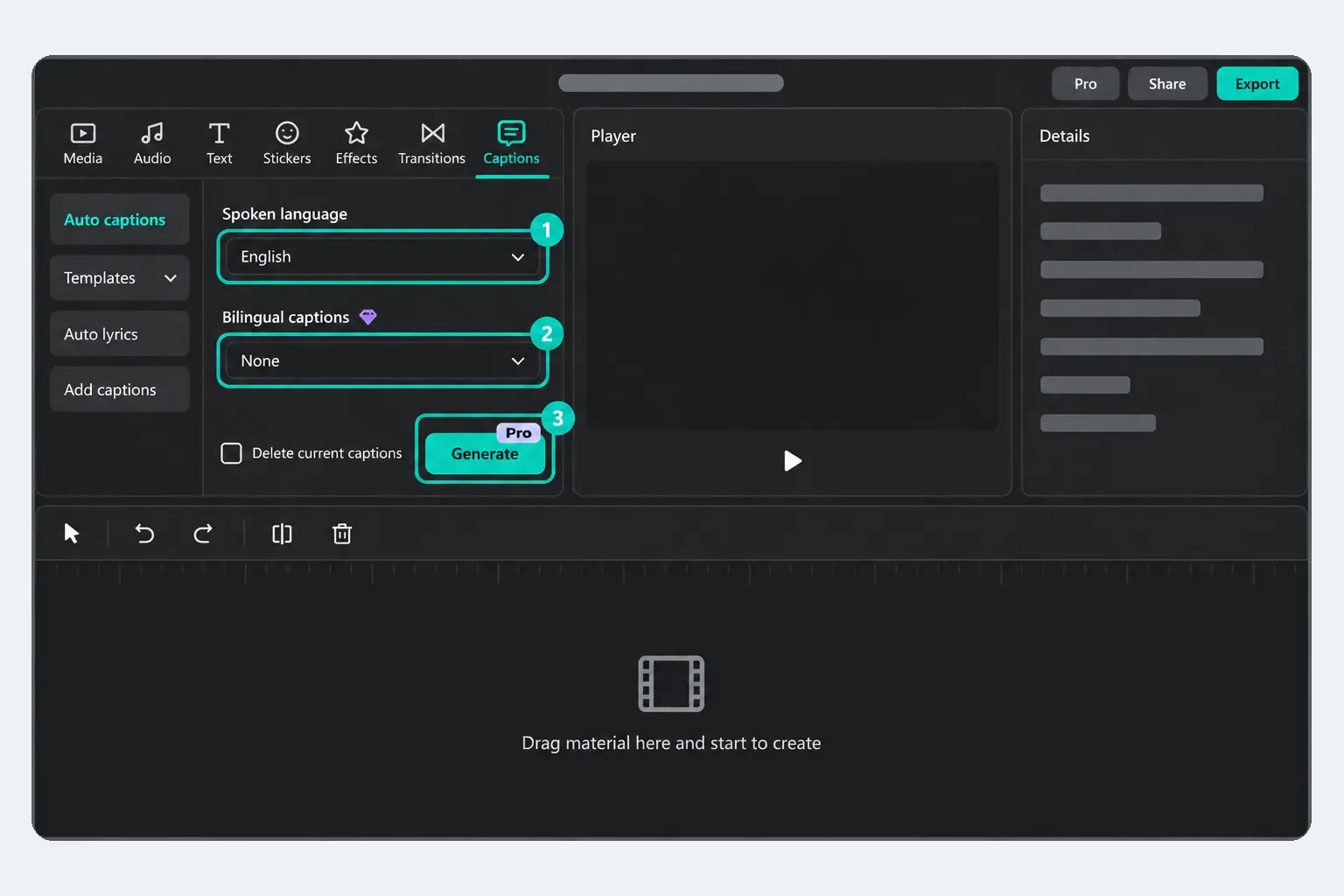
| Auto captions | Yes | Yes | Yes | Language, audio quality, connection, catalog, plan and rollout. | Auto captions |
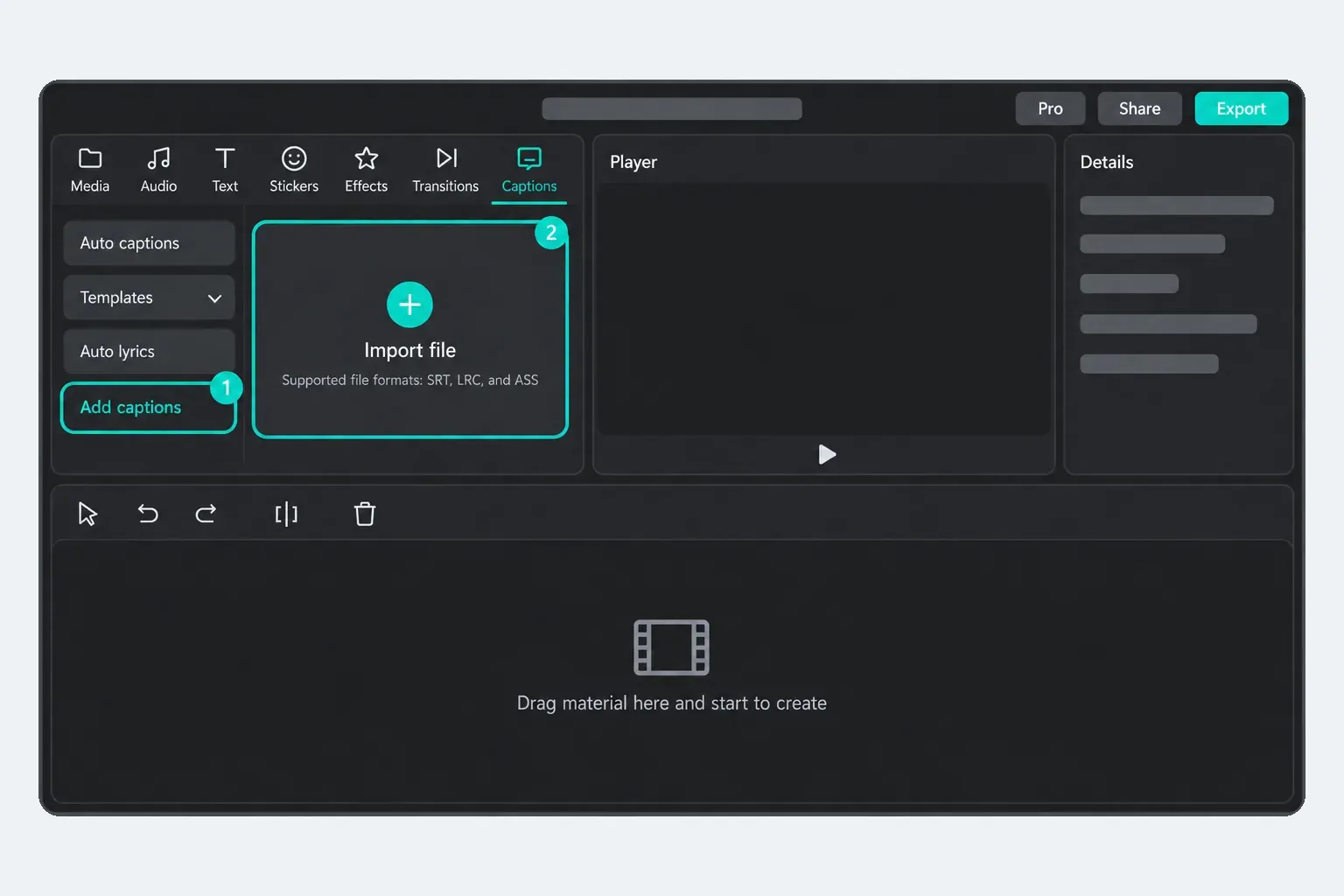
| Import external caption files | No direct import | Docs conflict | SRT documented | The 9.2.0 English Desktop panel listed SRT, LRC and ASS. Current Help still says SRT or TXT. Test the exact format you need; Mobile can't start the import. | Subtitle import Help |
| AutoCut | Conditional | Conditional | No | Region, account rollout, version and the label used in that build. | AutoCut platforms |
| Long Video to Shorts | No dedicated route checked | Conditional | Yes | Account, region, visible allowance and whether the home card appears in the current build. | Live Web tool · Desktop steps |
| Auto Lyrics | Conditional | No generation | No generation | Region, clear vocals, current label and staged availability. Synced text may remain editable elsewhere. | Auto Lyrics |
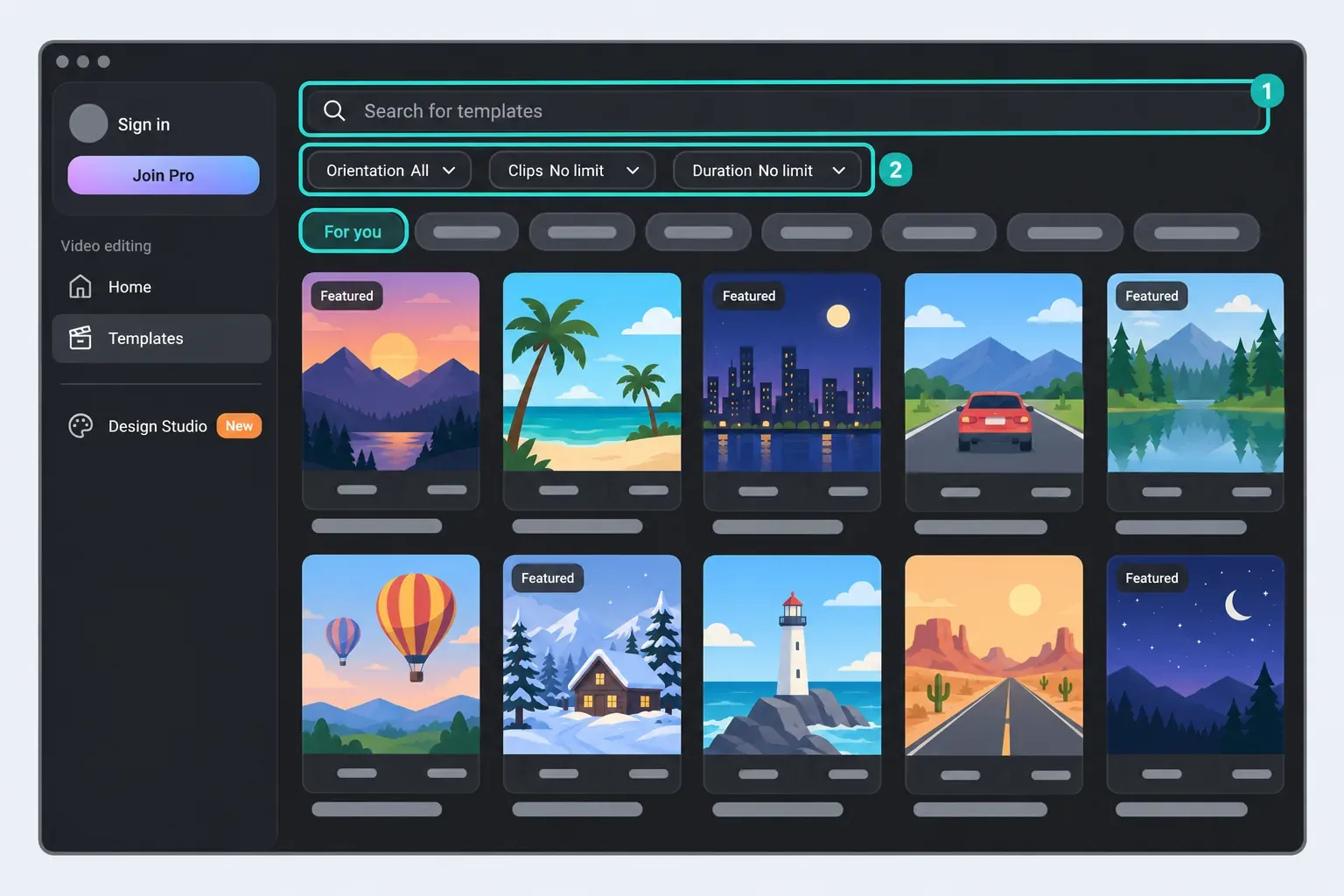
| Browse and use templates | Fullest social flow | Docs conflict | Official catalog | Desktop 9.2.0 showed search, filters and a live catalog. Current Help still describes only a few official or preloaded items. Mobile's TikTok link and sharing flow remains separate. | Template platforms |
| Browse or buy paid templates | Mobile only | No | No | Region and app version can hide the Template tab or the paid catalog. | Paid templates |
| 2K or 4K export | Conditional | Supported | Conditional | Source resolution, project, device/GPU, browser, region, version, plan and the live Export panel. | 2K/4K export |
| Standard membership benefits | Selected regions | No benefits | No benefits | The signed-in offer. Standard is described as Mobile-only and is not sold everywhere. | Standard devices |
| Pro membership benefits | Yes | Yes | Yes | The same CapCut account must own the subscription. A tool can still be platform, region or rollout limited. | Standard vs Pro |
| Buy AI credits | Docs conflict | Yes | Yes | Purchase Help says no Mobile purchase; CapCut Credit Rules shows a Mobile buy/check route. Trust the signed-in balance screen. | Purchase Help · Credit Rules |
| Run credit-metered AI tools | Docs conflict | Conditional | Conditional | Tool, account, plan, region and the cost shown before generation. Don't reuse a credit price from another mode. | Credit order · Credit Rules |
| Spaces and cross-device projects | Conditional | Conditional | Conditional | Exact account/Space, completed upload, source media and whether the destination can open the editable timeline. | Cloud Space |
No matching feature. Try a shorter term or reset the filter.
Four gates decide whether the button appears
Platform
Mobile, Desktop and Web are separate editors. A familiar project card doesn't mean every control travels with it.
Account and entitlement
Free, Standard, Pro and credit balances answer different questions. The exact login method matters.
Region and version
Templates, AI tools, languages and even menu labels can arrive in stages or disappear from one market.
Project and device
Source resolution, hardware, browser, selected clip and media type can hide an otherwise supported control.
Plan access and AI credits are separate
A subscription unlocks an entitlement; a credit charge meters an action. Those can overlap, but they are not the same purchase. A Pro badge may unlock a tool while a generation still displays a credit cost. A large credit balance doesn't make a platform-only tool appear.
CapCut's current pages are especially messy here. Its credit-purchase guide says Mobile has no purchase entry, while the current Credit Rules tells Mobile users where to buy and check credits. We don't pick the more convenient sentence. The matrix labels the conflict, and the signed-in pre-run screen wins.
Use the CapCut AI tools hub to choose the workflow itself; return here to check where it may appear. For plan prices, storage and current offer cards, use our CapCut pricing guide. For deduction order and metered actions, use the AI credits guide. The CapCut Video Studio workflow applies those checks to a brief, storyboard and generated draft; the single-clip AI video guide records current model controls and dated pre-generation quotes. This page owns availability, not a second copy of those changing numbers.
Desktop Templates have moved faster than CapCut's Help page
The old safe answer was that Desktop offered only a few official or preloaded templates. That is still what CapCut's current Help page says. It is not what we saw in the current app. On August 14, the English 9.2.0 Desktop build opened a separate Templates page with search, orientation, clip-count and duration filters, topical categories and a scrolling catalog.
That doesn't make the three platforms identical. CapCut still documents Mobile as the route for TikTok template links, community discovery, link sharing and paid-template purchases. Web has its own official browser catalog. Because the live Desktop interface and CapCut's Help page disagree, we mark Desktop as a documentation conflict and avoid claiming that every Mobile or TikTok template opens there.
If the Desktop catalog is missing or a link won't open, work through our CapCut template troubleshooting steps before reinstalling. If the catalog is present, our walkthrough of CapCut templates covers how to use and edit them.
4K is an export-panel result, not a permanent badge
Desktop has the clearest 2K/4K route, but even there the source media, project and hardware still matter. Mobile and Web are more conditional. CapCut's current 4K help lists device or browser capability, source resolution, app version, region and account conditions. That makes “CapCut supports 4K” true in the broad sense and useless for a deadline.
- Open the real project on the platform you intend to use.
- Confirm that the source clips are at least the resolution you need.
- Open Export and read the resolution, frame-rate, codec, watermark and plan prompts shown there.
- Export a difficult 20–30 second section and watch it on another device.
For the quality choices themselves, see our full breakdown of CapCut export settings. The matrix only answers where the option is documented and what can still remove it.
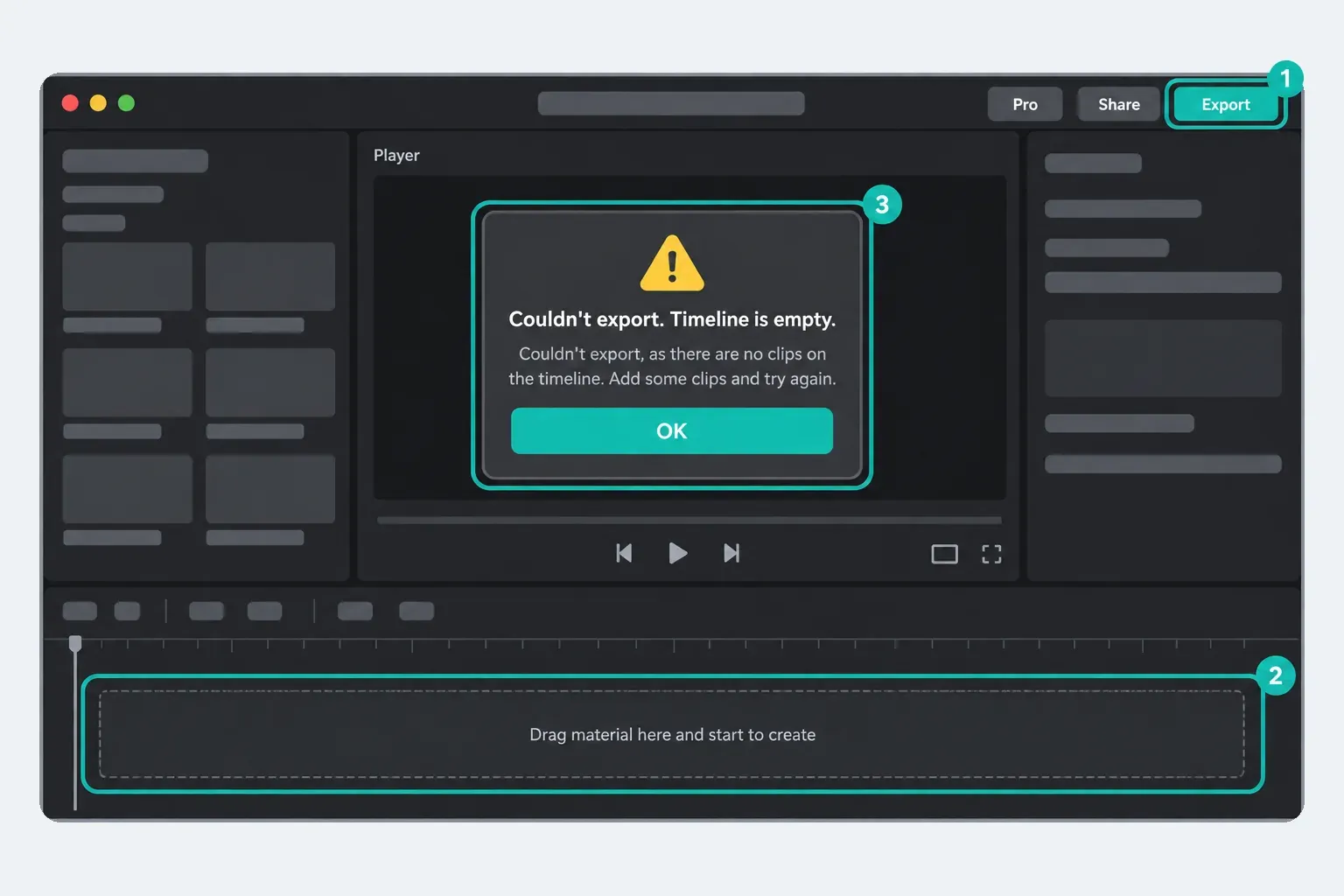
Why a CapCut feature is missing
- Check the platform row. Don't troubleshoot Web for a Mobile-only generator.
- Select the right object. Keyframes, tracking and adjustment controls can stay hidden until a supported clip, text layer or effect is selected.
- Verify the exact account. Google, Apple, TikTok and email sign-in can lead to different CapCut identities.
- Read the badge or pre-run dialog. It can show Pro, credit or material-specific conditions that a marketing page omits.
- Check region, version and connection. Update from the official store, restart normally and test a blank project before reinstalling.
- Protect the project before a risky fix. Use the CapCut Project Safety hub before clearing app data, deleting the app or moving draft folders.
If Pro is active but the same account still shows locked tools, follow the narrower Pro entitlement diagnostic. That page owns subscription recovery; this one owns the availability boundary.
The five-minute availability test
- Create a short blank project on the platform you plan to use.
- Add one representative clip with the resolution, audio and format planned for the final job.
- Find the feature and record its exact label, badge and any credit cost.
- Apply it once. A visible button that fails during processing is not available in practice.
- Open Export and render a short sample with the intended resolution and frame rate.
- Keep the test and a screenshot of the prompt when the feature affects a paid client workflow.
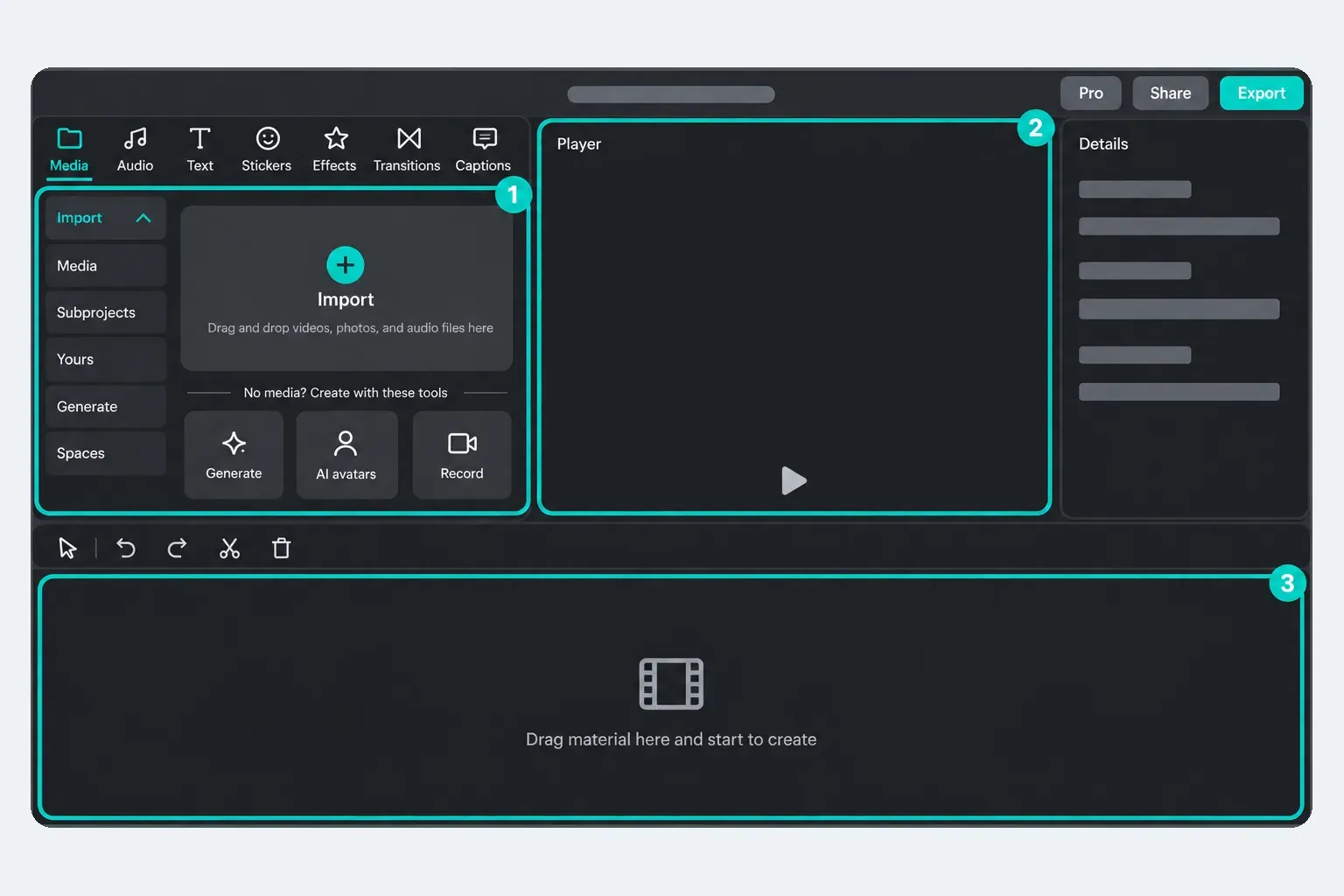
How this matrix is maintained
For this snapshot we compared CapCut Help pages for Auto Captions, subtitle import, AutoCut, Auto Lyrics, templates, 4K export, subscriptions, credits and Spaces. Interface details in this matrix are tied to the signed-out English CapCut 9.2.0 Desktop build for macOS as of August 14, 2026.
The live build exposed two gaps in CapCut's own documentation: the Desktop template catalog is broader than the current Help description, and the caption-import formats shown in the app differ from the Help list. We keep those rows marked as conflicts instead of pretending one source silently cancels the other. Mobile-only rows still come from CapCut's current platform instructions, so confirm the labels on your own iPhone or Android build.
The matrix deliberately stops at high-intent differences. Individual AI generators, voices, effects, languages, templates and credit prices change too quickly for a permanent yes/no catalog. Those belong in their focused guide or in the signed-in pre-run dialog.
- : documented the live template and caption-format conflicts; refreshed sources and corrected the feature count.
- : rebuilt the old feature overview as a sourced platform, plan and credit matrix; added the official conflict state and live-account verification.
CapCut feature availability FAQ
Are CapCut Mobile, Desktop and Web the same?
No. They share a core editing workflow, but templates, AI tools, subtitle import, export options and paid features can differ. Treat each platform as a separate editor and verify the tool in the version you'll use.
Does CapCut Pro unlock every feature on every platform?
No. Pro is a cross-platform membership, but it doesn't add a Mobile-only tool to Web or remove every region, rollout, device and project condition. Some AI actions can also use credits.
Why is a CapCut feature free on my phone but paid on PC?
CapCut can assign different entitlements and catalogs by platform, region, account and version. Check the badge on the exact tool in each editor rather than assuming the Mobile and Desktop labels carry the same price.
Can I import an SRT file in CapCut Mobile?
Current CapCut Help says Mobile can't start a direct subtitle-file import. Import the caption file on Desktop or Web, then test whether the editable caption layers survive the intended project handoff. On Desktop, version 9.2.0 showed SRT, LRC and ASS while Help still listed SRT or TXT, so verify the exact format before committing to the workflow.
Is AutoCut available on CapCut Web?
CapCut's platform guide says AutoCut is available on Mobile and Desktop during supported rollouts, but not on Web. Similar-looking Web tools are not proof of the same beat-aware workflow.
Why do CapCut's own credit pages disagree?
CapCut currently has a purchase guide that excludes Mobile and Credit Rules that describe a Mobile buy/check route. We label that as a documentation conflict. The signed-in balance and pre-run confirmation are the deciding evidence for your account.
How often should I recheck the matrix?
Check it before a platform move, subscription purchase or important project, and always confirm volatile AI, template, language and export rows in the live editor. The page records its last editorial verification date near the top.