

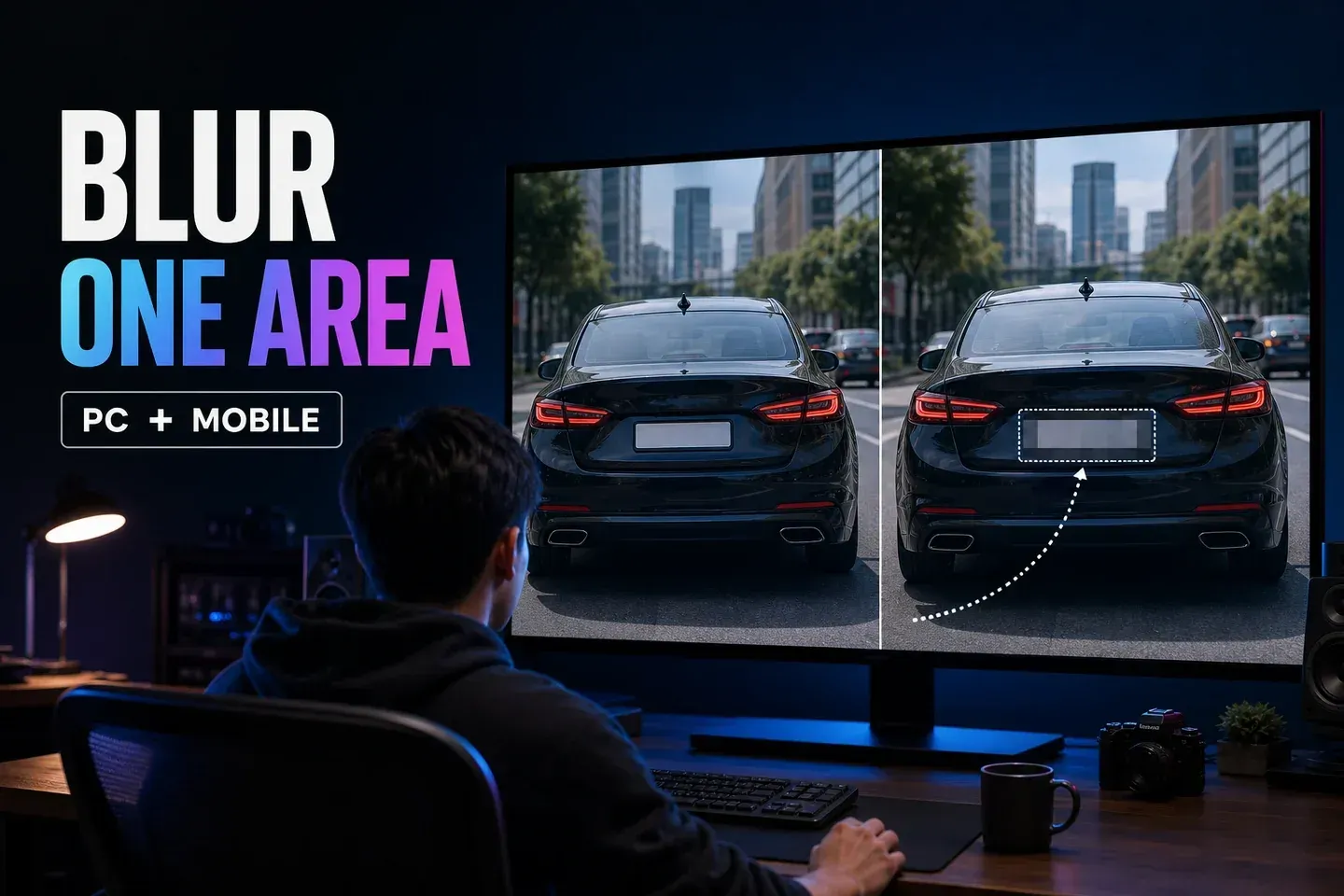
To blur one part of a video in CapCut, stack two aligned copies of the shot and use a mask to reveal the blurred copy only over the target. On Desktop, blur the lower copy, keep a clear copy above it and use Video > Mask > Reverse. On Mobile, blur the base, add the clear original as an overlay, apply Mask > Invert to that overlay and move the mask with keyframes.
A stationary logo or screen corner may need one mask. A moving plate, sign or object needs tracking or keyframes. The final check happens in the exported file, where every entrance, turn, zoom, occlusion and exit must stay covered.
Checked August 16, 2026. The routes and product images below were compared with current official English CapCut material. Labels, effect placement, tracking access and plan badges can vary by platform, build, device, account and region.
Choose the Right Partial-Blur Route
Static area
Place a Circle or Rectangle mask once, then inspect the full shot for camera movement.
Moving object
Run Track mask on Desktop or animate position and size with keyframes on Mobile.
High privacy risk
Prefer dense mosaic or an opaque cover and check every rendered frame around difficult motion.
Use the smallest job-specific guide when the target is different. The CapCut face-blur guide covers face tracking, several people and identity clues. The background-blur guide keeps the subject sharp while softening the scene. This page is for one local area such as a plate, badge, sign, address, screen, document or unwanted corner detail.
Understand the Two-Layer Trick
Partial blur needs a sharp layer and a blurred layer showing the same frame. The mask decides where viewers see one instead of the other. If both clips start together and share the same crop, scale, speed and duration, the join can look like one picture with a controlled soft patch.
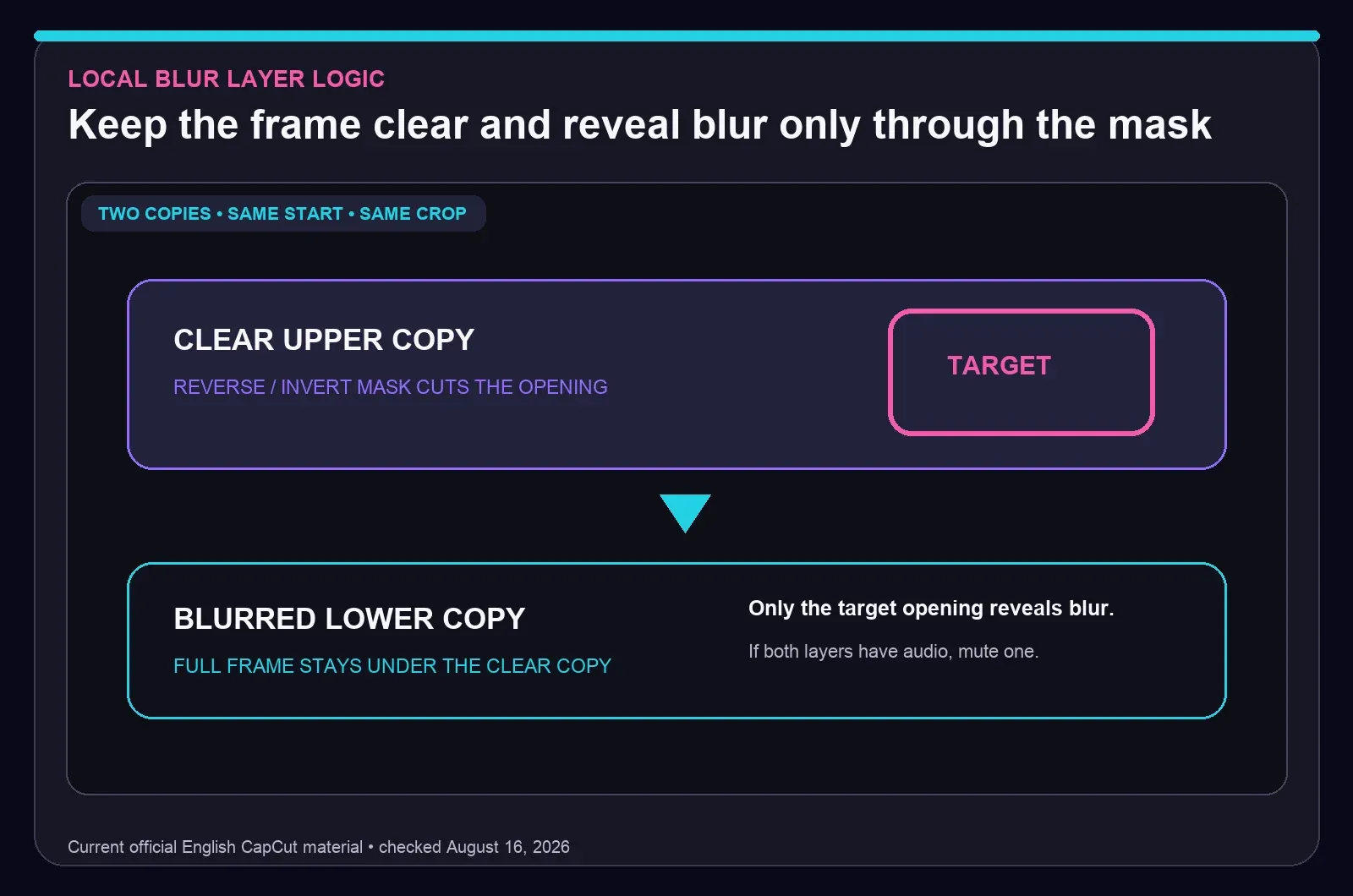
On Desktop material, the blurred copy sits below the clear copy. Reverse switches the clear mask so the center becomes an opening to the blur. On Mobile material, the blurred base sits below a clear overlay and Invert creates the same opening. The labels differ, but the visual result follows the same rule.
Alignment matters before any mask work. A one-frame offset creates a doubled edge around movement. A different crop or speed makes the blurred patch slide away from the picture even when the mask path looks correct. If duplicated audio creates an echo, mute or detach one copy and keep a single sound source.
Prepare the Clip Before Adding Blur
Start by trimming the shot to the section that needs coverage. Split at hard cuts, angle changes and moments when the target leaves for a long time. A short controlled segment is easier to track, correct and review than one mask stretched over several unrelated camera moves.
Find the hardest moment before building the entire edit. Look for a fast pan, sharp turn, zoom, obstruction or re-entry. Set up and export that short section first. If the mask survives the difficult motion, the calm frames usually need fewer corrections. If it fails, switch to tighter keyframes, a larger shape or separate clip segments early.
Keep the untouched source and duplicate the project before a long redaction job. Later changes to crop, speed or stabilization can break the alignment between layers. A clean rollback saves rebuilding the base edit.
Mark the full visibility window
Scrub backward until the target first becomes recognisable, then mark that frame. Repeat at the end of the shot. Those two points define the real blur duration. A plate may become readable before the car reaches the centre of the frame, while a phone screen may remain visible for a few frames after the main action has ended.
Check the target at the edges as well as its centre. A rectangle that hides the plate characters but leaves a distinctive registration strip or company name still misses part of the job. For a document or screen, include headings, account icons and reflected text if they carry the same sensitive information. This small pre-edit check prevents a polished track from solving only the most obvious part of the exposure.
Blur a Static Area on CapCut Desktop
CapCut's current official targeted-blur workflow duplicates the clip, blurs the lower copy and masks the clear upper copy with Reverse. The English material shows Video > Mask with shapes including Circle and Rectangle.
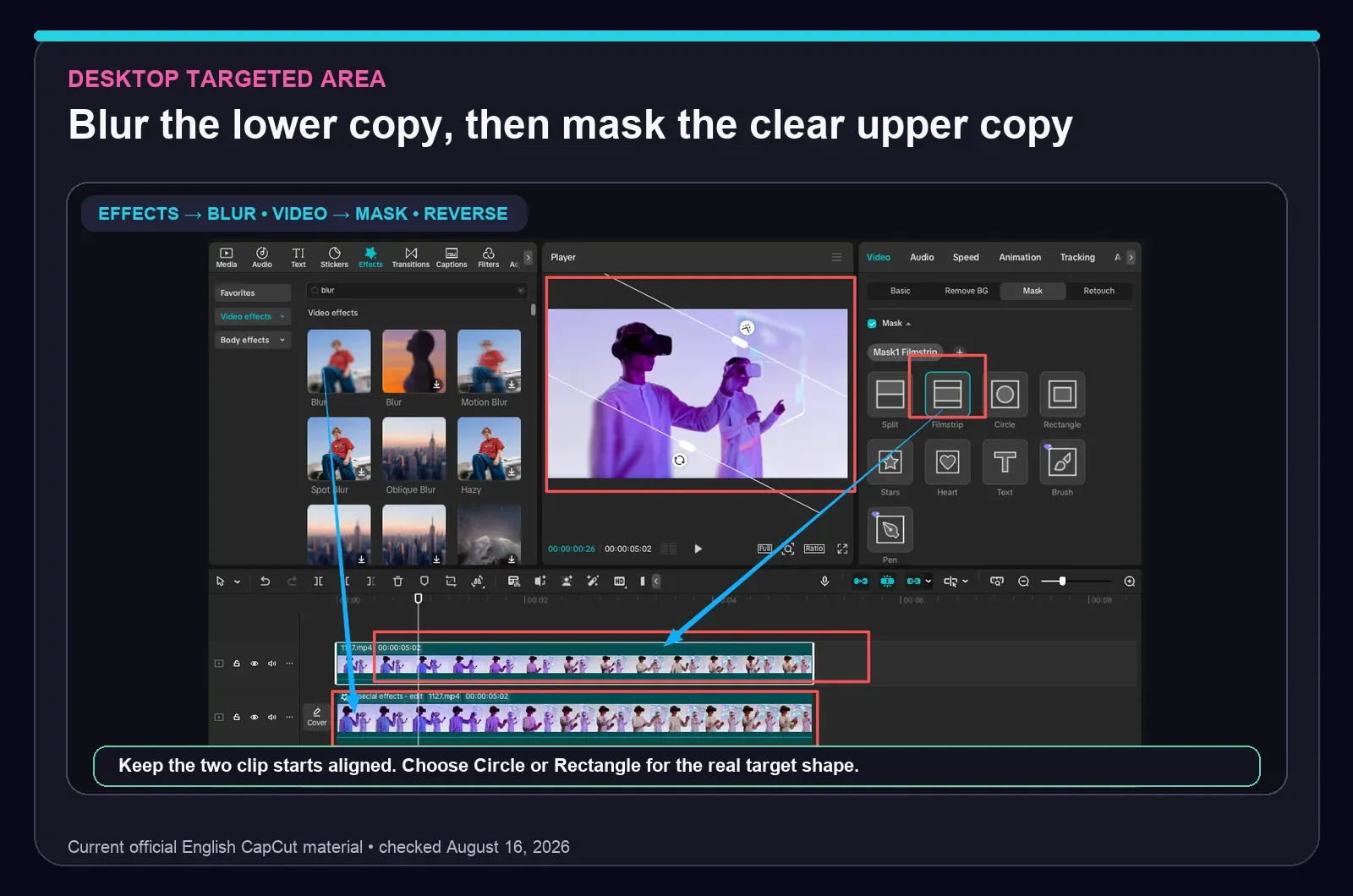
- Import the source, trim the shot and place it on the timeline.
- Duplicate the clip. Align both starts and keep the clear copy above the lower copy.
- Select the lower copy, add Blur from Effects and match the effect duration to the shot.
- Select the clear upper copy, open Video > Mask and choose Circle or Rectangle.
- Turn on Reverse. The blurred lower copy should appear inside the mask opening.
- Place and resize the shape so it covers the whole sensitive area, including its edges during small movement.
- Play the complete shot and export a short sample before finishing a long sequence.
If the whole frame remains blurred, the mask is probably on the wrong layer, Reverse is in the wrong state, or the clear copy is missing. Work from the layer stack upward: blurred lower copy, clear upper copy, mask on the clear copy.
Track a Moving Object on CapCut Desktop
Current official CapCut Desktop material shows Track mask after a mask is placed. Use it as a first pass rather than a promise of frame-perfect coverage. Tracking can lose a target when its scale changes, contrast drops, another object passes in front or the target leaves the frame.
- Park the playhead where the plate, sign or object is fully visible.
- Place the mask with a small safety margin around the complete target.
- Open Track mask, choose the available direction and run Track.
- Watch the result at normal speed, then inspect the difficult sections frame by frame.
- Correct the path or mask size where the target turns, grows, shrinks or loses contrast.
- Split the clip and start a fresh track after a long occlusion, exit or camera cut.
A smooth tracking line can still expose the corner of a plate or the bottom of a document. Judge the picture itself, not the path graphic. For a fast target, a slightly larger rectangle often looks steadier than a tight shape that reveals an edge for one frame.
Blur One Area on CapCut Mobile
Current official Mobile material uses a blurred base, the original clip added again as an aligned overlay, Mask, Invert and position keyframes. Select the overlay before looking for Mask in the lower toolbar. Swipe the toolbar when the control sits off-screen.
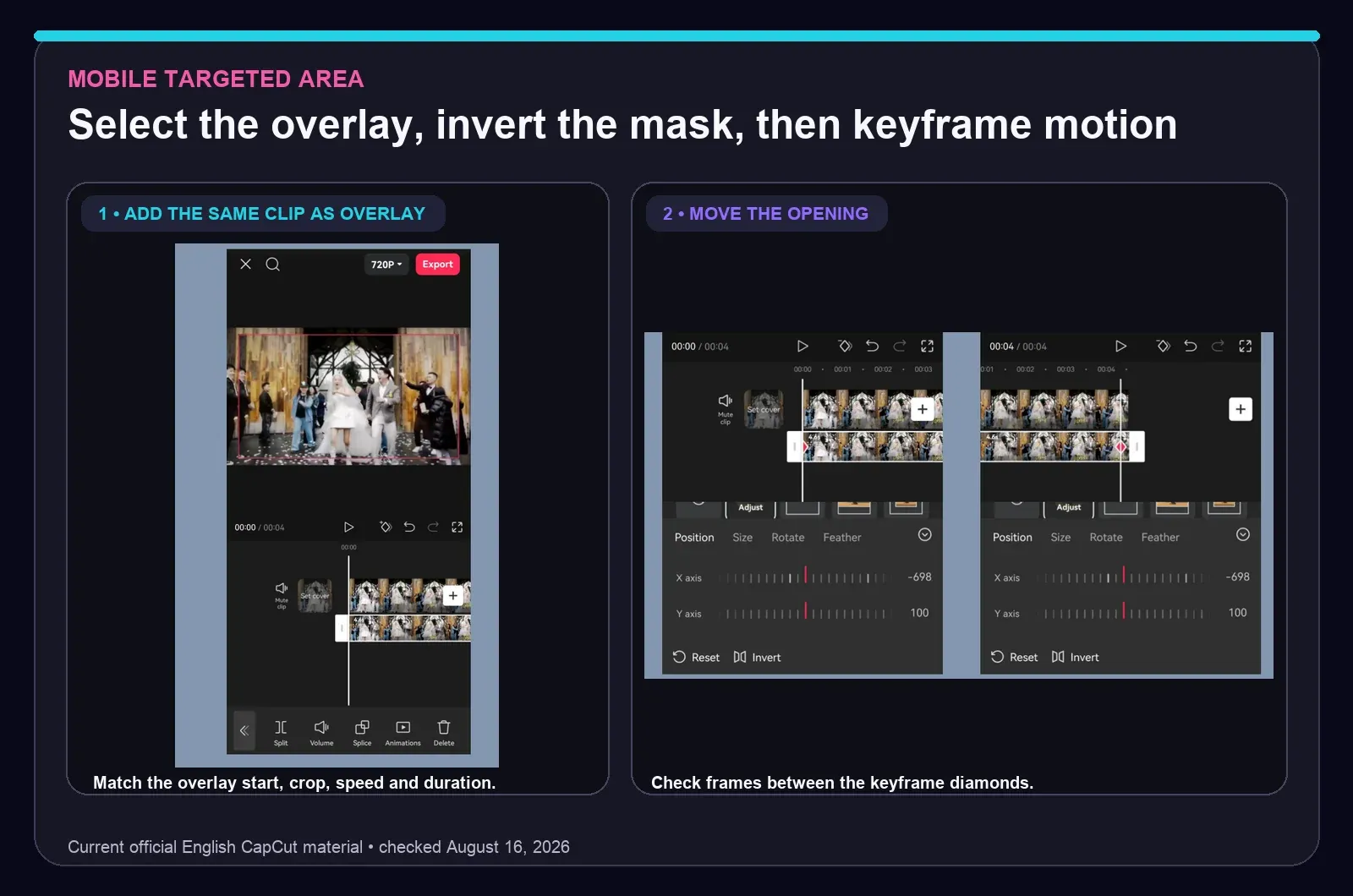
- Add the source to a new project and apply Blur across the base clip.
- Add the same source again as an overlay. Match its start, crop, scale, speed and duration to the base.
- Select the clear overlay, open Mask and choose Circle or Rectangle.
- Turn on Invert so the blurred base appears through the opening.
- Place the mask over the target and add the first position keyframe.
- Move forward until direction, speed or scale changes. Reposition or resize the mask and add another keyframe.
- Repeat through the shot, then inspect the frames between markers for exposed edges or wobble.
- Mute one duplicate audio track if you hear echo, then review the exported file outside CapCut.
Keyframes describe the positions you set while CapCut fills in the movement between them. Add markers where motion changes, not at arbitrary intervals. If the mask bows away from the target between two good positions, place a correction closer to the change. The CapCut keyframe guide explains timing and interpolation in more depth.
Choose Circle, Rectangle or a New Segment
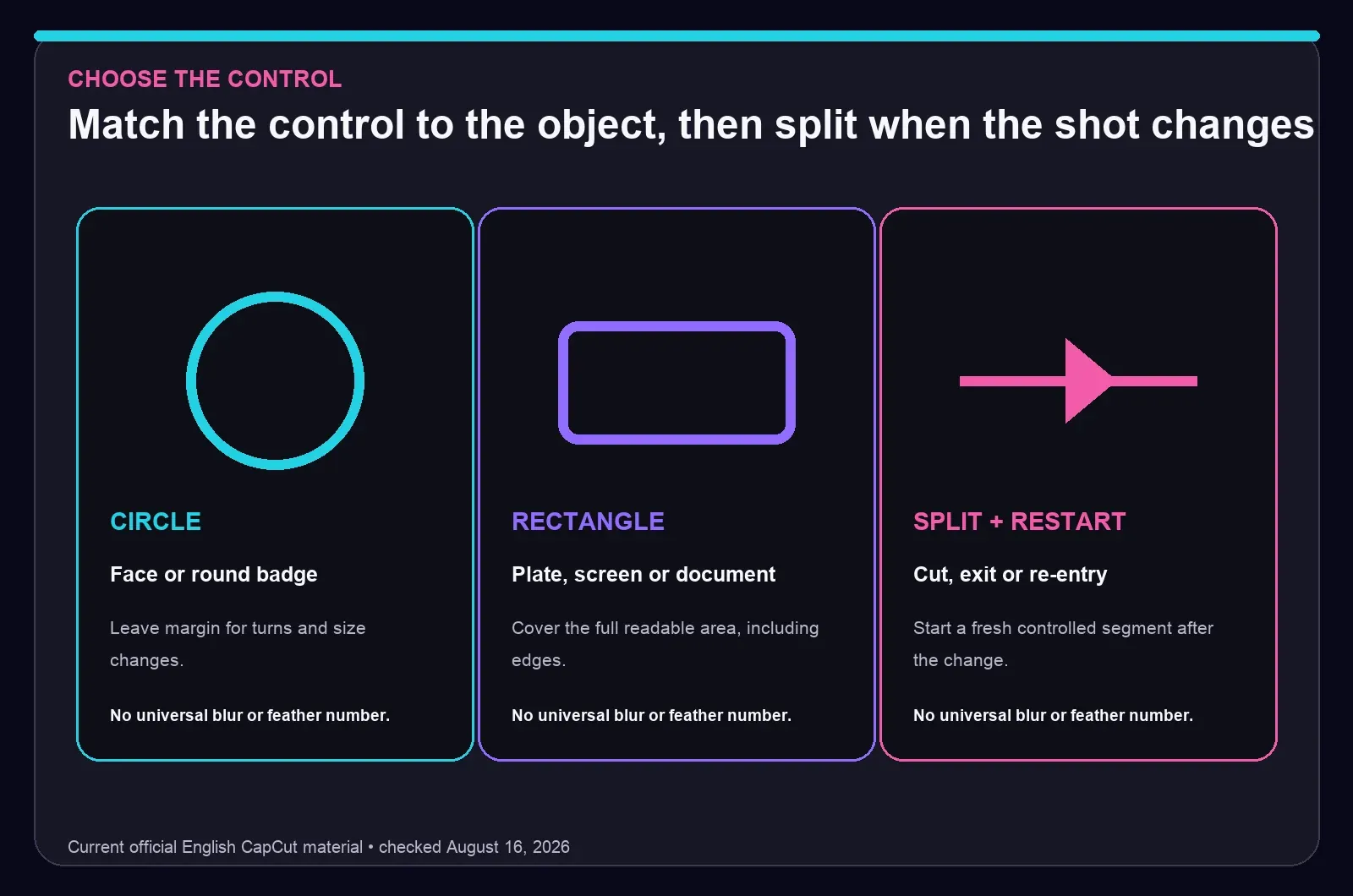
Circle suits rounded details and soft editorial hiding. Rectangle gives cleaner control over plates, screens, name badges and document fields. Rotation can help with an angled surface when the current control exposes it. When a target exits, re-enters elsewhere or passes behind another object for several frames, splitting the clip is usually cleaner than forcing one path through the gap.
Feather controls the transition at the mask edge. A soft edge can look natural, yet it also leaves a transition band with more readable detail. Blur strength depends on target size, source resolution, motion and consequence. A weak blur that looks fine in the editor may reveal characters after export. There's no universal blur or feather number that makes every target safe.
For a license plate or private text, test at the largest likely viewing size. If characters remain guessable, use a denser mosaic or opaque fill. Cosmetic softness and secure redaction solve different problems.
Use CapCut Web as a Fallback
CapCut's official Web material documents a route that blurs a clip, exports it, reimports the blurred file and combines it with a mask. It works around a simpler timeline, but the extra render adds time and can add compression.
Use that route when Web is the only editor available. Keep the intermediate export at the same resolution and frame rate as the source, preserve the untouched original and check alignment after reimport. Desktop or Mobile layers are usually cleaner for a moving target because they avoid baking the first blur before the mask is finished.
Fix Partial Blur That Looks Wrong
- The whole frame is blurred: check the layer order and mask state. The clear copy needs to cover the frame while the opening reveals the blurred copy.
- The mask moves but the blur stays behind: confirm that both clips share the same start, speed, crop, scale and duration.
- The mask control seems missing on Mobile: select the overlay clip, then inspect and swipe the lower toolbar.
- The effect ends early: extend the Blur effect and both duplicate clips through the final target frame.
- The result drifts after a zoom: animate mask size as well as position, or split at the zoom and begin a new controlled segment.
- An obstruction breaks tracking: correct around the occlusion and inspect the first clear frame after it, or restart the track after a split.
- Audio echoes: mute one duplicate track so the project keeps a single audio source.
- The editor looks correct but export differs: render a short sample, play it outside CapCut and revisit layer duration, performance or conflicting effects.
CapCut's effects troubleshooting guidance starts with the selected layer, playhead position, effect duration, conflicting effects and device performance. Follow that order before rebuilding the entire edit.
Treat Privacy as a Separate Decision
Blur can hide a visible detail without making the footage anonymous. The UK's ICO anonymisation guidance treats identifiability as context-dependent. A voice, distinctive jacket, location, vehicle, reflection, caption or event can reveal a person even when one area is soft.
NISTIR 8053 warns that analysis may combine information across video frames, while clothing, pose and geo-temporal context can support recognition. A flattened export lacks the original hidden pixels, but that fact never turns light pixelation into a safety guarantee.
For footage where exposure could harm someone, use dense mosaic or an opaque cover, review every relevant frame at full size and keep the source and project under appropriate access control. The ICO's video-surveillance guidance notes that blurring, masking, solid fill or specialist tools may suit different circumstances. Legal, workplace, medical or safeguarding footage deserves specialist review.
Review the Export Separately from the Timeline
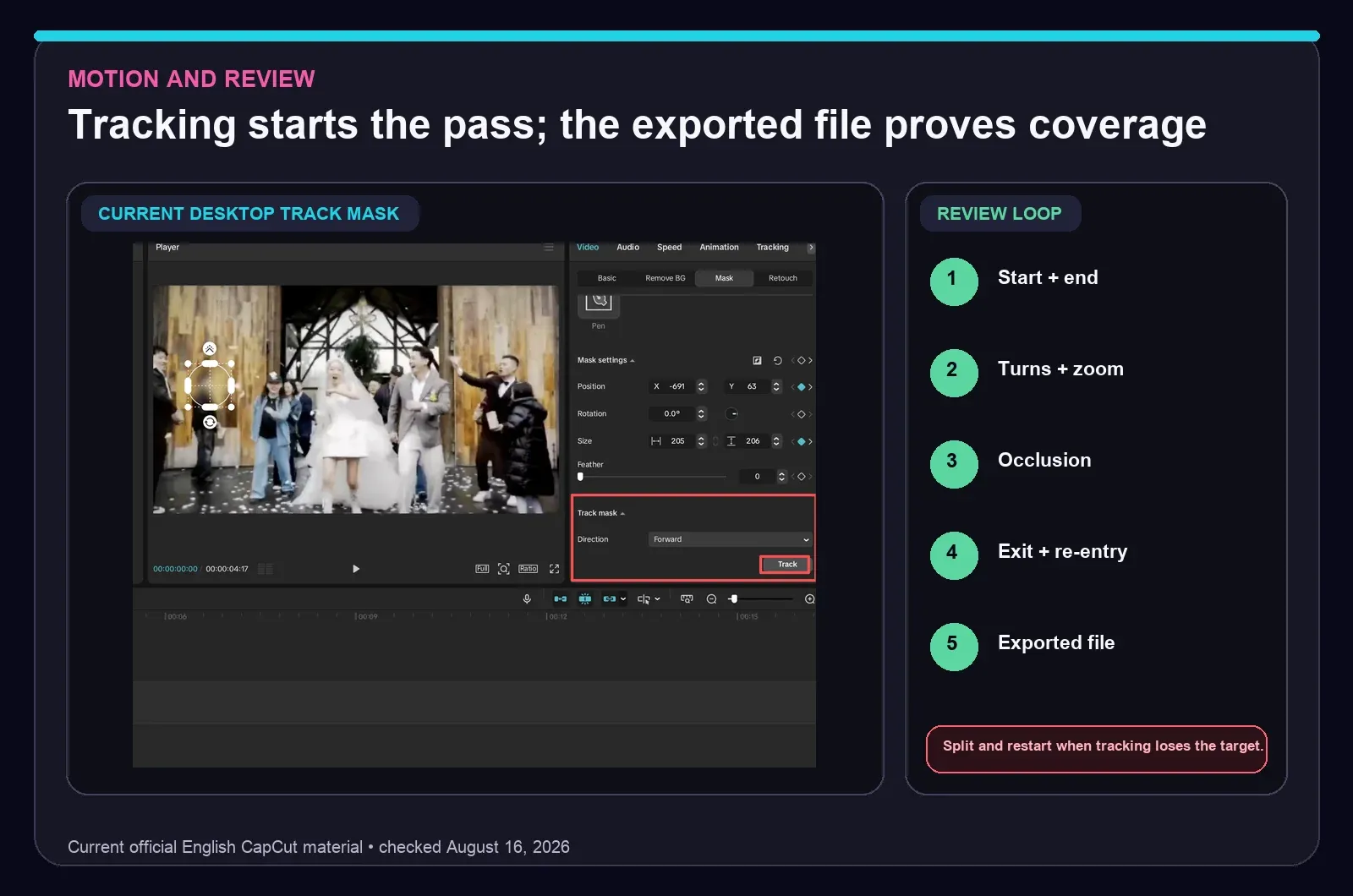
- Export a short difficult section with the intended resolution and frame rate.
- Play it outside CapCut at normal speed, then step through turns, zooms and occlusions.
- Check the first and last visible target frame plus every exit and re-entry.
- Watch on another screen at full size. A small editor preview can hide a one-frame exposure.
- Inspect reflections, captions, thumbnails, filenames and metadata for the information you meant to hide.
- Keep the original private and share only the reviewed export.
If the rendered file looks softer or choppier than the timeline, use the CapCut export settings guide to match resolution, frame rate and destination. Export settings can't repair a missing mask frame, so coverage still comes first.
CapCut Partial Blur FAQ
What is the easiest way to blur one area in CapCut?
For a static area on CapCut Desktop, duplicate the clip, blur the lower copy, keep a clear copy above it, add a Circle or Rectangle mask to the clear copy and use Reverse so the lower blur appears through the opening. Moving targets need Track mask or keyframes plus a complete export review.
How do I blur a moving object in CapCut?
On CapCut Desktop material, place the mask over the target and run Track mask as a first pass. On Mobile, move and resize an inverted mask with keyframes. Inspect turns, zooms, occlusions, exits and re-entry because any automatic or interpolated path can lose coverage.
How do I blur a license plate in CapCut?
Use a Rectangle mask over a strong blur or mosaic, keep the plate covered from its first visible frame to its last and animate both position and size as the car moves. For high-consequence footage, an opaque cover is safer than a light cosmetic blur.
Why can't I find Mask in CapCut Mobile?
Select the clear overlay clip on the timeline before looking for Mask in the lower toolbar. Swipe the toolbar if the control is off-screen. Labels, placement and access can vary by platform, build, device, account and region, so rely on the live editor rather than an old screenshot.
What is the difference between Reverse and Invert in CapCut masks?
Both switch which side of the mask is visible. Current Desktop material uses Reverse on the clear upper copy so the blurred lower layer appears inside the shape. Current Mobile material uses Invert on a clear overlay above a blurred base to create the same local-blur result.
Can I blur a specific area in CapCut Web?
Current official CapCut material documents a Web fallback that blurs a clip, exports it, reimports it and combines it with a mask. The route adds another render, so native Desktop or Mobile layers are usually cleaner when those editors are available.
Is partial blur free in CapCut?
Blur, masks and keyframes appear in supported CapCut workflows, but effect catalogs, automatic tracking, plan badges and access can vary by platform, build, account and region. Check the live label in your editor before depending on a feature for a deadline.
Can someone remove blur from an exported video?
A flattened export lacks the original hidden pixels, but weak blur or pixelation is still a poor privacy guarantee. Analysis across frames and clues such as voice, clothing, location, reflections or metadata may reveal sensitive information. Use dense mosaic or an opaque cover when exposure could cause harm.