


A CapCut keyframe saves one property value at one moment. Put another keyframe later with a different value, and CapCut draws the change between them. That is the whole system: select the right element, set a starting state, move the playhead, change the same property and preview from before the first marker.
Quick answer: start with two markers and one property. For a zoom, use Scale. For a pan, use Position. For a fade, use Opacity where the selected element exposes it. Mobile, Desktop and Web follow the same logic, but the button location, supported properties and graph controls can differ by platform, build and element type.
Checked September 17, 2026 against current English-language CapCut resources and Help material. This guide explains the documented workflow and recurring failure modes; no clip was imported, animated or exported for this update. The Desktop and Web interface images below are original instructional reconstructions, not captured test results. If your editor differs, trust the controls shown beside the selected element in your current build.
What a CapCut Keyframe Does
The first marker is a saved value, not a command to move. A Scale keyframe at 100 percent says, “keep this element at 100 percent here.” Motion appears when another Scale keyframe stores a different value later. Two markers both set to 100 percent create no zoom because there is no value change to calculate.
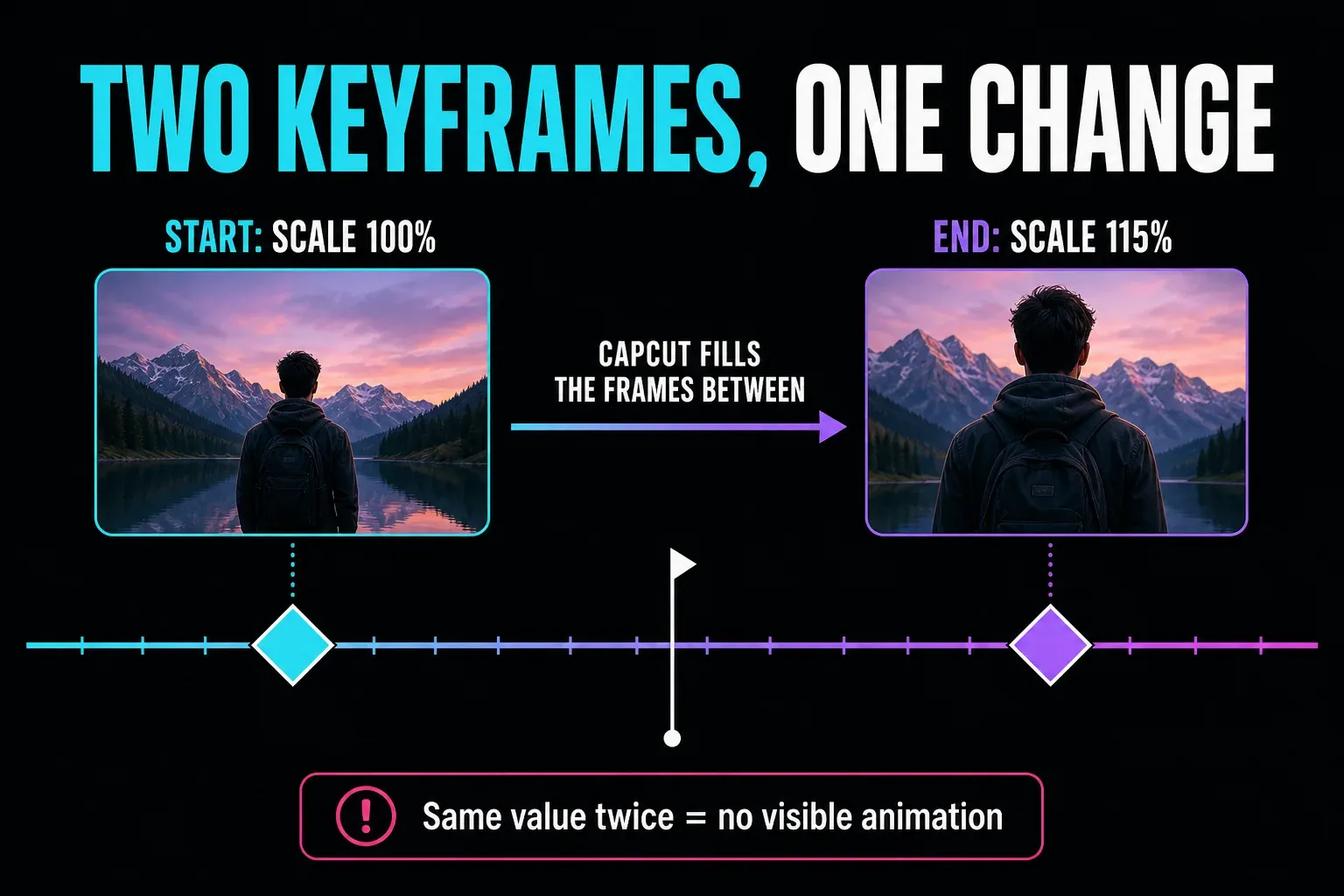
This distinction solves many “keyframes not working” problems. The diamond can be present on the timeline while the frame looks unchanged. Before adding more markers, compare the exact value at the first and last marker and confirm that both belong to the same property on the same element.
CapCut's official Desktop guide documents common transform controls such as Position, Scale, Rotation and Opacity. CapCut's broader keyframe page also names shape and color, but the available properties still depend on the selected element, platform and build. A visible diamond beside the selected property is the useful test; avoid treating any list as universal.
Before You Add the First Diamond
Choose the element that should move. A video clip, overlay, title and sticker are separate timeline objects. Selecting the background clip while looking at a title doesn't animate the title. On a layered edit, click or tap the object on the timeline first, then check that its outline or inspector controls belong to that object.
Next, decide which property tells the story:
- Position moves an element across the canvas.
- Scale creates a push-in, pull-out or size change.
- Rotation turns or tilts the element.
- Opacity creates a fade when that control is available for the selected element.
Build one property first. A zoom that also drifts, rotates and fades is hard to diagnose when all four changes were added at once. Make Scale work, preview it, then add Position only if the framing needs to follow the subject.
Remove preset animation from a duplicate test when it competes with manual keyframes. Presets and property keyframes can both change the same element, leaving you unsure which control caused a snap or overshoot.
How to Use Keyframes in CapCut Mobile
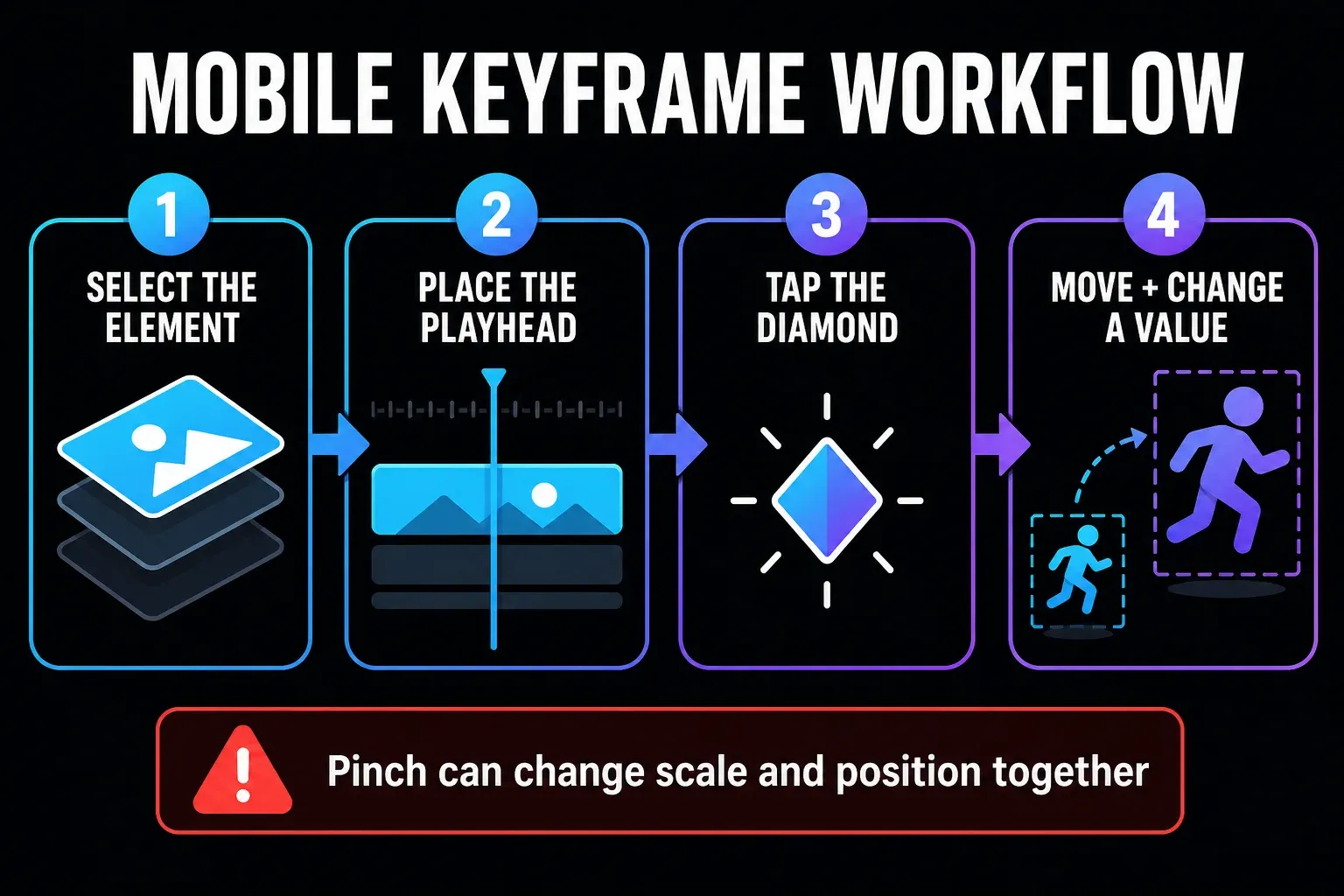
- Open the project and tap the video, image, overlay, title or sticker you want to animate.
- Move the playhead to the first frame of the motion.
- Tap the diamond keyframe control shown for the selected element.
- Move the playhead to the end of the motion.
- Change the intended property. Pinch for Scale, drag for Position, or use the current property control when it is exposed.
- Preview from a moment before the first marker, not from the final frame.
CapCut moves mobile controls between builds and element types. Don't depend on a toolbar position or marker colour from an old CapCut tutorial. Select the element first and look for the current diamond. If the toolbar is wider than the screen, swipe it rather than assuming the feature has disappeared.
Touch gestures can change more than one property. A two-finger pinch often changes size while the fingers also drag the element. If a zoom wanders, return to the first and last marker and compare both Scale and Position. Reset the unintended property or enter a cleaner value where the app allows it.
To remove a marker safely, navigate to the exact keyframe and confirm which property owns it before using the current remove or reset control. Deleting a random diamond on a crowded timeline can leave the unwanted Scale change while removing the Position correction you meant to keep.
How to Use Keyframes in CapCut Desktop
Desktop gives you the clearest view of property values. Select the timeline object, open the right-side video controls and find the diamond beside the property. Current official material places transform keyframes in the Video and Basic area, although panel names can shift with the selected element.
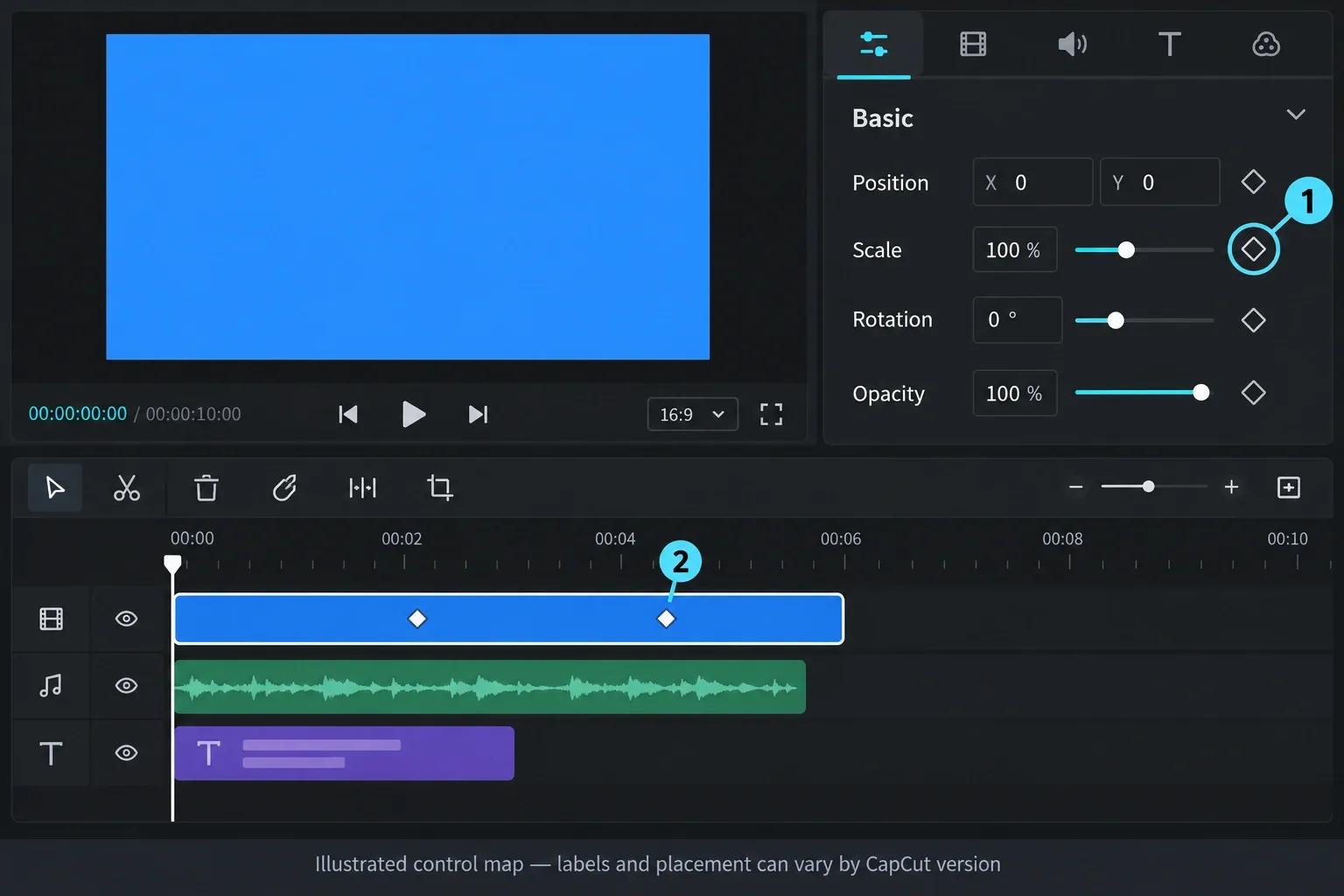
- Place the clip, image, title or overlay on the timeline and select it.
- Open Video > Basic, Transform or the current section containing the property.
- Move the playhead to the start and click the diamond beside Position, Scale, Rotation or Opacity.
- Move the playhead later and change that same value. CapCut can create the next marker when the value changes.
- Use the previous and next keyframe arrows, where shown, to land on an exact marker.
- Drag timeline markers to change timing without changing their stored values.
CapCut's official Desktop keyframe guide currently lists Alt+K for showing the keyframe panel and Shift+Click for adding a keyframe inside that panel. Treat those as current documented shortcuts, not permanent laws. Check CapCut's Shortcut settings when a key is reassigned, conflicts with the system or does nothing in your build.
A marker farther to the right makes the same value change take longer. A marker closer to the first makes it happen faster. Moving the marker changes timing; changing Scale, Position, Rotation or Opacity changes the animation itself. Keep those two adjustments separate while diagnosing a move.
How to Use Keyframes in CapCut Web
In the browser editor, select the timeline element and inspect the right-side controls. CapCut's current keyframe page describes Position, Scale, Rotation, Shape, Opacity and Color as possible parameters, but the chosen element may expose only part of that set. Use the diamond beside the property you actually see: save the first value, move the playhead, then change that same property.
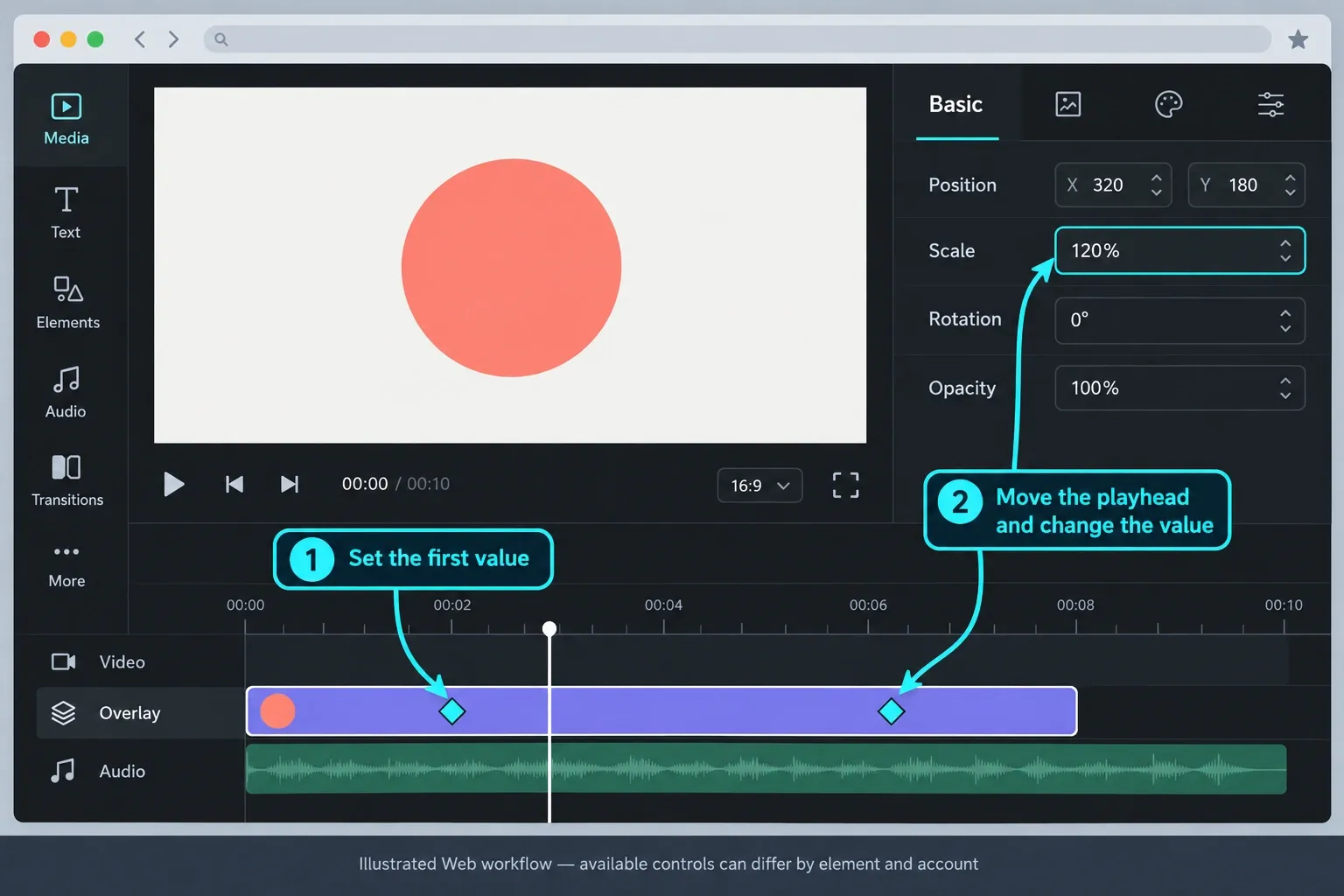
Web support doesn't guarantee that every Desktop shortcut, graph or element type will appear in the browser. If the basic diamonds are present but the graph shown in another tutorial is missing, finish the motion with marker spacing or continue the project in Desktop. Don't install an unknown extension or downgrade a working editor to chase one control.
Browser editing adds upload, connection, memory and cloud-rendering conditions. A choppy preview can be a performance problem rather than bad keyframe spacing. Export a short representative section and watch it outside the browser before rebuilding the animation.
Three Keyframe Recipes Worth Learning
Slow zoom on a photo or video
- Place the playhead where the push-in should begin and save the current Scale.
- Move later and increase Scale modestly.
- Adjust Position only if the subject drifts away from the intended focal point.
- Preview at the final canvas size and move the second marker farther away if the zoom feels rushed.
There's no universal smooth-zoom percentage. A close portrait, wide landscape and low-resolution image tolerate different scale changes. Start small, judge the edges and subject, then add easing only after the basic timing feels right.
Pan across a wide image
Scale the image until it covers the canvas at both ends. Save the first Position, move later and drag to the final composition. Check every edge throughout the move. If an empty border appears, increase Scale slightly or shorten the travel instead of hiding the problem under another layer.
Keep faces, subtitles and products inside safe framing at both ends. A technically smooth pan still fails when the subject leaves the readable area halfway through the move.
Move and fade text or an overlay
Where the selected element exposes both controls, set the first Position slightly outside the final placement and lower Opacity. Move later, set the final Position and full visibility, then preview. Build Position first and Opacity second so one bad property doesn't hide another.
The two properties can finish at different times on purpose. A title may arrive first and finish its fade a few frames later. The important part is that the offset is intentional rather than a marker placed on the wrong frame.
Make CapCut Keyframes Smoother
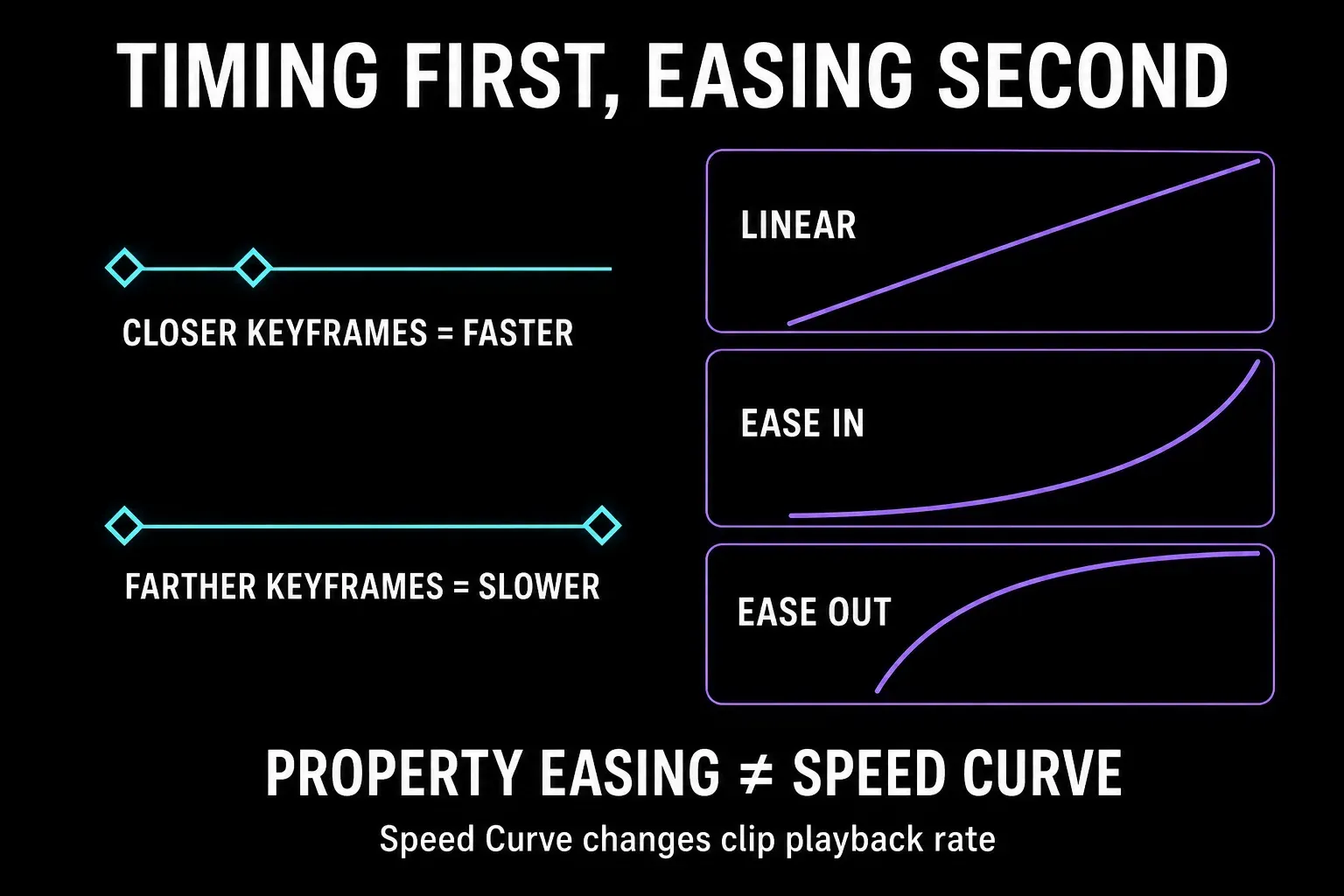
Fix duration before touching a graph. If the move is too fast, increase the distance between the two property keyframes. If it drags, bring them closer. CapCut's current keyframe animation guide describes using keyframes and its graph/speed controls to refine timing. The practical distinction is simple: spacing sets how long the change lasts, while easing changes how the value accelerates or settles between the saved points.
- Linear changes the value at a constant rate.
- Ease in starts gently and accelerates.
- Ease out moves sooner and settles gently at the end.
- Ease in-out softens both ends when that option is available.
CapCut's public keyframe page mentions a graph/editor, but it doesn't establish identical controls across every platform, account or element. Select the element and its property markers, place the playhead between them, then open the graph or keyframe-animation control your build provides. When there is no graph, marker spacing still gives you reliable control over duration.
Speed Curve is a different tool. It changes the clip's playback rate and may change how action fits the timeline. Property easing changes how Position, Scale, Rotation or Opacity travels between saved values. Use the CapCut velocity and Speed Curve guide when the footage itself should accelerate or slow down.
Animate Text, Stickers, Overlays and Masks
Each timeline element owns its own markers. Select the title track to animate the title, the sticker track to animate the sticker and the overlay track to animate the overlay. Adding diamonds to the base video doesn't move the layer above it.
Some grouped, template or special elements expose fewer properties. CapCut's current PC keyframe troubleshooting page specifically lists unsupported template elements, grouped clips and special assets as reasons controls may not appear. Detach, ungroup or replace the element with a normal clip, image or title before assuming the whole keyframe feature is broken.
When the moving item is an applied effect rather than a normal timeline layer, check the effect's own controls instead of adding Transform markers to the source clip. The CapCut effects guide explains effect placement and availability without mixing it into the basic Position and Scale workflow.
A moving mask uses the same Position logic but adds another responsibility: the mask must keep covering the intended subject. The moving face-blur guide and partial-blur guide handle feathering, inverted masks and coverage checks separately.
Fix Keyframes Not Showing or Not Moving
- No diamond appears: select the exact timeline element and open Video, Basic, Transform or Adjust.
- The element is locked or grouped: detach, ungroup or replace a template or special asset with a normal element.
- Two markers do nothing: compare the saved values. Equal values create no visible change.
- The wrong object moves: select the overlay, title or sticker track instead of the background clip.
- The move snaps: look for an extra marker, a preset animation or two properties changing on different frames.
- The graph is missing: select the property keyframes and check the current graph/keyframe-animation control. Basic diamonds can exist without the same graph surface.
- The preview stutters: export a short local section before changing the motion.
- Controls are missing everywhere: preserve the project, update CapCut and test a normal clip in a blank project.
Use a blank project as a diagnostic, not as a replacement for the working edit. If a normal clip shows Position and Scale diamonds there, the problem likely belongs to the original element or project structure. If the blank test also fails, the build, panel state or installation deserves attention.
Don't delete caches, reinstall or downgrade before preserving the project and media. Version-specific community reports can reveal that other users saw the same symptom, but they don't prove that a destructive reset is the right fix for your project.
Check the Animation Before Export
- Play from before the first marker through after the last.
- Watch the subject and all four frame edges at the final aspect ratio.
- Confirm that each animated property belongs to the intended element.
- Check that no preset animation fights the manual markers.
- Export the difficult section and watch it outside CapCut at normal speed.
A motion that looks smooth in a reduced preview can feel too fast on a phone or too soft on a large screen. Judge the deliverable, not a paused editor frame. When the animation is right but the file looks wrong, use the CapCut export settings guide for resolution, frame rate, bitrate, format and codec.
Keyframes can also create a custom transition, but they are not a reason to replace every normal cut. The CapCut transitions guide covers when a preset transition is clearer and faster than building the move by hand.
CapCut Keyframes FAQ
How do I add a keyframe in CapCut?
Select the video, image, text, sticker or overlay that owns the change. Put the playhead at the starting moment and tap or click the diamond beside the property. Move the playhead, change that same property, then preview from before the first marker.
Which properties can I keyframe in CapCut?
CapCut currently documents common controls such as Position, Scale, Rotation and Opacity, while its broader keyframe page also names Shape and Color. The actual set varies by selected element, platform and build. A visible diamond beside a property is the reliable sign that the current editor supports it.
Can I use keyframes in CapCut Web?
Yes. Select a timeline element, inspect the right-side controls and use the diamond beside a property the element exposes. Move the playhead and change that same property. Graph, easing and property choices can differ from Desktop and Mobile.
How do I make a smooth zoom with CapCut keyframes?
Set a Scale keyframe at the start, move later and increase Scale modestly while keeping the subject framed. Increase the distance between the markers for a slower zoom. Add easing only when the timing already works and the current build exposes an easing or graph control.
Why do two CapCut keyframes produce no animation?
Compare the value saved at both markers. Two Scale markers at 100 percent, two identical positions or two equal opacity values leave nothing to animate. Change one value and preview from before the first keyframe.
Why are CapCut keyframes not showing?
Select the exact timeline element, then open Video, Basic, Transform or Adjust. A template, grouped clip or special asset may not support the property. Test a normal clip in a blank project and update the app before rebuilding the working edit.
Why is the CapCut keyframe graph not showing?
Basic diamond controls and a graph editor are separate feature surfaces. Select the element and the property markers, place the playhead between them and open the available keyframe-animation or graph control. Some platforms, elements and builds expose basic keyframes without the same graph options.
Are Speed Curve and keyframe easing the same?
No. Speed Curve changes how fast the clip itself plays and can alter timing. Property easing changes how position, scale, rotation, opacity or another supported value travels between keyframes. Use the velocity tool for playback rate and the keyframe graph for property motion.