

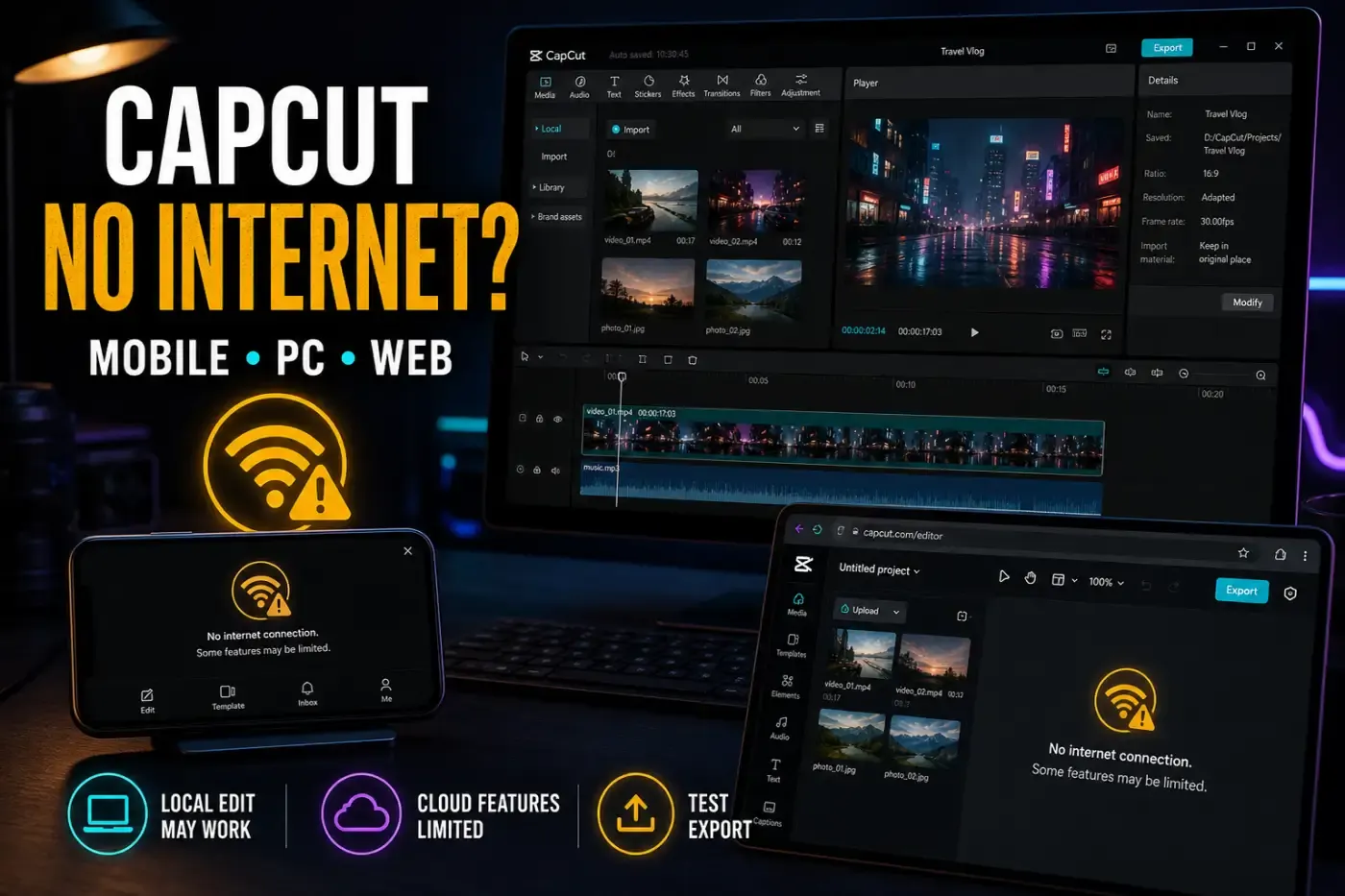
“No internet connection” in CapCut doesn't always mean your internet is down. CapCut may fail to reach templates, sign-in, cloud sync, AI, account checks or export while other sites still load.
Check the scope before changing anything. Try another app, another network and, if possible, another device. This tells you whether to fix CapCut, the device, the router or wait for a wider service problem.
Quick answer: save your work, then test another app and a trusted network. Before signing out, updating or resetting anything, verify an independent project backup and its source files. A local save or same-device duplicate is not that backup. If you cannot verify a usable copy, keep the working session. Once your work is protected, restart CapCut, check mobile-data access and, if needed, sign in with the original login method. On Web, try a private window. Keep system App Data and the installer untouched until every unsynced project is safe.
Reviewed September 14, 2026 against CapCut Help plus Apple, Google and Microsoft documentation. These are documented checks, not a hands-on test of every device or a report of a current outage. Menu labels vary by device, operating system and CapCut build.
What You Can Still Do Offline
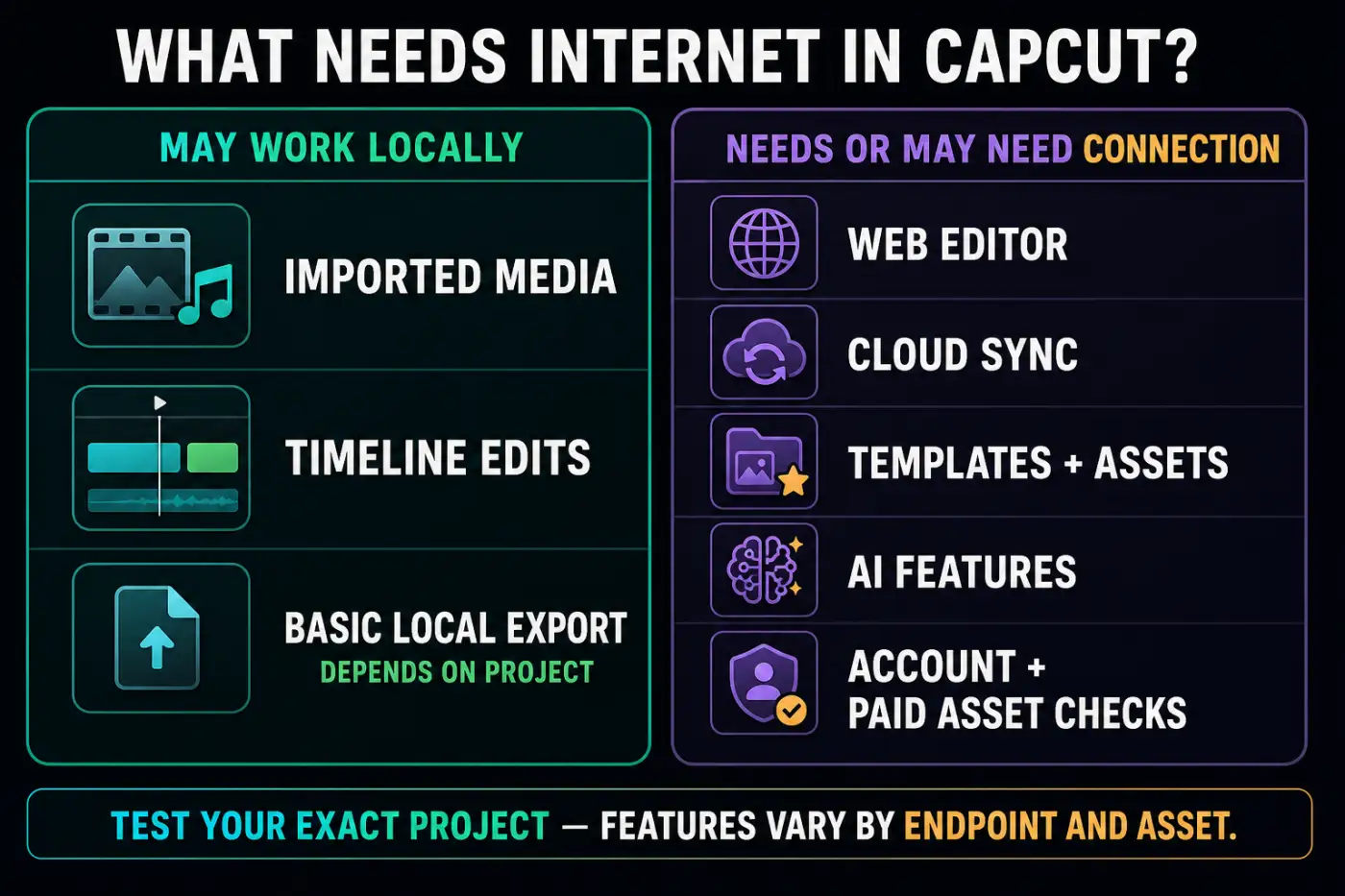
Mobile and Desktop may continue basic timeline work with media and assets already stored locally. That is not a promise that every project exports offline. A project containing cloud media, online templates, AI output, account-checked or paid assets may need a connection before it can render correctly.
CapCut Web depends on the browser and cloud session, so it needs a live connection. Cloud sync, new asset downloads, templates, music catalogs, AI features and sign-in also depend on online services. CapCut's official no-internet guide names templates, sync and AI access among the common symptoms.
Test the exact workflow that matters. Open the project, play a section containing the affected assets and render a short sample. The result is more useful than a broad “CapCut works offline” claim.
Find Which Connection Is Failing
- Test another app or site. If nothing connects, fix the device or network first.
- Switch networks. Try cellular/mobile data instead of Wi-Fi, or a trusted hotspot instead of the current network.
- Test another device. The same CapCut failure across devices points toward the network, account or service.
- Save local work. Verify the independent backup described above before sign-out, reset or update steps. Do not treat a same-device duplicate as protection against app-data loss.
- Restart and retry. Fully close CapCut, reopen it, then refresh the account session only if needed and your backup is verified.
Public, school and workplace networks can block media, cloud or authentication endpoints while general browsing remains available. A captive portal can also leave the device “connected” to Wi-Fi without complete internet access. Open a normal browser page and complete any network sign-in before blaming the editor.
Is CapCut Down, or Is the Failure Local?
Look for a pattern, not one error banner. If Mobile, Desktop and Web all fail on different networks, and other users report the same functions failing at the same time, a service incident becomes more likely. If only one device fails, start with its permissions, account session and security rules.
Multiple devices, networks and matching recent reports strengthen an outage hypothesis, but they are not prerequisites. An official acknowledgement of the affected function can be enough to stop local resets; a regional or account-specific incident may have few public reports. Crowdsourced trackers are supplementary signals, not proof that every CapCut service is healthy. Use CapCut’s official problem-report form when the cause remains unclear.
When the evidence points to an outage, stop changing local settings. Save the project, note the time and exact failing function, and retry later. A clean record helps distinguish service recovery from a random local change.
Read the Error Pattern Before Choosing a Fix
CapCut can reuse a network-style warning for failures that sit in different parts of the product. Before changing DNS, firewall or app data, write down what still works. A timeline that plays while Templates fails is a different incident from every CapCut app failing to sign in.
| What fails | What still works | Start here |
|---|---|---|
| Only CapCut Web | Desktop/Mobile and normal sites | Private window, extensions, cookies/site data and another browser |
| Templates, effects or AI only | Local timeline and imported media | Account, catalog availability, network filtering and service status |
| Pro or paid assets | Free tools and ordinary connection | Login method, purchase account and entitlement refresh |
| Export only | Editing and preview | Short-range test, cloud/paid assets, storage, hardware and project complexity |
| Every platform on several devices | Other online services | CapCut service, shared network filtering or account-level failure |
If the app opens but the preview is black, test the media and a short render before calling it a connection fault. The CapCut black-screen guide covers preview and source-file causes. For broad symptom triage, use CapCut Not Working; to choose another focused route, return to the CapCut Fixes hub.
An install or update download that fails belongs to a different stage from an editor session losing cloud access. CapCut's download and installation checklist covers network, storage and device-support causes. An official installer timeout is not a reason to use an unverified download.
When Pro features disappear, CapCut's entitlement help page emphasizes platform, account and purchase-method differences. Restore the correct session before buying again. For export-only failures, compare the exact project against CapCut's platform-specific export checklist; Web connection trouble, Desktop resources and Mobile limits don't share one fix.
Change only one variable at a time. If you switch network, account, app version and security settings together, a successful retry won't reveal which condition mattered. A failed retry can leave several new problems behind.
Fix It on iPhone or Android
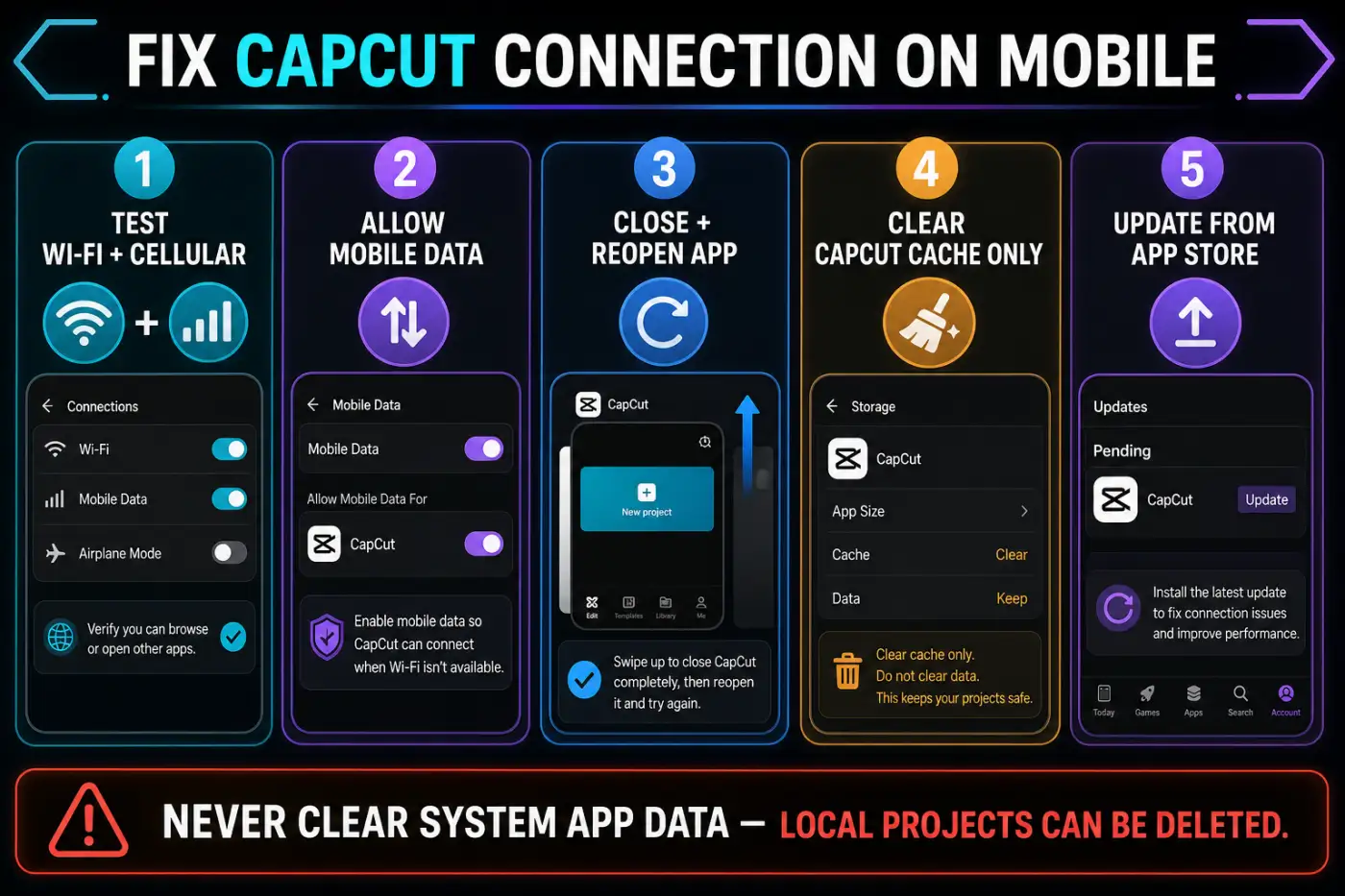
- Open a browser or streaming app to confirm the phone has usable internet.
- Switch between Wi-Fi and cellular data.
- Check that Airplane Mode is off and CapCut is allowed to use mobile data.
- Fully close CapCut from recent apps and reopen it.
- Restart the phone if the error survives the app restart.
- Save, then use CapCut's own Clear Cache control if available.
- Update CapCut from the Apple App Store or Google Play.
- Sign out and back in only after local work is protected.
On iPhone, open Settings → Cellular (called Mobile Service or Mobile Data in some regions), find CapCut and check its app switch. Apple’s mobile-data instructions explain the per-app control and possible carrier charges. Avoid large uploads while testing a limited or roaming plan.
For a background upload problem, compare Low Data Mode on the connection you are using. Apple’s Low Data Mode paths are Settings → Cellular → Cellular Data Options for LTE/4G, with an additional Data Mode step for 5G, or Settings → Wi-Fi → the information button beside the network. Dual-SIM layouts can put the control under the selected number. Record the original setting, test briefly and restore it afterward, even if the test succeeds. Low Data Mode limits background activity; it does not prove why an active foreground request failed.
On a Pixel, use Settings → Network & internet → Data Saver → Unrestricted data → CapCut if a background task is interrupted while Data Saver is on. Google’s Data Saver guidance says currently active apps can still use mobile data. This is a background-data exception, not a universal internet switch. Other Android manufacturers use different menus. Restore the original exception after testing and consider the data cost.
Don't clear system App Data. CapCut explicitly warns that doing so permanently deletes local projects. A cache is replaceable temporary material; app data can include the project state you're trying to save.
If the error appeared after a crash rather than a network change, secure the project and use the CapCut crashing guide. Keep storage repair and network troubleshooting separate until you know which symptom came first.
Fix It on Windows or Mac
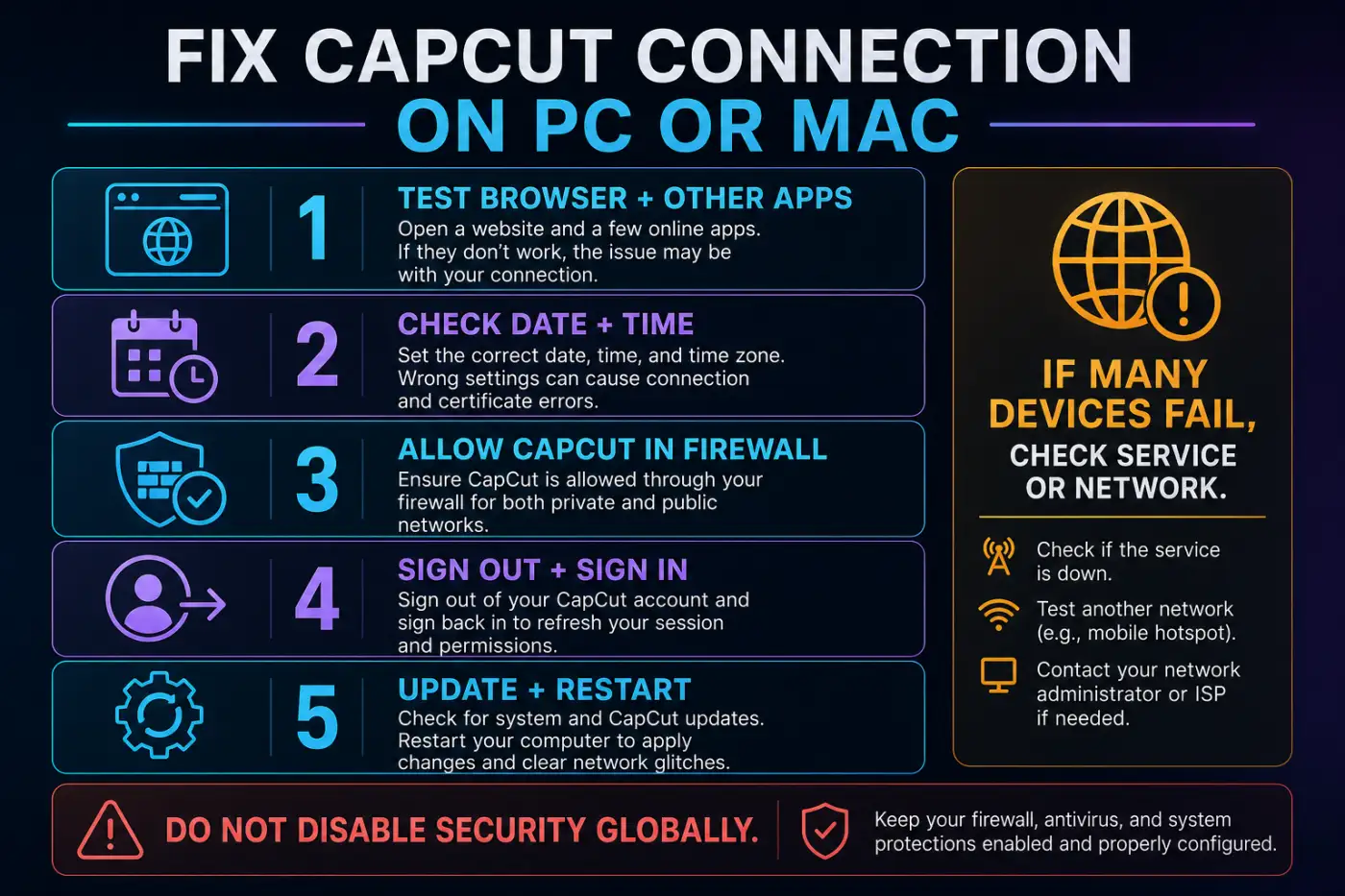
- Test websites and another online app on the same computer.
- Restart CapCut, then restart the computer.
- Close unused heavy apps and confirm that the drive has working space for CapCut's temporary files.
- Verify the independent project backup before refreshing the CapCut account session.
- Update CapCut through its update control or official installer.
- Check firewall or endpoint-security logs for a block matching the official CapCut app, destination and failure time. Do not add a rule merely because a network banner appears.
- Test a trusted hotspot to separate computer settings from the home or office network.
Keep the firewall and antivirus active. CapCut contacting a server is an outbound request; adding an incoming exception is not a general remedy. Microsoft’s Windows Firewall rules guidance recommends allowing outbound traffic by default for most deployments, while explicit block rules can override allow rules. Inspect the actual block rather than opening ports or enabling both network profiles indiscriminately.
Apple’s built-in Mac firewall controls unwanted incoming connections. Third-party endpoint tools or network filters can impose other restrictions. If a verified block explains the failure, ask the administrator or security-tool vendor for the narrowest appropriate remedy. Never bypass work or school policy.
If paid tools disappear after connectivity returns, confirm the same login method and subscription account with the CapCut Pro not-working guide. A network error and an account mismatch can look similar at the export screen.
Fix It in CapCut Web
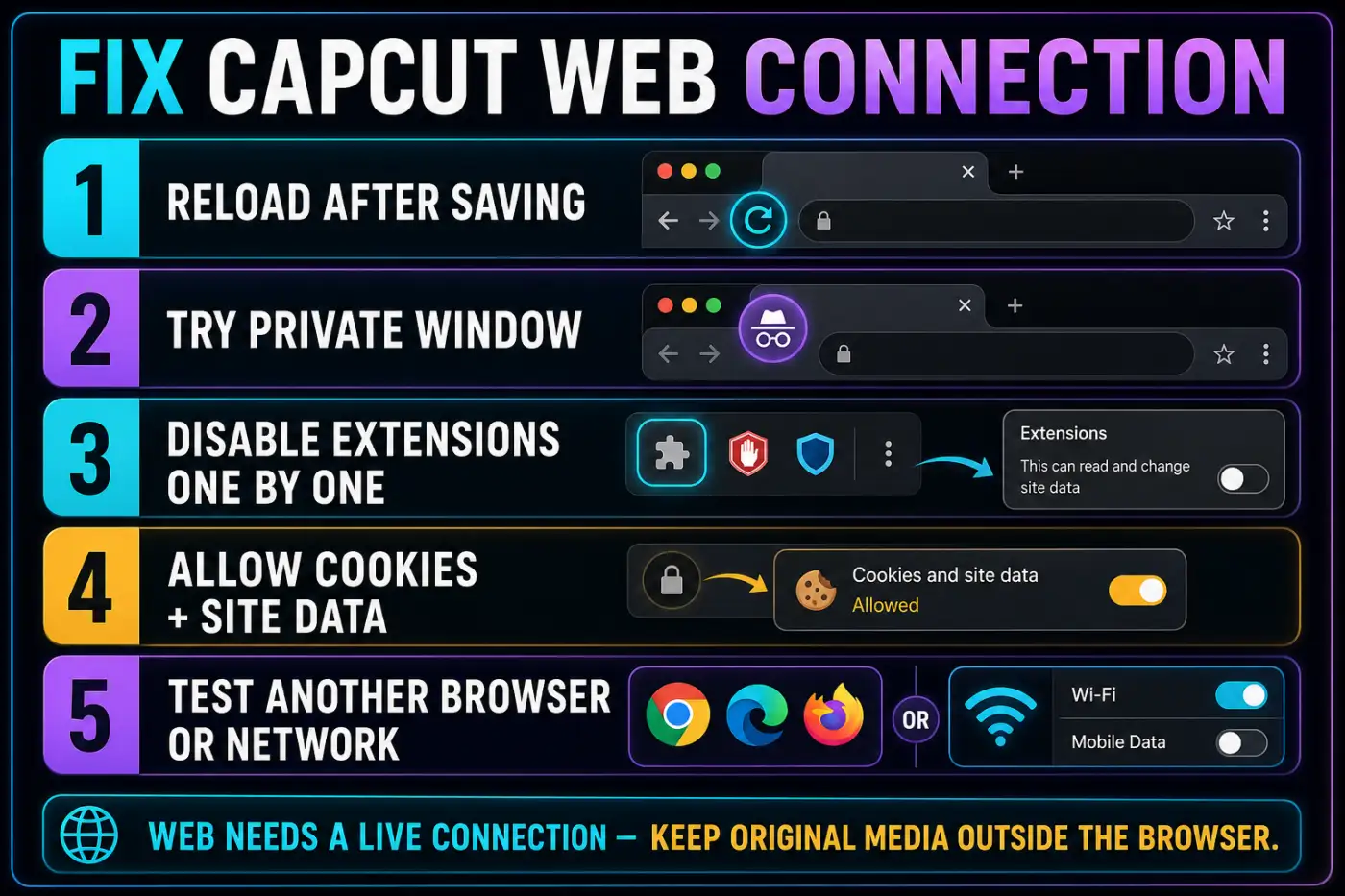
- Save and let uploads finish before reloading the tab.
- Open CapCut Web in a private/incognito window.
- Compare the same failing action. If private mode works, test nonessential normal-window extensions one at a time, restoring each after the test.
- If Chrome reports blocked third-party cookies during sign-in, consider a temporary exception for that site only, provided your device policy permits it. Remove the exception after testing.
- Test another current browser.
- Try another trusted network. Preserve the working session and verify the project backup before signing out or removing site data.
A content blocker, privacy extension or stale site session can affect authentication or media requests while ordinary sites still load. Chrome blocks third-party cookies by default in Incognito, and extensions explicitly allowed in Incognito can still run. Failure there does not rule out browser state; success does not prove cache alone is responsible.
When the browser identifies blocked cookies, Chrome’s site-specific cookie controls offer a narrower test than allowing them globally. An Incognito exception lasts for that private session; remove any regular-window exception after testing. Keep required privacy and managed extensions enabled. Remove only CapCut-specific site data after confirming the saved project opens elsewhere and its source media is safe. If that cannot be verified, keep the original tab and contact support instead.
CapCut's guide says Web needs a stable connection and cites 5 Mbps as a baseline. Speed alone doesn't rule out high latency, packet loss, DNS trouble or endpoint filtering. Keep original media outside the browser and use the full browser connection workflow for upload and browser-specific failures.
Match the Fix to the Failing Feature
Templates, effects, fonts or music won't load
Those catalogs are dynamic and often streamed. Check another category, account and platform. Existing local edits may continue while new materials fail. The CapCut effects guide and templates guide explain how catalogs differ across platforms.
Auto captions, AI voice or text to speech fails
Online processing or account credits may be involved. Confirm the connection and account before regenerating work. Use the auto-captions guide, AI voice guide or text-to-speech guide for feature-specific checks.
Cloud project won't sync
Treat the newest cloud copy as unverified until it opens correctly. Keep the device containing the latest local edit untouched, confirm the account and available cloud space, and avoid signing out everywhere until the project state is documented.
Export asks for internet or fails
Use the selected-range export or duplicate-project workflow to test a short section containing any cloud, template, AI or paid assets. Web exports require connectivity; Desktop failures can also come from hardware, storage or project complexity. Use the CapCut export-stuck guide when the connection is working but the render stalls.
Router and Restricted-Network Checks
Restart the router only after saving active work and confirming other household devices are affected. Wait for it to reconnect fully. If CapCut works on a hotspot but not home Wi-Fi, review parental controls, DNS filters, ad blocking, router security and ISP conditions.
Do not bypass managed network controls or a VPN you need for privacy or safe access. Ask the administrator or provider to investigate instead. On a device and connection you control, record the existing VPN, proxy, DNS-filter or ad-blocking setting before considering one brief comparison. Restore the protection immediately afterward, whether the test succeeds or fails. If disabling a filter changes the result, that is evidence to investigate a narrow rule with its provider, not a reason to leave protection off permanently. Do not copy random public-DNS or VPN settings, and do not use this process to evade regional or organizational restrictions.
On a managed network, give the administrator the exact time, device, CapCut version, failing feature and error text. “The internet works” is less useful than “sign-in and templates fail on two devices, but ordinary HTTPS sites load.”
Reinstall Only After Local Projects Are Safe
Reinstallation is a last step, not the first. First confirm that the problem is isolated to one app installation, update failed to help, and every unsynced project has a usable backup or verified cloud copy. CapCut’s connection checklist warns not to uninstall during an update because unsynced local projects can be lost.
Record the original login method, app version and local project locations before removal. Use the official App Store, Google Play or CapCut installer. An unofficial downgrade can add security risk and may not open newer projects correctly. The CapCut for PC guide and Android download guide cover the official routes.
If You Have a Deadline
Duplicate the project before simplifying it. Keep the original intact, then make a recovery copy and replace only the online asset blocking progress with a local, rights-cleared alternative. A locked template may not let you replace its internal assets; use another permitted template or build a clean copy from your own source clips rather than dismantling the only editable version. Test a short export after each replacement.
If Desktop can still use imported media, finish essential cuts locally and postpone cloud sync, new templates and AI steps. If Web is the only copy, avoid repeated reloads until saves and uploads are confirmed. Tell a client what failed, what remains preserved and whether the limitation affects the final render or only an optional connected feature.
What to Send CapCut Support
- Device model and operating-system version.
- CapCut platform and exact app/browser version.
- Account login method, without sending a password.
- Exact error text and the function that fails.
- When it began and whether another network/device works.
- A screenshot or short screen recording with private data removed.
- Whether local editing, sign-in, sync and short test export work separately.
Send it through CapCut’s official support form. If support asks for identifiers, its UID/DID instructions explain where to find them. Share those only with verified support, not in a public screenshot. That report helps distinguish authentication, catalog, project, rendering and network failures. While waiting, preserve the latest local copy and avoid repeating destructive resets.
CapCut Connection FAQ
Why does CapCut say no internet when my Wi-Fi works?
CapCut can fail while other sites work because of an expired session, blocked app permission, browser extension, filtered network, service outage, account check, or a problem reaching one CapCut service. Test another network and another device to narrow the scope.
Can CapCut work without internet?
Some editing with already imported local media may work in the Desktop or Mobile app, depending on the project. Web, cloud sync, new templates and assets, AI services, and some account or paid-asset checks need or may need a connection.
Will clearing CapCut cache delete my projects?
Use only CapCut's own Clear Cache control after saving. Avoid system App Data or Storage data: CapCut warns that clearing it can permanently delete local projects.
Should I reinstall CapCut to fix a network error?
Not first. Test the scope and protect unsynced work with a verified independent backup before sign-out, updates or resets. Restart and check the relevant network setting first. Keep a working session if you cannot verify the backup. Reinstall only after safer checks fail and local projects and source files are recoverable.
Why do CapCut templates or effects say no internet?
Many templates, effects, fonts, music items and AI features are downloaded or checked online. A local timeline can remain editable while those catalogs fail. Test account status, another network and whether the same catalog fails on another device.
Why does CapCut Web keep losing connection?
Web depends on a live browser session. Preserve the saved project and original media, then compare another browser or a private window. Chrome Incognito blocks third-party cookies by default and can run explicitly allowed extensions, so either result needs interpretation. Test only permitted site-specific exceptions and restore them afterward. Do not clear site data or sign out until your work is recoverable.
Can a CapCut outage block export?
It can affect Web exports and projects that need cloud, account, AI, template, or paid-asset checks. A basic local Desktop export may still work. Export a short test from the exact project instead of assuming one rule fits every project.
For a different error, return to the CapCut Fixes hub and choose the symptom that matches. When the service is reachable again, test one cloud feature and one short export before resuming a long edit.