

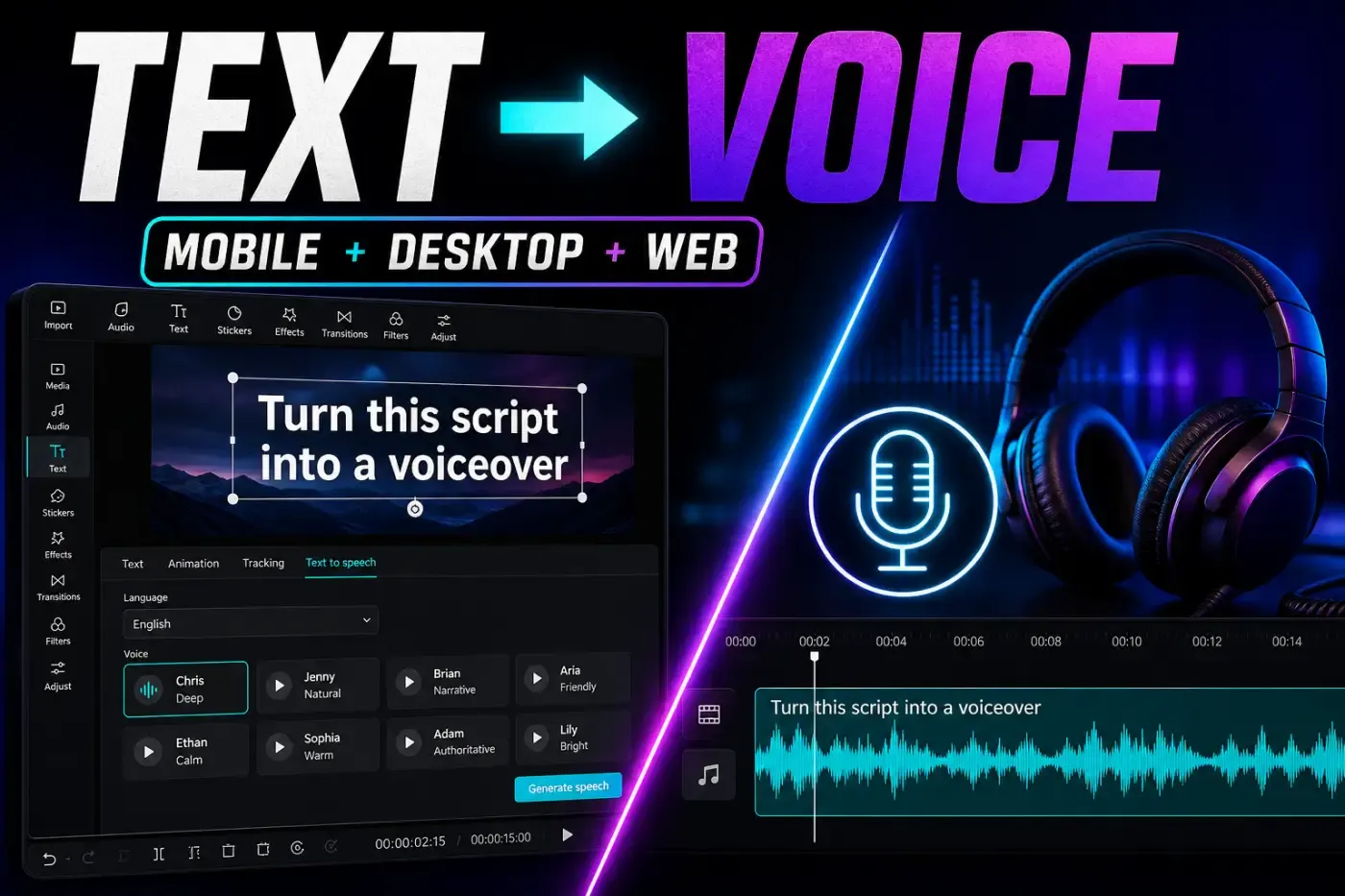
CapCut text to speech starts with a text clip, not an audio clip. Add the words, select that clip, open Text to speech, preview a voice, then generate. CapCut creates a separate audio clip on the timeline, so you can move it, trim it and mix it without changing the visible text.
Quick answer: on Mobile, Desktop or Web, add a text layer, type the script, select the text clip, open Text to speech, choose a voice and select Generate. The panel position, voice library, labels and cost shown to your account can differ by platform, region and rollout. The current picker is more reliable than an old screenshot.
This guide covers the editor workflow. For voice cloning, voice characters and recording, use the separate CapCut AI voice guide. For the wider group of generators and editing automation, start at the CapCut AI Tools hub.
Text to Speech, AI Voice, and Auto Captions Are Different
- Text to speech: turns a written text layer into a generated voice track.
- Manual voiceover: records your microphone while the project plays.
- Voice changer: alters audio that already exists.
- Custom voice or voice clone: builds or selects a voice based on recorded samples, when the feature is available.
- Auto captions: works in the other direction by turning spoken audio into timed text.
If your goal is subtitles rather than narration, follow the CapCut auto-captions workflow. Keeping these tools separate prevents the most common navigation mistake: looking for Text to speech while an audio clip is selected instead of a text layer.
How to Use CapCut Text to Speech on Mobile
- Open a project and tap Text in the bottom toolbar.
- Choose Add text, then type or paste the line you want narrated.
- Confirm the text and tap its clip on the timeline so the text layer is selected.
- Swipe through the text editing controls and open Text to speech.
- Choose the language or voice category shown in your build.
- Use the preview control before generating when it is available.
- Tap Generate or the confirmation control and wait for the audio track to appear.
If Text to speech is missing from the bottom toolbar, confirm that the text clip, not the video or an audio clip, is selected. Menu order changes between iPhone, Android, app versions and rollouts, so the control may sit farther along the toolbar than an older screenshot suggests.
After generation, play from a few seconds before the line. Check whether the narration begins too early, whether the text remains on screen long enough, and whether music masks consonants. Move or trim the generated audio clip instead of rebuilding it for a simple timing correction.
CapCut Text to Speech on Desktop
- Open the project in CapCut for Windows or macOS.
- Open Text and add a default text layer to the timeline.
- Enter the script in the text panel.
- Select the text clip on the timeline.
- Open the Text to speech tab or control in the text inspector.
- Choose a voice that is currently available to the signed-in account and preview it.
- Generate the narration and confirm that a new waveform appears on an audio track.
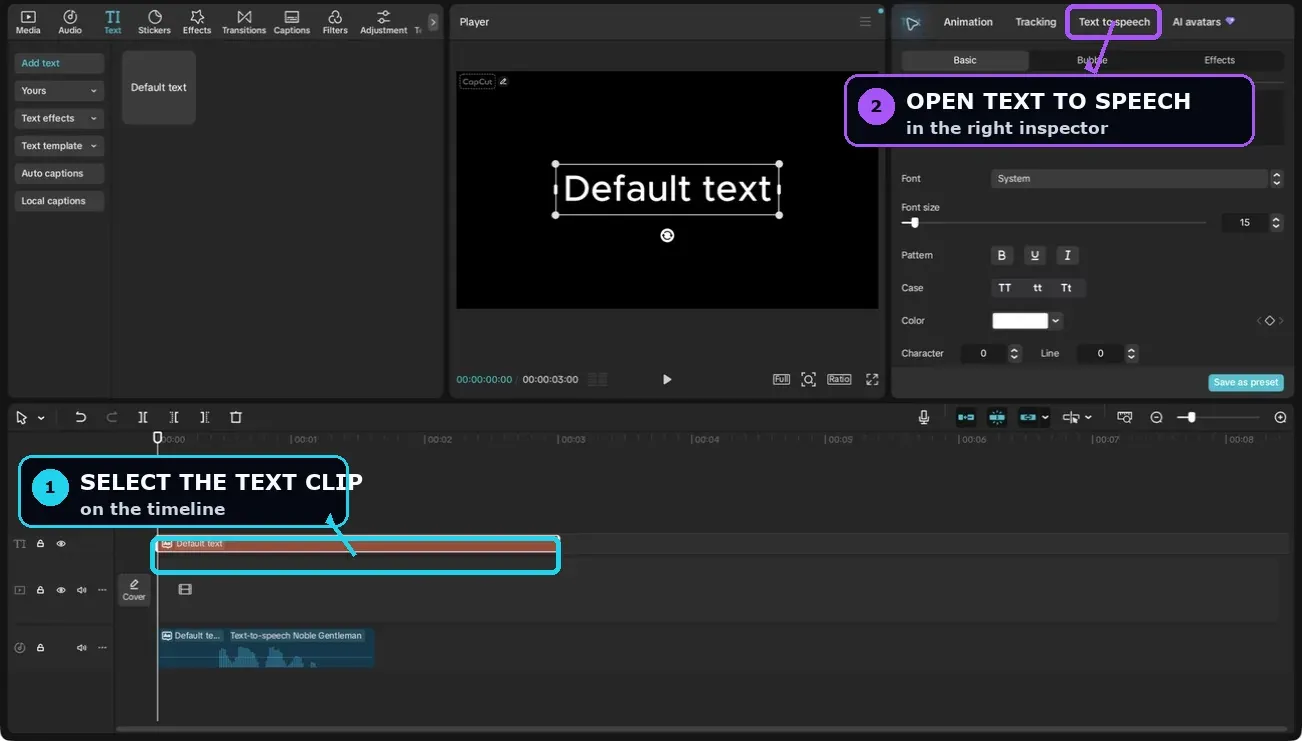
CapCut's official text-to-speech help page confirms the text-layer selection, voice choice, generation, and preview sequence on PC, Mobile, and Web. It doesn't promise that every platform will display the same voices or the same button name.
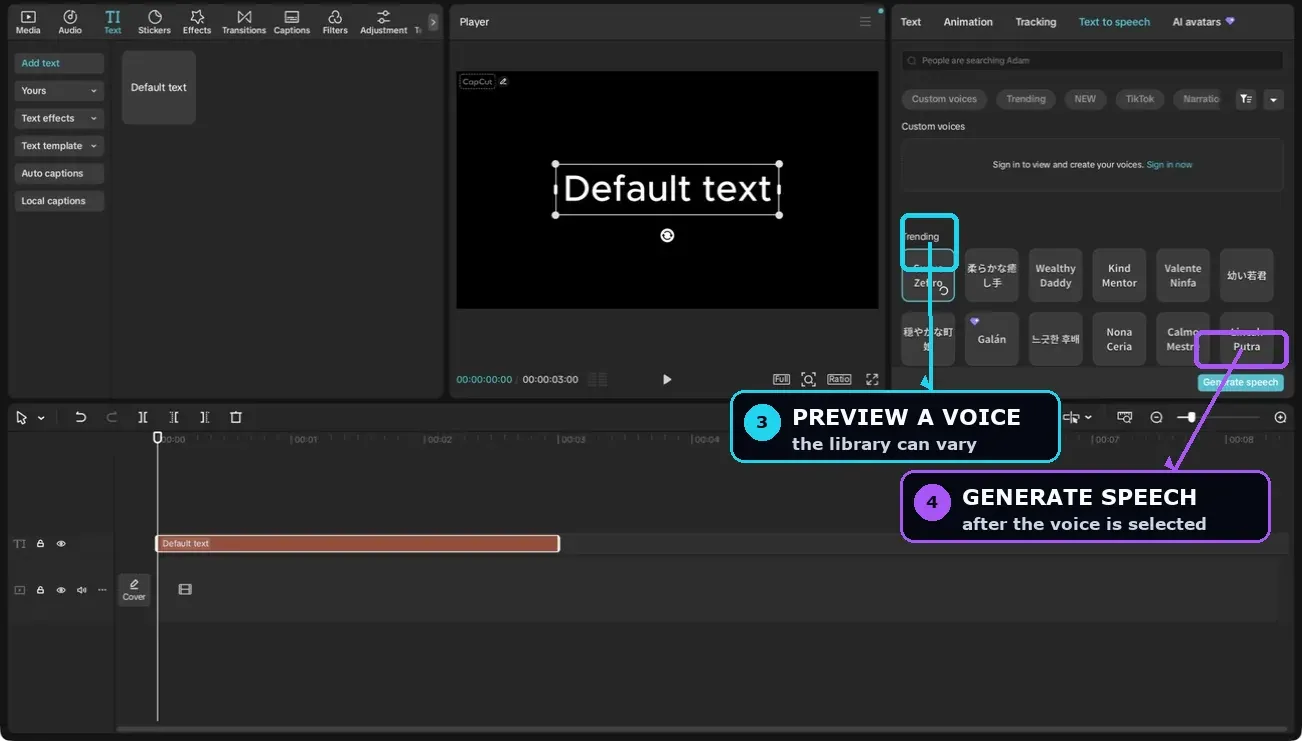
Finish the wording before generating. If you rewrite the text later, CapCut doesn't automatically rebuild the existing narration clip; select the text layer and generate a replacement. For long narration, split the copy at natural sentence or paragraph boundaries. Smaller sections are easier to retime, replace, pronounce and mix than one large waveform.
Using CapCut Text to Speech Online
CapCut exposes text-to-speech through the Web Editor and through standalone generator pages. The Web Editor path is closest to the app workflow: add text to a project, select the layer, open Text to speech, choose a voice and generate. A standalone page can be faster when you only need narration, but its buttons, trial terms, export options, and available voices can change independently from the editor.
Use the current CapCut online text-to-speech tool rather than relying on an old bookmarked campaign URL. Sign in before evaluating availability, and check whether the final action downloads audio or opens the full editor. For browser and project limitations beyond TTS, see the CapCut Web Editor guide.
Choose a Voice and Write for Speech
CapCut's current standalone text-to-speech page advertises more than 200 voices, but that catalogue is not a promise that every voice will appear in every editor, account or region. CapCut says options can also disappear during maintenance, arrive through staged rollouts or differ when the browser or app is outdated. Judge the signed-in picker on the platform that will generate the final audio.
Before committing to a voice, preview the words most likely to expose a problem:
- names, brands, acronyms, dates and numbers;
- words that change pronunciation by language;
- the first sentence, where tone matters most;
- the longest sentence, where pacing can become flat.
Write punctuation for the delivery you want. A full stop creates a clearer break than a comma. If a proper noun is wrong, try a phonetic spelling in the text layer, but keep the visible caption correct if viewers will read it. Generate voice and visible caption from separate text layers when pronunciation spelling would look unprofessional on screen.
Character Limits and Long Scripts
There's no safe universal per-layer character number across the current CapCut app, editor, and standalone tools. Some panels show their own counter or warning, and limits can differ by feature, account, trial, and rollout. Use the number displayed in the exact panel you're using.
For longer narration, split the script even when the current field accepts it:
- Break at a complete sentence or thought.
- Keep names and their explanation in the same segment.
- Generate and listen before writing the next timing point.
- Leave a small timeline gap for a deliberate pause.
- Label or color related text and audio clips if the project becomes crowded.
This makes corrections local. If sentence four sounds wrong, you regenerate sentence four rather than rebuilding the whole narration.
Edit Speed, Volume, and Timing
Once the waveform exists, treat it like an audio clip. Available controls can include volume, fade, speed, pitch preservation, voice effects, or noise tools, but not every generated voice and platform exposes the same set.
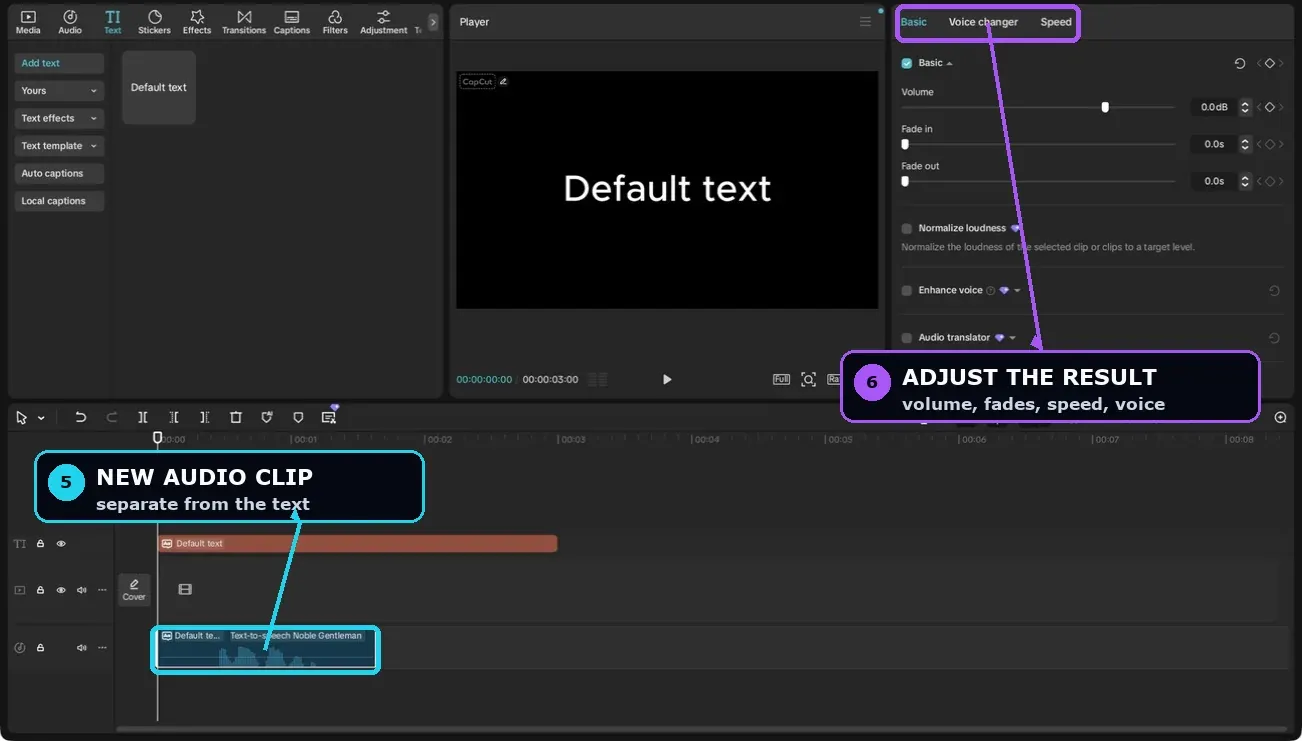
- Timing: move the clip so the first word lands after the visual beat, not on top of a cut.
- Volume: lower background music while speech is present and check the mix on phone speakers.
- Speed: make small changes and listen for lost consonants or unnatural pauses.
- Fades: use short fades only when they prevent a click or hard entrance.
- Noise reduction: it is designed for recorded noise; don't assume it improves already generated speech.
Do a short export before finishing a long project. The CapCut export settings guide explains how to test the final mix without repeatedly rendering the entire timeline.
Free, Pro, and AI Credits
CapCut markets online text to speech as available to try without a credit card, but that doesn't make every voice or generation free in every account. CapCut's credits help page lists premium voiceovers among credit-based AI features. Read the voice card and the final confirmation panel before generating; they should show whether the selected action uses Pro access or credits.
Access can vary by region, platform, account, subscription tier, promotion, and rollout. Check inside the signed-in account that will export the project. For the broader membership picture, use the maintained CapCut pricing and Pro comparison; for how deduction works across AI tools, see the CapCut AI credits guide.
CapCut Text to Speech Not Working
- Select the text layer. TTS works from text, not from the video, music, or an existing voice track.
- Check the connection. CapCut documents TTS as cloud processing; an unstable or restricted network can interrupt generation.
- Try another supported voice. A specific voice may be temporarily unavailable even when the feature itself works.
- Refresh or restart. Reload Web, close and reopen the app, then sign out and back in if the panel remains stale.
- Update CapCut or the browser. Older builds may not receive the current voice list or panel.
- Inspect the audio track. Generation may have succeeded while the clip is muted, outside the visible timeline range, under another track, or too quiet.
CapCut's missing voice-options notice confirms temporary maintenance, staged availability, and outdated versions as causes. Recent r/CapCut reports about the TTS button disappearing are useful as a service-symptom signal, but they don't prove a permanent removal or a hidden daily limit.
If the same text fails with several voices on two networks and an updated build, save the project and report the error with platform, app version, account region, voice name, and a screenshot. For site-wide crashes, login, or export failures, use the CapCut not working checklist.
Commercial Use and Voice Rights
CapCut's current text-to-speech product page says audio generated by its AI text-to-speech tool can be used commercially, including in advertisements, YouTube videos and brand promotions. Treat that as CapCut's published product claim, not blanket clearance for everything in the project. Check the current voice or output label and the terms that apply to your account before delivery.
Audit the rest of the timeline separately. CapCut's current US Materials License Agreement places different rules on platform materials and music, including non-commercial Sounds and Commercial Sounds. A narration that CapCut markets for commercial use doesn't clear an unrelated song, template, effect, stock clip or font. For client work, record the voice, platform, date, any visible commercial-use label and the agreements that applied when you exported.
Final Text-to-Speech Quality Check
Listen once without watching the screen. That makes repeated words, clipped endings and odd pronunciation easier to notice. Then watch the video with the sound on and confirm that each line begins after the viewer has enough visual context.
- Check names, numbers, acronyms and calls to action against the written script.
- Make sure no generated clip is muted, overlapped by another narration take or cut off at the end.
- Lower music during speech and test the mix on a phone speaker as well as headphones.
- Regenerate only the lines that need a different voice or delivery; use timeline edits for simple timing changes.
- Export a short section and listen to the rendered file before committing to a long final export.
If the voice is central to a client or channel identity, keep a note of the voice name, platform and date. CapCut can change the available library, so that note won't guarantee future access, but it makes troubleshooting and replacement faster.
CapCut Text to Speech FAQ
Is CapCut text to speech free?
CapCut offers text-to-speech voices that can be tried without a credit card, but availability and entitlement vary by voice, platform, region, account, and rollout. Premium voiceovers may require a subscription or credits. Check the label and cost shown before generating in your own account.
Does CapCut text to speech work offline?
No reliable offline workflow is documented. CapCut says text to speech relies on cloud processing, so generation needs a stable connection even when the Desktop app itself opens without one.
What is the CapCut text-to-speech character limit?
CapCut doesn't publish one dependable cross-platform limit for every editor and account. Use the counter or warning shown in your current text-to-speech panel. For a long script, split it at sentence boundaries and generate several shorter clips.
Why did a CapCut text-to-speech voice disappear?
CapCut says voices may be temporarily unavailable during server maintenance, staged rollouts, or when an app or browser version is outdated. Refresh, update, sign out and back in, try another platform, and report the missing voice if it doesn't return.
Can CapCut clone my voice for text to speech?
Custom voice or voice-cloning controls can appear separately from the standard preset voice picker and may be limited by platform, account, subscription, credits, or rollout. Don't assume that a custom voice visible on one device will appear on another.
Can I use CapCut text-to-speech audio commercially?
CapCut's current text-to-speech product page says its generated audio may be used commercially. That claim covers the generated narration, not every other asset in the project. Check the current voice or output label, your applicable terms and the separate licence for any music, template, effect, stock clip or font.