

If photos are missing from CapCut’s iPhone importer, check the Photos/Videos filter, the files CapCut is allowed to see, and whether the originals are available on your phone. An empty album isn’t enough to tell you which one is wrong. CapCut’s missing-media guidance separates category selection, permissions and loading.
I’d start with one missing photo or video. A single item gives you something specific to look for, and you won’t end up changing several settings before you know what helped. Keep any existing edit intact while you check its source media.
Check what is missing before changing access
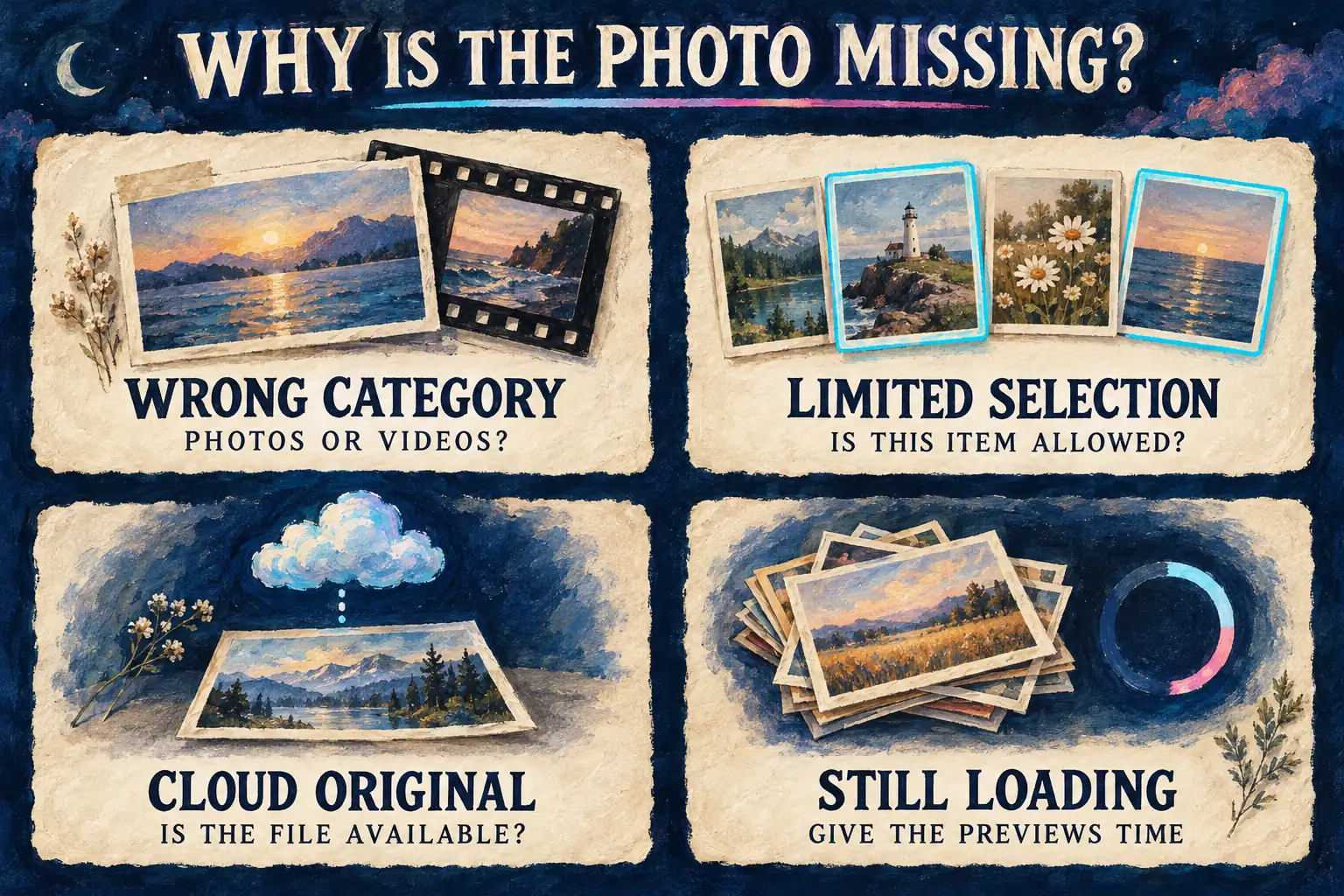
Look at the import screen inside your video project. If the screen is showing Videos, switch to Photos for still images, and pick the video category for clips. CapCut explains this category-filter behavior. A photo that doesn’t show up in the video list is expected.
Next, compare the missing item with one that does appear. Is the problem every item, only newer photos, one album or a few black thumbnails?
| What you see | First useful check |
|---|---|
| Videos appear, but still photos do not | Switch the import category to Photos |
| Some items appear, but the one you need does not | Review the allowed photo selection and the original’s location |
| The whole import album says “No media yet” | Review Photos permission and let the album finish loading |
| Items appear as black thumbnails | Separate unfinished previews from a file that will not decode |
| A finished export is missing from Photos | Check the saved export; this is a different stage from importing sources |
Give a large album time to load. If it stays empty, keep your current edit safe, close and reopen CapCut, then go back to the importer. There’s no fixed number of seconds that guarantees every device has finished building previews.
Allow the photos you need on iPhone
Open Settings → Privacy & Security → Photos, then select CapCut if it’s listed. Check what access CapCut has now and which choices your iOS version offers. The same route appears in CapCut’s import troubleshooting, while Apple explains how to review and change an app’s information access.
If access is denied, allow whatever level fits the media you want to import. If access is limited to selected photos, make sure the missing item is in the selection. Where the settings let you manage the selection, add that item to the allowed set, then go back to CapCut and reopen the importer.
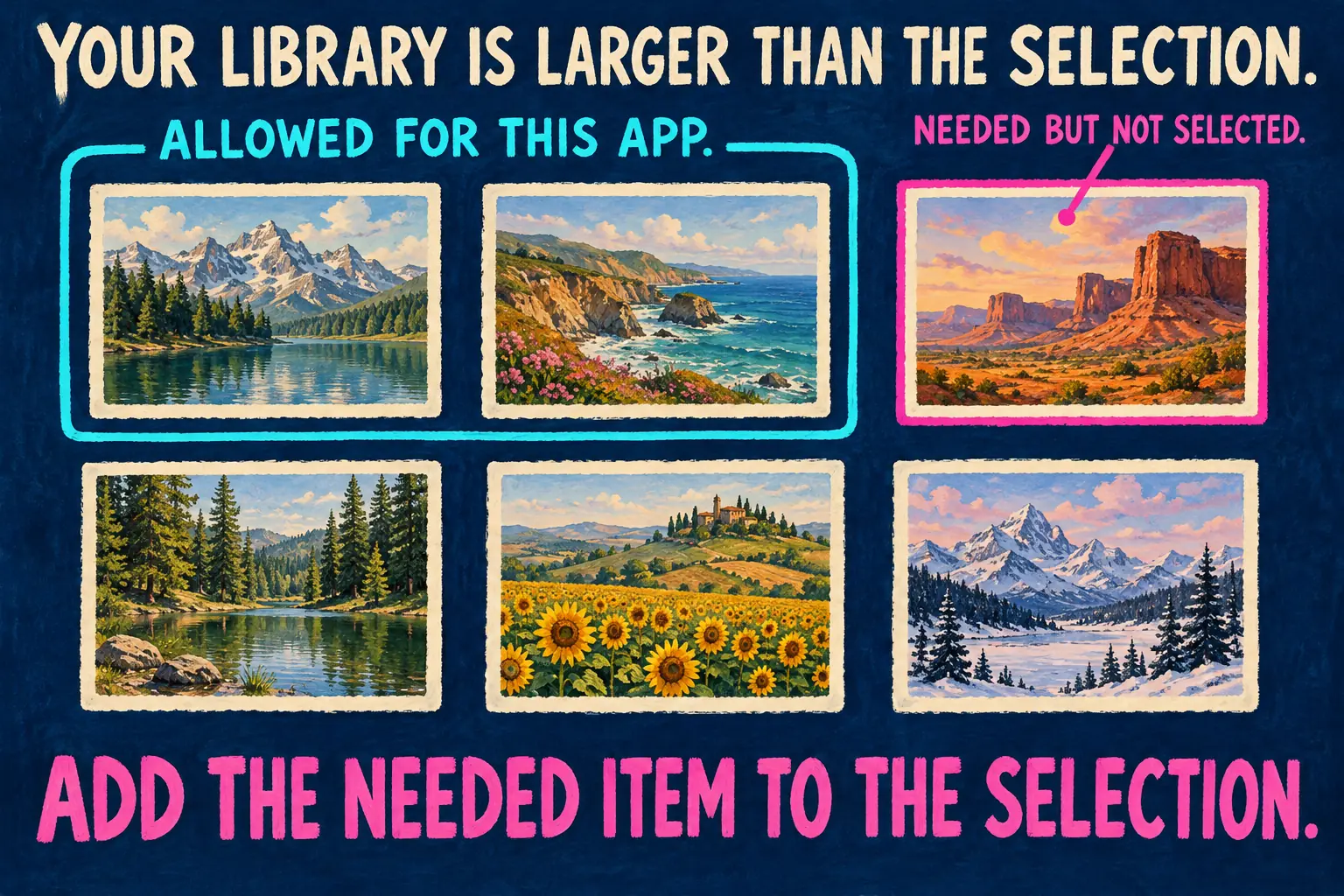
CapCut’s album-access guide recommends All Photos. I’d still try the narrower fix first and add the missing item to your selection, because that doesn’t expose your entire library. Apple’s limited-library model lets an app read the items you’ve chosen, and lets you change that choice in Settings. Permission names can vary; go by the options your device shows.
If CapCut isn’t listed, go back to a project, start an import, then respond to any permission request that appears. Don’t assume a missing Settings entry means you must reinstall: Apple’s system photo picker can pass chosen items to an app without giving it direct access to the library. Use that picker where your CapCut build offers it. Choosing an item there and expanding a limited library are separate actions.
On a family-managed device, if you can’t change a permission control, check with whoever manages the device. Apple documents privacy restrictions in family controls. A grayed-out setting isn’t a reason to reset the phone. The iPhone download guide covers app availability and first-launch decisions; camera and microphone permission are separate from importing existing photos.
Check whether the original is available
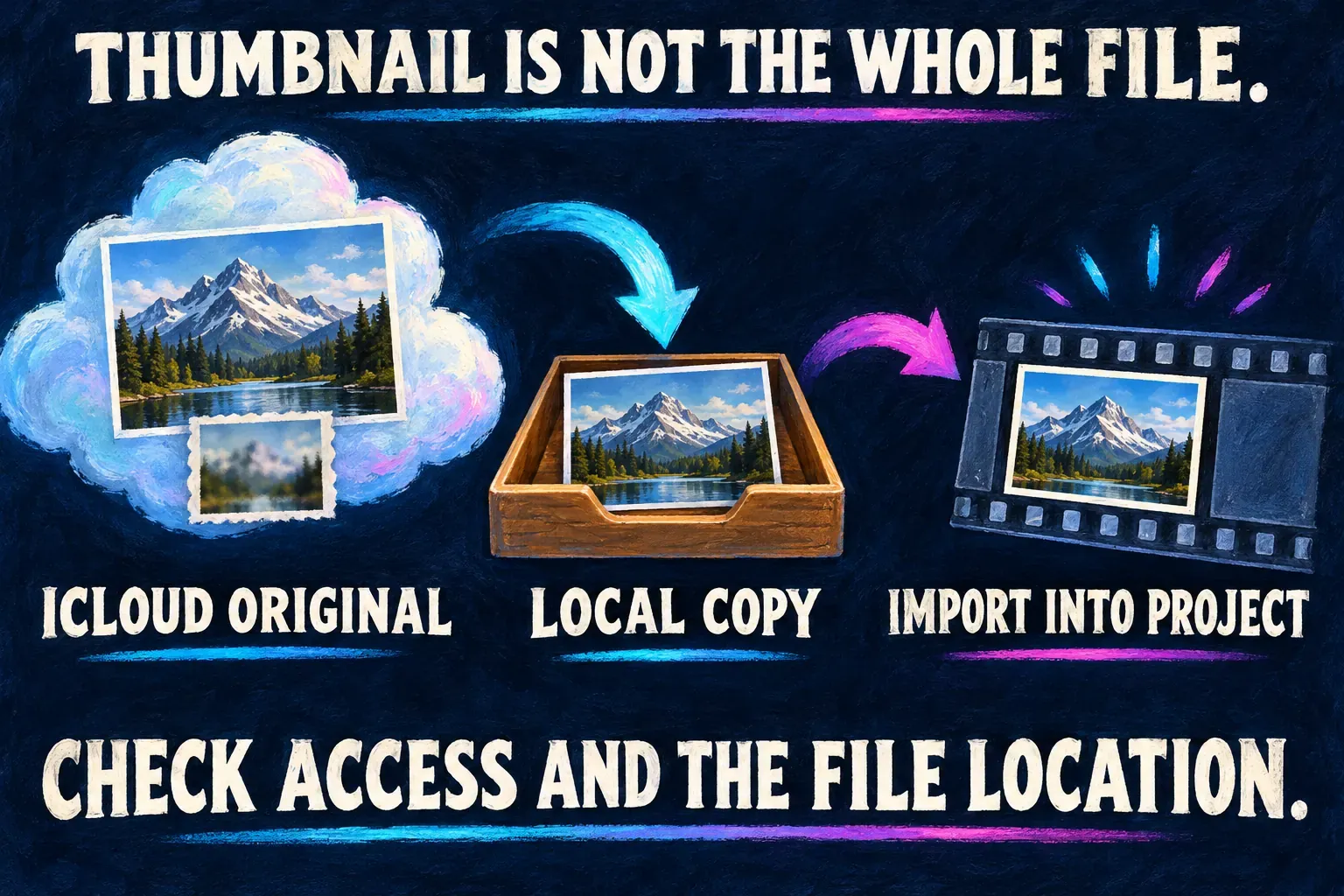
Open the missing item in Apple Photos and check whether its source is available. If the item needs to download, connect to a reliable network and let the transfer finish. Apple explains that with Optimize Storage, full-resolution originals may be stored in iCloud while space-saving versions stay on the device.
A thumbnail doesn’t prove the full original is on the phone. And having Optimize Storage on doesn’t make every missing CapCut item a cloud problem. Check that one file before you change storage settings for your whole library.
For a separate copy of selected originals, Apple’s iCloud download instructions describe Photos → select the items → Share → Export Unmodified Originals, then saving to a destination you choose in Files. The default destination may be iCloud Drive; if you need a local copy and have enough space, pick a local destination instead.
That Files copy won’t automatically become a new item in the Photos album. Use a file-import route only if your CapCut build offers one, or make the original you need available through the Photos route you’re using. Hold on to the original and any downloaded copy until the project can use the media. Don’t delete library items to force a refresh.
If the item appears but still will not import
Black thumbnails need a different check than photos missing from the list. CapCut’s local-import guidance distinguishes previews that are still loading from individual files that may be unsupported or damaged. Try a small selection instead of loading the whole album at once.
When one file keeps failing while others import, compare its format and whether it opens correctly outside CapCut. Use the supported-formats guide before converting a copy. An extension alone doesn’t describe every codec inside a video. If import succeeds but the picture looks soft, move to the blurry-after-import guide.
I wouldn’t delete or offload CapCut as a first response to a missing photo. Before any action that removes app data, protect your editable projects; the project-safety hub covers those decisions. If the importer is still empty after these checks, contact CapCut support with your device, iOS and app versions, your current permission level and whether all files or only some are missing. Leave private photos, account details and unrelated filenames out of anything you share.