

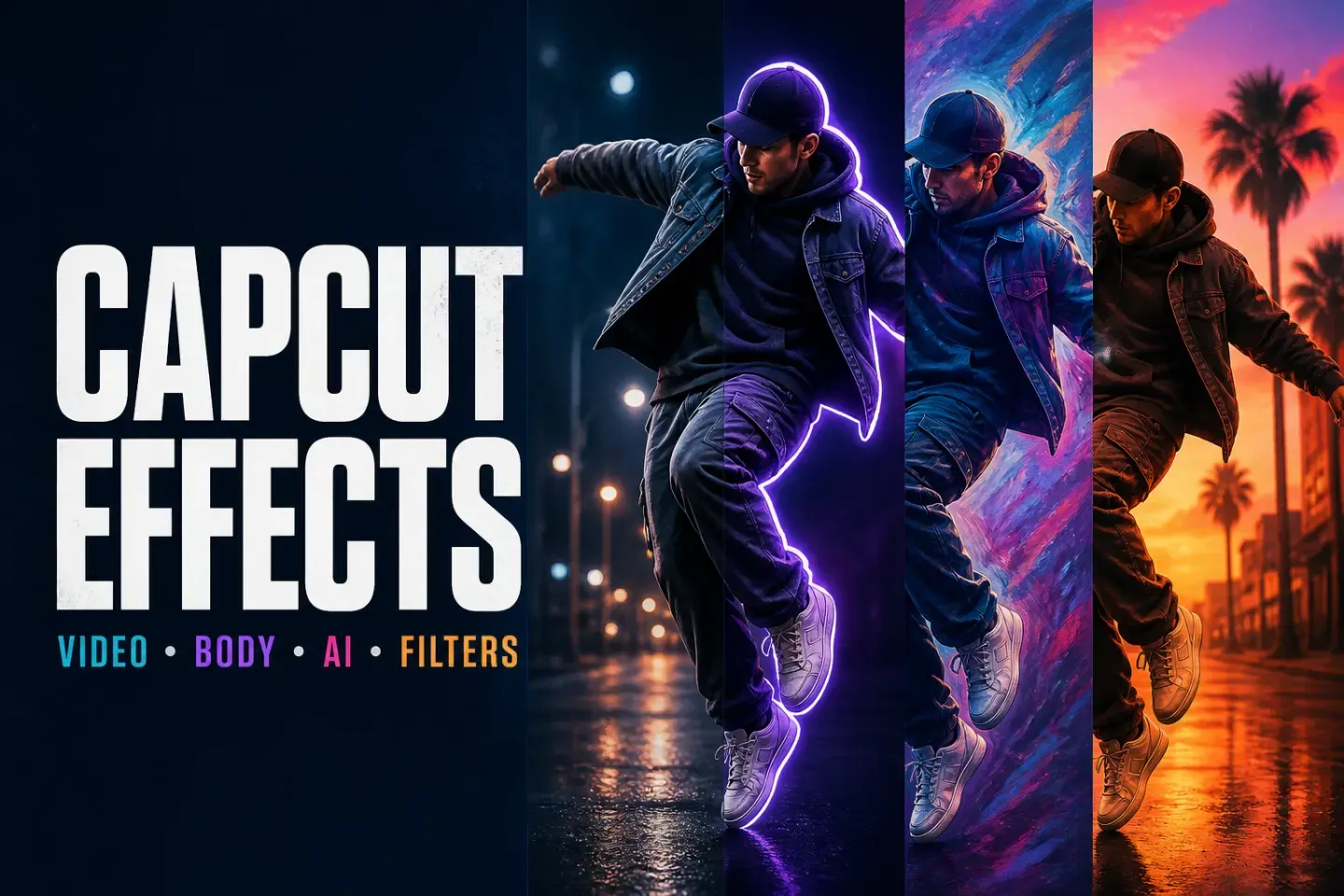
To add a CapCut video effect, put the clip on the timeline and use the Effects route for your platform. On Mobile, tap Effects → Video effects. On Desktop, open the Effects tab and drag a preset onto the clip or an effect track. On Web, open Effects in the left menu and place the effect above the clip. Set its timeline range, then preview from before the effect begins.
Checked August 15, 2026. The paths and screens below match CapCut's current official instructions for Mobile, Desktop, and Web. The effect catalogue, category names, plan badges, and AI tools can vary by platform, region, account, device, and app build. Treat a preset name as a moving label, not a permanent feature promise.
Choose the right CapCut tool first
CapCut puts several visual tools close together, but they solve different editing problems:
- Video effect: adds a visible treatment across part of the timeline, such as light, blur, texture, distortion, or camera-style motion.
- Body effect: uses a detected person or body area as part of the result. A clean, visible subject usually gives the preset more useful information.
- Filter: changes the overall colour treatment of a clip. It is the better starting point when the footage needs a consistent mood rather than an obvious visual event.
- Transition: changes how one clip gives way to the next at a cut. Use the CapCut transitions guide for that workflow.
- Animation: controls how a selected clip, text layer, sticker, or overlay enters, leaves, or moves.
- AI tool or AI effect: may analyse the subject, scene, motion, or a prompt before producing a result. Availability and processing can depend on the current product route.
If you want a face blur, background blur, object reveal, or tracked outline, the desired result may need a mask, tracking, or a dedicated AI tool rather than a single effect preset. The CapCut masking guide explains the manual route when a preset can't isolate the right area. For a blur limited to one moving area, the guide to blurring part of a video in CapCut covers masking and tracking.
How to add video effects in CapCut Mobile
- Open the project and place the video or photo on the timeline.
- Select the intended clip, then tap Effects in the bottom toolbar.
- Choose Video effects, browse the library, and preview a preset on the footage.
- Tap the checkmark to add the effect.
- Select the effect segment on the timeline and set where it starts and ends.
- Play from before the effect begins and inspect the result at normal speed.
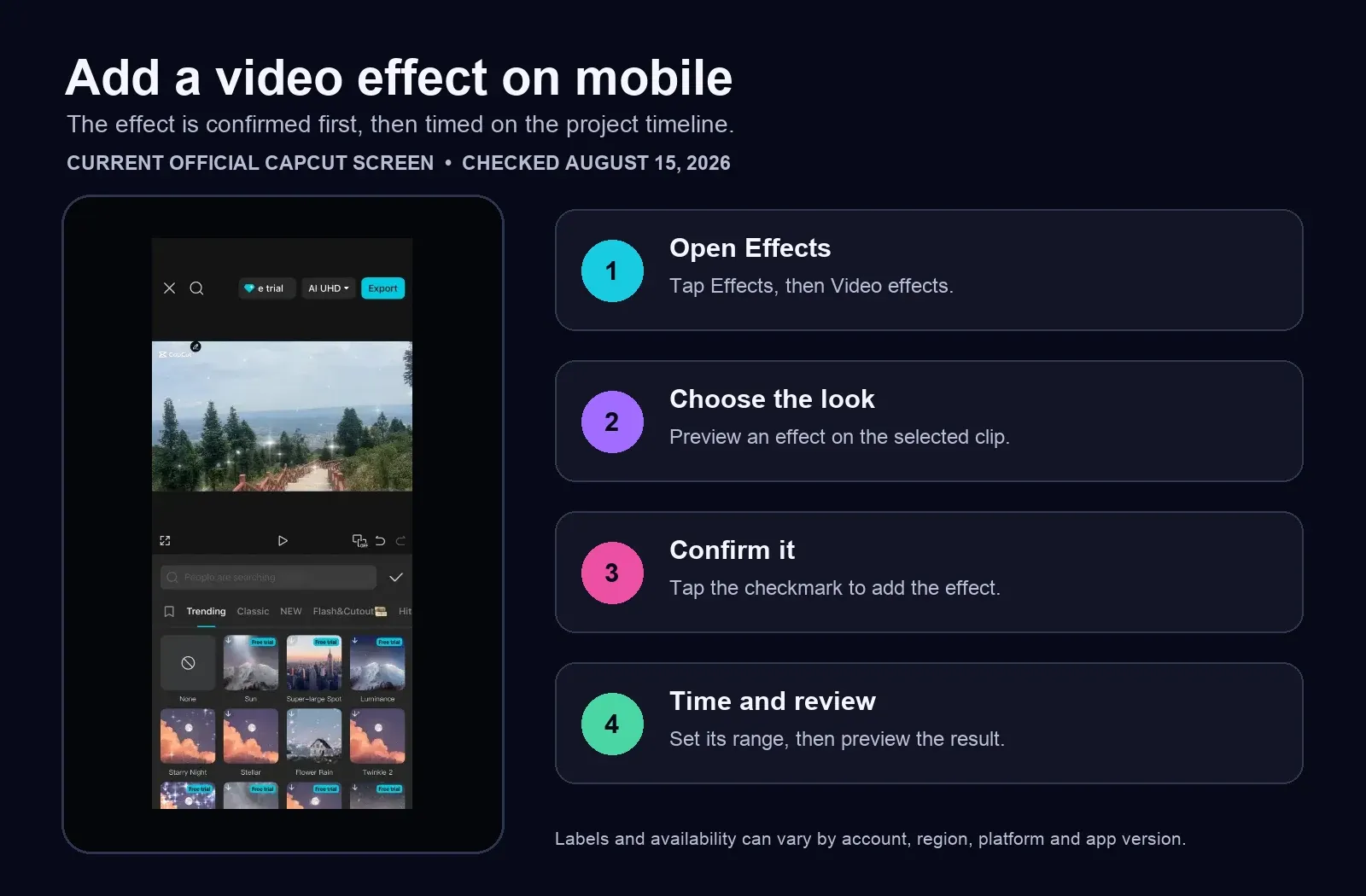
The screen above comes from CapCut's current effects help. A preview thumbnail is only a starting point. Subject position, clip length, motion, aspect ratio, and existing adjustments can change how the same preset reads in your project.
For a photo, extend its duration before judging a motion-based effect. For a person-aware effect, begin with a frame where the subject is visible and separated from the background. If the effect follows the wrong area, test a cleaner section of the clip before rebuilding the edit.
How to add video effects in CapCut Desktop
- Import the media and place it on the timeline.
- Open Effects in the top workspace panel.
- Choose Video effects or Body effects when that category is available in your build.
- Preview the preset, then drag it onto the clip or an effect track above the clip.
- Trim and position the effect segment so it covers the intended moment.
- Preview the full section, then run a short export test.
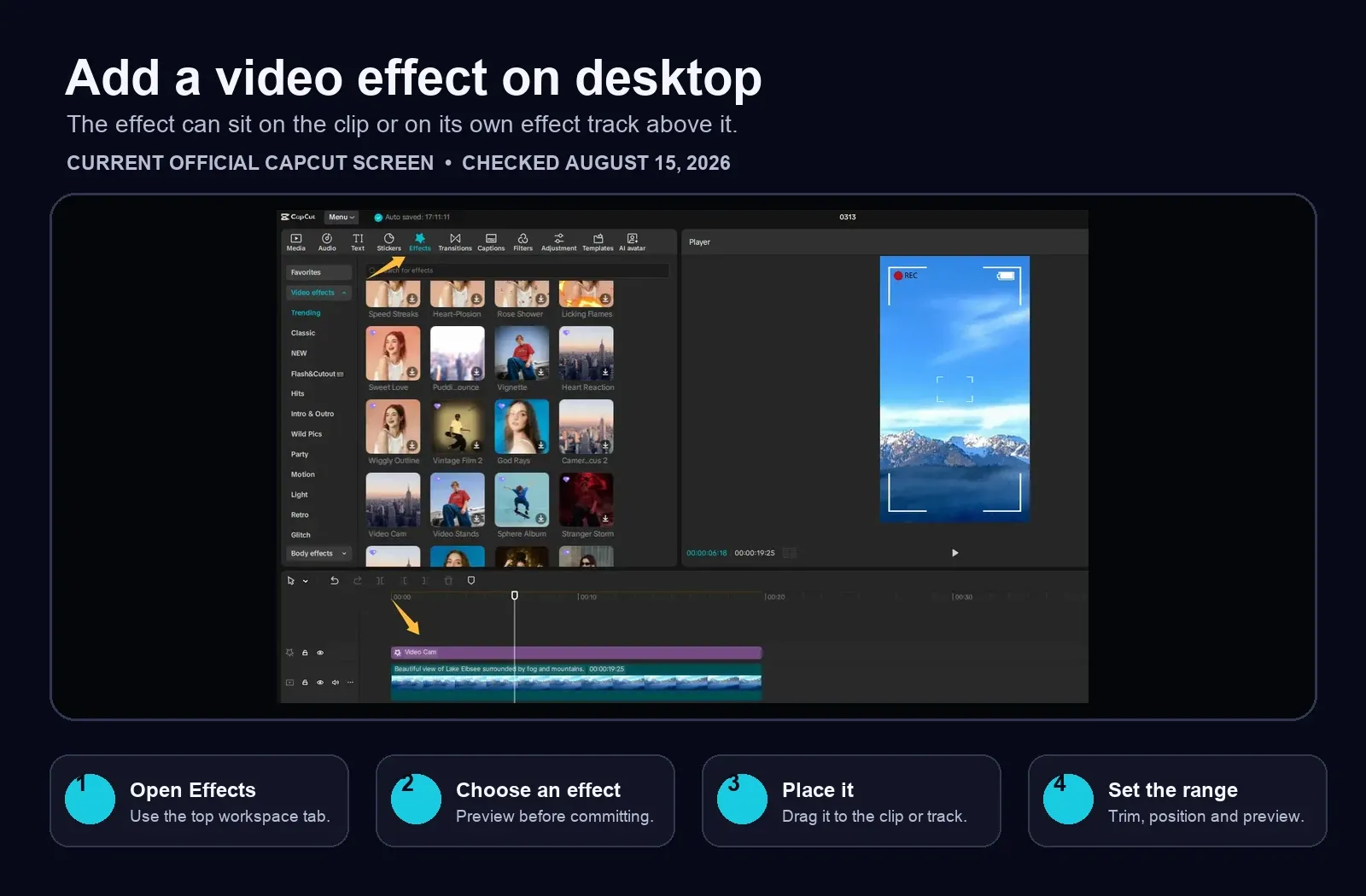
An effect track is useful because its timing stays visible and the layer can be moved or removed without hiding the clip underneath. If a preset appears in the player but not in the exported file, confirm that the effect segment covers the export range and that the asset has finished downloading before changing codec or resolution.
Desktop layouts change as CapCut updates the app. Search and category controls may move, and the same preset may not appear under the same name on another device. Build the workflow around the Effects tab, the timeline layer, and a test export rather than a memorised category list.
How to add effects in CapCut Web
- Open the project and place the clip on the browser timeline.
- Click Effects in the left menu.
- Browse or search the available library.
- Drag the effect onto the timeline above the clip.
- Set its length and position, then move the playhead inside the effect range.
- Preview the section before export.
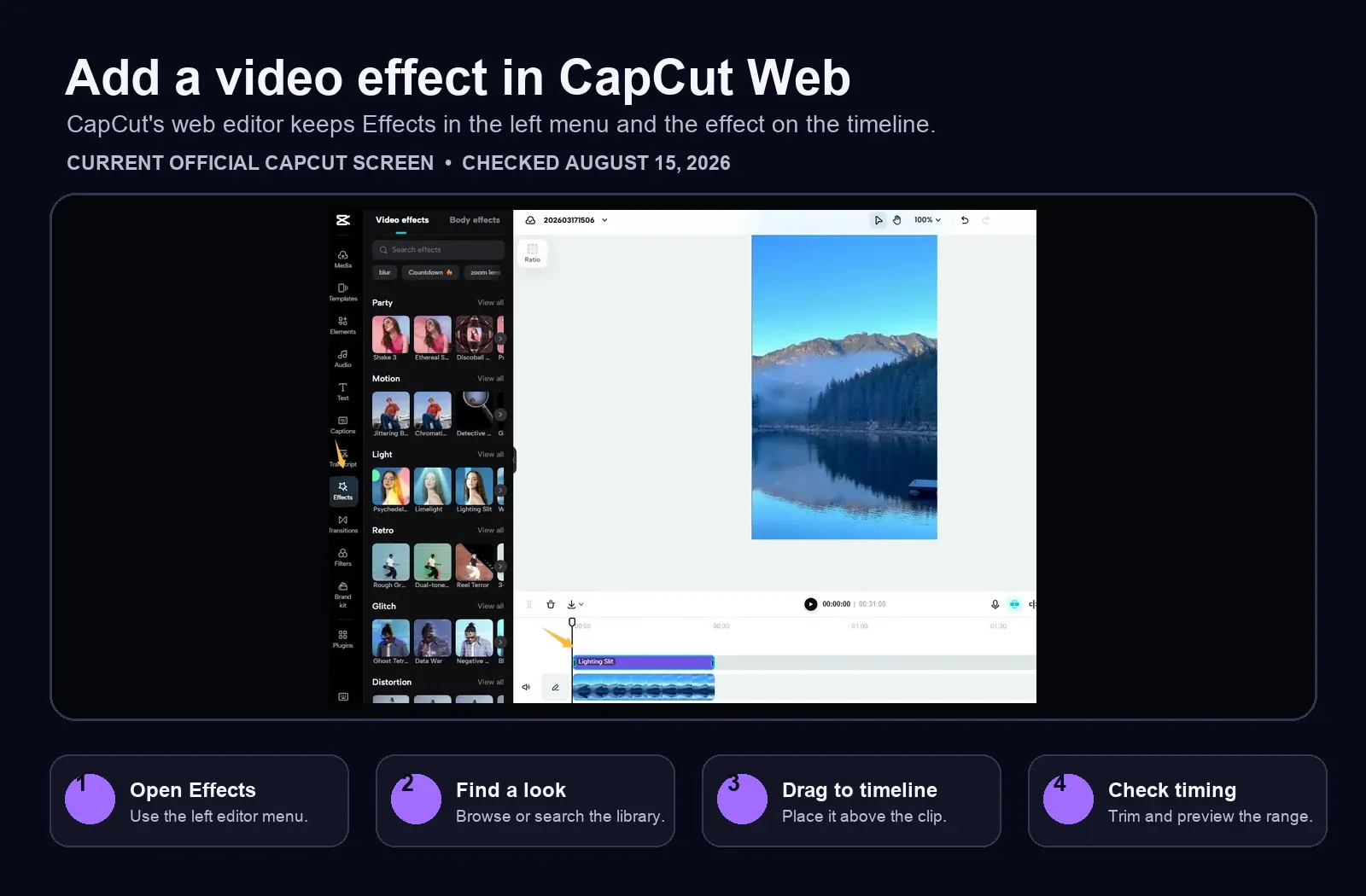
CapCut says Web streams its effects from the current content library. That makes a stable connection important when you browse or load a new asset. If a known effect doesn't appear, compare the signed-in account and the current library before assuming the project file is broken.
When browser preview is slow, save the project and test a short section with one basic effect. That separates a specific asset problem from a heavy timeline or browser performance problem. Avoid clearing site data until important work is saved or synced.
CapCut effects vs filters
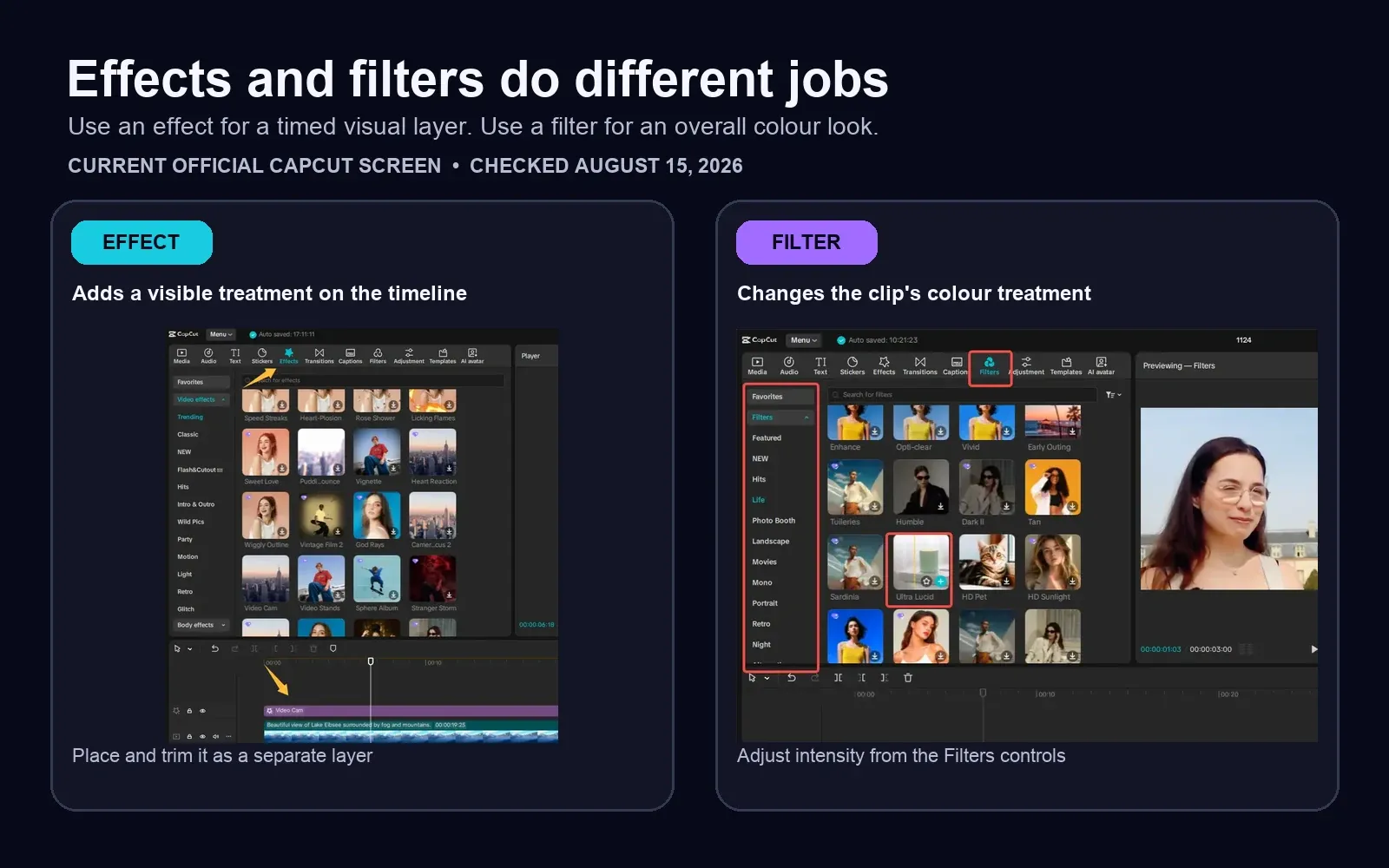
Use a filter when the goal is consistent colour, contrast, or mood across a shot. Use an effect when something should happen for a specific span of time. A light leak, distortion, or camera treatment can be timed as an effect, while a colour look is easier to manage from Filters and its intensity control.
You can combine the two, but make each decision separately. Set the filter first, then add the effect and preview the result with the effect disabled and enabled. If the subject becomes muddy, skin tones shift too far, or detail disappears, reduce one layer rather than adding another correction on top.
Use Body effects when the subject drives the look
CapCut's Desktop material separates Video effects and Body effects. Body effects are designed around a detected person or body area, so the footage matters as much as the preset. A clearly visible subject, stable framing, and enough contrast between the person and background give the analysis a better starting point.
- Choose a short representative section with the subject fully visible.
- Apply one Body effect and wait for any analysis or download to finish.
- Inspect hands, hair, fast movement, and frames where the subject leaves the shot.
- Trim the effect away from frames where detection fails.
- Export that short section and watch it outside CapCut.
If the preset can't separate the intended person, changing effect intensity may not solve the edge problem. Try a cleaner shot, shorten the range, or switch to the CapCut background removal workflow and build the look with separate layers.
Treat AI effects as generated results, not fixed overlays
An AI-labelled effect can analyse the clip before producing the result. CapCut's AI-effects material points users to routes including AI stylize, Video effects, and Body effects, but those labels are not guaranteed across every platform or account. Open the route that exists in your build and test the exact tool on a short section.
Generated results can change with the source clip. Motion blur, occlusion, compressed footage, a small face, or a busy background can affect subject edges and detail. Review the output at full-screen size, listen to the audio, and check the first and last frames of the processed range. For a wider map of current tools, use the CapCut AI tools guide. The CapCut AI image generator guide covers the same behaviour on the still-image side.
If an old AI effect template disappears, CapCut recommends updating the app, checking that you're signed into the same account, restarting the library, and comparing another device when possible. Preserve the working project before replacing the old result.
Find a missing effect or a current replacement
CapCut's effects availability help says the catalogue uses cloud-delivered resources and that an effect can be updated, replaced, or retired. Paid access doesn't guarantee that every historical asset remains available forever.
- Open the original project before creating a replacement.
- Write down the exact effect name, category, platform, and account if the old label is still visible.
- Check that the app is current and that you're using the same account.
- Search the current Effects library and nearby categories for the old name.
- Compare current alternatives by function: outline, glow, blur, texture, distortion, camera motion, or subject tracking.
- Test the replacement in a duplicate project or on a short copied section.
Don't delete an old project simply because the effect is missing from the current library. CapCut notes that saved projects may retain an applied effect, although cloud-dependent assets can still display as missing.
Check free and Pro access on the exact asset
CapCut offers free effects, while some presets, AI tools, materials, or export choices can require Pro. The useful check is the badge and export behaviour of the exact asset in the account you plan to use. A marketing page that describes free effects is not a guarantee that every item in a changing library is free.
- Check the badge on the selected preset before building the edit around it.
- Confirm that the asset finishes downloading or processing.
- Run a short representative export while signed into the intended account.
- If a Pro prompt appears, inspect the project for the marked effect and any other premium material.
CapCut's current Pro export help lists premium effects among the elements that can trigger a subscription prompt. For current plan and regional price information, use the CapCut Free versus Pro guide.
Stack effects without losing the shot
There's no useful maximum number of effects for every device and project. A better rule is to add one layer at a time and keep the smallest stack that earns its place. Give each layer a job: one colour treatment, one subject treatment, or one brief accent. Several layers that all add glow, motion, or distortion usually compete for the same attention.
- Duplicate the project or the affected sequence.
- Apply one effect and set its timing.
- Preview at normal speed and compare it with the layer disabled.
- Add the next layer only when it solves a different visual problem.
- Disable layers one by one if preview slows down or the result becomes unclear.
- Export a short representative section before processing the full project.
For movement that should follow a precise beat or subject, keyframes may be cleaner than another preset. The CapCut keyframe guide covers that route.
Fix an effect that is not applying
CapCut's official troubleshooting starts with selection, layer placement, timeline position, conflicting adjustments, and app or device performance. Check them in that order:
- Select the intended clip or layer. An effect can appear to do nothing when the wrong item has focus.
- Inspect where the effect was placed. Some effects sit on their own timeline layer rather than inside the clip.
- Move the playhead inside the effect range. A correct effect is invisible before it starts and after it ends.
- Disable other effects and adjustments. Test the suspect effect alone on a duplicate section.
- Wait for download or analysis. A cloud asset or subject-aware effect may not be ready immediately.
- Test a blank short project. One clip plus one basic effect separates an app problem from a heavy timeline.
- Save, restart, and update. Protect unsynced drafts and source media before clearing data or reinstalling.
If preview works but the export freezes or fails, keep the working project and move to the CapCut export troubleshooting guide. If the effect doesn't survive a normal restart and a blank-project test, send CapCut support the platform, app version, effect name, and a short description of the failure.
Check the result before the full export
- Play from before the effect begins through the frame after it ends.
- Watch at full-screen size for soft detail, edge flicker, or failed subject detection.
- Check the vertical safe area on a phone when the project is for Reels, Shorts, or TikTok.
- Listen for audio drift after any AI processing.
- Export a short representative section and play it outside CapCut.
The reliable order is simple: choose the correct tool, add one effect, set its range, preview the full section, and test the export. The CapCut Tutorial hub connects effects with trimming, overlays, masks, captions, and export when the rest of the edit needs work.
CapCut Effects FAQ
How do I add an effect in CapCut?
On Mobile, tap Effects, choose Video effects, select a preset, confirm it, and set its timeline range. On Desktop, open Effects and drag a preset onto the clip or an effect track. On Web, open Effects in the left menu and place the effect above the clip on the timeline.
What is the difference between a CapCut effect and a filter?
An effect adds a visible treatment across a timed part of the edit and can sit on its own timeline layer. A filter changes the overall colour treatment of a clip. Use a transition for the cut between clips and an animation for the entrance or exit of a selected element.
Why is my CapCut effect not showing?
Check that the intended clip or layer is selected, the effect sits on the correct layer, and the playhead is inside the effect's timeline range. Then isolate the effect from conflicting adjustments and test a simple preset in a short duplicate project.
Why did a CapCut effect disappear?
CapCut can update or retire cloud-delivered effects, and the available library can differ by platform, account, region, device, and app build. Reopen the original project first, record the old effect name if it is visible, then look for a current replacement before changing the working edit.
Are all CapCut effects free?
No. CapCut provides free effects, but some assets or export choices can require Pro. Check the badge on the exact preset and run a short test export while signed into the account you intend to use.
Can I use CapCut effects on photos?
Yes. A photo placed on the timeline behaves like a timed visual clip, so compatible video effects and filters can be applied to it. Body effects and subject-aware treatments still depend on whether the image gives CapCut a clear subject to detect.
How many effects should I stack in CapCut?
There's no useful universal count. Add one effect at a time, preview at normal speed, and keep the smallest stack that serves the shot. If the result becomes unclear or the editor slows down, disable layers one by one and test a short export.