

A CapCut transition sits at the cut between two adjacent clips. On Mobile, tap the small white square between the clips. On Desktop, open Transitions and drag a preset onto the cut. On Web, click the small transition icon at the cut. Set the duration, then play from before the cut so you judge the edit rather than the preset thumbnail.
Checked August 15, 2026. The steps and screens below match CapCut's current Mobile, Desktop, and Web transition instructions. Category names, preset inventory, and plan badges can vary by platform, region, account, and build, so this guide relies on the stable timeline route instead of a fixed list of effects.
Before you add a transition
You need a real cut. Place two clips side by side on the same track with no empty space between them. If you have one long clip, move the playhead to the edit point and split it first. Our CapCut cut, trim, and split guide covers that step without changing the rest of the project.
Use the right tool for the job:
- Transition: changes how one clip gives way to the next at a cut.
- Animation: controls how a selected clip, text layer, sticker, or overlay enters, leaves, or moves.
- Effect: changes the picture across a span of time. Use the CapCut effects guide when the look should continue through a shot.
- Template: provides a prebuilt edit whose media slots, timing, and effects are already arranged. The CapCut templates guide explains that separate workflow.
If the control is missing, don't search every menu yet. Check for two adjacent clips, zoom in around the cut, and confirm that you opened Transitions rather than Animations or Effects.
How to add transitions in CapCut Mobile
- Open the project and place two clips directly next to each other on the main timeline.
- Tap the small white square at the cut between the clips.
- Choose a transition and preview it on your footage.
- Move the duration slider. Very short clips can limit how much duration is available.
- Tap the check mark to apply the transition.
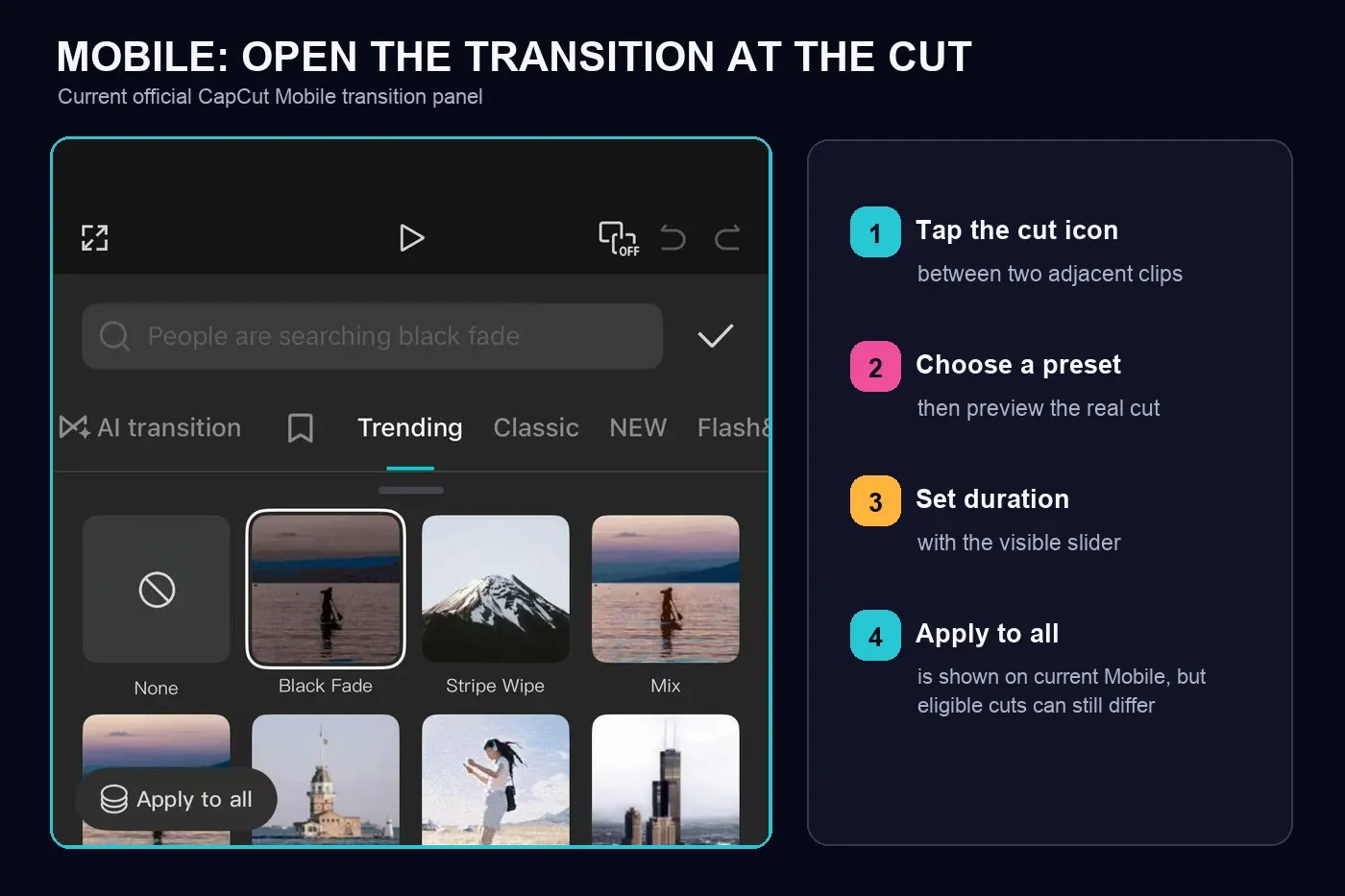
These steps match CapCut's current transition help. The current Mobile screen also shows Apply to all. Use it when the project really needs the same transition across a sequence, then inspect several cuts. Cuts on separate tracks and overlay clips may not change, and identical timing rarely suits every edit.
How to add transitions in CapCut Desktop
- Put two clips side by side with no gap.
- Open the Transitions tab above the media and timeline area.
- Preview a preset, then drag it onto the cut between the clips.
- Select the transition marker on the timeline and adjust the duration shown in your build.
- Play from a moment before the cut with audio on.
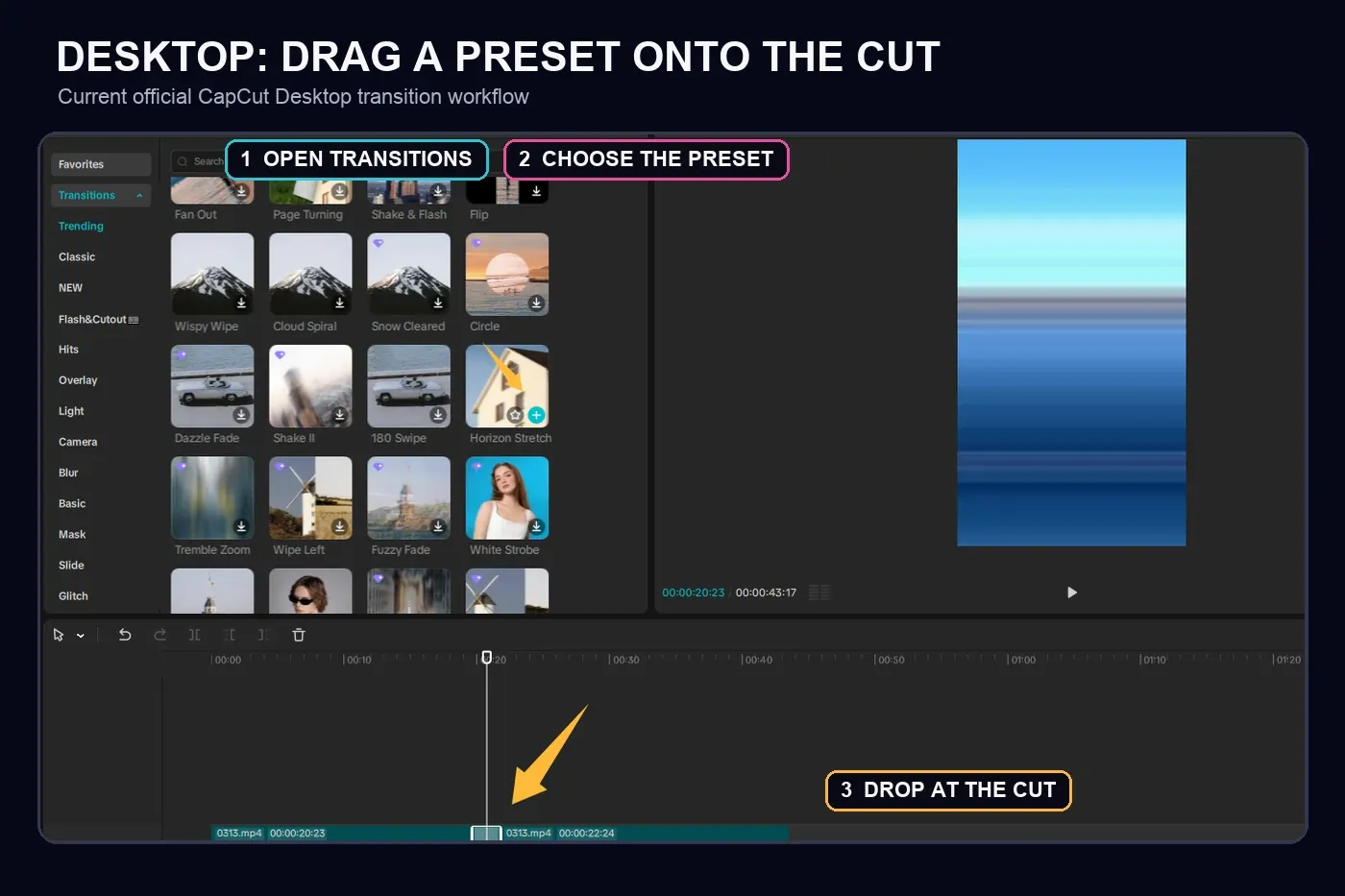
The route is the same on current Windows and macOS builds, although the library layout, categories, and download badges can change. A diamond or plan badge is a reason to check the exact asset before building the edit around it. It is not evidence that every preset beside it has the same access rule.
How to add transitions in CapCut Web
- Open the project and place two clips directly together on the timeline.
- Click the cut or the small transition icon between the clips.
- Choose a preset from the Transitions panel.
- Set the duration and preview the full cut.
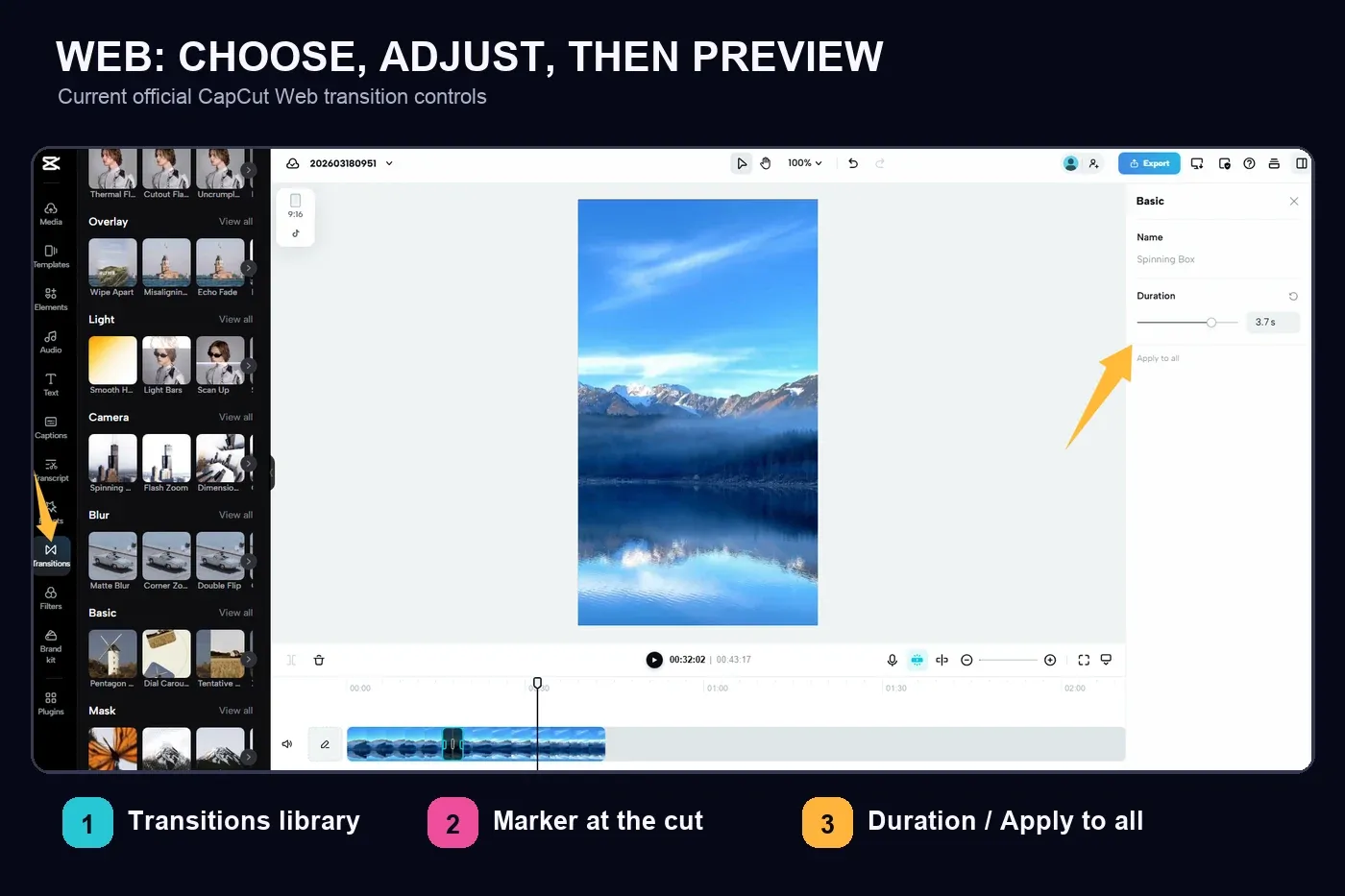
The cut control can be easy to miss when the timeline is zoomed out. If the panel or preview doesn't respond, save the project, refresh the page, and test a current Chrome or Edge build. That browser advice comes from CapCut's current transition troubleshooting page. A library difference between Web and the app doesn't prove that your project is damaged.
Change, replace, or remove a transition
Select the transition marker at the cut before changing it. A selected marker lets you adjust duration or choose another preset for the same cut. To remove it, use Delete, the trash control, or None when that option appears in your platform. Confirm that the marker has gone, then play the cut again.
Replacing a preset should not move the clips. If the timing changes unexpectedly, undo once and inspect the cut for a gap, a moved clip edge, or a second item on another track. Keeping the clips fixed makes it much easier to compare a transition with the original hard cut.
Choose the duration by watching the cut
There's no best duration that works for every CapCut transition. A quick action cut may need a brief preset or no preset. A change in place, time, or mood can support a slower dissolve. Start short and lengthen only when the outgoing image remains readable and the incoming subject still arrives at the right moment.
- Play at normal speed. Repeated slow loops can make an oversized transition feel better than it does in the finished video.
- Listen to the edit. A visual transition should not delay a word, beat, or reaction that already carries the cut.
- Compare with the hard cut. Keep the transition only when it improves continuity, direction, or meaning.
- Check available frames. CapCut says that very short clips may not support a transition. Shorten the preset or give the clips more usable material.
Don't convert a recommended duration into a fixed frame count unless you know the delivery frame rate and the available frames on both sides of the cut. The correct value comes from the footage, not the preset name.
Make the transition feel smooth
A preset can't repair two poorly timed clips. Trim the hard cut first. Look for a shared direction, subject position, camera move, or change in meaning. A push reads naturally when the movement already travels that way. A dissolve fits a shift in time or mood. A hard cut is often cleaner when speech or action already connects the shots.
- Finish the clip order and hard-cut timing.
- Match the outgoing and incoming movement where possible.
- Add the shortest transition that makes the change easier to read.
- Preview on the final aspect ratio with audio on.
- Remove the preset if it becomes the main thing you notice.
For talking-head edits, captions and speech rhythm often carry the change better than a spin or zoom. For beat cuts, place the cut on the beat before adding motion. Strong presets work best as deliberate punctuation, not as a default between every clip.
Text, overlay, and custom transitions
A “text transition” usually means an In, Out, or Combo animation applied to the text layer. Select the text itself and open its Animation controls. The square cut icon belongs to adjacent clips, while the text layer has its own entrance and exit timing.
For a custom reveal, use position, scale, rotation, or opacity keyframes and shape the motion around the cut. The CapCut keyframe guide explains those controls. A wipe built around a subject or object can also use the CapCut masking workflow. Preview the finished composite because a mask, clip transition, and text animation stacked on the same beat can hide the subject.
Free and Pro transitions
CapCut offers free transition choices, while some presets or variants can require Pro. The exact library and badge can change by platform, account, region, and rollout. Check the badge on the asset you want, apply it to a short test cut, and run an export while signed into the account you plan to use.
CapCut's free transitions page confirms that free choices exist. Its export help also lists a premium transition as one reason a Pro prompt can appear. That doesn't make every transition paid. For current plan and regional price checks, use the CapCut Free versus Pro guide.
Fix a missing or failed CapCut transition
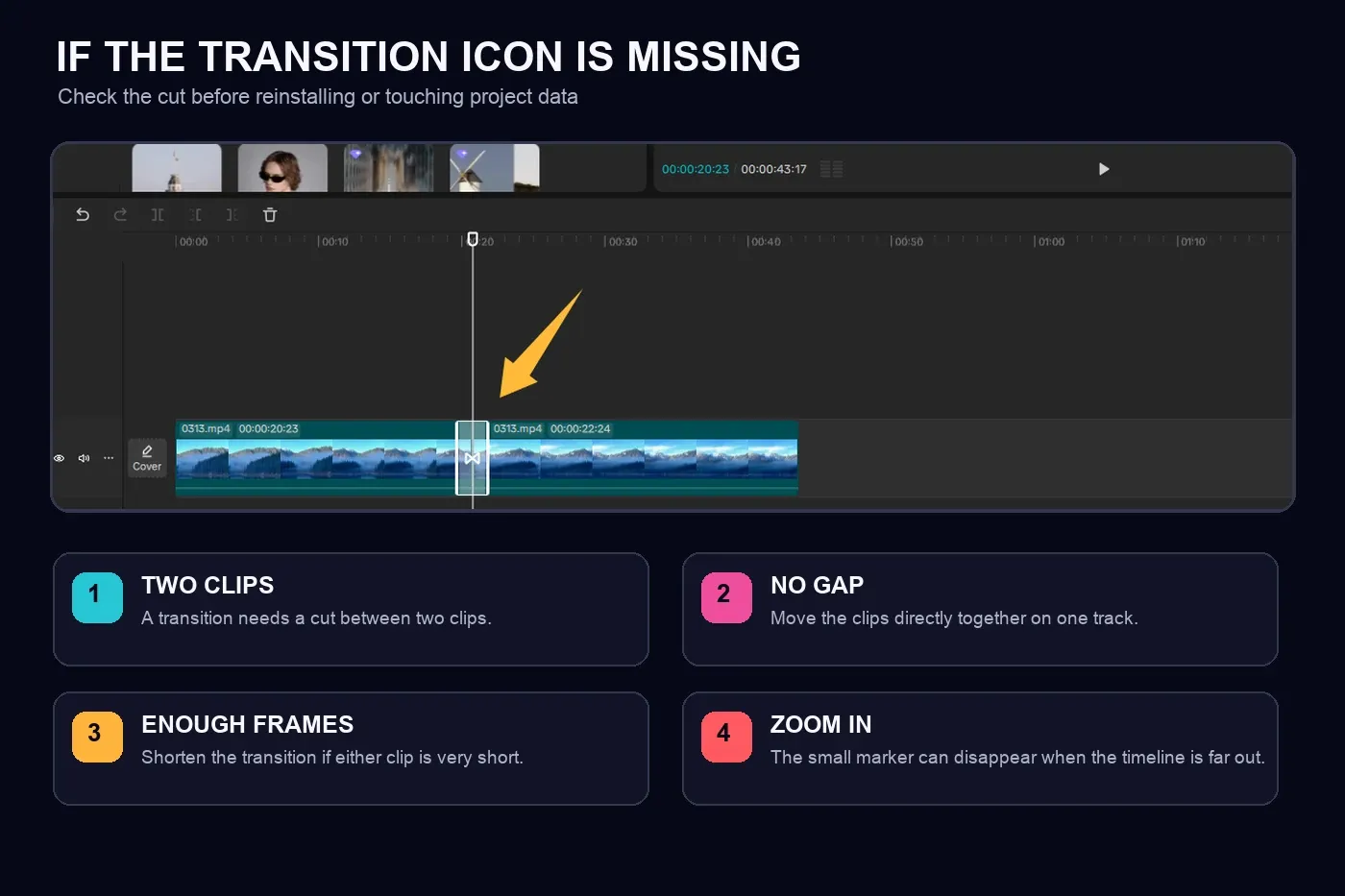
- Only one clip: add another clip or split the existing clip at the intended edit point.
- A gap between clips: move them directly together on the same track.
- The cut is hard to see: zoom in around the clip boundary and select the correct transition route.
- The clips are very short: try a shorter transition or test the preset on two longer clips.
- An item is locked or overlapping: unlock the relevant track and test without a conflicting effect or animation in a duplicate project.
- The asset doesn't load: check the connection and signed-in account, then try a basic local preset.
- The editor still fails: save the project, restart or refresh, update CapCut from the official source, and compare a blank two-clip project.
Protect unsynced drafts and source media before clearing app data, uninstalling, or deleting folders. If the transition previews correctly but the export freezes or fails, move to the CapCut export troubleshooting guide instead of rebuilding a working cut.
Check the edit before export
- Play from before the cut at normal speed with audio on.
- Inspect the first clear frame after the transition for duplicate action, a jump, or an accidental blank frame.
- Check vertical work at phone size because edge motion can feel stronger on a narrow screen.
- Spot-check several cuts after using Apply to all.
- Export a short representative section and play it outside CapCut.
The clean order is simple: trim the hard cut, choose the transition, set its duration, preview with sound, then export a test. The CapCut Tutorial hub connects transitions with trimming, keyframes, captions, and export when the rest of the edit needs work.
CapCut Transitions FAQ
How do I add a transition in CapCut?
Put two clips directly next to each other. On Mobile, tap the small white square at the cut, choose a preset, set its duration, and tap the check mark. On Desktop, open Transitions and drag a preset onto the cut. On Web, click the small transition icon between the clips.
Why is there no transition icon in CapCut?
Confirm that the timeline has two adjacent clips with no gap, then zoom in around the cut. A single unsplit clip has no cut to receive a transition. Also check that you're in Transitions rather than Animations or Effects.
Why will CapCut not apply a transition?
CapCut lists clips that are too short, overlapping effects or animations, locked layers, and temporary software or rendering problems as common causes. Test a basic preset on two longer adjacent clips to separate a timeline problem from an app problem.
How do I change or remove a CapCut transition?
Select the transition marker at the cut. Choose a different preset to replace it, change the duration in the control shown for that marker, or use Delete, the trash control, or None when your platform displays it. Preview the cut after the change.
Can I apply one transition to every clip in CapCut?
The current Mobile transition panel includes Apply to all. Use it when it is visible, then inspect several eligible cuts because separate tracks and overlay clips may not receive the same result. Desktop and Web controls can differ by build.
Are all CapCut transitions free?
CapCut offers free transitions, but some presets or variants can require Pro. Check the badge on the exact asset and run a short export while signed into the account you plan to use. The available library can vary by platform, region, account, and build.
What is the best duration for a CapCut transition?
There's no universal duration. Start with a short transition, play the full cut at normal speed, and lengthen it only when the movement or story change needs more time. Very short clips may not contain enough frames for a longer preset.