

If CapCut export is stuck, start with the error message and a short test, not a reinstall. Check free space and the save destination, then try a new project containing one short local clip. If that exports, test sections of a duplicate of the affected project. A stalled percentage alone cannot tell you which clip, setting or device component is responsible.
For other symptoms, use CapCut Fixes. If CapCut cannot open at all, follow the app startup checks before trying the steps below.
Protect the draft, then run one simple test
Keep the original draft and source files untouched. Use the project's duplicate or copy command where available, then confirm the copy opens with its media. CapCut itself recommends duplicating a project before major edits.
A duplicate inside CapCut protects against editing the wrong timeline; it is not an independent backup against app-data deletion. Before any reset or reinstall, verify a separate copy of the editable project and original media. An exported MP4 is not that editable copy. If you cannot verify a backup, leave app data alone.
- Record the failure. Note the percentage, full error message, app version, platform and export settings. Keep screenshots private if they contain account details, file paths or project names.
- Check storage and destination. On a computer, choose a local folder you can write to, outside a syncing folder for this test. Use a new, short filename. Keep source drives connected. Do not free space by deleting media used in the draft.
- Create a control project. Import one local clip that opens and plays, with no effects, templates or paid assets. Use about five to ten seconds and try 1080p, or a lower resolution if the source is smaller. This is a diagnostic sample, not a required project length or final-quality setting.
- Open the completed file outside CapCut. Check picture, audio and duration. If it works, move to the affected project's range tests. If it fails too, start with the platform checks below rather than deleting items from the original edit.
A successful simple export narrows the next investigation. It does not prove that the device can finish a much larger job, or that every setting and asset in the original is usable.
Is the export slow or actually stuck?
Give an active export time to work. High-resolution footage and complex effects can take longer than a plain clip, and progress is not necessarily evenly paced. A changing percentage or growing output file suggests activity; neither proves that the final video will be valid.
There is no dependable “cancel after five minutes” rule. Compare the small test above with the affected project. Likewise, do not treat a fixed storage multiplier as a guarantee: CapCut notes that exporting also uses temporary files. Leave space beyond the estimated output, and check the system drive as well as the destination on a computer.
Stuck at 99%: check the save and download
At this stage, check where the file is going before changing the timeline. CapCut's 99% guidance lists storage, permissions and interrupted downloads, but also problematic media. Do not assume the render is already healthy just because the counter is nearly finished.
- Web: keep the editor tab open. Check the browser's download list for a failure or permission request, then confirm its destination and free local space. A cloud render and a successful download are separate steps. Permit an expected download from CapCut; do not bypass a security warning about an unsafe file.
- Desktop: retry the short test in a different writable local folder. Keep the source drive connected and avoid changing file locations while CapCut is using them.
- iPhone or Android: check device storage and the photo/media access CapCut requests. Keep the app visible during the test. If the phone is hot, let it cool before another attempt.
When a file finally appears, play it all the way through, including the ending and audio. A partial file, a thumbnail or a 100% counter is not enough. If the video completes but has no sound, use the separate audio-after-export checks.
Stuck at 1% or repeatedly in the same place
An opening clip or effect is worth testing, but 1% is not a timeline timestamp. CapCut's early-export guidance also includes resource limits and hardware-encoding conflicts. Do not delete the opening shots just because the number is small.
Mark a range without cutting up the master
In the documented Desktop workflow, click into the timeline, move the playhead to the intended start and press I. Move to the end and press the letter O. Inspect the marked interval, then use Export. CapCut documents these In and Out controls; our selected-range guide covers boundaries and builds with different controls.
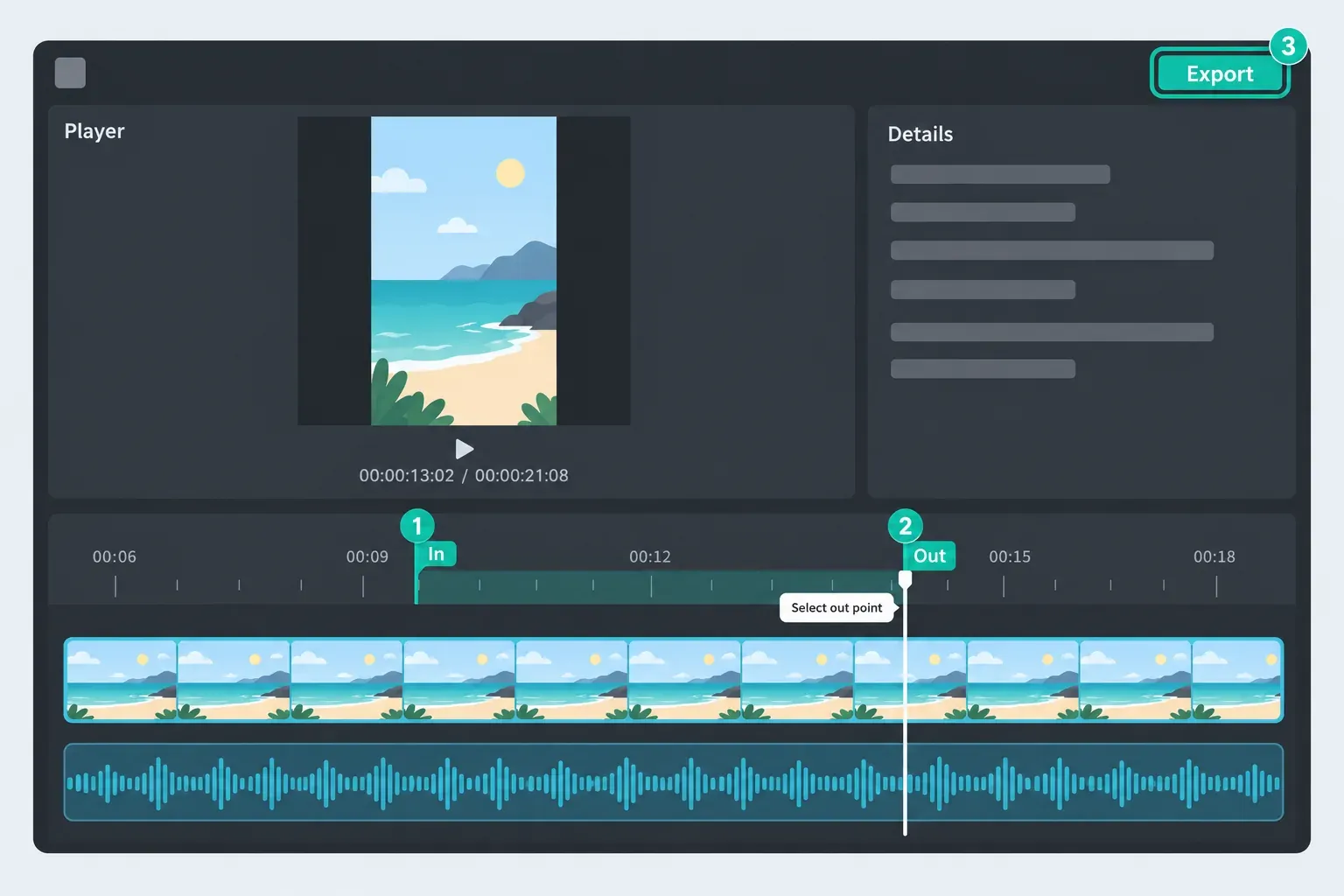
These keyboard instructions are not a universal Mobile or Web route. If your editor lacks a range tool, trim only a verified working duplicate. Preserve every track needed within the test section. If you cannot make a safe copy, do not remove material from the sole draft.
Test both halves, then follow the result
- One half fails: test smaller ranges within that half. Check overlapping captions, transitions, audio and effects as well as the video clip. Replace or relink an item only when the evidence points to it, and retain its original file.
- Both halves fail: there may be multiple troublesome items, a shared effect or a wider export problem. Compare the simple control project before continuing to subdivide.
- Both halves work, but the whole project fails: test a short section spanning the join. Compare the full export's settings, storage and resource use. A boundary interaction or the larger workload remains possible; you have not identified one bad clip.
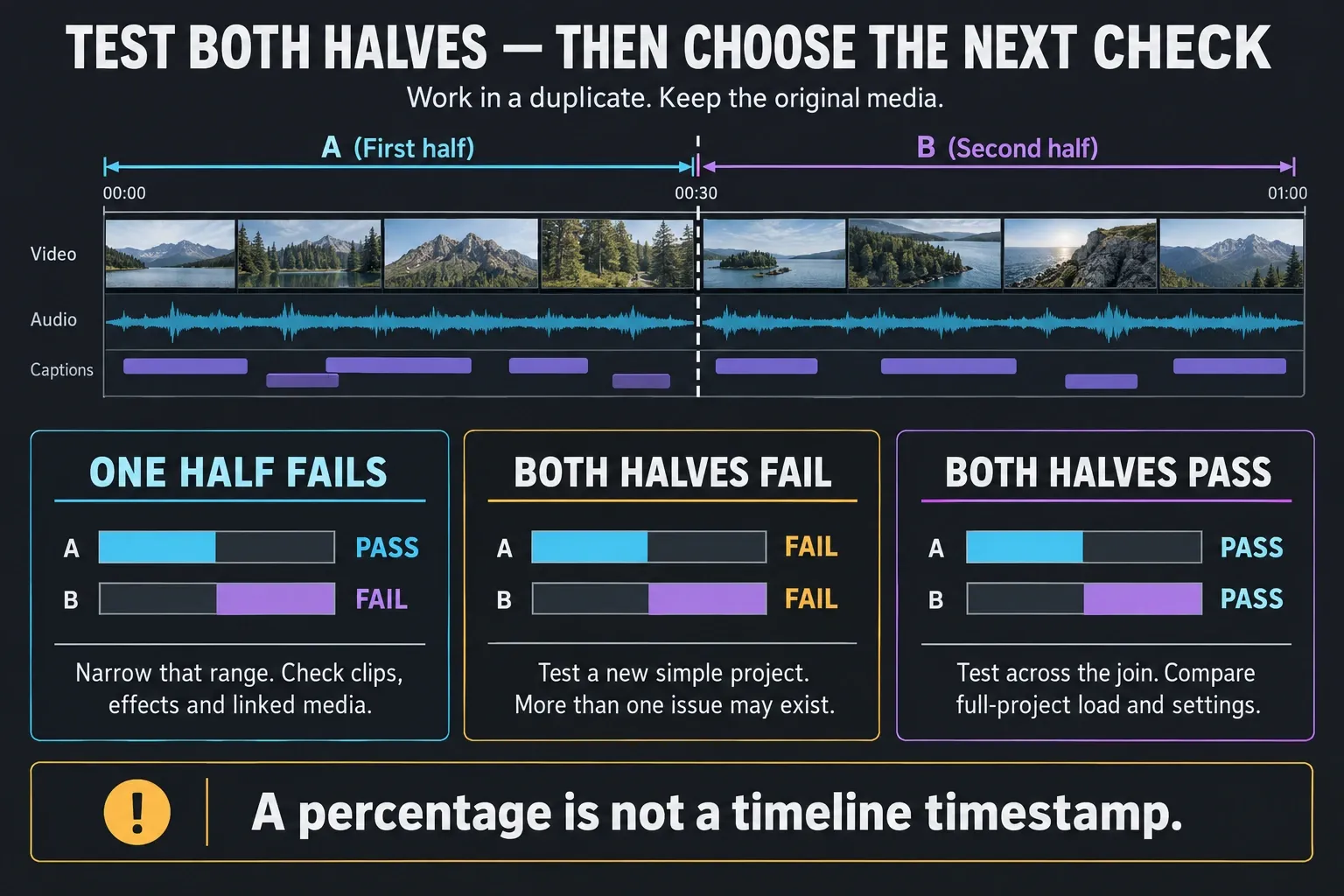
Range selection limits the output interval. It does not promise to unload the rest of the project or reduce peak RAM. A lower-resolution success is useful evidence too, but it does not establish one cause.
Before the final full export, reset the test range. Clear it using your build's range controls, or set I at the start of the complete intended timeline and O at its end. Check both boundaries and the full expected duration, then inspect the exported beginning and ending. Clicking a different clip is not a reliable way to clear an earlier range.
Export reaches 99%, then starts over
A counter that drops from 99% to 5% does not tell you why the attempt restarted. An April 2026 user report describes that exact symptom, but it does not establish a finalization bug or a universal fix.
Record the sequence and any message. Check whether the expected file exists and plays. If it does not, use a different local destination for the control test, then follow the range results above. Change one variable per retry so that a successful attempt tells you something. Repeating the same full render without a change adds little evidence.
Export opens nothing, keeps loading or asks for Pro
If no export panel opens, the range checks may not be available yet. Save the draft, check for a dialog behind the editor, and let any visibly unfinished asset processing finish. Close unneeded desktop apps or browser tabs and restart the editor. CapCut's button-response guidance also covers interface freezes and browser-extension conflicts.
A Pro prompt is a different problem from a stalled render. Inspect the exact premium asset or export setting flagged by CapCut. Do not assume every 4K export needs the same plan on every account. If you already paid, check the purchase account and subscription status before buying again or stripping the edit.
If the button stays unresponsive even in the simple project, continue with the platform checks below. If the app itself freezes outside export too, use the startup and app-response checks linked at the beginning.
Use the displayed error code
CapCut's error-code table gives different actions for different messages. Treat them as troubleshooting directions, not proof of a single underlying fault. Make timeline changes in the duplicate.
- 4114: test sections and replace the material implicated by the tests.
- 10004: test sections; remove and re-add the implicated clip in the copy.
- 22113: CapCut recommends removing and rebuilding all compound clips. Preserve the master and check their contents and timing before attempting this in the duplicate.
- 10006: relink imported media. Confirm the original files still exist and are accessible before assuming the project itself is corrupt.
- -30007: try another writable local destination. Keep security protection on; use the security checks below if an actual block is recorded.
- -1 or 4155: CapCut recommends increasing virtual memory. On Windows, check the page-file guidance below. Do not apply Windows instructions to a Mac or phone.
Windows: page-file and security checks are separate
Microsoft explains that page-file sizing depends on the system's workload. Windows manages it by default, and growth needs disk space. Check whether it was disabled or manually restricted before trying arbitrary numbers. On a managed computer, ask IT to review the setting; do not use a fixed RAM multiplier or a “memory cleaner.”
For a blocked save, inspect Windows Security's Protection History. Only if a recorded Controlled Folder Access event identifies the genuine, trusted CapCut installation should you consider Microsoft's allowed-app approach. An executable's name alone does not prove it is safe. A malware quarantine is a different event: do not restore or allow a flagged file just to finish an export.
Desktop: test hardware encoding reversibly
If your build exposes it, open Settings → Performance and record the current hardware-encoding setting. Change that one control, follow any restart prompt, and retry the same short test. The official early-export guide recommends this check; its availability and wording can differ by build.

Do not change encoding, decoding and interface rendering together, or you would lose the comparison. Software encoding may take longer. Restore the original setting if the test does not help. On Mac, Activity Monitor → Memory shows Memory Pressure and Swap Used; inspect those rather than looking for a Windows page-file control.
If even the simple project fails
- Web: save and verify the draft before refreshing. Retry in a current supported browser; CapCut suggests Chrome or Edge. Compare on another trusted connection. Test a suspected extension's effect only on CapCut, then restore it. Keep your working sign-in session and browser site data intact.
- Windows or Mac: restart the app and computer, then check the official app for an available update. Do not interrupt an installer already running. Keep the test destination local and leave source files where CapCut can access them.
- Android: check storage, permissions and available updates. If needed, use the device's app settings to clear cache, not storage/data. Google distinguishes temporary cache from permanently deleted app data. Menu names vary by phone.
- iPhone or iPad: open Settings → General → iPhone Storage or iPad Storage. Review what occupies space without deleting project media. Apple's Delete App option removes related data; it is not a harmless cache-clear button. Try restarting and an available official update first.
CapCut's platform-specific template advice also recommends keeping a mobile export in the foreground. If battery saving interrupts the job, compare a short attempt with it off and restore your preference afterward. Do not delete the CapCut data folder or assume a rendered gallery video backs up the draft.
When to stop retrying and contact support
If several simple projects fail, particularly when account or online assets fail too, preserve the drafts and contact CapCut. That pattern still does not prove a global outage. Send the platform, app version, exact error, available storage, export settings and the results of the control and range tests.
Use the support link on CapCut's official export-help page or the support control in your app. If requested, provide the smallest non-sensitive example that reproduces the issue. Do not post client footage, account identifiers, private paths or your full project publicly.
If clean segments are your only workable delivery route, keep their resolution, frame rate and audio settings consistent. Our export-settings guide explains those choices. Check the joins and the complete assembled file: re-imported exports are flattened videos, not editable substitutes for the original tracks, and another export can affect quality.
CapCut export FAQ
Why is CapCut export stuck at 99 percent?
Check storage, save permissions and the browser download before changing the timeline. Problematic media can also cause a late failure. The percentage alone does not prove that rendering succeeded; open and check the completed file.
Why is CapCut export stuck at 1 percent?
An opening clip is one possibility, not a diagnosis. Test a simple new project and then ranges in a duplicate of the affected draft. Resource limits and hardware-encoding conflicts can also matter.
Why does export reset from 99 percent to a lower number?
The counter restarting does not establish the cause. Record the sequence and any error, check for a usable output file, then compare the destination, simple-project test and range results. Do not label it a confirmed finalization bug without further evidence.
How long should I wait for a CapCut export?
There is no reliable universal deadline. Duration, source media, effects, output settings and the device or online service affect the time. Compare a short test and watch for activity rather than using another person’s export time as a cutoff.
Should I clear CapCut cache or app data?
Do not clear app storage, uninstall or delete app folders while an important draft has no verified independent backup. Android Clear Cache removes temporary data; Clear Storage deletes app data. On iPhone, Delete App removes related data and is not a harmless cache-clear action.
Should I disable hardware acceleration?
Only as a reversible comparison if your Desktop build exposes the relevant control. Record its original state, change hardware encoding alone and retry the same short section. Software encoding may take longer; restore the setting if it does not help.
Can exporting in sections fix a failed project?
It may provide a workaround or narrow the investigation, but does not guarantee one faulty clip or lower peak RAM. If both halves pass, test across the join and compare full-project settings and resource use. Check every segment and the assembled file.
What if export stops at another percentage or reaches 100%?
Treat the number as progress, not a code that identifies a clip. Use the same controlled tests. At 100%, confirm that the expected file exists and plays correctly; a completed counter alone is not a verified delivery.