

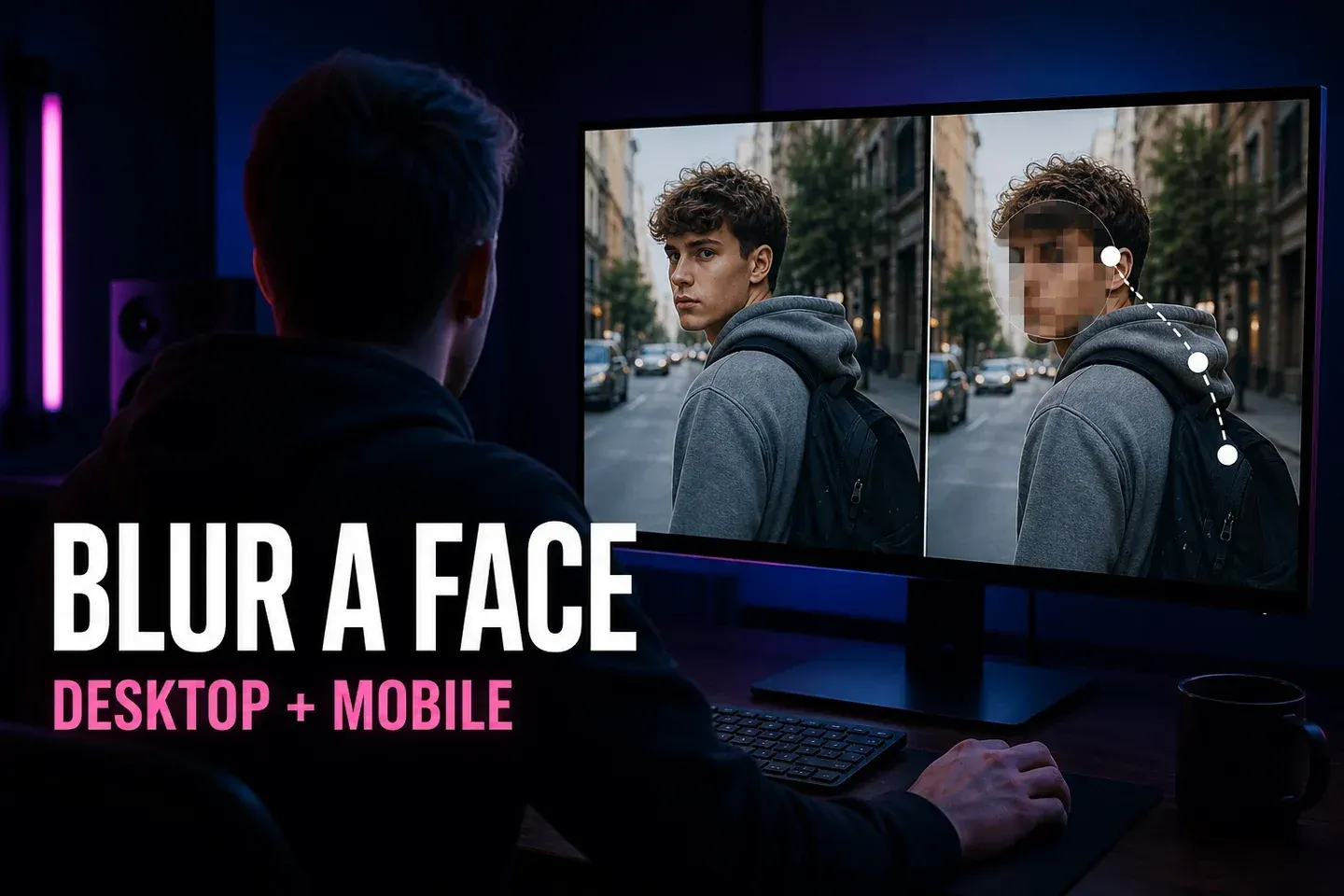
To blur a moving face in CapCut, build two aligned copies of the shot and use a mask to reveal the blurred copy only over the face. On Desktop, blur the upper copy, make it a compound clip, add a Circle mask and run Track mask. On Mobile, blur the base, place the clear original above it as an overlay, invert a Circle mask on that overlay and move the mask with keyframes.
The edit isn't finished when the tracker stops. Play the exported file from start to end and check turns, hands crossing the face, people leaving the frame and every re-entry. Face blur hides a facial region. It doesn't automatically anonymise a person whose voice, tattoos, clothing, location or metadata still gives them away.
Checked August 16, 2026. The routes and product images below were compared with current official English CapCut material. Labels, effect placement, tracking access and plan badges can vary by platform, build, device, account and region.
Choose the Face-Blur Method Before You Edit
Desktop, one moving face
Use a blurred compound clip above the clear original, then Circle mask and Track mask.
Mobile, one moving face
Use a blurred base below a clear overlay, then invert the overlay's Circle mask and keyframe it.
Several faces
Use independent controls for different motion paths, or try the current Face Mosaic effect and verify every face.
A still face needs only a well-sized mask. A moving face needs tracking or keyframes. Several people need separate control whenever their movement differs. If you need to hide a number plate, screen, sign or another local area, use the broader CapCut partial-blur workflow. If the subject should stay sharp while the scene becomes soft, use the background-blur guide.
Understand the Two Layer Orders
Desktop and Mobile can reach the same picture with opposite layer logic. On Desktop, the blurred copy sits above the clear original and a normal circle limits that upper copy to the face. On Mobile, the clear copy sits above the blurred base and an inverted circle cuts a hole through the clear overlay, revealing the blur below.
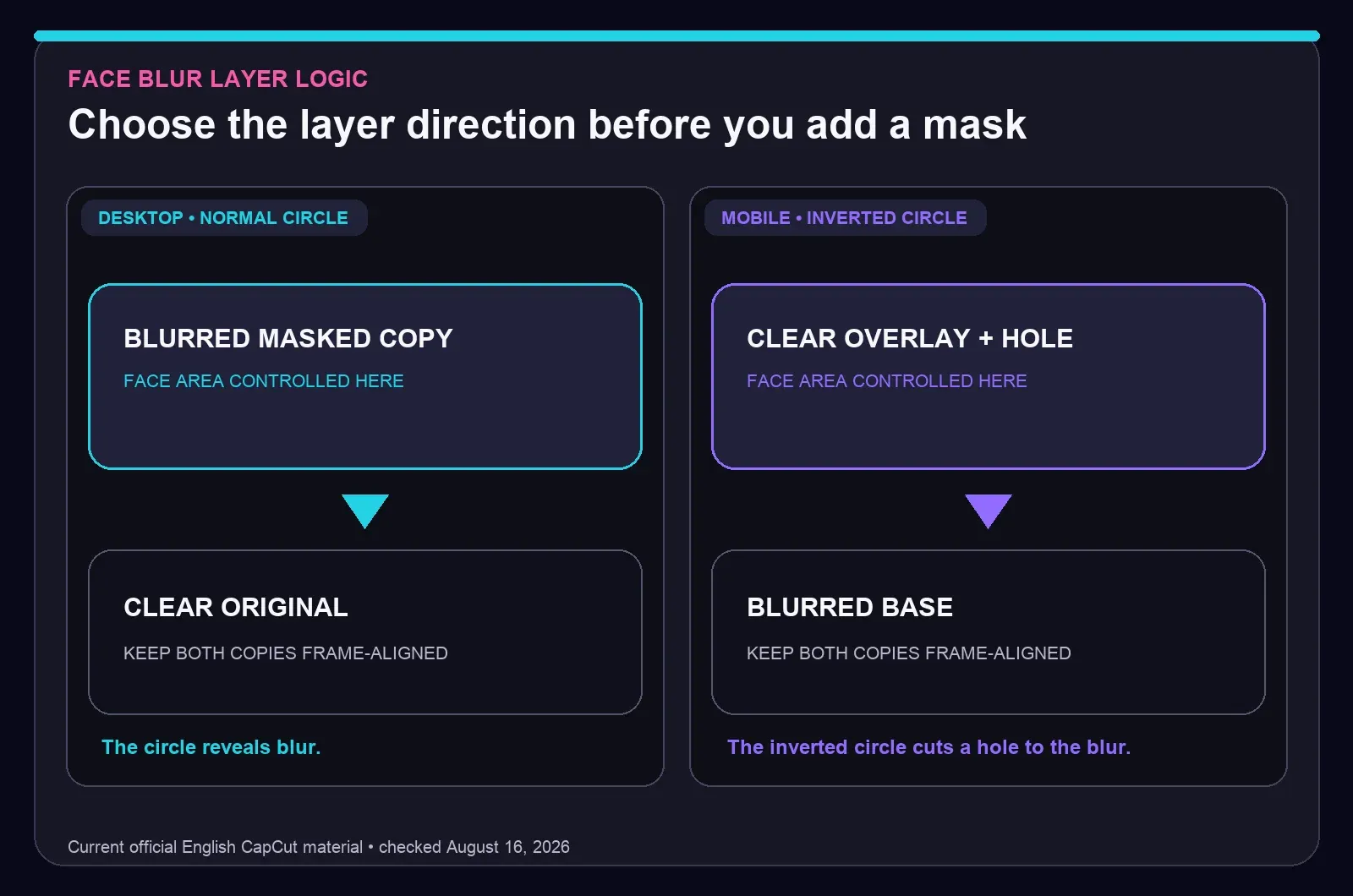
Both copies must start on the same frame and keep the same crop, scale, speed and duration. A one-frame offset can show a double edge around a moving head. If both copies carry embedded audio, mute or detach one copy so you keep a single sound source.
Test the Hardest Part Before You Build the Whole Track
Don't begin with the calm opening frame. Find the section where the person turns, passes behind another subject, approaches the camera or leaves the shot. Build and export that short section first. If the mask survives the hardest movement, the quieter parts usually need fewer corrections. If it fails, you can change the method before spending time on the full clip.
Look at the source quality too. Heavy motion blur, a small face, low contrast and compression artifacts make both automatic tracking and manual placement harder to judge. In a long interview, it may be quicker to split around cuts and camera moves than to force one track across the entire timeline. In a short social edit, a larger controlled mask can be less distracting than a small circle that repeatedly clips the chin.
Save an untouched version of the source and duplicate the project before a long redaction pass. That gives you a clean rollback if a later crop, speed change or replacement shot breaks alignment between the two layers.
Blur a Still Face First
Start with the shortest version of the problem. Duplicate the clip, create the layer order for your platform and park the playhead where the whole face is visible. Add a Circle mask, place it over the face and enlarge it enough to include the forehead, chin and both sides of the head. CapCut's mask documentation describes position, size, rotation, feather and inversion controls. A mask that covers only the eyes still leaves a person easy to recognise.
Use feather according to the job. A soft feather can make an editorial blur feel less abrupt, but it also leaves a transition zone with more readable detail. For privacy work, favour stronger mosaic or a harder cover over a tasteful edge. There's no universal blur percentage or feather value: face size, motion, source resolution and the consequence of exposure all change the threshold.
Check the mask at full-screen playback before adding motion. If a still frame already leaves the jawline or profile exposed, tracking will carry that weak coverage through the shot.
How to Blur a Moving Face on CapCut Desktop
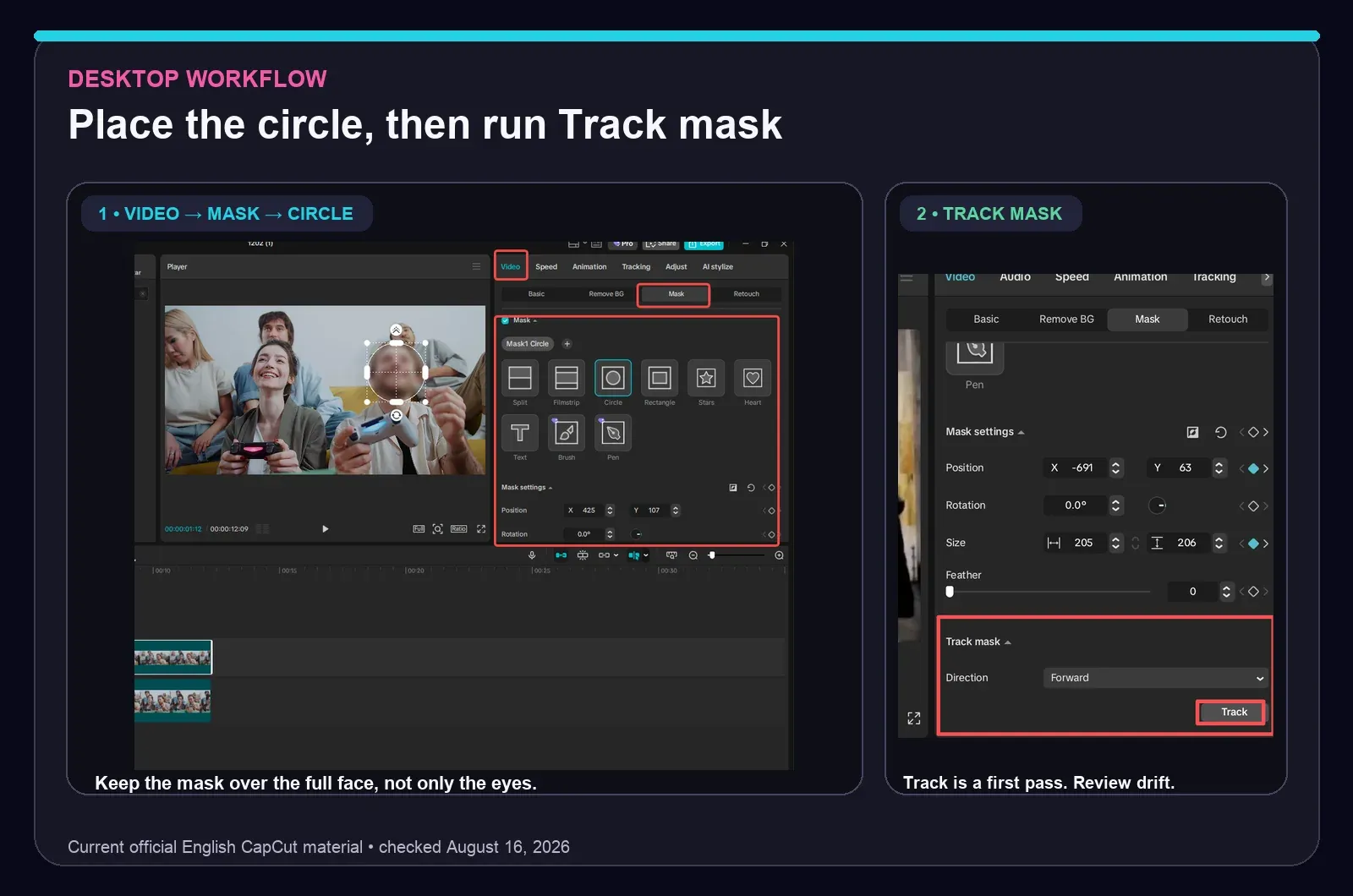
CapCut's official Desktop face-blur material shows duplicate layers, Blur, a compound clip, Video > Mask > Circle and Track mask > Track. The compound clip matters because it turns the blurred treatment into a clip that can receive the face-shaped mask.
- Import the source, trim the intended shot and place it on the timeline.
- Duplicate the clip. Keep the blurred copy directly above the clear original and align both starts.
- Add a Blur effect to the upper copy. Match the effect duration to the shot.
- Turn the blurred upper copy into a compound clip or subproject using the current label in your build.
- Select that compound clip, open Video > Mask and choose Circle.
- Place the circle over the whole face. Adjust size and feather for the risk level, not for appearance alone.
- Open Track mask, choose the available direction and run Track.
- Play the result through every turn, occlusion and speed change. Correct drift or split the shot when the track stops matching the person.
Tracking is a head start, not a delivery guarantee. A profile turn changes the visible shape; a hand or another person can hide the target; a fast push-in changes its size. If one section fails repeatedly, split the clip before that section and start a fresh mask track. Short, controlled segments are easier to inspect than one long automatic pass.
How to Blur a Moving Face on CapCut Mobile
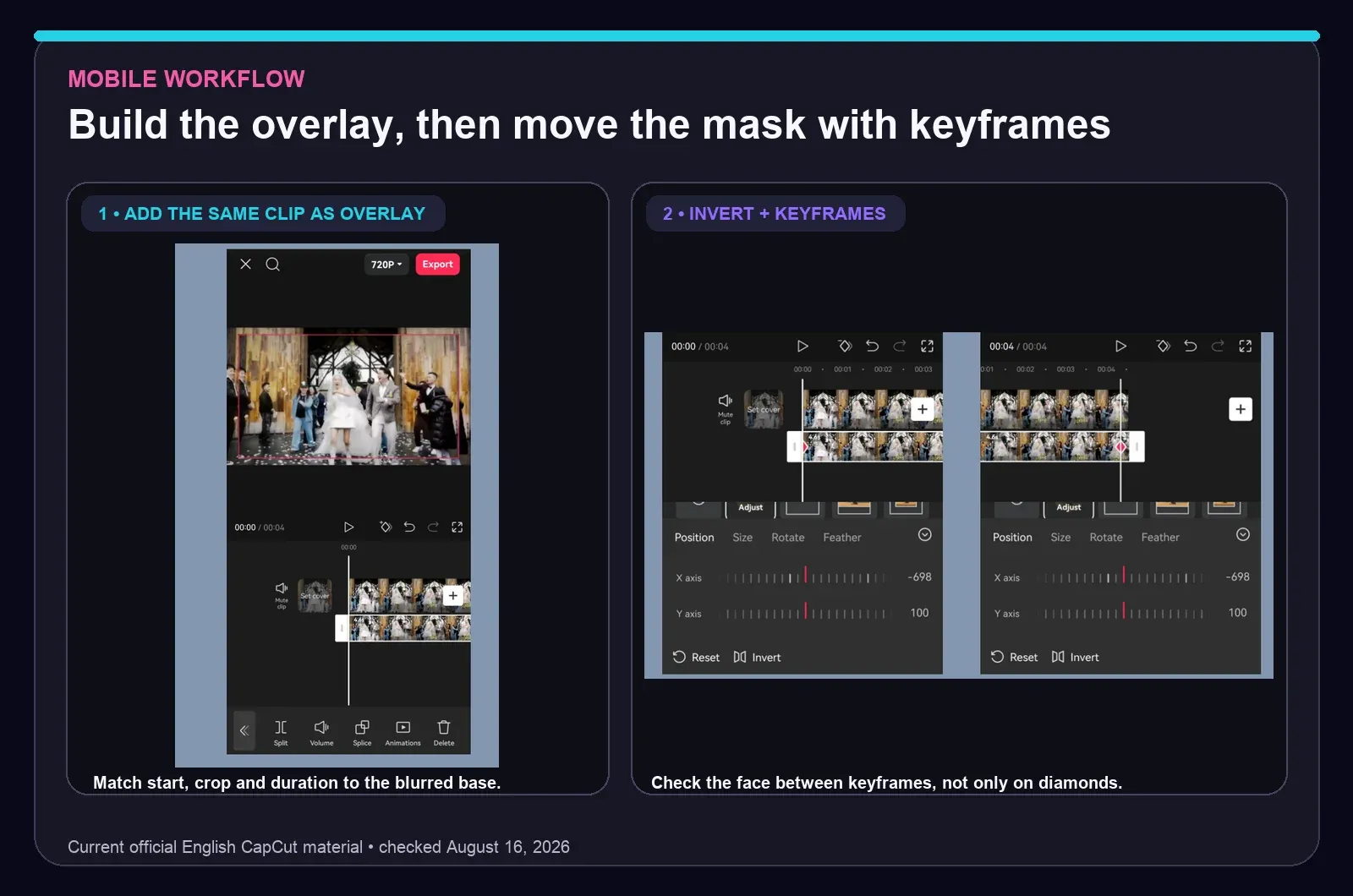
CapCut's current official Mobile procedure uses a blurred base, the original clip added again as an overlay, a Circle mask, Invert and position keyframes. The overlay must match the base from its first frame through its last.
- Add the original clip to a new project and apply Blur across the base clip.
- Add the same source again as an overlay. Match its start, crop, scale, speed and duration to the base.
- Select the overlay, open Mask and choose Circle.
- Turn on Invert. The clear overlay should now have a hole that reveals the blurred face below.
- Place the mask over the face and add the first position keyframe.
- Move forward until the face changes direction, speed or size. Reposition or resize the mask and add another keyframe.
- Repeat through the shot, then watch the movement between keyframes. Add closer keyframes where the mask cuts across the face.
- Mute one layer if the duplicated audio creates echo, then review the export outside the editor.
Keyframes describe the positions you set and CapCut interpolates the movement between them. More keyframes aren't automatically better. Add them where the motion changes, then remove any marker that introduces a visible wobble. The CapCut keyframe guide explains timing and interpolation in more depth.
Blur Several Faces Without Losing Track
Two people walking together may look like one task, but their faces rarely follow one motion path for the whole shot. Manual coverage is safer when each independent face has its own mask, layer or clip segment. Split the shot when people cross, one person leaves, or someone returns in a new position.
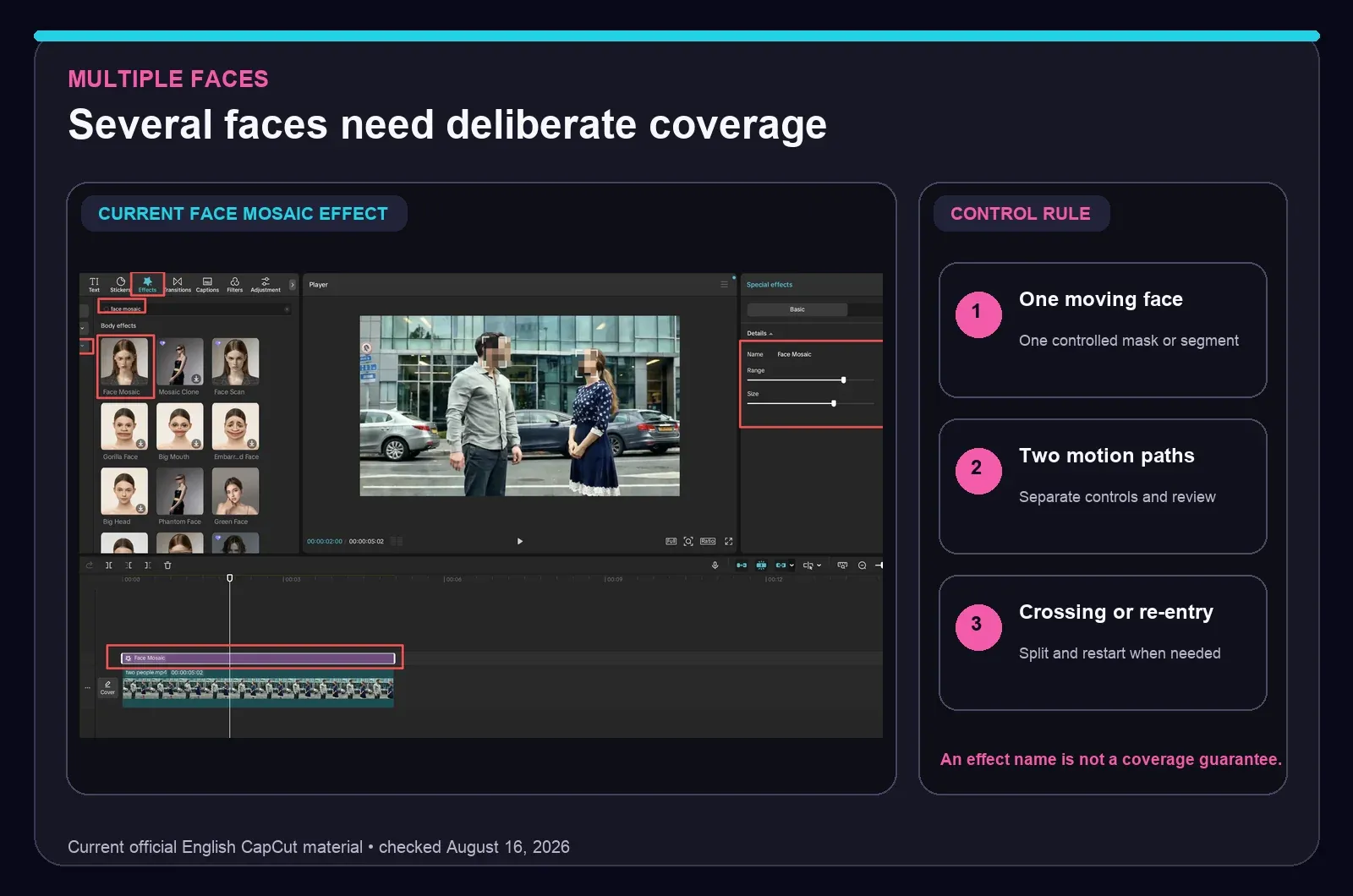
Current official Desktop material shows Face Mosaic under Body effects and names Phantom Face as another automatic option. These effects can save setup time when the detector holds the right faces. Search the live Effects catalog because placement, availability and plan access can differ. Then inspect every detected face. An effect name doesn't prove that a partially hidden or newly entering person stayed covered.
For a crowd, choose the technique by consequence. A casual social clip may tolerate a verified automatic effect. Footage involving children, patients, complainants, employees or anyone facing harm from identification deserves stronger coverage, independent review and possibly specialist redaction software.
Fix a Mask That Drifts or Exposes the Face
- The mask follows the wrong person: stop before the crossing, split the clip and start a new track after the people separate.
- The face grows beyond the circle: animate mask size as well as position, or use a slightly larger starting mask.
- A profile turn exposes the nose or chin: reshape or enlarge the mask and add a correction where the turn begins.
- A hand, hat or hair breaks tracking: place correction keyframes around the occlusion and inspect the first clear frame afterward.
- The person leaves and returns: end the first controlled segment and begin another at re-entry.
- The blur looks transparent: increase blur or mosaic strength and reduce feather if readable features remain.
- The whole frame becomes soft: check the layer order, compound clip and mask inversion. The mask should limit blur to the face area.
Make corrections while watching the real picture, not the mask path alone. A smooth path can still miss the temple or chin when the face changes shape. Check one frame before and after every edit point as well as the edit point itself.
Face Blur Is Not the Same as Anonymisation
A face can be unreadable while the person remains identifiable. The UK's ICO anonymisation guidance treats identifiability as context-dependent. Voice, tattoos, a distinctive jacket, a workplace, a vehicle, a captioned name or the event itself can narrow the person down. Reflections, thumbnails, filenames and metadata can leak information outside the blurred region.
NISTIR 8053 also warns that de-pixelation and de-blurring can combine information from multiple video frames, while clothing, pose and geo-temporal context can support recognition. This doesn't mean every blur is reversible. It means weak cosmetic blur shouldn't be sold as a privacy guarantee.
For high-consequence footage, prefer dense mosaic or an opaque cover, review the complete export at full size and keep the original and project under appropriate access control. The ICO's video-surveillance guidance notes that blurring, masking, solid fill or specialist tools may be suitable depending on the circumstances. Legal or safety-sensitive redaction deserves professional review.
Review the Export as a Separate Delivery Check
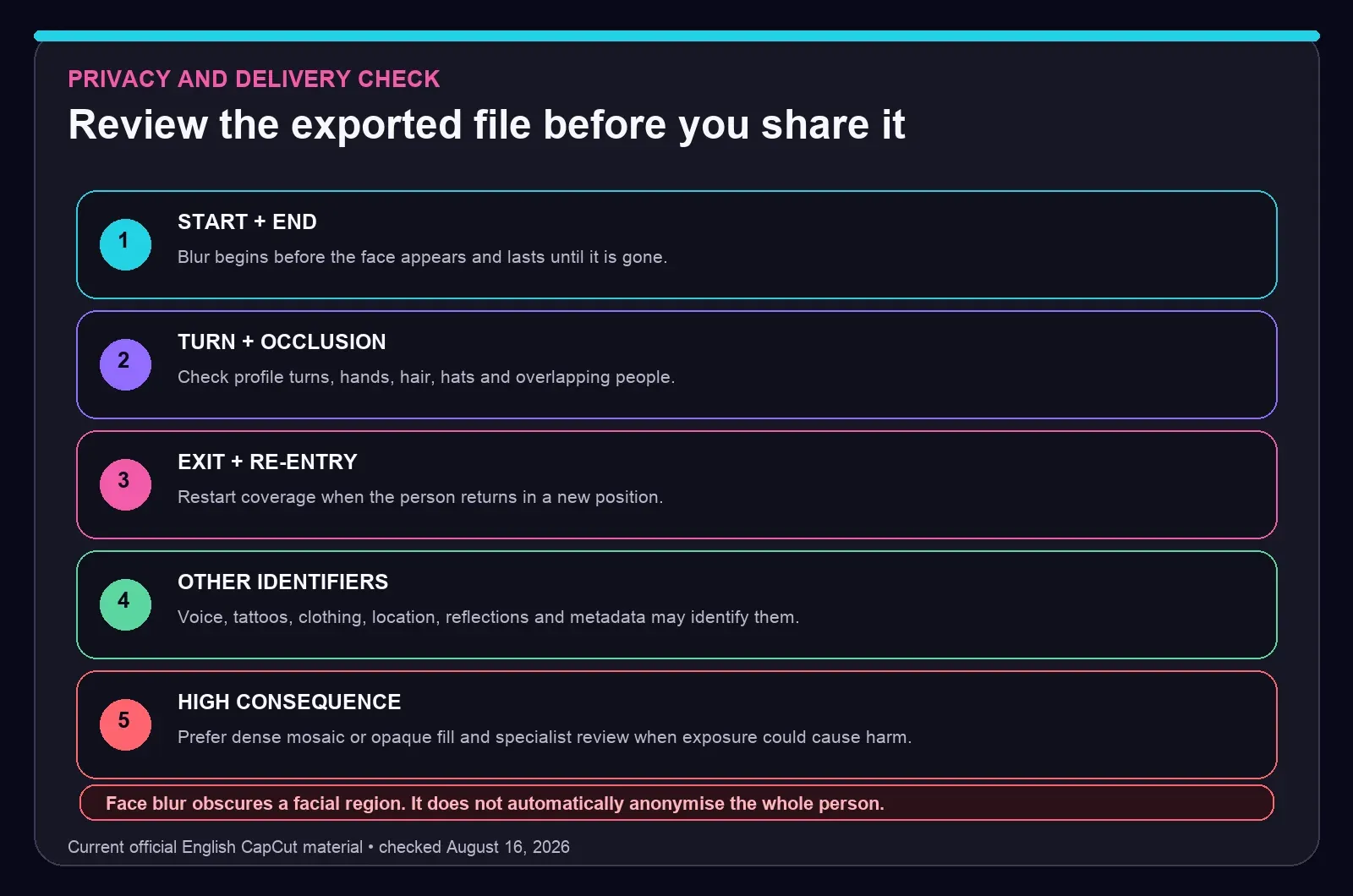
- Export a short representative test with the intended resolution and frame rate.
- Play it outside CapCut at normal speed, then step through the difficult sections frame by frame.
- Check the first and last visible frame of every face, plus each profile turn, occlusion, exit and re-entry.
- Watch the file on another screen. A small phone preview can hide a one-frame exposure or a weak mosaic.
- Listen for voice identifiers and inspect captions, reflections, backgrounds, filenames and metadata.
- Keep the original private and share only the reviewed export.
Use the CapCut export settings guide if the file looks softer, choppier or more compressed than the timeline. Export quality can't repair missing mask coverage, but a clean output makes the final inspection more reliable.
Can Face Blur Be Removed After Export?
Inside the editable project, you can delete or change the blur because the original media is still linked. A flattened export contains the rendered result. CapCut can't recreate the original face detail from those blurred pixels alone.
That boundary isn't permission to use a weak blur. External analysis may infer information from neighbouring frames, and the rest of the clip may identify the person without their facial detail. Keep the source and project secure, avoid publishing an unblurred thumbnail, and use a denser mosaic or opaque cover when exposure could cause harm.
CapCut Face Blur FAQ
What is the easiest way to blur a face in CapCut?
On current CapCut Desktop builds, duplicate the clip, blur the upper copy, turn that copy into a compound clip, add a Circle mask and use Track mask. On Mobile, blur the base clip, add the original again as an aligned overlay, apply an inverted Circle mask to the overlay and move it with keyframes.
Can CapCut automatically track a face blur?
Current official CapCut Desktop material shows Track mask after a Circle mask is placed over the face. Treat the track as a first pass: inspect turns, occlusions, fast movement, exits and re-entry because the mask can drift or lose coverage.
How do I blur a moving face in CapCut Mobile?
Use a blurred base and an aligned clear overlay. Add a Circle mask to the overlay, invert it so the blurred base appears through the hole, then add position keyframes whenever the face changes direction, speed or size. Check the frames between keyframes as well as the keyframe positions.
How do I blur several faces in CapCut?
For manual work, give each independent motion path its own controlled mask, layer or clip segment. Split the shot when people cross, leave the frame or return in a new position. A current Face Mosaic effect may cover several detected faces, but its presence and results can vary by platform, build, account and region.
Where is Face Mosaic in CapCut?
Current official Desktop material shows Face Mosaic in Effects under the Body effects catalog and also names Phantom Face as an automatic option. Search the current effects library because catalog placement, availability and plan access can vary by platform, build, account and region.
Why does my CapCut face blur drift away from the face?
Tracking can lose the target during profile turns, fast motion, occlusion, scale changes or low contrast. Enlarge the mask slightly, correct its position, add or tighten keyframes and split the clip when the person exits or another face crosses the path.
Is face blur free in CapCut?
CapCut provides blur, masks and keyframes on supported builds, but effect catalogs, automatic tracking, plan badges and access can vary by platform, build, account and region. Check the live label in your editor before relying on a feature for a deadline.
Can someone remove or reverse face blur after export?
CapCut can't reconstruct the original face detail from the blurred pixels in a flattened export alone. Weak blur or pixelation is still a poor privacy guarantee: outside analysis may infer information across frames, and voice, tattoos, clothing, location or metadata may identify the person. Use dense mosaic or opaque cover for high-consequence redaction and protect the original file and project.