

CapCut has a native Mac desktop app, so no Android emulator is required. Download it from CapCut or Apple, read the exact wording of any macOS security alert, and decide whether each project should stay in the Mac project list or be uploaded to Spaces for another device.
Quick answer: Download it from the official CapCut Desktop page or the Mac App Store listing. CapCut's Mac guide starts at macOS 10.15, a dual-core processor, 4 GB RAM and 2 GB free for installation. Other official pages still show macOS 10.14, and two CapCut 4K help pages disagree on whether that workflow needs macOS 11 or 12. Check the requirements for the download route you pick. Even if the installer accepts your Mac, that alone doesn't prove a demanding export will work.
For other devices, use the official CapCut download options. On a Mac, first check where the app comes from and where CapCut lists the project. Those choices affect updates, recovery and cross-device access. They don't prove what CapCut may process online.
How to Download and Install CapCut for Mac
There are two official routes. Pick one and keep that copy updated. For an ordinary download or Store-queue failure, try the other official route if it's available and permitted on your Mac. A security warning or an organization's installation block is a different problem, and a workaround isn't the answer. A mirror isn't the missing third option.
Option 1: CapCut's macOS installer
- Open CapCut's official Desktop page, not an advertisement or copied installer link, and select the Mac download. The final file may come from a CDN with a different hostname.
- Let the download finish, then open the macOS installer from Downloads.
- Follow the package instructions. CapCut's own Mac installation page directs users to launch the finished app from Applications.
- On first open, read any macOS alert before proceeding.
The filename, package flow, version and download size can all change. Follow the current official route instead of matching an old tutorial character for character.
Option 2: Mac App Store
- Open the App Store on the Mac and search for CapCut.
- Confirm the seller is Bytedance Pte. Ltd and open the Mac-compatible listing.
- Select Get or the download-cloud button, then launch CapCut from Applications.
Apple currently lists CapCut as free with in-app purchases and marks the listing compatible with Mac. The App Store route makes sense when you want Apple to handle the download and updates. The direct package is a fallback for an ordinary Store-queue problem. It doesn't give you permission to bypass an administrator's restrictions. Availability and update timing can differ by region and route.
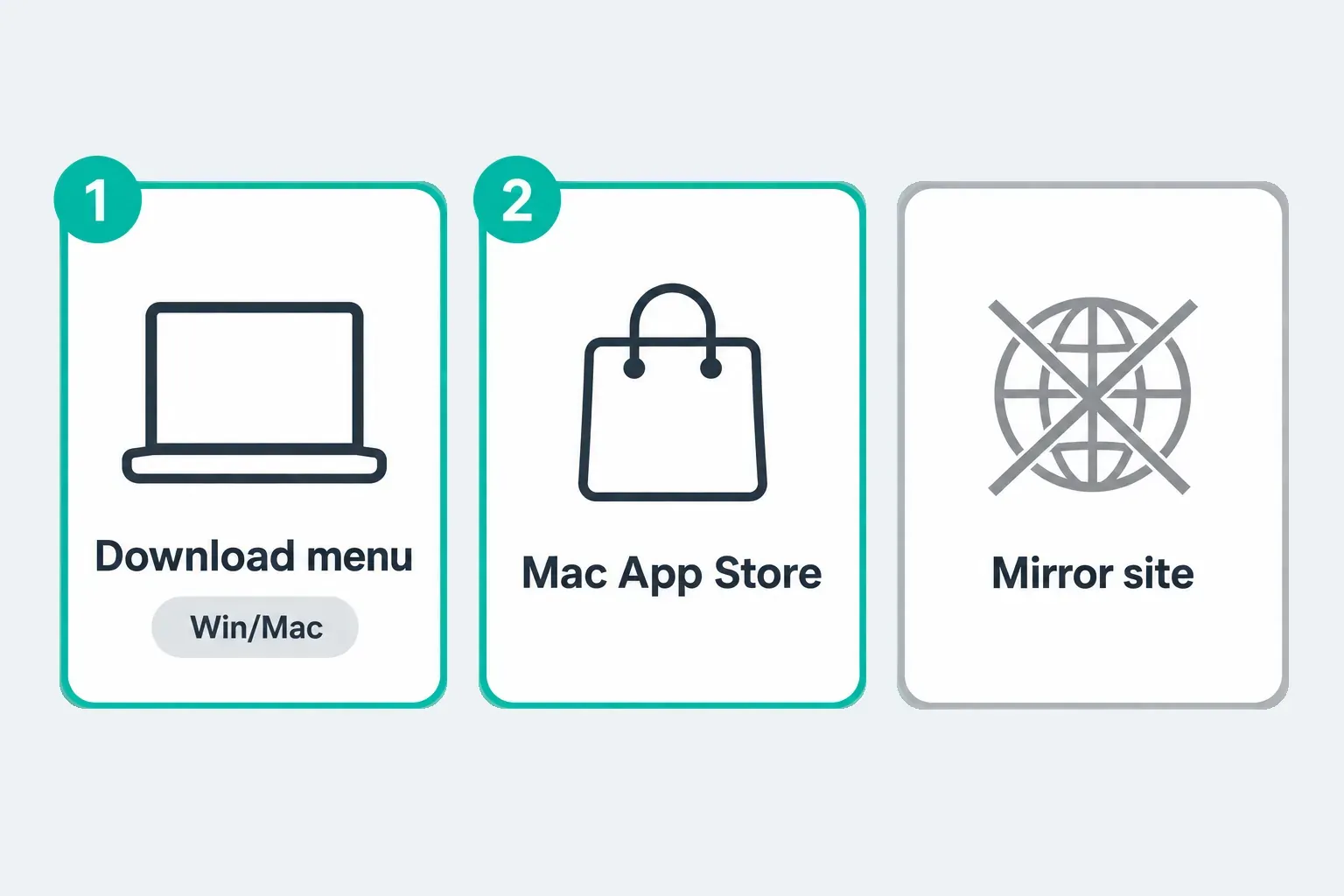
Stay away from “CapCut Pro for Mac free,” old-version archives, cracked packages and repackaged DMGs. They can be modified, outdated or unable to open projects made in a newer build. The other permitted official route is there for an ordinary download failure. Don't use it to evade a security block.
What a macOS Security Alert Means
macOS checks the developer signature and whether software downloaded outside the App Store has been altered. On Catalina and later, notarization is also required by default. The first time downloaded software opens, Apple asks you to confirm. That routine prompt means “did you intend to open this download?” It doesn't mean “malware was found.”
It's a different situation when macOS says Apple could not verify the app is free of malware, the developer can't be verified, the app will damage your computer, or the app is damaged. Apple's Gatekeeper guidance explains that unsigned or unnotarized software can expose your Mac and personal information.
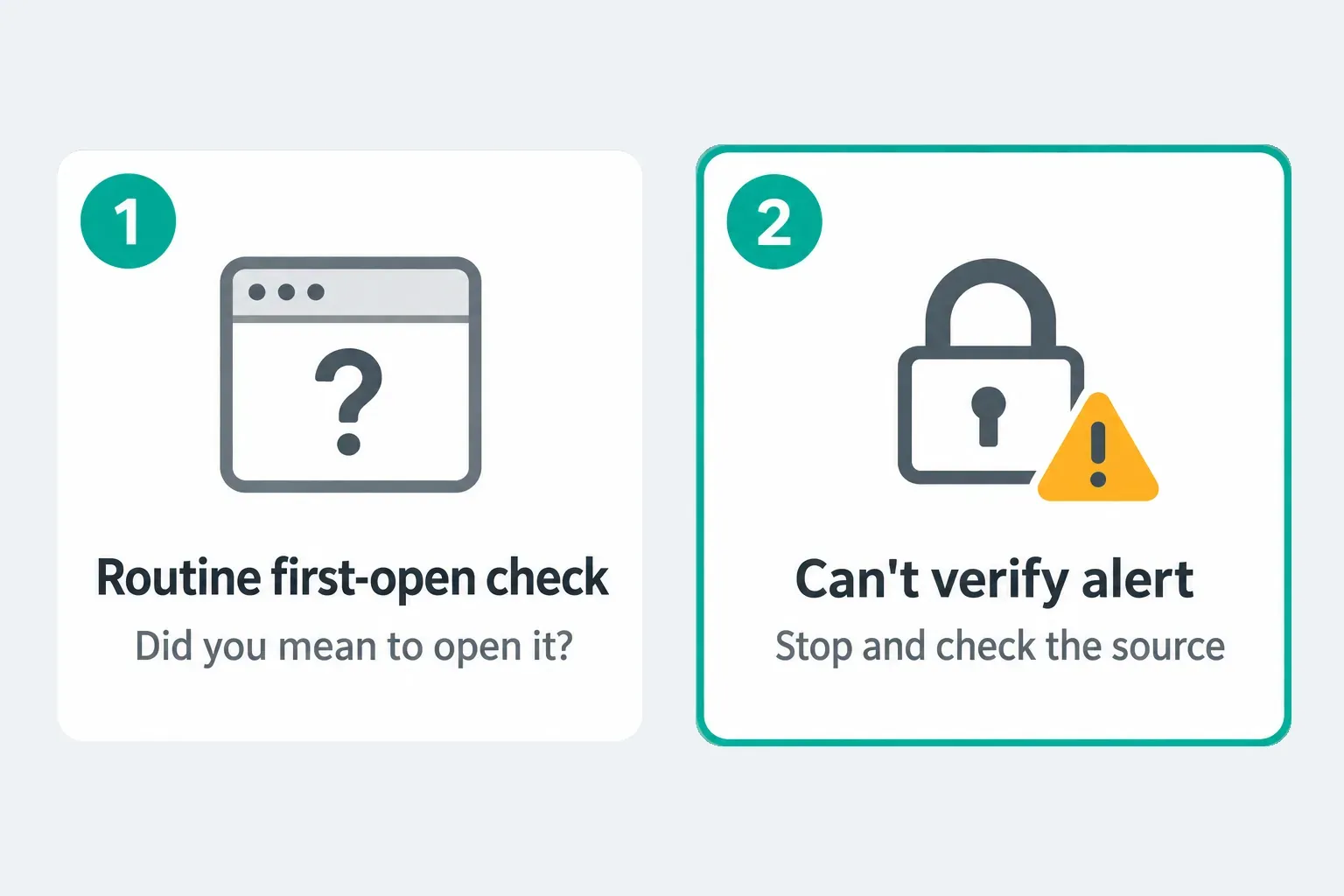
- Check the source. If the package didn't come from CapCut or the App Store, delete it.
- Read the exact alert. Don't treat every warning as the same Gatekeeper prompt.
- Try the other official route. An App Store install removes the third-party package from the equation.
- Stop if trust is unresolved. Contact CapCut or your IT administrator. Apple describes exceptions for software whose source and integrity you are certain about, but this guide does not recommend overriding a blocked CapCut package.
If macOS says the app will damage your computer, Apple says it has detected malicious content or revoked authorization. An is damaged alert can point to corruption or tampering. Don't disable Gatekeeper, remove quarantine attributes or keep forcing either file to open. A fresh official download is only a new candidate to check. If the warning comes back, stop and contact support. Make sure your project backups are safe before you remove an existing app, and on a managed Mac, ask IT instead of changing security policy.
CapCut for Mac System Requirements
CapCut's official pages don't agree on a single Mac requirement. The Mac guide lists macOS 10.15 or later, a dual-core processor, 4 GB RAM and 2 GB free for installation. CapCut's Desktop product page and Apple's current US listing say macOS 10.14 or later. A separate CapCut export guide names macOS Monterey 12.0 or later for Desktop 2K/4K export, but its missing 2K/4K options page says macOS 11 and names Intel Core i5/i7 and Apple silicon M1/M2/M3. Neither one is a complete compatibility matrix for the current build.
Those are separate official compatibility signals, and they don't add up to one clean promise. Check the route and task you'll use, then let the current installer or Store decide whether the latest build accepts your Mac.
| Component | CapCut Mac guide | Other official signal | Practical target |
|---|---|---|---|
| macOS | macOS 10.15 or later | Desktop page and US App Store: 10.14+; two 2K/4K help pages disagree: 11+ versus 12+ | A supported macOS release that installs the current build and exposes the export you need |
| Processor | Dual-core processor | 4K help names Intel i5/i7 and M1/M2/M3, not every supported model | A current installer or Store compatibility check that accepts the specific Mac |
| Memory | 4 GB; 8 GB said to improve the experience | No RAM floor in the checked App Store compatibility block | Test layered work on the actual Mac; more RAM gives demanding projects more room |
| Storage | 2 GB for installation | No working-storage allowance in the checked App Store compatibility block | SSD headroom for source media, cache, proxies and the exported file |
| Graphics | Integrated graphics supported; dedicated graphics suggested for advanced processing | No exact GPU floor in the checked App Store block | Test the real codec, resolution and effects before a long project |
The last column is editorial guidance, not a CapCut guarantee. Four gigabytes may open a light project, but don't expect a pleasant multi-layer 4K workflow from it. Source codec, resolution, frame rate, duration, effects, background apps and free disk space all change the load. A MacBook Air or Pro model name can't predict the result on its own. Test representative footage, effects and output settings on the Mac you'll use.
Intel or Apple silicon? CapCut's 4K help names both, but that doesn't tell you the architecture of every installer. For a copy you've already installed, follow Apple's Finder check: select CapCut in Applications, choose File → Get Info (Command-I), then read Kind. Application (Universal) means Intel and Apple silicon; Application (Intel) means Intel code; Application (Apple silicon) means Apple silicon only. On an Apple silicon Mac, go with the vendor's compatible native or Universal build instead of forcing an old package.
First Launch and Your First Desktop Edit
Before importing client or sensitive media: CapCut's privacy policy says it may collect User Content through pre-uploading at creation, import or upload, whether or not you save or publish it. A local project label isn't a privacy guarantee. Before you import, check the policy that applies to you and your organization's rules, and use a nonsensitive sample while you set things up.
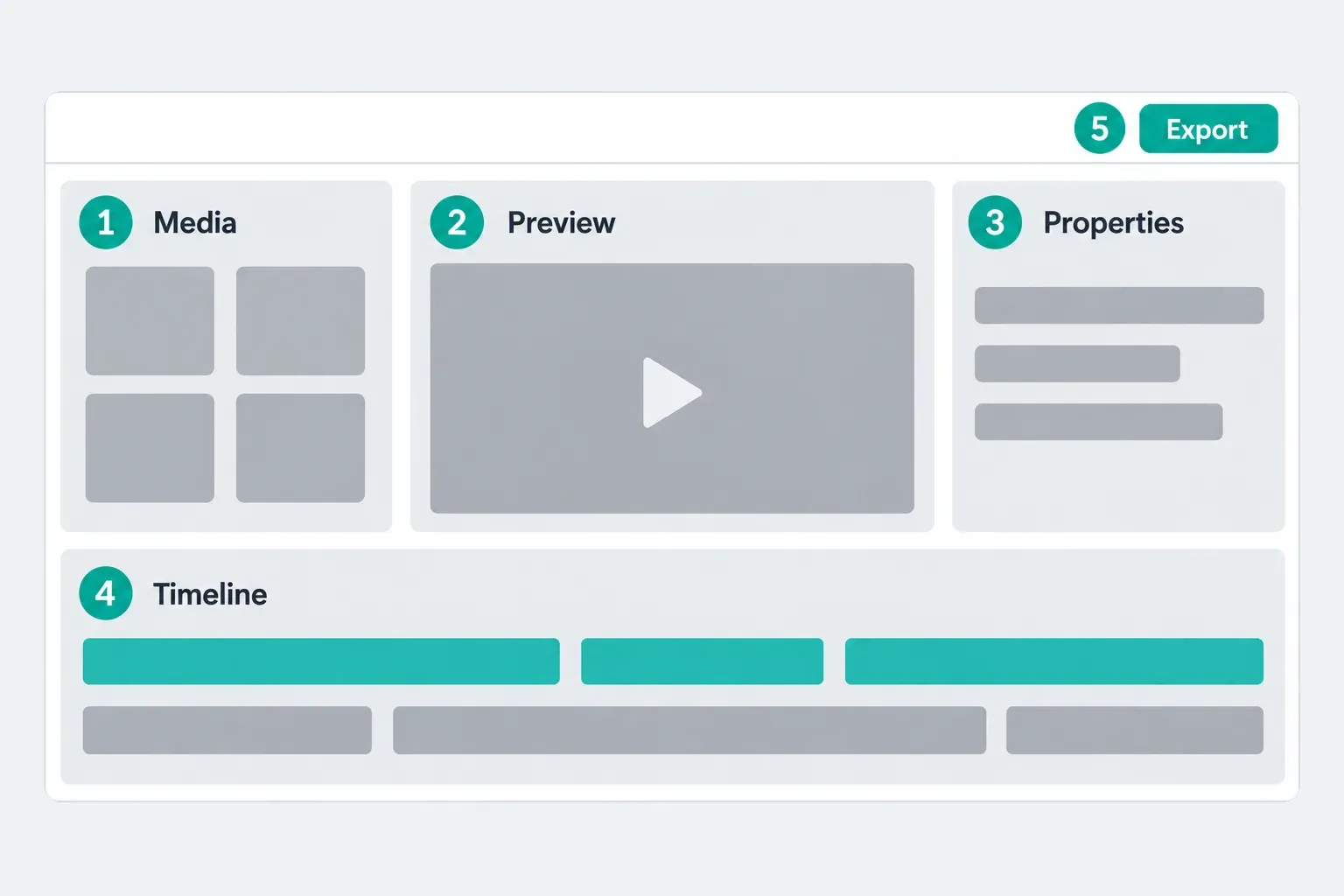
CapCut's dashboard and labels change, but the working layout is consistent enough that you only have to learn it once. Media sits on the left and the preview fills the center. Properties for the selected clip appear on the right, the timeline runs along the bottom, and Export stays near the upper-right corner.
- Choose the account path. CapCut's desktop login guidance lists QR code, Facebook, Google and TikTok. Use the method tied to the existing account, or a method you have verified is linked to that same account. A different method can open a separate profile. If your option is missing, use the CapCut login guide rather than signing out of your last working session.
- Create a project. Choose the ordinary video timeline entry, usually New project or Create project, rather than an AI generation tool. Set a suitable canvas before placing titles, for example 16:9 for landscape or 9:16 for vertical video.
- Import local media. Keep the source video, audio and images in a stable project folder. Moving or deleting them later can leave the timeline unable to find the material.
- Build the main track. Drag the primary clip to the timeline, split at the playhead and remove the unwanted section.
- Add separate layers. Put captions or text above video and keep voiceover, music and effects on their own audio tracks. Desktop earns its place when you can see these relationships at once.
- Test the export early. Open Export before a long edit, confirm the needed resolution and frame rate, and complete a short representative test. Watch the saved file outside CapCut to check picture and sound. A short success does not certify a full-length export.
For the controls themselves, continue with the complete CapCut tutorial, the auto-caption workflow, keyframe animation and our CapCut export settings walkthrough.
Local Projects vs Spaces on Mac
This distinction is about project availability. It isn't a privacy switch. Local Projects normally means the project shows up in the Mac project list and doesn't appear on another device by default. That doesn't prove imported media never reaches CapCut services.
CapCut's cross-platform project page says two different things. First it says signed-in projects save to the cloud by default, then it says projects must be uploaded to Spaces for cross-platform use. Builds and accounts can behave differently, so play it safe: upload the project to Spaces on purpose, sign in to the same account on the second device, and open the editable project there before you rely on the handoff. Check source clips, sound, captions and effects. Make a harmless reversible edit on a duplicate, reopen it, and export a short, difficult section. A visible thumbnail doesn't prove the transfer is usable. Keep the original until those checks pass.
Only upload material you have permission to process in the chosen Space. Cloud access and paid storage don't replace a project backup you can restore separately.
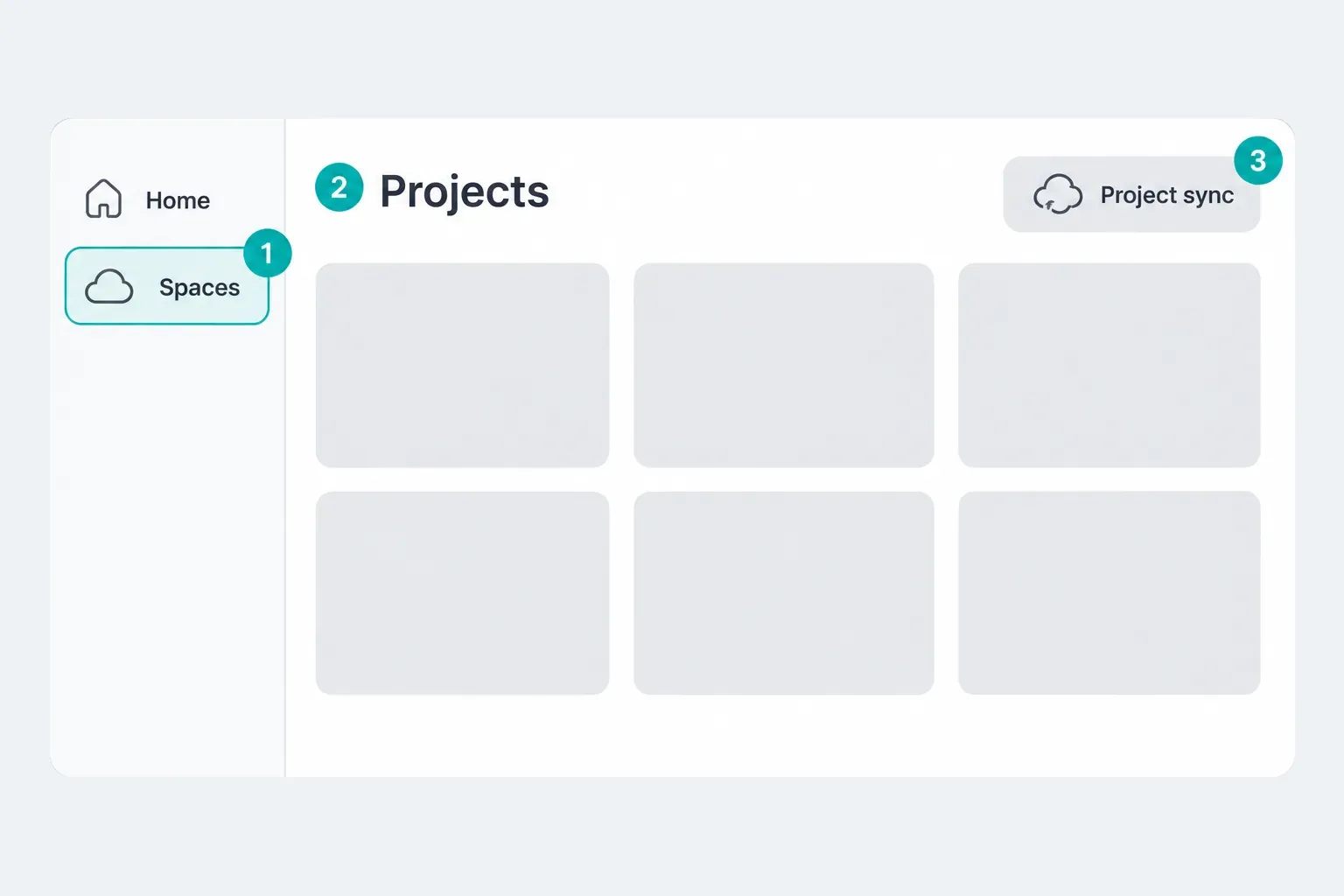
Use Local Projects when the edit doesn't need to show up on another device, or when your connection is unreliable. Keep the original media in a stable folder with a separate backup. Use Spaces when the project has to be available on another device or shared through CapCut's cloud features, then run the editable-project checks above from that second device.
Cloud access doesn't mean you get identical tools everywhere. CapCut's own template help contradicts itself: one platform comparison limits Desktop to built-in templates without community discovery, while another template walkthrough tells Desktop users to browse a Templates tab. Treat your current build, account and region as the source of truth. After you switch platforms, check the project instead of assuming every asset will carry over.
Can you edit offline on Mac?
Don't plan an offline deadline around the Local label. You need a connection to download the app and for online resources and cloud access, and account checks and individual tools may need one too. Before you travel, keep the original safe and test a nonsensitive local copy: reopen it without a connection, play the effects and audio you need, then export to the Mac and inspect the file. If that fails, fix the dependency while you're still online, or pick an editor documented to support the offline work you need. A pass counts as evidence for that project and build. It doesn't guarantee CapCut will never send data after you reconnect.
CapCut on Mac vs iPhone vs Web
| Choose | Best fit | Main tradeoff |
|---|---|---|
| Mac Desktop | Local media, visible multi-track editing, mouse and keyboard precision | Needs installation, storage and compatible hardware |
| iPhone app | Fast vertical edits, capture-to-publish work and broad mobile template discovery | Less screen space for layered timing work |
| CapCut Web | A supported browser where installing software is not practical | Depends on browser resources, connection and cloud workflow |
I'd use project control as the dividing line. An edit with several dialogue, music, caption and overlay tracks is easier to reason about on Desktop. When a trend starts from a mobile template link, finish the template-led part on Mobile unless the Mac build proves it can preserve the project. On a managed Mac, the CapCut online editor is only an option if IT permits both the site and uploading the material. A browser doesn't get you around an installation or data-handling policy.
Is CapCut for Mac Free?
CapCut is free to download, and the App Store labels it free with in-app purchases. If you build a project from your own footage, you can use core timeline editing without every action turning into a payment.
That doesn't mean every asset, AI operation, cloud allowance or export setting is free. Watch for Pro badges before you add a template, effect, font or stock item, and look over the project again when Export opens. CapCut's export entitlement explanation notes that a Pro prompt can come from premium materials or settings inside the project. If you don't want to subscribe, find the flagged item on a duplicate, remove or replace it, pick an available export setting and test again. A free download also doesn't give you commercial rights to every supplied asset.
Prices and included benefits vary by billing route, region and offer. See our CapCut Free vs Pro comparison before choosing a plan.
As noted above, the two official 4K pages disagree on the macOS floor. Hardware, app version, source media and project settings still affect what shows up, and account entitlement and premium materials can affect the final export too. Open Export in the current account and run a short test before you promise a specific 4K deliverable.
Update CapCut and Fix Common Mac Problems
Check the version before reinstalling
CapCut's current Desktop version instructions tell you to open Settings and find Version. The separate Desktop update guide uses Settings → Version → Check for updates on builds that have that control. If you installed from the App Store, update through the Store. Don't install a second copy just because the two channels offer different versions.
CapCut warns users not to uninstall during an update, since locally saved projects can be lost. Before any reinstall or data cleanup, make an independent editable backup with its source media and keep it outside the app data at risk. Open that separate copy, check clips, audio, text and effects, and run a short export. A duplicate in the same app storage won't do, and neither will a Space thumbnail or an MP4 on its own. If you can't verify an editable copy you can restore, stop before you uninstall or clear any data.
The installer won't download or finish
Start with network stability, free storage and macOS compatibility. If it's an ordinary download failure, retry through the other permitted official route. A security or administrator block calls for the safeguards above instead. CapCut's download and install help sorts failures into compatibility, network and system restrictions. Whatever the cause, don't answer a failed official download with an unofficial mirror.
An MP4 or MOV won't import
A filename extension isn't the codec. CapCut's import troubleshooting page warns that renaming a file to .mp4 doesn't convert its contents. Keep the original. If a trusted converter supports the source, transcode a short copy first and check its sound, color and quality both outside CapCut and after import. Only then convert the entire shoot. Don't upload confidential media to an online converter without permission.
Preview is slow or CapCut closes
Save your work before you close memory-heavy apps. Leave some SSD headroom, and test a shorter section without the heaviest effect on a duplicate. Make sure an editable backup is safe before any update. If the problem follows one project, duplicate it before you remove effects or media. The CapCut crashing checklist separates project corruption, storage pressure and device load.
Export fails or stalls
CapCut's official Desktop export checklist lists large or high-resolution projects, insufficient storage and background programs among the common causes. Try a lower resolution or frame rate on a duplicate. Save your work before you free up storage or close other apps, and don't delete project or source folders. To test a short section without relying on a version-specific range shortcut, trim another duplicate down to that section and export it. If the same project fails at the same point, inspect the clip or effect around that timecode, then continue with our stuck export guide. For delivery, go back to the full project and your intended settings, and watch the complete saved file outside CapCut. A low-resolution diagnostic clip isn't the final deliverable.
For a simpler Apple-only editing workflow, the iMovie review compares its editing limits with CapCut. If Final Cut Pro is the other option on your list, our CapCut vs Final Cut Pro comparison covers that decision.
CapCut for Mac FAQ
Can a MacBook Air run CapCut?
A supported MacBook Air can run CapCut, but project complexity matters. A short 1080p edit is far lighter than a layered 4K timeline. Keep free SSD space, close memory-heavy apps and test a representative clip before committing a long client project to an older or low-memory model.
Does CapCut work on Intel and Apple silicon Macs?
CapCut's 4K help names Intel Core i5/i7 and Apple silicon M1/M2/M3, but it is not a complete current-build matrix. Check the chosen official route for compatibility. For an installed copy, Finder → Applications → select CapCut → File → Get Info → Kind identifies Intel, Universal or Apple silicon code.
Should I install CapCut from the website or Mac App Store?
Both are official routes. The direct download gives you CapCut's current macOS installer; the App Store handles acquisition and updates through Apple. Availability, update timing and the purchase flow can differ, so choose one route and avoid maintaining two copies.
Why won't CapCut open after I install it on Mac?
Read the exact macOS alert. A normal first-open confirmation for an identified developer is not the same as a warning that Apple can't verify the developer or that the app will damage the Mac. Do not override a damaged or malware warning, disable Gatekeeper or remove quarantine attributes. If a fresh official download is still blocked, stop and ask CapCut or IT. Preserve editable backups before removing an existing installation.
Do I need a CapCut account on Mac?
Plan to sign in for Spaces, cross-device access, account entitlements and online services. Check whether your current build lets you start a local edit without signing in. Use the original login method or another verified linked method. Do not sign out of your last working session merely to experiment.
Can I sync a CapCut project between Mac and iPhone?
Spaces is the documented cross-device route, but a thumbnail alone does not prove a usable transfer. Upload deliberately to the intended Space with permission, open the editable timeline on the second device, check clips, sound, captions and effects, and test a short export on a duplicate. Keep the original and a separate backup; platform features can differ.
Can CapCut for Mac export 4K?
Yes, on a compatible setup. Two official support pages disagree between macOS 11 and 12 as the Desktop 4K floor. Available output also depends on the Mac, app version, source media, project settings and account entitlement. Test the required setting before committing, then review the complete final exported file.
Can I download CapCut for Mac in India?
Availability must be checked in the Indian Mac App Store and on CapCut's official Mac page for your region. A generic Apple lookup response is not reliable evidence of the current Mac build or regional macOS availability. The US listing cited here does not establish India availability or a legal reason for a missing listing. If neither permitted official route offers the app, do not substitute a mirror, cracked package or old DMG.