


Reviewed 2026-09-17 against current official CapCut Teams, collaboration, storage and subscription pages. I did not create a team, invite a member, buy seats, move assets or test co-editing. This guide describes published documentation, not the permissions or checkout offer of a particular signed-in account.
CapCut Teams works best when one named owner controls billing and seats, accepted members use defined roles, shared projects and brand assets live in the correct Team Space, and every important deliverable has a handoff outside the workspace. Set those rules before inviting editors.
Do not rely on one universal purchase path: CapCut's current official Help pages conflict on whether Teams is bought or managed on Web or Desktop. Use the signed-in Teams offer for the owner account, record the displayed terms, and contact Support if the screens disagree.
Understand the Team Space model
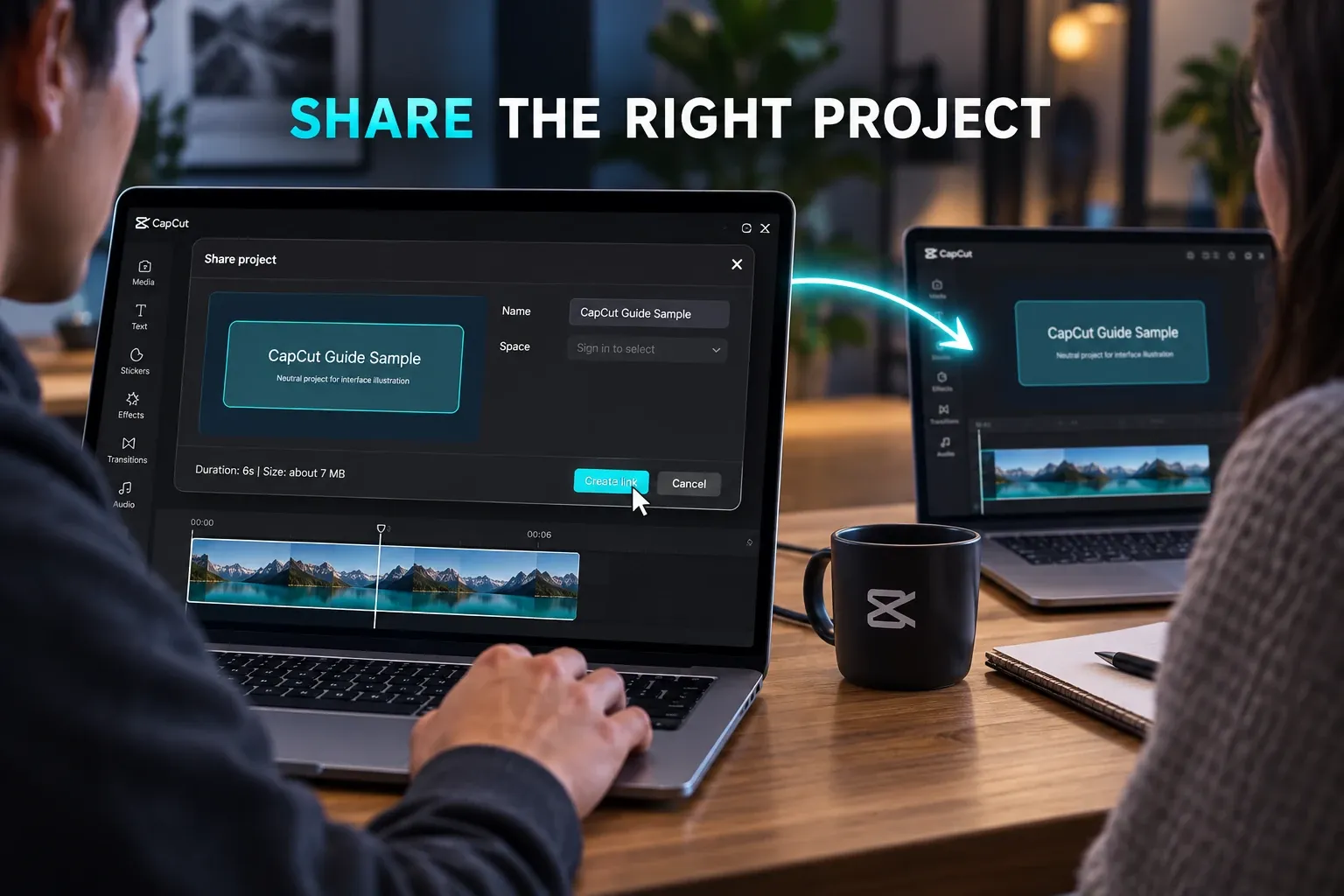
Current CapCut pages describe Teams as a subscription linked to a specific team identity rather than a portable personal entitlement. The workspace can hold shared projects, media, brand assets and cloud storage. Accepted members receive supported team benefits through the account that joined that team.
This changes the planning question. Buying Teams is not simply “give every editor Pro.” Decide which team owns the work, who owns that team, which assets belong in the shared Space and what must remain in company-controlled local storage.
Assign roles from responsibility, not seniority
CapCut's pages name Owner, Admin and Member or collaborator-style roles, but the exact labels and permissions can vary. The collaboration page says Owners assign Admin and Member roles and control shared-asset permissions. I would use the following responsibility plan, then check the permissions actually offered in the selected workspace. This is planning advice, not a verified matrix of every CapCut permission.
| Role | Suggested responsibility | Guardrail |
|---|---|---|
| Owner | Billing, seats, subscription and ultimate workspace control | Use a durable company-controlled account and recovery method |
| Admin | Members, brand controls and shared organization | Limit the number of admins and review them regularly |
| Member / collaborator | Assigned editing and asset work | Grant only the access needed for the project |
| External reviewer | Feedback or approval | Use a separate feedback channel where possible; this row is a planning role, not a confirmed CapCut account role |
The CapCut for business guide helps decide whether a shared workspace is appropriate at all.
Invite members and verify acceptance
An invitation is not the same as membership. CapCut says invited users must accept and sign in with the account that joined the team before benefits appear. Record the invited email, acceptance state, assigned role and project owner. If someone cannot see Team Projects or premium assets, verify the account and accepted membership before changing permissions.
Current Help guidance also says newly created free team spaces may allow only one additional member. Larger groups may require a Teams subscription, but seat counts and offers can vary. Use the owner account's current member and billing screens.
Official purchase instructions currently conflict
The team purchase and ownership page says the owner must purchase and manage Teams on Desktop. The Teams pricing page contradicts itself: its introduction and summary say Online alone supports purchase, but its Web section says Teams cannot be purchased there, and its Desktop section provides purchase steps. These statements concern the same Teams purchase question; the page does not explain conditions that reconcile them.
That is not enough evidence for a universal click path. Before payment:
- Sign in as the intended Team owner.
- Open the team identity that should receive the subscription.
- Compare the visible Web and Desktop offer if necessary.
- Record seats, billing cycle, currency, renewal, storage and refund terms shown at checkout.
- Stop if the team name or owner account is wrong.
The Teams pricing Help page says prices vary by seats, region and billing cycle. Its inconsistent purchase guidance makes it unsuitable as the sole basis for a payment decision. Use the checkout display rather than a number copied from an article. The Free vs Pro guide covers the individual-plan comparison.
Separate shared assets from final handoff files
Brand kits, templates, media and projects can make a Team Space efficient, but access is account-bound. A person who leaves or is removed can lose team benefits and access to team-only content. The subscription-expiry guidance separately describes restricted access to over-limit cloud assets after Teams expires. Leaving a team and the team subscription expiring are different events; do not assume they have identical effects. The page says assets are not immediately permanently deleted, but that is not a retention guarantee or a substitute for a backup.
- Keep source ownership and licenses documented outside CapCut.
- Store approved logos, fonts and brand rules in a company-controlled repository.
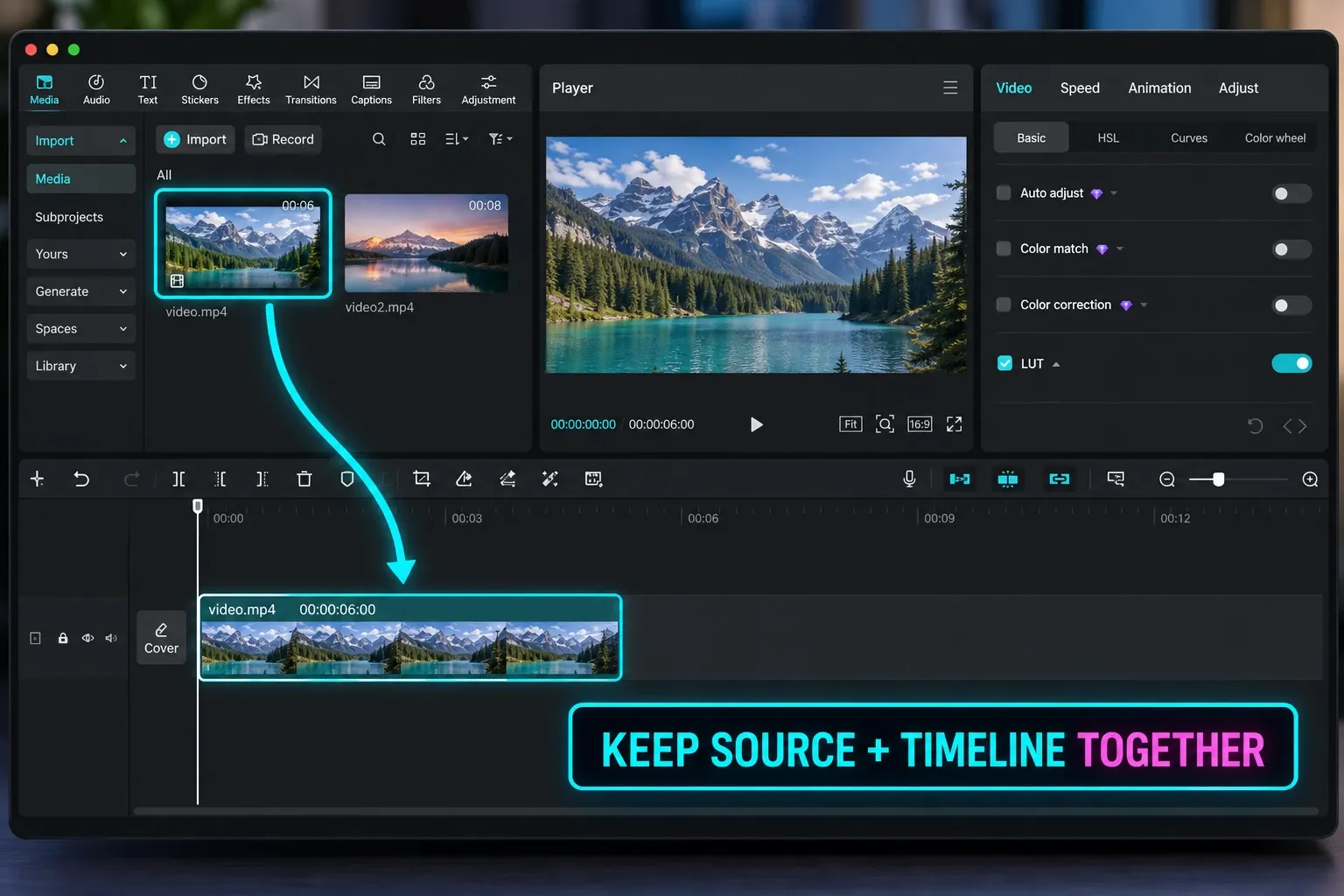
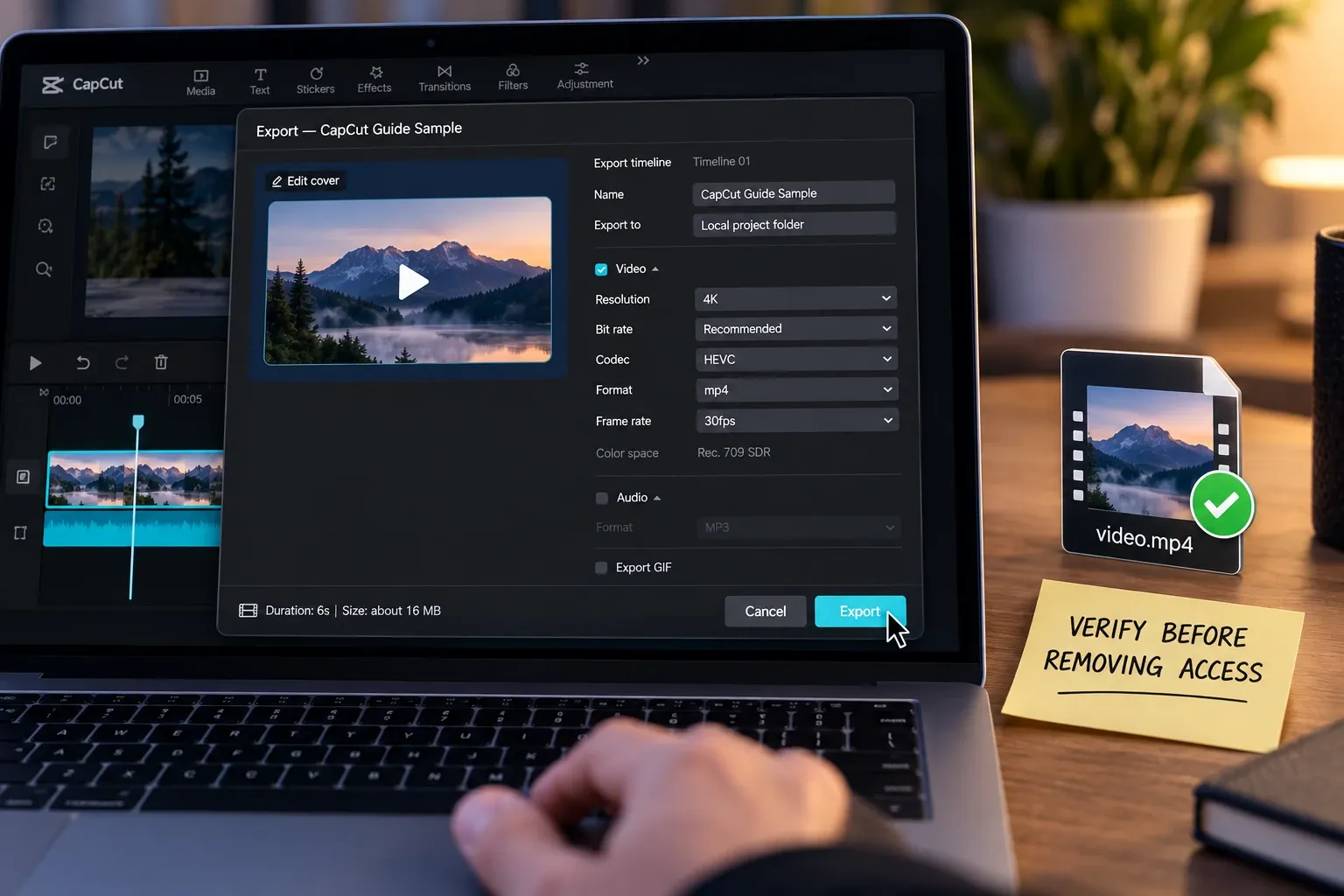
- Export and verify final deliverables before removing a member.
- Preserve local copies of critical projects and media where the format supports it.
- List which timelines depend on Team-only templates, effects or brand assets.
Use the project safety guide for backup and handoff rules. A Team Space improves access; it does not replace a controlled archive.
Offboard a member without breaking production
- Identify projects, drafts, brand assets and approvals assigned to the person.
- Transfer working knowledge and confirm the next responsible editor.
- Export or copy critical deliverables and source manifests.
- Remove or replace personal links and external media dependencies.
- Verify another authorized account can open the necessary projects.
- Only then remove the member or reduce seats according to the current billing terms.
CapCut's pages say team benefits end after leaving and that team-linked assets can become unavailable. Treat offboarding as a project migration, not just a seat change.
Use Web and Desktop for different jobs
The collaboration Help page positions Online as the administration surface and Desktop as the editing surface. The team purchase page instead requires Desktop for billing and seat management. Treat governance instructions and subscription instructions separately, and confirm the controls offered to the owner account. Use CapCut Web to inspect team identity, members and shared assets where available; use Desktop for editing and for any owner controls actually shown there. Mobile is described as limited for administration.
The linked official pages describe intended features, but their purchase and administration instructions are inconsistent. Confirm the selected team, available controls and checkout terms in the owner account. Ask Support for written clarification before paying or migrating important work when those details disagree.