

Reviewed 2026-09-17 against current official CapCut transcript, caption and filler-word pages. I did not transcribe media, delete spoken sections or export a result. Menu names, languages, entitlements and platform support can vary by version, account and region.
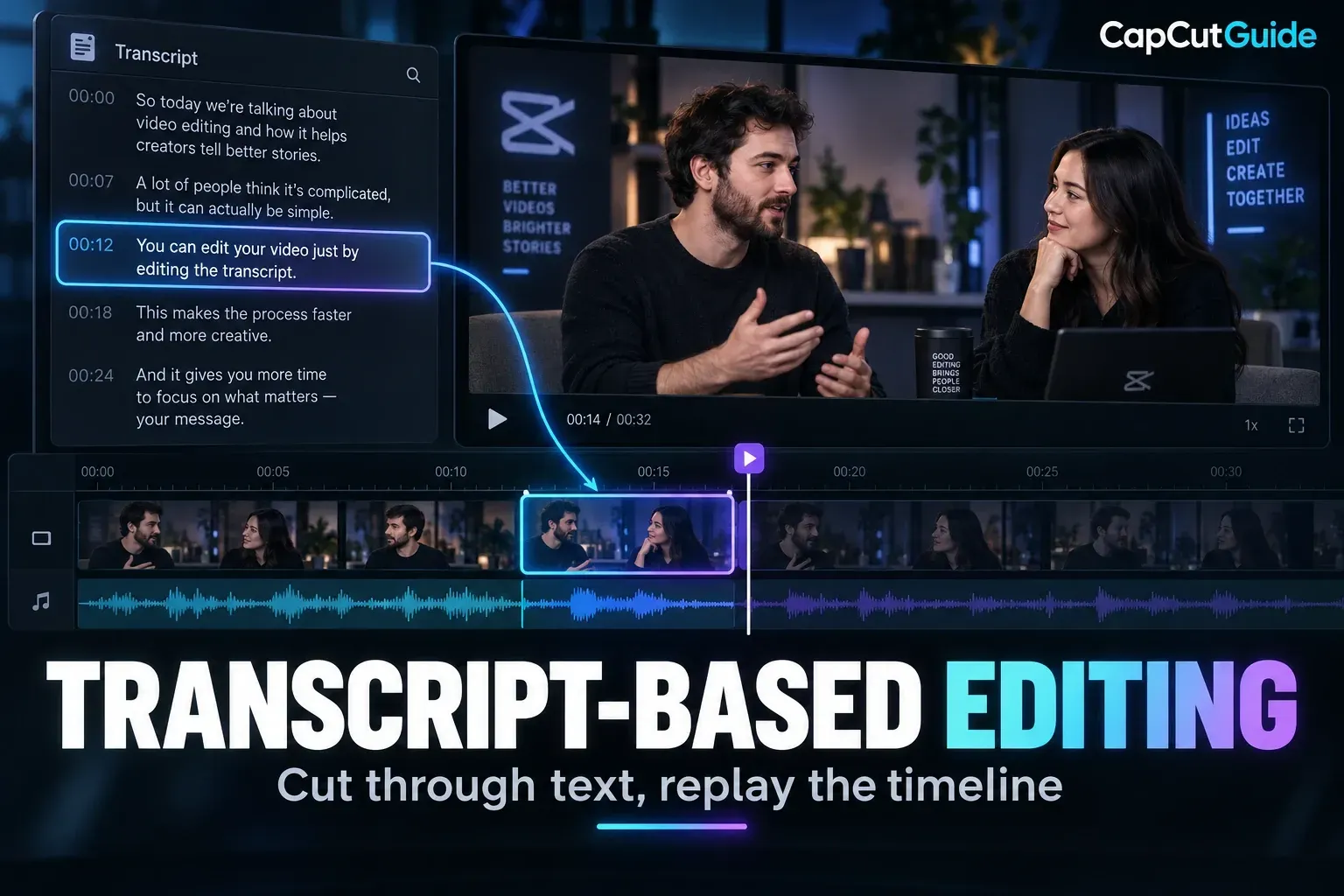
CapCut Transcript-Based Editing is part of CapCut’s broader AI tools workflow: it turns speech into a searchable text view and links selected text changes to the corresponding video or audio. The safe way to use it is to duplicate the project, generate the transcript in the correct language, correct names and technical terms, remove only the passages you have reviewed in context, and replay every resulting cut.
Critical distinction: correcting transcript text can update captions, while deleting transcript words can remove the matching spoken section from the timeline. Read the command and preview the timeline before confirming a bulk change.
What transcript-based editing actually does
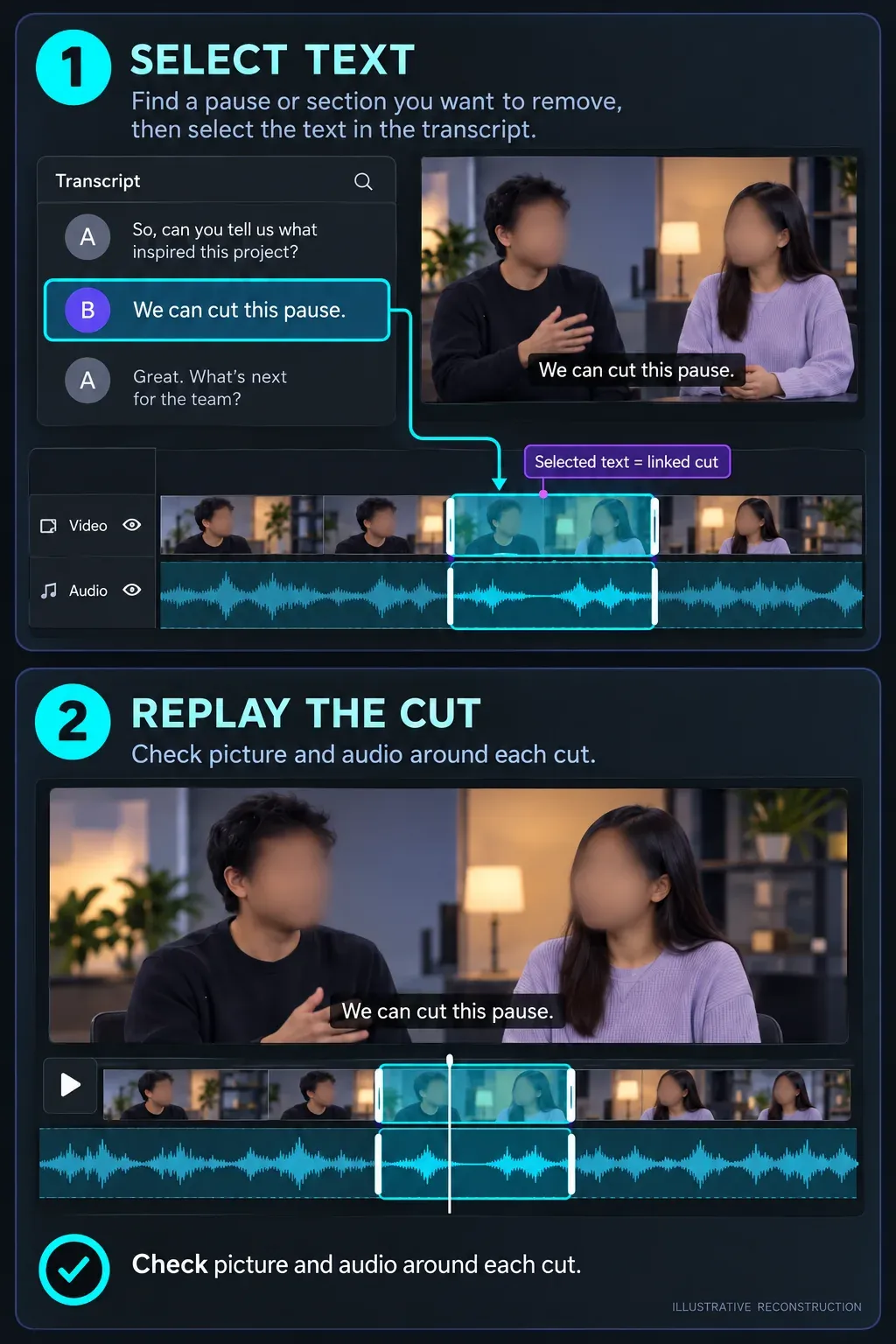
CapCut describes text-based editing as a way to modify video or audio by editing a synchronized transcript. Current official pages mention keyword search, text correction, filler-word detection and removal of speech gaps. These are related controls, but they do not have the same consequence.
- Search: jumps to a spoken word or phrase.
- Correct text: fixes the written transcript or linked caption wording.
- Delete spoken text: can cut the corresponding media range.
- Remove filler words or gaps: proposes edits that still need human review.
If the task is only to create or fix subtitles, start with the auto-captions guide. Transcript editing becomes useful when the written speech should also help shape the timeline.
Prepare the project before generating a transcript
My preparation advice is to preserve the original edit. Duplicate the project or timeline where supported and identify the primary speech track. Mute music or overlapping audio when the platform allows it, choose the spoken language, and keep a short section available for checking names, product terms and punctuation.
CapCut’s caption guidance identifies accents, fast speech, background noise and low audio quality as recognition problems. I would also check overlapping speakers and unfamiliar terms carefully. An inaccurate transcript is still useful for navigation, but it is dangerous as an automatic delete list.
A review-first transcript workflow
- Import or open the speech video and place it on the timeline.
- Open Transcript-Based Editing from the current Web or Desktop route shown in your build.
- Select the recognition language and generate the transcript.
- Correct names, numbers, negations and technical terms before structural edits.
- Search for the section you need, then listen to the full sentence around it.
- Apply one small deletion and inspect the timeline result.
- Replay audio and picture together before accepting the next batch.
The official Web tool page describes right-clicking timeline media and choosing Transcript-based editing. The Desktop guide describes Menu → Layout → Transcript-based editing and keyword search. These are documented routes for different editors, not proof that every build has the same panel. Use the available route in your version.
If the panel only deletes phrases or lines
Do not assume every build permits individual-word selection. Before a longer edit, inspect whether the panel selects words, phrases or whole lines and read the delete command. If the available range includes words you need to keep, cancel that deletion and use a smaller manual timeline cut where possible. Editing caption spelling is a separate task; it should not require deleting the spoken passage.
Treat filler-word detection as suggestions
I would review every proposed filler-word cut before accepting a batch: cleaner speech is useful only if the sentence keeps its meaning and rhythm. CapCut lists examples such as “um,” “uh,” “like” and “you know.” A detected word is not automatically disposable. “Like” may introduce an example, a pause may carry emotion, and a repeated word may be emphasis rather than a mistake.
| Candidate | Review | Risk after removal |
|---|---|---|
| Isolated “um” before a clear sentence | Listen through the transition | Small click or abrupt visual jump |
| Long pause | Check whether it creates emphasis | Rushed pacing |
| Self-correction | Keep the final intended meaning | Broken grammar or missing context |
| Technical term marked wrong | Correct text before any delete | Removal of essential content |
| Overlapping speakers | Use the timeline and audio, not text alone | Cutting another speaker |
Check picture continuity, not only clean audio
A transcript edit can remove words cleanly while producing a visible jump in the speaker's face, hands or background. Watch the cut at normal speed and frame by frame. B-roll can cover a necessary audio edit, but it should not hide a broken sentence or incorrect caption.
After the structural edit, revisit caption segmentation and timing. The caption timing guide covers that pass. If recognition fails or captions disappear, use the captions troubleshooting guide before regenerating everything.
How to recover from an over-aggressive text edit
Undo immediately if the timeline still holds the correct history. If several changes were accepted, compare against the duplicate project, restore the affected sentence and apply smaller edits. Do not attempt to reconstruct a long interview from memory after bulk deletion.
- Keep the untouched project until delivery.
- Apply changes in small batches.
- Save a separate copy before filler-word cleanup where your version supports it.
- Review the first and last word around every cut.
- Export captions separately only after the visible text is final.
For a separate subtitle file, follow the SRT export guide; a clean transcript view does not itself prove the exported subtitle file is correct.
The linked CapCut pages describe intended workflows and sometimes use promotional accuracy claims. I do not treat those claims as measured results. Check recognition and edit quality against the actual speaker, picture and timeline; language options and selection controls must be confirmed in your own build.