

Checked 13 September 2026.
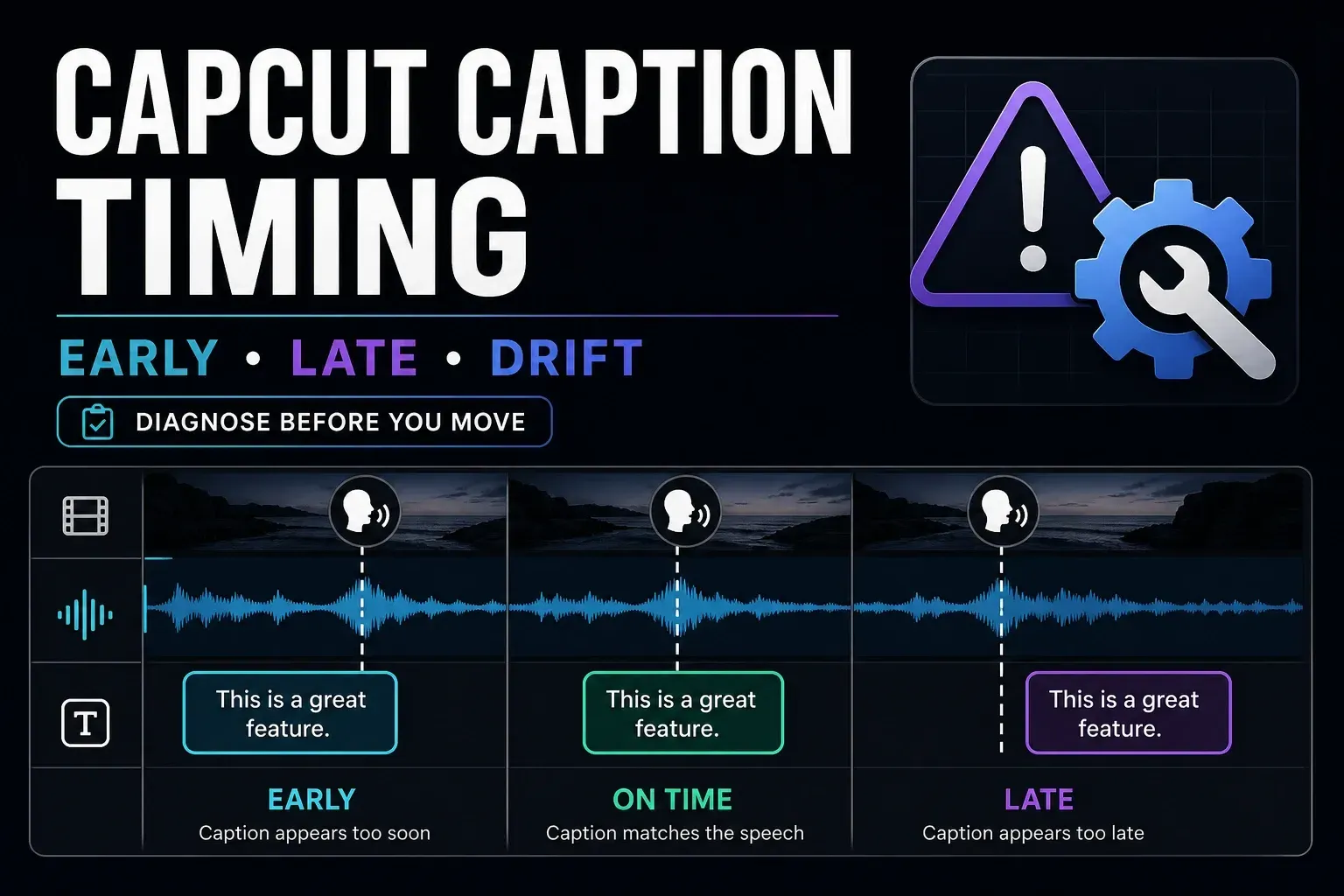
If one CapCut caption is late, move that block and leave the rest of the track alone. If every caption is equally late, shift the affected track earlier by the measured delay. If the gap grows as the video plays, a fixed shift will not solve it: check for a different edit or speed before retiming the subtitles. If the problem is missing captions, failed recognition or another CapCut fault rather than timing alone, browse our CapCut fixes.
This guide starts after CapCut has created or imported a usable caption track. For generation, language selection and the first transcript review, use the CapCut Auto Captions guide. If the control is missing, Generate does nothing or no caption track appears, use the CapCut captions not working guide instead.
Diagnose the timing pattern before changing anything
Before moving or deleting captions, keep an independent editable project copy, its source media and the original SRT, if you have one. An exported MP4 cannot restore editable caption blocks.
Start by playing three checkpoints with sound:
- an early line with a clear first word;
- a middle line near a cut, pause or speaker change;
- a late line close to the end of the video.
Then inspect the sections between those points, especially around cuts. Several problems can coexist; three correct lines do not prove the whole track is right. Look for these patterns:
- Constant offset: every caption is early or late by roughly the same amount.
- Local error: most captions are right, but one block starts late, ends early or spans the wrong phrase.
- Progressive drift: the beginning is close, then captions move farther away from speech.
- Sudden change after a cut: earlier captions fit, but a later section follows a different offset. Find that boundary before selecting a whole track.
- Overlap or duplicate: two captions appear together, or a caption remains after the next one begins.
- Bad segmentation: the wording is correct but divided into awkward lines or long blocks. A missing spoken word is a separate transcript error.
CapCut’s subtitle-sync guide also separates isolated errors, shared offsets and drift. The practical difference: repair a bad block locally, shift a consistently displaced sequence together, and investigate a changing gap before applying either fix.
Stabilize the spoken edit first
Caption timestamps refer to a particular edit. Removing silence, changing speed or replacing a voiceover can leave them pointing at the wrong words. Compare the original recording, the project and a local export: if the voice already lags behind the speaker's mouth, retiming subtitles will not fix that audio/video mismatch.
Before retiming:
- confirm that picture and spoken audio are aligned without looking at the captions;
- finish the main dialogue cuts;
- work in the independent copy, leaving the original available for comparison;
- mute temporary music or effects if they make the voice hard to hear;
- replay the checkpoints and each changed cut, then restore the intended audio mix before final export.
A CapCut user reported losing subtitle sync after cutting silence, even after grouping audio and text. That report is a useful warning, not evidence that every build behaves the same way. Check the first cue after each changed cut.
Also try built-in speakers or wired headphones before changing timestamps. Sony documents Bluetooth sound delay; a playback delay can make correct captions look early. If another output device plays the same file correctly, investigate playback before altering the project.
Fix one or two local caption blocks
When the problem is local, leave the correct blocks alone.
CapCut Web
- In your working copy, select only the mistimed caption block, leaving the video and voice tracks unselected.
- Zoom into the timeline and listen for the phrase. Use a visible waveform as a guide, not as proof that each peak marks a word.
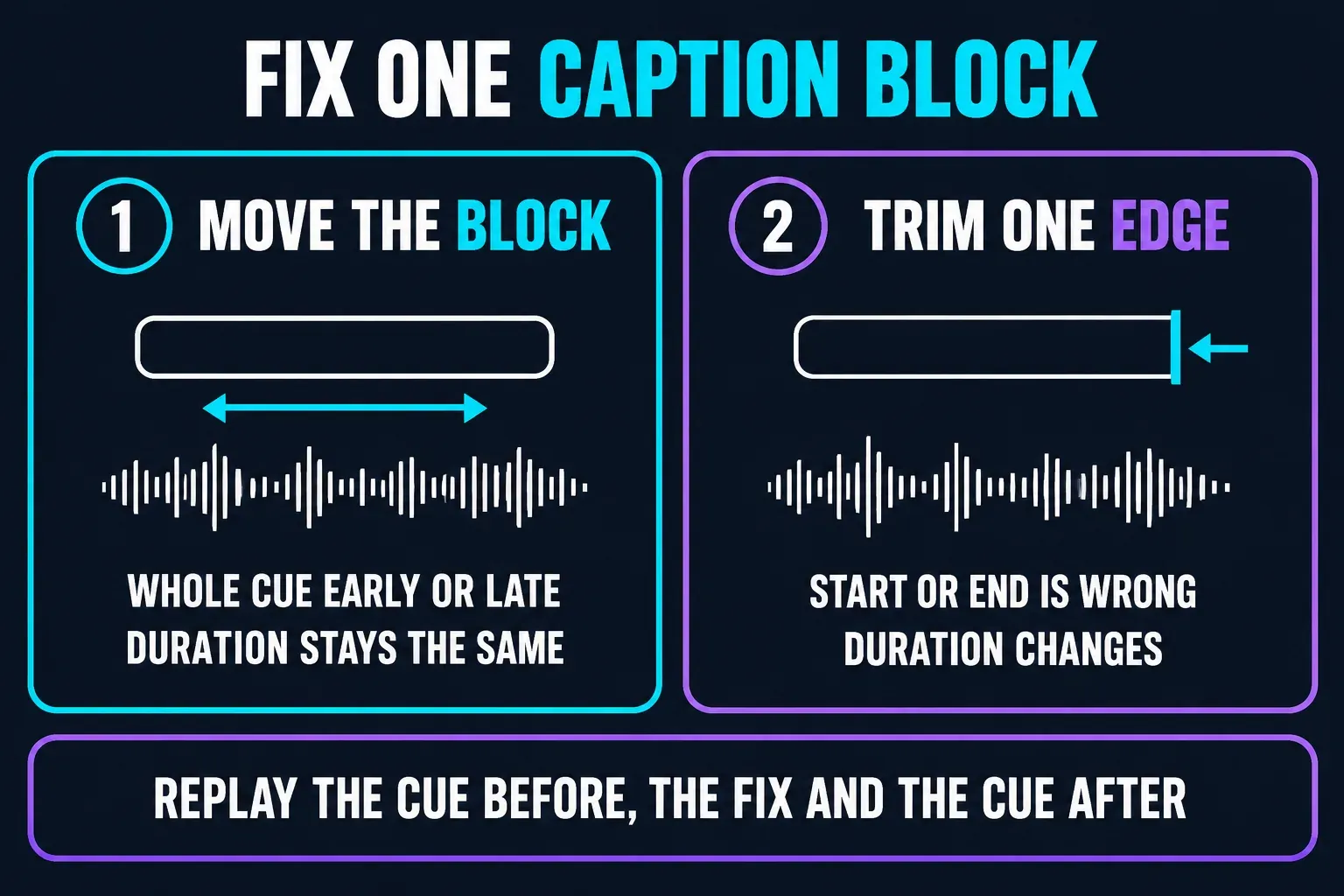
- If the whole cue is early or late but its duration is right, move the entire block earlier or later.
- If just the start or end is wrong, trim that edge against the spoken phrase. Moving one edge changes the duration.
- Replay the previous cue, repaired cue and following cue with sound; check for cut-off words and unwanted overlaps.
- Confirm that the video, audio and other caption blocks did not move accidentally.
The subtitle-import instructions confirm that Web blocks can be edited for text, timing and style. Select the actual caption clip in your editor; labels and panel positions can differ between builds.
CapCut Desktop
Select the caption clip and zoom into the timeline. Move the whole block for an offset; drag one edge to change only its start or end. Use the caption editor for wording, then listen to the result. If two phrases need different display times, split the selected caption as described below.
CapCut Mobile
Tap the caption clip and pinch to zoom into the timeline. Move the block to shift it, or trim an edge to change its duration. Replay it with both neighbours. Make sure you have selected the caption rather than the underlying video, and follow the controls shown in your build.
Split bad line breaks and long caption blocks
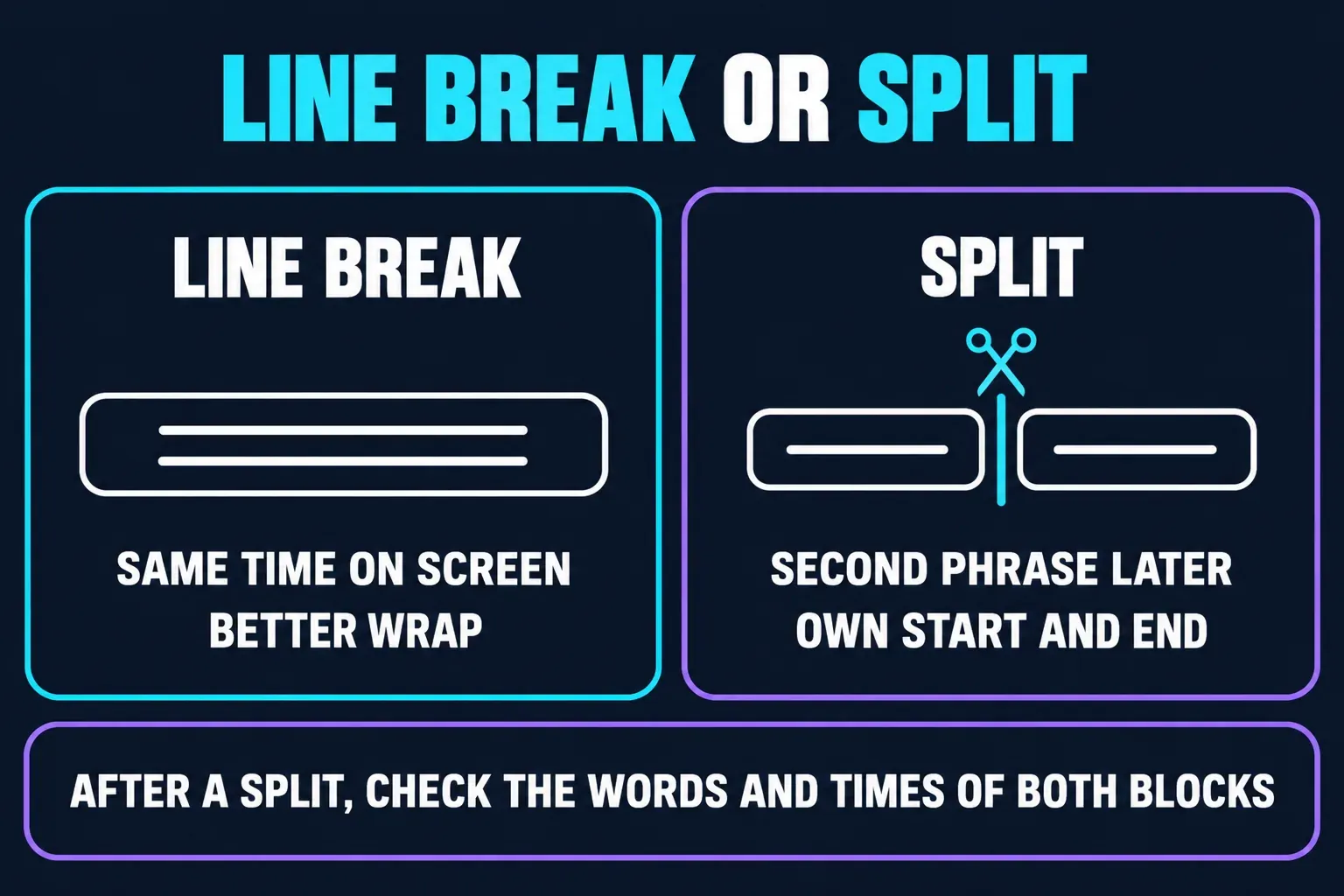
A line break inside one text box and a split into two timed caption clips solve different problems.
- Use a line break when the text should stay on screen for the same duration but wrap at a better phrase boundary.
- Use Split when the second phrase should appear later and needs its own start/end time.
CapCut's subtitle-splitting instructions document these controls:
- Web: select the caption block, put the playhead inside it, then use the scissors control or B.
- Desktop: select the block, place the playhead, then use Ctrl+B or Cmd+B.
- Mobile: select the caption clip, place the playhead, then use Split or the scissors control shown in the live build.
Keep keyboard focus on the selected caption, not inside its text editor or on another track. If a shortcut does something else, undo it and use the displayed Split control. If splitting is unavailable, check that the playhead is inside the selected clip and processing has finished; very short, locked or grouped clips may need attention first.
After splitting, read both new blocks. Divide the wording so each contains the right phrase, without repeating or losing words, and adjust both time ranges. A split is not a promise that CapCut will divide the sentence perfectly. Keep names and meaningful phrases together rather than forcing a fixed word count or duration.
Repair missing words or a missing phrase
Start with the smallest repair:
- If the timed block exists but one word is wrong or absent, edit the text in that block.
- If one long block contains the phrase but is segmented badly, split it and correct the two shorter blocks.
- If no block covers a short spoken phrase, add manual text or duplicate a nearby styled caption in the working copy. Replace all its wording and set both boundaries without covering a neighbouring cue.
- For a badly recognized section, use a separate short project containing that section, then bring the corrected wording back and align it to the original timeline. A short project starts at its own time origin, not the original section's timestamp.
The Auto Captions correction guide says Desktop and Mobile lack native partial re-recognition of selected clips. Editing a word does not itself rerun recognition. Before generating again, check any charge or usage-limit prompt and whether you are allowed to process that recording through the service. CapCut's privacy policy covers imported content and caption processing; do not assume confidential audio stays only on your device.
If you also need a separate subtitle file, verify that the repaired phrase appears in it. CapCut's export help restricts subtitle-file export to recognized captions, so manually added text is not a dependable SRT-export workaround. Keep the corrected source subtitle file separately.
If only the animated active-word highlight breaks after a correction, use the CapCut word-by-word captions guide. That is word-level style timing, not ordinary caption-block sync.
Stop two captions appearing at once
Bilingual captions or two speakers can intentionally share the screen. Diagnose unwanted copies before deleting either track.
CapCut's current multiple-captions help points to three things to inspect across Web, Desktop and Mobile:
- a duplicate Auto Captions track;
- manual text placed over the caption track;
- two caption clips whose time ranges overlap.
If a visibility control is available, hide one suspect layer first; otherwise test removal only in the independent project copy. Keep the reviewed wording and remove only the redundant layer. For an unwanted overlap between adjacent cues, adjust their boundaries without cutting off speech or creating an unwanted gap.
If the extra words remain with all project text hidden, inspect the source clip: they may already be burned into its pixels. Hiding a caption layer cannot remove those words; use a clean source for an editable replacement. Also check the player's own subtitles. For example, YouTube lets you toggle CC; that separate layer can sit over captions already in the video.
Move all captions earlier or later for a constant offset
Use one shift only when the affected sequence stays early or late by the same amount, including after cuts. Measure that delay against a clear spoken word. Late captions need to move earlier; early captions need to move later.
If your CapCut editor lets you select and move all the intended caption blocks together, test that move in the project copy. Keep the video and audio out of the selection. Confirm that every selected block moved by the same amount and retained its duration. There is no single whole-track control documented for every platform and build.
Use an SRT when a group move is unavailable
If you have a timed subtitle file, you can change its timestamps outside CapCut. Keep the original file. If you need to obtain one first, follow the caption-to-SRT export guide; do not assume manual text layers will be included.
For a uniform offset, Aegisub’s Shift Times controls let you choose the affected rows, direction and which boundaries to change:
- Open a copy of the SRT and choose Timing → Shift Times.
- Choose Time, not Frames. Enter your measured delay. This dialog uses hours, minutes, seconds and centiseconds: 0:00:00.50 means half a second, not 50 milliseconds.
- Choose Backward for late captions or Forward for early captions.
- Under Affect, use All rows only if the whole file needs the change. Otherwise select the intended rows and choose Selected rows.
- Under Times, choose Start and End times to keep durations. Apply the shift, then check the earliest cues: negative times are clamped to zero and may shorten a cue.
Use Aegisub’s Export option to save a separate subtitle file. Choose SubRip/SRT, not ASS; leave timing-transform and visible-lines-only filters off for this simple offset repair. Renaming an ASS file to .srt is not conversion. Check the exported text because changing formats can discard formatting.
SRT timestamps use milliseconds, unlike the centiseconds shown in that Aegisub dialog or a timeline’s frame counter. Reopen the repaired SRT with the matching video. A player’s temporary subtitle-delay setting does not change the file you deliver.
Then import the corrected SRT on Desktop or Web, testing in the project copy so the old and new tracks do not both appear. CapCut’s import help does not support direct SRT import on Mobile. Keep the repaired SRT separately; editing an imported caption in CapCut does not update that original file on disk.
Fix captions that gradually drift out of sync
If the first line fits but later lines fall farther behind, sliding the track will just move the error elsewhere. First watch without captions: if speech itself slips behind the speaker’s mouth, fix the audio/video mismatch before retiming text.
If picture and speech stay aligned, check that the subtitles belong to this exact edit. A removed pause, new voiceover or speed change can invalidate the old timings. A sudden jump after a cut needs a section-specific repair; it is not the same as a steadily growing gap.
Two-point correction for steady drift in an SRT
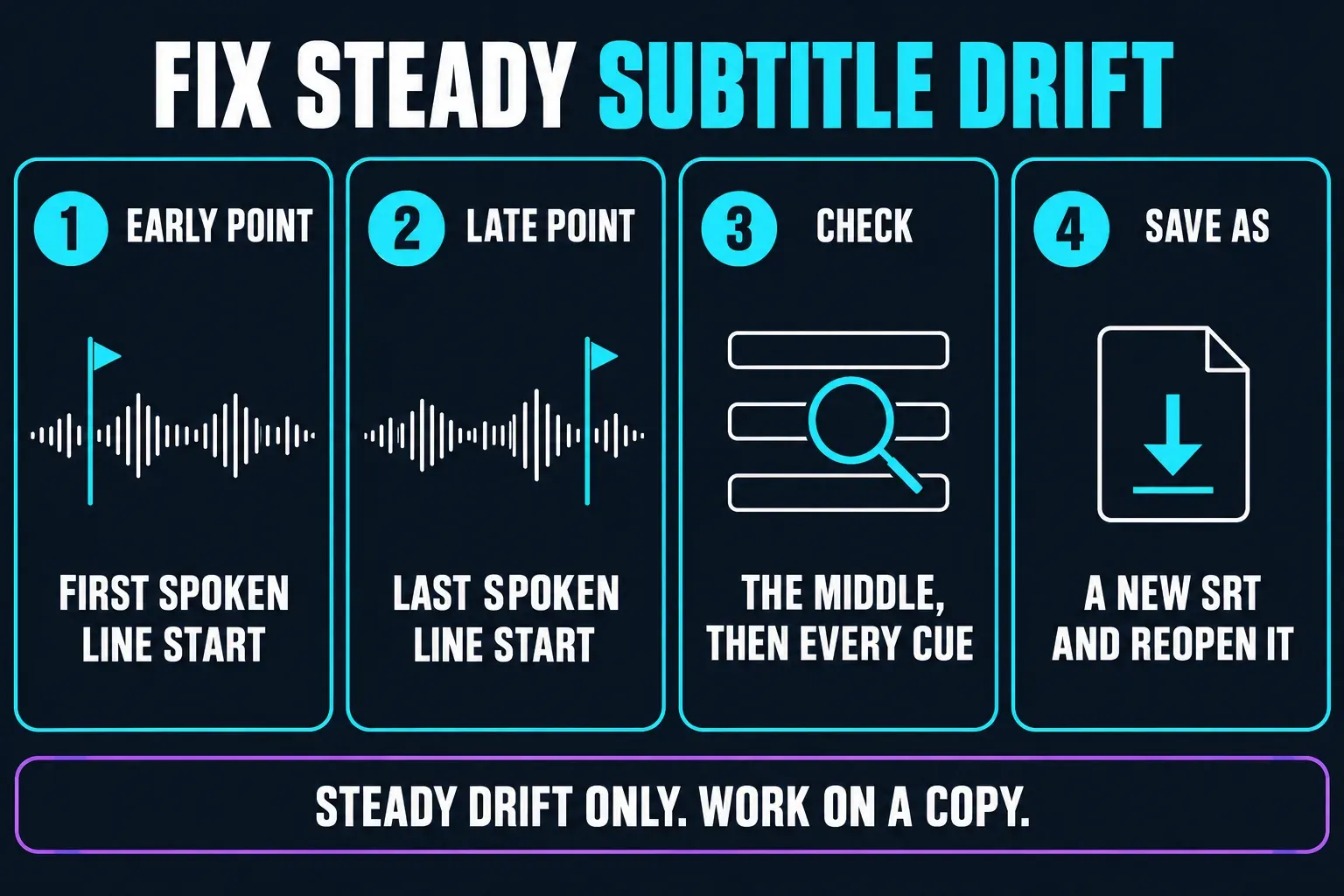
For an otherwise matching subtitle file whose timing stretches or contracts steadily, Subtitle Edit 5’s Visual Sync can align two spoken reference points and adjust the timings between them. This changes all subtitle timings, so work on a copy and do not use it across mismatched cuts.
- Open the SRT copy and load the final video it must match in Subtitle Edit.
- Choose Sync → Visual sync….
- In the start panel, find the first subtitle’s actual spoken start and set that sync point. Listen to the phrase; a scene cut is not necessarily a spoken-word boundary.
- In the end panel, find the last subtitle’s actual spoken start and set the second point. Confirm the synchronization with OK.
- Check the middle, then play through every cue. If the middle still wanders or a cut introduces a jump, undo this correction and retime the affected sections instead.
- Choose File → Save as… and SubRip (*.srt) under a new name. Reopen that saved file with the final video before importing or delivering it.
The developer’s File menu documentation distinguishes Save as from a plain-text export. Keep timed SRT output for this job. If the mismatch changes unpredictably, repair individual cues or rebuild captions against the final edit while preserving the reviewed transcript.
Do not convert every phone recording or switch everything to 30 fps because a tutorial blames frame rate. A phone recording alone does not establish the cause, and an export FPS change does not rewrite an incorrect SRT offset.
Verify the export, not only the editor preview
After the repair:
- Replay the complete edited sequence with its intended audio mix restored.
- Use a short export to test a repair while iterating, then export and watch the entire final video. The short test is not final approval.
- Open that exact file in another player or device, preferably without Bluetooth for the comparison. Check timing, wording, missing phrases and unwanted duplicates throughout.
- If delivering an SRT, open the actual final file with the final video and review every cue, including manual repairs. Do not check an older file with a similar name.
- After upload and processing, check the destination copy and its separate caption track, if present.
If the file is right in two players but wrong after upload, first confirm that you uploaded the same file and are not seeing a second auto-generated caption track. Do not damage the correct project to compensate for one playback setup. If only the local export fails, test a plain caption style in the working copy and compare it with the same section in the editor; this helps separate an animation issue from a cue-timing problem.
Our walkthrough of CapCut export settings helps with format choices, but it is not a guaranteed sync cure. If a reproducible export problem persists, keep an anonymized short example and the app version for support rather than sending a private project by default.
CapCut Caption Timing FAQ
Why are all my CapCut captions late by the same amount?
A constant offset is possible, but inspect the sequence between your initial checkpoints before shifting everything. Move late captions earlier by the measured amount, changing both start and end times, then replay the full result.
Why do CapCut captions start in sync and drift later?
The subtitle timings may not match the current cut or speed. Fix an audio/video mismatch first if speech also slips against the picture. A matching SRT with steady drift can be retimed against two spoken reference points; a jump after a cut needs a section-specific repair. One fixed shift cannot correct growing drift.
How do I adjust one caption's timing in CapCut?
Select the caption clip, not the video. Move the whole block if its duration is right but it is early or late; trim an edge if only that boundary is wrong. Replay both neighbouring cues as well.
How do I split a caption in CapCut?
Select the caption and put the playhead inside it. CapCut documents scissors or B on Web, Ctrl+B on Windows, Cmd+B on macOS and Split/scissors on Mobile. Use the displayed control if keyboard focus or shortcuts differ, then check both resulting texts and time ranges.
Why are two captions showing at once?
Check for redundant text tracks, overlapping cues, text already burned into the source and player-generated captions. Keep intentional bilingual or speaker captions. Test hiding or removal in a copy before deleting anything from the original.
What should I do when Auto Captions misses one word?
Correct the existing cue first. If an entire short phrase lacks a cue, add a timed replacement in the working copy. If delivering SRT as well as video, verify the phrase is in that file; manual text may not be included in caption export.
Can I shift every CapCut caption at once?
There is no single all-platform control established by the current help pages. If your editor supports selecting and moving all caption clips, test it in a copy. Otherwise, correct a copy of an existing SRT and reimport it on Desktop or Web.
Why did captions break after I removed silence?
Their timestamps may still refer to the earlier edit. Find where the mismatch begins, finish the spoken cuts in a working copy, then retime or regenerate the affected captions against that sequence.
Why are captions correct in CapCut but wrong after upload?
Check the exact local export in another player first, without Bluetooth for the comparison. If it is correct, inspect the uploaded file, completed processing and any separate platform captions before changing the CapCut project.