

Documentation and examples checked September 12, 2026.
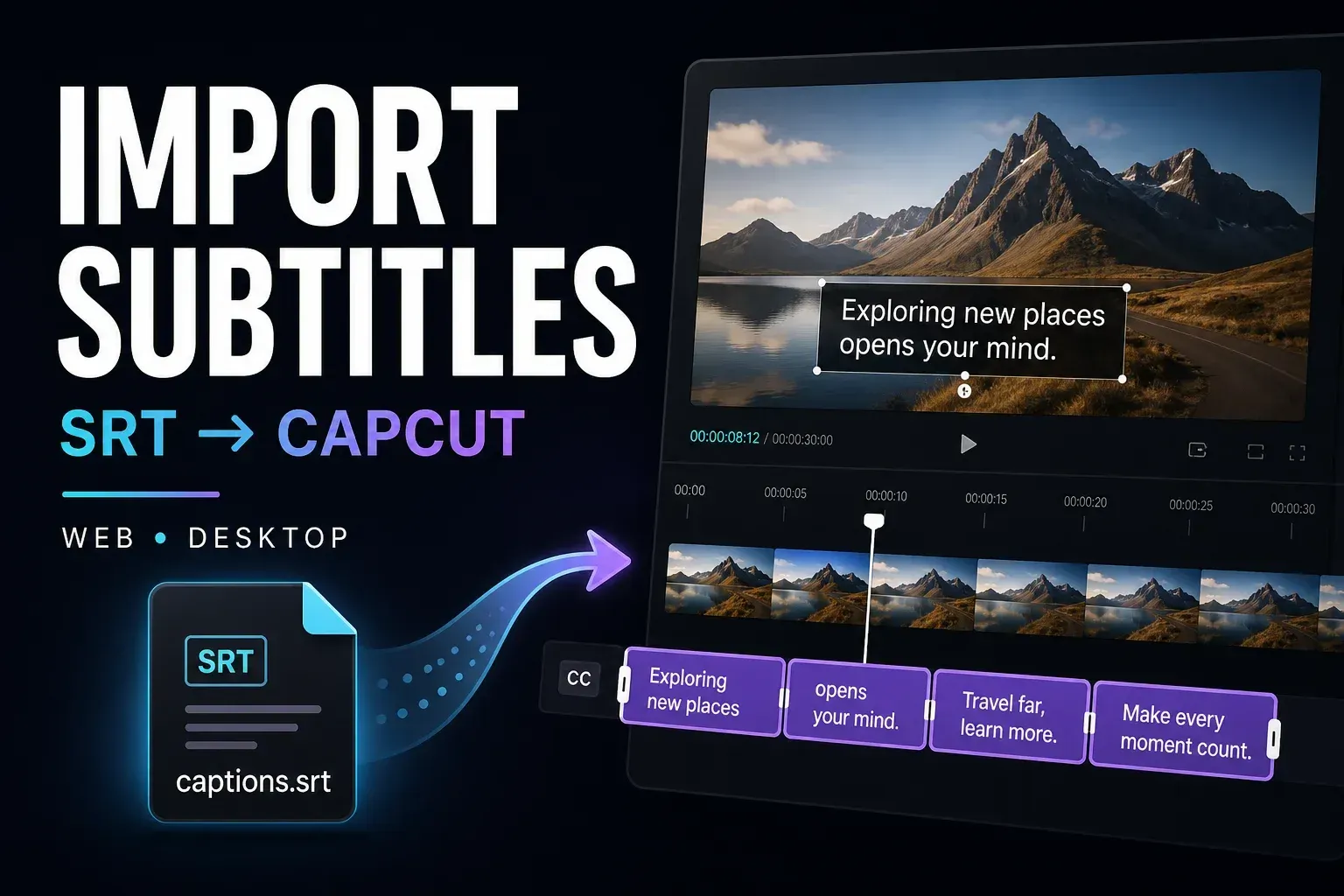
Already have an SRT? Import it through CapCut’s caption panel, not the media uploader. Web uses Captions → Upload caption file. Desktop’s documented route is Captions → Add captions → Import file; another layout puts local captions under Text. Start with an SRT saved as UTF-8 and the video it was timed for. If you need to create, translate, restyle or export captions as well as import them, our overview of CapCut AI tools links those routes.
This guide is for bringing prepared subtitles into an edit. If you need to transcribe speech first, start with the CapCut captions guide. Import reads your existing words and times; it does not translate them or retime them to a different cut.
Import an SRT in CapCut Web
Before uploading a video or transcript to a browser editor, check that you are allowed to share that material with the service. For confidential work, keep the task in an approved environment.
- Sign in to CapCut Web and open the project.
- Place the matching video on the timeline.
- Select Captions in the left toolbar.
- Choose Upload caption file.
- Select your SRT copy.
- Wait for the caption blocks, then check their text and timing against the video.
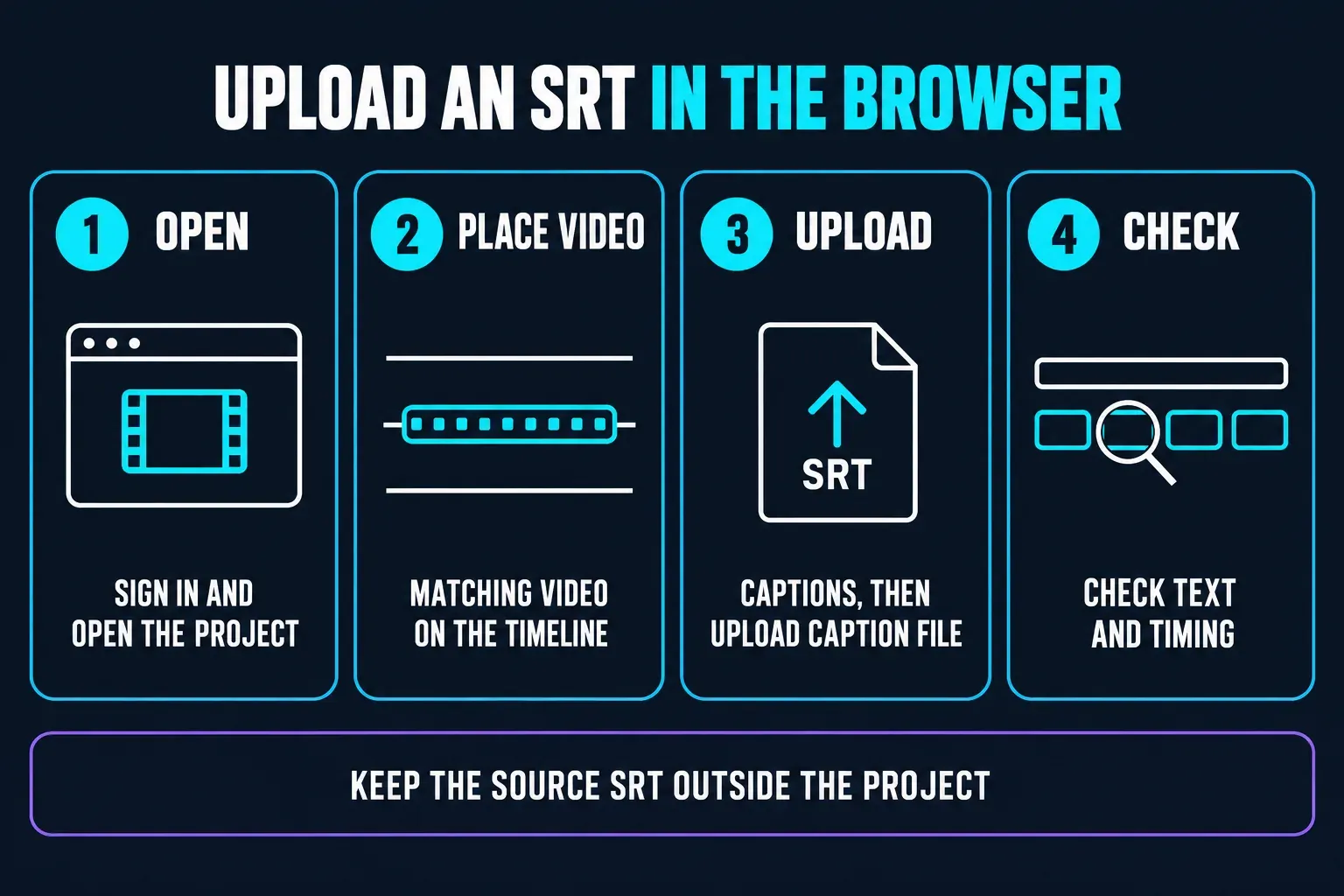
Keep the source SRT outside the project. It is your recoverable copy if an import drops a passage or the browser session fails to save.
Import subtitles in CapCut Desktop
Use the Windows or Mac project containing the matching edit. CapCut’s subtitle-import help documents the following route:
- Open the project containing the matching video.
- Select Captions in the top toolbar.
- Open Add captions.
- Choose Import file.
- Select your SRT copy.
- If the file remains in the panel, add it to the timeline with the available control, then inspect the caption blocks.
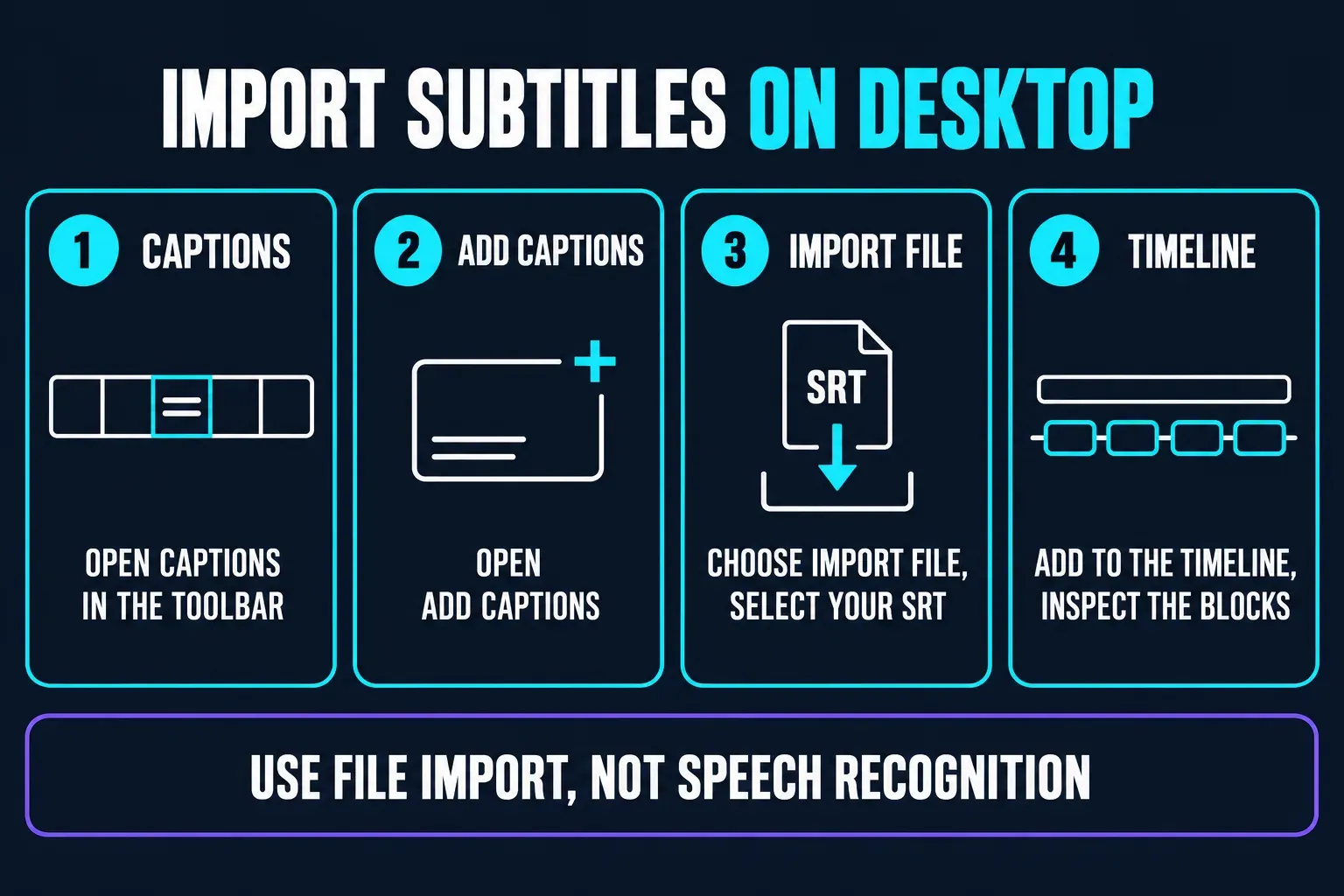
Can’t find Add captions? Look under Text for Local captions. CapCut’s alternative Desktop walkthrough shows local-caption import and then adding the file to the timeline. Use the file-import control, not the speech-recognition button. Don’t import repeatedly just because the file is waiting in the panel.
Which subtitle formats work?
SRT is the common starting point. CapCut’s English help says Web takes SRT and Desktop also takes timed TXT. Yet the import panels pictured in that help list SRT, ASS and LRC. Check the extensions offered by your current file picker before relying on another format; neither source is a universal compatibility list.
A script without timestamps is not ready for this workflow. Changing script.txt to script.srt only changes its name. You still need to supply the cue times. Likewise, accepting an ASS file does not prove that every font, position or effect from that file survives the import.
Check the file’s structure
The Library of Congress SRT description identifies four parts: a cue number, start and end times, text, and a blank separator. Here is a small example you can compare with your file:
1
00:00:01,000 --> 00:00:03,500
Welcome to the edit.

2
00:00:04,000 --> 00:00:06,200
Check the timing before styling.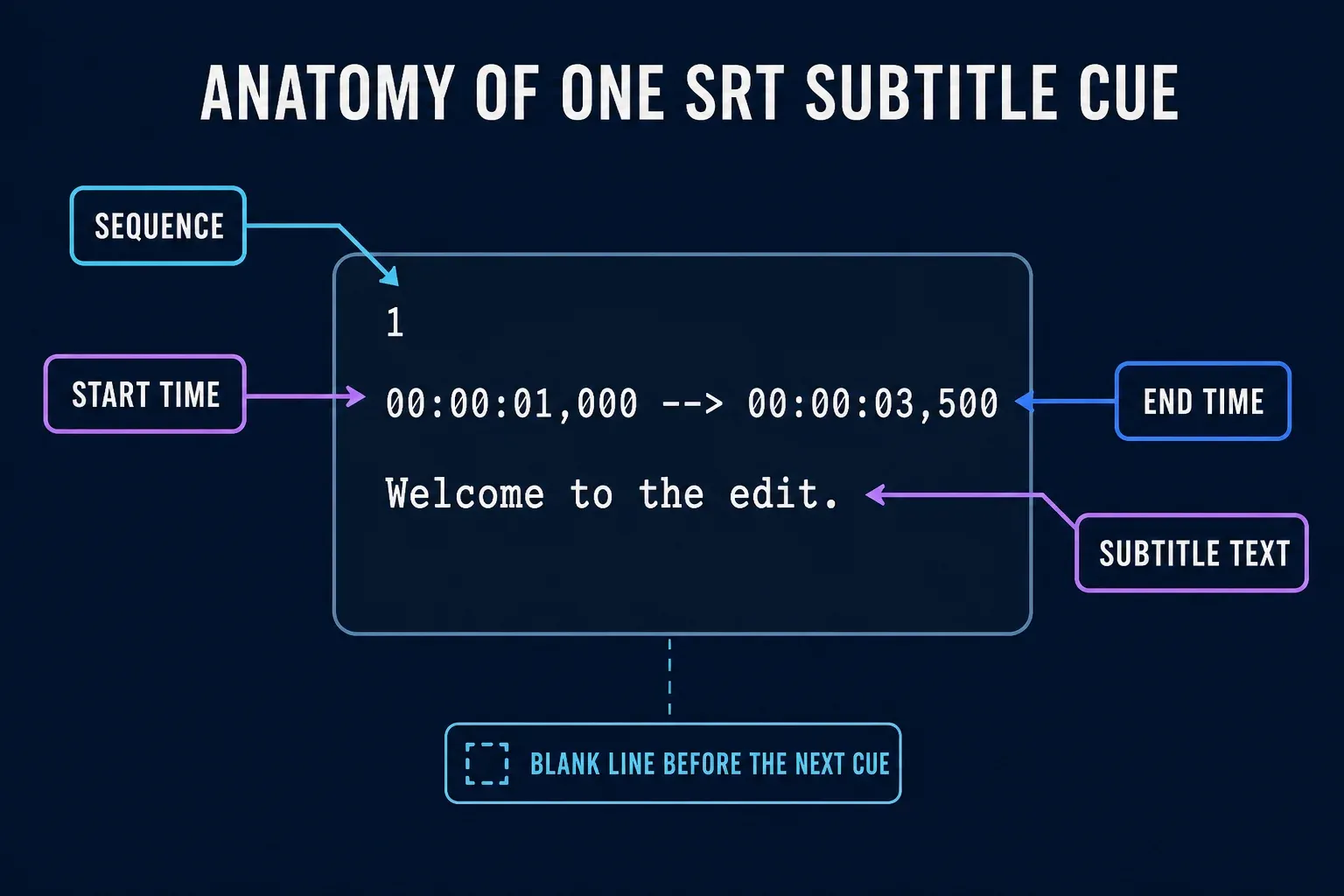
Use HH:MM:SS,mmm timestamps, including the comma before milliseconds. The arrow is two hyphens followed by >, not a typographic arrow. Each cue needs an end after its start. Keep blank lines between cues and inspect any duplicate numbering without deleting the subtitle text.
Can you import SRT on iPhone or Android?
CapCut’s current help says the Mobile app does not support direct SRT/TXT import. If your phone has no subtitle-file control, this guide’s file-import route requires Desktop or Web. A different filename or a Pro purchase is not evidence that the missing control will appear.
For a few lines, use Text → Add Text and time each line manually. For a long, approved SRT, importing on a computer is the practical route described here. Running Auto Captions again creates a new transcription; it does not preserve your supplied wording automatically.
To finish the edit on your phone, first check whether cloud transfer is acceptable for the material. Then import on Desktop or Web and upload the project to Spaces, where available. Use the same account on both devices. CapCut’s project-transfer guidance requires a Spaces upload for cross-platform cloud use; signing in or saving locally is not enough.
Wait for the upload to finish. Open the phone copy and check that the media, caption text, timing and fonts are present before depending on it. Keep the original project and SRT until the transferred edit and its export have been checked.
Fix a subtitle file that will not import
The SRT is greyed out or missing
- Use the caption-file picker on Desktop or Web. A video/audio import dialog may hide subtitle files.
- Inspect the full extension. A file named
captions.srt.txtis easy to mistake for an SRT. - If the file exists only in cloud storage, download a local copy before selecting it.
- Compare its actual format with the extensions listed in that picker.
Changing the name cannot repair the contents. Open the copy as plain text and check the cue structure before trying more conversions.
CapCut rejects it, or some cues disappear
Check the affected passage and the cue just before it. Look for a missing separator, broken timing line, empty cue or end time that is not later than the start. If you edited the file in TextEdit, inspect the arrow too: enabled smart-dash substitution can turn its double hyphen into a different character.
Try two or three valid cues in a separate test project. If they import, test another range with its original timestamps. A successful sample only proves that sample worked; it does not establish that the rest of the file is corrupt. Compare the failing range and session before changing the whole track.
Do not shorten every cue to an arbitrary duration or strip all overlaps. A long sentence may need splitting for readability, while simultaneous dialogue may be intentional. Make that decision against the video, not an unsupported import-limit rule.
The text is garbled: fix decoding before UTF-8 conversion
Work on a copy. First get the original words to display correctly in a text editor, then save them as UTF-8. Converting already garbled text can preserve the damage.
Windows, using Notepad++: open the copy and inspect the words. If they are wrong, choose the file’s original encoding or character set from the upper part of the Encoding menu. Once the words are readable, choose Encoding → Convert to UTF-8, save the copy and reopen it. The Notepad++ encoding manual explains the distinction: selecting an encoding interprets bytes; Convert to changes how the displayed characters are stored. Ask the file’s sender for the original encoding if you cannot identify it.
Mac, using TextEdit: choose File → Open → Show Options → Plain Text Encoding and select the source encoding before opening. Apple documents that per-file encoding choice. Work in plain text; if necessary, choose Format → Make Plain Text on the copy.
Before saving, open TextEdit → Settings → Open and Save. Check the saving encoding and automatic .txt extension settings; choose UTF-8 for saving. Then hold Option and choose File → Save As to save a separate plain-text copy. Verify that its final name really ends in .srt, not .srt.txt. Restore your usual defaults afterwards if you changed them. Reopen the saved file and check its text and timecodes.
If characters have already been replaced with question marks or replacement symbols, return to a clean source. Encoding conversion cannot infer the lost letters. If the file reads correctly but CapCut displays boxes, test a font with the required characters. For Arabic or another right-to-left script, check reading order and joined letters in the final video too.
The captions import but are early, late or drifting
Compare clear speech near the beginning, middle and end. A fixed gap suggests an offset; a growing gap needs a different repair. If every cue is exactly two seconds late, subtracting two seconds from both boundaries preserves each duration, but check for negative times. One shift cannot fix a gap that changes through the video.
Check whether the SRT was timed to a different cut, opening or playback speed before moving anything. The caption-timing repair guide explains how to separate a local mistake, a constant offset and progressive drift. Three checkpoints help locate the pattern; they are not a substitute for reviewing the complete track.
Re-importing creates duplicate captions
In a saved project copy, identify the old and new caption layers before removing anything. Compare the corrected passage, then remove only the redundant layer. CapCut’s duplicate-caption help also covers overlapping manual text. Deleting the SRT from a folder does not remove a duplicate timeline layer.
Style imported captions without losing the wording
Start with a single caption in a project copy. Adjust its size, position and contrast, then see whether the same change reaches the intended blocks. CapCut’s batch-style troubleshooting warns that imported SRT can sit outside the Web auto-caption group. If Apply to all captions does nothing, that does not mean the file is broken.
On Desktop, the same help page documents selecting multiple captions with Ctrl-click on Windows or Command-click on Mac and applying styling manually. Try that on the intended blocks, then check the result. Do not delete a corrected track and regenerate it just to make a style preset respond.
A multiword SRT cue supplies one start/end pair, not the spoken time of every word. Import alone therefore cannot promise accurate word-by-word highlighting. For that effect, use the word-by-word captions walkthrough. A plain SRT also does not carry a complete CapCut visual design; support for even basic formatting depends on the importer.
If an upgrade prompt appears, read which action or style it applies to. Do not treat a paid-template prompt as proof of a malformed subtitle file.
Check the result before delivery
Play the whole captioned edit. Check names, numbers, missing lines, timing and any text cut off at the edges. Then confirm the project has saved, reopen it and verify the track remains. Watch the exported video outside CapCut as well; the editor preview is not the delivered file.
Keep the original SRT even after import. CapCut’s caption-export help limits file export to automatically recognized captions, so do not assume an imported track can be downloaded again. If you correct words in CapCut and cannot export those revisions, also update a separate SRT copy. The SRT and TXT export guide covers that separate task.
Before clearing browser data, reinstalling or moving a valuable project, follow the project backup checks. A successful subtitle import is not a backup of the whole edit.
Subtitle import: quick answers
What format should I use to import subtitles into CapCut?
Start with SRT. CapCut’s help text and example images disagree about extra TXT, ASS and LRC support, so check the formats named by your current file picker.
Can I import an SRT directly on iPhone or Android?
Current CapCut help says the Mobile app does not support direct SRT/TXT import. Use Desktop or Web for the file, or type and time a short track manually on your phone. Cloud transfer requires a separate upload and verification.
Why is my SRT greyed out?
Check that you opened the caption-file picker on Desktop or Web, not a general media dialog. Verify the full extension, make a cloud-only file available locally and compare the picker’s supported formats.
Can I rename a TXT transcript to SRT?
Renaming does not add cue timings. A usable SRT needs numbered cues with start and end times, subtitle text and blank separators.
How do I fix garbled imported text?
Open a copy with the correct source encoding before converting it to UTF-8. Reopen the saved copy to check it. If the text is readable outside CapCut but appears as boxes inside it, test a font that includes those characters.
Why does Apply to all captions ignore my imported SRT?
Imported captions can be outside the Web auto-caption style group. On Desktop, try the documented Ctrl-click or Command-click multi-selection method and check the result. Do not regenerate approved wording just to apply a style.
Will importing replace the existing caption track?
Do not assume it will. Check the old and new layers in a saved project copy and remove only the redundant layer after comparing the text.
Can I export an imported SRT again?
CapCut’s current export help does not guarantee this: it limits caption-file export to automatically recognized captions. Keep the original SRT and update a separate copy if your later CapCut corrections cannot be exported.