

Checked 13 September 2026.
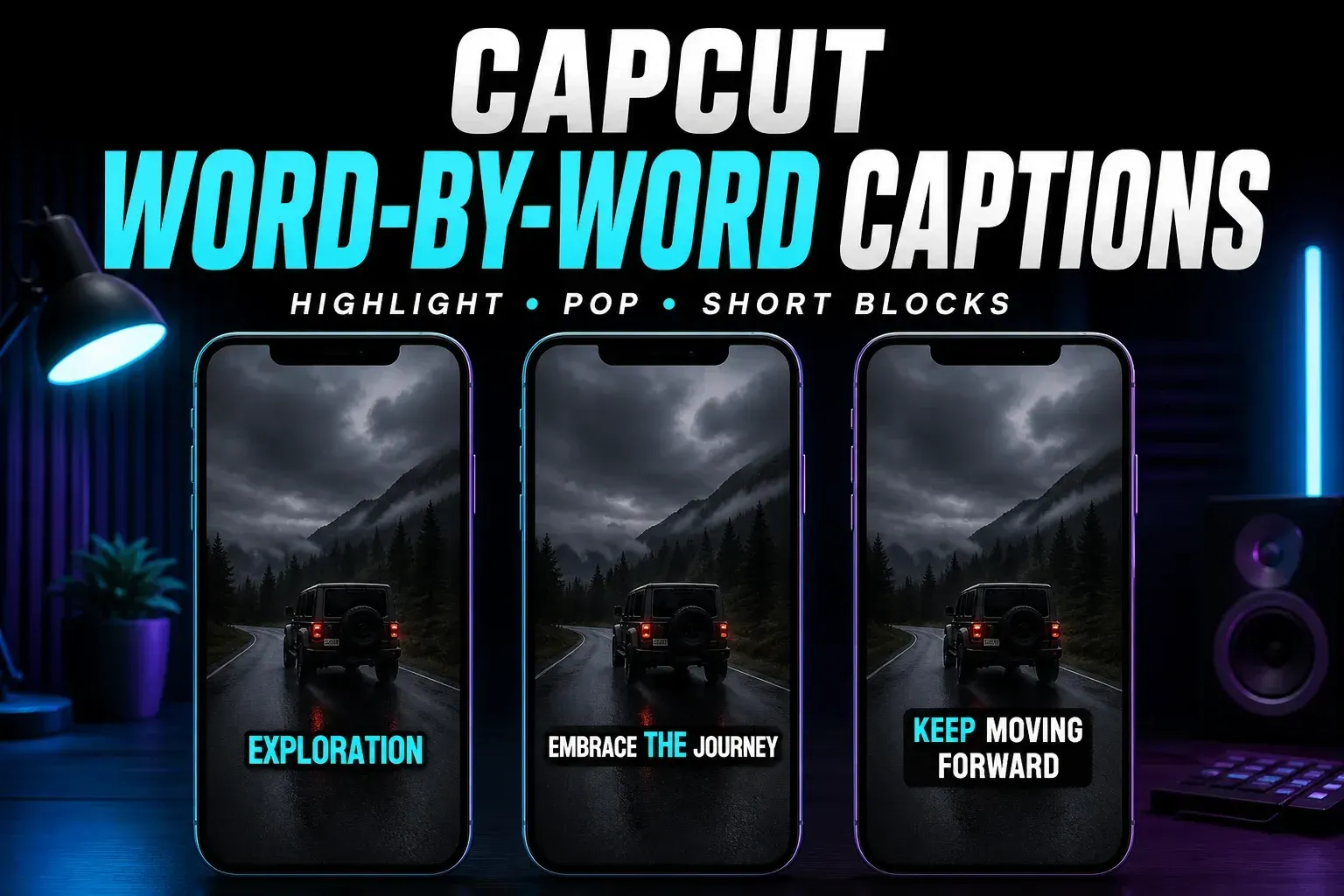
For CapCut word-by-word captions, correct the transcript, select a caption and preview a word-level style with sound. If you want only one word on screen at a time and none of the presets does that, use a separate text clip for each word of a short phrase. Set each clip’s start and end against the speech. The overview of CapCut AI tools helps separate word-level styling from caption creation, translation and voice tools.
A moving highlight and one-word pop-ups are different results. Choose which you need before spending time on fonts or animation.
Choose one-word text or a moving highlight
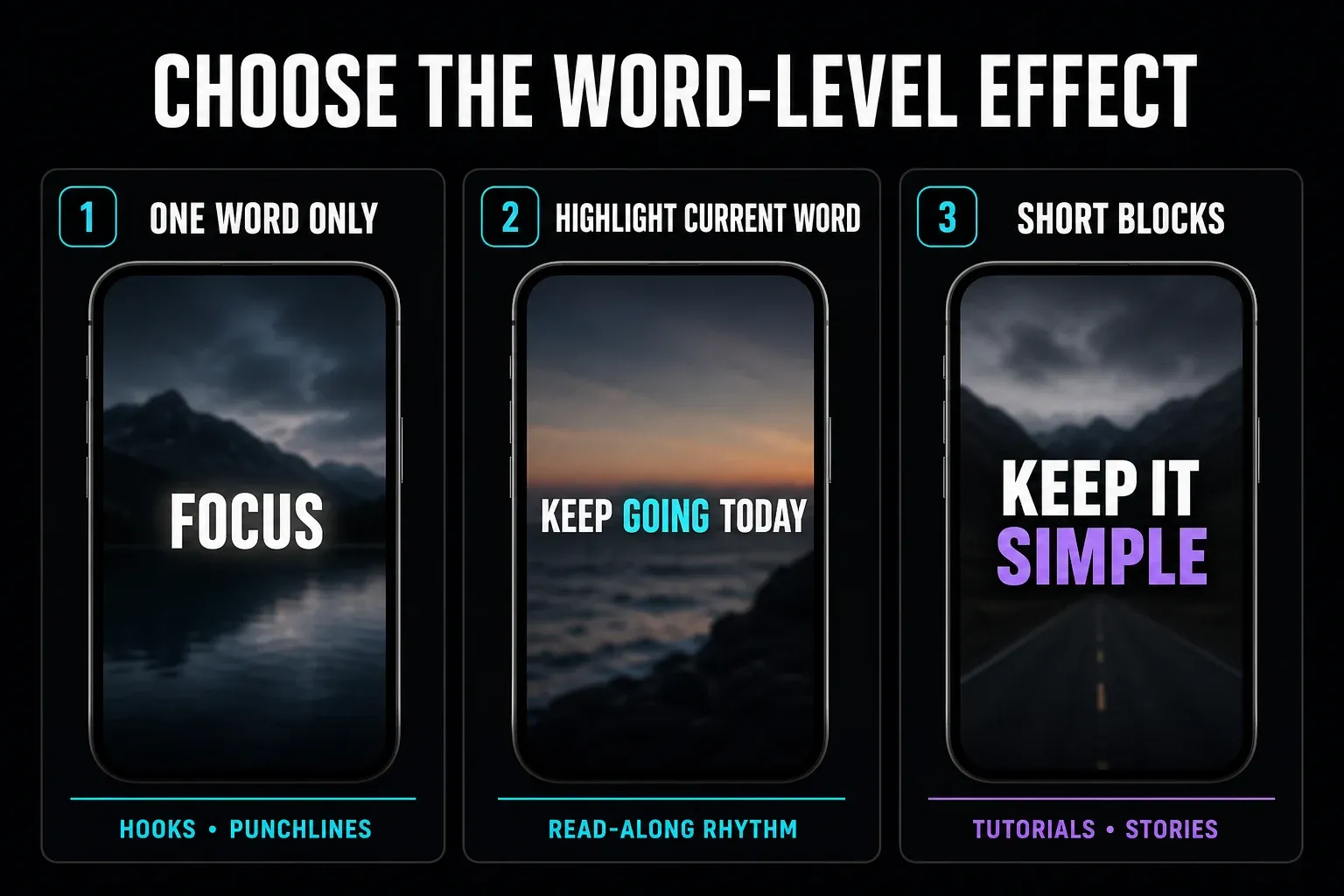
- One word only: each word replaces the previous one. Try it for a brief hook, punchline or reveal.
- Highlight current word: the phrase stays visible while emphasis follows the spoken word. This is often called karaoke or read-along highlighting.
- Short blocks: several words appear as a phrase. Start here when viewers need enough context to follow an instruction.
A bold highlighted-caption look is sometimes called “Hormozi style,” but that name does not identify one fixed CapCut preset. Judge the playback. A style that colours selected keywords is not necessarily tracking every word.
CapCut advertises automatic word-by-word captions, but its public instructions do not establish a shared button or identical presets across every platform and account. You do not need to keep hunting for a switch called One Word Captions: test the styles you have, then use the manual method if necessary.
Correct the words before styling them
Keep an independent editable project copy and its source media before replacing captions. Finish the main dialogue cuts first. A later trim or speed change means another timing check.
Use an existing reviewed caption track rather than generating a duplicate. If you need to create that track, follow the CapCut Auto Captions guide; if recognition fails, use the caption-generation troubleshooting guide.
Listen for names, numbers, negatives and technical terms. Fix missing words and erroneous repetitions without removing repetitions the speaker used deliberately for meaning. Split long blocks at natural pauses. Then test a sentence with both a pause and a fast phrase.
For recognition experiments, use a separate short, non-sensitive clip. CapCut’s recognition help describes cloud processing; make sure you may upload the audio. With no audible speech, type the text yourself instead of expecting recognition to supply it.
Apply a word-level style in CapCut Web
The official Web walkthrough uses a standalone AI Captions tool with a new upload. It is not a command that changes captions already corrected in another project. For an existing project, try its caption styling controls first.
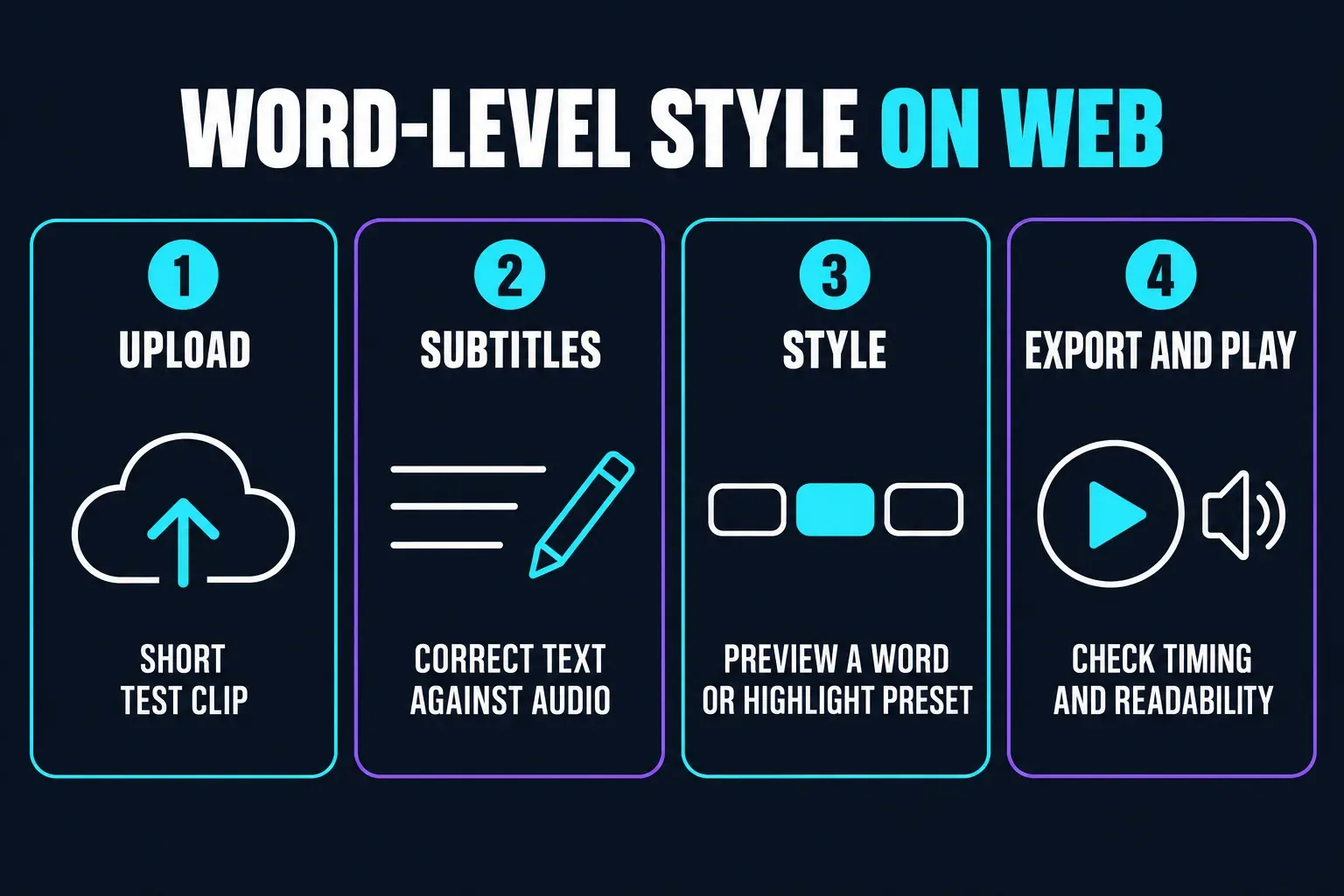
- Open CapCut Web, sign in if required, and choose AI Captions if it appears among your tools. If the tool is absent, use the caption controls in your existing editor or the manual method below.
- Check any language choice, usage or payment prompt before uploading or starting recognition. Upload your short test clip and let the tool create the transcript.
- Under Subtitles, correct the new text against the audio. Corrections from a different project are not part of this fresh upload.
- Open Style and preview an available word or highlight preset. Listen: does each word replace the last, does a highlight follow speech, or are only selected terms emphasized?
- Check the font, ordinary text colour and highlighted colour where those controls are available. If a necessary change is locked into the preset, try another style.
- Export the test video and play the whole file at normal speed. Keep the effect only if its timing and readability survive export.
Find caption styles on Desktop and Mobile
Windows and Mac
Select a generated caption block on the timeline. To correct its wording, CapCut documents double-clicking it or using Edit Captions from its context menu. For appearance, inspect the selected text’s right-side panel: the relevant options may be grouped under text styling, templates or animation in your build.
Preview one block before extending a style to the track. Changing a CapCut text animation is not the same as generating word timestamps. For example, CapCut’s Typewriter animation reveals letters; it does not by itself align complete words to speech.
iPhone and Android
Tap a generated caption, then Edit Captions to correct the transcript. Select the caption again to inspect its style controls and preview the available effects. These text-editing routes are covered in CapCut’s caption-correction instructions. Test the actual animation rather than copying a preset name from an older mobile tutorial.
If you only want a short typed sequence, the Mobile text route is Text → Add text, as shown in CapCut’s mobile text instructions. The manual steps below explain how to time those clips.
Check fonts, colour and “Apply to all” before committing
On one test block, change the font and base text colour, then the active-word colour if it has a separate control. Replay it. A preset that ignores a required change is a poor fit for that project, even if its thumbnail looks right.
A Mac user reported this font-and-colour problem with a highlight template. That report does not verify the hidden controls suggested in replies. Try plain text and another preset before assuming every caption is broken.
Apply to all also needs a spot check after use. CapCut’s styling-group guidance says imported or manual Web captions are not part of the auto-caption group, and separately edited or split blocks can behave differently on Desktop and Mobile. Inspect those exceptions and the exported track.
Read the live style badge and export prompt before committing to a paid effect. A missing preset is not evidence that buying Pro will reveal it. Check the allowance your own account shows.
Make one word appear at a time without a preset
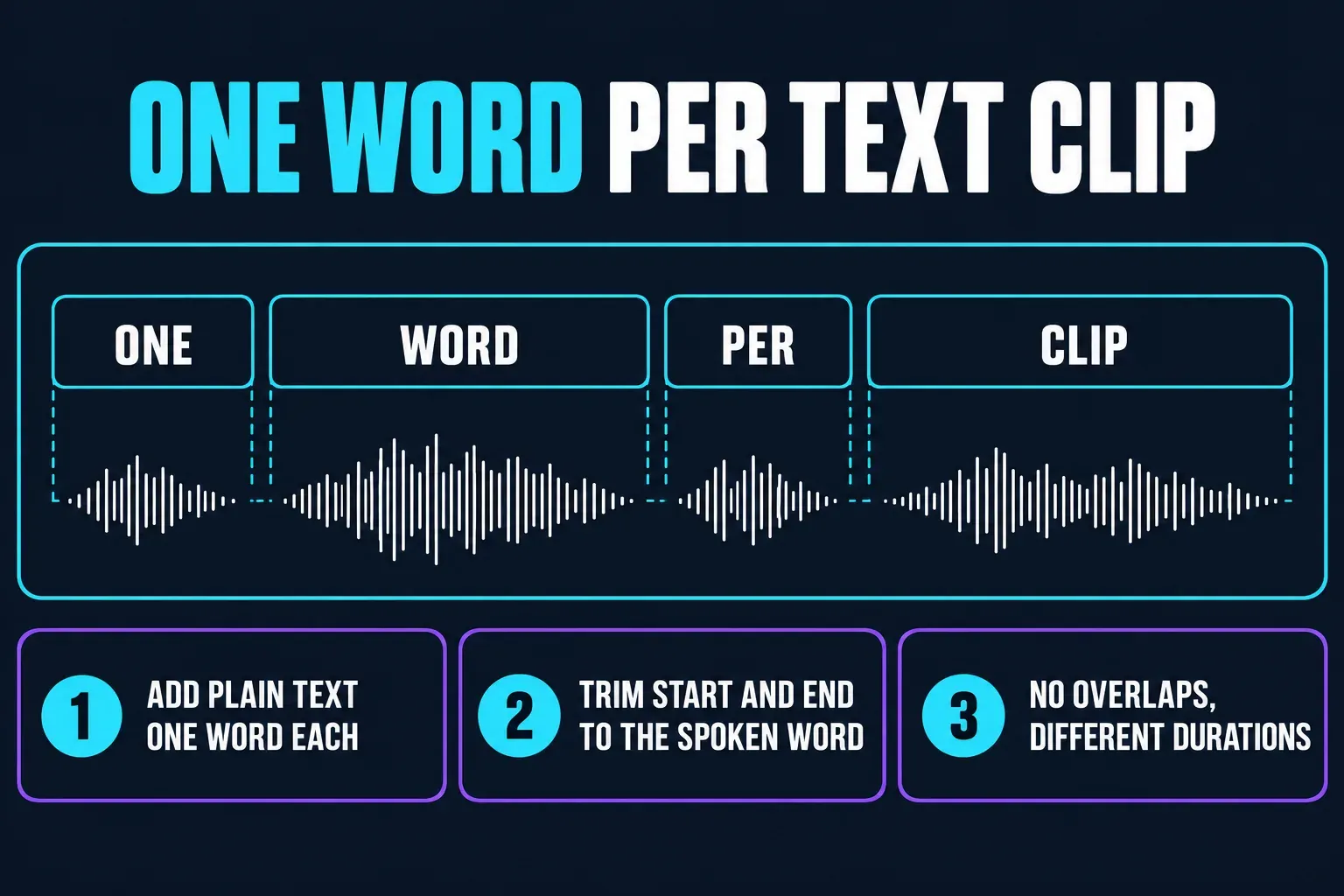
For a short hook, manual text is a workable fallback: one word per text clip, with its own start and end. On Desktop, use Text → Add text → Default text. On Mobile, use Text → Add text. Start with plain text, not an entrance animation.
- Work in an independent project copy. Keep the reviewed transcript as a reference, or type and check your short phrase if there is no speech.
- Add a plain text clip and type the first word. Set its font, size, contrast and position. Confirm that you have selected the text clip, not the video or audio beneath it.
- Listen for that word’s start. Move the text clip to that point and trim its end to where the next word should take over. In a silent sequence, choose a reading pace that suits the message instead.
- Add the next text clip, or duplicate the styled clip if that control is available. Replace its text and set both boundaries. Repeat for the rest of the phrase, keeping word clips from overlapping and giving the last word an end point.
- If an old caption would appear behind the new words, isolate only the portion being replaced. If it spans a longer passage, split it at the phrase’s boundaries and retain the correct text on either side. Select only that isolated caption segment before removing it from the working copy. Do not delete or hide the whole caption track.
- Play from the preceding caption through the following one. Check every word boundary, confirm that surrounding captions remain, and verify that no video or audio clip moved. Undo the removal immediately if the selection was wrong.
- Export a test and watch the full phrase at normal speed. Check the transition into and out of the word sequence as well as the middle word.
The caption-splitting instructions explain how to split a selected block at the playhead. Splitting may leave text that needs correction in each new block; review both sides before removing anything. If you cannot isolate the old segment safely, leave it intact and test the manual sequence in a separate project first.
Do not give every word the same duration. A quick “the” and a slowly spoken name need different timings. A waveform helps locate speech, but one peak is not one word. If fast words cannot be read, use a phrase instead of delaying them behind the voice.
A five-word hook is a reasonable manual job; a ten-minute interview is usually not. Those are workload examples, not CapCut limits. If a typed word disappears entirely, check its duration, visibility and contrast using CapCut’s text visibility checks.
Fix a highlight that is out of sync after a text edit
First separate two problems. If the whole caption is early or late, use the caption timing repair guide. If the phrase arrives on time but the highlight picks the wrong word, shifting the full caption track will create another timing error.
- In the working copy, correct the wording and replay the affected block with its neighbours.
- Try reapplying or replacing the style locally, if the editor allows it. Check that the action did not restyle unrelated captions.
- For an overlong block, split at a natural phrase boundary and correct the resulting text. Replay both blocks; splitting does not guarantee new word-level alignment.
- If recognition is broadly wrong, test that short speech clip in a separate empty project. Correct the new transcript before deciding whether it helps.
- If the highlight still will not follow the words, keep a plain phrase or rebuild the short passage manually. Verify the export before replacing the reviewed version.
One user reported highlighting drifting after transcript corrections, but the proposed character-count explanation is unverified. Do not treat it as a diagnosed cause or a reason to change the speaker’s wording.
Do not regenerate over the reviewed master. CapCut’s Desktop and Mobile correction instructions say native recognition of only a selected portion is not supported; a separate short project avoids replacing the rest of the track.
Keep the animation in video; use SRT for a separate caption file
Export a video with the text included in the picture to preserve the visible effect. Keep the editable project: viewers cannot turn off captions baked into the video.
An SRT contains text and cue times, not a CapCut animated preset. A phrase-level cue has a start and end for that phrase; it does not provide the timing of each word within it. YouTube’s basic SRT support also excludes style markup.
If you need a separate file, follow the SRT and TXT export guide. CapCut’s caption-export help restricts that route to recognized captions. Do not assume the manual text sequence can be exported as SRT just because it appears in the video.
Keep the words readable on a phone
One-word text prevents viewers from reading ahead. For instructions and longer explanations, readable phrases are a better starting point. A moving highlight can retain that context without making every word jump to a different position.
Keep the base words as readable as the highlighted word. Check bright and dark shots. Watch the whole export at phone size with sound, then muted. If the message is difficult to follow, simplify the effect.
Section 508’s caption guidance prioritizes reading time and warns against distracting motion. For accessibility captions, include needed speaker identification and meaningful sounds too, following W3C’s transcription guidance. A stylish dialogue overlay alone does not settle those requirements.
Keep text clear of the destination’s buttons and description: see the TikTok caption placement guide or the YouTube Shorts workflow. Timing cannot rescue words hidden behind the interface. Nor does a preset guarantee better retention; judge the finished video, not the template’s marketing.
CapCut Word-by-Word Captions FAQ
Can CapCut make word-by-word captions automatically?
CapCut advertises the feature, and its Web walkthrough includes word and highlight styles. Preview the preset with sound to check whether it follows each spoken word or only emphasizes selected terms. The same preset is not guaranteed on every platform or account.
Are one-word captions and karaoke captions the same?
No. One-word-only captions replace each word with the next. Karaoke-style captions keep a phrase visible while emphasizing the spoken word. Short phrase blocks are another option when viewers need more reading context.
Where is the word-by-word caption option in CapCut?
The documented standalone Web AI Captions tool uses Subtitles, then Style. On Desktop or Mobile, select a corrected caption and inspect its styling controls. There is no shared all-platform button established by the current instructions.
Are word-by-word captions free in CapCut?
Check the current style badge, usage prompt and export screen in your account. Do not assume a fixed free allowance or that buying Pro will make a missing preset appear.
Why can’t I change a highlight template’s font or colour?
The preset may tie those properties together or omit a separate control. Test a plain caption and another preset in a working copy. A problem with one style does not prove that every caption is broken.
Why is the highlighted word out of sync after I edit the caption?
Check whether the whole caption is mistimed or only the highlight. Replay the corrected block, try a local style change, and check its neighbours. If the highlight still fails, use a plain phrase or manually rebuild the short passage rather than shifting a correctly timed track.
Can I show one word at a time without Auto Captions?
Yes. Type one word per text clip and set each clip’s start and end. Avoid overlaps. In a working copy, remove only an isolated old-caption segment that would duplicate the phrase, then verify the captions on both sides and the underlying video and audio.
How long should each word stay on screen?
Follow the speech rather than using one fixed duration. If fast words become unreadable, show a short phrase instead of making the text lag behind the voice. For silent text, choose enough reading time for the message.
Will an SRT keep my word-by-word animation?
No. Basic SRT stores text and cue times, not a CapCut animated preset. Export video with the text included in the picture to retain that effect, and keep the editable project for later changes.
Should I use one-word captions for a full tutorial?
Usually not as the default. Viewers need context to follow instructions. Start with readable phrases and restrained motion, then check the entire exported video at phone size.