

Instructions and official examples checked September 12, 2026.
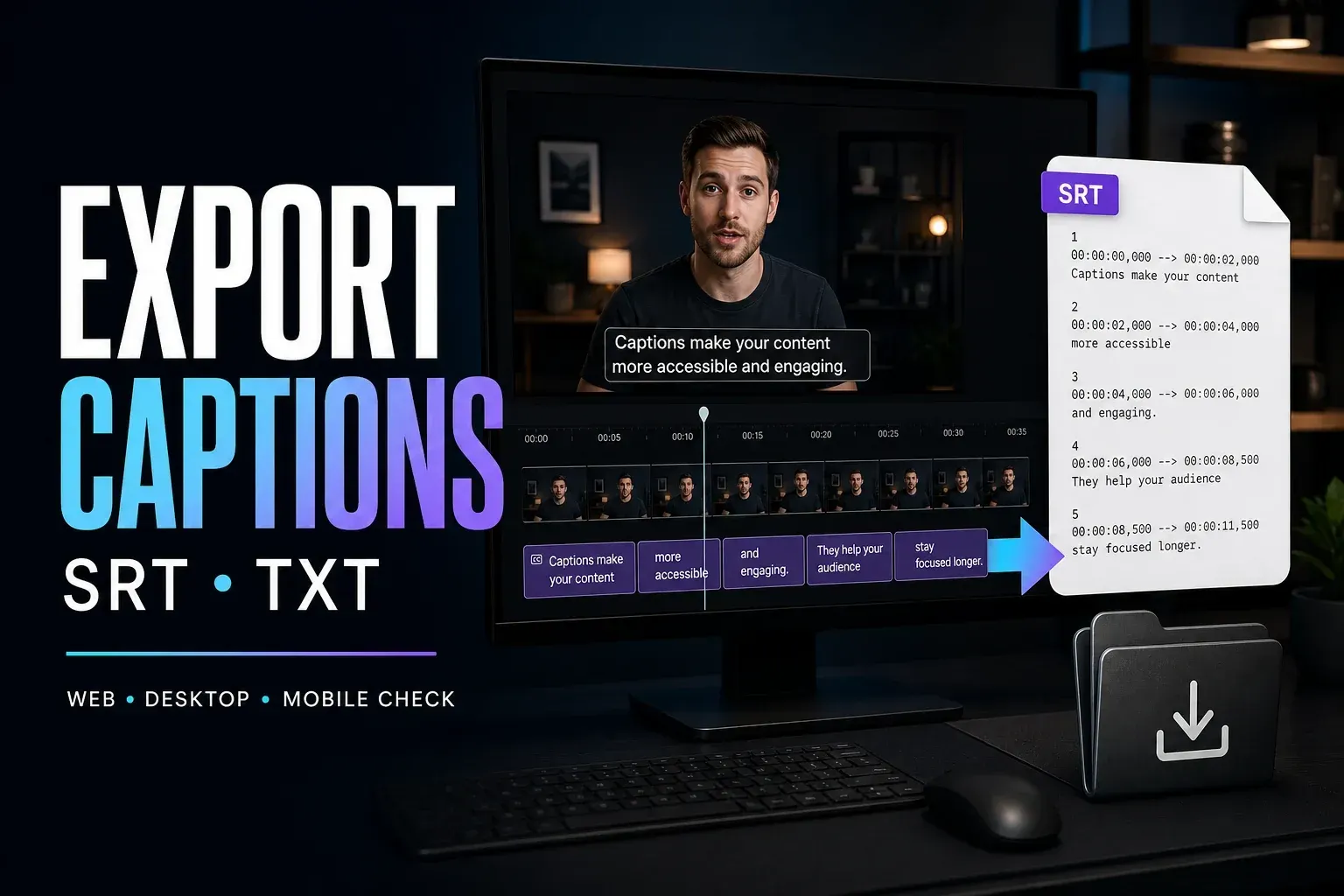
To get a separate subtitle file from CapCut, use Caption Export or Download captions and choose SRT. Exporting a video with captions on screen is a different job: it does not, by itself, give you a reusable subtitle file. For the wider caption workflow, from speech-to-text and translation to subtitle import, our overview of CapCut AI tools maps the related features.
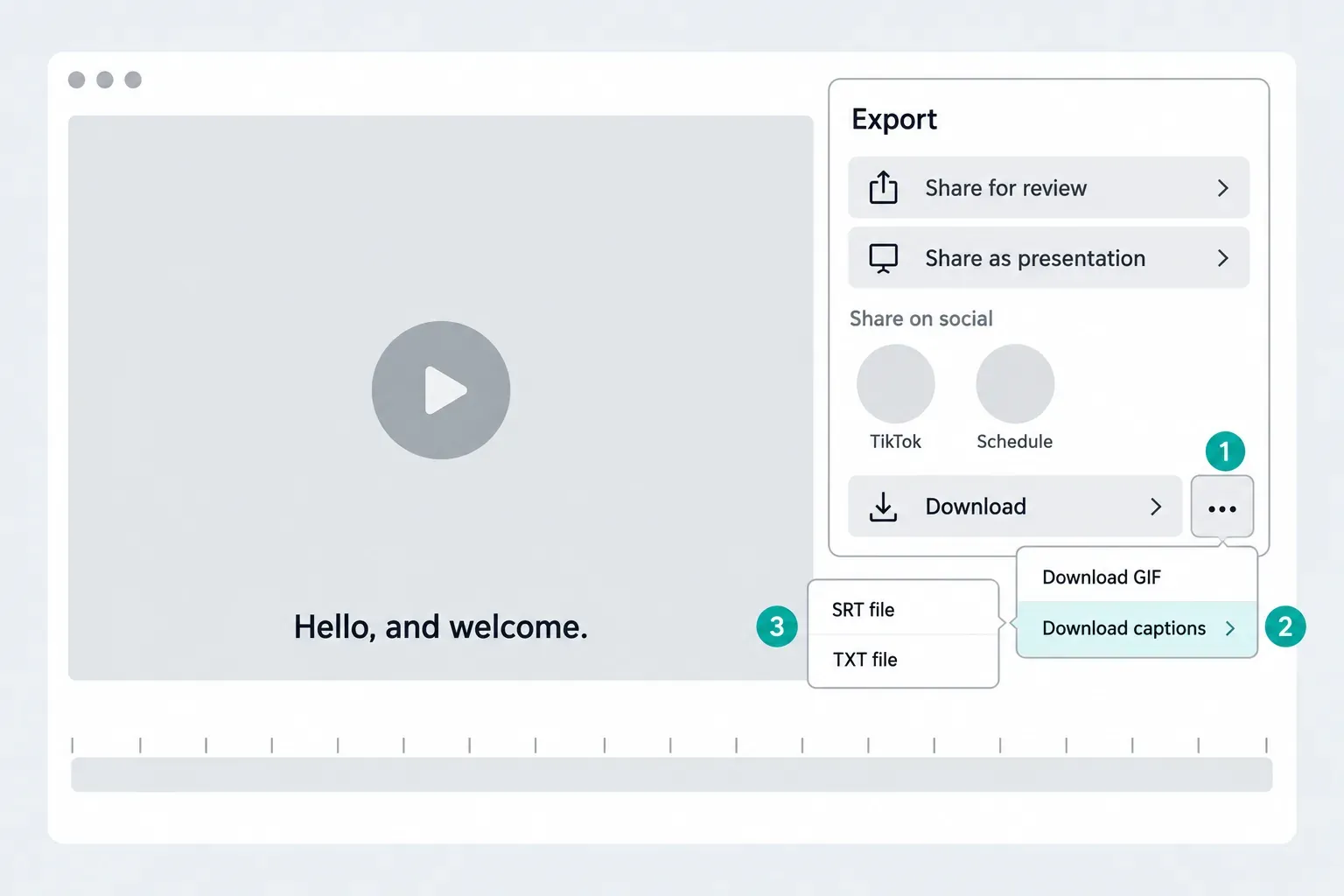
On Web, the documented shortcut is Export → three-dot menu beside Download → Download captions. On Desktop, look for Captions inside the Export dialog. Use the steps below for your platform; if that option is missing, check the track type and access prompt before changing your project.
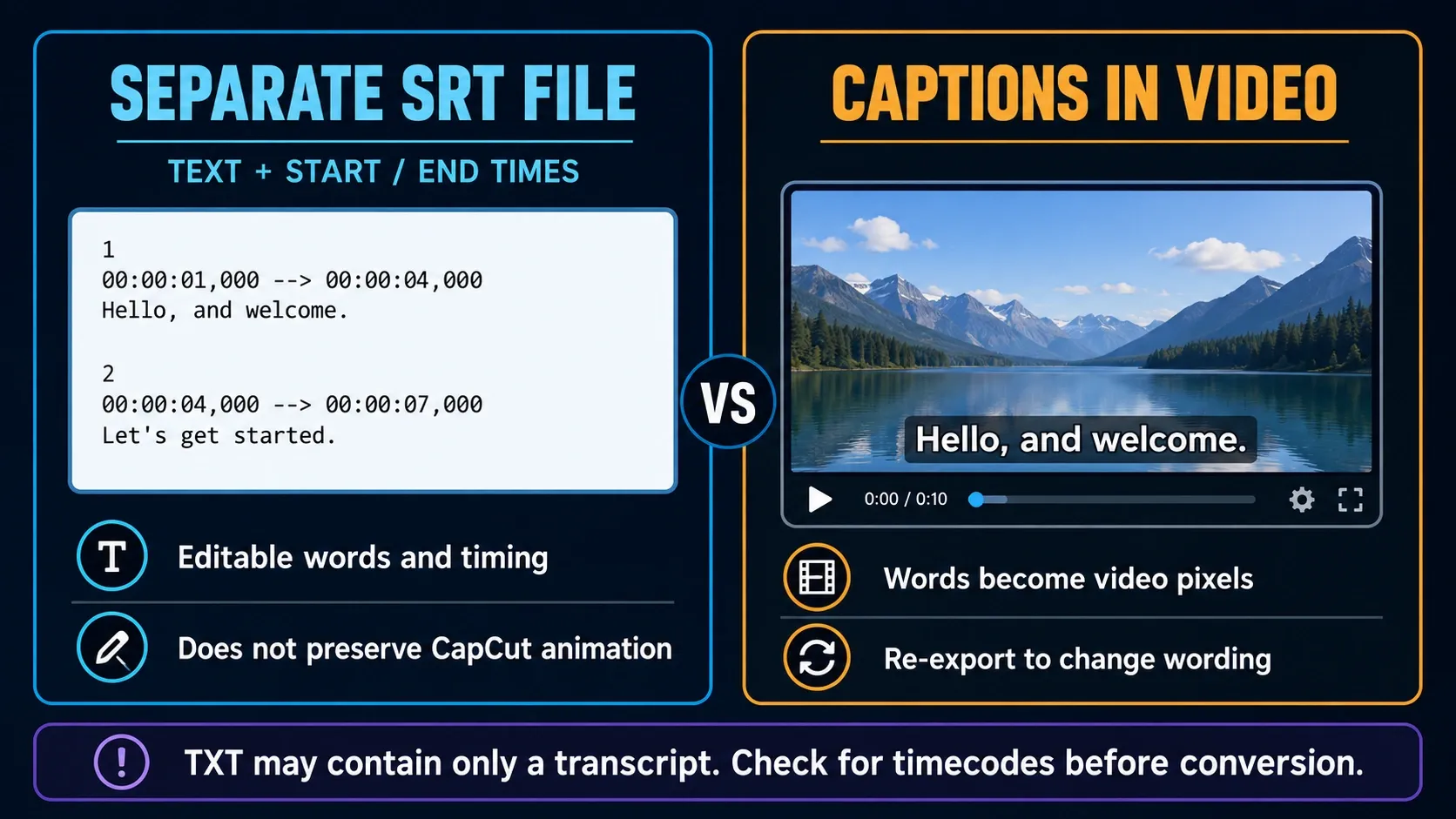
Choose SRT, TXT or captions in the video
- SRT: choose this when another editor or video platform needs words with start and end times. A basic SRT does not preserve your CapCut font, animation or screen position.
- TXT: useful for reviewing or reusing the wording. Open the file and check whether it contains timecodes. A transcript without timing cannot become a working SRT just by renaming it.
- Captions burned into video: choose this when the designed text must stay visible as part of the picture. Viewers cannot switch that text off as a subtitle track; changing it means editing and exporting the video again.
Check that your caption track can be exported
CapCut’s caption-export help limits the documented file export to automatically recognized captions. An ordinary text layer or an imported subtitle track is not automatically eligible just because you can see words on the timeline.
If you have not created captions yet, follow the Auto Captions walkthrough first. If you have already corrected the wording, preserve that project before trying anything that regenerates the track. A fresh transcription may be different from the text you approved.
Export SRT or TXT from CapCut Web
The official Web example places the caption download in a small menu beside the main Download control, not in the video resolution settings.
- Open the project and confirm the recognized caption blocks and your corrections are present.
- Click Export.
- Open the three-dot menu beside Download.
- Choose Download captions.
- Select SRT file for timed subtitles, or TXT file for the text output.
- Open the downloaded file and check its wording, completeness and timing before delivery.
If nothing appears, check the browser’s download list before repeating the export. An older file with the same name can make a successful new download look like the same failed attempt. Open the newest copy and inspect its contents.
Export captions from CapCut Desktop
Use this route when your installed Windows or Mac version exposes the Captions section. CapCut’s Desktop subtitle instructions describe a separate caption export rather than a video-only render.
- Open the finished project and check the recognized caption track against that edit.
- Click Export in the upper-right corner.
- Scroll within the export dialog to the Captions section.
- Enable Captions and choose SRT or TXT. If the panel permits and you only need the subtitle file, turn off video export.
- Give the file a distinct name and choose an output folder.
- Export, open the saved file and check its wording, completeness and timing before changing the project.
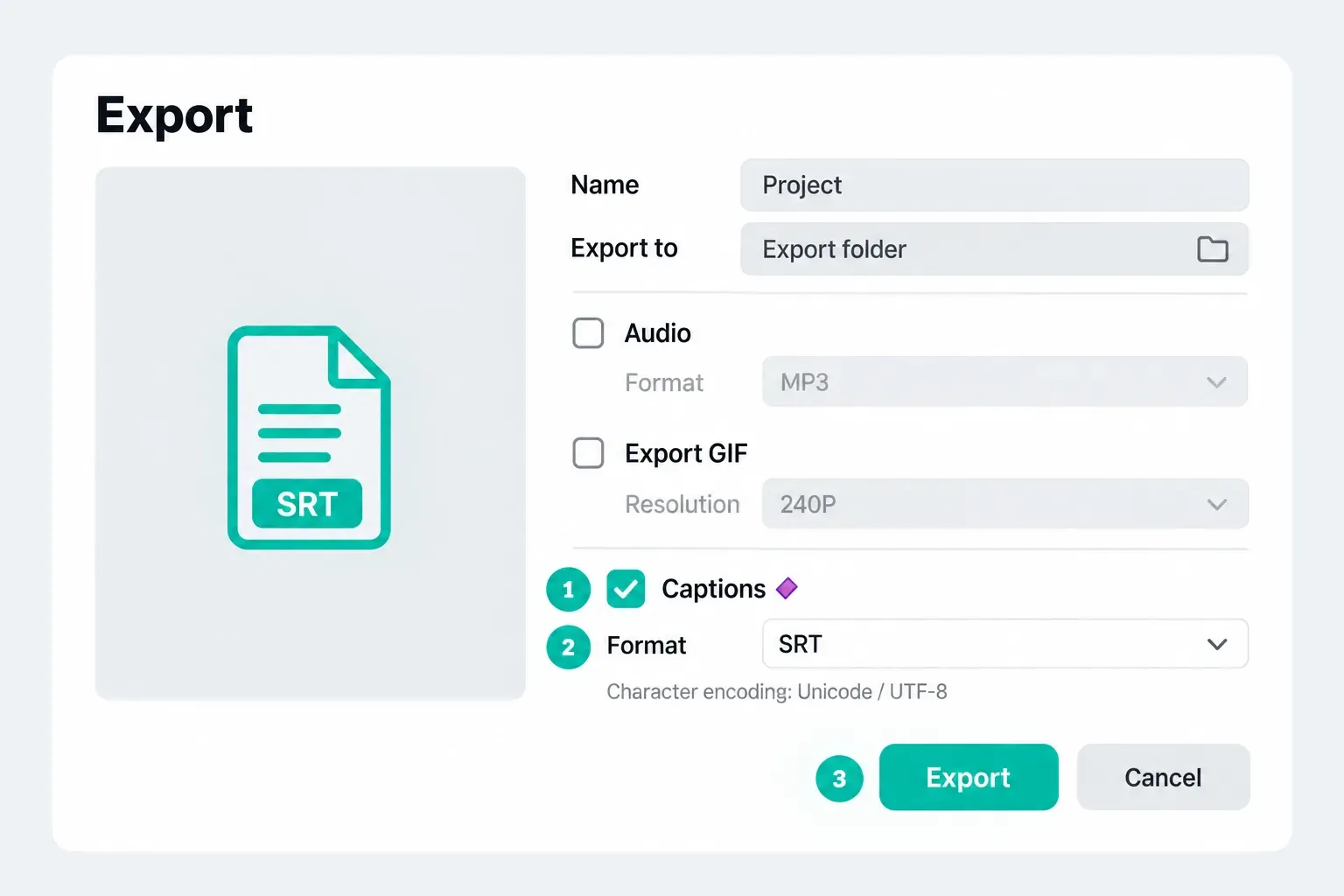
The documented panel shows a Pro badge beside Captions. Check the actual upgrade message in your account before paying: generating captions and downloading a subtitle file are not necessarily the same entitlement. There is no universal free allowance or price assumed in these steps.
Can you export SRT on iPhone or Android?
Check your phone’s export screen for an explicit caption-file choice. CapCut’s help describes Mobile SRT/TXT export, but the accompanying mobile image shows caption generation, not that export sheet. That is not enough evidence to promise the same button on every phone.
If your app does not offer it, try opening a complete copy of the project on Desktop or Web and checking export access there. CapCut’s cross-device guidance says projects must be uploaded to Spaces for that route; a local draft is not proof of a completed upload.
Before relying on the move, verify that the other device has the media, captions and your corrections. Our project transfer checklist covers that verification. If transfer is unavailable, the transcription fallback below produces a new SRT from speech; it does not recover your reviewed CapCut wording.
Caption Export is missing or locked
Work through these checks in order. Reinstalling is not the first step.
- Check the track. Is it recognized Auto Captions, ordinary text, or an imported file? The documented export support is narrower than “anything with words.”
- Check the right menu. Web uses Download captions; Desktop puts Captions inside Export. A video preset cannot create a subtitle file.
- Read the access message. If the action is locked, a different format or another restart is not proof that it becomes free.
- Protect the project, then check for an official update. Updating may help a version-specific fault, but does not guarantee the feature or entitlement. Do not install an old or modified app just to chase an export button.
If caption generation itself is failing, use the caption generation troubleshooting guide. That is a different failure from an existing, readable track that will not download.
Export finishes, but the file is missing or empty
First check the actual destination: the Desktop output folder or the browser’s download history. Use a distinct filename so you can tell this attempt from an old file. As one diagnostic test, try a short filename with basic letters and numbers and a folder you can write to; this is not a rule that every path must be ASCII.
If the SRT download fails but TXT is offered, save the TXT too. It may preserve useful wording while you investigate. Inspect it before conversion, because missing start and end times still have to be supplied.
For an empty or incomplete file, compare the export with the recognized caption blocks in the project. Check the intended language, first and last captions, gaps, and whether a second language track was omitted. Do not assume every visible text layer was included.
Save your work before reloading or restarting. A short, separate test project can show whether the same export action works with simple recognized captions; success there does not prove the original project is corrupt. Keep the original intact while narrowing the fault.
Open the SRT and check its structure
An SRT is a plain-text file. This is a two-cue example, not a clip taken from a user project:
1
00:00:01,000 --> 00:00:04,000
Hello, and welcome.

2
00:00:04,000 --> 00:00:07,000
Let's get started.
Each block has a number, a start and end time, the words, then a blank line. The end must follow the start. Keep the --> separator intact; do not let smart punctuation replace its hyphens.
For YouTube, Google specifies basic SRT in plain UTF-8 and says style markup is not recognized. Check your actual destination’s requirements rather than assuming every editor imports the same styling or text format.
Fix broken accents or garbled characters
Make a copy first. Get the words reading correctly before converting the file. Saving already garbled characters as UTF-8 can preserve the damage. CapCut recommends UTF-8 without BOM for its export-encoding problem.
Windows: Notepad++
- Open the copied SRT. If the words look wrong, use the Encoding menu to read it with the original encoding. Choose the one that makes the text readable; do not assume ANSI is correct for every file.
- Once the words are correct, choose Encoding → Convert to UTF-8, not the separate UTF-8-BOM conversion.
- Save the copy with its
.srtextension, close it, and reopen it to verify the words and cue structure.
The Notepad++ encoding manual explains the distinction: interpreting changes how existing bytes are read; converting rewrites the bytes using the characters currently displayed. If no interpretation restores the wording, return to a clean export rather than repeatedly converting the damaged copy.
Mac: TextEdit
- Choose File → Open, select the copied file without opening it, then choose Show Options → Plain Text Encoding. Select the original encoding and open the file. This is Apple’s per-file encoding route.
- Make sure you are editing plain text, not a rich-text document. If conversion is needed, use Format → Make Plain Text, as described in Apple’s TextEdit guide.
- Save a separate copy using UTF-8 in the plain-text encoding control when offered. Check the actual filename:
captions.srt, notcaptions.srt.txtor an RTF document. Reopen the saved copy before using it.
TextEdit’s opening and saving settings include encoding and automatic .txt extension options. You do not need to reset all preferences to diagnose one file. If the text is readable in an editor but a player draws square boxes, check the player’s font support before treating the file as corrupt.
Check timing against the exact finished video
Open the final video in a player that accepts external SRT files. For a concrete Windows example, VLC’s Subtitle menu lets you add a subtitle file and select the active track. Load the new SRT explicitly, then make sure that is the track being displayed rather than another embedded subtitle track.
A video with captions already burned in can show two sets of words during this test. Use a preview without the burned-in text when you need to inspect the external track clearly.
- Everything is equally early or late: check the starting offset and whether the video has an added intro or a different cut.
- The gap grows during playback: confirm that the subtitle file and video come from the same final edit; one global shift may not fix accumulating drift.
- Only a few lines are wrong: inspect those cues and nearby cuts rather than shifting every caption.
Watch the beginning, middle and end, then check the last cue’s time and wording. Use the caption timing guide when the track itself needs correction.
If native export is unavailable: create a fresh SRT
Clipchamp can transcribe a finished video and download captions. It sends audio to Azure for speech processing, so check permission before uploading a client recording or private conversation. It also supports one transcription language per video; a mixed-language recording needs extra care, not an assumption that both tracks will survive.
These limits and the following routes are documented in Microsoft’s autocaptions instructions:
- Personal Clipchamp: import the video, put it on the timeline, open Captions, choose the spoken language, and select Transcribe media. Correct the transcript, then choose Download captions.
- Work or school Clipchamp: open the Transcript panel, choose Transcribe and the spoken language, review the result, then use the transcript’s more-options menu to download the
.srt.
This is new speech recognition. It will not automatically reproduce names, punctuation or translations that you already corrected in CapCut. Compare it with your approved wording and check the timing again.
Before you hand over the subtitle file
Open the saved copy instead of relying on the CapCut preview. Check that the whole intended dialogue is present, including the end, and that accents and names survived. Test the file with the exact video revision in the destination player or editor.
Keep the project, final video and subtitle file together with clear revision names. If you originally imported an SRT into CapCut, keep that source too, but do not assume it automatically contains later CapCut edits. When the revised track cannot be exported, those changes need to be saved back to a separate subtitle file.
For the video itself, the CapCut export guide covers resolution, frame rate and other output choices. Those settings do not replace the separate caption-file check.
Questions about CapCut SRT export
How do I export CapCut captions as SRT?
Use Download captions on Web or the Captions section inside Desktop Export, then choose SRT when offered. Open the saved file and check the complete track against the final video.
Why is Caption Export missing?
Check the track type, the correct export menu and any access prompt. CapCut’s documented export is for automatically recognized captions. Back up before an official update; updating does not guarantee a missing or paid option becomes available.
Can CapCut export manually added text as SRT?
CapCut’s current help limits caption-file export to automatically recognized captions. Do not assume ordinary text layers are exportable subtitle tracks.
Can I export an imported SRT again?
The current export help does not promise imported-SRT round trips. Keep the original file, but save any later CapCut corrections into a separate SRT if the revised track cannot be exported.
Can I export SRT on iPhone or Android?
Check for an explicit caption-file option on your phone. CapCut’s mobile help describes export, but its illustration only shows generation. If the option is absent, verify a complete project transfer and export access on Desktop or Web. A new transcription does not preserve your reviewed wording automatically.
Is SRT export free or Pro?
The Desktop help example shows a Pro badge beside Captions. Read the action’s upgrade prompt in your own account; caption generation and subtitle-file download can have different access conditions.
Does SRT preserve CapCut caption styling?
A basic SRT carries words and timing, not CapCut fonts, animation or screen position. Keep the project and export a captioned video when the exact visual treatment must remain.
Can I turn a TXT export into SRT?
Inspect the TXT first. If it lacks cue start and end times, renaming it does not produce a working SRT. Timing must be supplied or aligned to the video.
How do I fix garbled text in an exported SRT?
Work on a copy. First read the original with its correct encoding, then save readable text as UTF-8 and reopen it. Converting already garbled text can preserve the damage. If an editor displays the words correctly but a player shows boxes, check font support.