


Checked September 17, 2026 against current official documentation.
If a caption job is still running in CapCut Web, leave its tab open. Refreshing can cancel the work. Otherwise, save the edit, check that you can hear the intended speech and select its language. Then use a short, separate test project to find out whether the failure follows the original edit. For other app, account, export and template failures, use the CapCut fixes hub.
Don’t reinstall first. A processing error, a usage limit and invisible text need different fixes, and none of them is a reason to erase your only project.
Start with what you can see
- No Auto Captions button: find the project’s caption panel and check access.
- Generate does nothing: check the source, language and message.
- “No speech recognized”: listen to the source and isolate the voice.
- “Too many people are using this feature”: stop repeating the request and keep the error details.
- Stuck at 99%, 45% or another percentage: protect the active job before restarting anything.
- Caption blocks exist, but no words appear: check visibility, not speech recognition.
- Words disappear only from the exported video: compare the actual file with a plain-style test.
If captions already exist and only need editing, use the CapCut captions guide. For late or drifting lines, go straight to caption timing repairs. If the problem is part of a wider editing issue, our complete CapCut tutorial covers the broader workflow. Regenerating an approved transcript can create more work.
Run one clean speech test
Use a new, empty project containing about 10–20 seconds of clear speech without music. That length is a convenient sample, not a CapCut limit. Keep the original project untouched and use material you are allowed to send for cloud processing.
- Confirm that the original edit has saved. Do not close or replace an active caption job to begin this test.
- Create a new, empty project and add only the short speech sample.
- Play it from the timeline. Confirm the intended words are audible; choose that source if the caption dialog offers a source selector.
- Open Captions → Auto Captions, or Text → Auto Captions if that is the route in your layout.
- Select the language spoken in the recording.
- Generate once and keep the app or browser in the foreground. Record any error or usage message.
- If blocks appear, review their words, confirm the project has saved, then reopen the test project and check that they remain.
If it works: compare the original edit’s audio source, language, length and overlapping tracks. You have confirmed that this sample worked on this account at this time. That does not prove the original project is corrupt or that the service is always healthy.
If it fails: record the error and follow its branch below. Two unsuccessful files do not prove an outage. The account, network or selected language may still be common to both.
Auto Captions is missing
Open an editing project with media on the timeline. CapCut’s subtitle-recognition instructions place Captions in the Web sidebar, the Desktop toolbar and the Mobile bottom menu. Look there before searching the home screen.
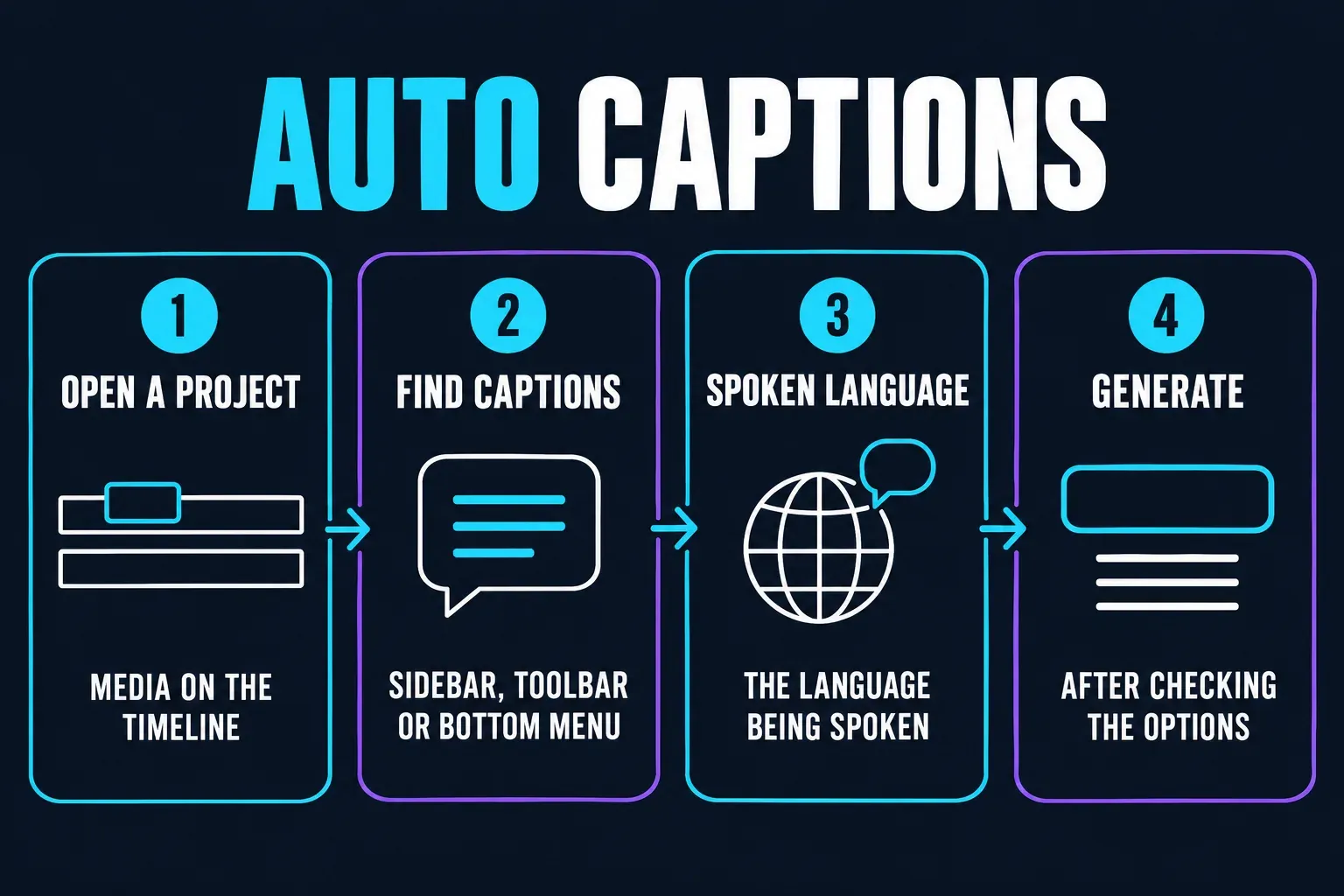
Some of CapCut’s caption-editing instructions still use Text → Auto Captions. Try that route if it matches your layout. A different menu label alone does not prove that your version is outdated.
Check the account shown in the editor and any badge or message on the action. If an official update is available, protect the project before installing it. Use CapCut’s own installer or the app store; don’t install an old build or an unofficial APK to copy a tutorial’s screen.
A saved, non-private test in another supported interface can help narrow a missing-control problem. It does not transfer or back up the original edit. If the whole app is failing, use the broader CapCut troubleshooting guide.
Generate does nothing
Play the intended speech track. If playback is silent, follow the no-sound checks first. If you can hear it, inspect these three things:
- Input: choose the speech source if the dialog offers a selector. Audible playback does not establish which track recognition is reading. Use the voice file alone for the clean test.
- Language: choose the language being spoken, not the translation you want. For a multilingual recording, test a single-language passage rather than guessing from one failed result.
- Access: read the action named in the prompt. Recognition, bilingual output and a paid caption style are separate things to check. Buying Pro is not a demonstrated repair for an unexplained processing failure.
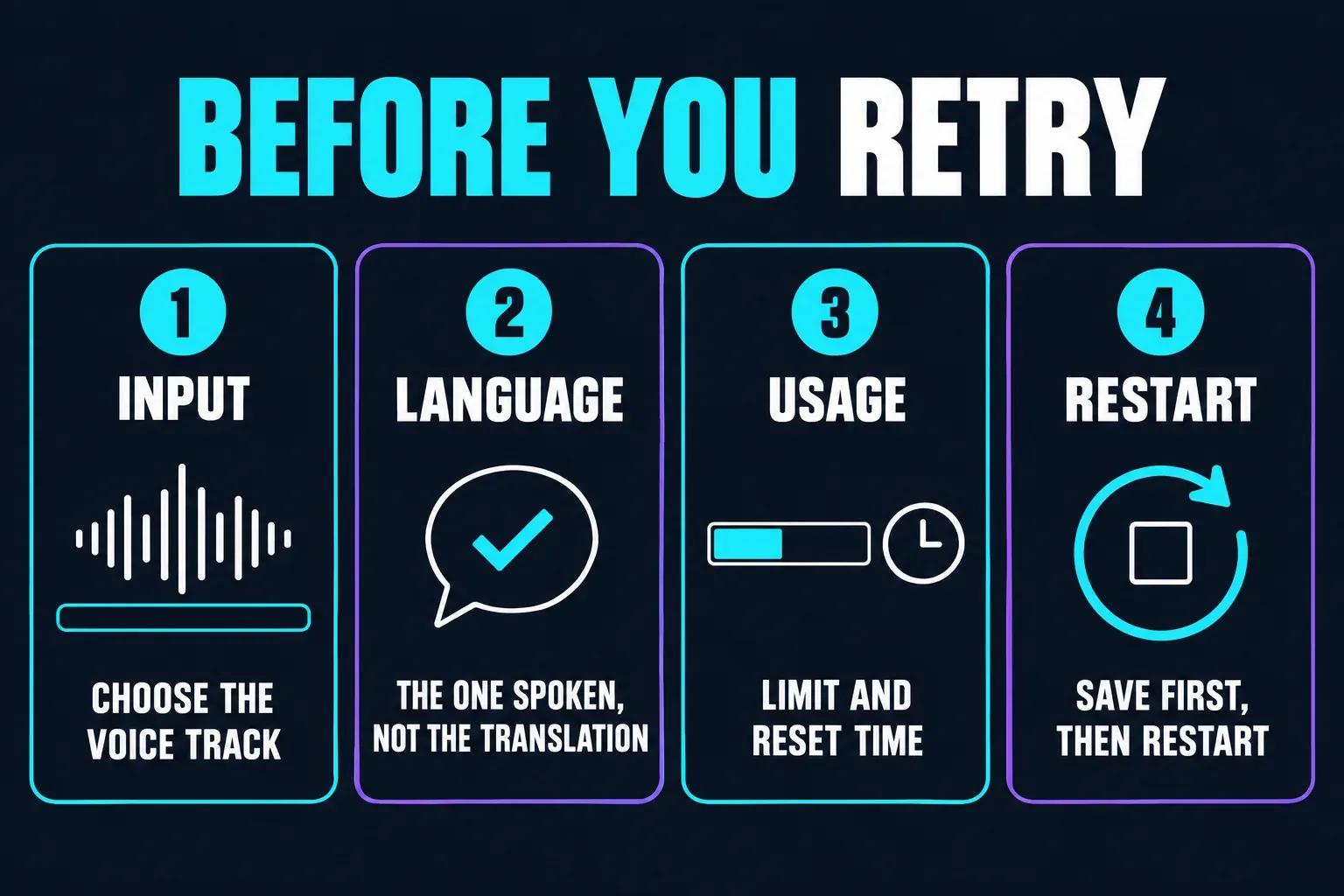
Do not apply an allowance from someone else’s screenshot to your account. CapCut’s free-usage explanation describes varying beta limits; it does not establish one current Auto Captions quota for everyone. Check the live counter and any reset information it shows.
If no job is running, confirm the work has saved and restart normally. For Web, try the sample in an updated Chrome or Edge session. CapCut’s generation troubleshooting recommends those browsers and identifies connection problems as one possible cause. Keep the original tab and its data intact while testing elsewhere. Use an approved alternative network if needed; don’t disable your device’s security wholesale.
“No speech recognized” despite audible talking
Listen to the original recording with headphones as well as the finished mix. Check whether the words are clear or buried under music, overlapping speakers or distortion. Recognition can fail even when you can make out the dialogue yourself.
Use the clean test above with the voice recording alone. Muting a music layer in the full edit may change playback without changing recognition’s input. If the source is unusually quiet, test a carefully adjusted copy without clipping; boosting a timeline slider is not a guaranteed fix.
If only one passage is missing, isolate that passage in a separate project. Splitting a clip inside the full timeline may leave the same combined input. Keep any correctly transcribed lines instead of deleting the whole track.
For singing, check whether your build offers Auto Lyrics. Don’t grant microphone access merely to transcribe an existing file unless CapCut identifies a recording step that needs it. A new microphone will not fix an account or service error.
“Too many people are using this feature”
Save the wording of the message and the time it appeared. A user report describes this busy-feature message, but that report does not establish a current global outage or a reliable waiting time.
If the request has been rejected, leave the saved project intact and retry later rather than pressing Generate continuously. Read any separate account or usage notice too. The busy message alone is not evidence of a damaged file or a need to purchase a plan.
If the deadline cannot wait, use the alternative transcription route below. Claims that short jobs get priority or repeated clicks move you to the back of a queue are not verified fixes.
Captions are stuck at 99% or 45%
CapCut’s 99% guidance describes processing and synchronization delays. The number alone cannot tell you which stage has finished, what failed or when the job will recover. Treat 45% the same way.
Web
Keep the active tab open and the connection stable. Refreshing or navigating away can cancel remote processing. Note the start time and message. If you decide to stop waiting, use a cancel control if available and confirm what has saved before starting a new test. A refresh is not a recovery mechanism for unfinished work.
Desktop
Leave the project open while processing. Close unneeded heavy applications if the computer is under pressure. Quiet CPU activity does not prove that a remote job has stopped. Save before a normal restart; force-quitting can lose unsaved changes.
Mobile
Keep CapCut in the foreground and check the connection. Don’t clear app data while drafts are unprotected. Once the active attempt has ended, use the same clean-test procedure instead of resetting the entire app.
There is no dependable universal cutoff of five or ten minutes. Record the delay for support. A failure on both Web and Desktop can still share the same account, source file or remote service; it does not prove that the recording is corrupt.
Caption blocks exist, but the words are invisible
Move the playhead inside a caption’s duration and select that block. CapCut’s text-visibility help separates timing, layer order, colour and transparency from generation failures.
- Check whether the text box is outside the canvas or too small to read.
- On Desktop, select the caption or text block and inspect the current Text, Basic and style controls. CapCut’s display help names position, font size and opacity as visibility checks, although those controls can move between layouts. Try a contrasting colour on one block in a project copy. On Mobile, look under Style for colour and outline.
- Inspect layers above the text. Move only the intended text layer if another element covers it.
- Test without the entry animation under Animation. Preserve the existing wording.
- Save the copy, reopen it and compare the same timestamp.
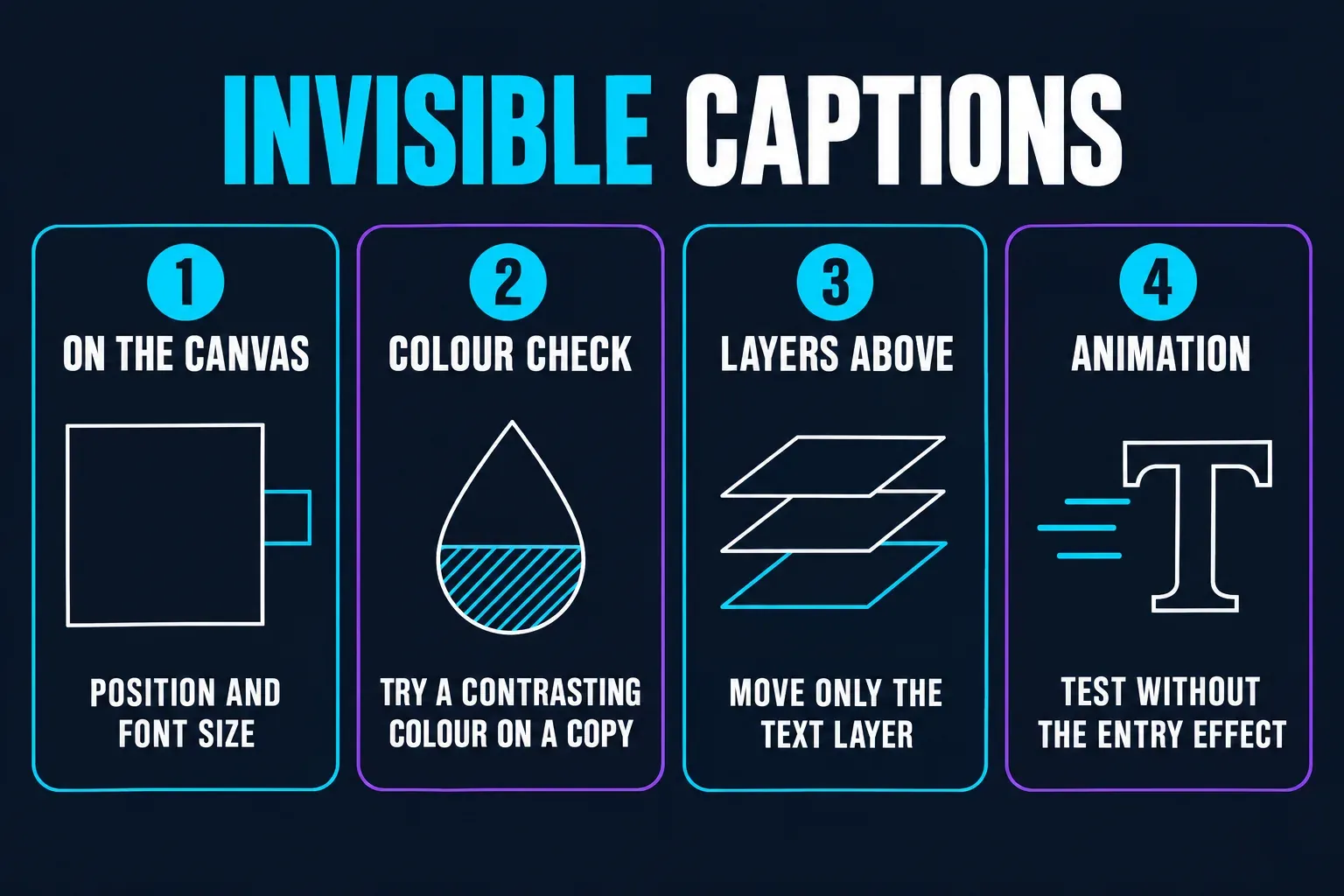
The official display instructions name these controls. If the blocks are missing altogether, return to the generation checks; changing opacity cannot restore a missing transcript.
Captions disappear only after export
Open the newly downloaded video outside CapCut at the affected timestamp. Check the filename and that it is the latest export. A separate SRT file contains text and timings; its presence does not mean those words were rendered into the video.
In a saved copy, test one plain caption style on a short representative section. If that works, compare the original style, animation and layers. If it fails too, keep the small example for support. A resolution change is not a guaranteed caption repair.
Two sets of words call for a different check: inspect duplicate caption and manual-text layers. CapCut’s duplicate-caption guidance points to the timeline, not files in the export folder. Remove only the redundant layer after comparing its text.
If you need a separate subtitle download rather than visible words in the picture, use the SRT export guide.
Protect the edit before clearing data
Verify an editable backup and keep the source media outside CapCut before any reset that could remove project data. Open the backup and confirm its media and tracks. Signing in, making a local duplicate or exporting an MP4 is not enough on its own.
The project safety guide covers those checks. If you use Spaces, verify that the upload completed and the project opens; do not assume local saving created a cloud copy.
On Android, Google distinguishes cache from storage: cache clearing removes temporary data; clearing storage deletes app data. Browser site-data deletion and uninstalling are not substitutes for a cache check. If you cannot identify exactly what a control removes, stop before using it.
CapCut’s connection guidance specifically warns against uninstalling during an update because unsynced local projects can be lost. Don’t interrupt an update as a caption workaround.
Finish the captions another way
For a few lines, type them with Text → Add Text and set their timing manually. For a longer recording without a transcript, Clipchamp offers a documented route to an SRT you can import into CapCut Desktop or Web.
Check permission before sending the recording. Clipchamp uses Azure speech processing; this is not an offline solution. Microsoft’s autocaptions instructions also specify one transcription language per video. If cloud processing is not approved for this material, stay with manual transcription or your organisation’s approved tool.
- In Clipchamp’s personal editor, import the matching audio or video and place it on the timeline.
- Open Captions, choose the spoken language and select Transcribe media.
- Review and correct the transcript against the recording.
- Choose Download captions to save the SRT. Keep this file separately.
- Follow the CapCut subtitle-import steps on Desktop or Web, then check the full track against the same cut.
This does not guarantee that a different service will recognise difficult audio. CapCut’s current import help does not offer direct Mobile SRT import; a phone-only short edit can use manually timed text. After either route, review names, numbers, timing and the exported video.
For a recurring failure, open CapCut’s generation troubleshooting page linked above and choose contact our support team. Include your platform, app version, language, clip length, error time and test result. Send only material you are allowed to share; remove private projects, account details and file paths from public screenshots.
Quick answers
Why are CapCut Auto Captions not generating?
Check the speech source, spoken language, connection and any access message. Save the original and try a short clear-speech clip in a new, empty project. Its result helps narrow the problem but does not prove a particular cause.
What should I do when captions are stuck at 99%?
Keep an active Web tab open because refreshing can cancel remote processing. Record the time and error. If you stop waiting, use a cancel control if available and verify saved work before restarting. The percentage does not identify a reliable recovery deadline.
Is 45% a different caption error?
The number alone does not establish a particular fault. Record the platform, language and message, then compare the separate speech test after the active attempt has ended.
Why does CapCut say no speech was recognized?
The selected input may be missing, quiet, obscured by other sound or paired with the wrong language. Connection and app problems are also possible. Listen to the source and test the voice alone rather than assuming the file is silent.
What does the too-many-people message mean for my edit?
It reports that the requested feature is busy. Preserve the project and error details, check any separate usage notice and retry later. It does not prove a damaged file, a current global outage or a need to buy Pro.
Why is Auto Captions missing?
Look inside an open project under Captions or, in some layouts, Text → Auto Captions. Check the account and access message. Use only an official update route; a menu from an old tutorial is not proof that the tool has been removed.
Do CapCut Auto Captions need the internet?
Use a stable connection: current help describes cloud processing and connection-related failures. Offline recognition is not a dependable fallback across all platforms. Manually timed text is an option when processing is unavailable.
Should I clear cache or reinstall?
Start with safer checks and verify an editable backup before any data-removing reset. Android Clear cache removes temporary data; Clear storage deletes app data. A local draft, duplicate or reference video is not by itself a recoverable backup.
How can I finish without working CapCut recognition?
For a short clip, type and time the text manually. With permission for cloud processing, use Clipchamp to transcribe one language, correct the words and download an SRT. Import it on CapCut Desktop or Web and review the result; direct Mobile SRT import is not documented as supported.