

A Short can look perfect in CapCut and still fail on the phone. The hook lands under the channel details, the final word disappears behind the right-hand buttons, or a track that seemed harmless triggers a Content ID problem after upload. Those are not editing tricks. They are workflow problems, and they are easier to prevent than to repair.
Music and Content ID guidance checked September 26, 2026 against YouTube’s updated Shorts policy. Other sections were last fact-checked August 16, 2026 against YouTube’s Shorts, upload encoding and view-counting guidance, plus CapCut’s caption, sharing, subtitle-import and materials-license documentation.
For CapCut YouTube Shorts, start with a 9:16 canvas, keep important text away from the player controls, use 1080 x 1920 as the dependable default, and save a local file before you depend on direct sharing. YouTube now accepts qualifying square or vertical Shorts up to three minutes, but longer runtime also makes music rights more consequential. This guide separates those real rules from the fixed safe-zone boxes and “maximum quality” advice copied between creator sites.
CapCut YouTube Shorts Quick Settings
| Setting | Practical choice | Why |
|---|---|---|
| Canvas | 9:16, usually 1080 x 1920 | Fills the vertical player; square can also qualify |
| Frame rate | Match the source | Avoids invented frames and uneven motion |
| Codec and container | H.264 in MP4 | Broad compatibility with YouTube's documented workflow |
| 1080p SDR bitrate | About 8 Mbps at 24 to 30 fps; 12 Mbps at 48 to 60 fps | YouTube's recommended ranges, not hard limits |
| Audio | AAC-LC, 48 kHz | YouTube's documented recommendation |
| Color | BT.709 for SDR | Predictable standard-dynamic-range upload |
| Text placement | Upper-center bias; clear bottom and right edges | Protects captions from player controls |
| Length | As short as the idea allows, up to 3:00 when eligible | Three minutes is a ceiling, not a target |
| Upload route | Local export, then YouTube app or Studio | Works when CapCut's direct handoff is absent or fails |
The bitrate, frame-rate, codec and color values come from YouTube's recommended upload encoding settings. They are recommendations, not proof that every other file will fail. YouTube's separate Shorts creation help documents 1080p as its maximum resolution, while YouTube's general upload guidance also includes higher-resolution vertical files. That apparent mismatch is why this article treats 1080 x 1920 as the safest default rather than claiming YouTube can't accept a higher-resolution Short.
If you only need the working sequence: set the canvas, reframe every shot, finish the cut, generate and correct captions, check text against the player danger zones, export with source-matched frame rate, then inspect the uploaded result on a phone. Don't let the convenience of a template or direct-share button skip the final check. For TikTok, Reels and other platform-specific framing and publishing routes, continue through the CapCut social video hub.
Set Up a CapCut Project for YouTube Shorts
You can import first, but choose the final canvas before you spend time positioning text. In CapCut Mobile, the ratio control sits with the tools around the timeline; on Desktop, use the ratio control near the preview. Select 9:16, then crop and reposition each shot for the vertical frame. If a face, product or demonstration moves across horizontal footage, Auto Reframe can provide a first pass, but watch the whole clip and repair any crop that loses the subject.
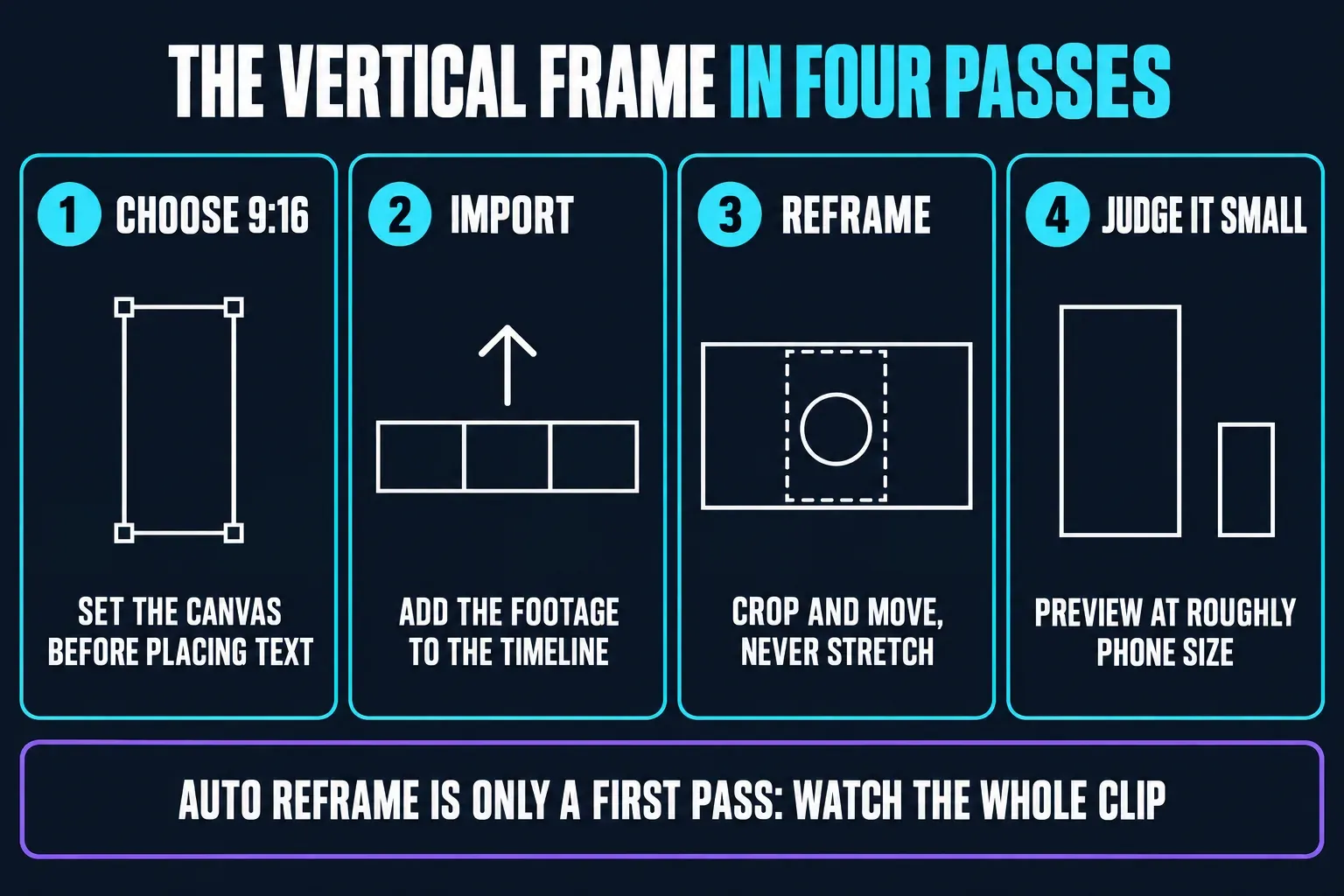
Don't stretch a horizontal clip until it fills the screen. Stretching changes the subject's proportions; it doesn't create a vertical composition. Crop and move the shot instead. Preview at roughly phone size, because a face that feels comfortably framed on a desktop monitor can look cramped once a caption and YouTube's controls share the same 9:16 frame.
Square video is not automatically disqualified. YouTube's three-minute Shorts guidance covers square and vertical uploads. A 1:1 client asset can therefore become a Short, but 9:16 is still the better CapCut default when the goal is to fill the mobile Shorts player.
What if you start from a template or long video?
Several current search results lead to templates, AI short makers and long-video repurposing tools rather than a blank project. The same checks still apply. A CapCut template can speed up timing and styling, but it doesn't know where your YouTube title, buttons or expanded description will sit. If you're extracting moments from a podcast or tutorial, use the long-video-to-Shorts workflow to find and rough-cut candidates, then reframe, caption and review each result manually. Automation chooses a starting point; it doesn't approve the final Short.
CapCut YouTube Shorts Safe Zone Without Fake Pixel Rules
Search for a YouTube Shorts safe zone and you'll find several different rectangles, all described as exact. Much of that certainty comes from measuring screenshots or repurposing Google's downloadable vertical-video overlay. The source page is explicitly about video ad specifications, not the organic Shorts player. An ad overlay doesn't account for the same channel details, engagement buttons, remix controls or expanded description.
In the official organic Shorts documentation reviewed for this update, YouTube doesn't publish one fixed pixel rectangle for every Short. That means a third-party number can be a useful test overlay, but it can't be treated as an official organic-player specification.
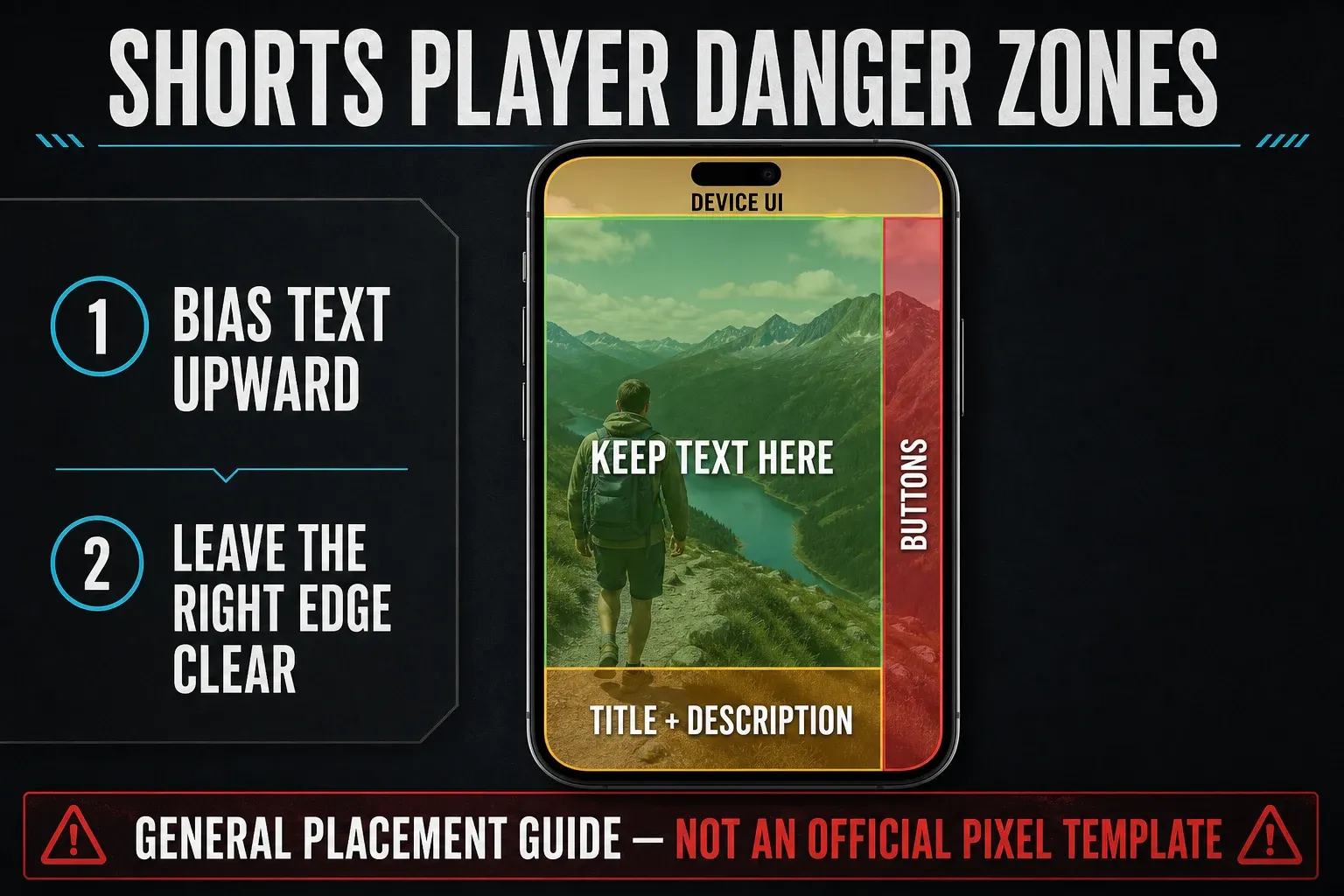
Use danger zones instead. Keep captions, logos, prices and calls to action away from the bottom metadata area and the right-side control column. Bias the most important material toward the upper center of the frame. Leave more space than one static screenshot suggests, because shopping labels, remix buttons and other features can change what appears on an individual Short.
Tap the description open during your check. The expanded panel can cover substantially more of the lower frame than the collapsed player. YouTube began rolling out Clear Screen in June 2026, which lets a viewer hide interface elements temporarily. That is useful for viewing, but a creator can't assume every viewer has it or chooses it. Safe placement still has to work in the default player.
For an important upload, make an unlisted test and inspect it in the current YouTube app. Check the description collapsed and expanded, and watch once while signed into the publishing account and once in a normal viewer state if practical. A real-player test catches more than an overlay saved months ago.
CapCut Auto Captions for YouTube Shorts
Two different caption layers are often confused. CapCut's styled auto captions are burned into the exported picture. Viewers can't switch them off. YouTube's native closed captions are a separate subtitle track with a CC control and accessibility options. They can coexist: one carries the visual style, while the other gives the viewer control.
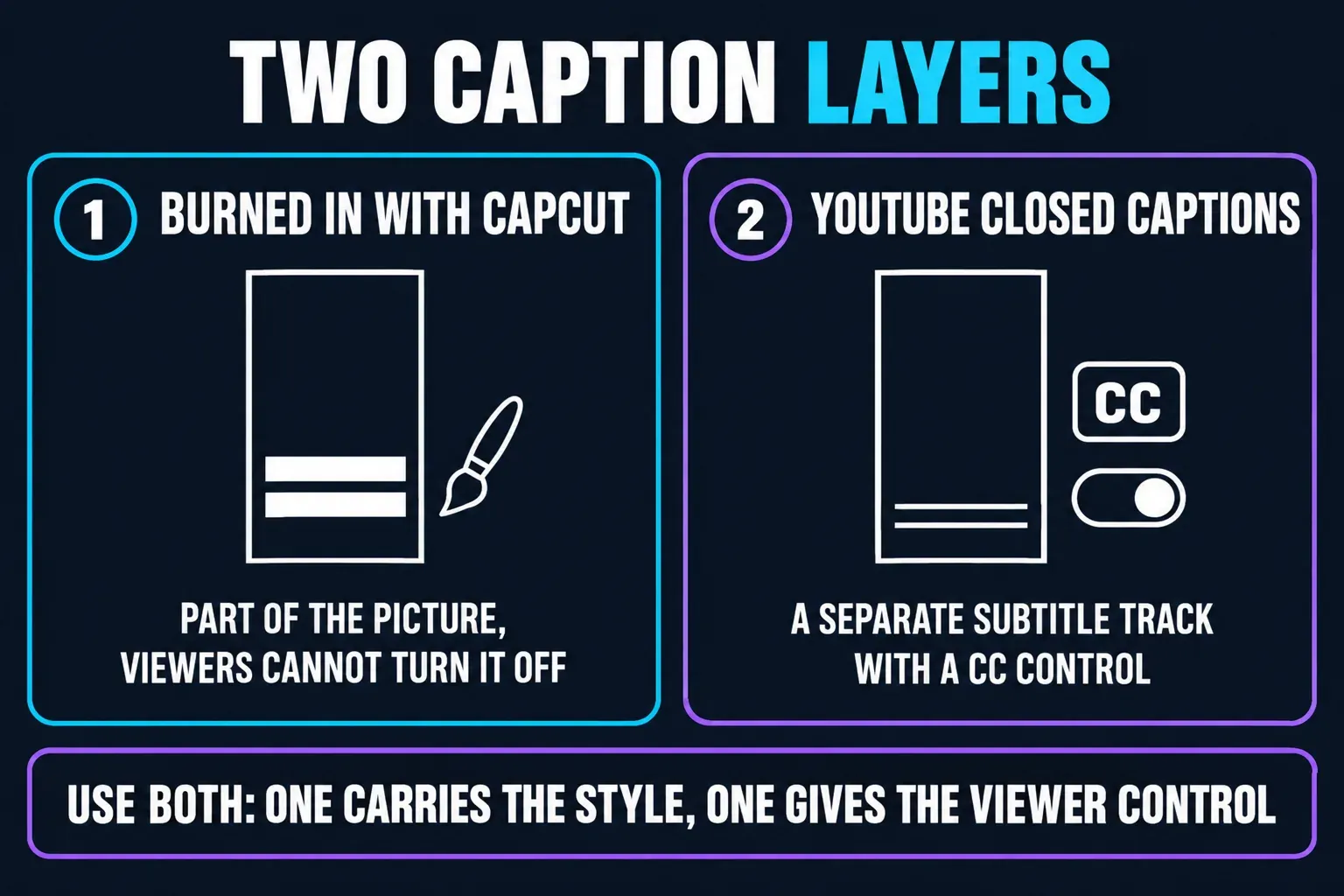
Generate CapCut captions after the main cuts, silence removal and speed changes are settled. CapCut's caption workflow supports correction, resegmentation and re-recognition across Mobile, Desktop and Web. For better recognition, keep the voice clear and temporarily mute music or competing audio. Then review every segment, restore the mix and play the full Short once more.
- Wrong or missing words: confirm the language, isolate the voice and re-recognize the affected segment.
- Words appear at the wrong time: regenerate or split and re-time the captions after the cut is locked.
- Correct text is hidden on YouTube: move the block up and left, then test the uploaded Short in the real player.
- Readable on desktop but tiny on a phone: preview at phone size and simplify the caption to one or two short lines.
If you already have an SRT file, CapCut documents direct subtitle import on Desktop and Web, not Mobile. Mobile can edit captions after a project is synced. For styling, translation and current feature availability, use the full CapCut auto captions guide.
CapCut Export Settings for YouTube Shorts
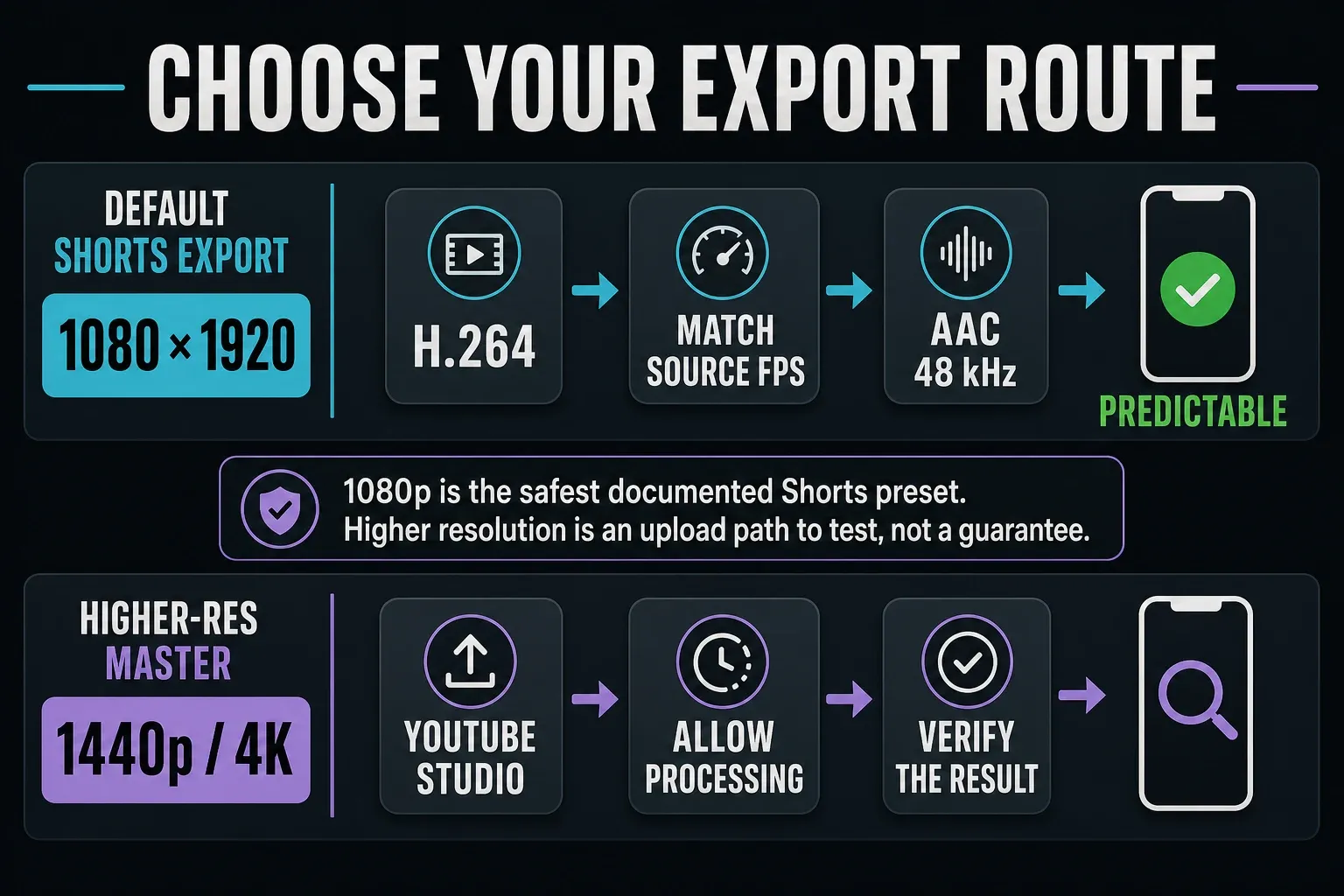
Use 1080 x 1920 for the predictable default. Export H.264 in MP4, match the source frame rate, use AAC audio at 48 kHz, and keep SDR exports in BT.709. At 1080p, YouTube recommends about 8 Mbps for 24, 25 or 30 fps and about 12 Mbps for 48, 50 or 60 fps. Those are recommended ranges, not a demand to hit an exact number.
If CapCut only offers quality labels such as Recommended or Higher, choose the setting that produces a sensible file near YouTube's range. Pushing the slider to its maximum increases size and upload time but can't prevent YouTube from re-encoding the file. Don't convert 24 fps footage to 60 fps in the hope of creating real motion detail; match what the camera recorded.
Can you upload a 4K YouTube Short?
YouTube's Shorts creation help says 1080p is the maximum resolution in that workflow. Its general upload documentation, however, includes 1440p and 4K recommendations and says the player adapts to vertical video. It is therefore too broad to say that YouTube can't accept a higher-resolution vertical Short at all.
If a higher-resolution master matters, upload it through YouTube Studio, allow the high-resolution versions to finish processing, and verify both classification and playback on the actual channel. Don't assume a direct-share route or every account state will behave identically. For most phone-shot material, 1080 x 1920 remains the faster, smaller and more predictable choice.
If the uploaded video looks soft, wait for the 1080p or higher rendition to finish before judging it. If CapCut itself can't finish the render, try our fixes for a stuck CapCut export. Our full breakdown of CapCut export settings covers other platforms and desktop-specific decisions.
Share From CapCut to YouTube Without Losing the Master
Direct sharing is a convenience, not the foundation of the workflow. CapCut's current sharing support page discusses YouTube as one possible destination, but it is not a guarantee that every Desktop, Web or Mobile build exposes the same button in every region and account.
- Finish a local export first and play it outside CapCut.
- If YouTube appears in the destination list, use it only after the local file is safe.
- If authorization fails or the destination is missing, upload the file through the YouTube app or YouTube Studio.
- For a higher-resolution test, prefer Studio so you can observe processing and inspect the result directly.
If a handoff fails, check storage, update CapCut, reconnect the account and use a stable network. On Web, a private window can rule out an extension conflict. On mobile, clear only CapCut's in-app cache if necessary; clearing operating-system app data can remove local drafts. Don't disable security software merely to force a social handoff. Once the local file exists, manual upload is usually faster than prolonged troubleshooting.
YouTube Shorts Length and Music: The One-Minute Boundary
The old 60-second ceiling is outdated. For standard channels, YouTube says square or vertical uploads made on or after October 15, 2024 can be categorized as Shorts when they run three minutes or less. For Official Artist Channels and channels linked to a music Content Owner, the corresponding cutoff is December 8, 2025. CapCut's timeline doesn't decide the classification; YouTube does after upload.
Three minutes is permission, not a recommendation. Use the shortest runtime that finishes the idea. Since March 31, 2025, YouTube counts a Shorts view when playback starts or restarts without a minimum watch-time requirement and keeps the older behavior as Engaged views. Compare Engaged views, average percentage viewed and retention across your own videos instead of copying a universal “ideal length.”
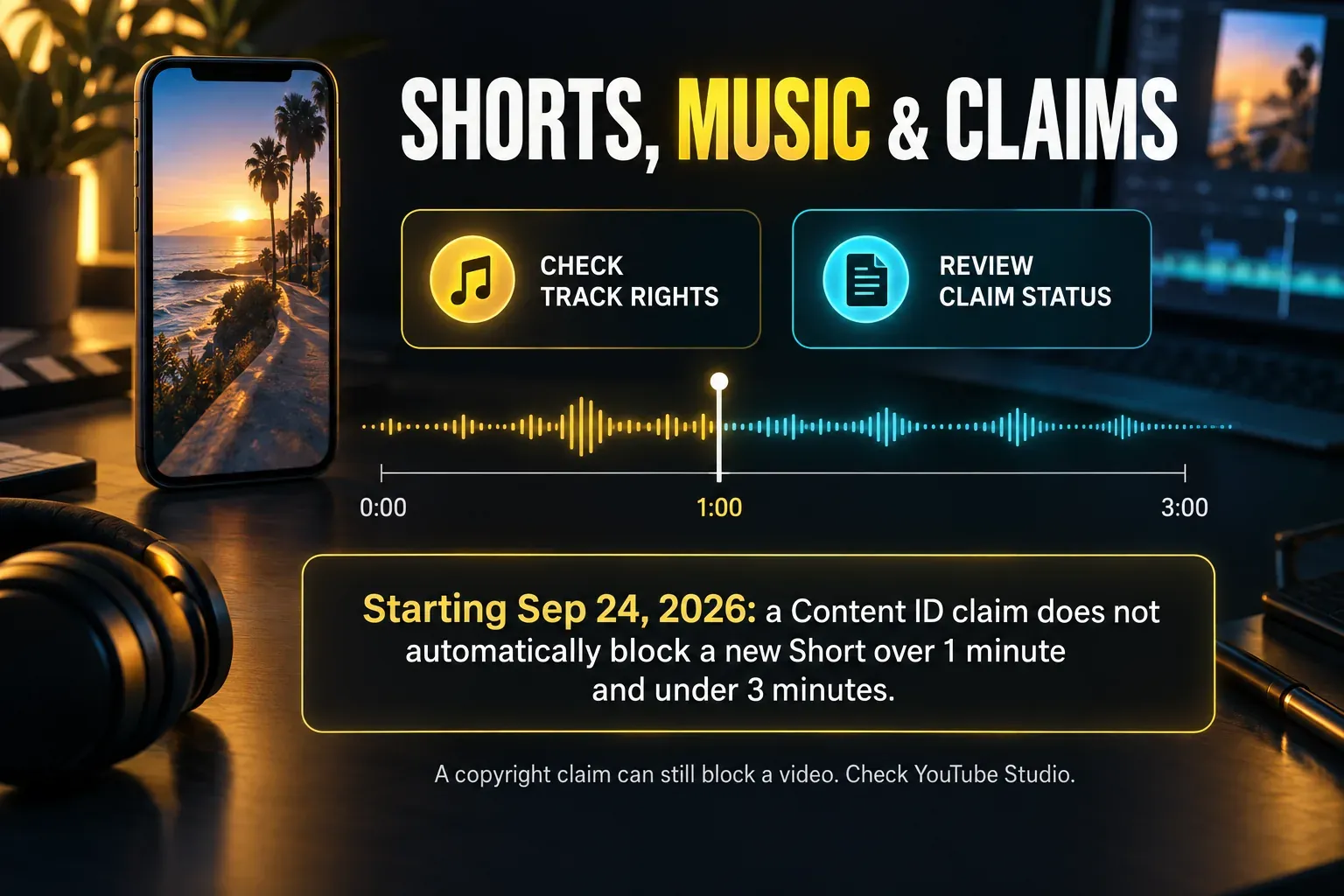
Starting September 24, 2026, YouTube’s three-minute Shorts guidance says new Shorts longer than one minute and under three minutes with an active Content ID claim are no longer automatically blocked and may remain playable. A particular copyright claim can still block a Short; check YouTube Studio before relying on playback or monetization.
Most eligible songs in YouTube's Shorts Audio Library can be used for up to 90 seconds in a three-minute Short; some allow only 60 or 30 seconds, and the selector shows the available duration. YouTube's royalty-free Audio Library is another route. Its current help says those tracks don't receive Content ID claims.
Don't assume a song is cleared for YouTube because it appears in CapCut. The current CapCut Materials License Agreement distinguishes ordinary Sounds from Commercial Sounds. Its named commercial-use platforms don't include YouTube, so a YouTube upload needs rights that cover YouTube or a track added through YouTube's own eligible library.
Before You Publish a CapCut YouTube Short
- The canvas is intentionally 9:16 or square, and every shot has been reframed rather than stretched.
- Captions and calls to action stay clear of the bottom metadata and right-side controls.
- The uploaded test has been checked with the description both collapsed and expanded.
- The local export plays correctly outside CapCut, including its final seconds and audio.
- Resolution, frame rate, codec, audio and color choices match the real source and upload route.
- Any higher-resolution upload has finished processing and been verified in the actual Shorts player.
- Check that each music track is licensed for YouTube and review any claim in YouTube Studio. For a new Short longer than one minute and under three minutes, a Content ID claim no longer causes an automatic block, but a particular copyright claim may still block playback.
- No unexpected ending card or asset watermark remains. If one appears, identify the type before using the CapCut watermark guide.
- If sound disappears after export, diagnose it with the CapCut no-sound checklist before uploading again.
- A local master is saved even if direct sharing succeeds.
CapCut for YouTube Shorts FAQ
Does CapCut have an official YouTube Shorts safe zone template?
Not one backed by a fixed pixel specification from YouTube for every organic Shorts player state. Google's downloadable vertical safe-zone overlay is documented for video ads. Keep text away from the bottom metadata and right-side controls, then verify an uploaded Short in the current YouTube app.
What resolution should I export CapCut YouTube Shorts at?
Use 1080 x 1920 for the most predictable full-screen vertical result. YouTube's Shorts creation help documents 1080p, while its general upload guidance supports higher resolutions. If you need a 1440p or 4K master, upload through Studio, allow processing and verify the actual result rather than assuming every route behaves the same.
Can I share directly from CapCut to YouTube?
Sometimes, depending on the CapCut build, region and account. Save and play a local export first. If YouTube is missing from the destination list or authorization fails, upload the file through the YouTube app or YouTube Studio.
Why are my captions hidden on YouTube Shorts?
Correct text can still be covered when it sits too close to the bottom title area or right-side buttons. Move burned-in captions toward the upper center, keep them to one or two short lines, and test the uploaded Short with the description expanded.
Why are CapCut auto captions wrong or out of sync?
Recognition errors usually come from noisy or muted speech, the wrong language, network trouble or generation before the edit was locked. Isolate the voice, choose the correct language, regenerate the affected segment and review timing after all cuts and speed changes.
How long can a YouTube Short be in 2026?
Up to three minutes for qualifying standard-channel square or vertical uploads made on or after October 15, 2024. The best runtime is the shortest one that completes the idea; YouTube doesn't prescribe one universal ideal length.
Do I need #Shorts for YouTube to classify the video?
YouTube's classification guidance doesn't list the hashtag as a requirement. Aspect ratio, duration, upload date and channel context are the relevant documented criteria. The hashtag can still be used as metadata, but it is not the classifier described in the current help.
Can a square CapCut video become a YouTube Short?
Yes. Current YouTube guidance covers square as well as vertical uploads up to three minutes when the other eligibility conditions are met. A 9:16 canvas remains the better default when you want to fill the mobile player.