

Choose Kdenlive when you want a free desktop workspace for organizing footage, revising longer edits and keeping several versions inside one project. Choose CapCut when editing on a phone or using a particular social template, caption style or effect is central to the job. Both have manual editing tools and automatic speech-to-text options. Neither choice depends on claiming that one is a “real” editor and the other is only for TikTok.
I'd start with what happens after the first cut. Do you need to revisit scenes and reuse material across episodes, or turn a phone clip into a specific short-form treatment? That question is more useful than counting filters. Our alternatives hub covers the wider shortlist if neither editor matches your requirements.
Where Kdenlive has a clear reason to be on the shortlist
Kdenlive's official project page describes a free, open-source editor with bins, tags, nested sequences, subtitles, scopes and proxy editing. The stable download page offers Linux, Windows and macOS packages. Kdenlive is a desktop choice. Those downloads don't offer a native phone editor.
That matters if Linux is your everyday workspace or you want to avoid an editor subscription. Free software still leaves you responsible for the rights to footage, music, fonts and other material, and it doesn't turn a copyrighted song into something you can publish commercially.
Stick with the stable release instead of treating a daily build as a shortcut to a dependable deadline setup. The download page warns that daily builds can be unstable and corrupt existing projects. Keep a separate backup whenever you move an important edit between versions.
CapCut is a stronger starting point when the job needs its mobile workflow or a treatment you've already found there. Its desktop editing guide also documents manual tools, including keyframes, masking and color adjustment. A long YouTube video alone isn't a reason to leave CapCut.
The purchase question is narrower: which features and materials does this project need? CapCut's watermark guidance separates eligible free projects from premium elements and template conditions. Find the item that's blocking delivery instead of assuming every export needs payment. The Free-versus-Pro comparison handles that decision in more detail.
Several edits can live inside one Kdenlive project
Kdenlive's sequence documentation explains a useful organizing feature: one project can contain several timelines, called sequences. You can keep a rough cut, a revised cut and reusable sections together, then place one sequence inside another.
In an educational series, that could mean keeping an introduction, a main lesson and a closing section organized separately before you assemble a master edit. That's one possible arrangement. You don't have to split every small video into several timelines.
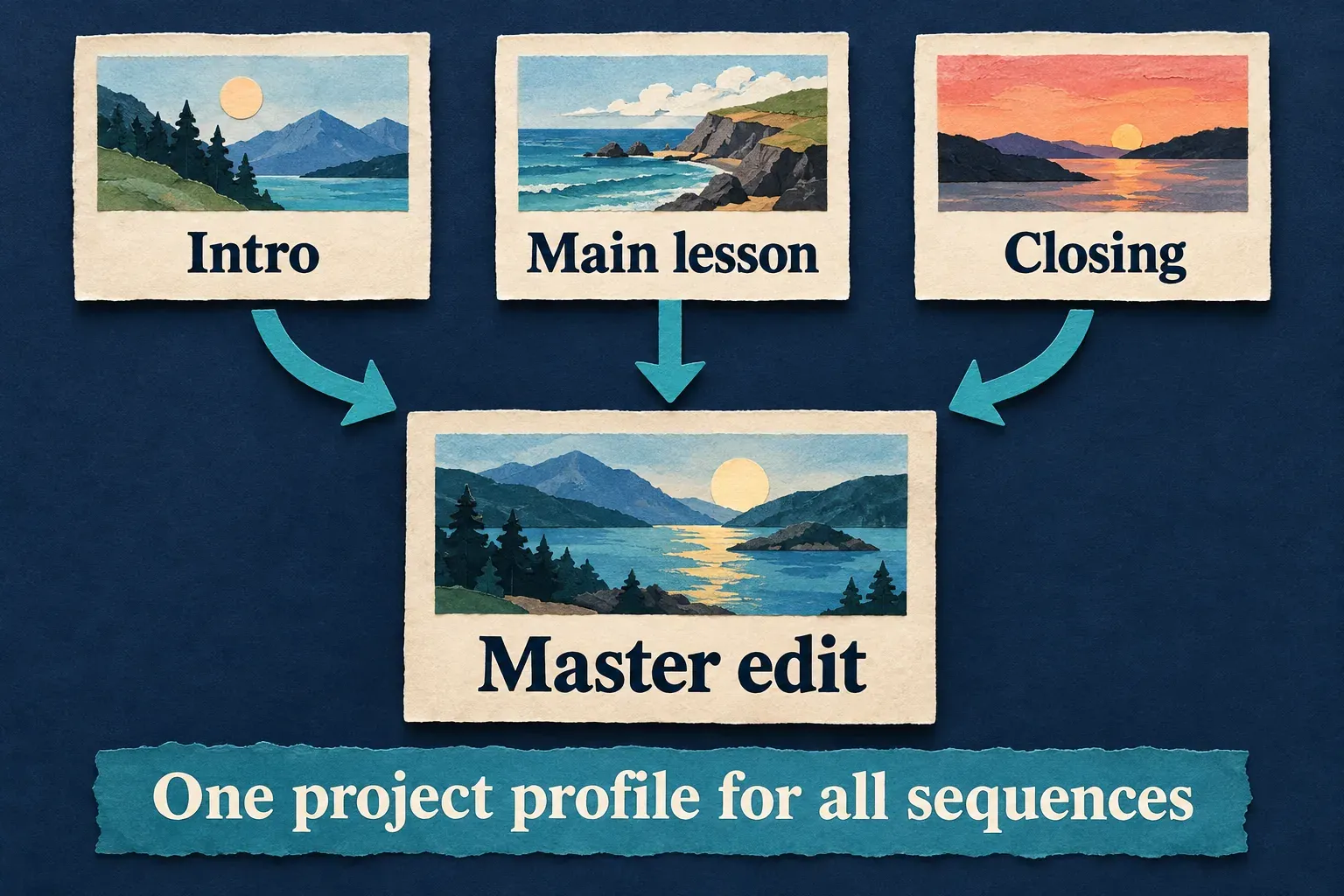
Two conditions matter here. A nested sequence is a reference to the original sequence, so changing the original updates each place where it's used. All sequences in the project also share the same project profile. Don't assume a horizontal lesson and a vertical social cut can each have unrelated project settings just because they sit in different tabs.
You can render sequences independently, but the manual says they can't be saved as separate projects or copied directly from one project to another. Decide what belongs together before you rely on sequences to organize the work.
That's why I'd consider Kdenlive for an edit with reusable sections and several revisions. CapCut may still be the easier choice for your particular template-led deliverable. The deciding factor is how you want to organize the work, not a blanket claim that CapCut can't handle complex edits.
Automatic subtitles exist, but setup matters
Kdenlive's speech-to-text guide documents VOSK and Whisper support. Speech transcription can create subtitles. It can also help you select portions of a Project Bin clip and insert them into the timeline. That second use helps you choose the footage that belongs in the edit.
The plugin configuration guide spells out the preparation: the speech engine needs its dependencies and a downloaded model. Packaging and hardware support affect which setup is available. Don't expect a freshly opened editor to have every transcription component ready, and don't assume every computer offers the same GPU acceleration.
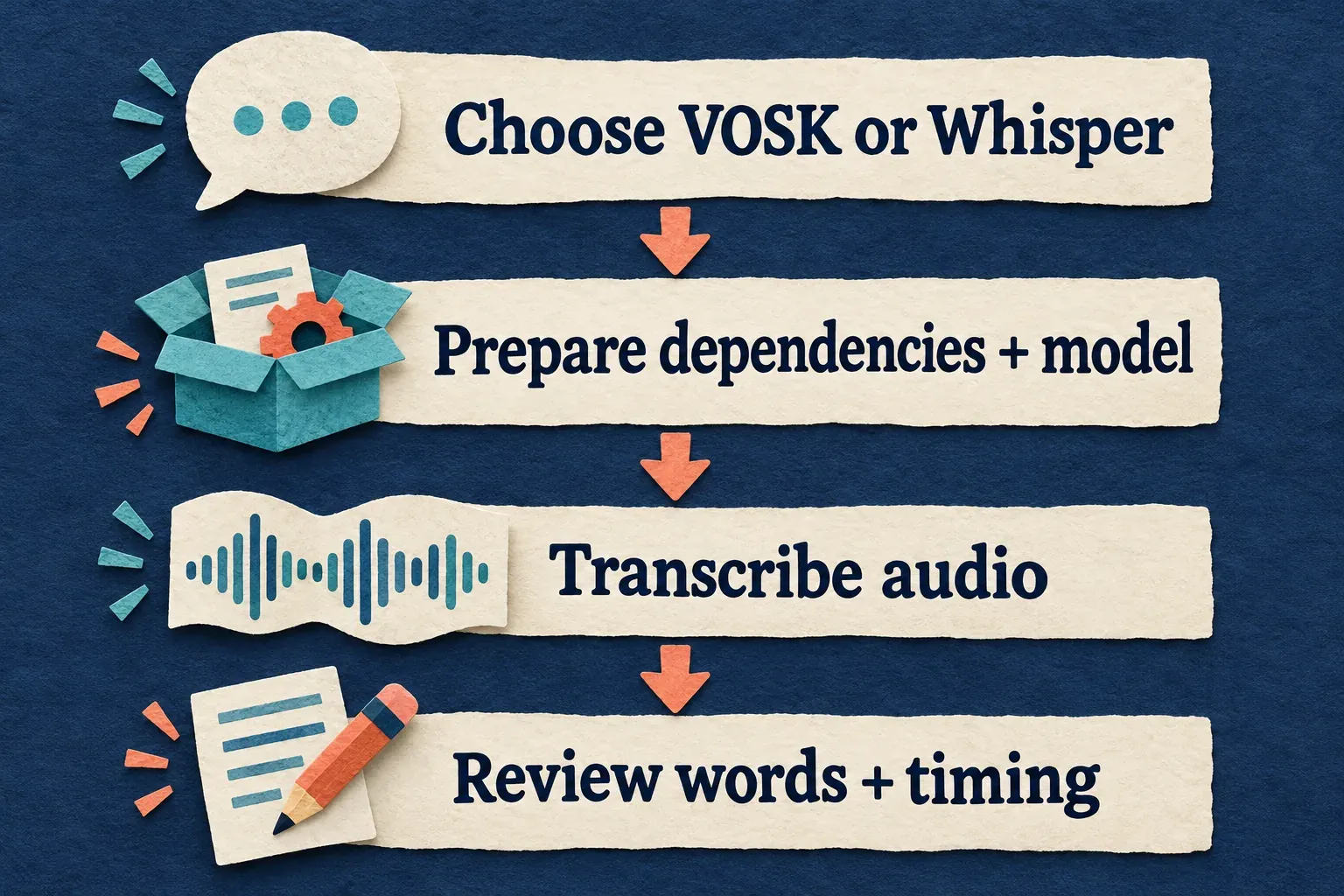
Transcribing a clip isn't the same as automatically getting the finished caption style of a CapCut template. Think of the words, their timing and their appearance as separate jobs. Names, punctuation and noisy speech need review whichever editor you choose.
According to the manual, transcript-based clip insertion only works with clips in the Project Bin. Subtitle generation has its own clip or zone choices. Details like these matter more than a comparison table that just puts a tick beside “AI.”
If a particular animated caption treatment is the reason for the video, I'd check that requirement before switching. The CapCut auto-caption guide explains how to generate and edit them. Neither speech engine has a documented, universal accuracy win over CapCut here.
A first-time caption check
Maker Signal's October 10, 2026 Windows check used one first-time operator, one run per editor and a 134-word caption script. The machine ran Windows 11 Pro with a Ryzen 9 8940HX, RTX 5060 Laptop GPU with 8GB VRAM and 32GB RAM.
| Editor | Reported caption outcome | Help lookups |
|---|---|---|
| CapCut Desktop Pro | Captions generated; 0 wording errors reported by visual comparison | 0 |
| Kdenlive Free | Caption task not completed | 10 |
This is one operator's first-run result. The report does not identify the editor builds or Kdenlive's selected engine and model. Its wording check does not measure caption timing or establish a word-error rate.
I'd use that result as a setup warning: when ready-to-use captions decide today's delivery, CapCut is the stronger starting point. For Kdenlive, finish the engine and model configuration on a spare project before moving the job.
Preview shortcuts do not define final quality
Kdenlive's proxy settings let you work with reduced copies of source clips. According to the documentation, normal full-resolution rendering replaces those copies with the originals. Keep the original media. A smaller proxy can't stand in for the footage you want to preserve.
The rendering dialog has an exception. Use Proxy Clips and Render at Preview Resolution are deliberate choices for quick review renders. For a full-quality delivery, check those options along with the output preset and render range. Selected zone can also render only part of the edit when you wanted the whole video.
A lighter preview doesn't prove the final render will be faster, and free software doesn't remove the cost of decoding demanding footage or applying effects. I wouldn't promise that Kdenlive will fix an old laptop's performance without knowing the media, layers, hardware and output settings. The same caution applies to CapCut.
If you're weighing a switch, check one representative section: whether its effects can be rebuilt, whether subtitles can be presented acceptably and which delivery format the destination needs. Keep the existing project until you've settled that decision.
An archive and an MP4 preserve different things
Kdenlive's Archive Project feature copies project dependencies into a folder or compressed archive and updates media paths to the archived copies. That's useful when you want to move or preserve editable work. The option to archive only timeline clips is narrower. Media outside the timeline may stay unarchived.
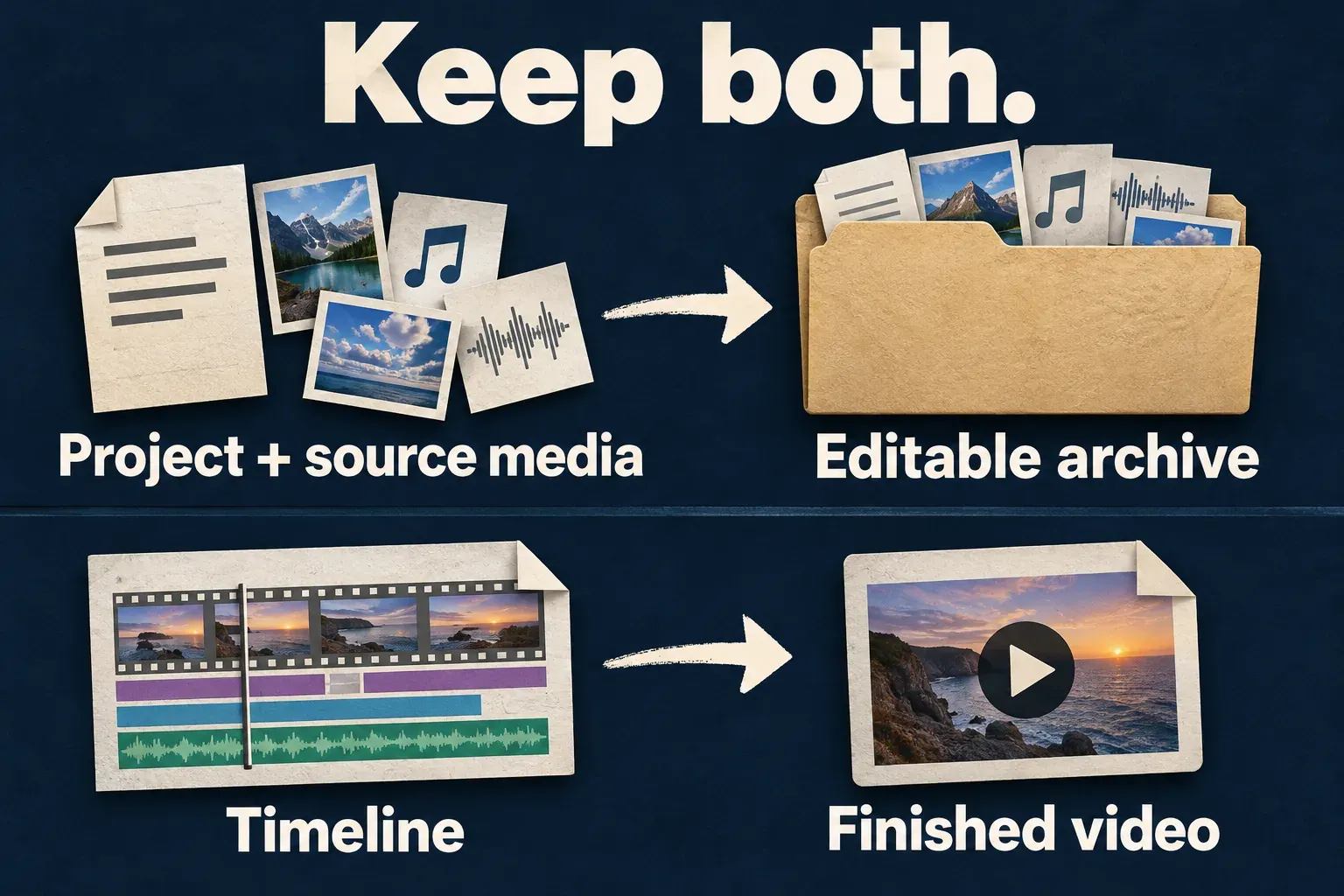
Rendering gives you a video to watch or deliver. It doesn't preserve the editable arrangement of titles, cuts and effects in another editor. CapCut's project-file transfer guidance says direct third-party project-file import and export aren't supported. An MP4 can carry the finished picture and sound into Kdenlive. That file won't become the original layered CapCut project.
Before you rebuild, keep the CapCut project, original media, available subtitle files and a reference video. Our project-safety hub covers the wider dependency checks. For work that stays in CapCut, the export-settings guide covers delivery choices.
I recommend Kdenlive when Linux, avoiding a subscription and organizing reusable desktop edits are the reasons to change. Stay with CapCut when mobile access or a specific prepared treatment solves your next job. Base the choice on those requirements, and keep enough of the old work to change your mind.