

Shotcut makes sense when you want a free desktop editor, especially on Linux, and are willing to assemble the edit yourself. CapCut makes sense when the job depends on a phone, a specific template or a caption treatment you already use. Both can cut a long video, layer picture and sound, and produce subtitles. The difference is what you need around those editing tools.
I'd choose by the next deliverable. A spoken tutorial with modest titles isn't the same job as recreating a particular animated Reel. Leaving a paid CapCut effect behind can save money, but it can also mean rebuilding that look instead of finding an identical free button.
What you get without a subscription
The Shotcut in this comparison is the desktop project at shotcut.org. Its official download page offers Windows, macOS and Linux builds. A phone app with a similar name isn't evidence that this desktop editor has a matching Android or iPhone version.
Shotcut is free and open source, and it isn't a trial that leads to a paid editor tier. Its licensing FAQ permits commercial use under the GPL. That covers using the software. You still need the appropriate rights to the footage, music, fonts and other materials in the video.
You don't need to buy an editor subscription to unlock a normal Shotcut export. An older watermark answer on the Shotcut forum confirms the program doesn't add a watermark. That doesn't erase branding already baked into stock footage or an imported video.
CapCut has eligible free tools as well as paid features. Its watermark guidance shows why the conditions matter: an eligible project can export cleanly, while premium materials and templates can change access. Before deciding your whole editing setup needs replacing, check the exact element that's stopping your export. Our Free-versus-Pro guide covers that purchase decision.
For local work, Shotcut's network and privacy answers say the software needs no network connection for activation, subscription checks or usage analytics. Those answers also distinguish the software's privacy policy from app stores and other distributors. Downloading a speech model or following an online help link is a separate network activity, so don't read “local editor” as “nothing ever connects.”
Shotcut has automatic subtitles too
“CapCut has AI captions; Shotcut has none” is an outdated comparison. Shotcut's Speech to Text documentation describes Whisper-based transcription into its Subtitles panel. You can generate text, correct the words and adjust timing instead of typing every sentence from scratch.
There's a setup distinction here. The model-downloader release note says the model is downloaded separately through the Speech to Text dialog instead of being bundled with the editor. Get that download done before you rely on transcription somewhere without internet access. Use a current release: the September 2026 security update fixed problems in upgrade and speech-model downloads.
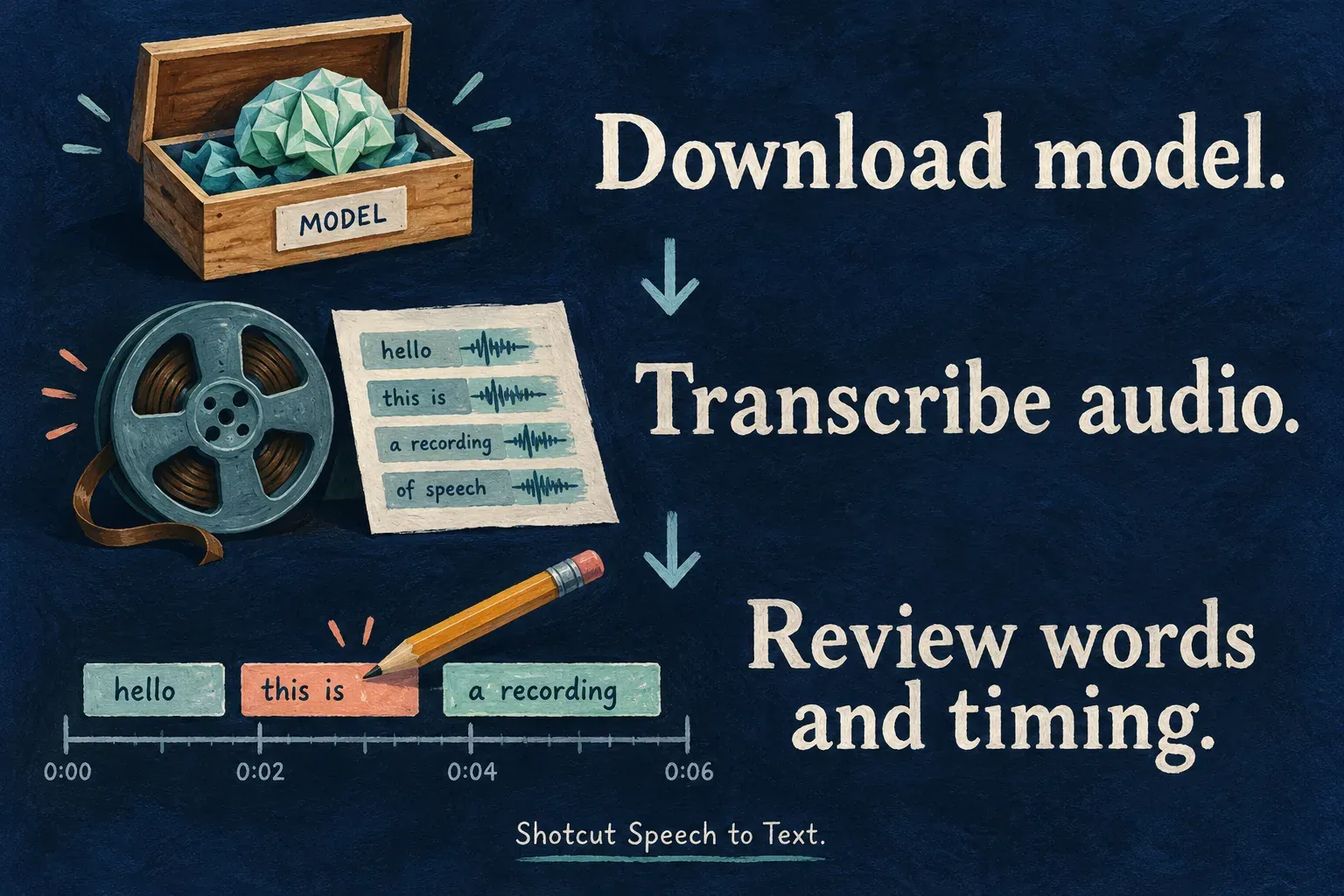
The transcript doesn't guarantee perfect names, punctuation or timing. Nor does transcription promise the animated styling you saw in a CapCut video. For that decision, separate recognition, correction and presentation. If a particular CapCut preset is the reason you're editing the video, staying in CapCut may be the more practical choice. The CapCut auto-caption guide explains its surrounding workflow.
Old Shotcut instructions can also overstate hardware limits. Its April 2026 update added Vulkan GPU support for speech recognition on Windows and Linux. That's a capability to check on your own system, not a promise that transcription will be instant or faster than CapCut.
Manual editing is not a second-class option
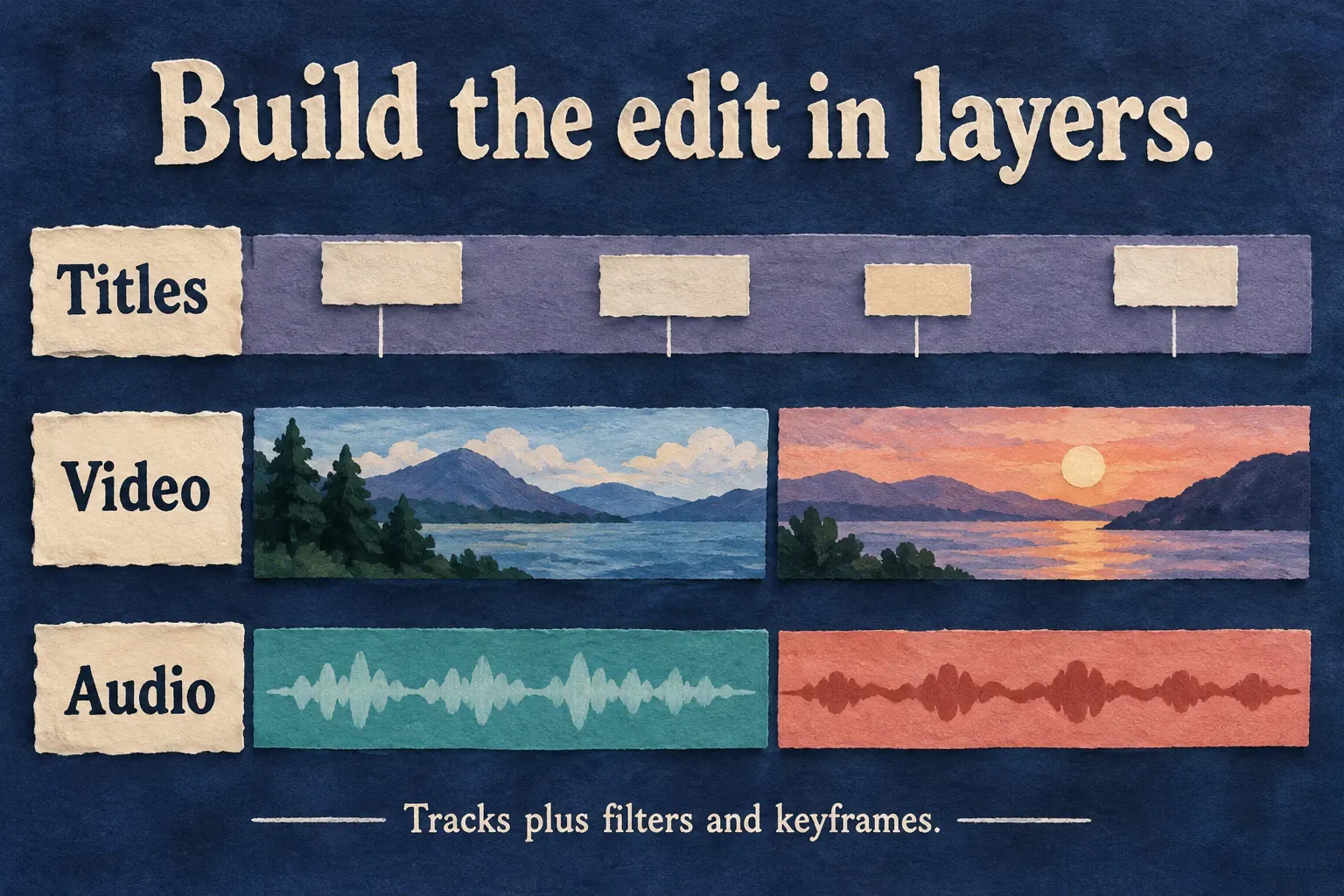
Shotcut's current feature list includes a multitrack timeline, keyframes, masks, motion tracking, color tools, scopes, audio filters and subtitle import/export. The list now also names bundled assets and automatic audio ducking. Calling Shotcut a bare cutter with no automation undersells what's available.
Shotcut's strength for a straightforward desktop job is building the edit from parts. Put titles over the picture, keep narration and music separate, and adjust the relevant clip or track. You need to understand the arrangement and the filters instead of assuming a prepared social template will make those decisions for you.
CapCut Desktop also has manual controls. Its desktop editing guide documents keyframes, masks, color adjustments and audio work. You don't need to abandon CapCut just because the video is for YouTube instead of TikTok.
For a lesson, recap or simple montage, I'd seriously consider Shotcut if dropping the subscription is the main goal. For a phone edit or a video tied to a specific CapCut effect, I'd start with CapCut. Neither conclusion requires calling one editor “professional” and the other a toy.
A lighter preview is different from a better export
Free software doesn't make demanding footage easy on every laptop. Resolution, codec, frame rate, layers and effects all affect how much work your machine has to do. Shotcut's minimum requirements are a starting condition, not evidence that a complex 4K project will feel comfortable.
Two tools address different parts of preview work:
- Preview Scaling reduces the resolution used for preview processing.
- Proxy editing uses smaller working copies of the source media.
Shotcut's proxy documentation explains how these work together and how a normal final export goes back to the original or optimized media. Hold on to those files. A proxy is a working aid, not an archive that replaces your originals.
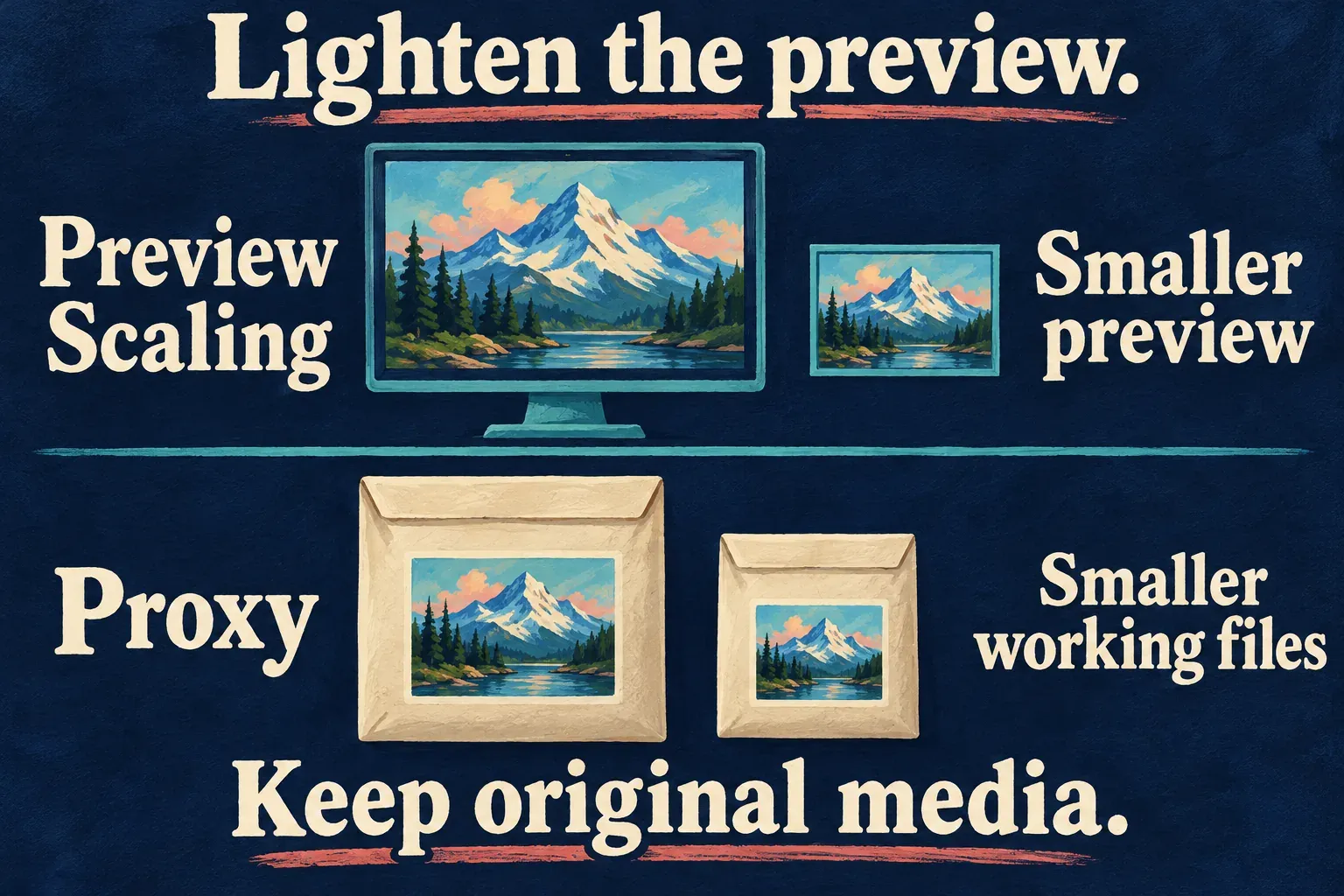
One export exception is worth checking. Use preview scaling in advanced video export deliberately uses the reduced preview resolution and proxies for a rough draft. When your final delivery needs the original resolution, save that option for review copies. Check the finished file's dimensions and appearance outside the editor.
Hardware encoding is another separate question. Shotcut's GPU explanation says using an encoder on the GPU doesn't move every filter, transition and audio operation off the CPU. I wouldn't pick between these editors based on one “faster export” claim without knowing the footage, hardware and settings behind it.
What one published export check shows
In a January 2024 export comparison, Shotcut forum contributor taraa_kuular used a 40-minute-52-second 4K clip, an audio overlay and two transitions, with both exports set to 17 Mbps variable bitrate. The desktop had a Ryzen 9 5950X, 64 GB RAM and a GeForce GTX 1660 Super 6 GB.
| Editor | Build reported by the contributor | Reported export time |
|---|---|---|
| Shotcut | 12/23/15 | 13 min 25 sec |
| CapCut | 3.2.0 | 10 min 16 sec |
Those are one contributor's historical results. Frame rate, an exact encoder-preset match and repeat counts were not reported, so the table cannot rank current releases or establish equal output quality. I'd use it as a reason to check the hardware-encoder path and export a representative section on your own machine before switching a deadline project.
Move the media, preserve the working project
Shotcut saves editable work as an MLT XML project and creates the finished video through Export. Its Save-versus-Export explanation also notes that the export source can be the timeline, playlist or an individual source. Make sure you're exporting the intended timeline instead of a selected clip.
That project isn't a CapCut project. CapCut's handoff guidance says direct third-party project-file import/export isn't supported. Import an MP4 into Shotcut and you get the rendered picture and sound, not the original editable CapCut captions, masks and effects.
Keep the working CapCut project, source media, available subtitle files and a reference export. Before moving a deadline job, rebuild a short representative section. The project-safety hub covers the broader dependency and backup checks; the export-settings guide covers CapCut delivery choices.
My recommendation is Shotcut for a free, local desktop workflow that you can build and maintain, with Linux support as a clear reason to shortlist it. Choose CapCut when its device access or a particular treatment matters more than avoiding every paid feature. If those requirements point somewhere else, compare the remaining options in the alternatives hub.