

Choose CapCut when you want to edit on a phone or keep using a particular CapCut caption, effect or template. Consider Movavi Video Editor when your work stays on Windows or Mac and you want its desktop tools or a current-version lifetime license. Both can build layered videos. Neither wins a long YouTube edit just because one started on a phone and the other at a desk.
The purchase details can change that choice. A Movavi editor license doesn’t automatically unlock Movavi’s entire Effects and Templates libraries. With CapCut, paid features and export access also depend on what your project uses. I’d settle the required output and the specific paid restriction before counting the effects in the catalog.
Compare the editors you would use
This comparison covers Movavi Video Editor for desktop and the relevant CapCut app. Movavi also offers a mobile app and browser tools, but a shared product name doesn’t establish a shared license, feature set or editable-project transfer. CapCut’s Desktop, Mobile and Web tools aren’t interchangeable either.
| Your next job | Where I would start | What could change the choice |
|---|---|---|
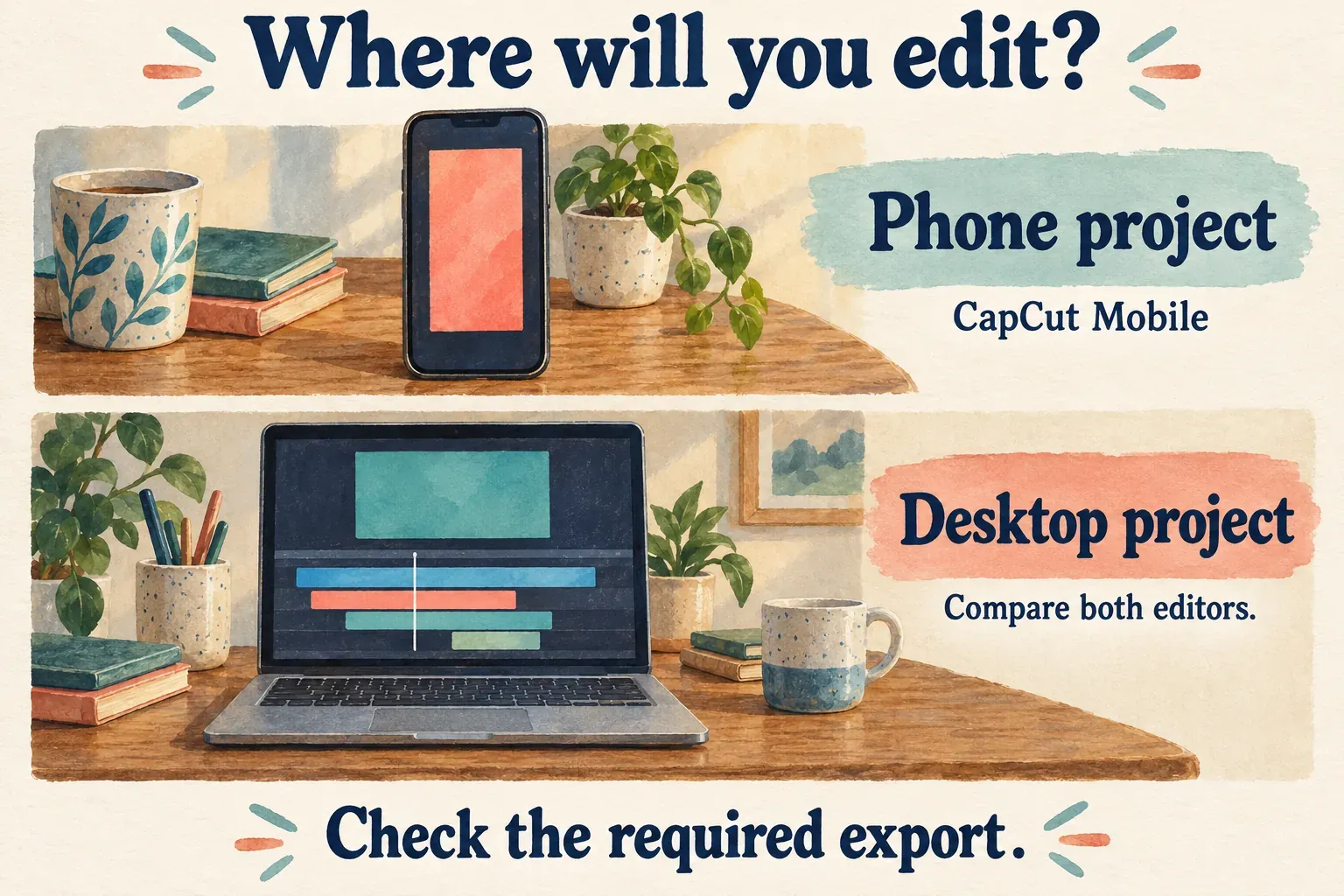
| A captioned Reel made entirely on a phone | CapCut Mobile | The caption style, template or export you need may require paid access. |
| A tutorial assembled at a desk from footage, narration and titles | Compare CapCut Desktop with Movavi Video Editor | Both have timeline tools; choose by the required feature, project handling and final export. |
| A desktop editor purchase without an ongoing base-editor subscription | Movavi’s lifetime offer, if available for your purchase | Lifetime covers the purchased current version; optional asset subscriptions remain separate. |
| An edit built around a specific CapCut template or effect | Keep the working CapCut version | Another editor does not reproduce that editable treatment by opening an MP4. |
| A genuinely free desktop editing setup | Check CapCut’s eligible free tools, then the wider alternatives | Movavi’s free/trial build can restrict output; another free editor may fit better. |
For CapCut, the documented Desktop tools include keyframes, masks, color adjustments, speed curves and audio controls. The app is a manual editor as well as a route to templates, and you don’t have to abandon it because your video runs longer than a Short.
Movavi’s current desktop feature overview lists cuts, overlays, color correction, audio tools, automatic subtitles, noise removal, tracking and silence removal. The overview also describes customizable templates made of Blocks. Those are useful capabilities to compare with your planned edit. They don’t prove faster playback or cleaner automated results.
Captions, templates and control over the edit
For a talking video, ask whether the caption tool can handle the language, names and style you need. Then think about how you’ll fix recognition errors and retime individual phrases. Automatic subtitles aren’t a unique reason to choose one of these editors. Movavi advertises them too. Whichever editor you use, review the resulting words and timing before you rely on them for a finished video.
There is useful editing evidence beyond the feature list. In his July 2026 Movavi review, George Cairns generated subtitles for an interview and reported few corrections, then adjusted their design in the editor. That is a qualitative result from one interview, not a measured accuracy rate across languages. I’d use it to shortlist Movavi for a talking video, then judge the corrections your own names, accents and background sound require.
CapCut remains the direct choice when a specific CapCut caption treatment is central to the video. Our auto-caption guide covers that task in detail. Don’t assume that a style you see in someone else’s app is free or available on every platform.
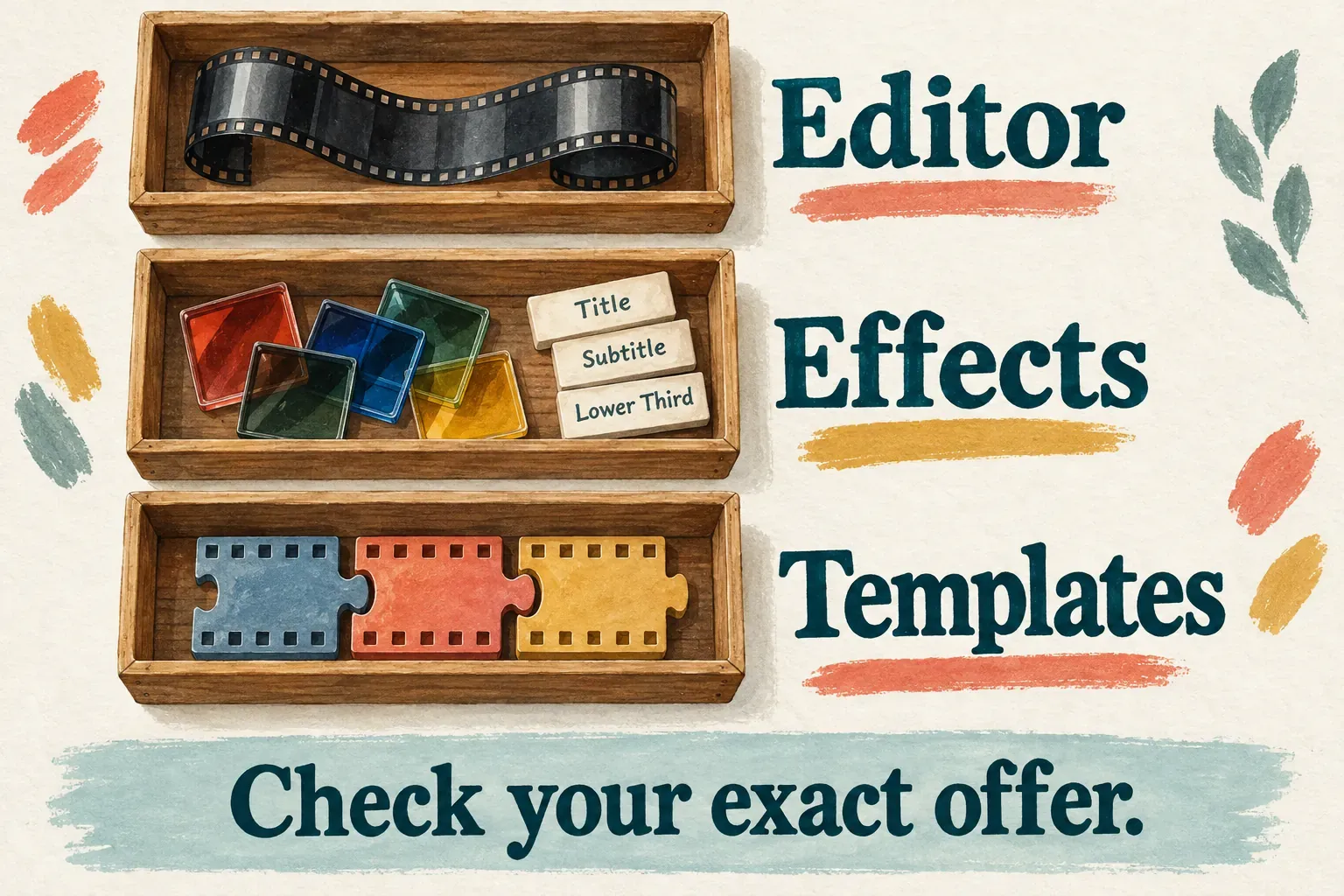
Movavi’s Blocks give you pre-edited segments you can rearrange and customize. That makes them worth considering when you want a prepared structure for a desktop lesson, recap or promo. Movavi’s template licensing guidance treats paid Templates and Blocks separately: an Editor or Effects license does not unlock the full Templates catalog. Check the particular template you want instead of counting the whole catalog as part of the base purchase.
For manual editing, both products have useful tools beyond a finished template. If your project depends on a mask, keyed animation, carefully layered audio or an exact delivery setting, write that requirement down and check how each editor implements it. Broad labels like “beginner editor” and “professional editor” don’t answer that practical question.
Compare the editor license and the extras separately
Movavi offers both subscription and lifetime options. Its license explanation defines lifetime as unlimited use of the current version, while an active subscription includes minor updates and major upgrades. Lifetime is not a promise of every future major release.
The editor you pick, Effects access and Templates access can be separate entitlements. Movavi’s watermark troubleshooting guide explains why paid effects or templates can still trigger an export restriction after you’ve activated the editor. So paying for the base editor isn’t enough to assume that every crown-marked item is covered.
An expiring subscription can matter when you come back to an old project. Movavi’s Effects license terms say subscription-based effects can revert to trial mode and affect later exports. A specific lifetime effects pack you’ve bought is a different case. It doesn’t unlock the subscription catalog.
Trials need a closer look too. According to Movavi’s trial billing explanation, the ordinary program trial doesn’t ask for payment details by default or automatically turn into a paid subscription. An Effects or Templates trial can be separate, require payment details and renew. At checkout, read every selected item, including optional trials.
For CapCut, use the Free-versus-Pro guide to assess the feature you need and the purchase route available to you. Compare the renewal terms and any usage allowance with the work you’re planning. A subscription label on its own doesn’t establish that every AI operation or future asset is unlimited.
I’d compare the full cost of the next year’s work: editor access, essential add-ons, expected renewals and the time needed to rebuild an existing edit. A short promotional price is a weak reason to choose software you’ll reopen for months.
Check the finished-file restriction before committing
Movavi’s free-version conditions describe restrictions that depend on the build. They may include a watermark, a video or audio length limit, or advanced features that aren’t available at export. Don’t assume every download is the same offer, or that a free download gives you a clean, unrestricted final file.
CapCut can export eligible projects without an added watermark, but premium content, templates and the app version can change the result. Its watermark guidance explains how branded timeline elements differ from premium assets. Our watermark guide covers the surrounding decisions. An empty-looking preview doesn’t establish access to a paid effect, and neither does deleting an outro.
Before you move a deadline project, check a short, non-confidential sample on your own setup. Include the elements that could stop delivery: captions, an overlay, a required effect, the intended resolution and frame rate, and separate narration and music. Then inspect the export outside the editor for the watermark, text, sound and timing.
Keep performance apart from feature availability. Playback and export depend on footage, effects, hardware and settings. Vendor promises and isolated user preferences don’t justify calling Movavi faster on every weak laptop, or CapCut unable to handle a long video. A minimum hardware requirement is also not a promise of comfortable 4K editing.
Switching software means rebuilding editable choices
An exported MP4 holds the rendered picture and sound. It doesn’t carry all your captions, masks and effects over as editable objects for the next editor. CapCut’s project-handoff guidance separates media transfer from third-party project-file interchange, and says direct third-party project import/export isn’t supported.
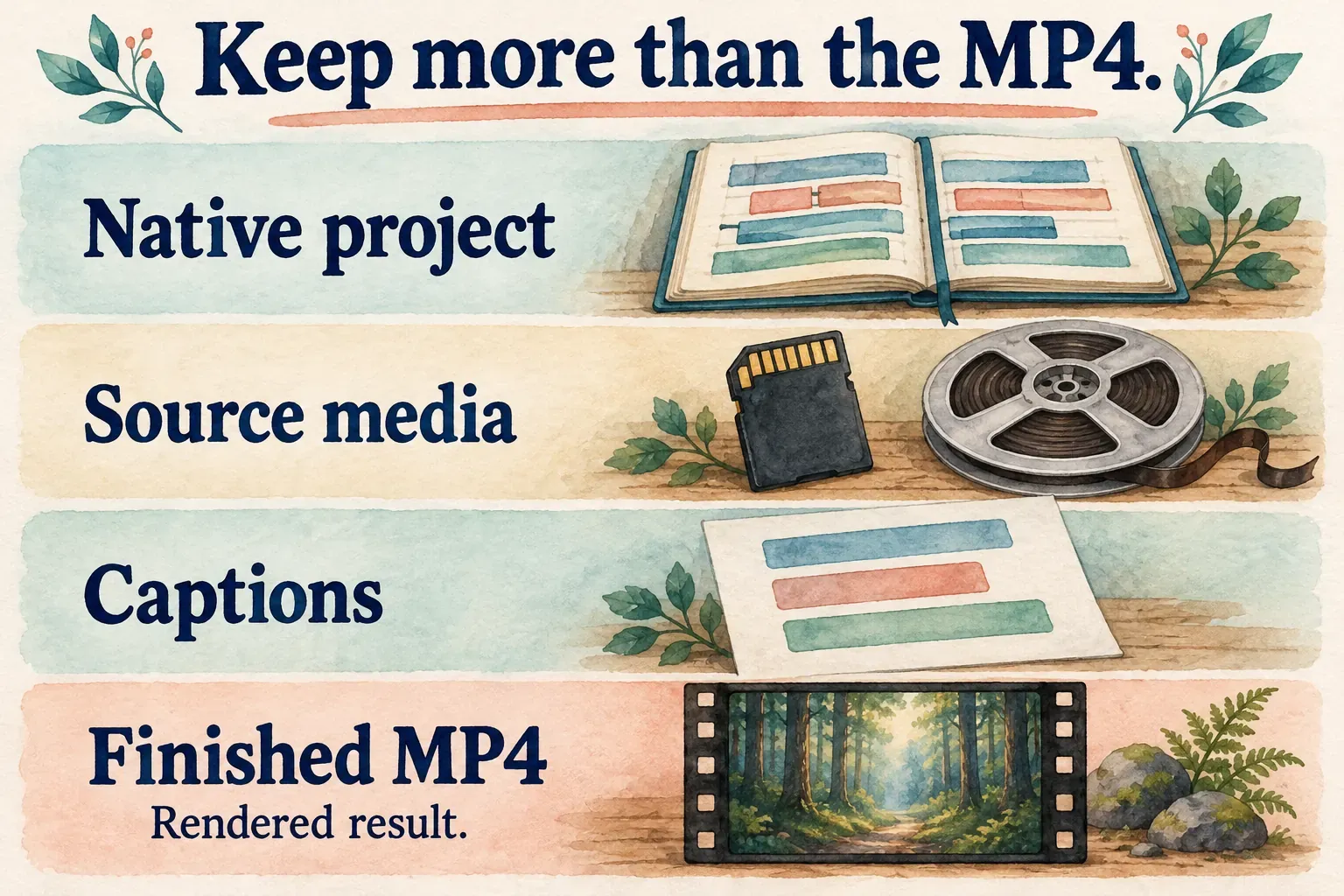
Hold on to the working CapCut project, the original footage and audio, any subtitle files you have and a reference export. Rebuild a small section in Movavi before you decide to move the whole job. Use the project-safety hub for the broader backup and dependency checks.
For business work, confirm the software license and your rights to the music, stock footage and templates. Movavi distinguishes personal and business use in its license guidance. A clean export alone doesn’t clear either product’s bundled materials for a paid advertisement or client delivery.
My choice would follow the next project. Stay with CapCut for phone editing or for a treatment you already need there. Consider Movavi for its desktop tools and the exact purchase model that suits you, once you’re clear on its extras and export restrictions. If neither fits, the alternatives hub compares other editors by task and device.